
 Thangavel E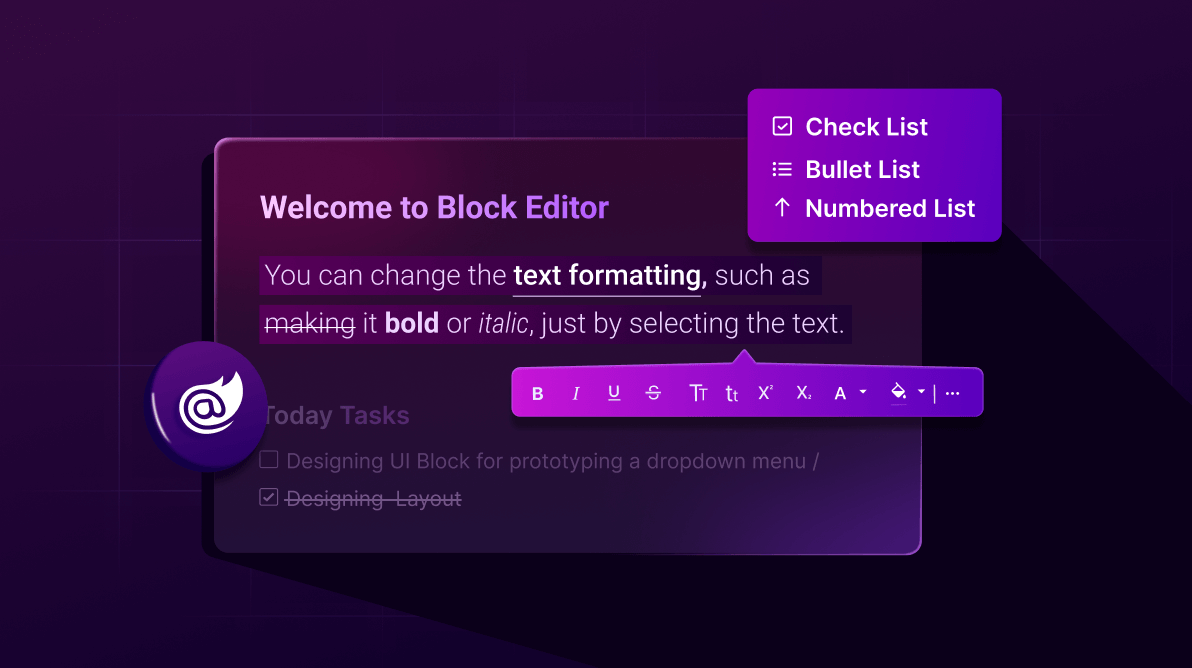
TL;DR: The Blazor Block Editor, introduced in the 2025 Volume 4 release, brings a modern block-based approach to content editing. It offers flexible blocks, slash commands, event-driven customization, and built-in accessibility. This blog shows you how to get started and make the most of its features.
Building rich, structured content in web apps has always been a challenge. Traditional editors often feel clunky, lack flexibility, and make customization a painful process. The Block Editor, introduced in the 2025 Volume 4 release for Blazor, is a modern, block-based editing experience designed for developers who want power, simplicity, and control.
In this guide, you’ll learn:
- What makes the Block Editor powerful?
- How to integrate it into Blazor Server and Blazor WebAssembly apps.
- How to customize it using events.
- Best practices for security, accessibility, and localization.
Note: The Syncfusion Blazor Block Editor component was introduced in the 2025 Volume 4 release as a preview.
What is the Block Editor?
The Block Editor organizes content as an ordered list of blocks, such as headings, paragraphs, lists, checklists, quotes, callouts, dividers, tables, images, and toggle/accordion blocks. Each block has its own schema and editable state, allowing for fine-grained control over layout, formatting, and behavior.
The key features are,
- Multiple block types: Headings (levels 1–4), paragraphs, ordered/unordered lists, checklists, quotes, callouts, dividers, tables, images, toggle blocks, and more.
- Slash commands (/): Quickly insert or transform content blocks using an inline command menu.
- Rich text formatting: Bold, italic, underline, strikethrough, uppercase, and inline code.
- Action menu: Block-level operations like move, delete, and duplicate.
- Context menu: Right-click access to common block actions.
- Inline content: Insert links, labels, and mentions directly within blocks.
- Copy & paste with formatting: Preserve styles and structure when pasting from Microsoft Word, Outlook, or other editors.
- Undo/redo: Robust history stack for controlled editing.
- Events-driven customization: Hook into events like block add/remove/update, selection change, command execution, paste, and mention selection.
- Accessibility (WCAG 2.0): Full keyboard navigation, roles, and ARIA for assistive technologies.
- Localization: Built-in localization support to adapt UI and messages to various languages.
- XSS prevention: Built-in sanitization and safe content handling.
Quick start: Add Block Editor to a Blazor App
The official Getting Started documentation provides the most accurate and detailed instructions. Here’s a quick overview:
Step 1: Install the NuGet package
Start by installing the Syncfusion.Blazor.BlockEditor NuGet package for the Block Editor. This package automatically includes required dependencies.
Step 2: Register Syncfusion services
In your Program.cs file, register Syncfusion Blazor services.
builder.Services.AddSyncfusionBlazor();Step 3: Add a Syncfusion theme
Include a Syncfusion theme in your layout file (e.g., _Host.cshtml or Shared/_Layout.cshtml).
<link href="_content/Syncfusion.Blazor.Themes/bootstrap5.css" rel="stylesheet" />Step 4: Add the Block Editor component
Place the Block Editor component in your Razor page:
<SfBlockEditor Height="700px" Blocks="@BlockDataOverview">
</SfBlockEditor>
@code {
private List<IBlock> BlockDataOverview { get; set; } = new EditorBlockData().GetBlockDataOverview();
public class EditorBlockData
{
public List<IBlock> GetBlockDataOverview()
{
return new List<IBlock>
{
new HeadingBlock
{
Level = HeadingLevel.Level4,
Content = new List<IContent> { new TextContent { Text = "💫 Overview" } }
},
new ParagraphBlock
{
Content = new List<IContent>
{
new TextContent { Text = "Provide project background, core objectives, key stakeholders, and proposed timeline here — include an inspiring quote to set the tone." }
}
},
new ParagraphBlock(), // Empty paragraph as spacer
// Goals Section
new HeadingBlock
{
Level = HeadingLevel.Level4,
Content = new List<IContent> { new TextContent { Text = "🎯 Goals" } }
},
new ParagraphBlock
{
Content = new List<IContent>
{
new TextContent { Text = "List the primary project goals and desired outcomes." }
}
},
new NumberedListBlock
{
// Start with empty items; users can add via the editor
Items = new List<ListItem>()
},
new ParagraphBlock(), // Spacer
// Team Members Section
new HeadingBlock
{
Level = HeadingLevel.Level4,
Content = new List<IContent> { new TextContent { Text = "🧑💻 Team Members" } }
}
};
}
}
}Here’s a quick demo of the Blazor Block Editor in action.

Conclusion
Thank you for reading. The Syncfusion Blazor Block Editor represents a significant advancement in structured content editing for Blazor applications. With its intuitive block-based approach, rich feature set, and seamless integration, it empowers developers to build sophisticated, user-friendly editors for a wide range of use cases. As a preview component in the 2025 Volume 4 release, it lays the foundation for even more powerful tools in future updates. Start experimenting with it today to elevate your content creation experiences!
For a hands-on look, explore our online demos and documentation of the Blazor Block Editor. You can check out our Release Notes and What’s New for the other updates in this release.
If you’re a Syncfusion user, you can download the setup from the license and downloads page. Otherwise, you can download a free 30-day trial.
Your experience matters to us. Please share your thoughts on the Block Editor:
- How easy was it to create and edit content using the Block Editor?
- What features or enhancements would you like next (e.g., drag-and-drop improvements, new block types, advanced formatting)?
- Did you face any challenges or have suggestions for improvement?
You can share your feedback in the comments below or contact us through our support forum, support portal, or feedback portal for any queries. We are always happy to assist you!


 No spam, just valuable updates.