
 Saravanan G
TL;DR: Developers struggle with bloated styles and manual formatting in web editors. The 2025 Volume 4 update for the Blazor Rich Text Editor introduces Markdown auto-formatting, interactive checklists, and secure PDF/DOCX exports with authentication to streamline your workflows.
The Essential Studio® 2025 Volume 4 update brings a series of meaningful enhancements to the Blazor Rich Text Editor, with a strong focus on editing efficiency, performance optimization, and usability improvements.
This release introduces features that simplify content creation workflows, improve handling of rich media, and provide developers with greater control over formatting, security, and export scenarios. Whether you’re building documentation tools, CMS platforms, or enterprise-grade content editors, these updates are designed to support more intuitive and reliable editing experiences.
Let’s dive in!
Markdown auto-formatting
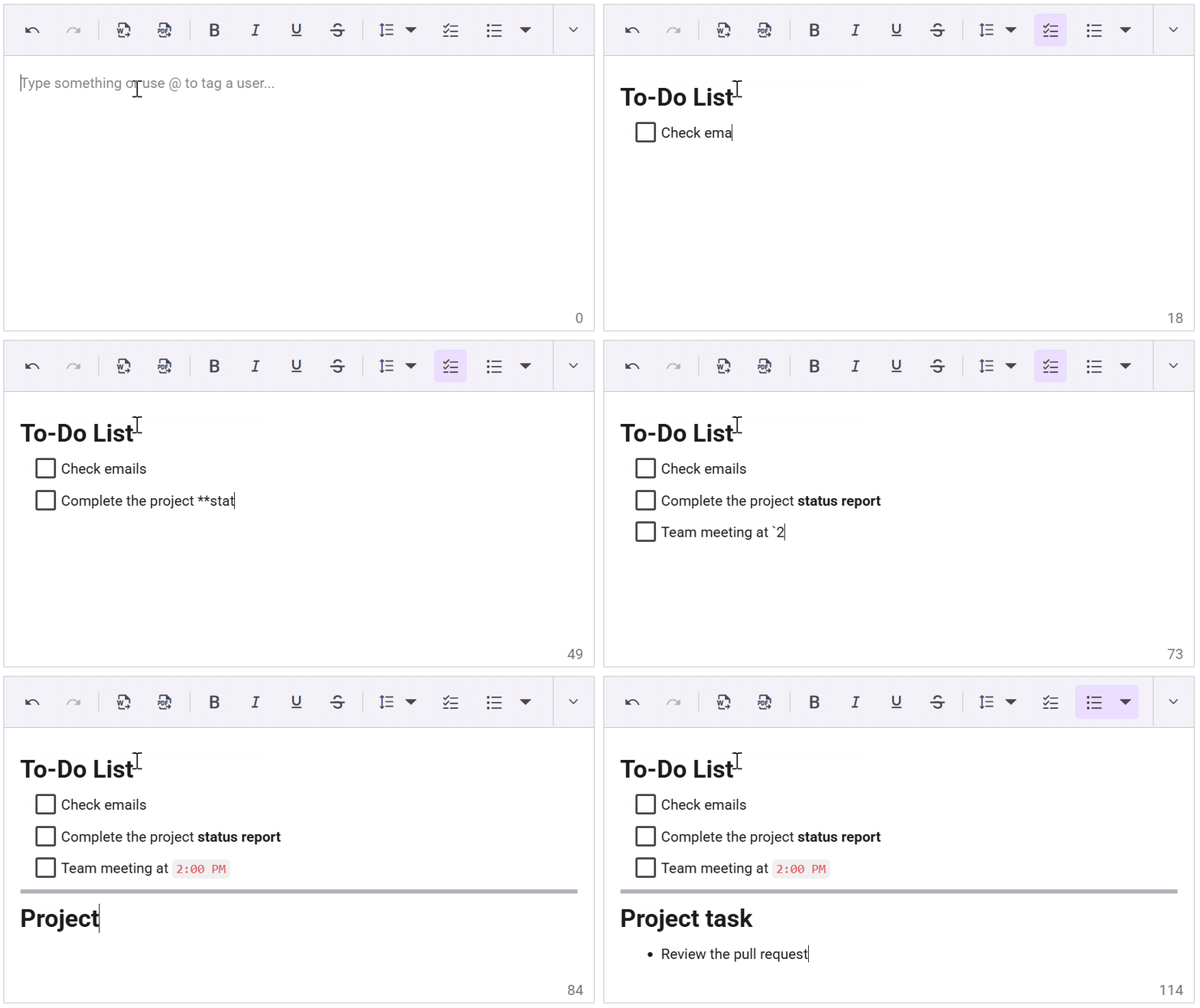
Enhance your Markdown editing experience with real-time auto-formatting feature in the Blazor Rich Text Editor. This feature instantly converts Markdown syntax into rich, formatted content as you type, retaining the simplicity of Markdown with the feel of a WYSIWYG editor.
Let’s break down how this feature works in practice.
- Inline formats (bold, italic, strikethrough, inline code) are converted immediately after typing the closing marker; no extra keystroke is required.
- Block formats (headings, lists, blockquotes, code blocks, etc.) are converted after you enter a space following the marker. This prevents premature formatting while typing.
This behavior ensures a smooth, interruption-free typing experience with instant visual feedback. The feature is enabled by default via the EnableMarkdownAutoFormat property and works seamlessly in Markdown editing mode. Explore the interactive demo to see this feature in action.
Try this in your code:
<SfRichTextEditor EnableMarkdownAutoFormat="true">
</SfRichTextEditor>
Supported Markdown formatting shortcuts
The table below lists the common shortcuts for the markdown formatting.
| Action | Shortcut |
| Bulleted list | Start a line with * or – followed by a space |
| Numbered list | Start a line with 1. or i. followed by a space |
| Checklist / To-do | Start a line with [ ] or [x] followed by a space |
| Headings (H1 to H6) | Use #, ##, ###, ####, #####, or ###### followed by a space |
| Block quote | Start a line with > followed by a space |
| Code block | Start a line with “` followed by a space |
| Horizontal line | Start a line with — followed by a space |
| Bold text | Type **text** or __text__ |
| Italic text | Type *text* or _text_ |
| Inline code | Type [object Object] |
| Strikethrough | Type ~~text~~ |
The key benefits are:
- Instant visual feedback: Bridges the gap between Markdown and rich text editing.
- Fewer manual steps: Reduces formatting errors and saves time.
- Boosted productivity: Ideal for developers, technical writers, and content creators who prefer Markdown syntax.
Here’s a quick demo of the feature in action:
Checklist support
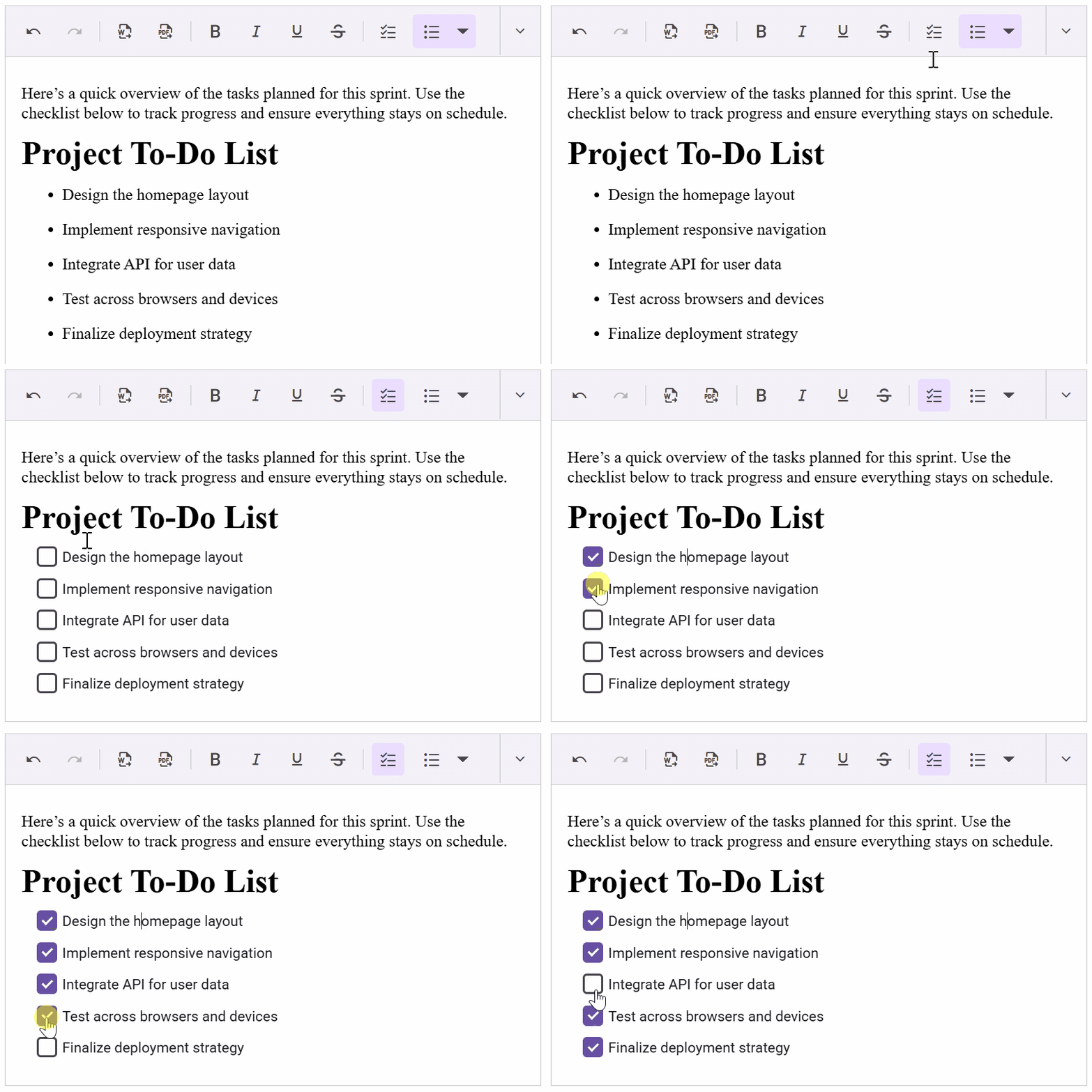
The new Checklist feature lets you create interactive to-do lists directly within the Blazor Rich Text Editor. Each item includes a checkbox that can be ticked off as tasks are completed, perfect for managing action items, meeting notes, or collaborative task tracking.
Here’s how you can do it in code:
<SfRichTextEditor>
    <RichTextEditorToolbarSettings Items="@Items" />
</SfRichTextEditor>

@code {
    private List<ToolbarItemModel> Items = new List<ToolbarItemModel>()
    {
        new ToolbarItemModel() { Command = ToolbarCommand.NumberFormatList },
        new ToolbarItemModel() { Command = ToolbarCommand.BulletFormatList },
        new ToolbarItemModel() { Command = ToolbarCommand.Checklist }
    };
}
The key benefits are:
- Effortless task management: Create and track tasks without leaving the editor.
- Interactive content: Checkboxes provide a visual and functional way to monitor progress.
- Versatile use cases: Perfect for meeting notes, project plans, and personal to-do lists.
Here’s a preview of the feature in action.
Drag-and-drop media files
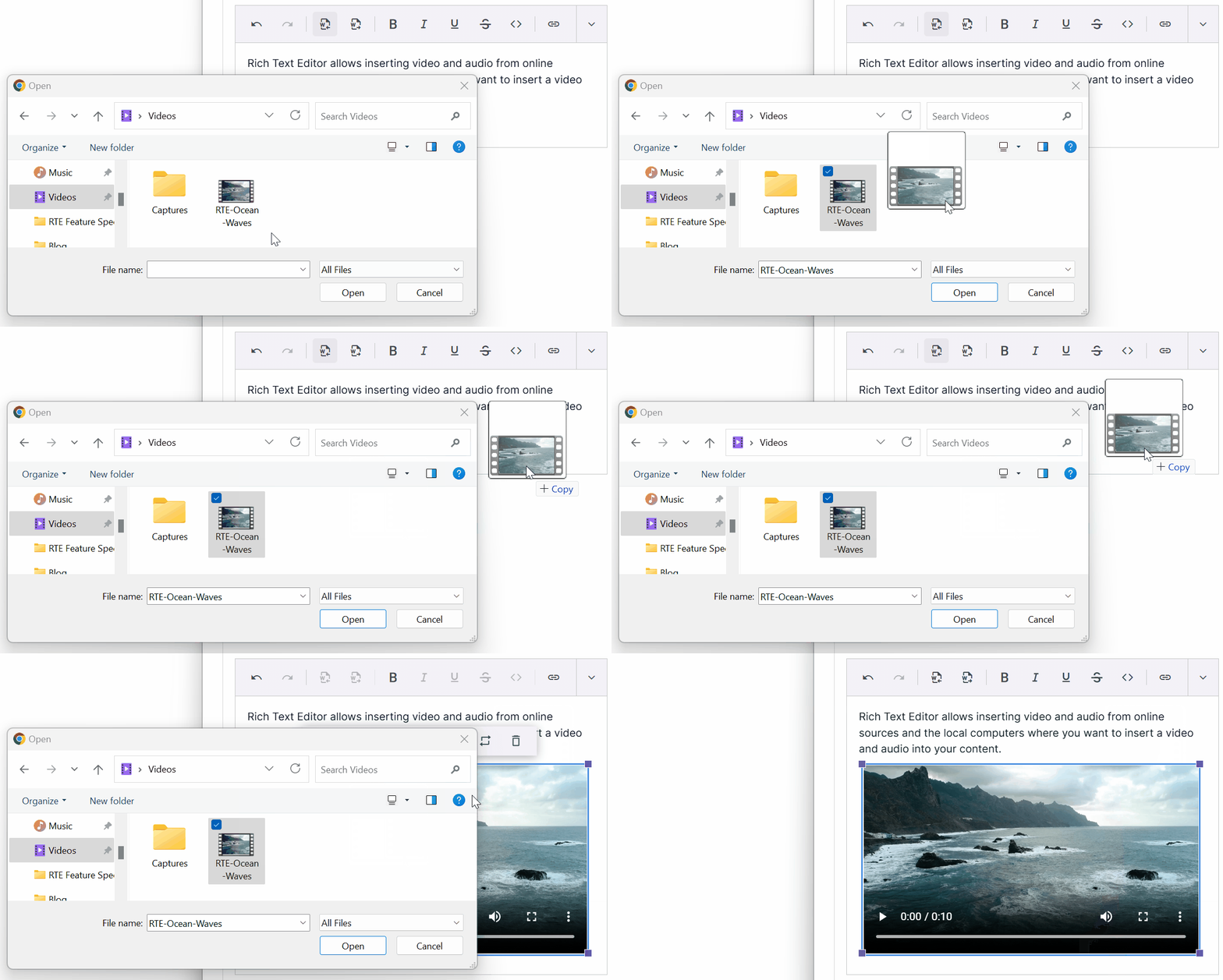
You can now drag and drop video and audio files directly into the Blazor Rich Text Editor. This enhancement streamlines multimedia embedding, eliminating the need for upload dialogs, making content creation faster and more intuitive. Access the demo for a full walkthrough.
The key benefits are:
- Streamlined workflow: Insert media quickly and intuitively.
- Enhanced content creation: Supports engaging, interactive documents.
- Improved user experience: Simplifies multimedia handling.
See the implementation in action below.
Line height
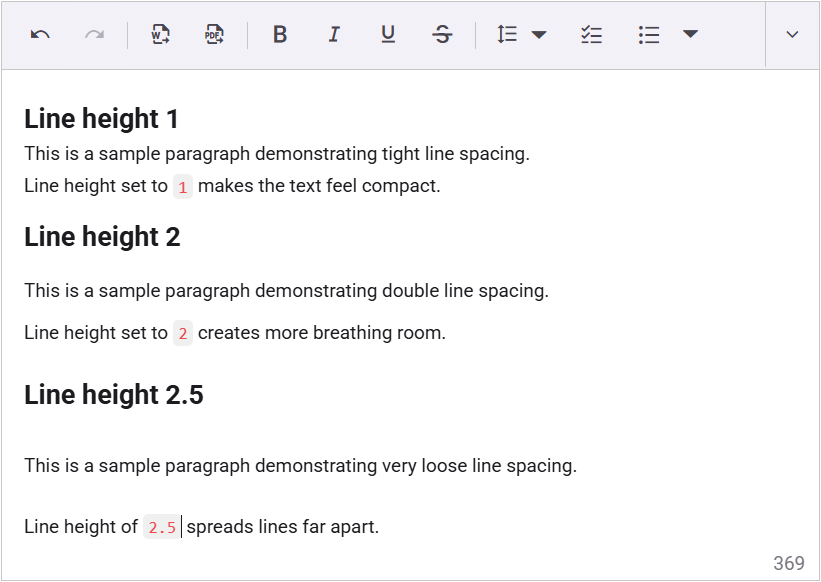
The Blazor Rich Text Editor now supports line-height formatting through a dedicated dropdown in the toolbar. Add the LineHeight tool to your toolbar items to make it visible. You can customize available values using the RichTextEditorLineHeight class:
- Default: Sets the default line height.
- Items: Add custom line height options.
- SupportAllValues: Allows any custom line height value to be applied.
Code example for quick integration:
<SfRichTextEditor>
    <RichTextEditorToolbarSettings Items="@Items" />
    <RichTextEditorLineHeight Items="@LineHeightItems"></RichTextEditorLineHeight>
</SfRichTextEditor>

@code {
    private List<ToolbarItemModel> Items = new List<ToolbarItemModel>()
    {
        new ToolbarItemModel() { Command = ToolbarCommand.LineHeight }
    };

    private List<DropDownItemModel> LineHeightItems = new()
    {
        new DropDownItemModel { Text = "Default", Value = "" },
        new DropDownItemModel { Text = "1", Value = "1" },
        new DropDownItemModel { Text = "1.15", Value = "1.15" },
        new DropDownItemModel { Text = "1.5", Value = "1.5" },
        new DropDownItemModel { Text = "2", Value = "2" },
        new DropDownItemModel { Text = "2.5", Value = "2.5" },
        new DropDownItemModel { Text = "3", Value = "3" }
    };
}
The key benefits are:
- Improves readability and design precision for better document aesthetics.
- Greater control over typography and layout, giving developers flexibility.
- Easy to configure and extend with custom line-height options.
Here’s what the Rich Text Editor looks like.
Authorization header support
The Blazor Rich Text Editor now supports custom authorization headers for secure Word and PDF export operations, making it ideal for authenticated or token-based workflows. You can dynamically configure these headers using the OnExport event, ensuring flexible and secure integration with protected APIs.
Here’s the complete code block:
@using Syncfusion.Blazor.RichTextEditor

<SfRichTextEditor>
    <RichTextEditorEvents OnExport="@Export" />
    <RichTextEditorToolbarSettings Items="@Items" />
    <RichTextEditorExportPdf ServiceUrl="@exportPdfServiceUrl" />
    <RichTextEditorExportWord ServiceUrl="@exportWordServiceUrl" />
    Rich Text Editor
</SfRichTextEditor>

@code {
    private string exportWordServiceUrl = "api/RichTextEditor/ExportToDocx";
    private string exportPdfServiceUrl = "api/RichTextEditor/ExportToPdf";

    private List<ToolbarItemModel> Items = new List<ToolbarItemModel>()
    {
        new ToolbarItemModel() { Command = ToolbarCommand.ExportPdf },
        new ToolbarItemModel() { Command = ToolbarCommand.ExportWord },
    };

    private void Export(ExportingEventArgs args)
    {
        // Assign different authentication tokens depending on the export type (Pdf or Word)
        var token = (args.ExportType == "Pdf" ? "Pdf Bearer token" : "Word Bearer token");
        args.RequestHeader = new Dictionary<string, string>
        {
            { "Authorization", token }
        };
        args.CustomFormData = new Dictionary<string, string>
        {
            { "userId", "12345" }
        };
    }
}
The key benefits are:
- Enables secure document exports in enterprise environments.
- Seamless support for JWT, OAuth, or custom authentication tokens.
- Full control over request headers during export processes.
HTTP Client instance
The Blazor Rich Text Editor now includes the HttpClientInstance property, allowing you to inject a custom HttpClient instance. This enables secure and highly configurable file uploads with custom authentication, headers, timeouts, and other HTTP settings.
Below is the code you need:
@using Syncfusion.Blazor.RichTextEditor
@inject HttpClient httpClient

<SfRichTextEditor HttpClientInstance="@httpClient">
    <RichTextEditorImageSettings SaveUrl="https://your_api.com/upload/image">
    </RichTextEditorImageSettings>
    <RichTextEditorAudioSettings SaveUrl="https://your_api.com/upload/audio">
    </RichTextEditorAudioSettings>
    <RichTextEditorVideoSettings SaveUrl="https://your_api.com/upload/video">
    </RichTextEditorVideoSettings>
</SfRichTextEditor>

@code {
    protected override async Task OnInitializedAsync()
    {
        // Adding authorization header to HTTP client
        httpClient.DefaultRequestHeaders.Add("Authorization_1", "syncfusion");
        await base.OnInitializedAsync();
    }
}
The key benefits are:
- Full control over upload requests in authenticated environments.
- Reuses existing HttpClient configurations from your Blazor app.
- Ideal for enterprise scenarios requiring fine-grained network control.
Clipboard cleanup
The Blazor Rich Text Editor now automatically cleans up clipboard content during copy (Ctrl + C) and cut (Ctrl + X) actions. It removes unwanted inline styles while preserving structural elements such as tables, lists, and images, ensuring cleaner and more consistent content. This feature is enabled by default via the EnableClipboardCleanup property.
Try this in your code:
<SfRichTextEditor EnableClipboardCleanup="true">
    <h3>Clipboard Cleanup Enabled</h3>
    <p>
        The Rich Text Editor uses the browser’s default copy and cut behavior
        when clipboard cleanup is enabled.
    </p>
</SfRichTextEditor>
The key benefits are:
- Ensures cleaner pasted content without bloated styles.
- Maintains document structure and consistency for better readability.
- Reduces manual cleanup for users, saving time and effort.
Progress indicator for export
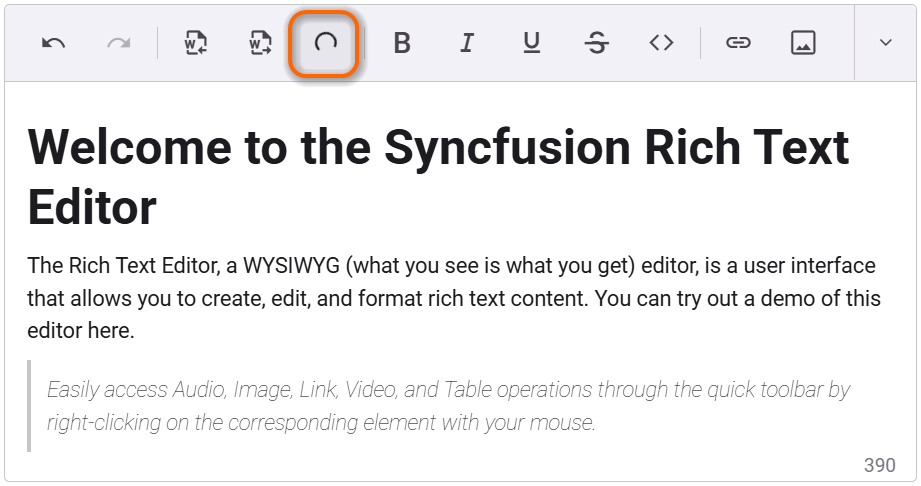
The Blazor Rich Text Editor now displays a spinner on the export button during Word or PDF export operations. The indicator remains visible until the file download completes, providing clear feedback on export progress and improving the overall user experience.
The key benefits are:
- Improves perceived performance and user confidence during exports.
- Prevents confusion during longer export operations.
- Polished, professional UI feedback for better user experience.
The following image shows the spinner on the export button.

Conclusion
Thanks for reading! Ready to build smarter content editing experiences? The Essential Studio 2025 Volume 4 update for the Blazor Rich Text Editor delivers powerful new features and thoughtful enhancements that improve both user experience and developer flexibility.
From smarter table editing to seamless Word file import and performance optimizations, this release is designed to help you build better content editing solutions. To learn more, explore the complete list of enhancements in the Release Notes and What’s New pages.
For timely updates on the release, we invite you to stay connected through our official YouTube, Twitter, Facebook, and LinkedIn channels. You can also share your insights or suggestions in the comments section below.
If you’re a Syncfusion user, you can download the setup from the license and downloads page. Otherwise, you can download a free 30-day trial. You can also contact us through our support forum, support portal, or feedback portal. We are always happy to assist you!







 No spam, just valuable updates.