
 Manikanda Akash Munisamy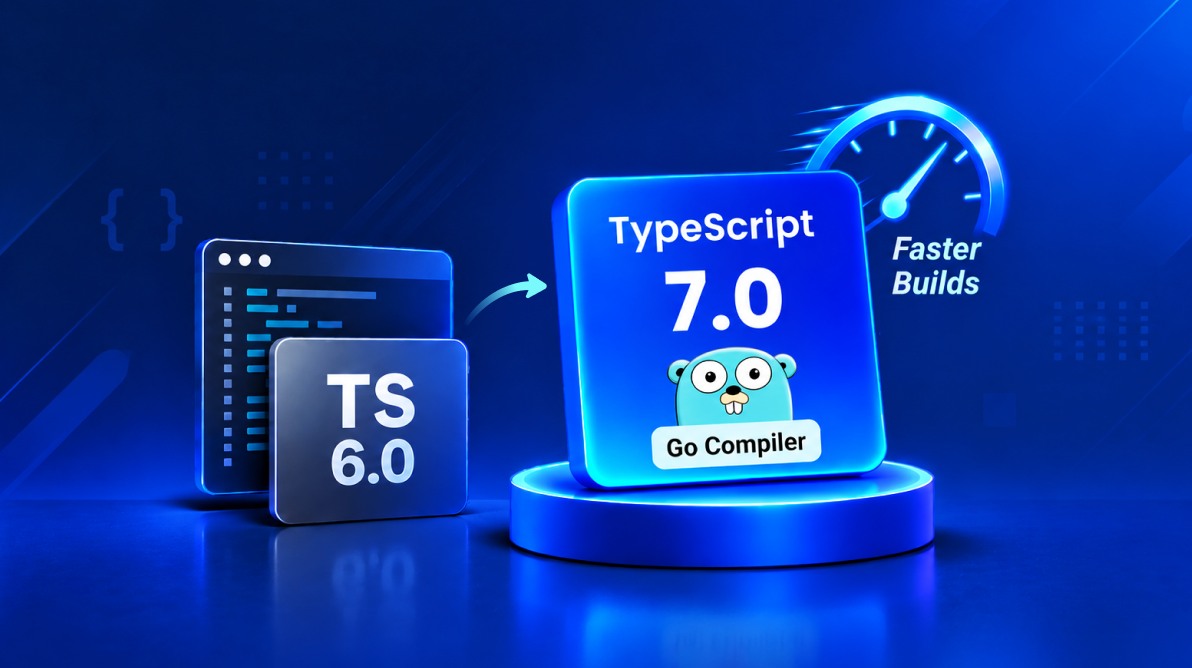
TL;DR: TypeScript 7.0 introduces a native compiler written in Go, with Microsoft’s benchmarks reporting 7.7× to 11.9× faster full builds across five selected projects. This guide covers compiler API compatibility, framework and editor support, tsconfig.json changes, and practical benchmarking steps to help you evaluate the upgrade for your project.
Is your project ready for TypeScript 7.0?
Slow TypeScript builds can delay development, particularly in large applications and monorepos. TypeScript 7.0 introduces a native compiler written in Go, with substantial speed improvements in Microsoft’s published benchmarks.
However, upgrading involves more than measuring build speed. TypeScript 7.0 changes the compiler implementation, configuration defaults, and language-server tooling, which may affect existing frameworks and development tools.
This guide explains the performance results, compatibility checks, configuration changes, and benchmarking steps you should complete before upgrading.
1. What changes in TypeScript 7.0?
The biggest change is the compiler itself. Earlier versions of TypeScript used a compiler written in TypeScript that ran on JavaScript runtimes such as Node.js. TypeScript 7.0 introduces a native implementation written in Go.
The new implementation combines native execution with parallel processing. This allows the compiler to make better use of modern hardware for tasks such as parsing, type-checking, and generating output.
Here are the main changes to consider before upgrading.
| Area | What changes? | What should you check? |
| Build performance | Native compilation and parallel processing can reduce build times. | Benchmark your own project. |
| Compiler API | TypeScript 7.0 does not include the programmatic compiler API available in TypeScript 6.0. | Check tools that import TypeScript directly. |
| Configuration | TypeScript 6.0 defaults and certain deprecations carry forward. | Review tsconfig.json. |
| Framework integrations | Some integrations still depend on TypeScript 6.0. | Check your framework’s current guidance. |
| Editor support | TypeScript 7.0 uses a new language server based on the Language Server Protocol (LSP). | Test autocomplete, diagnostics, navigation, and refactoring. |
JavaScript and JSDoc | Some legacy options and syntax patterns have changed. | Test JavaScript projects that rely on JSDoc type-checking. |
For the complete list of changes, refer to Microsoft’s TypeScript 7.0 announcement.
2. How much faster is TypeScript 7.0?
Microsoft published the following full-build measurements comparing TypeScript 6.0 and TypeScript 7.0 on selected open-source projects.
| Project | TypeScript 6.0 | TypeScript 7.0 | Reported speedup |
| VS Code | 125.7 seconds | 10.6 seconds | 11.9× |
| Sentry | 139.8 seconds | 15.7 seconds | 8.9× |
| Bluesky | 24.3 seconds | 2.8 seconds | 8.7× |
| Playwright | 12.8 seconds | 1.47 seconds | 8.7× |
| tldraw | 11.2 seconds | 1.46 seconds | 7.7× |
Source: Microsoft’s TypeScript 7.0 announcement.
These results show substantial full-build improvements in Microsoft’s selected benchmark projects, along with lower aggregate memory consumption across those builds. However, these are benchmark results and should not be treated as guaranteed improvements for every project, direct measurements of incremental rebuilds, editor responsiveness, or complete application build times. Actual results depend on factors such as project structure, hardware, build configuration, caching, and how much of your development process is spent on TypeScript compilation.
When is upgrading worth evaluating?
TypeScript 7.0 is worth testing if:
- Your full builds take a long time.
- Your monorepo contains many interdependent packages.
- Type-checking takes a significant share of your CI time.
- Your editor struggles with a large codebase.
- Developers frequently wait for compilation after making changes.
If your project already builds quickly, the performance benefit may be less important than compatibility and maintenance. Measure your current setup before deciding.
3. Check compiler API and tooling compatibility
Before upgrading, check whether your project or its dependencies use the TypeScript compiler API.
TypeScript 7.0 does not currently expose the programmatic compiler API available in TypeScript 6.0. Tools that inspect types, modify abstract syntax trees (ASTs), or perform custom transformations may therefore need to continue using the TypeScript 6.0 compatibility package until a suitable API is available.
Check for dependencies such as:
- Custom AST transformers.
- Code-generation tools that inspect TypeScript types.
- Tools that call APIs such as
ts.createProgram()orts.createLanguageService(). - Linters and framework integrations that depend on the compiler API.
If your project only uses the standard tsc command and its dependencies support TypeScript 7.0, migration may be simpler. Projects that rely on the compiler API need additional compatibility checks before switching.
How to check your dependencies
Start by searching your source files for direct TypeScript imports.
For example, on a system with grep, run:
grep -RIn --include='*.ts' --include='*.js' \
  'from "typescript"' .
Check for CommonJS imports separately:
grep -RIn --include='*.ts' --include='*.js' \
  "require('typescript')" .
You can also search for common compiler API calls:
grep -RIn --include='*.ts' --include='*.js' \
  -E 'ts\.createProgram|ts\.createLanguageService|ts\.getCompilerOptions' .
These commands are a starting point, not a complete dependency audit. They may miss different quote styles, dynamic imports, other file extensions, and dependencies inside installed packages.
For npm projects, also inspect the installed dependency tree:
npm ls typescript
npm explain typescript
These commands help identify direct and transitive TypeScript dependencies, but you should still verify API usage and compatibility with each tool’s documentation.
Also review your package.json, build scripts, framework plugins, and lint configuration.
Which tools should you check?
| Tool | What to verify |
Standard tsc builds | Confirm that compilation works with TypeScript 7.0. |
| typescript-eslint | Check its currently supported TypeScript version range. |
| Custom AST transformers | Verify access to the compiler API they require. |
| Framework language services | Follow the framework’s compatibility guidance. |
| Code generators and AST tools | Test type analysis and generated output. |
| Editor extensions | Check diagnostics, navigation, autocomplete, and other required features. |
For example, the typescript-eslint dependency guide lists the TypeScript versions it supports. Check the current range before upgrading because support changes over time.
A tool may appear to work outside its officially supported version range. That does not mean the combination is supported or that future updates will continue to work.
4. Check framework and editor compatibility
A successful command-line build does not guarantee that your framework tooling or editor will work correctly with TypeScript 7.0.
Microsoft identifies Vue, MDX, Astro, and Svelte projects, along with specialized Angular template checking, as areas where TypeScript 6.0 compatibility may still be required.
Before upgrading, verify the supported TypeScript versions for your framework, language service, editor extensions, and build tools.
- Standard TypeScript projects: Test TypeScript 7.0 if your dependencies are compatible.
- Angular: You may be able to use TypeScript 7.0 for command-line error checking while retaining TypeScript 6.0 for editor or template tooling. Verify your Angular version and setup.
- Vue, Astro, Svelte, and MDX: Check the framework’s official guidance before switching the full toolchain.
- Other frameworks and editors: Confirm that the language service and extensions you rely on support your intended setup.
TypeScript 7.0’s new language server uses LSP, which allows editor integrations to communicate with the language service through a standard protocol.
After upgrading, test the editor features your team relies on, including diagnostics, autocomplete, go-to-definition, and refactoring.
For current compatibility details, consult Microsoft’s TypeScript 7.0 announcement.
5. Review your tsconfig.json
TypeScript 7.0 adopts TypeScript 6.0’s defaults and turns certain deprecated options into errors. Projects upgrading directly from TypeScript 5.x may therefore need more preparation than projects already using TypeScript 6.0.
Review these settings carefully.
| Setting | What to check |
strict | Defaults to true. Check whether your code is ready for strict type-checking. |
module | Defaults to esnext. Verify that it fits your build setup. |
target | Defaults to the stable ECMAScript version immediately before esnext. |
types | Defaults to an empty array. Add the global type packages your project needs. |
rootDir | Defaults to the project root. Set it explicitly if your source files live in a subdirectory such as src. |
stableTypeOrdering | Defaults to true and can no longer be disabled. |
noUncheckedSideEffectImports | Defaults to true. Check side-effect imports, including imports used for styles or other assets. |
libReplacement | Defaults to false. Check whether your project depends on the previous behavior. |
baseUrl | No longer supported. Update path mappings to work relative to the project root. |
moduleResolution | Legacy node/node10 and classic modes are no longer supported. Review whether bundler or nodenext fits your project. |
Check global type declarations
The types default can affect projects that rely on global declarations from packages such as Node.js and Jest.
For example, you may need to list the required packages explicitly:
{
  "compilerOptions": {
    "types": ["node", "jest"]
  }
}
The exact list depends on your installed type packages and the global declarations your project needs.
Other deprecated settings also require attention. For example, target: "es5" and downlevelIteration are no longer supported. Review the TypeScript 6.0 release notes and the TypeScript 7.0 announcement before upgrading.
What about JavaScript projects using JSDoc?
TypeScript 7.0 also changes how some legacy JavaScript and JSDoc patterns are handled.
If your project uses checkJs, JSDoc annotations, or JavaScript files that rely on TypeScript’s type inference, test those files carefully. Compare the diagnostics before and after upgrading, then update unsupported patterns according to the official migration guidance.
6. Benchmark TypeScript 7.0 in your own repository
The best way to evaluate TypeScript 7.0 is to benchmark it against your current compiler in the same repository and environment.
Measure three scenarios separately:
- Clean build: Measures compilation without previously generated TypeScript build outputs.
- Incremental rebuild: Measures compilation after a representative source-file change.
- Up-to-date build: Measures the time required when no source files have changed.
Also record peak memory usage and total CI build duration where possible. Keep the hardware, configuration, source changes, and cleanup conditions consistent between compiler versions.
Remember that an application build may include bundling, minification, and asset processing beyond TypeScript compilation.
Step 1: Record your current baseline
Before upgrading, record:
- Current TypeScript version.
Node.jsandpackage-managerversions.- Relevant
tsconfig.jsonfiles. - Clean full-build time.
- Incremental rebuild time after a source change.
- Peak memory usage, if available.
- Total CI build duration.
Use the same machine or equivalent CI runners for both compiler versions.
Step 2: Measure a clean build
For a project that uses TypeScript project references, start with:
# Clean outputs managed by TypeScript build mode.
npx tsc --build --clean

# Measure the clean build.
time npx tsc --build
Make sure your cleanup process also accounts for any additional generated files or caches used by your project. This command does not necessarily clear every tool’s cache.
Step 3: Measure an incremental rebuild
After the clean build, make a small, representative change to a TypeScript source file. Then run:
time npx tsc --buildThis measures a rebuild after a source change, with the build information from the previous run available. It is more useful for evaluating incremental performance than simply running the build again without changing anything.
If you run the command once more without making any changes, record that separately as an up-to-date build. Do not treat it as an incremental rebuild after a source change.
For Windows PowerShell, you can measure a build with:
Measure-Command { npx tsc --build }Repeat the same steps with TypeScript 7.0, using the same source change, repository state, and equivalent cleanup conditions.
Step 4: Measure the complete application build separately
Run your normal application build as another measurement:
npm run buildThis command may include bundling, minification, asset processing, and other work beyond TypeScript compilation.
For example, if your full application build takes 60 seconds and TypeScript accounts for 30 seconds, a faster compiler will not eliminate the time spent on the remaining build steps.
Step 5: Compare the results
| Metric | Current compiler | TypeScript 7.0 |
| Clean full-build time | Measure | Measure |
| Incremental rebuild after a source change | Measure | Measure |
| Up-to-date build time | Measure | Measure |
| Peak memory usage | Measure | Measure |
| End-to-end CI duration | Measure | Measure |
| Tests and linting | Record results | Record results |
| Editor and framework behavior | Evaluate | Evaluate |
Run the measurements multiple times and report how you compared them, for example, by using the median of several runs. Keep hardware, configuration, source changes, and cache conditions consistent.
The goal is not to reproduce Microsoft’s benchmark numbers. It is to find out whether TypeScript 7.0 improves the parts of your development process that matter to your team.
7. Tune concurrency only after measuring
TypeScript 7.0 provides experimental options for adjusting parallel processing:
--checkerscontrols the number of type-checker workers.--builderscontrols the number of parallel project-reference builders in build mode.--singleThreadeddisables parallel processing.
Increasing concurrency may reduce build time, but it can also increase memory usage. Because project builders and type-checker workers can operate concurrently, their combined resource requirements matter.
Start with the default settings and benchmark your project first. If tuning is necessary, change one option at a time and compare build time and memory consumption.
Verify the current behavior of these experimental options in Microsoft’s official guidance before adding them to build scripts.
8. Run TypeScript 6.0 and 7.0 side by side when needed
Some projects may need TypeScript 7.0 for command-line compilation while retaining TypeScript 6.0 for tools that depend on its compiler API.
Microsoft provides the @typescript/typescript6 compatibility package for toolchains that still require the TypeScript 6.0 API. This allows teams to evaluate the native compiler without immediately replacing every compiler-dependent tool.
Microsoft documents an npm alias setup such as:
{
  "devDependencies": {
    "@typescript/native": "npm:typescript@^7.0.2",
    "typescript": "npm:@typescript/typescript6@^6.0.2"
  }
}
In this setup, @typescript/native provides the TypeScript 7.0 compiler, while the typescript dependency resolves to the TypeScript 6.0 compatibility package for tools that need its API.
Use a side-by-side setup only when your project requires it. After configuring the package aliases, verify which compiler each tool loads and test builds, linting, editor integration, and CI.
Follow Microsoft’s current installation guidance before applying the configuration to your project.
9. TypeScript 7.0 migration checklist
Use this checklist to plan and validate your upgrade.
Before upgrading
- Record the current TypeScript version and build performance.
- Audit direct and transitive compiler API dependencies.
- Check framework, editor, linter, and transformer compatibility.
- Review TypeScript 6.0 configuration changes and deprecated options.
- Create a separate branch for migration.
During the upgrade
- Install TypeScript 7.0 using the official package instructions.
- Update unsupported configuration options.
- Run clean builds and incremental rebuilds.
- Run tests, linting, and type-checking.
- Compare generated output and declaration files where relevant.
Before rollout
- Compare build time and memory use against the baseline.
- Verify editor diagnostics, navigation, and autocomplete.
- Test framework-specific templates and language services.
- Validate CI and staging pipelines.
- Document any compatibility workarounds for the team.
- Define rollback criteria and retain the previous compiler configuration in case of compatibility issues, failing tests, or unexpected build regressions.
Use the checklist alongside the compatibility checks in Sections 3 and 4. Completing the steps helps you identify migration risks before the upgrade reaches your main development environment.
10. Should you upgrade to TypeScript 7.0 now?
Your upgrade decision should depend on two factors: compatibility and measurable performance gains.
| Your situation | Recommended approach |
| Standard CLI compilation, compatible dependencies, and slow builds | Pilot TypeScript 7.0 and measure the results. |
| Large monorepo with long CI builds | Benchmark full and incremental builds, and validate project-reference builds. |
| Project already builds quickly | Upgrade when there is a clear performance or maintenance benefit. |
| Heavy compiler API usage or custom transformers | Verify the compatibility path before changing the primary compiler. |
| Vue, Astro, Svelte, MDX, or specialized Angular tooling | Check framework-specific support before switching the full toolchain. |
| Production-critical project with limited testing capacity | Wait until you can verify compatibility in a representative environment. |
If your dependencies support TypeScript 7.0 and compilation is slowing down development or CI, start with a pilot migration and compare your results against the current compiler.
If your project depends on the compiler API or specialized framework tooling, verify the supported migration path first. You may need to retain TypeScript 6.0 for some tools while evaluating TypeScript 7.0 for command-line compilation.
Upgrade when your own measurements demonstrate a worthwhile benefit and your essential development processes remain compatible.
Frequently Asked Questions
Is TypeScript 7.0 faster than TypeScript 6.0?
Microsoft’s published full-build benchmarks show speedups ranging from 7.7× to 11.9× across five selected projects. Your results will depend on your codebase, hardware, build configuration, and caching.
Do I need to change my Node.js setup when upgrading to TypeScript 7.0?
Not necessarily. TypeScript 7.0 uses a native Go-based compiler, but Node.js may still be required for npm, bundlers, test runners, and other JavaScript tools. Review your complete toolchain before changing your environment.
Can I use TypeScript 6.0 and TypeScript 7.0 together?
Yes. Microsoft’s @typescript/typescript6 compatibility package allows tools that need the TypeScript 6.0 API to run alongside TypeScript 7.0. However, package resolution and tool compatibility must be tested.
Will my existing tsconfig.json work unchanged?
Not necessarily. TypeScript 7.0 adopts TypeScript 6.0 defaults and rejects certain deprecated options. Review the migration notes and test your configuration before upgrading.
Should I upgrade immediately?
Start with a pilot if your current build times are a problem and your dependencies appear compatible. If your project depends on specialized framework tooling or the compiler API, verify the supported migration path first.
Conclusion
TypeScript 7.0 offers substantial performance potential for projects where compilation and type-checking slow down development. However, the benefits depend on your codebase, configuration, and development tools.
Before switching, benchmark your current development setup, verify compiler API and framework compatibility, and test the upgrade in a separate branch. If the results show meaningful improvements without disrupting your essential tooling, proceed with a controlled rollout.
Measure your project’s performance and verify compatibility before making TypeScript 7.0 your default compiler.



 No spam, just valuable updates.