
 RajaVignesh BalaSankar
TL;DR: Instead of wrestling with custom decoding, CORS handling, and unstable PDF rendering, developers can rely on Syncfusion’s JavaScript PDF Viewer for consistent, high performance loading across all document sources.
If you’ve ever tried loading a PDF into your JavaScript app from a Base64 string, a Blob, a server URL, or even cloud storage, you’ve probably hit the same wall most developers face:
- Browser freezes.
- Silent rendering failures.
- CORS errors.
- Inconsistent behavior across devices.
You’re not alone! This is exactly where most traditional PDF Viewers fall apart.
Here’s the good news!
The Syncfusion® JavaScript PDF Viewer addresses common developer pain points with a robust, developer-focused loading pipeline. It simplifies loading PDFs from servers, cloud storage, API responses, and user uploads, ensuring reliable rendering in every browser environment. This unmatched consistency and easy integration are why Syncfusion leads in high-performance PDF handling for diverse applications.

Why modern apps need real PDF loading flexibility
Today’s applications run across networks, devices, and architectures, so documents rarely live in a single, predictable place. Rigid loading approaches block the UI, fail with dynamic inputs, and create bottlenecks.
Flexible loading solves this by allowing your viewer to:
- Prioritize visible content first.
- Handle complex flows, such as lazy loading or micro frontends.
- Support modular, scalable architecture.
- Smoothly manage user uploads, cloud files, and server-based documents.
In short: flexible loading keeps your app fast, modern, and user-friendly.
The real problems developers face and why they happen
The most frequent problems that developers encounter are listed below:
- Local files in the project directory: These files are easier to manage, but they limit scalability and dynamic content delivery. As a result, they’re unsuitable for many real-world scenarios.
A user reported that PDF.js couldn’t load PDF files directly from local disk paths because of browser security restrictions.
- Public URLs: Accessing externally hosted PDFs can cause slow loading, broken links, or CORS issues, making rendering unreliable.
A user reported a related issue while working with PDF.js, stating:
“I’m trying to load a PDF from an external site I own (hosted on Azure App Service). I’ve added the necessary CORS headers, but the request chain is odd, initial 200 OK, followed by OPTIONS, then alternating between 200 and 206. It doesn’t behave like it does on my local server. What am I missing?”
This example shows how public URLs and CORS can complicate PDF loading when the viewer expects a consistent request-response process.
- Base64 strings: They increase payload size and memory usage, which can degrade performance on low-powered devices.
A user reported a related issue while working with PDF.js, stating:
“Normally, I load PDFs using a URL, and everything works fine. But now I have the file as a Base64 string. When I try to pass it directly, it doesn’t render. I learned that XMLHttpRequest doesn’t support data URIs, so I had to convert the Base64 to a Uint8Array before it worked.”
This shows Base64 loading needs extra handling and can cause rendering failures if not decoded correctly.
- Blob objects: They offer flexibility, but they require additional logic for conversion and previewing, especially when handling different file types. Managing user-uploaded files also involves validating formats, handling large file sizes, and ensuring compatibility across browsers.
A user reported that, in newer versions, a PDF failed to load PDF files from Blob URLs due to a
TypeErrorcaused by the header construction.
Such scenarios frequently occur in enterprise applications, document management systems, and customer portals, making flexible PDF loading essential.
How Syncfusion JavaScript PDF Viewer fixes PDF loading—no matter the source
The Syncfusion JavaScript PDF Viewer provides developers with a seamless, versatile API that supports all major PDF loading approaches. Unlike typical viewers, Syncfusion streamlines the rendering process for base64 strings and file streams, optimizing performance and simplifying cross-format workflows. Teams benefit from built-in reliability, speed, and strong security compliance, removing common limitations and enabling broader scaling and flexibility.
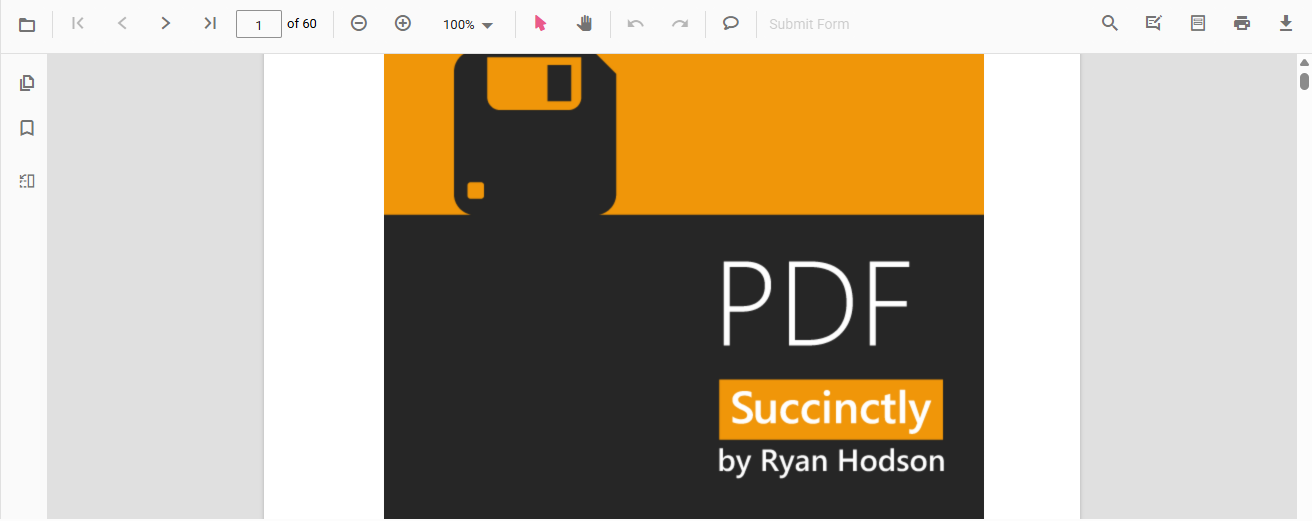
To understand this better, let’s look at the loading options below:
1. Loading PDFs from the server-side
This approach loads a PDF directly from a remote server. It works well for publicly accessible files or authenticated endpoints where the PDF is hosted online. It entails:
- Loading PDFs from a remote server: This method allows you to fetch and display PDF files hosted on external servers. It’s ideal for publicly accessible documents or authenticated endpoints and supports seamless integration with web applications.
- Loading PDFs from local storage: You can also load PDFs bundled within the project directory by using relative paths served by the web server. This approach is useful for static documents or offline-ready applications where the files are part of the deployment package.
Here’s a preview of this loading option in action:
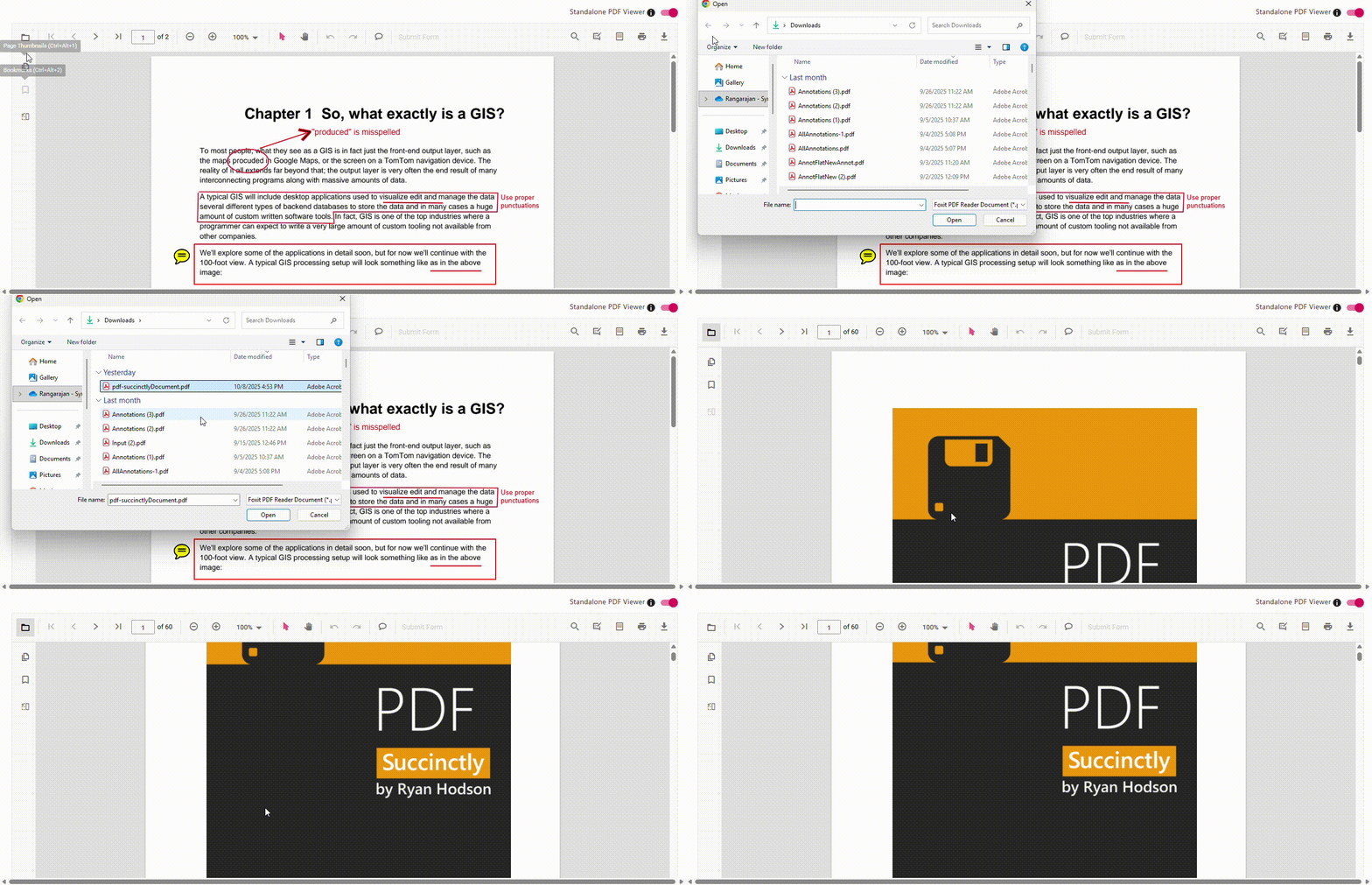
Note: Additionally, refer to the user guide for step-by-step instructions on loading documents from the server side.
2. Loading PDFs using Base64
This is useful when the PDF is embedded in a JSON response or received from an API, eliminating the need to store or fetch the file separately. You can also load a PDF as an array buffer by converting it to a base64 string, making it compatible with the viewer’s input requirements.
Note: To learn more about this approach, check the UG documentation and samples.
Here’s how that looks in code:
document.getElementById('load1').addEventListener('click', () =>
{
 viewer.load( 'data:application/pdf;base64,'+ AddBase64String, null);
}
3. Handling Blob data for PDF rendering
This method is ideal for scenarios involving user interactions, such as file uploads or drag-and-drop actions, where PDFs are received as binary Blob objects. It allows you to preview and render user-generated content without converting or storing files externally. Here, we have the PDF file on the server. We fetch it over HTTP, wrap the response bytes as a Blob in the browser, and then load it into the viewer.
Refer to the following code examples.
Client side:
const resourcesLoaded = () => {
  fetch('https://localhost:7255/pdfviewer/GetPdfStream')
    .then((response) => response.blob())
    .then((blob) => {
      const blobUrl = URL.createObjectURL(blob);
      viewer.load(blobUrl, null);
    })
};
Server side:
[HttpGet("GetPdfStream")]
public IActionResult GetPdfStream()
{
   try
   {
       string wwwRootPath = Path.Combine(Directory.GetCurrentDirectory(), "wwwroot");
       string filePath = Path.Combine(wwwRootPath, "PDF", "hive-succinctly.pdf");

       var stream = new FileStream(filePath, FileMode.Open, FileAccess.Read);
       return new FileStreamResult(stream, "application/pdf");
   }
}
Note: For detailed steps and additional examples on loading PDFs using Blob input, refer to the documentation.
4. Loading PDFs from cloud storage
You can load PDF documents directly into the Syncfusion JavaScript PDF Viewer from popular cloud storage services such as Google Cloud Storage, OneDrive, Dropbox, and Google Drive. This approach makes it easy to access remote files, enhancing collaboration and flexibility in document handling. The setup process is simple and supports secure, authenticated access to your cloud-stored PDFs.
Each cloud integration involves:
- Setting up the respective cloud API.
- Creating a backend service to fetch the PDF.
- Using the Load() method in the PDF Viewer to render the document.
Common backend code structure
All cloud integrations use a similar Load() structure. The backend fetches the file, processes the input, and streams it to the PDF Viewer for rendering.
Here’s how that looks in code:
[HttpPost("Load")]
[Microsoft.AspNetCore.Cors.EnableCors("MyPolicy")]
[Route("[controller]/Load")]
public async Task Load([FromBody] Dictionary<string, string> jsonObject)
{
    PdfRenderer pdfviewer = new PdfRenderer(_cache);
    MemoryStream stream = new MemoryStream();
    object jsonResult = new object();

    if (jsonObject != null && jsonObject.ContainsKey("document"))
    {
        if (bool.Parse(jsonObject["isFileName"]))
        {

            // Cloud-specific logic here
            Refer to the Syncfusion user guide on how to open PDF from Google Cloud storage in JavaScript
            for detailed instructions and specific code logic on loading PDF files from various cloud
            storage providers like Google Cloud Storage, OneDrive, Dropbox, and Google Drive.
        }
 stream = new MemoryStream(bytes);
        }
    }

    jsonResult = pdfviewer.Load(stream, jsonObject);
    return Content(JsonConvert.SerializeObject(jsonResult));
}
Update the serviceUrl property of the PDF Viewer component to reflect the actual endpoint of your deployed web service. Replace the https://localhost:44396/pdfviewer with your server’s live URL. Then, set the documentPath property to the name of the PDF file you intend to load from cloud storage.
Add the following code to your project:
import {
    PdfViewer,
    Toolbar,
    Magnification,
    Navigation,
    LinkAnnotation,
    ThumbnailView,
    BookmarkView,
    TextSelection,
    Annotation,
    FormFields,
    FormDesigner
} from '@syncfusion/ej2-pdfviewer';

PdfViewer.Inject(
    Toolbar,
    Magnification,
    Navigation,
    LinkAnnotation,
    ThumbnailView,
    BookmarkView,
    TextSelection,
    Annotation,
    FormFields,
    FormDesigner
);

let viewer: PdfViewer = new PdfViewer();

// Replace the "localhost:44309" with the actual URL of your server
viewer.serviceUrl = 'https://localhost:44309/pdfviewer';
viewer.appendTo('#pdfViewer');
viewer.load('PDF_Succinctly.pdf', null);Syncfusion JavaScript PDF Viewer: The versatile tool for PDF handling
Choosing the Syncfusion JavaScript PDF Viewer enhances document handling in web apps. Its high-performance rendering engine ensures smooth, responsive viewing across browsers and devices, even under heavy load. With intelligent loading and precise internal decoding, it efficiently processes PDFs from various sources, including cloud storage, servers, and dynamic streams, while avoiding common issues such as browser freezes, missing fonts, and layout glitches.
As a result, it’s a reliable choice for building scalable, real-world apps where performance and stability are critical.
Rendering technology
The JavaScript PDF Viewer’s high-performance rendering engine ensures:
- Accelerated canvas-based rendering: Uses optimized canvas-based drawing for smooth and fast PDF rendering.
- Smart incremental loading for large PDFs: Loads PDFs in chunks to improve responsiveness and reduce initial load time.
- Cross-platform optimization: Ensures consistent performance across devices and platforms.
Performance advantages
When optimizing PDF performance, the Syncfusion JavaScript PDF Viewer:
- Avoids re-conversion to PDF: Renders supported formats directly, without intermediate conversions.
- Handles large files without memory leaks: Uses efficient memory management to prevent crashes during heavy document loads.
- Supports lazy loading and pagination: Loads pages on demand to improve speed and reduce resource usage.
Security benefits
PDFs are secure in the Syncfusion JavaScript PDF Viewer since:
- No need to store files on disk: Processes PDFs in memory to avoid persistent storage risks.
- Supports secure transmission formats (base64): Enables safe data exchange using encoded formats.
- Prevents XSS and injection risks with sandboxed rendering: Isolates rendering logic to protect against malicious content.
Frequently Asked Questions
Yes. You must pass the password in the viewer’s load request or configuration. If the file is fetched server-side, the backend must also validate the password before streaming the content.Can I load password-protected PDFs?
Form filling, annotations, and page navigation work offline, but saving or exporting modified PDFs typically requires a server, especially for large files or flattened output. This is because rendering is client-side, while saving relies on Syncfusion’s server-side processing.Does the PDF Viewer support offline annotations and form-filling without a server?
Yes. Syncfusion provides smart incremental loading, chunk-based rendering, and lazy page loading, which allow large PDFs to load without freezing the browser. These optimizations are part of the rendering engine in Syncfusion JavaScript PDF Viewer.Does the viewer support extremely large PDFs (100MB+)?
You can use the Load() method repeatedly with different file sources. However, the previous document state isn’t retained unless manually persisted, because the viewer re-renders the new document.What if I want to load multiple PDFs into the same viewer instance?
Yes. The viewer is fully responsive and organizes PDF pages for mobile use. Toolbars, thumbnails, and navigation panels automatically adjust based on available space.Can the PDF Viewer automatically adjust to mobile layouts or responsive containers?

Ready to build faster, more reliable PDF workflows?
Thank you for reading! Loading PDFs in a JavaScript app shouldn’t be a guessing game. Whether your files come from an API, a user upload, or a cloud service, you need a viewer that can handle real‑world complexity without sacrificing performance or security.
Syncfusion’s JavaScript PDF Viewer delivers exactly that. It supports PDFs from server streams, user uploads, and cloud sources, enabling developers to load PDFs reliably and scalable across environments. With fast rendering, incremental loading, and secure processing, it’s a strong choice for building dependable PDF workflows.
👉 Start using Syncfusion’s JavaScript PDF Viewer today and deliver smoother, faster, more reliable PDF experiences in your apps.
If you’re a Syncfusion user, you can download the setup from the license and downloads page. Otherwise, you can download a free 30-day trial.
You can also contact us through our support forum, support portal, or feedback portal for queries. We are always happy to assist you!




 No spam, just valuable updates.