
 RajaVignesh BalaSankar
TL;DR: JavaScript PDF viewers often fail to render fillable forms correctly, resulting in missing fields, broken layouts, and data loss. This guide demonstrates how to resolve these issues and create interactive PDF forms with dynamic fields and validation.
Building e-signature workflows, tax portals, HR onboarding systems, or surveys often depends on PDF form fields. Text inputs, dropdowns, checkboxes, and signature fields make PDFs editable, allowing users to complete documents directly in the browser. When you create fillable PDF forms from templates or generate them dynamically, a JavaScript PDF viewer ensures a smooth user experience.
However, this is where challenges arise. Developers frequently report issues with JavaScript PDF form fields, such as fields not rendering, layout shifts, incorrect checkbox states, or data disappearing after saving. These problems make it hard to validate and export accurate results.
This guide explains why these issues occur and how to fix them. You’ll learn how to read and fill PDF form fields accurately, and export clean results using the Syncfusion® JavaScript PDF Viewer.

Why do JavaScript PDF Form Fields fail?
Based on developer feedback from forums and GitHub, here are the most common pain points:
1. Missing interactive fields
Many PDF viewers default to a flattened mode, turning form fields into static content or hiding them completely.
“PDF Form Field Contents not displayed” — User on StackOverflow, Issue
“Filled in Form Fields not displaying” — User on GitHub, Issue #6457
2. Hidden configuration requirements
Enabling interactive forms often requires specific settings that developers overlook, leading to confusion about missing features.
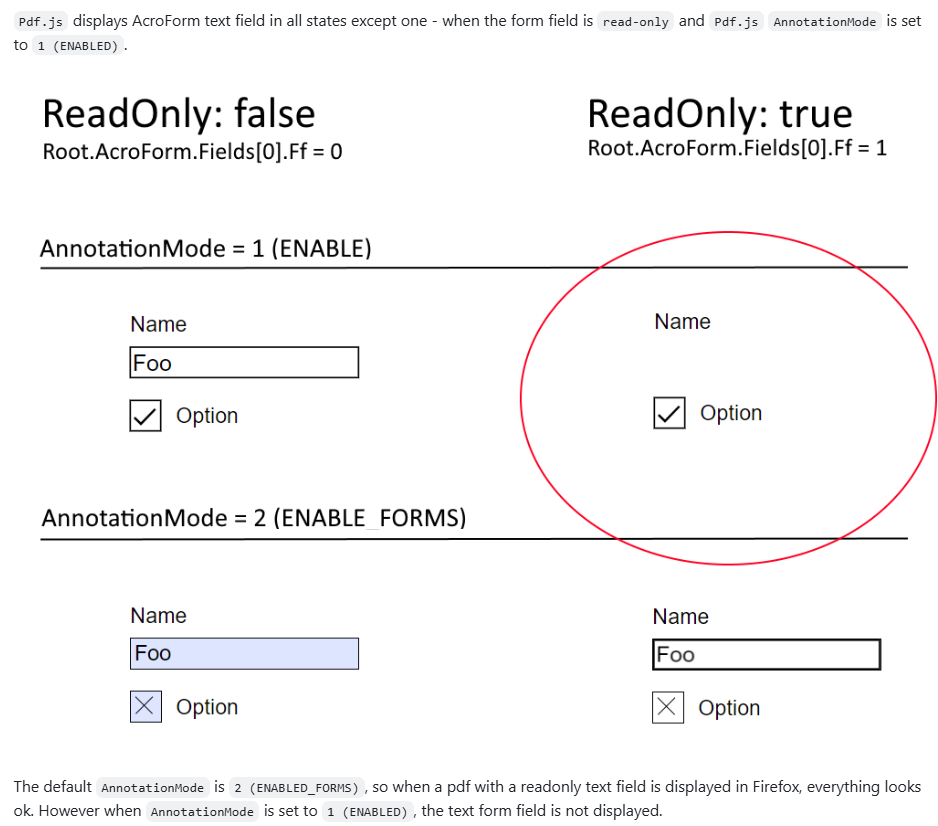
“Read-only form field not rendered when AnnotationMode = 1 (ENABLED)” — User on GitHub, Issue #17064
3. Incorrect appearance and data loss
Checkboxes, radio buttons, and custom symbols often render incorrectly. Even worse, field states, such as a checked box, may disappear after saving.
“Some PDF Textfield content not visible until clicked” — User on StackOverflow, Issue
“[Bug]: Broken PDF fields on form” — User on GitHub, Issue #19274
4. Visual glitches and performance issues
In modern frameworks like React, complex form rendering can cause flickering, slow performance, or broken layouts.
5. Inconsistent browser behavior
Built-in PDF viewers in browsers like Chrome or Firefox offer limited and unpredictable support for interactive forms.
“pdf.js viewer does not support the JavaScript under button on PDF. JavaScript functions do not work properly” — User on GitHub, Issue #14708
6. Data not recognized
Users fill out forms, but the underlying library fails to save or export the data. The result? A blank PDF after download or print.
“Form fields rendering as transparent with jsPDF” — User on StackOverflow, Issue
7. Limited AcroForms and XFA support
Most lightweight viewers support AcroForms partially and ignore XFA entirely, leaving developers puzzled when some forms work, and others don’t.
“[AskJS] Is it possible to fill a pdf form using JavaScript?” — User on Reddit, Issue
These failures frustrate users and defeat the purpose of a web-based PDF viewer, forcing them back to desktop apps.
Why PDF Form Field issues persist in JavaScript Web Viewer
These problems aren’t due to a lack of effort; they stem from technical complexity hidden in the PDF specification and browser architecture. Most open-source and browser-native viewers were never designed to handle this level of interactivity.
Here’s why these issues persist:
1. Interactive form rendering isn’t a priority
Most open-source viewers focus on the static appearance of documents, treating interactive forms as optional. As a result, developers face under-recognized issues because interactivity takes a back seat.
2. PDF form specification is complex
The PDF standard supports advanced features like custom appearances, validation logic, and calculation scripts (AcroForms/XFA). Lightweight libraries avoid this complexity, which leads to failures with common business documents that require robust handling.
3. Canvas rendering vs. interactive DOM
Most viewers render PDFs on a <canvas> element, a flat image with no concept of interactive elements. They build fragile interaction layers to simulate clicks and inputs, which can cause glitches, flickering, and data entry failures.
4. Dependency on browser-native viewers
Built-in PDF engines in browsers like Chrome and Firefox handle interactive forms inconsistently. These viewers aren’t designed as reliable, embeddable components, leaving developers with no way to debug or fix rendering issues.
A robust solution to Fillable PDF Forms in JavaScript
If you’ve struggled with missing fields, broken layouts, or data loss in PDF forms, you’re not alone. Most lightweight viewers fall short when handling interactive forms. The good news? A well-designed Syncfusion JavaScript PDF Viewer can address these challenges and provide developers with complete control over form rendering and data handling.
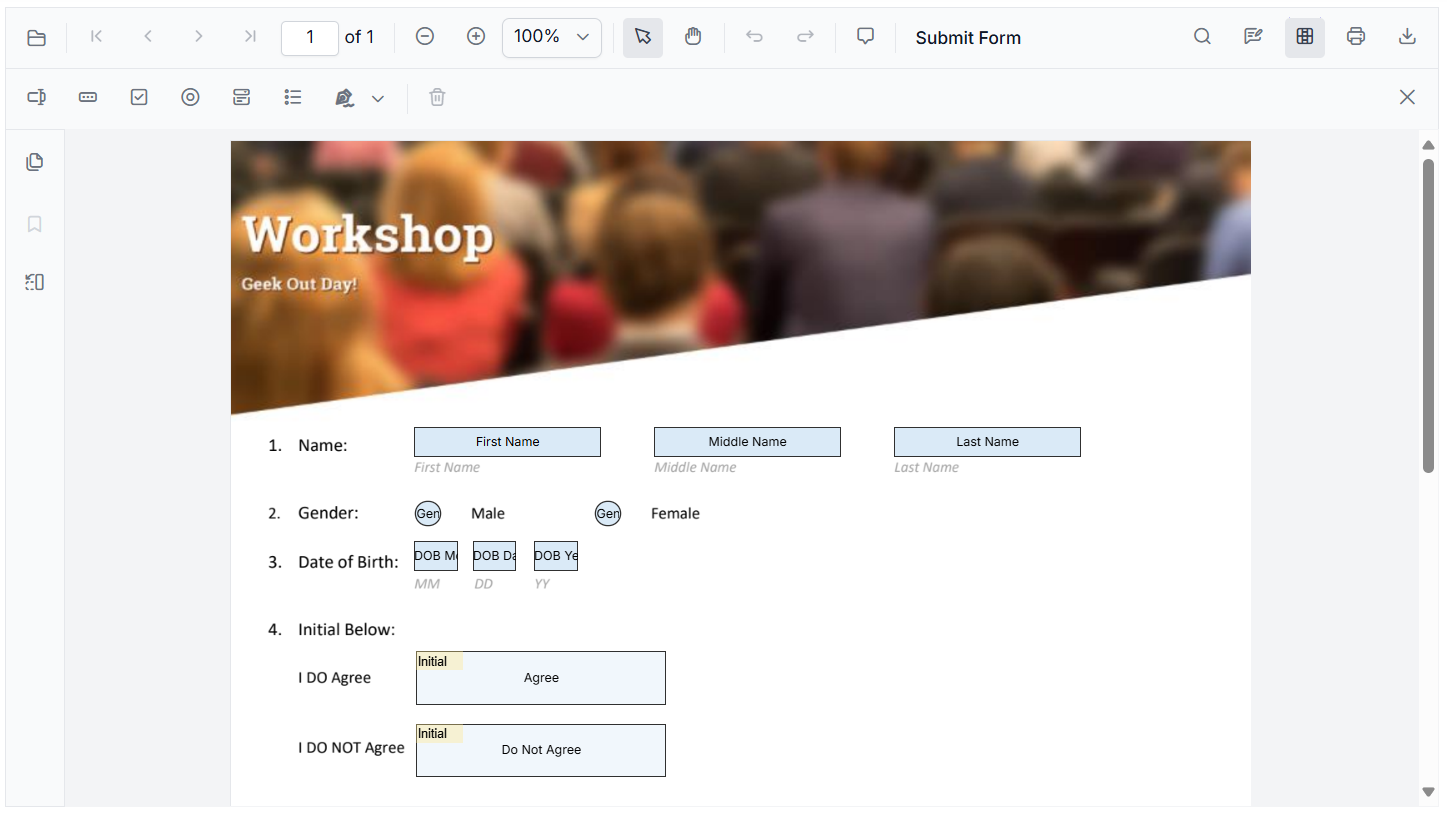
Note: For a comprehensive walkthrough, refer to the user guides to learn how to create and design your form.
Here’s what a robust solution should offer:
1. Complete Acro Forms support
Syncfusion PDF Viewer provides comprehensive support for Acro Forms, ensuring seamless compatibility with standard PDF form structures.
2. Wide range of form fields
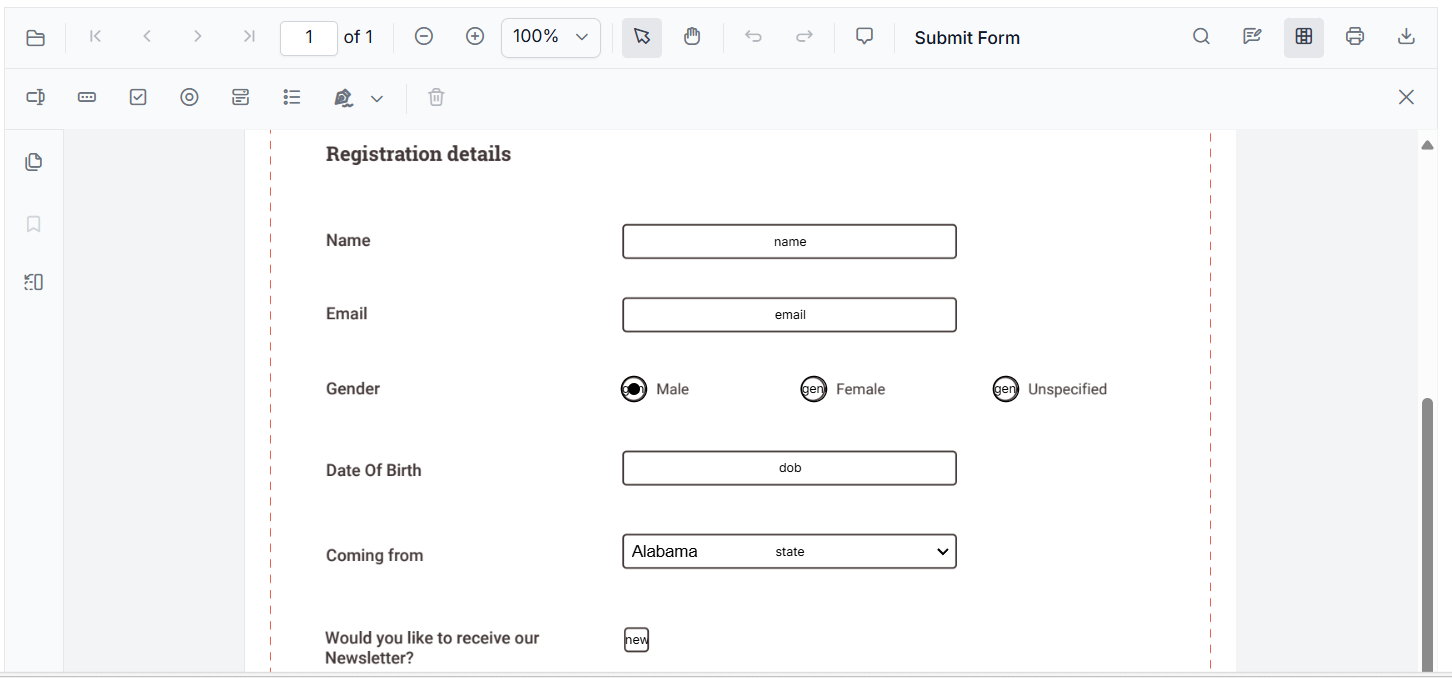
Syncfusion JavaScript PDF Viewer offers support for Textbox, Password, CheckBox, RadioButton, ListBox, DropDown, SignatureField, and InitialField, everything you need for dynamic forms.
3. XFA and flexible data formats
Supports exporting and importing form field data in multiple formats, including JSON, JavaScript objects, FDF, and XFDF. This ensures flexibility when working with different data sources.
Note: Want the full walkthrough? Explore the import/export form fields guide.
4. Rich API for form events
PDF Viewer provides a comprehensive set of events to handle operations such as adding, editing, moving, resizing, and customizing fields programmatically. This gives developers precise control over form behavior.
5. Built-in toolbar support for form design
The PDF viewer includes a toolbar with options to add new form fields, edit existing fields, remove fields, perform clipboard operations, and manage field layout.
6. Programmatic form field creation:
A rich API set is available for creating, updating, and customizing form fields programmatically, offering complete control to developers. Explore its detailed API section to know more about programmatic form field creation.
7. Field visibility and read-only options
Hide fields or make them read-only to control user interaction and maintain data integrity.
8. Form field validation
Built-in form-fields validation options help ensure accurate data entry and enforce input rules.
9. Dynamic field addition
Fields can be added on the fly during runtime, enabling highly interactive and responsive PDF forms to ensure performance.
10. Flexible appearance customization
Style fields with custom colors, borders, fonts, and sizes to match your application’s design.
11. Modular feature loading
Load only what you need to improve performance and reduce bundle size for large documents.
Creating and managing fillable PDF Forms with Syncfusion
Syncfusion’s JavaScript PDF Viewer offers a built-in toolbar. Developers can also dynamically add, fill, update, or remove form fields using intuitive APIs such as addFormField, updateFormField, and deleteFormField.
Add new form fields
Use the Form Design toolbar to insert fields like TextBox, CheckBox, and more with just a click, as shown below.
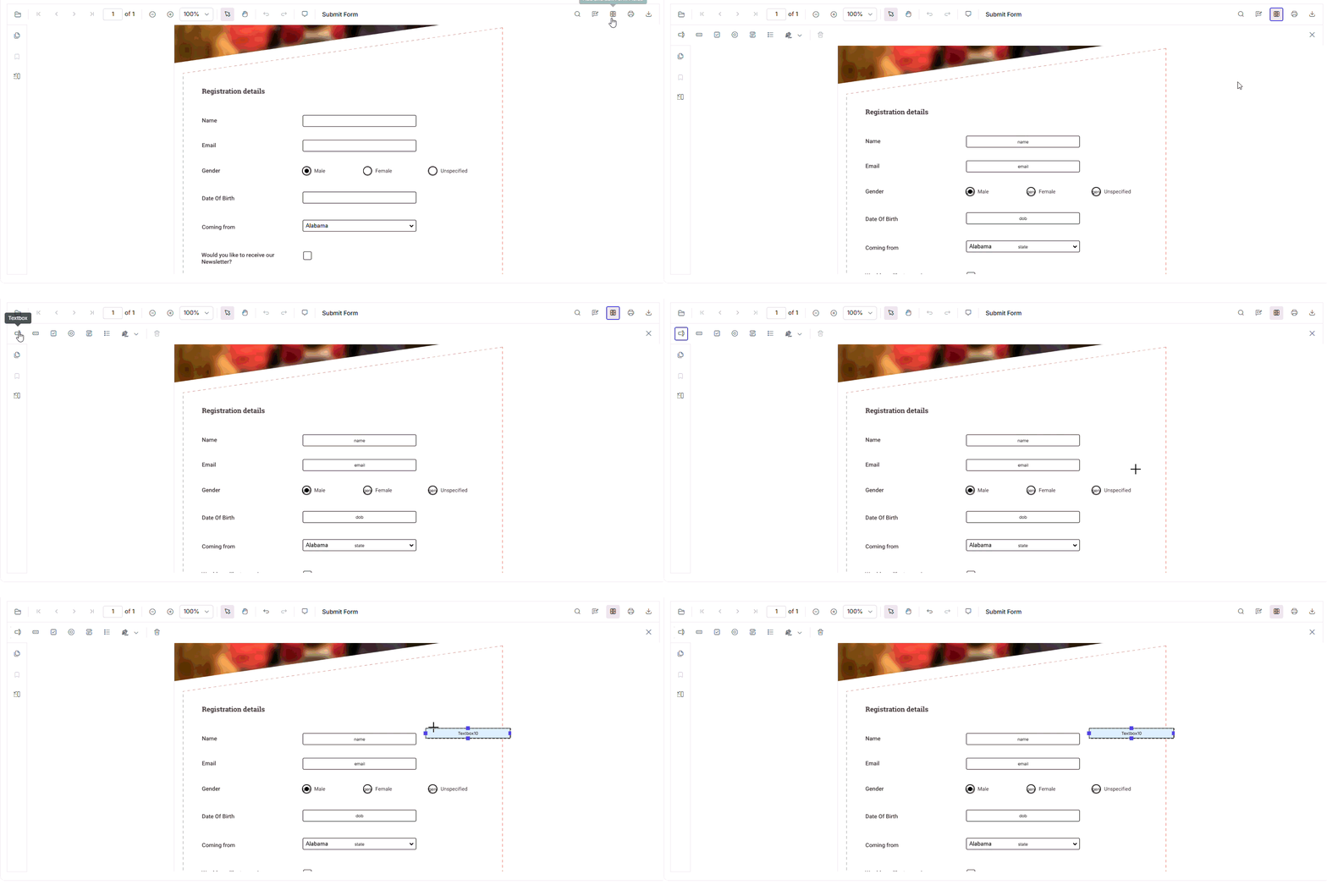
Prefer code? The addFormField API enables you to create fields programmatically by specifying the field type and its properties. Here’s an example of adding a TextBox field.
//Initialize PDF viewer with PDF document path and required syncfusion resources
var pdfviewer = new ej.pdfviewer.PdfViewer({
    documentPath: 'https://cdn.syncfusion.com/content/pdf/form-designer.pdf',
    resourceUrl:'https://cdn.syncfusion.com/ej2/31.1.17/dist/ej2-pdfviewer-lib'
});
//Adding textbox form field
pdfviewer.documentLoad = function (args) {
pdfviewer.formDesignerModule.addFormField("Textbox", { name: "Name", value : none
bounds: { X: 146, Y: 229, Width: 150, Height: 24 } });
}
Note: Are you ready to create your own forms? Step into our user documentation for step-by-step guidance on creating form fields programmatically! Explore our live demo and experience how easy it is to add fields using the built-in toolbar.
Customize existing form fields
Double-click any form field to open its properties panel, or use the context menu for quick edits.
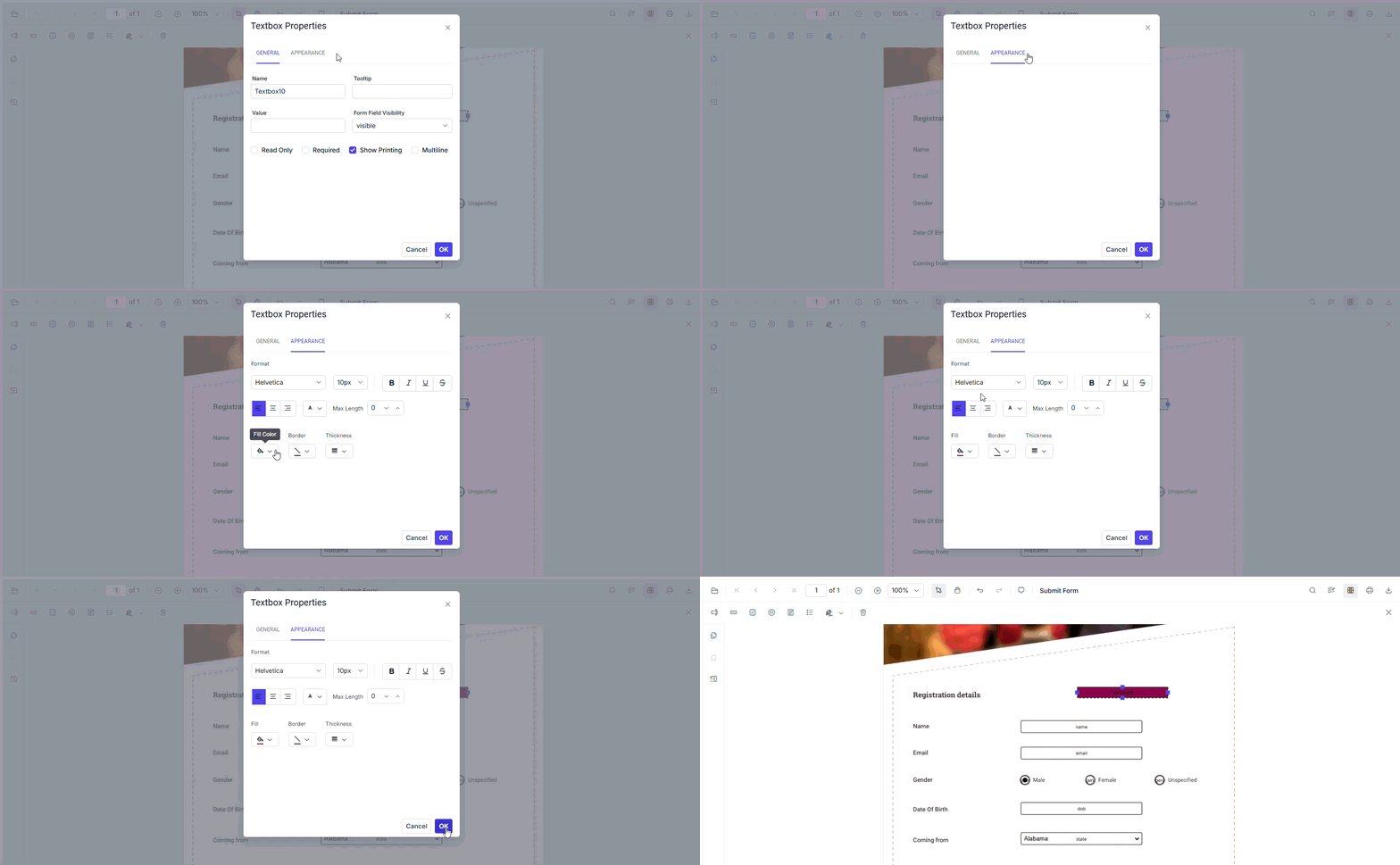
Programmatically, the updateFormField API allows you to change the appearance and behavior. Use the formFieldCollections property to get the field object or its ID. For example:
// Customize properties of the first TextBox form field
pdfviewer.formDesignerModule.updateFormField(pdfviewer.formFieldCollections[0], {
    fontSize: 12,              // Set font size
    backgroundColor: 'white',  // Set background color
    isMultiline: true          // Enable multiline behavior
    // You can customize additional properties as needed
});
Note: You can check our live demo and user guide to see how easily you can adjust fields using the built-in toolbar.
Delete form fields
Remove fields instantly using the delete icon on the toolbar or the context menu.
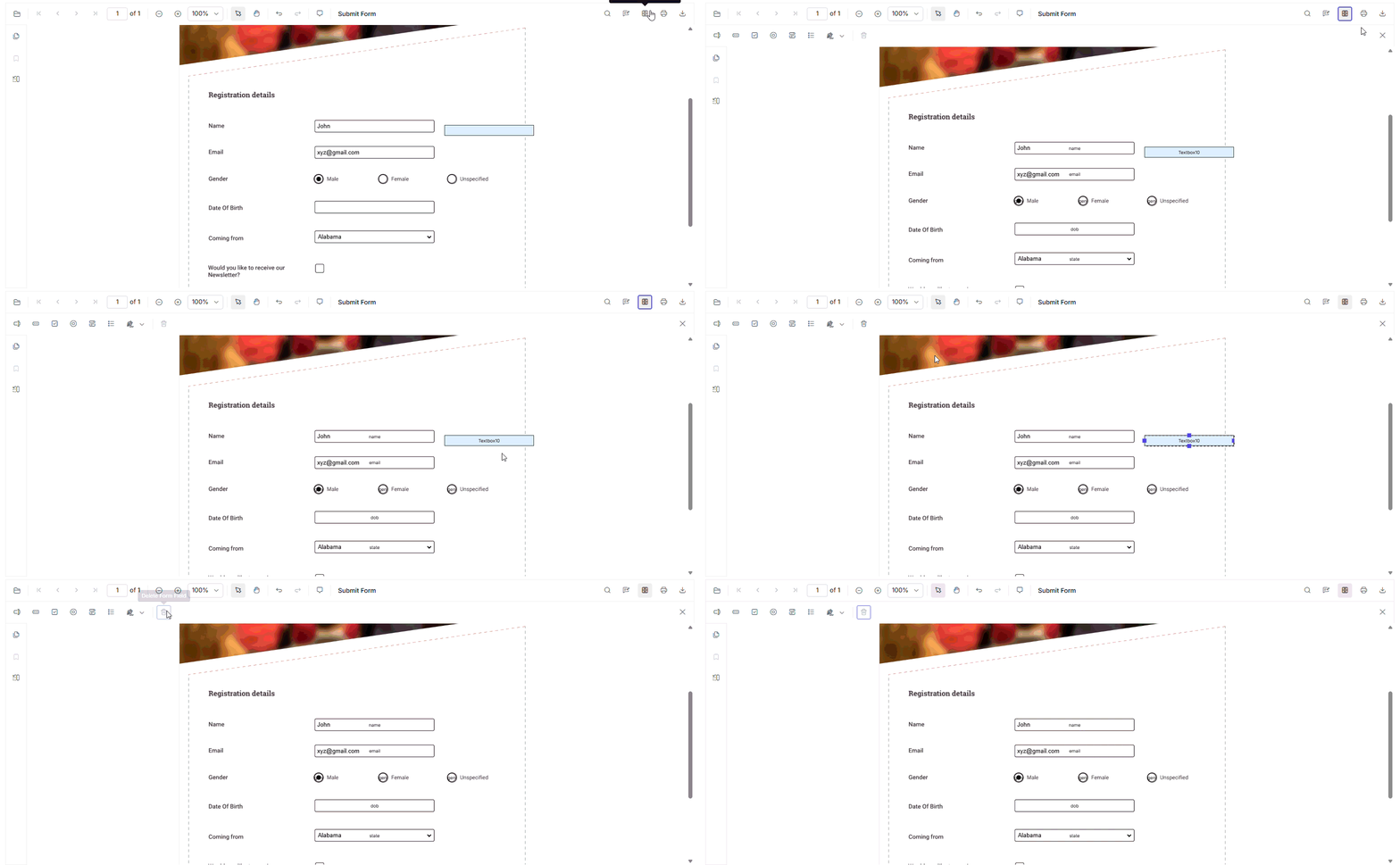
To delete via code, use the deleteFormField method, as shown below.
//Deleting first TextBox form field
pdfviewer.formDesignerModule.deleteFormField(pdfviewer.formFieldCollections[0]);
Note: For a detailed walkthrough on creating and modifying other form fields, refer to the user guide and live demo section.
FAQs
1. Does the Syncfusion JavaScript PDF Viewer fully support interactive PDF form fields?
Yes. Syncfusion provides complete support for AcroForms, including textboxes, dropdowns, checkboxes, radio buttons, signatures, list boxes, and more. It accurately renders, fills, edits, and exports form data without losing field states.
2. Can Syncfusion handle advanced PDF form types like XFA forms?
While most JavaScript PDF viewers ignore XFA entirely, Syncfusion supports working with form data formats such as JSON, FDF, and XFDF, giving developers extensive flexibility in importing and exporting form field values.
3. Does the Syncfusion PDF Viewer have support to create form fields programmatically?
Yes. Developers can dynamically create fields using APIs such as addFormField, updateFormField, and deleteFormField. This includes complete control over size, style, position, and behavior.
4. Is there a UI-based form designer available in Syncfusion’s JS PDF Viewer?
Absolutely. Syncfusion includes a built‑in Form Designer toolbar that allows users to insert, edit, resize, delete, and customize form fields directly in the viewer without writing and struggling with code.
5. What form field events does Syncfusion support?
Syncfusion provides a rich event system for form operations such as adding, moving, resizing, selecting, validating, and customizing fields, giving developers full control over interactivity.
6. How does Syncfusion handle saving or exporting filled PDF forms?
It supports exporting to multiple formats, including JSON, FDF, and XFDF, ensuring that no data is lost. This resolves the common issue where other viewers receive blank or partially filled PDFs after saving.
7. Can Syncfusion prevent accidental editing by making fields read‑only or hidden?
Yes. Syncfusion enables fields to be marked as read-only or hidden, allowing for secure and controlled user interactions.
8. Can I integrate Syncfusion PDF Viewer into workflows like onboarding, tax forms, or e‑signatures?
Yes. Syncfusion’s robust field support, validation features, and import/export capabilities make it ideal for workflows requiring accurate form handling, such as HR onboarding, legal forms, surveys, invoices, and application forms.
Conclusion
Thank you for reading! Working with form fields in JavaScript PDF viewers often presents challenges, including limited customization options, a lack of dynamic behavior, inconsistent rendering, and complex validation logic.
Syncfusion JavaScript PDF Viewer addresses these challenges with:
- Dynamic field creation and editing
- Built-in validation
- Export/import in multiple formats (JSON, FDF, XFDF)
- Rich APIs for complete control
Whether you’re building e-signature workflows, tax portals, HR onboarding systems, or customer surveys, a feature-rich JavaScript PDF viewer makes interactive PDF forms simple and reliable.
If you’re a Syncfusion user, you can download the setup from the license and downloads page. Otherwise, you can download a free 30-day trial.
You can also contact us through our support forum, support portal, or feedback portal for queries. We are always happy to assist you!




 No spam, just valuable updates.