
 Sumathi Uthayakumar
TL;DR: Auto-populating PDF form fields with JavaScript transforms static documents into dynamic, interactive forms. In this guide, you’ll learn how to leverage JSON and XFDF to automate PDF form filling seamlessly in web applications.
Filling out PDF forms manually, whether it’s for invoices, onboarding, applications, or surveys, takes time and often leads to mistakes. Static PDFs don’t update automatically, so users end up retyping the same information repeatedly.
The smarter approach is to auto-populate PDF form fields using JavaScript, so your application can fill form fields instantly using data from APIs, databases, or stored form data formats like JSON and XFDF. This turns a PDF from a static document into a fast, interactive workflow step. In this guide, you’ll learn how to set up the Syncfusion® JavaScript PDF Viewer, create fillable form fields using the built-in Form Designer (or JavaScript), and auto-fill those fields programmatically using JSON, XFDF, or JavaScript objects.
By the end, you’ll be able to populate a PDF form in one click, without manual typing.

Why auto-populating PDF Form fields matters for smart workflows
PDF form fields make documents interactive, allowing users to enter structured data. But the real productivity gain comes when you automate the filling process instead of relying on users to manually type values for every field.
When you combine form fields with formats like JSON or XFDF, you can connect your PDF workflows directly to dynamic data sources such as APIs and databases. That makes this approach ideal for enterprise use cases like invoices, contracts, customer onboarding, HR forms, and survey automation.
Instead of “filling PDFs,” you’re building a repeatable workflow where the PDF becomes the final output of your application’s data.
What you’ll build (Real use case)
Imagine you’re building a registration or onboarding portal. The user’s details already exist in your system (or are returned from an API), such as name, contact info, consent options, and other structured fields. Rather than asking the user to retype everything into a PDF, your app can auto-fill those values instantly and allow the user to review before submitting.
This is the real reason developers search for “auto-populate PDF form fields”, not just to run a demo, but to eliminate repeated manual entry.
Set up Syncfusion JavaScript PDF Viewer
To auto-fill PDF form fields in a web application, you need a PDF viewer that supports interactive form fields and programmatic import/export. Syncfusion JavaScript PDF Viewer provides these capabilities, including Form Designer support.
Step 1: Create a project folder
Create a folder for your project (for example, my-app) and add an index.html file inside it.
Step 2: Add Syncfusion CDN references
Add the Syncfusion script and theme references in the <head> section:
<head>
  <!-- Common Material 3 Theme -->
  <link href="https://cdn.syncfusion.com/ej2/31.2.10/material3.css" rel="stylesheet" />

  <!-- Essential JS 2 Script -->
  <script src="https://cdn.syncfusion.com/ej2/31.2.10/dist/ej2.min.js"></script>
  <script src="https://cdn.syncfusion.com/ej2/syncfusion-helper.js"></script>
</head>
Step 3: Create HTML and initialize PDF Viewer
Now, add the container and initialize the PDF Viewer:
<body>
    <div id="PdfViewer" style="height:580px;width:100%;"></div>

    <script>
        // Initialize PDF Viewer
        var pdfviewer = new ej.pdfviewer.PdfViewer({
            documentPath: "https://cdn.syncfusion.com/content/pdf/form-designer.pdf",
            resourceUrl: "https://cdn.syncfusion.com/ej2/31.2.10/dist/ej2-pdfviewer-lib"
        });

        // Inject required modules
        ej.pdfviewer.PdfViewer.Inject(
            ej.pdfviewer.TextSelection, ej.pdfviewer.TextSearch, ej.pdfviewer.Print,
            ej.pdfviewer.Navigation, ej.pdfviewer.Toolbar, ej.pdfviewer.Magnification,
            ej.pdfviewer.Annotation, ej.pdfviewer.FormDesigner, ej.pdfviewer.FormFields,
            ej.pdfviewer.PageOrganizer
        );

        // Render PDF Viewer
        pdfviewer.appendTo('#PdfViewer');
    </script>
</body>
Step 4: Launch in browser
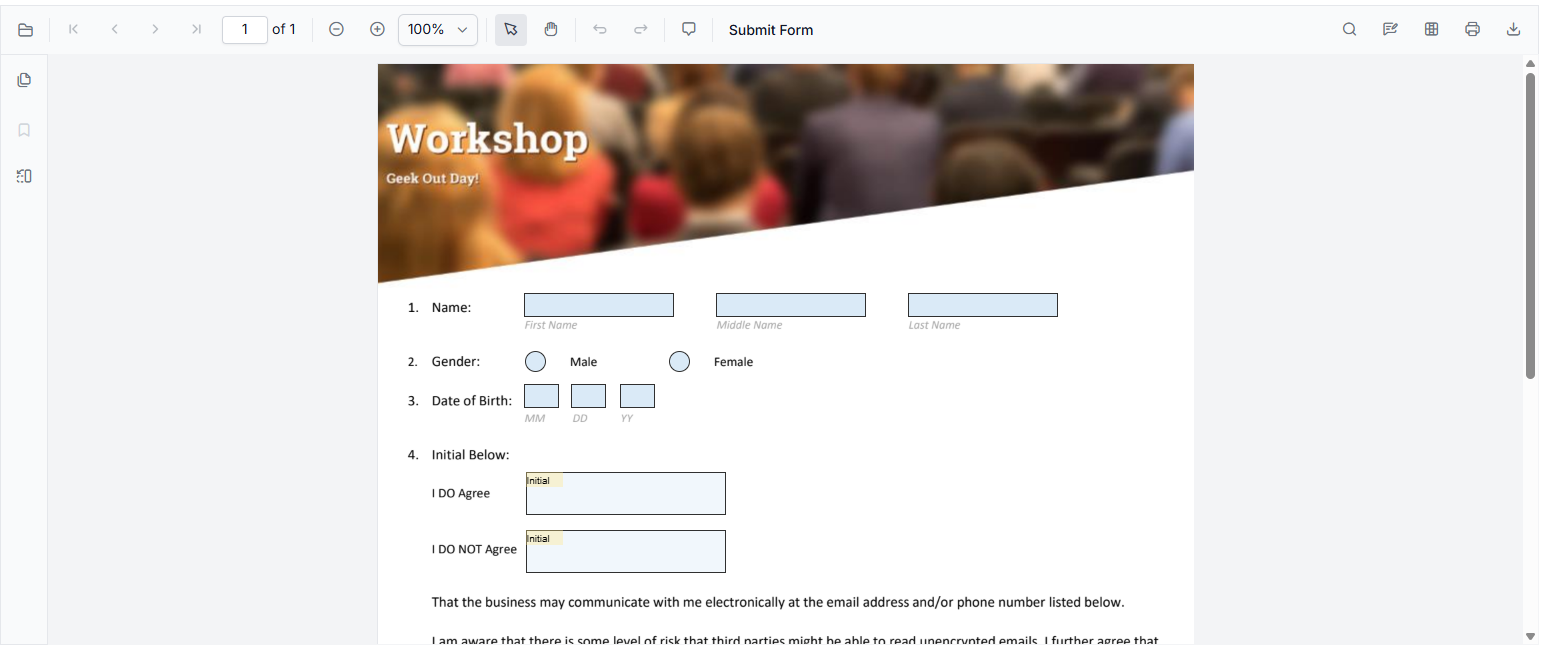
Save your file and open it in any modern browser. The PDF Viewer will load and display the sample PDF.
Note: For more detailed guidance, check out our official documentation.
With the PDF viewer now configured, you’re ready to move on to the next step, designing interactive form fields to make your PDFs dynamic, fillable, and user-friendly.
Design fillable PDF Forms using Form Designer
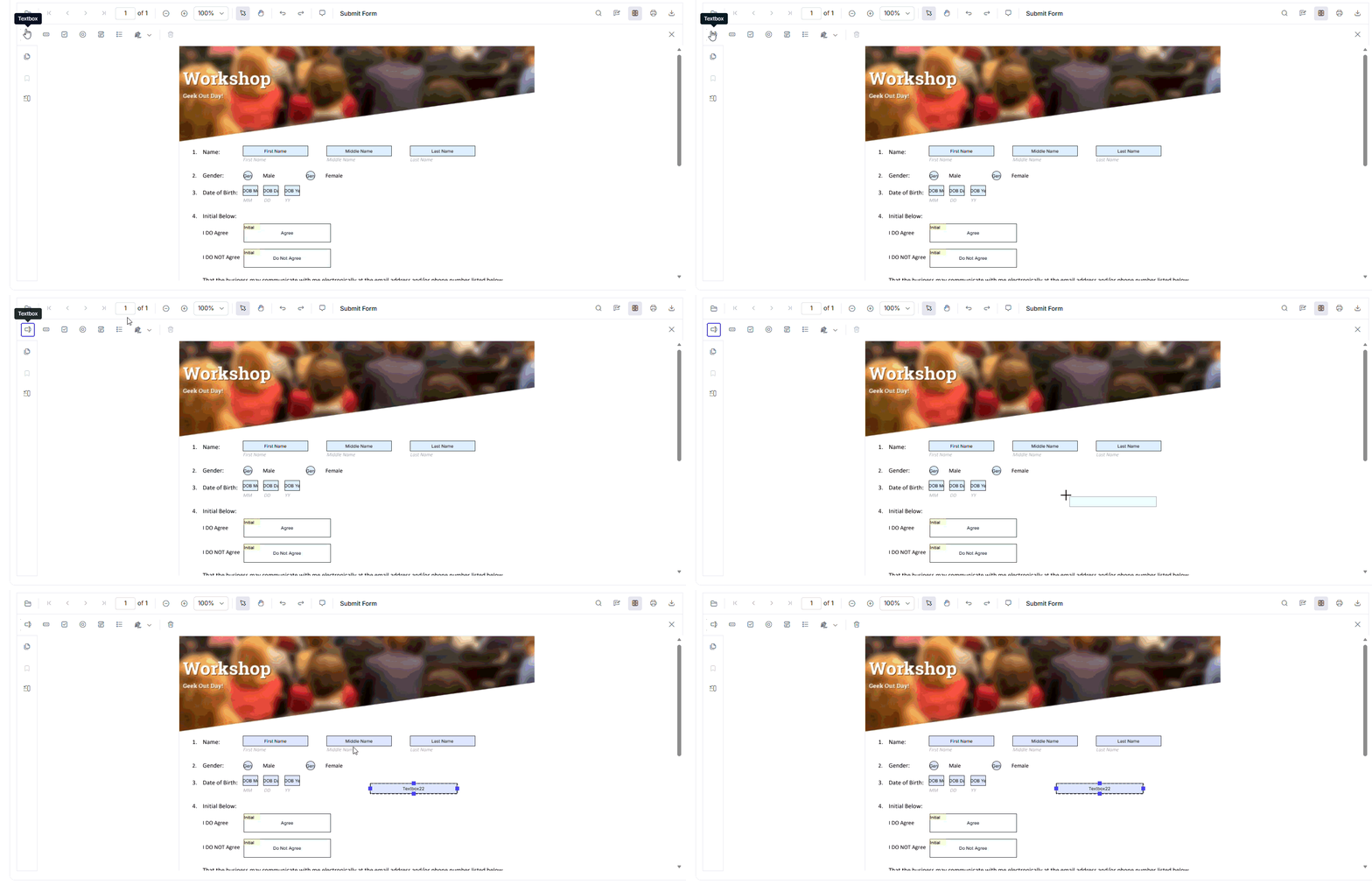
Before you can auto-populate PDF form fields, your PDF must contain form fields. Syncfusion’s built-in Form Designer makes it simple to create fillable PDF forms directly in your application.
You can add and customize fields such as TextBox, Password, CheckBox, RadioButton, ListBox, DropDown, Signature field, and Initial field. The UI allows you to place fields on the PDF visually, adjust their size, and configure properties like field name and styling.
This approach gives you full control over designing interactive forms that integrate cleanly with automated form filling using JavaScript.
Add Form Fields programmatically (Optional)
If you want to generate fields dynamically, you can also create form fields programmatically using JavaScript. This is useful when you generate documents automatically and want to insert form fields at runtime.
pdfviewer.documentLoad = function (args) {
    pdfviewer.documentLoad = function (args) {
        // Textbox field
        pdfviewer.formDesignerModule.addFormField("Textbox", {
            name: "First Name", // Field Name
            bounds: { X: 146, Y: 229, Width: 150, Height: 24 }, // Position & Size
        });

        // Checkbox field
        pdfviewer.formDesignerModule.addFormField("CheckBox", {
            name: "Text Message", // Field Name
            bounds: { X: 56, Y: 664, Width: 20, Height: 20 }, // Position & Size
            isChecked: false // Default Value
        });

        pdfviewer.formDesignerModule.addFormField("RadioButton", {
            name: "Gender", // Field Name
            bounds: { X: 148, Y: 289, Width: 18, Height: 18 }, // Position & Size
            isSelected: false // Default Value
        });
    };
Note: If you want to explore the Form Designer further, take a look at the live demo and official documentation for detailed examples and additional features.
How to auto-populate PDF Form Fields with JavaScript
Once your PDF Viewer is set up and your form fields are ready, the next step is to auto-fill those fields programmatically. This eliminates manual entry, reduces mistakes, and speeds up workflows.
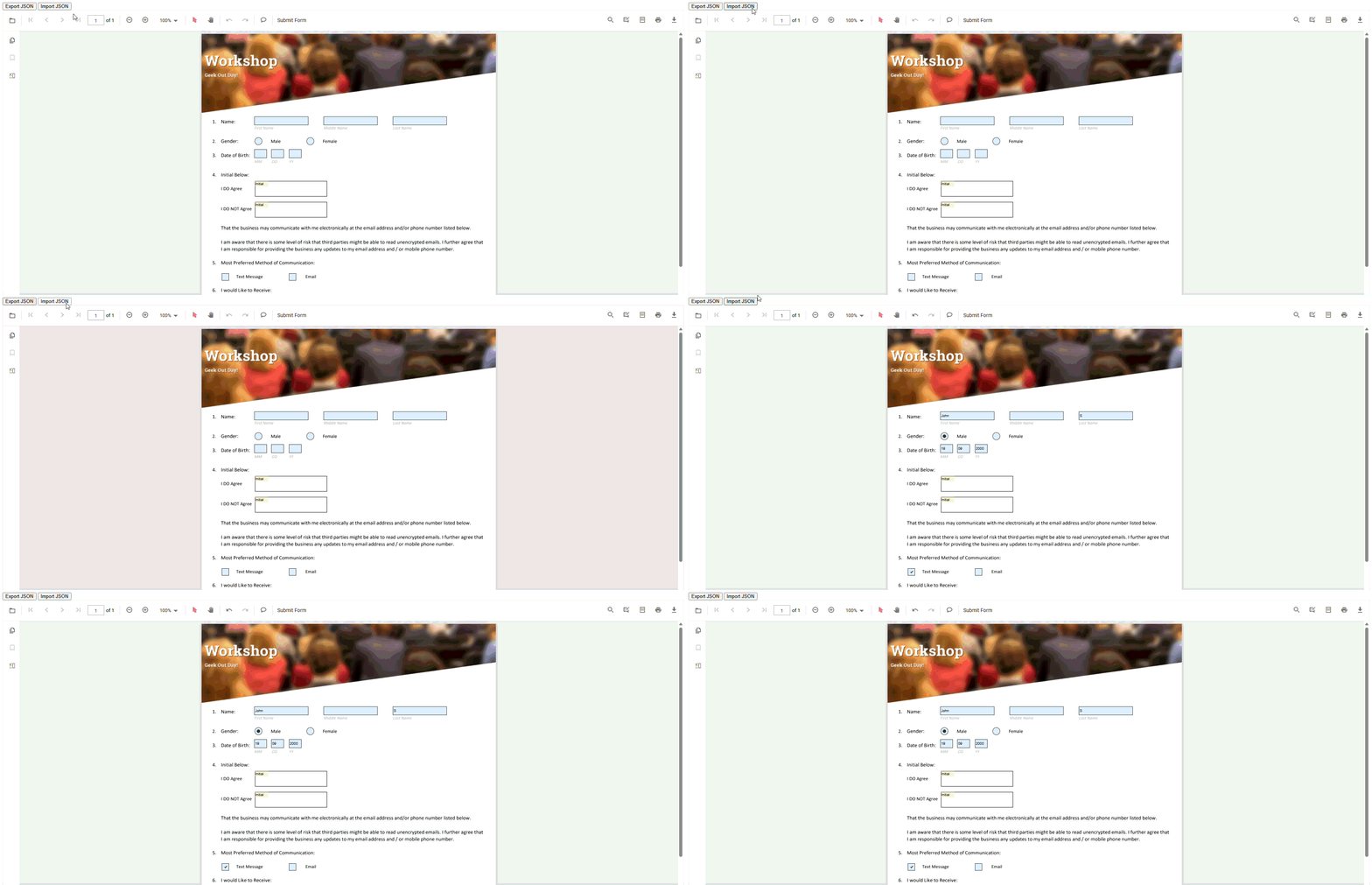
Syncfusion JavaScript PDF Viewer allows you to import and export form field data using JSON and XFDF. If your data already exists in your application at runtime, you can also work directly with JavaScript objects.
Populate PDF form fields with JSON
Manually typing form values is slow and inconsistent, especially when your app already has the data. JSON is a great option for fast automation and easy integration with dynamic sources like APIs or databases.
To fill PDF form fields automatically using JSON, make sure the PDF already contains form fields (created using Form Designer or programmatically). Then, load your JSON data from a file or API and pass it to the importFormFields() method.
<button id="importJson">Import JSON</button>
<button id="exportJson">Export JSON</button>// Export form fields as JSON
document.getElementById('exportJson').addEventListener('click', () => {
pdfviewer.exportFormFields('Data', 'Json');
});
// Import form fields from JSON
document.getElementById('importJson').addEventListener('click', () => {
fetch('resources/form-designer.json') // JSON file path
.then(response => response.text())
.then(data => {
pdfviewer.importFormFields(data, 'Json'); // Import in JSON format
});
});This approach makes it easy to reuse form values later. You can export the filled form field values once and import them whenever needed, which is ideal for saving drafts, restoring user progress, or repeating common workflows.
Populate PDF Form Fields with XFDF
XFDF works well for structured form workflows where form data needs to be shared or reused across multiple documents. If your organization already uses XFDF-based workflows, it can integrate cleanly into the same automation approach.
To use XFDF, replace the JSON format type with XFDF and load an .xfdf file instead.
pdfviewer.importFormFields(data, "Xfdf");Populate PDF Form Fields using a JavaScript object
Another simple and flexible way to fill PDF form fields is using a JavaScript object, especially when your data is already available in memory from user input or an API response.
This method removes the need for external JSON files and is perfect for real-time form filling experiences inside your application.
<button id="exportDataAsObject">Export Object</button>
<button id="importData">Import Data</button>let exportedData;
// Export form data as an object
document.getElementById("exportDataAsObject").addEventListener("click", () => {
pdfviewer.exportFormFieldsAsObject("Json").then((value) => {
exportedData = value;
});
});
// Import the object back into the PDF
document.getElementById("importData").addEventListener("click", () => {
pdfviewer.importFormFields(exportedData, "Json");
});The most common auto-fill problem: Field name mismatch
If your fields don’t populate after import, the issue is often not the viewer; it’s the field names.
In real applications, your API response might contain keys like firstName, phoneNumber, or smsConsent, but the actual PDF form fields are often labeled differently, such as First Name, Mobile Number, or Text Message.
Auto-fill works only when the input data matches the PDF field names exactly. A reliable way to handle this is to export the form field values once, inspect the output structure, and then build your import payload based on those exact field names. This avoids guesswork and keeps your integration stable even when forms grow larger over time.
Troubleshooting: PDF Form Fields not auto-populating?
If your PDF form fields aren’t populating correctly, it’s usually caused by one of these practical issues:
- The imported JSON/XFDF does not match your actual PDF field names.
- Checkbox or radio button fields require specific value formats.
- The import runs before the PDF document finishes loading.
A good debugging technique is to export form fields first and use that schema as your baseline. Once you align your input data structure with the exported output, imports become predictable and repeatable.
Frequently Asked Questions
Why should I populate PDF form fields with JavaScript?
Using JavaScript with Syncfusion’s PDF Viewer automates form filling, reduces manual entry errors, enhances workflow speed, and works well for frequently used forms such as invoices, applications, and surveys.
Yes. The Syncfusion PDF Viewer includes a built-in Form Designer that allows you to create and edit form fields directly within the viewer interface. You can add various interactive form elements such as textboxes, checkboxes, radio buttons, dropdowns, list boxes, signature fields, and buttons without needing external tools.Can I design form fields directly using the PDF Viewer?
You can populate PDF form fields using several supported formats, depending on your workflow and data source. JSON is ideal for API‑based or database‑driven form data, making it well suited for integrations. XFDF is commonly used in structured document workflows where interoperability and standardized form data exchange are required. JavaScript objects are best suited for real‑time, in‑memory updates within the viewer, enabling dynamic form interactions without external dependencies.What formats can I use to populate form fields automatically?
Absolutely! The Syncfusion PDF Viewer supports importing and exporting form data in multiple formats, including JSON, XFDF, and object‑based formats. These options are available both through the user interface and programmatically, giving developers and end users full flexibility when working with PDF forms.Can I import and export PDF form data?
No. Users don’t need Adobe Acrobat or any external software. Form filling, display, editing, and exporting happen entirely inside your web application using the Syncfusion JavaScript PDF Viewer. Get started with PDF Viewer.Do users need additional software to fill the form?
Yes. All form loading, editing, and exporting occur inside your own application environment. You can control security, API access, data handling, and user permissions at the application level.Is it secure to populate PDF forms using JavaScript?
Conclusion
Manual PDF form filling is no longer a practical option for modern applications. In this guide, you learned how to create fillable PDF forms and auto-populate PDF form fields using Syncfusion JavaScript PDF Viewer.
You now know how to:
- Set up the PDF Viewer in a web page.
- Design fillable forms using Form Designer.
- Auto-fill form fields using JSON, XFDF, and JavaScript objects.
- Avoid common issues, such as field-name mismatches, that can break automation.
This approach saves time, reduces mistakes, and makes workflows smarter, whether you’re handling invoices, contracts, onboarding forms, or surveys.
Ready to automate PDF Form Filling?
Start building smarter PDF workflows using Syncfusion JavaScript PDF Viewer and eliminate manual data entry for good.
If you’re a Syncfusion user, you can download the setup from the license and downloads page. Otherwise, you can start with a free 30-day trial.
If you have questions, feel free to reach out through the support forum, support portal, or feedback portal. We are always happy to help.



 No spam, just valuable updates.