
 Mohan Chandran
TL;DR: Manual copy‑pasting into Google Translate breaks formulas and formatting. An AI‑Powered Excel Content Translator replaces that hassle with seamless automation. By combining Syncfusion XlsIO and OpenAI GPT models, you get structured, accurate translations directly in your workbook. The result: preserved layouts, consistent localization, faster reporting, and globally accessible data across teams.
If you’ve ever tried sharing an Excel report with teammates around the world, you already know the struggle:
Copy → Paste → Translate → Reformat → Fix formulas → Repeat.
Half the time, something breaks. The other half, the translations don’t even fit the original meaning.
So, let’s solve that.
Now, picture an Excel file that translates itself without disturbing your formulas, formatting, or layouts. This is the solution you’ll create using C#, OpenAI, and Syncfusion’s .NET Excel library (XlsIO).
Let’s break it down in a way that feels simple and doable.

Why an AI-powered Excel translator changes everything
We built this because:
- Manual translation is slow and error‑prone.
- Google Translate breaks the structure.
- Global teams need consistent, reliable translations.
- Not everyone on your team speaks the same language.
- You shouldn’t waste hours doing repetitive copy‑paste work.
With an AI‑powered Excel translator, you’ll automate all of that while keeping your file exactly as it is.
This translator is perfect for teams in HR, sales, finance, education, and supply chain, essentially anyone working with spreadsheets across multiple languages. Next, let’s explore why Syncfusion’s library is key.
Why Syncfusion .NET Excel library?
The .NET Excel Library, also known as Essential XlsIO. It is a robust tool that facilitates the smooth creation, reading, and editing of Excel documents using C# without Microsoft Office.
It supports creating Excel documents from scratch, modifying existing Excel documents, shapes, form controls, comments, data import and export, Excel formulas, conditional formats, data validations, charts, sparklines, tables, pivot tables, pivot charts, template markers, and much more.
What we’ll build
A fully automated Excel translator that:
- Reads Excel data using Syncfusion® XlsIO
- Sends cell text to OpenAI GPT models
- Predicts translation accurately
- Writes translated content back into the workbook
- Exports a perfectly preserved new Excel file
Prerequisites
To follow along, you’ll need:
- .NET SDK 8.0 or later
- Open AI API key
- Syncfusion XlsIO NuGet package
- Visual Studio or VS Code
Building an AI-powered Excel content translator using C#
Let’s follow these steps to build an AI-powered Excel content translator using OpenAI and Syncfusion .NET Excel Library in C#.
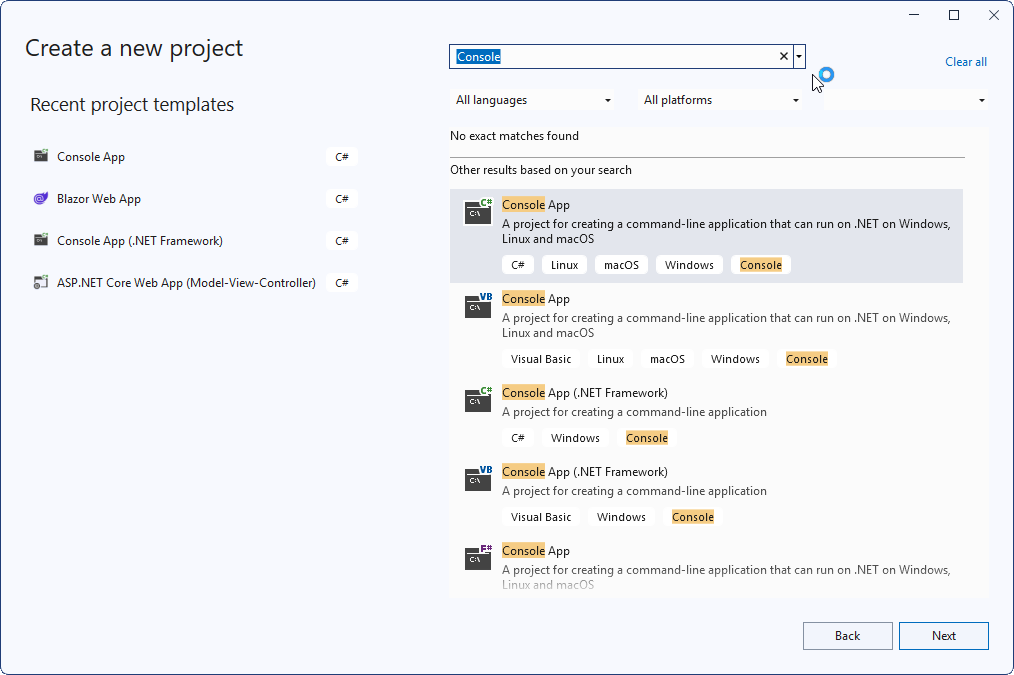
Step 1: Create a .NET Core Console app
First, create a .NET Core Console application in Visual Studio as shown in the following image.
Step 2: Install the NuGet packages
Then, install the latest Syncfusion.XlsIO.NET.Core and OpenAI NuGet packages in your application.
Step 3: Add a method for OpenAI responses
Let’s add the OpenAI method to process the Excel data as shown in the following code example.
private static async Task<string> AskOpenAIAsync
(
    string apiKey,
    string model,
    string systemPrompt,
    string userContent
)
{
    // Initialize OpenAI client
    OpenAIClient openAIClient = new OpenAIClient(apiKey);

    // Create chat client for the specified model
    ChatClient chatClient = openAIClient.GetChatClient(model);

    // Get AI response
    ClientResult<ChatCompletion> chatResult = await chatClient.CompleteChatAsync
    (
        new SystemChatMessage(systemPrompt),
        new UserChatMessage(userContent)
    );

    string response = chatResult.Value.Content[0].Text ?? string.Empty;

    return response;
}
Step 4: Adding a method for reading and translating Excel data
Then, use the following code to extract information from the Excel document using XlsIO and translate it into the specified language.
private static async Task TranslateExcelContent
(
    string openAIApiKey,
    string excelFilePath,
    string language
)
{
    // Initialize Syncfusion Excel engine
    using ExcelEngine excelEngine = new ExcelEngine();

    // Set default version to XLSX
    IApplication excelApp = excelEngine.Excel;
    excelApp.DefaultVersion = ExcelVersion.Xlsx;

    IWorkbook workbook = excelApp.Workbooks.Open(excelFilePath);

    // Store translation results
    Dictionary<string, string> translationResults = new Dictionary<string, string>();

    // Convert each worksheet to CSV format and append to the context
    foreach (IWorksheet worksheet in workbook.Worksheets)
    {
        worksheet.UsedRangeIncludesFormatting = false;
        IRange usedRange = worksheet.UsedRange;

        int firstRow = usedRange.Row;
        int lastRow  = usedRange.LastRow;
        int firstCol = usedRange.Column;
        int lastCol  = usedRange.LastColumn;

        string systemPrompt = @"You are a professional translator integrated into an Excel automation tool.
                                Your job is to translate text from Excel cells into the" + language + @" language
                                Rules:
                                - Preserve original structure as much as possible.
                                - Prefer literal translation over paraphrasing.
                                - Return ONLY the translated text, without quotes, labels, or explanations.
                                - Preserve placeholders (e.g., {0}, {name}) and keep numbers, currency, and dates intact.
                                - Do not change the meaning, tone, or formatting unnecessarily.
                                - Do not add extra commentary or code fences.
                                - If the text is already in the target language, return it unchanged.
                                - Be concise and accurate.";

        for (int row = firstRow; row <= lastRow; row++)
        {
            for (int col = firstCol; col <= lastCol; col++)
            {
                // Skip formula, number, boolean, and date time cells
                if (worksheet[row, col].HasBoolean ||
                    worksheet[row, col].HasDateTime ||
                    worksheet[row, col].HasFormula ||
                    worksheet[row, col].HasNumber)
                {
                    continue;
                }

                // Get cell value
                string cellValue = worksheet.GetCellValue(row, col, false);

                // Skip empty cells
                if (string.IsNullOrEmpty(cellValue))
                {
                    continue;
                }

                // Prepare user prompt
                string userPrompt = cellValue;

                try
                {
                    string translatedText = cellValue;

                    if (!translationResults.TryGetValue(cellValue, out translatedText))
                    {
                        // Get translated text from OpenAI
                        translatedText = await AskOpenAIAsync(
                            openAIApiKey,
                            "gpt-4o-mini",
                            systemPrompt,
                            userPrompt
                        );
                        translationResults.Add(cellValue, translatedText);
                    }

                    worksheet.SetValue(row, col, translatedText);
                }
                catch (Exception ex)
                {
                    Console.WriteLine($"OpenAI error: {ex.Message}");
                }
            }
        }
    }

    workbook.SaveAs("TranslatedExcelDocument.xlsx");
}
Step 5: Get the file path and the target language, and translate
Now, use the following code to retrieve the file path and language for translating the Excel document.
private static async Task ExecuteTranslation
(
    string openAIApiKey
)
{
    Console.WriteLine("AI Powered Excel Translator");

    Console.WriteLine("Enter full Excel file path (e.g., C:\\Data\\report.xlsx):");

    // Read user input for Excel file path
    string? excelFilePath = Console.ReadLine()?.Trim().Trim('"');

    Console.WriteLine("Enter the language name (e.g., Chinese, Japanese)");

    // Read user input for required language
    string? language = Console.ReadLine()?.Trim().Trim('"');

    if (string.IsNullOrWhiteSpace(excelFilePath) || !File.Exists(excelFilePath))
    {
        Console.WriteLine("Invalid path. Exiting.");
        return;
    }

    if (string.IsNullOrWhiteSpace(language))
    {
        Console.WriteLine("Invalid language. Exiting.");
        return;
    }

    if (string.IsNullOrWhiteSpace(openAIApiKey))
    {
        Console.WriteLine("OPENAI_API_KEY not set. Exiting.");
        return;
    }

    try
    {
        // Translate Excel content
        await TranslateExcelContent
        (
            openAIApiKey,
            excelFilePath,
            language
        );
    }
    catch (Exception ex)
    {
        Console.WriteLine($"Failed to read Excel: {ex.StackTrace}");
        return;
    }
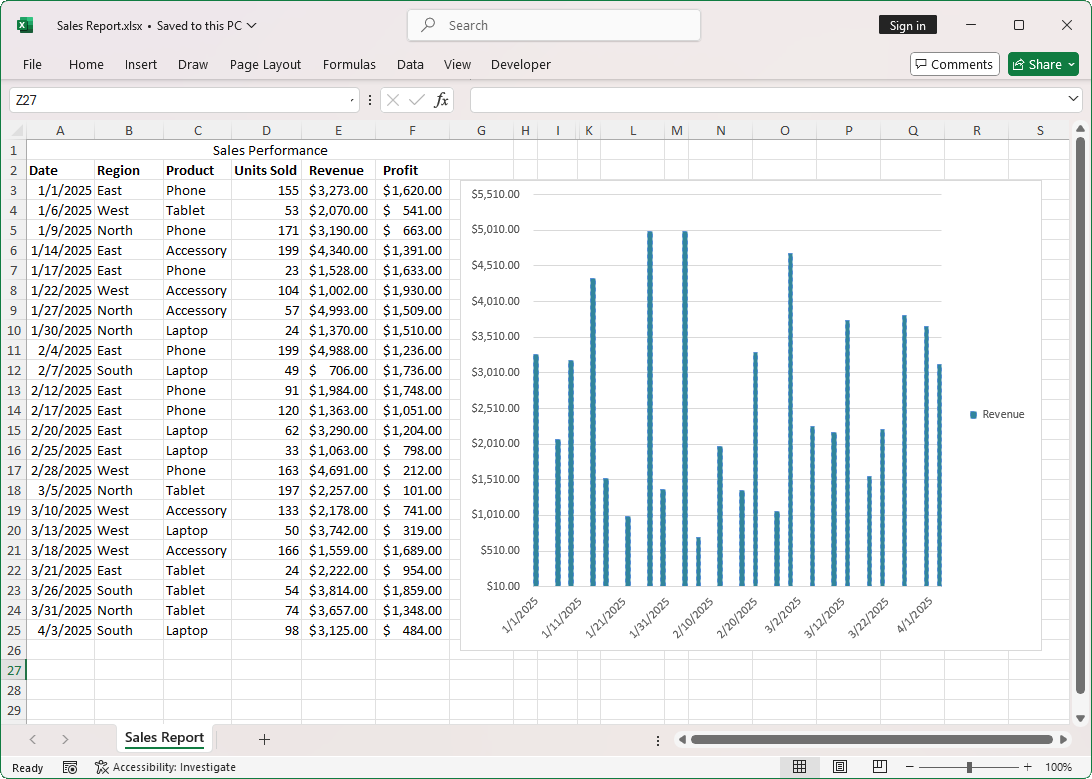
}The following image shows the sales performance report containing products sold and revenue details.
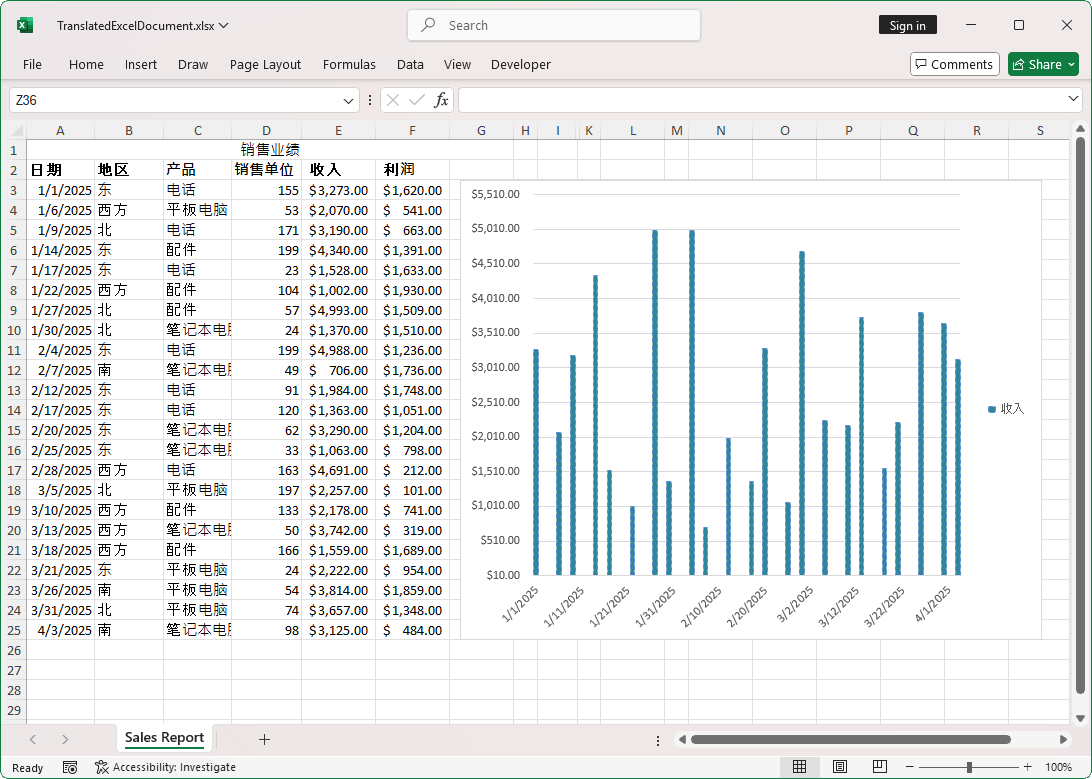
Using the Excel Content Translator powered by OpenAI, we translated the above content into Chinese. The following image shows how the translated Excel document retains the original layout, styles, and formatting while the cell content is accurately converted into Chinese.
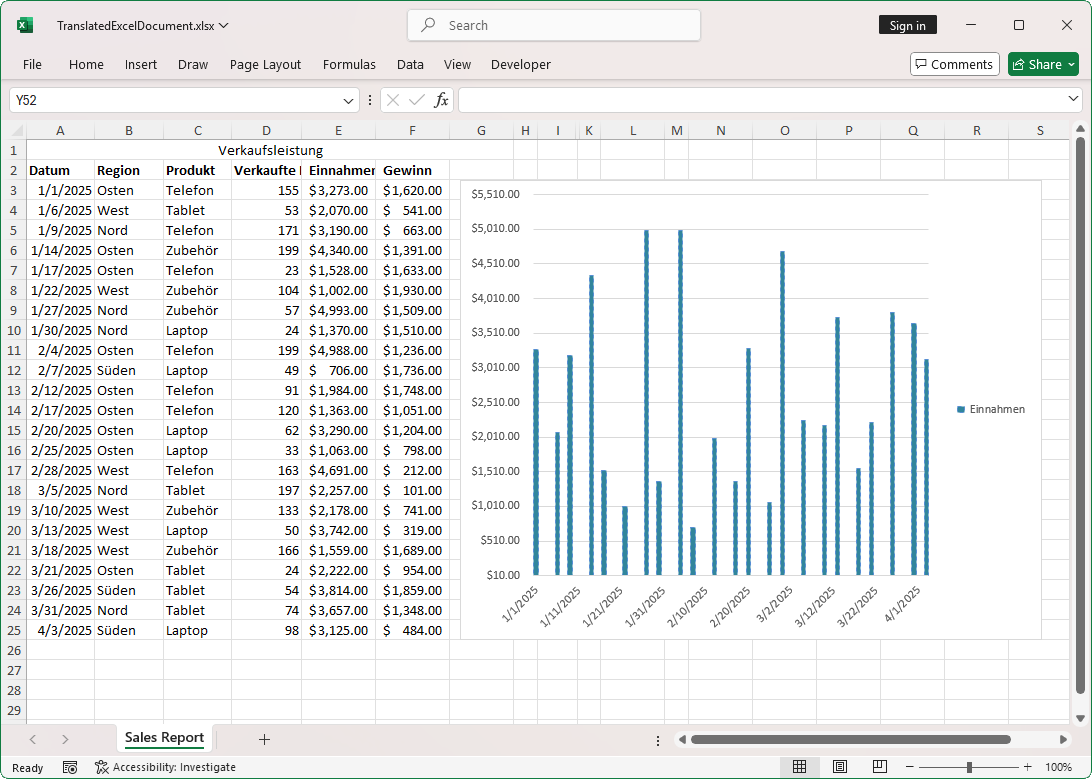
Here is the German-translated version of the input Excel document:
Use cases
Here are real-world scenarios where the AI-powered Excel translator helps:
- Global HR: Translate performance reviews for regional managers.
- International sales: Convert quarterly reports for global branches.
- Finance: Share budget sheets in local languages for compliance.
- Project management: Localize milestone reports for distributed teams.
- Supply chain: Translate inventory and pricing sheets for vendors.
- Education: Provide student reports in parents’ native languages.
GitHub reference
Also, check out the example for building an AI-powered Excel translator using C# on this GitHub repository.
Frequently Asked Questions
How do I handle very large Excel files?
For large workbooks, implement batching and caching. We need to translate unique strings first, then apply translations to all matching cells. This reduces API calls and speeds up processing.
Can I use a different OpenAI model?
Yes. The sample uses gpt-4o-mini for cost efficiency, but you can switch to gpt-4o or other models by changing the model parameter in AskOpenAIAsync.
Is my data secure when sent to OpenAI?
Data is transmitted over HTTPS to OpenAI’s API. For sensitive data, review OpenAI’s data usage policy and consider anonymizing personal identifiers before sending.
Does this work offline?
No. Translation requires calling OpenAI’s API, so an internet connection is mandatory.
How do I preserve cell formatting?
Syncfusion .NET Excel Library automatically retains styles, borders, and number formats when you update cell values. Avoid overwriting formulas or merged cells unless necessary.
Can I translate comments and notes?
Yes. Iterate through IWorksheet.Comments and apply the same translation logic to the comment text.
What about the translation of charts and pivot tables?
You can translate chart titles, axis labels, and pivot table captions by accessing their respective properties in the Syncfusion .NET Excel library.
Reach global audiences faster with automated Excel localization
Thanks for reading! In this blog, we’ve explored how to build an AI-Powered Excel Content Translator in C# with OpenAI GPT and Syncfusion .NET Excel Library. With this setup, Excel becomes a smart, multilingual tool that automatically translates content while preserving structure and formatting. This solution simplifies localization, improves collaboration across regions, and saves hours of manual work. Try it out and streamline your reporting workflow.
Using the .NET Excel library, you can also export or write Excel data to PDF, data tables, HTML, CSV, TSV, collections of objects, ODS, and JSON.
Are you already a Syncfusion user? You can download the product setup here. If you’re not \a Syncfusion user, you can download a free, 30-day trial here.
If you have any questions or require clarification about these features, please let us know in the comments below. You can also contact us through our support forum, support portal, or feedback portal. We are happy to assist you!




 No spam, just valuable updates.