
 Mohan Chandran
TL;DR: Turn static spreadsheets into intelligent, conversational tools by building an AI-powered Excel chatbot in C#. Using the .NET Excel library from Syncfusion and models like OpenAI GPT-5, this guide shows how to query data using natural language, eliminating manual filtering and formulas while enabling faster, insight-driven workflows.
Excel is powerful, but let’s be honest: scrolling through massive sheets, writing formulas, and cross-checking data can be slow and painful.
What if you could simply chat with your Excel file and get answers instantly?
In this article, we’ll build exactly that, an AI-powered Excel Chatbot using C# + Syncfusion® .NET Excel Library + OpenAI GPT‑5.
Upload a workbook → ask questions → get insights.
No formulas. No manual filtering. Just conversation.
Let’s turn your spreadsheets into smart, interactive data assistants.

Why use the Syncfusion .NET Excel library?
The Syncfusion .NET Excel Library, also known as Essential XlsIO. It is a robust, Office‑independent Excel engine for .NET that lets you:
- Create, read, and edit Excel files in C#.
- Access formulas, charts, pivot tables, conditional formatting & more.
- Import and export data effortlessly.
- Automate enterprise workflows without Microsoft Office.
Perfect for building intelligent data-driven applications.
Prerequisites
Before you start, make sure you have:
Building an AI-powered Excel Chatbot using C#
Let’s follow these steps to build your AI-powered Excel Chatbot using C#, Syncfusion .NET Excel Library, and OpenAI.
Step 1: Create a .NET application
Start by creating a new .NET Core Console application in Visual Studio.
Step 2: Install the required NuGet packages
Next, install the latest Syncfusion.XlsIO.Net.Core and OpenAI NuGet packages in your project.
Step 3: Read Excel data using the Syncfusion .NET Excel Library
Use the following code to read data from an Excel file using XlsIO and convert it to CSV. This format helps make the data easier to share with the AI model.
private static string BuildCsvContext(string excelFilePath)
{
    // Initialize Syncfusion Excel engine
    using ExcelEngine excelEngine = new ExcelEngine();

    // Set default version to XLSX
    IApplication excelApp = excelEngine.Excel;
    excelApp.DefaultVersion = ExcelVersion.Xlsx;

    // Open the Excel file
    using FileStream fileStream = File.OpenRead(excelFilePath);
    IWorkbook workbook = excelApp.Workbooks.Open(fileStream);

    // Build CSV-like context
    StringBuilder stringBuilder = new StringBuilder();

    // Add file and sheet info
    stringBuilder.AppendLine($"File: {excelFilePath}");
    stringBuilder.AppendLine($"Sheets: {workbook.Worksheets.Count}");
    stringBuilder.AppendLine();

    // Convert each worksheet to CSV format and append to the context
    foreach (IWorksheet worksheet in workbook.Worksheets)
    {
        MemoryStream csvStream = new MemoryStream();

        // Save workbook as CSV
        worksheet.SaveAs(csvStream, ",");

        // Convert CSV to text
        string excelData = Encoding.UTF8.GetString(csvStream.ToArray());
        stringBuilder.AppendLine("Sheet Name : " + worksheet.Name);
        stringBuilder.AppendLine();
        stringBuilder.AppendLine(excelData);
        stringBuilder.AppendLine();
    }

    return stringBuilder.ToString();
}
Step 4: Add an OpenAI chat method
Next, add a method to process the Excel data using OpenAI and provide a response as shown below.
private static async Task<string> AskOpenAIAsync(
    string apiKey,
    string model,
    string systemPrompt,
    string userContent,
    List<ChatMessage> chatHistory)
{
    // Initialize OpenAI client
    OpenAIClient openAIClient = new OpenAIClient(apiKey);

    // Create chat client for the specified model
    ChatClient chatClient = openAIClient.GetChatClient(model);

    // Append system and user messages to chat history
    chatHistory.Add(new SystemChatMessage(systemPrompt));

    // Add user message to chat history
    chatHistory.Add(new UserChatMessage(userContent));

    // Get AI response
    ClientResult<ChatCompletion> chatResult = await chatClient.CompleteChatAsync(chatHistory);

    string response = chatResult.Value.Content[0].Text ?? string.Empty;

    // Add assistant response to chat history
    chatHistory.Add(new AssistantChatMessage(response));

    return response;
}
Step 5: Start conversing with Excel
Finally, use the following code to send the Excel data to OpenAI GPT and begin the chat.
private static async Task ExecuteChatWithExcel(string openAIApiKey)
{
    Console.WriteLine("AI Powered Excel ChatBot");

    Console.WriteLine("Enter full Excel file path (e.g., C:\\Data\\report.xlsx):");

    // Read user input for Excel file path
    string? excelFilePath = Console.ReadLine()?.Trim().Trim('"');

    if (string.IsNullOrWhiteSpace(excelFilePath) || !File.Exists(excelFilePath))
    {
        Console.WriteLine("Invalid path. Exiting.");
        return;
    }

    if (string.IsNullOrWhiteSpace(openAIApiKey))
    {
        Console.WriteLine("OPENAI_API_KEY not set. Exiting.");
        return;
    }

    string csvContext;
    try
    {
        // Convert Excel to CSV-like context
        csvContext = BuildCsvContext(excelFilePath);
    }
    catch (Exception ex)
    {
        Console.WriteLine($"Failed to read Excel: {ex.Message}");
        return;
    }

    Console.WriteLine("\nOverview (AI):");

    List<ChatMessage> chatHistory = new List<ChatMessage>
    {
        new SystemChatMessage("You are an assistant that helps analyze Excel data.")
    };

    try
    {
        // Get an overview of the Excel data
        string overview = await AskOpenAIAsync(
            openAIApiKey,
            model: "gpt-5", // replace with a model available in your account
            systemPrompt: "You are a helpful assistant. Provide a concise 3-6 bullet summary of the workbook data.",
            userContent: csvContext,
            chatHistory: chatHistory);

        Console.WriteLine(overview);
    }
    catch (Exception ex)
    {
        Console.WriteLine($"OpenAI overview failed: {ex.Message}");
    }

    Console.WriteLine("\nDo you want any specific details? Type 'Stop' to exit.");

    while (true)
    {
        // Read user question
        Console.Write("\nYou: ");

        string? userQuestion = Console.ReadLine();

        if (userQuestion == null)
            continue;

        if (userQuestion.Trim().Equals("Stop", StringComparison.OrdinalIgnoreCase))
            break;

        // Define system prompt for the chatbot
        string systemPrompt = @"You are an intelligent Excel assistant built using Syncfusion XlsIO and OpenAI. Your job is to help users understand, analyze, and interact with Excel data through natural language. You are integrated into a C# application and can access structured Excel content such as tables, charts, formulas, and cell values.
            Your capabilities include:
            - Summarizing Excel sheets and ranges
            - Answering questions about data trends, totals, averages, and comparisons
            - Explaining formulas and calculations
            - Suggesting improvements or insights based on the data
            - Responding in a friendly, professional, and concise manner
            Constraints:
            You do not generate or modify Excel files directly. Instead, you interpret and explain the data provided to you by the application.
            Always assume the user is referring to the most recent Excel content unless stated otherwise. Maintain context across the conversation to provide coherent and helpful responses.
            If the user asks something outside the scope of Excel data, politely redirect them back to Excel-related tasks.";

        string userPrompt =
            "Question:\n" + userQuestion;

        try
        {
            // Get answer from OpenAI based on user question and chat history
            string answer = await AskOpenAIAsync(
                openAIApiKey,
                "gpt-5",
                systemPrompt,
                userPrompt,
                chatHistory);

            Console.WriteLine("ChatBot: " + answer);
        }
        catch (Exception ex)
        {
            Console.WriteLine($"OpenAI error: {ex.Message}");
        }
    }
}
Refer to the following input Excel document.
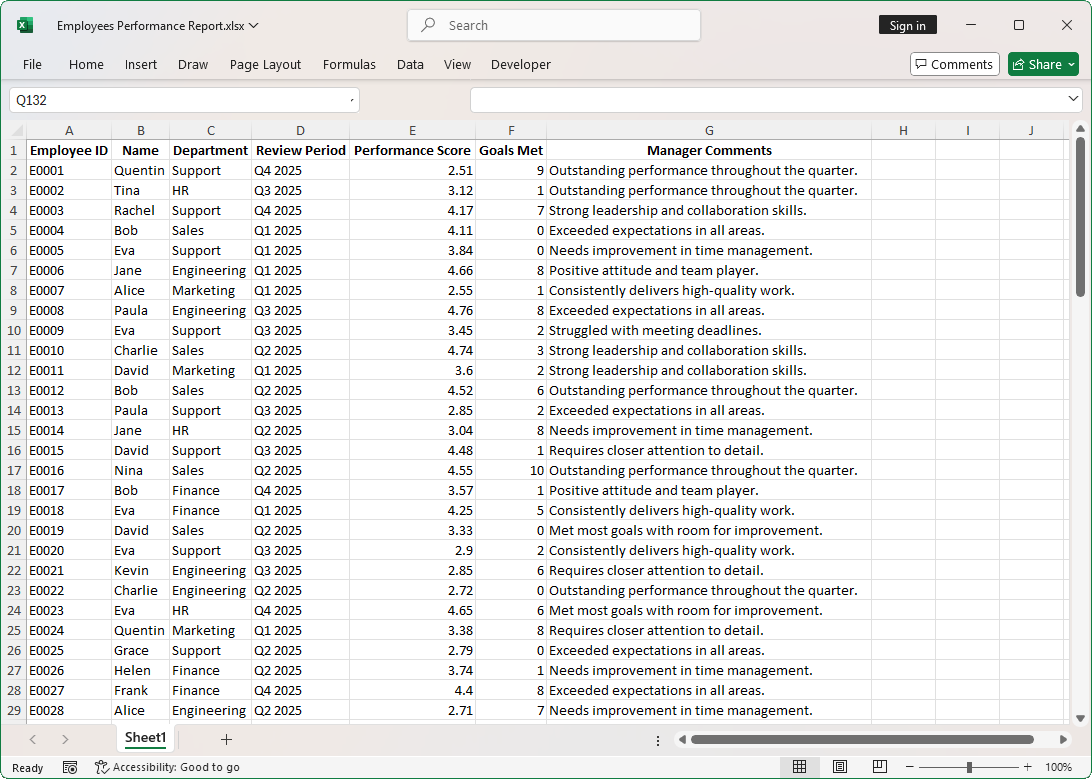
Using the AI-powered Excel chatbot, we analyzed the above dataset and obtained the following insights.
AI-Powered Excel ChatBot

Enter full Excel file path (e.g., C:\Data\report.xlsx):

D:\VS Projects\ExcelChatBot\ExcelChatBot\Employees Performance Report.xlsx

Overview (AI):

- Scope: 100 employee review records covering all quarters of 2025 across six departments (Support, HR, Engineering, Sales, Marketing, Finance); Employee IDs are unique, with several employees appearing multiple times across periods/departments (likely transfers or multiple reviews).

- Performance scores range from 2.50 to 4.96 (top: Helen, Finance, Q1 2025, 4.96; Paula, Marketing, Q4 2025, 4.95; Quentin, Marketing, Q1 2025, 4.91; lowest: Laura, HR, Q4 2025, 2.50). Many entries are above 4.0, indicating generally strong performance.

- Goals Met ranges from 0-10, with weak alignment to scores, e.g., high scores with 0 goals: Mike, HR, Q1 2025, 4.82; Eva, Support, Q2 2025, 4.71; low/medium scores with 10 goals also occur), suggesting goals tracking may not fully reflect overall performance ratings.

- Top-scoring entries span multiple departments (notably Finance, Marketing, Support), indicating high performers are distributed rather than concentrated in a single department.

- Manager comments use recurring themes/templates: “Outstanding performance,” “Exceeded expectations,” “Consistently delivers high-quality work,” alongside improvement flags like time management, deadlines, and attention to detail; several note strong leadership and problem-solving.

- Data note: The sheet includes Syncfusion trial/license text at the top and bottom (non-data content) that should be ignored or removed for clean analysis.

Do you want any specific details? Type ‘Stop’ to exit.

You: Who are the top 5 performers this quarter?

ChatBot: Assuming “this quarter” = the most recent period in the sheet (Q4 2025), ranked by Performance Score:

- Paula (E0089) – Marketing – 4.95.
- Jane (E0034) – Finance – 4.82.
- Eva (E0023) – HR – 4.65.
- Tina (E0070) – Engineering – 4.53.
- Alice (E0033) – Marketing – 4.47.

Note: Eva appears twice in Q4; I used her higher score. If you meant a different quarter or want per-record ranking, let me know.

You: Which department has the highest average performance score?bnmkl;’

ChatBot: Finance has the highest average performance score: 4.15 (13 reviews).

- Department averages for context: Marketing 3.90; HR 3.84; Sales 3.64; Engineering 3.64; Support 3.47.

- If you meant a specific quarter (e.g., Q4 2025), let me know, and I’ll filter and recompute.

You: Summarize the manager’s feedback for the HR team.

ChatBot: Most common development theme: time management and deadlines (5 of 10 HR reviews mention “needs improvement in time management” or “struggled with meeting deadlines”).

- Strong praise also present: 2 “Outstanding performance,” 1 “Exceeded expectations,” and 1 “Consistently delivers high-quality work.”

- One review is mixed: “Met most goals with room for improvement.”

- Overall tone is balanced-about half recognition and half developmental feedback-spanning Q1-Q4 2025.

- Actionable takeaway: Prioritize time-management and deadline-support initiatives while continuing to recognize top performers.
Practical use cases for an Excel Chatbot
Conversational access to Excel data helps teams extract insights quickly without complex formulas or manual filtering. Here are some practical scenarios:
- HR managers can review employee performance data through a conversational interface and quickly extract insights.
- Sales leaders can upload Excel reports and chat with the bot to identify top-performing regions and products.
- Finance teams can interactively explore budget versus actual data to identify overspending or underused funds.
- Project managers can track overdue tasks and milestone progress by chatting directly with their Excel data.
- Inventory managers can ask the chatbot about low-stock or slow-moving products without writing formulas.
- School administrators can review student performance and attendance trends using natural language queries.
GitHub reference
For more details, refer to the AI-powered Excel chatbot using C# GitHub demo.
Frequently Asked Questions
Do I need Microsoft Excel installed to use this solution?
No. The Syncfusion .NET Excel Library (Essential XlsIO) works independently of Microsoft Excel. It allows you to read, write, and process Excel files programmatically in C# without any Microsoft Office dependency.
What types of Excel files are supported?
This solution supports a wide range of Excel and spreadsheet formats, including XLSX, XLS, XLSM, XLTM, SpreadsheetML, CSV, and TSV.
How does the chatbot understand Excel data?
The application converts Excel worksheets into a structured, CSV-like text format. This structured representation is then sent to the OpenAI model, allowing it to interpret tables, values, trends, and summaries before generating responses.
Which OpenAI model should I use?
The blog uses GPT‑5 as an example. However, you can replace it with any chat-capable model available in your OpenAI account. The choice of model depends on factors such as response quality, token limits, and cost considerations.
Is my Excel data stored or shared externally?
Excel data is processed locally within your C# application and is sent only to the OpenAI API as part of the prompt. Syncfusion XlsIO processes files entirely in memory, and no data is stored unless you explicitly choose to save or log it. Always review OpenAI’s data handling policies to ensure compliance with your organization’s requirements.
Can the chatbot modify Excel files?
No. In this implementation, the chatbot is designed strictly for analyzing and explaining Excel data. It does not write back to or modify Excel files, ensuring data integrity and keeping analysis separate from automation.
How well does this approach scale with large Excel files?
Performance depends on factors such as spreadsheet size, the number of worksheets, and the token limits of the AI model. When working with large Excel files, you can improve efficiency by sending only the relevant sheets or cell ranges, summarizing the data before passing it to the model, or splitting the Excel content into smaller, manageable chunks to process incrementally.
Provide your feedback on BizChat
Conclusion
Thanks for reading! We learned how to integrate Syncfusion .NET Excel Library with OpenAI in a C# app to turn static Excel workbooks into conversational experiences. By applying this approach, users can query Excel data using natural language, reduce manual data exploration, and gain insights more efficiently while preserving the accuracy and performance of the Excel library.
Explore our getting started guide and try our online demos for advanced features and additional code examples. The library also supports exporting and writing Excel data to formats such as PDF, images, data tables, HTML, CSV, collections of objects, ODS, and JSON.
If you’re already a Syncfusion user, download the setup from the license and downloads page. Otherwise, start with a free 30-day trial and experience the benefits firsthand.
Need help or have questions? Reach out through our support forum, support portal, or feedback portal. We’re always happy to assist you!



 No spam, just valuable updates.