
 RajaVignesh BalaSankar
TL;DR: PDF search fails in many JavaScript viewers because PDFs aren’t “real text files.” Font encoding quirks, missing text layers, image‑based scans, and inefficient rendering all sabotage accuracy. Syncfusion’s JavaScript PDF Viewer fixes this at the engine level, delivering reliable text extraction, precise highlighting, OCR-powered search, and fast navigation without third‑party libraries or hacks.
PDFs power the web until search stops working
PDFs run the modern web: contracts, invoices, manuals, reports, policies. But the moment users open a large PDF and hit Ctrl+F, things often fall apart.
Sound familiar?
- Search skips obvious matches.
- Highlights appear in the wrong place.
- Navigation jumps unpredictably.
- Large PDFs freeze the UI.
For end users, that’s frustrating. For developers, it’s worse; it makes your app feel unreliable.
The catch? PDF search is harder than it looks. Most JavaScript viewers fail not because of poor UI, but because they misunderstand how PDFs actually store text.
Let’s break down what goes wrong and how Syncfusion® JavaScript PDF Viewer fixes it with a powerful rendering engine and built-in search tools, no need for third-party libraries or extra setup.

Why PDF text search fails in JavaScript Viewers
Text search is one of the most essential features in any PDF viewer, especially when dealing with large or complex documents. But in many JavaScript-based PDF viewers, search functionality often falls short, delivering missed results, inaccurate highlights, or poor navigation. These issues stem from the hidden complexities of how PDFs are structured and rendered in the browser.
PDFs aren’t structured like HTML or Word documents. What looks like readable text is often split into fragments, encoded strangely, or not text at all.
Let’s break down the key reasons why PDF search fails in JavaScript viewers:
- Font encoding issues: Some PDFs use custom fonts or glyphs that obscure the actual character data. This makes it difficult for the viewer to correctly identify and match characters, resulting in missed or incorrect search results.
- Rendering-based extraction: Certain viewers rely on visual rendering to extract text from the PDF. Instead of accessing the raw text layer, they attempt to capture text after the page is drawn. This approach can lead to incomplete or inaccurate search data.
- Poor navigation between matches: Even when matches are found, users often struggle to move between them. In long or complex documents, a lack of intuitive navigation can make it hard to track your position or jump to the next result efficiently.
- Lack of OCR support: Scanned PDFs are essentially images. Without Optical Character Recognition (OCR), the viewer cannot convert image-based text into searchable content. This limitation often forces developers to rely on third-party OCR solutions, adding complexity and cost.
- Text layer issues: Many PDFs contain flattened content or embedded images instead of selectable text. If the document lacks a proper text layer, search functionality becomes impossible, no matter how advanced the viewer is.
In short, most JavaScript viewers treat search as a feature, Syncfusion treats it as core infrastructure.
How Syncfusion JavaScript PDF Viewer solves search problems
Syncfusion’s JavaScript PDF Viewer makes searching through PDFs both easy and reliable. It delivers accurate text highlighting, smooth navigation between results, and compatibility with a wide range of document types, all without requiring third-party tools or complex setup.
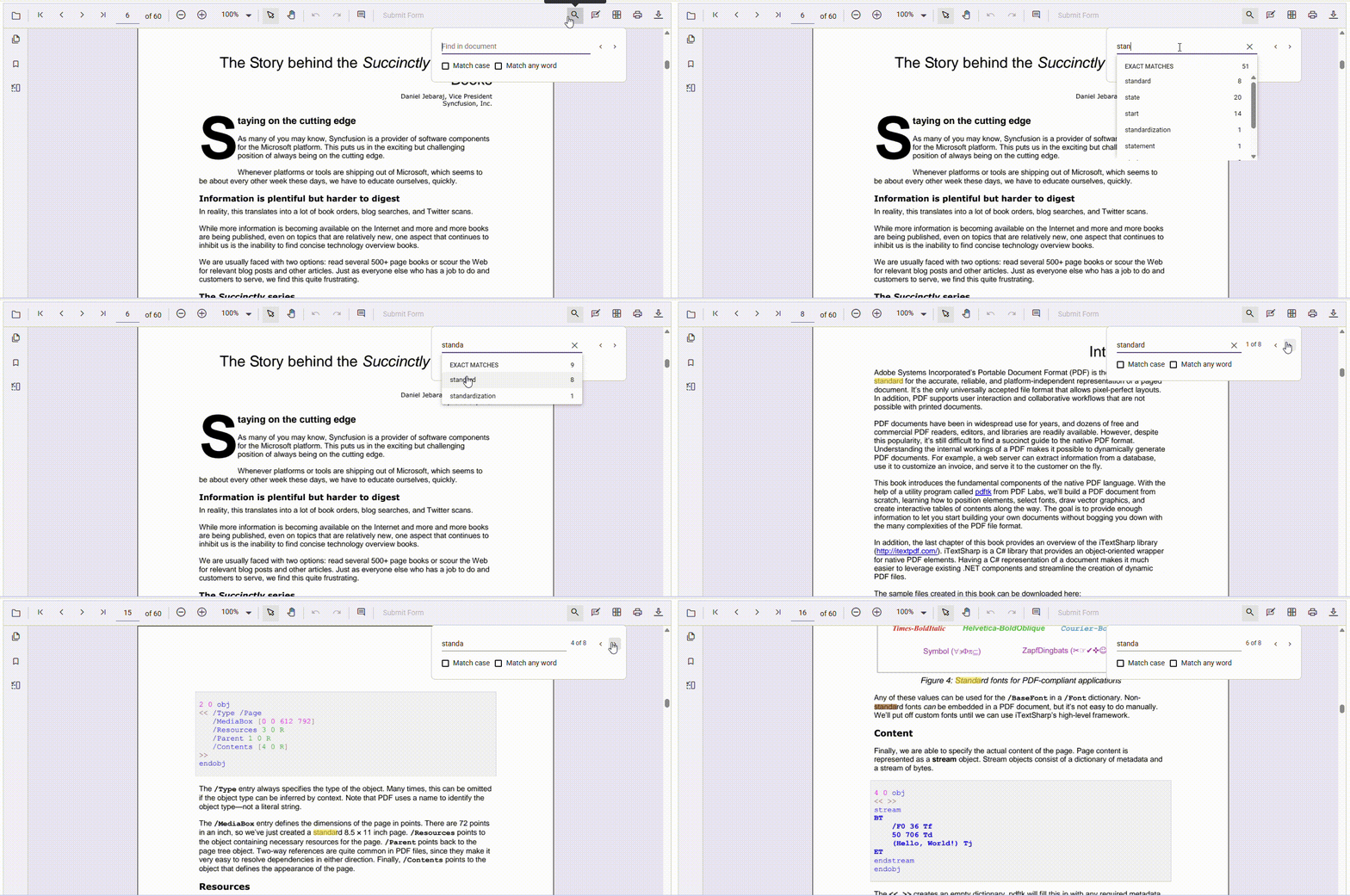
Beyond basic search functionality, Syncfusion offers a rich set of built-in features like case-sensitive search, multi-word search, and real-time search suggestions. These enhancements make the viewer adaptable to diverse user needs and elevate the overall search experience.
Watch how the feature works in action:
Below, you’ll find a range of search enhancements available in Syncfusion JavaScript PDF Viewer, each designed to make your text search more accurate, flexible, and user-friendly.
- Accurate text highlighting: Syncfusion uses a powerful text extraction engine that accurately interprets embedded fonts and custom glyph mappings. This ensures that even PDFs with non-standard font encodings are searchable, and the correct text is highlighted. By reliably decoding character data, Syncfusion eliminates common search failures caused by font encoding issues.
- Built-in search navigation: Easily move between search results using intuitive toolbar buttons or keyboard shortcuts. With “Search Next” and “Search Previous” options, users can quickly jump through matches, making document review faster and more efficient.
- Search suggestions pop-up: A pop-up displays a list of relevant matches as the user types, allowing quick navigation to specific locations in the PDF. This enhances user experience by reducing manual scrolling and helping users find content faster and more efficiently.
- Multi-word search support: Users can search for multiple keywords simultaneously, streamlining content discovery and ensuring no important information is missed, especially in lengthy or dense documents.
- Optimized performance: Ensures that text search operations remain fast and responsive, even in large or multi-page PDF documents. Syncfusion achieves this through efficient rendering, smart indexing, and memory management. This results in a smooth user experience without lag, even when handling complex or high-volume content.
- Support for complex and diverse PDF structures: The viewer reliably handles embedded fonts, irregular layouts, and structurally complex PDFs. It ensures consistent search results and accurate rendering across both standard and non-standard document formats.
- Enable/disable text search: Using the
enableTextSearchproperty during initialization to control whether users can search text within the PDF. This is useful for tailoring the viewer experience, especially when search functionality needs to be restricted or conditionally activated based on user roles or document types. Disabling search in large or image-heavy PDFs can reduce unnecessary processing and improve load times.
Try exploring the various text search modes in the Syncfusion PDF Viewer. Ranging from basic to advanced, each mode offers a unique way to find what you need.
For a deeper understanding of how everything works, check out the official guide and live demo. It is filled with insights to help you make the most of your viewer!
Improve PDF search accuracy with Syncfusion JavaScript PDF Viewer: Best practices
Enhancing PDF search accuracy is essential for delivering a smooth and reliable user experience, especially in document-heavy apps. With Syncfusion JavaScript PDF Viewer, you can apply proven best practices to help users locate content more efficiently and interact with documents more intuitively.
Below are several techniques and use cases that can significantly enhance the accuracy and flexibility of text search in your PDF viewer:
Match case option for precise text search
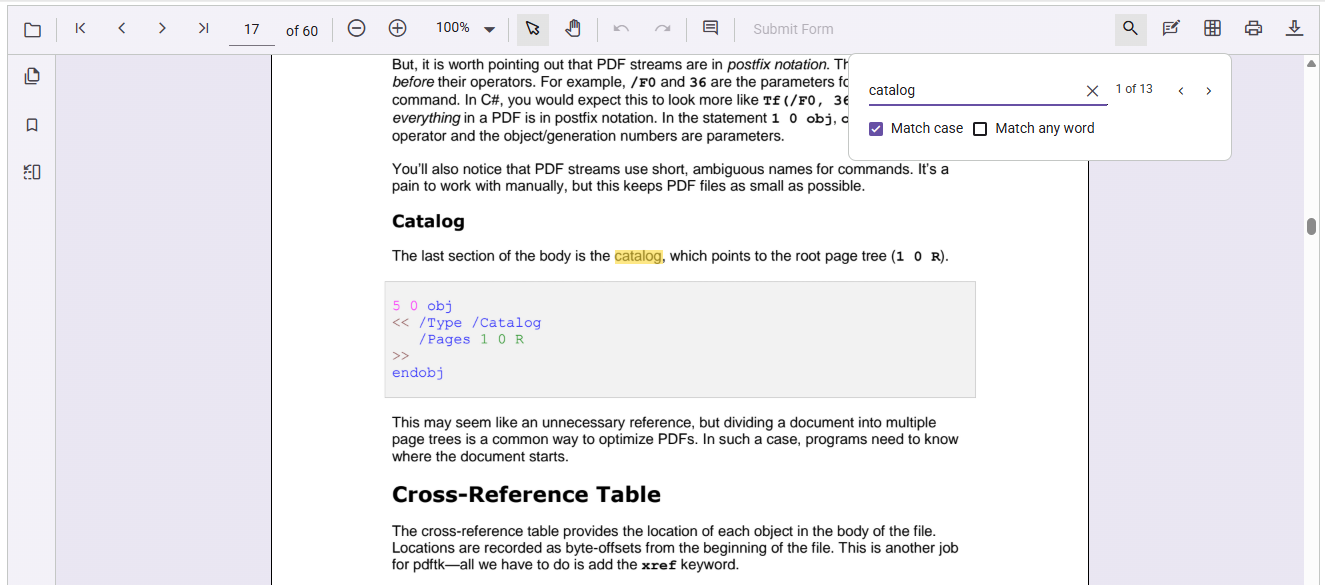
When working with technical, legal, or academic documents, precision matters. Enabling the Match Case option ensures that search results only include text that matches the exact capitalization of the input. This reduces false positives and improves the relevance of results, especially in contexts where case sensitivity is critical.
Refer to the following image.
Broaden search scope with match any word
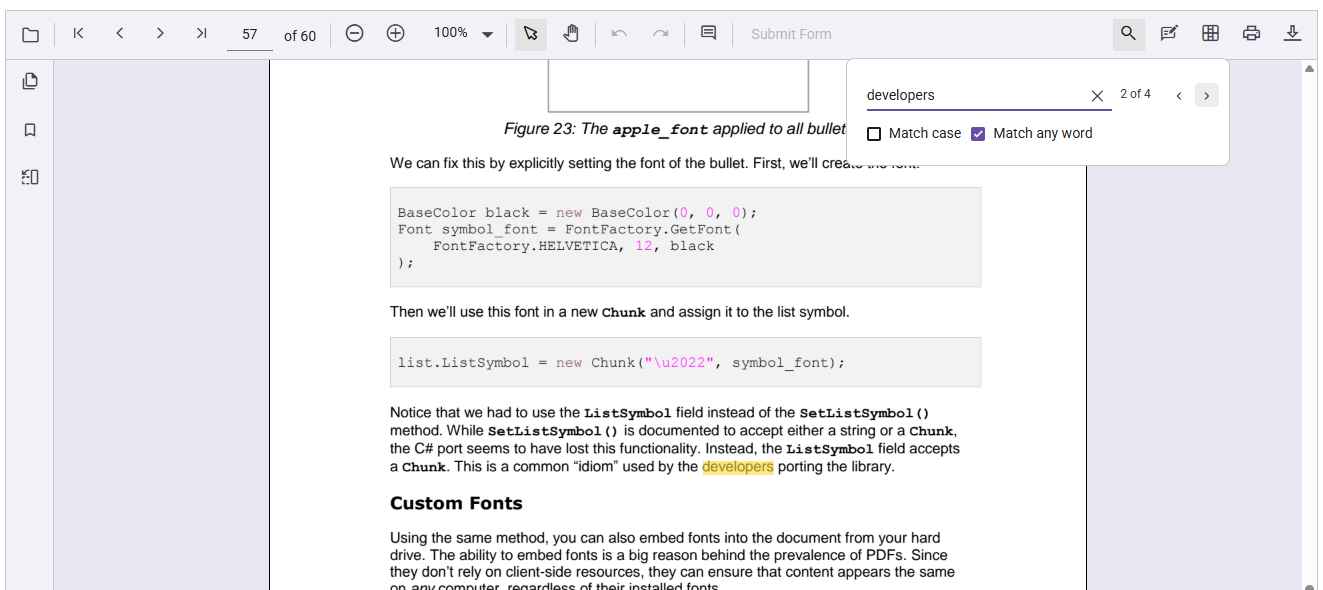
For users who may not know the exact phrase or want to find related content quickly, Match Any Word is a powerful feature. It breaks the input into individual words and searches for each separately, helping surface relevant results even from partial or incomplete queries. This improves accessibility and ensures important content isn’t missed due to phrasing differences.
Here’s what the output looks like:
Search multiple terms
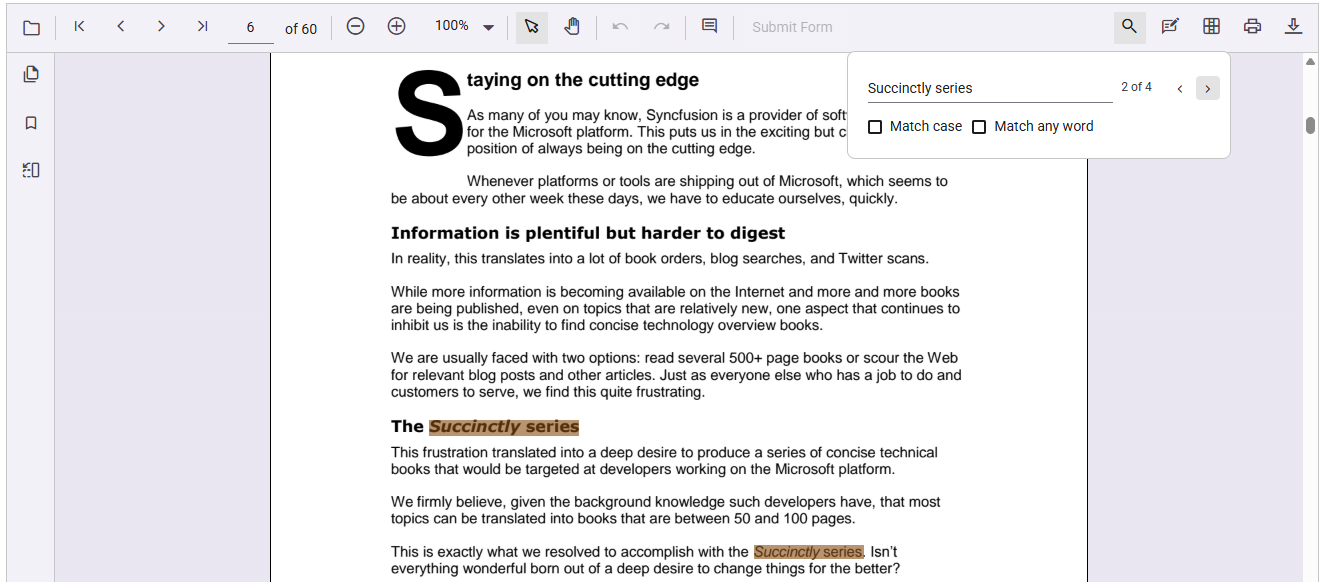
Syncfusion’s JavaScript PDF Viewer allows users to search for multiple words or phrases in a single query, ideal for handling complex or detailed searches. You can configure the search to be case-sensitive based on user requirements, ensuring precision when needed.
Additionally, the search can be scoped to specific pages, avoiding unnecessary scanning of the entire document and improving performance. This flexibility makes it easier to deliver a tailored and efficient search experience.
Here’s a preview of the feature in action:
Enable text search in scanned PDFs with OCR
Scanned or flattened PDFs often contain image-based content, making traditional text search impossible. Syncfusion supports server-side Optical Character Recognition (OCR) to convert these images into searchable text. By specifying the OCR language during document loading, you can enable accurate search functionality in image-heavy documents.
Using asynchronous text search for flexible and responsive PDF searches
When users search through large PDF files or enter complex queries, the viewer can sometimes slow down or become unresponsive. To avoid this, Syncfusion JavaScript PDF Viewer offers an asynchronous text search feature that keeps everything running smoothly.
Instead of freezing the interface while searching, the viewer processes search results quietly in the background. This means users can continue reading, scrolling, or interacting with the document while the search is underway. It’s a great way to improve performance and deliver a better experience, especially in busy applications or when working with lengthy documents.
Frequently Asked Questions
Why does text search fail even when the PDF text looks selectable?
Font encoding and broken text layers cause failures, but the Syncfusion JavaScript PDF Viewer correctly interprets embedded fonts to return accurate matches.
Is it better to turn off text search for large or image-heavy PDF files?
Yes. Disabling enableTextSearch prevents text extraction and background search processing, which is useful for large, scanned, or image-heavy PDFs.
How does the viewer stay responsive during heavy searches?
Syncfusion provides an asynchronous search method (findTextAsync) that lets users continue interacting with the document while the search runs in the background.
Can the search experience be adjusted based on user needs?
Yes. You can control how search works by enabling options like case-sensitive search, matching any word, searching specific pages, or turning search on or off as needed.

Make PDF search feel effortless for users and developers
PDF text search shouldn’t feel unpredictable. Yet in many JavaScript apps, missed results, broken highlights, and slow performance are still the norm, not edge cases.
That’s exactly what Syncfusion’s JavaScript PDF Viewer is built to fix.
Why developers switch to Syncfusion
- Accurate search results, even with embedded fonts and complex layouts.
- Precise highlights that align with the actual text.
- Smooth navigation across large, multi‑page PDFs.
- Built‑in OCR for scanned and image‑based documents.
- Fast, scalable performance without UI slowdowns.
- No extra libraries or complex setup, it just works.
What you gain
- Less time debugging PDF edge cases.
- More control with flexible APIs and customizable UI.
- A search experience users trust.
- A solution that scales from quick prototypes to enterprise apps.
The latest version is available for existing customers to download from the license and downloads page. If you are not a Syncfusion customer, you can explore all the newest features with a 30-day free trial.
Need help? Visit the support forums, support portal, or feedback portal. The Syncfusion team is ready to assist you!
Thanks for reading!




 No spam, just valuable updates.