
 Deepa Thiruppathy
TL;DR: PDF font issues in JavaScript PDF Viewer typically occur due to missing embedded fonts, browser differences, corrupted font data, or unsupported multilingual scripts. This guide explains common causes and shows how Syncfusion’s JavaScript PDF Viewer, powered by the Pdfium engine, ensures accurate, multilingual, and custom‑font rendering across browsers.
Accurate font rendering in PDFs isn’t “nice to have.” It affects readability, layout, branding, and sometimes compliance, especially for invoices, contracts, reports, and multilingual documents.
The tricky part: PDF font rendering in the browser is deceptively complex. Many apps look fine until a production document triggers a JavaScript PDF viewer font problem, like:
- PDF text garbled or scrambled.
- PDF font replaced or incorrect.
- Missing fonts in PDF Viewer.
- PDF shows boxes/tofu squares instead of characters.
- Layout shifts between Chrome, Firefox, and embedded viewers.
If you’re hitting “PDF font issues in JavaScript PDF Viewer”, this guide breaks down the most common technical causes, what to check, and practical ways to fix it using Syncfusion® JavaScript PDF Viewer.

Why PDF font not display in browser-based viewers
There were several reasons that affected the font rendering in the JavaScript PDF Viewers. Here are the most common technical reasons for broken fonts and PDF font display problems.
Font embedding and cross‑viewer rendering differences in PDFs
If a PDF references a font but doesn’t embed it, the viewer must substitute a system font. Substitution often fails for corporate fonts, decorative fonts, or fonts with unusual metrics, leading to spacing issues, line breaks changing, or glyphs missing entirely.
Even when fonts are embedded, different viewers may interpret font programs and encodings differently. That’s why developers often see “works in Adobe Acrobat but breaks in browser viewer” scenarios.
Real-world examples show this mismatch across viewers and browsers:
- Reddit: “PDF viewer is not detecting the fonts correctly, but Google PDF viewer / Adobe shows correct fonts.”
Ref: PDF viewer’s fonts issues: r/zen_browser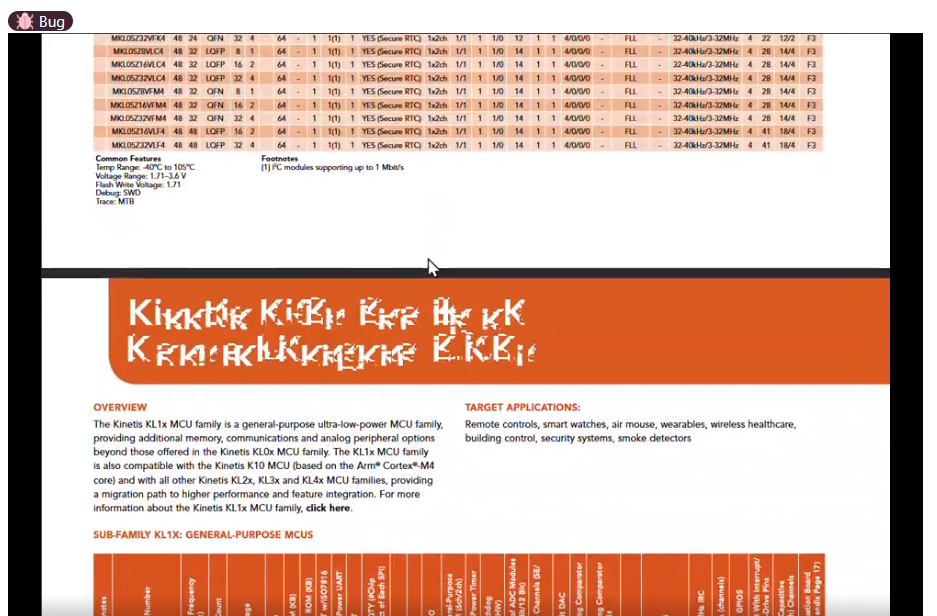
Broken fonts in Browser PDF viewers
- GitHub: “The issue occurs in Chrome, but not Firefox.”
Ref: Text appears broken · Issue #2950 · stephanrauh/ngx-extended-pdf-viewer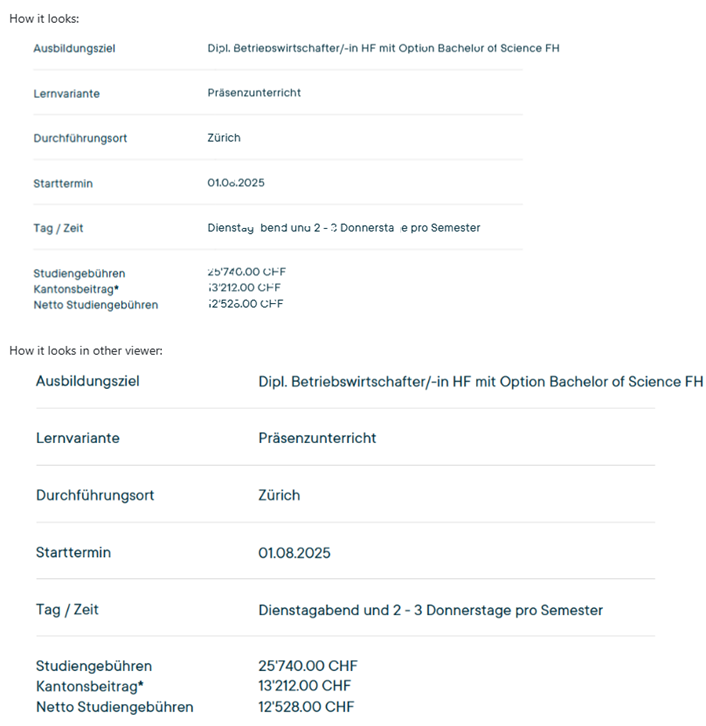
PDF fonts render differently in Chrome vs Firefox
What to do
- Prefer PDFs with embedded fonts (especially for generated PDFs).
- Validate the PDF’s font embedding and encoding if you control the PDF generation pipeline.
- Test across browsers early to catch cross browser PDF compatibility issues.
CJK/complex scripts and “Base‑14” assumptions
Languages like Chinese, Japanese, and Korean (CJK) and complex scripts like Arabic/Hebrew depend on correct font selection, shaping rules, and glyph mapping. Some PDFs also rely on assumptions around common built-in fonts (like Helvetica/Times), but those assumptions don’t always hold in browser-based renderers.
This is where you’ll often see:
- tofu squares (missing glyphs)
- incorrect character widths (layout drift)
- broken shaping or direction for RTL text
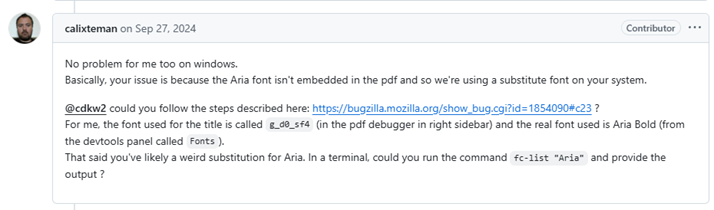
References from PDF.js-related issues highlight these edge cases:
- [Bug]: ASCII control characters not properly filtered · Issue #20260 · mozilla/pdf.js
- [Bug]: Glitchy text when opening pdf · Issue #18806 · mozilla/pdf.js
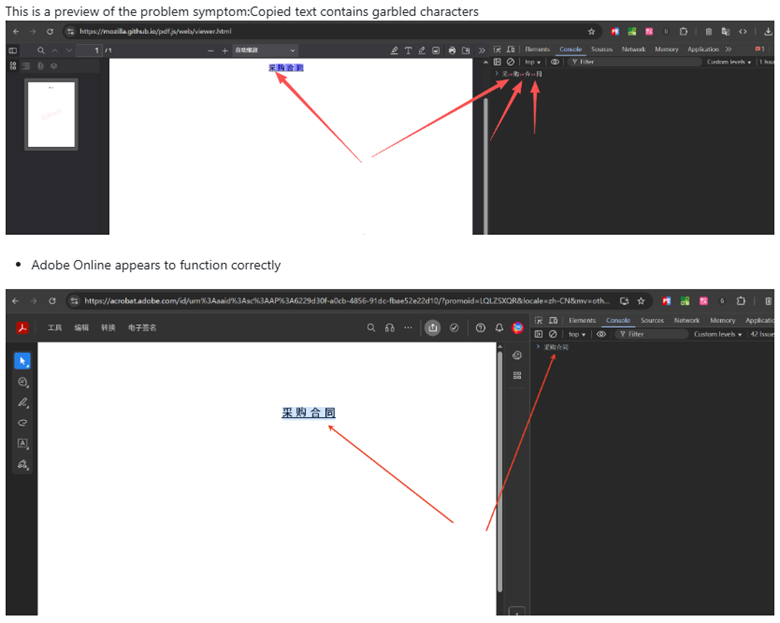
What to do
- Ensure PDFs include proper font programs and mappings for the target scripts.
- For multilingual apps, treat font rendering as a first-class test scenario (CJK + RTL + mixed-language documents).
Font data issues in PDFs: Corrupt streams and subset mapping
PDFs often use subset fonts (only embedding glyphs that are used). That’s normal, but it increases reliance on correct mapping tables. If font streams are malformed, compressed oddly, or mappings are incomplete, some viewers fail to map glyphs correctly, leading to random characters, missing symbols, or messy spacing.
Developers frequently report issues like this in popular JavaScript viewer stacks:
- PDF text and spaces are messy · Issue #1805 · wojtekmaj/react-pdf
- How do I fix garbled text in my react-pdf viewer? – Stack Overflow
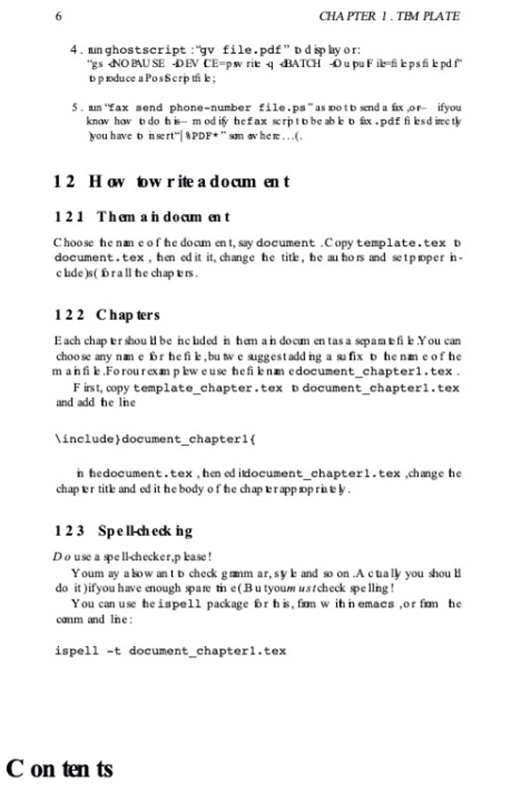
What to do
- If the same PDF renders differently across viewers, suspect font stream parsing or subset mapping.
- Try rendering the same file in multiple engines to isolate whether it’s a PDF issue or a viewer limitation.
How it works (why font rendering is hard in JavaScript viewers)
A browser PDF viewer typically has to:
- Parse PDF objects (including font dictionaries, encodings, and streams).
- Decode embedded font programs (TTF/OTF/CFF/CID fonts).
- Map character codes to glyphs (often via ToUnicode maps).
- Apply shaping/direction rules for complex scripts.
- Rasterize or draw text consistently across browsers and devices.
Small differences in any step can cause “looks fine here, broken there” behavior.
Fix checklist: What to try before switching viewers
Use this as a practical debugging flow:
- Confirm fonts are embedded (especially custom/corporate fonts).
- Test across Chrome + Firefox + Edge with the same file.
- Try a known-good viewer (Adobe Acrobat / Chrome built-in) to compare output.
- Check if the PDF is subset-heavy and whether ToUnicode mappings exist.
- Re-generate the PDF (if you own the pipeline) with explicit embedding and standard encodings.
- Collect a minimal repro PDF (one page, one problematic font) to speed up debugging.
If you don’t control the PDFs (common in enterprise), the most reliable fix is often choosing a viewer that handles real-world font edge cases consistently.
How Syncfusion resolves PDF font issues in JavaScript PDF Viewer
Syncfusion addresses this with intelligent font handling and robust support for embedded and custom fonts, enabling your documents to appear exactly as intended, every time they’re viewed.
Pdfium font rendering engine for consistent output
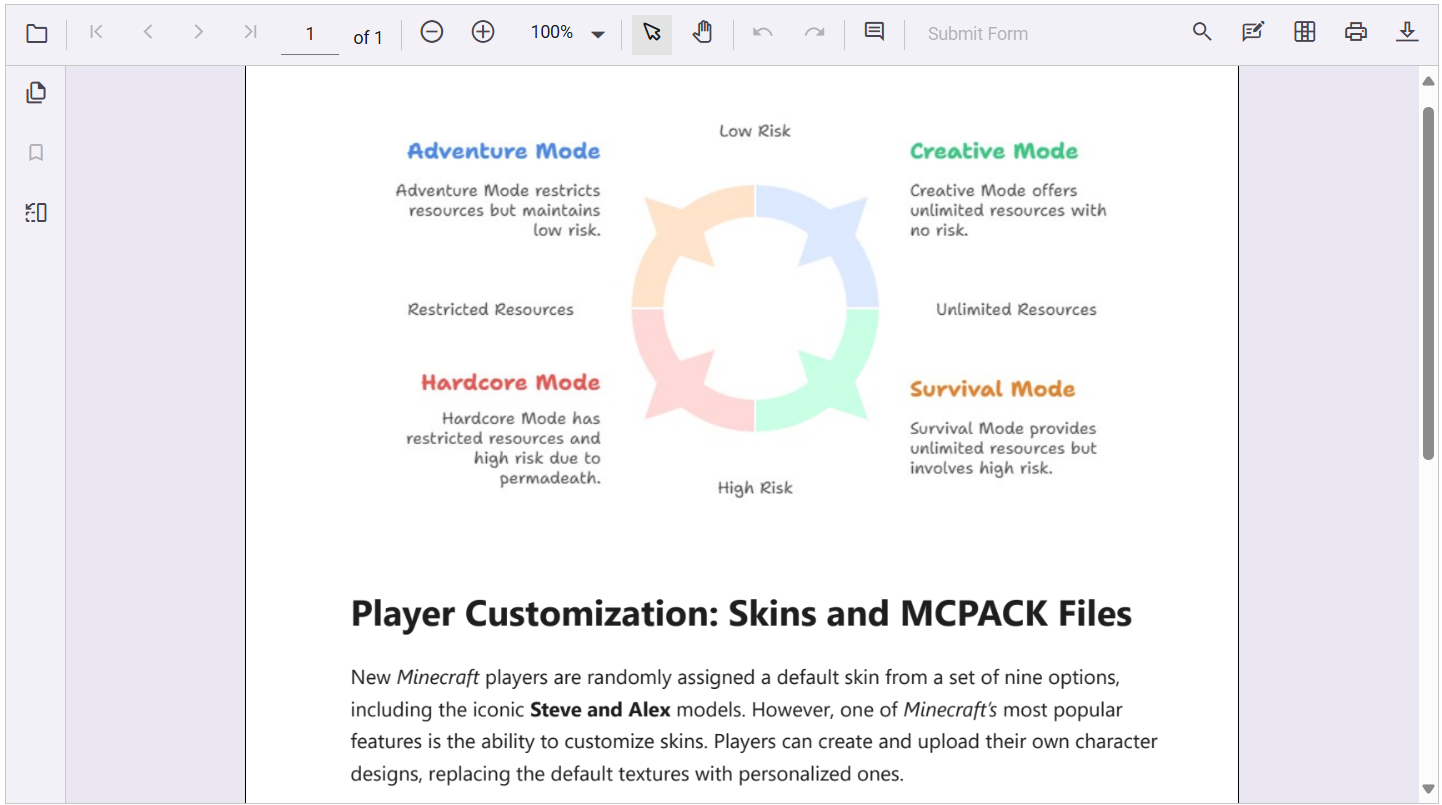
Syncfusion JavaScript PDF Viewer uses the Pdfium rendering engine, an industry-standard library from the Chromium project renowned for its precise font rendering. This eliminates common font issues in JavaScript PDF Viewer and ensures flawless display across browsers.
By leveraging Pdfium, Syncfusion accurately preserves every character, symbol, and layout, along with high-fidelity images and graphics, ensuring PDFs display flawlessly across all browsers and devices without issues like blurry text, missing glyphs, or broken layouts.
Multilingual PDFs and Unicode characters (CJK + RTL)
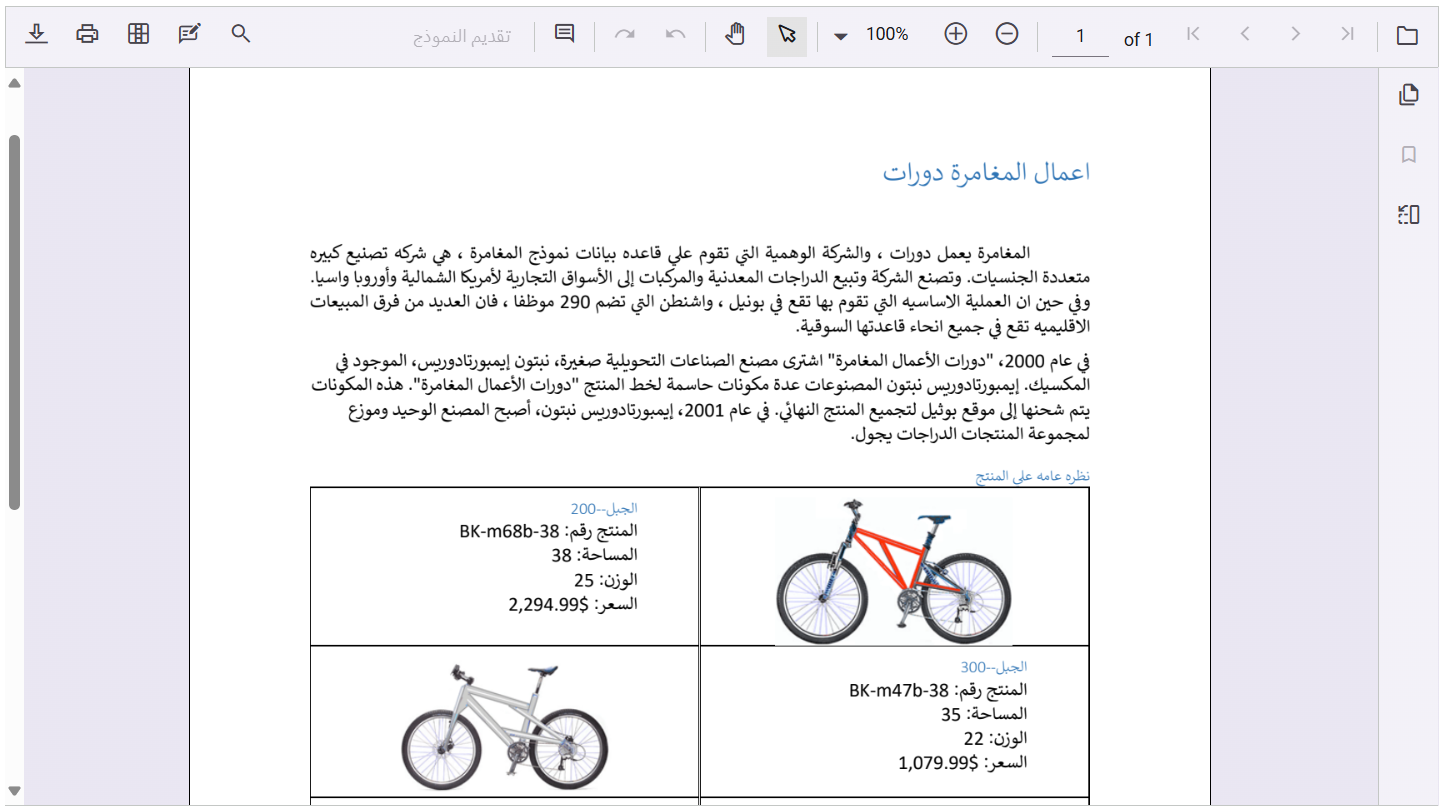
Global businesses require support for diverse languages and special characters. Syncfusion’s PDF Viewer excels in rendering in global languages, unique characters, solving pdf font display problems for CJK and right-to-left scripts.
- CJK (Japanese/ Chinese/ Korean) languages have unique font structures and character sets. Syncfusion loads these fonts from the server side, ensuring accurate representation.
- Right-to-left languages like Arabic and Hebrew with proper text direction and alignment.
- Unicode support for symbols, emojis, and special characters.
Custom font rendering (bring your own TTF resources)
Syncfusion JavaScript PDF Viewer supports rendering the custom fonts in the PDF with the respective resources. To view PDFs containing custom fonts in the Syncfusion PDF Viewer, simply place your TTF font files in the designated resource URL directory and configure the viewer to access them. This ensures your documents display every unique font exactly as designed.
Example code for custom fonts:
// Create PdfViewer instance and configure with document path, resource URL, and custom fonts
var pdfviewer = new ej.pdfviewer.PdfViewer({
    documentPath: 'https://cdn.syncfusion.com/content/pdf/pdf_font.pdf',
    resourceUrl: 'https://cdn.syncfusion.com/ej2/24.1.41/dist/ej2-pdfviewer-lib',
    customFonts: [
        "arialbd.ttf",
        "arial.ttf",
        "BKANT.TTF",
        "calibri.ttf",
        "GARA.TTF",
        "GARAIT.TTF",
        "msgothic.ttc",
        "trebuc.ttf",
        "wingding.ttf"
    ]
});
// Render the PDF Viewer control to the target HTML element
pdfviewer.appendTo('#PdfViewer');
GitHub reference
You can find a detailed reference sample for custom font rendering here. This solution ensures that the custom font rendering in JavaScript PDF Viewer with own TTF resource.
For deeper insights, explore our comprehensive user guide, which includes extensive documentation, live demo, advanced usage scenarios, and the full suite of powerful features available in the Syncfusion PDF Viewer.
Empower your applications with industry-leading accuracy, flexibility, and seamless integration, starting today.
Frequently Asked Questions
No, you don’t need any local installation. The Syncfusion JavaScript PDF Viewer runs in the browser, and you just include the Syncfusion scripts and resources alone in your web project.Does any local installations required to use the Syncfusion JavaScript PDF Viewer?
Yes. If the PDF contains real text (not scanned images), you can select text and use the built‑in search feature. For scanned PDFs, you can convert them into searchable text using Syncfusion’s OCR PDF library.Does the Syncfusion viewer allow text selection and text search inside a PDF?
Yes! It supports text fields, checkboxes, radio buttons, dropdowns, and signature fields. You can fill and save form fields directly in the browser.Can Syncfusion display PDFs that contain form fields?
Yes. You can apply Syncfusion themes like Material Dark, Fluent Dark, Bootstrap Dark, etc., and the viewer UI adapts automatically.Does Syncfusion PDF Viewer support dark themes?
Yes, only if the PDF uses custom fonts that aren’t embedded. In that case, you place the font files on your server and tell Syncfusion where to find them.Is any additional configuration required for PDFs that use special or custom fonts?
Yes. The Syncfusion PDF Viewer can display multi‑color fonts, special characters, emojis, and other advanced font styles, as long as those font elements are already embedded in the PDF.Can Syncfusion PDF Viewer display fonts with special characters, emojis, or multi‑colored fonts?
Conclusion
Thank you for reading! Font rendering in PDFs isn’t just cosmetic; it affects usability, branding, and compliance. Syncfusion JavaScript PDF Viewer offers a robust, developer-friendly solution with server-side rendering, multilingual support, and custom font handling. It ensures that every PDF, no matter how complex, is displayed accurately and beautifully, solving PDF font rendering issues and ensuring cross-browser PDF compatibility.
Ready to upgrade your PDF viewer? Try Syncfusion JavaScript PDF Viewer today and deliver a professional, polished experience your users will love.
If you’re a Syncfusion user, you can download the setup from the license and downloads page. Otherwise, you can download a free 30-day trial.
You can also contact us through our support forums, support portal, or feedback portal for queries. We are always happy to assist you!



 No spam, just valuable updates.