
 Parthasarathy Ranjan
TL;DR: Deploy a Spreadsheet Server on Azure App Service using ASP.NET Core and Docker to enable secure, scalable Spreadsheet processing in the cloud. This guide covers setup, configuration, and integration steps for modern web applications.
Deploying Syncfusion® Spreadsheet Server on Azure App Service provides a secure and scalable solution for processing Excel files in the cloud. In this blog, we will explore two practical approaches to deploying a Syncfusion Spreadsheet Server on Azure:
- Visual Studio approach: Directly publish your ASP.NET Core Web API project to Azure App Service.
- Azure CLI approach: Deploy the official Syncfusion Spreadsheet Docker image for containerized hosting in Azure App Service.
By integrating server-side features such as open or save operations with the client-side React Spreadsheet component, you can ensure seamless collaboration and high performance for modern web applications.
Why deploy Syncfusion Spreadsheet Server on Azure App Service?
When building modern web applications that handle spreadsheet operations, hosting your server on Azure App Service offers several advantages:
- Scalability: Easily manage growing user demands without worrying about manual server scaling.
- High availability: Keep your Spreadsheet services running 24/7 with Azure’s robust infrastructure.
- Security: Protect sensitive Spreadsheet data using Azure’s built-in security features.
- Global access: Enable low-latency collaboration for users across different regions.
- Simplified maintenance: Combining Docker with Azure makes updates and patches effortless.
Step-by-Step guide: Publish ASP.NET Core Spreadsheet Server to Azure App Service using Visual Studio
Deploying your Spreadsheet ASP.NET Core Web API to Azure App Service is easier than you think! Follow these simple steps to get your server live and ready for client-side integration.
Prerequisites
Before you begin, make sure you have:
- Visual Studio 2022 or later is installed.
- .NET 8.0 SDK or later installed.
- An active Azure subscription with App Services access.
- The Spreadsheet Web API project repository cloned locally.
Step 1: Build your project
First, open your Web API solution in Visual Studio and select Build → Build Solution to ensure the project compiles successfully without any errors. This step confirms that your application is ready for deployment.
Step 2: Open the publish wizard
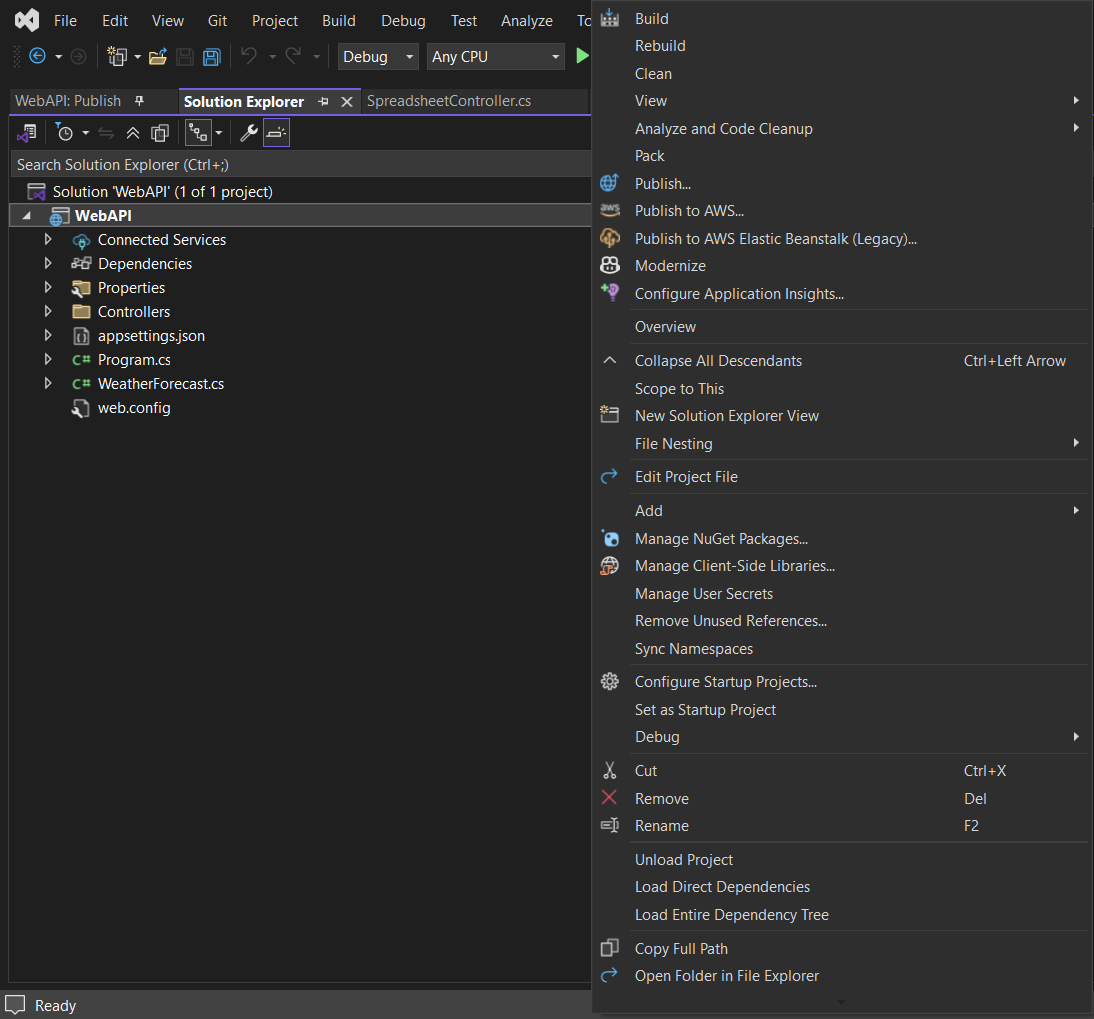
In Solution Explorer, right-click your project and choose Publish, as shown below.
Step 3: Choose Azure as the target
In the Pick a publish target dialog, select Azure as your deployment target, as shown below.
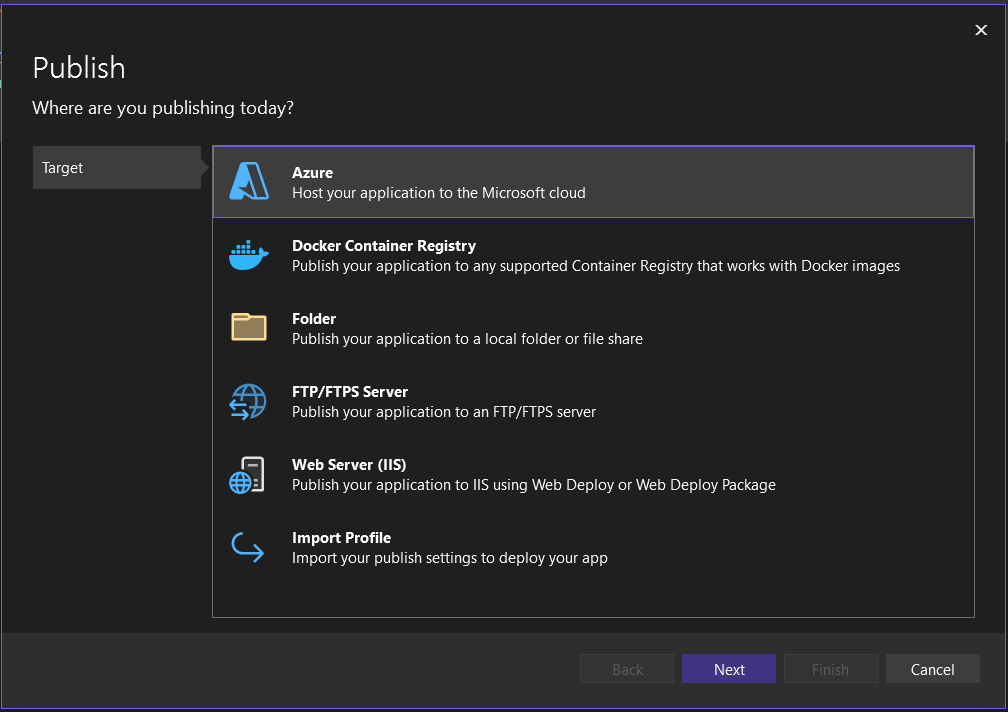
This ensures your application will be hosted on Microsoft’s cloud platform.
Step 4: Select Azure App Service
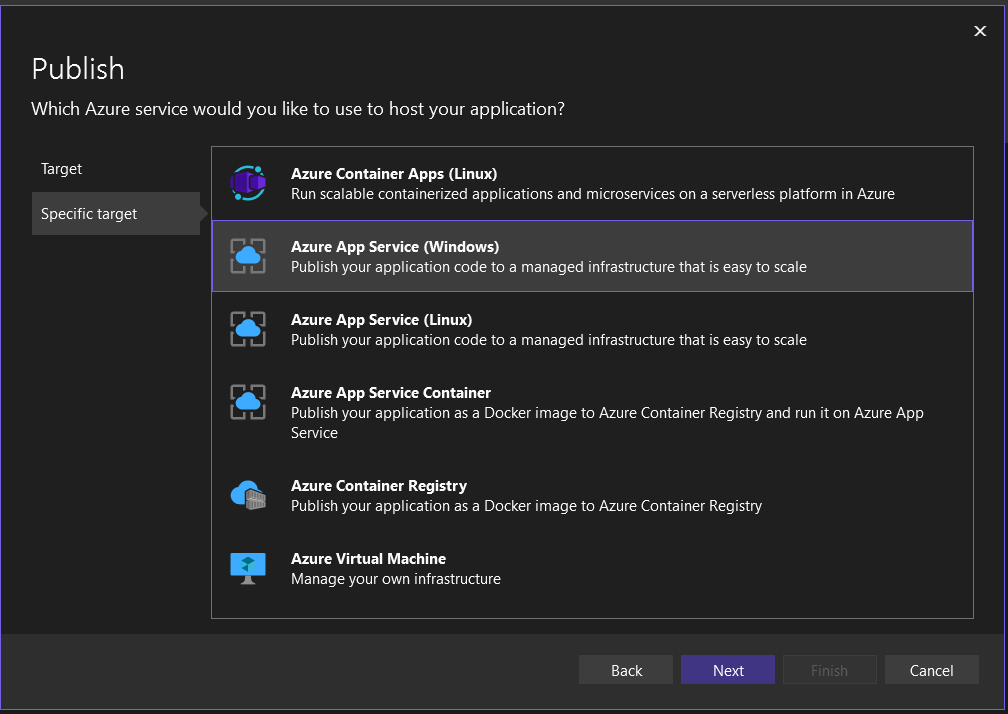
After selecting Azure, choose Azure App Service under the target options. This service provides a fully managed environment for hosting web applications.
Step 5: Sign in and create app service
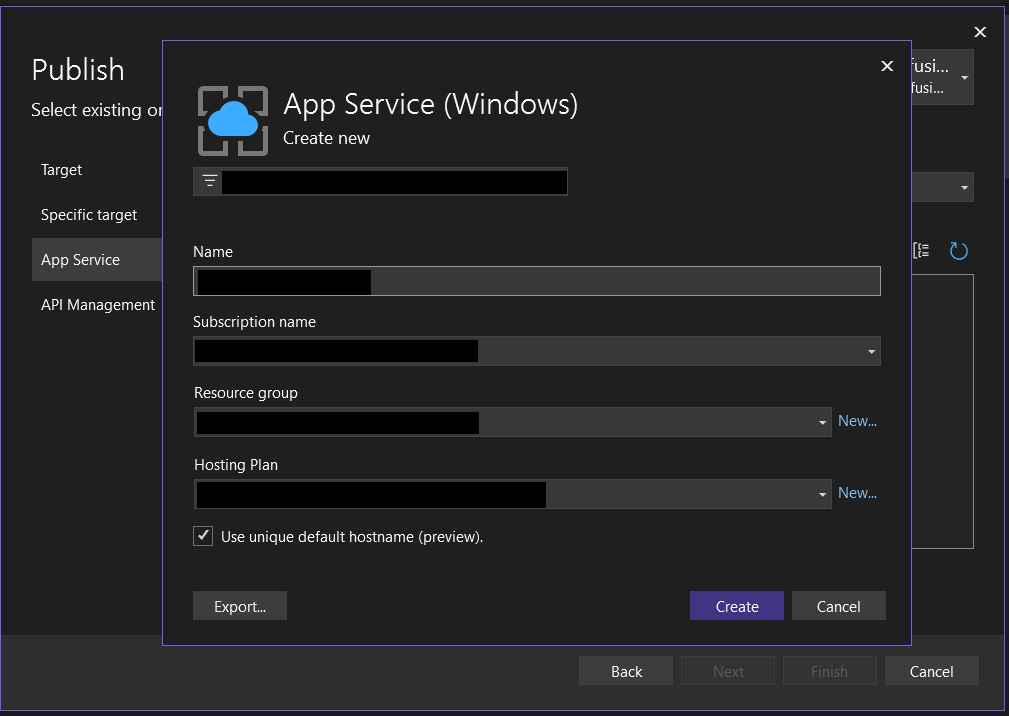
Now, log in using your Azure credentials. Once signed in, create a new App Service your credentials and configure essential settings such as the resource group and app name.
Step 6: Skip API management (optional)
If API Management is not required, you can skip this step and proceed with publishing.
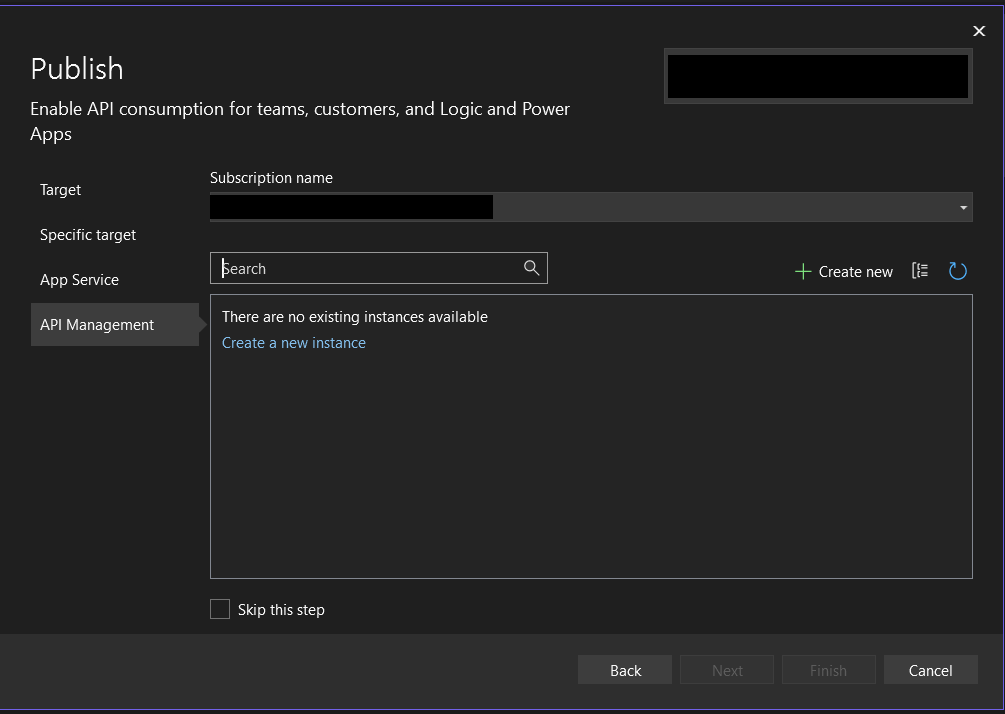
Step 7: Deploy
Finally, click Publish. Visual Studio will deploy your app to Azure App Service. Once the process completes, your API will be live at: https:// XXXXXXXXXX.azurewebsites.net.
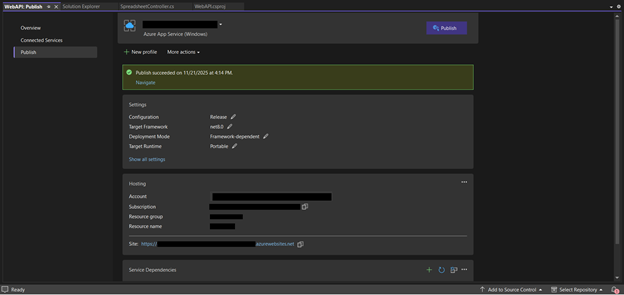
Step 8: Connect client-side Spreadsheet
With your server running, verify that it supports import and export operations by testing these endpoints:
- Open file: https:// XXXXXXXXXX.azurewebsites.net/api/spreadsheet/open.
- Save file: https:// XXXXXXXXXX.azurewebsites.net/api/spreadsheet/save.
Next, use these service URLs into your React Spreadsheet component.
<SpreadsheetComponent
        openUrl="https://XXXXXXXXXX.azurewebsites.net/api/spreadsheet/open"
        saveUrl="https://XXXXXXXXXX.azurewebsites.net/api/spreadsheet/save">
</SpreadsheetComponent>
That’s it! Your Spreadsheet Web API is live on Azure App Service and ready to power your client-side editor. Want to explore more features? Check out our documentation.
Step-by-Step guide: Deploy Spreadsheet Server Docker image to Azure App Service with Azure CLI
If you’re not working with .NET or prefer a containerized approach, you can deploy a Syncfusion Spreadsheet Docker image directly to Azure App Service using Azure CLI. This method allows you to host the server without writing any .NET code, making it ideal for developers who want a quick and scalable solution.
Before deploying to Azure, you can test and run the Spreadsheet Server Docker image locally. Check out our detailed guide for local setup.
Now, let’s walk through the deployment process step by step.
Prerequisites
Before you start, ensure you have:
- Docker and Azure CLI installed (based on your operating system).
- An active Azure subscription with permissions to create App Services.
Step 1: Log in to Azure
First, open your terminal and log in to Azure using the command below.
az loginThis step authenticates your Azure CLI session.
Step 2: Create a resource group
Next, create a resource group with the following command in your preferred location.
az group create --name < your-app-name> --location <your-selected-region>Note: Replace <your-app-name>, < your-selected-region >, <your-resource-group>, and <your-app-service-plan> with your actual application name, deployment region, resource group, and app service plan.
Step 3: Create an app service plan
Define the hosting plan for your container using the command below.
az appservice plan create --name --resource-group < your-resource-group> --sku S1 --is-linuxThis command creates an App Service plan in the standard pricing tier (S1) and ensures it runs on Linux containers with the --is-linux flag. Both settings are essential for deploying your Spreadsheet Server Docker image successfully.
Step 4: Create the docker-compose.yml file
Next, define your container configuration in a docker-compose.yml file. This file specifies the container name, image, and environment variables for the Spreadsheet Server:
version: '3.4'

services:
  spreadsheet-server:
    image: syncfusion/spreadsheet-server
    environment:

      # Provide your license key for activation
      SYNCFUSION_LICENSE_KEY: YOUR_LICENSE_KEY
    ports:
      - "6002:8080"
Note: Replace YOUR_LICENSE_KEY with your valid Syncfusion license key.
Step 5: Create a Docker compose app
Now, deploy the containerized app to Azure App Service using the following command.
az webapp create --resource-group <your-resource-group> --plan < your-app-service-plan> --name <your-app-name> --multicontainer-config-type compose --multicontainer-config-file docker-compose.ymlThis command creates a web app that runs your Spreadsheet Server Docker container using the configuration defined in the docker-compose.yml file.
Step 6: Browse your app
Once deployed, your app will be live at https://XXXXXXXXXX.azurewebsites.net.
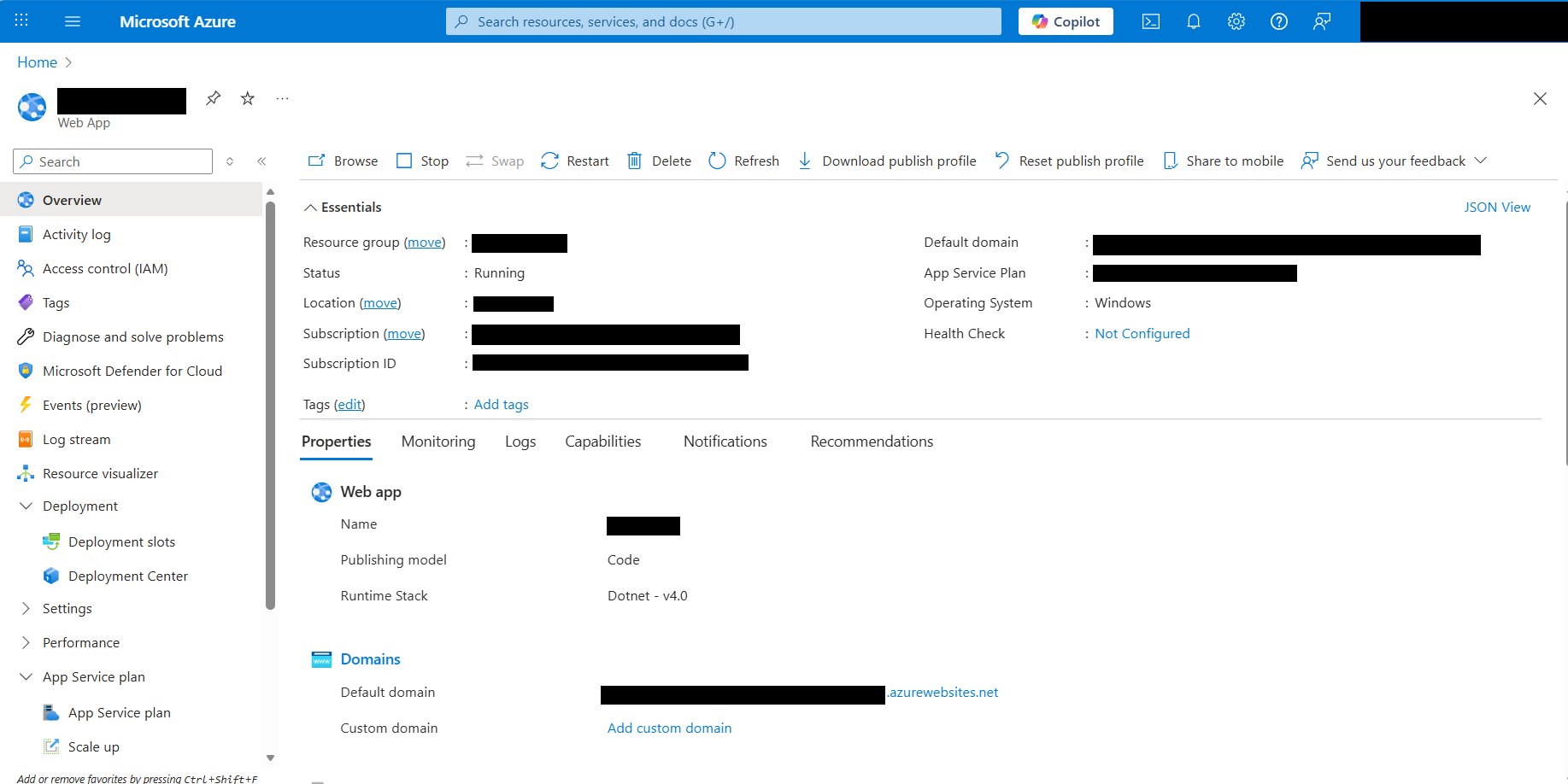
Step 7: Connect client-side Spreadsheet
Finally, verify that your server supports import or export operations by testing these endpoints:
- Open file: https:// XXXXXXXXXX.azurewebsites.net/api/spreadsheet/open.
- Save file: https:// XXXXXXXXXX.azurewebsites.net/api/spreadsheet/save.
Use these URLs in your client-side React Spreadsheet component’s openUrl and saveUrl properties as shown below:
<SpreadsheetComponent
          openUrl="https://XXXXXXXXXX.azurewebsites.net/api/spreadsheet/open"
          saveUrl="https://XXXXXXXXXX.azurewebsites.net/api/spreadsheet/save">
</SpreadsheetComponent>
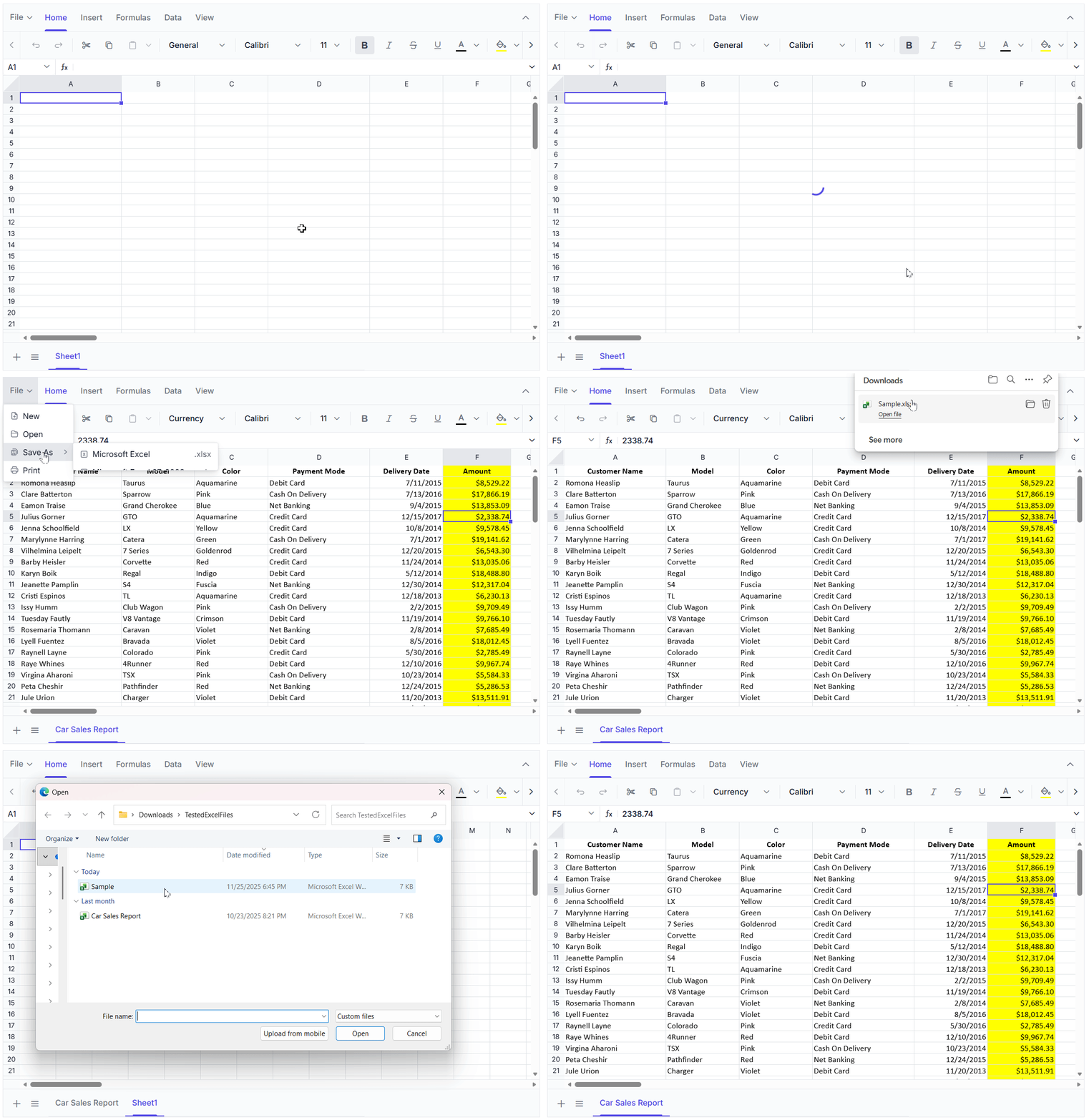
That’s it! You’ve successfully deployed your Spreadsheet Docker image to Azure App Service using Azure CLI. Now, perform the import or export actions in the Spreadsheet component as shown in the GIF below. This demonstrates how the client-side integration works with the deployed server endpoints.
Live demo
Run the demo on StackBlitz, no setup required.
Conclusion
Thanks for reading! We’ve explored two practical ways to deploy a Spreadsheet Server on Azure App Service, publishing an ASP.NET Core Web API through Visual Studio and hosting a Docker image using Azure CLI.
Both approaches enable seamless open or save operations and integrate effortlessly with Syncfusion React Spreadsheet, delivering advanced features such as real-time editing, formula calculations, and smooth import/export. These capabilities make Azure App Service an excellent choice for enterprise-grade applications.
Additionally, Syncfusion’s Spreadsheet Editor SDK is available across multiple platforms, including Blazor, Angular, ASP.NET Core, JavaScript, ASP.NET MVC, Vue, WPF, WinForms, and UWP, and Document SDK libraries.
If you are already a Syncfusion user, you can download the setup from the license and downloads page. Otherwise, you can download a free 30-day trial.
You can also contact us through our support forum, support portal, or feedback portal for queries. We are always happy to assist you!



 No spam, just valuable updates.