
 Venkatesh Ayothiraman
TL;DR: Struggling with cluttered grids? Row and column spanning in Blazor DataGrid solves this by merging cells intelligently. Learn how to enable AutoSpan, handle merge/unmerge operations, and apply best practices for performance and usability.
Modern web apps demand clean, readable tables. When the same value repeats across rows or columns, grids can look cluttered and hard to scan. Syncfusion’s Blazor DataGrid solves this with row and column spanning, automatically merging duplicate values into a single cell. The result? A cleaner, more user-friendly table, without extra coding.
This feature has been introduced as part of the Syncfusion® 2025 Volume 4 release, which brings exciting updates across the suite.
In this guide, you’ll learn:
- What row and column spanning are?
- How to enable and customize them?
- How to control spanning programmatically?
- Key limitations and best practices.
Don’t worry if you’re new to this; everything is explained in a simple, easy-to-understand way.
What are row and column spanning?
Row and Column spanning in Blazor DataGrid is enabled by using the AutoSpan property on your SfGrid tag. When adjacent cells share the same value, the grid merges them into a single cell.
The table below lists the available AutoSpanMode options:
| Settings | Description |
| AutoSpanMode.None | No merging(default). |
| AutoSpanMode.Row | Merges matching cells horizontally in the same row. |
| AutoSpanMode.Column | Merges matching cells vertically in the same column. |
| AutoSpanMode.HorizontalAndVertical | Combines both row and column spans (rows first, then columns). |
Here are some example use cases:
- Row spanning: A TV guide where one show runs across multiple time slots.
- Column spanning: A work schedule where “Meeting” repeats down consecutive hours.
How to enable row spanning
Row spanning merges identical values across multiple columns in the same row. For example, if Evening News appears twice in a row, the grid combines them into one wider cell.
Here’s how you can do it in code:
@using Syncfusion.Blazor.Grids

<SfGrid DataSource="@TeleCastDataList"
        GridLines="GridLine.Both"
        AutoSpan="AutoSpanMode.Row"
        AllowSelection="false"
        EnableHover="false">
    <GridColumns>
        <GridColumn Field=@nameof(TelecastData.Channel) HeaderText="Channel" Width="200" IsFrozen="true"></GridColumn>
        <GridColumn Field=@nameof(TelecastData.Genre) HeaderText="Genre" Width="120" IsFrozen="true"></GridColumn>
        <GridColumn Field=@nameof(TelecastData.Program12AM) HeaderText="12:00 AM" Width="150"></GridColumn>
        <!-- ... other time slot columns ... -->
    </GridColumns>
</SfGrid>
Note: Try it out with the row spanning demo and refer to the documentation for more insights.
Watch how the feature works in action:

How to enable column spanning
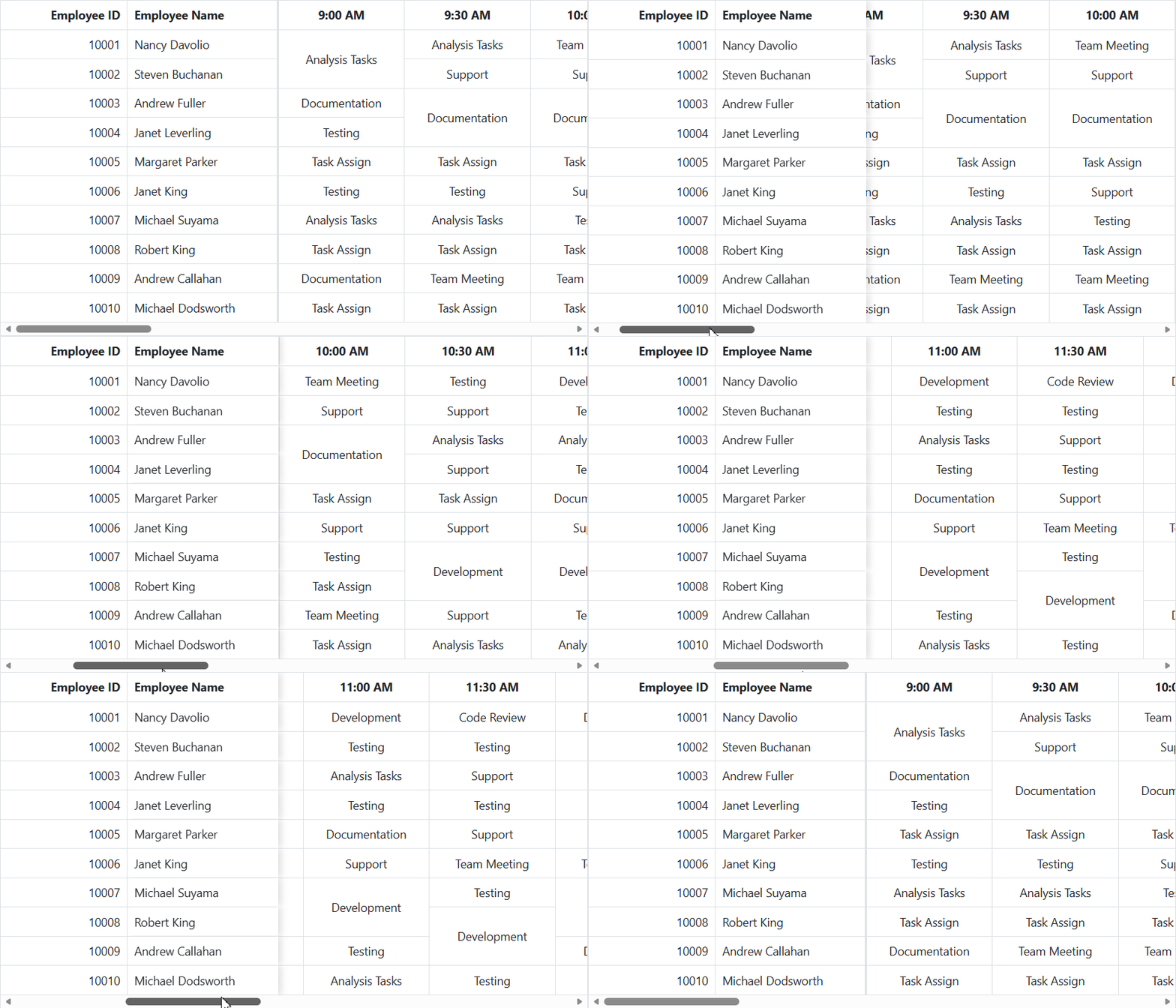
Column spanning merges identical values vertically across consecutive rows. For example, lunch might cover multiple hourly slots for one employee.
Code snippet to achieve this:
@using Syncfusion.Blazor.Grids

<SfGrid DataSource="@EmployeeTimeSheet"
        AutoSpan="AutoSpanMode.Column">
    <GridColumns>
        <!-- ... column definitions ... -->
    </GridColumns>
</SfGrid>
Matching entries in a column are displayed in a taller cell, allowing you to see the pattern, as shown below.
Note: Try it out with the column spanning demo and refer to the documentation for more information.
Skipping spanning for specific columns
Need spanning everywhere except one column? For example, if you don’t want prime-time TV slots to merge, set the AutoSpan property to AutoSpanMode.None in that column to override the grid settings.
<GridColumn Field=@nameof(TelecastData.Program8PM)
            HeaderText="8:00 PM"
            AutoSpan="AutoSpanMode.None">
</GridColumn>
Note: For more insights, refer to the documentation on disabling row and column spanning.
Merging cells programmatically
Auto spanning is great, but sometimes you need manual control. Syncfusion provides the following methods for custom merging:
- MergeCellsAsync: Merge selected cells.
- UnmergeCellsAsync: Split specific merged areas.
- UnmergeAllAsync: Clears all custom merges.
Here’s a basic code example with buttons to merge and unmerge single or multiple cells:
@using Syncfusion.Blazor.Grids

<SfButton OnClick="MergeCellsAsync">Merge Cell</SfButton>
<SfButton OnClick="UnMergeCell">UnMerge Cell</SfButton>

<SfButton OnClick="MergeMultipleCellsAsync">Merge Multiple Cells</SfButton>
<SfButton OnClick="UnMergeCells">UnMerge Multiple Cells</SfButton>

<SfButton OnClick="UnMergeAllCells">UnMerge All Cells</SfButton>

<SfGrid @ref="Grid" DataSource="@EmployeeTimeSheet" GridLines="GridLine.Both" AllowSelection="false" EnableHover="false">
    <GridColumns>
        <GridColumn Field=@nameof(EmployeeDetails.EmployeeID) HeaderText="Employee ID" Width="150" TextAlign="TextAlign.Right" IsPrimaryKey="true" IsFrozen="true"></GridColumn>
        <GridColumn Field=@nameof(EmployeeDetails.EmployeeName) HeaderText="Employee Name" Width="180" IsFrozen="true"></GridColumn>
        <GridColumn Field=@nameof(EmployeeDetails.Time_9_00) HeaderText="9:00 AM" Width="150" TextAlign="TextAlign.Center"></GridColumn>
        <GridColumn Field=@nameof(EmployeeDetails.Time_9_30) HeaderText="9:30 AM" Width="150" TextAlign="TextAlign.Center"></GridColumn>
        <GridColumn Field=@nameof(EmployeeDetails.Time_10_00) HeaderText="10:00 AM" Width="150" TextAlign="TextAlign.Center"></GridColumn>
        <GridColumn Field=@nameof(EmployeeDetails.Time_10_30) HeaderText="10:30 AM" Width="150" TextAlign="TextAlign.Center"></GridColumn>
        <GridColumn Field=@nameof(EmployeeDetails.Time_11_00) HeaderText="11:00 AM" Width="150" TextAlign="TextAlign.Center"></GridColumn>
        <GridColumn Field=@nameof(EmployeeDetails.Time_11_30) HeaderText="11:30 AM" Width="150" TextAlign="TextAlign.Center"></GridColumn>
        <GridColumn Field=@nameof(EmployeeDetails.Time_12_00) HeaderText="12:00 PM" Width="150" TextAlign="TextAlign.Center"></GridColumn>
        <GridColumn Field=@nameof(EmployeeDetails.Time_12_30) HeaderText="12:30 PM" Width="150" TextAlign="TextAlign.Center"></GridColumn>
        <GridColumn Field=@nameof(EmployeeDetails.Time_1_00) HeaderText="1:00 PM" Width="150" TextAlign="TextAlign.Center"></GridColumn>
        <GridColumn Field=@nameof(EmployeeDetails.Time_1_30) HeaderText="1:30 PM" Width="150" TextAlign="TextAlign.Center"></GridColumn>
        <GridColumn Field=@nameof(EmployeeDetails.Time_2_00) HeaderText="2:00 PM" Width="150" TextAlign="TextAlign.Center"></GridColumn>
        <GridColumn Field=@nameof(EmployeeDetails.Time_2_30) HeaderText="2:30 PM" Width="150" TextAlign="TextAlign.Center"></GridColumn>
        <GridColumn Field=@nameof(EmployeeDetails.Time_3_00) HeaderText="3:00 PM" Width="150" TextAlign="TextAlign.Center"></GridColumn>
        <GridColumn Field=@nameof(EmployeeDetails.Time_3_30) HeaderText="3:30 PM" Width="150" TextAlign="TextAlign.Center"></GridColumn>
        <GridColumn Field=@nameof(EmployeeDetails.Time_4_00) HeaderText="4:00 PM" Width="150" TextAlign="TextAlign.Center"></GridColumn>
        <GridColumn Field=@nameof(EmployeeDetails.Time_4_30) HeaderText="4:30 PM" Width="150" TextAlign="TextAlign.Center"></GridColumn>
        <GridColumn Field=@nameof(EmployeeDetails.Time_5_00) HeaderText="5:00 PM" Width="150" TextAlign="TextAlign.Center"></GridColumn>
    </GridColumns>
</SfGrid>
@code
{
    public List<EmployeeDetails>? EmployeeTimeSheet { get; set; }
    public SfGrid<EmployeeDetails>? Grid;

    protected override void OnInitialized()
    {
        EmployeeTimeSheet = EmployeeDetails.GetAllRecords();
    }

    public async Task MergeCellsAsync()
    {
        await Grid.MergeCellsAsync(new MergeCellInfo
        {
            RowIndex = 1,
            ColumnIndex = 5,
            ColumnSpan = 2,
        });
    }

    public async Task UnMergeCell()
    {
        await Grid.UnmergeCellsAsync(new UnmergeCellInfo
        {
            RowIndex = 1,
            ColumnIndex = 5,
        });
    }

    public async Task MergeMultipleCellsAsync()
    {
        await Grid.MergeCellsAsync(new[]
        {
            new MergeCellInfo { RowIndex = 0, ColumnIndex = 2, ColumnSpan = 2 },
            new MergeCellInfo { RowIndex = 5, ColumnIndex = 3, ColumnSpan = 3 },
            new MergeCellInfo { RowIndex = 7, ColumnIndex = 4, ColumnSpan = 2 }
        });
    }

    public async Task UnMergeCells()
    {
        await Grid.UnmergeCellsAsync(new[]
        {
            new UnmergeCellInfo { RowIndex = 0, ColumnIndex = 2 },
            new UnmergeCellInfo { RowIndex = 5, ColumnIndex = 3 },
            new UnmergeCellInfo { RowIndex = 7, ColumnIndex = 4 }
        });
    }

    public async Task UnMergeAllCells()
    {
        await Grid.UnmergeAllAsync();
    }
}
Tips and limitations
Before you implement row and column spanning, it’s important to understand a few constraints and best practices to ensure smooth functionality:
This feature has limitations with:
- AutoFill (that drag-to-fill feature).
- Grouping (can’t merge across group headers).
- Some frozen column setups.
- Detail templates when doing column spans.
Here are some quick tips to optimize your grid:
- Use row spanning for timelines or event schedules.
- Use column spanning for tasks or shifts.
- Combine with frozen columns for better context.
- Test with large datasets for performance.

Conclusion
Thank you for reading! Row and column spanning in Blazor DataGrid, introduced in the Essential Studio® 2025 Volume 4 release, helps you create cleaner, more readable tables with just a few lines of code. It’s perfect for schedules, lists, or any data with repeats. Try it out in the demos.
Check out our Release Notes and What’s New pages to see the other updates in this release, and leave your feedback in the comments section below. We would love to hear from you.
If you’re a Syncfusion user, you can download the setup from the license and downloads page. Otherwise, you can download a free 30-day trial.
You can also contact us through our support forum, support portal, or feedback portal for queries. We are always happy to assist you!







 No spam, just valuable updates.