
 Vignesh Natarajan
TL;DR: Looking for a Blazor DataGrid that goes beyond basic table rendering? Syncfusion’s Blazor DataGrid offers powerful performance optimizations, flexible editing, Excel-style filtering, deep customization, and smooth data export, helping developers build fast, responsive, and scalable web apps without complex configuration or performance trade-offs.
Modern web applications rely heavily on data. Whether you’re displaying reports, managing records, or building dashboards, your grid component needs to be fast, flexible, and easy to work with.
If a Blazor DataGrid only shows rows and columns, it quickly becomes a limitation as applications grow in data volume and interaction complexity. Developers today expect smooth scrolling with large datasets, intuitive editing, powerful filtering, and layouts that adapt naturally to different screens.
That’s where Syncfusion® Blazor DataGrid stands out, as applications grow in data volume and interaction complexity.
In this post, we’ll walk through the most important features, grouped in a way that’s easy to understand and aligned with how developers actually explore a grid component. Create feature-rich data tables with Syncfusion Blazor DataGrid. Easily add sorting, filtering, editing, paging, templates, and export options to your Blazor apps.
High-performance data handling for large datasets
Large datasets are common in modern applications, and users expect smooth scrolling, fast loading, and responsive interaction regardless of data size.
When working with real-world data, performance is non-negotiable. The grid must remain fast and responsive even when datasets grow into millions or more. Syncfusion Blazor DataGrid is designed to handle this efficiently without forcing you to write complex optimization logic.
1. Virtual Scrolling
Virtual scrolling renders only the rows currently visible on the screen. As users scroll, the grid dynamically loads and unloads rows. This keeps the DOM light, reduces memory usage, and ensures smooth scrolling even with very large datasets.
2. Infinite Scrolling
Infinite scrolling loads data incrementally as users reach the end of the scroll bar. Instead of loading everything upfront, the grid fetches records on demand, creating a seamless browsing experience that feels natural and responsive.
3. Column Virtualization
When working with many columns, column virtualization ensures that the grid renders only visible columns. As users scroll horizontally, additional columns are loaded on demand—resulting in faster rendering and better overall performance.
4. Lazy Load Grouping
Grouping large datasets can be expensive if everything loads at once. Lazy load grouping solves this by loading only top-level groups initially. The grid fetches child records when you expand a group, keeping performance predictable and fast.
5. Paging
Paging divides data into manageable chunks, making large datasets easier to navigate. It improves load time, reduces UI clutter, and allows users to focus on specific data ranges.
Real-Time CRUD editing with backend synchronization
Editing data should feel simple and reliable, whether users are updating a single row, correcting multiple values, or working through structured forms.
The Syncfusion Blazor DataGrid fully supports Create, Read, Update, and Delete (CRUD) operations using both local collections and remote data sources, including REST APIs. When connected through a data manager, it automatically synchronizes updates with the backend.
Editing modes
- Inline editing: Edit values directly within a row for quick updates.
- Batch editing: Modify multiple cells and save all changes together.
- Dialog editing: Edit records in a popup form for more structured input.
Built-in command buttons (Add, Edit, Save, Delete) provide a familiar editing experience.
This flexibility allows developers to choose the right editing experience based on workflow complexity and user expectations.
Advanced filtering and search with an Excel-like experience
Filtering plays a major role in how users explore and understand data. Syncfusion Blazor DataGrid offers filtering support that feels familiar, powerful, and easy to use.
1. Excel-Style Filtering
The Excel filter provides a user interface similar to Microsoft Excel, allowing users to quickly filter values using checkboxes, search boxes, and conditions. The grid generates filter options dynamically based on column data, reducing setup effort.
2. Wildcard & Like Filtering
Wildcard and Like operators allow flexible string searches using familiar patterns. These filters are ideal when users don’t know the exact value they’re searching for.
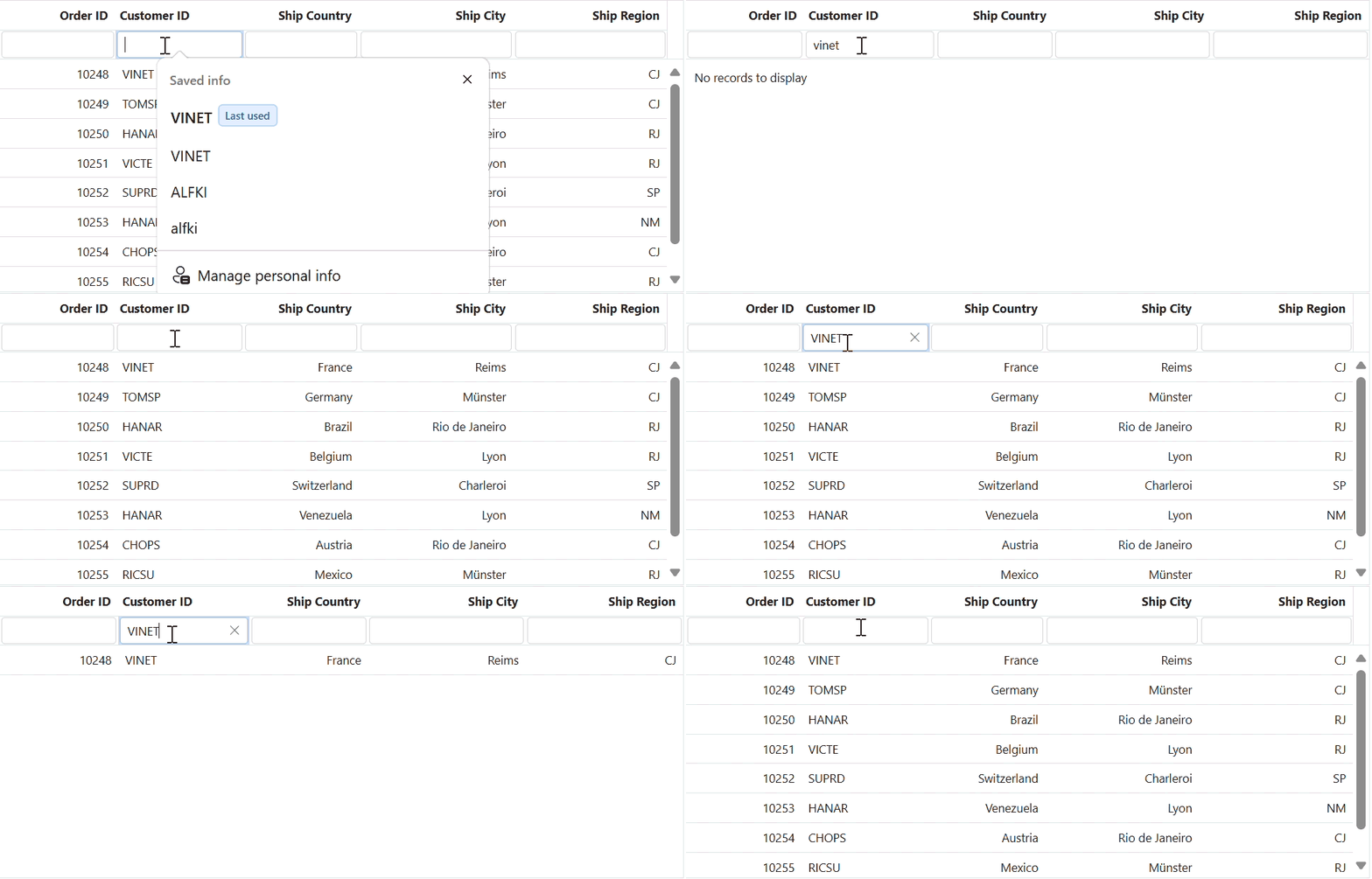
3. Diacritics Filtering
For datasets containing accented characters, diacritics filtering lets you control whether accents are ignored or respected during searches, making filtering more accurate across different languages.
4. Searching
The Syncfusion Blazor DataGrid provides built-in search capabilities that complement filtering, allowing users to quickly locate records across the entire grid using a search keyword.
Flexible column management and layout control
The Blazor DataGrid offers flexible column management, allowing developers to shape how data is presented and how users interact with it. You can auto-generate columns from a data source or define them explicitly, apply formatting, enable text wrapping, and control visibility using the column chooser and column menu. These capabilities make it easy to adapt the grid layout as data structures evolve or user requirements change.
Data Organization: Sorting, Grouping, and Aggregation
The Blazor DataGrid makes it easy to organize and summarize data using built-in sorting, grouping, and aggregation features. These tools help users quickly explore large datasets, identify patterns, and view key values without complex configuration.
1. Grouping
Group records by one or more columns using drag-and-drop. Grouped data can be expanded or collapsed, making large datasets easier to navigate and understand.
2. Aggregation
Display summary values such as totals, averages, minimums, or maximums. Aggregates can appear in overall summary rows, group summaries, or group caption rows.
3. Sorting
Sort data in ascending or descending order by clicking column headers. The grid also supports multi-column sorting and custom sorting logic for advanced scenarios.
Column Pinning and Sticky Headers
Large datasets often require users to compare values across columns or scroll through long lists. These layout features ensure important data stays visible at all times.
1. Frozen Columns and Rows
Frozen rows do remain visible at the top while virtual scrolling. Frozen columns can be pinned to the left or right, allowing horizontal scrolling without losing context. This is especially useful when comparing values across wide grids.
2. Drag-and-Drop column freezing
Users can dynamically move columns into or out of the frozen area using a simple drag-and-drop separator. This interactive behavior feels familiar to anyone who has used spreadsheet tools like Excel.
3. Sticky Headers
Sticky headers keep column headers visible as you scroll, making large datasets easier to understand and navigate.
Data Selection and Row interaction
The Blazor DataGrid provides flexible selection features that let users efficiently interact with rows and cells using mouse, keyboard, or touch gestures.
1. Selection modes
You can control how data is selected based on your application needs:
- Row selection: Select entire rows (default behavior)
- Cell selection: Select individual cells
- Row and cell selection: Enable both simultaneously
2. Drag selection
Select multiple rows or cells by dragging across the grid using mouse or touch input. This is ideal for bulk operations without relying on keyboard shortcuts.
3. Checkbox selection
Enable checkbox selection in rows to easily select multiple records. This approach is useful for batch actions such as delete, export, or status updates.
End-to-end template customization
The Syncfusion Blazor DataGrid lets you customize every part of the grid using templates. You can replace or extend built-in UI for cells, headers, editors, toolbars, and more with your own components and logic.
This flexibility makes it easy to adapt the grid to your application’s design and behavior without limitations.
The available template options in our DataGrid are:
- Column template: Customizes cell content.
- Header template: Customizes header cell content.
- Row template: Customizes row content.
- Detail template: Customizes the cell content details.
- Caption template: Customizes group captions.
- Filter bar template: Customizes a particular column filter bar.
- Cell edit template: Edits a column using a custom component.
- Inline template: Renders custom components in the inline edit form.
- Dialog template: Renders custom components in the dialog edit form.
- Pager template: Renders custom components/elements with pagination.
- Footer aggregate template: Shows aggregate values in the footer cells.
- Group footer template: Shows aggregate values in the group footer cells.
- Group caption template: Shows aggregate values in the group caption cells.
Excel-like productivity features
Many users expect grid interactions to feel similar to Excel-style spreadsheet tools they already know. These features help meet those expectations.
1. AutoFill
AutoFill lets users copy values across cells by dragging, speeding up repetitive data entry and edits.
2. Clipboard support
Built-in copy and paste functionality allows users to move data efficiently using keyboard shortcuts. It supports both individual cells and larger selections, improving productivity in data-heavy scenarios.
3. Row height
Row height can be easily customized in the Syncfusion Blazor DataGrid to control data density and improve readability, especially when displaying large datasets.
High-Fidelity data export (Excel, PDF & CSV)
Exporting data should be straightforward and reliable. The Syncfusion Blazor DataGrid allows users to export data to Excel, PDF, or CSV formats, preserving formatting.
Export retains templates, styles, hierarchical data, and custom layouts, ensuring consistency between what users see in the UI and what they share externally.
Multi-Sheet & advanced Excel Export
For more complex reporting needs, the grid supports adding extra worksheets during Excel export. This allows you to include summaries, additional datasets, or metadata alongside the main grid data, all in a single file.
Responsive, touch-friendly, and adaptive UI
The Syncfusion Blazor DataGrid is built to handle both responsive and adaptive layouts, ensuring a consistent experience across desktop, tablet, and mobile devices.
1. Responsive grid behavior
The DataGrid is fully responsive and adjusts automatically when the browser window is resized. Column widths, row layout, and scrolling adapt in real time, keeping the grid usable across different screen sizes without additional configuration.
2. Adaptive UI layout
In addition to responsiveness, the DataGrid provides an adaptive UI layout that renders optimized feature interfaces based on the device type. On mobile and tablet devices, elements such as filtering, sorting, paging, column menus, and edit dialogs are displayed in touch-friendly, simplified layouts.
3. Touch-friendly interactions
All DataGrid features support touch gestures out of the box. Users can interact using taps, swipes, scrolling, and drag actions, making the grid intuitive and easy to use on touch-enabled devices.
Web accessibility and keyboard support
Accessibility is a core requirement for modern web applications. A data grid should be usable by everyone, including users who rely on assistive technologies or keyboard navigation.
The Blazor DataGrid is designed with accessibility in mind, following WAI-ARIA standards and offering full keyboard support. Screen readers can interpret grid content accurately, while high-contrast visuals improve readability for users with low vision.
You can perform every major interaction, such as sorting, selecting rows, and editing data, using only the keyboard. This ensures smooth navigation without requiring a mouse, helping developers build inclusive and accessible applications with confidence.
Theme customization
Themes play a key role in defining the look and feel of an application. The Blazor DataGrid includes multiple built-in Sass-based themes that help applications look polished and consistent out of the box.
These themes can be easily customized by overriding Sass variables or by creating entirely new themes using the theme studio. This flexibility makes it simple to align the grid’s appearance with your brand or application design without rewriting styles from scratch.
Frequently Asked Questions
What are the top features of Syncfusion Blazor DataGrid?
Key features include virtualization, real-time editing, Excel-style filtering, column customization, adaptive UI, web accessibility, high-fidelity data export, and more.
Does it support real-time editing with APIs?
Yes. The grid supports inline, batch, and dialog editing with automatic synchronization to remote data services.
Can I export customized grids?
Yes. Exports preserve templates, styles, hierarchy, and layout, and also support multi-sheet Excel exports.
Is the grid mobile-friendly?
Yes. The adaptive UI automatically adjusts layouts and interactions for smaller screens.
How does virtualization improve performance?
Only visible rows and columns are rendered, reducing memory usage and ensuring smooth interaction with large datasets.

Conclusion
Blazor applications continue to grow in complexity, and your data grid must evolve alongside them. Syncfusion Blazor DataGrid provides the performance, flexibility, and usability developers need, without forcing trade-offs.
From smooth scrolling and real-time editing to powerful filtering, customization, and export options, the grid is built to support a wide range of use cases while remaining approachable and easy to learn.
Whether you’re exploring the component or planning to use it in a real application, Syncfusion Blazor DataGrid gives you the tools to build reliable, modern, and user-friendly data experiences.
If you’re a Syncfusion user, you can download the setup from the license and downloads page. Otherwise, you can download a free 30-day trial.
You can also contact us through our support forum, support portal, or feedback portal for queries. We are always happy to assist you!





 No spam, just valuable updates.