
 Sumathi Uthayakumar
TL;DR: Formula-heavy web spreadsheets can trigger large dependency recalculation chains on each cell edit, which competes with rendering and input handling on the browser main thread. This article discusses automatic vs manual calculation mode, when recalculation runs, workbook vs sheet scope, and programmatic recalculation triggers in a React spreadsheet component.
You type in one cell, and the whole spreadsheet locks up.
If you’re building a browser-based spreadsheet, you’ve probably hit this wall: a small edit triggers a large chain of dependent formulas, and the recalculation work blocks the UI thread. The result is brutal for users: input lag, cursor delay, and a tab that “feels broken.”
The most reliable fix isn’t to optimize the formulas. It’s changing when formulas recalculate.
In the Syncfusion® React Spreadsheet Editor, you can prevent those freezes by switching to Manual Calculation Mode, so formulas update only when you explicitly recalculate, rather than on every keystroke.
This post covers:
- Why formula-heavy sheets freeze in the browser?
- When Manual vs. Automatic calculation makes sense.
- How to enable Manual Calculation Mode in Syncfusion React Spreadsheet Editor?
- A practical workflow: Smooth editing + deliberate recalculation + optional switch back to automatic.
Why formula-heavy spreadsheets freeze the browser
In Automatic calculation mode, every cell edit triggers recalculation for any dependent formulas. In a workbook with deep dependencies, that can mean thousands of recalculations from a single change.
In a browser, that calculation typically runs on the main thread, the same thread responsible for:
- Rendering
- Handling typing and pointer events
- Updating the DOM
So, while recalculation is happening, your UI can’t keep up. Developers see:
- Typing that stutters (events queue up)
- Delayed selection/cursor movement
- “frozen” tabs during data entry or bulk updates
This isn’t so much a data problem as it is a timing problem: you’re recalculating at the worst possible time during interaction.
Manual calculation mode: What it changes (and why it works)
Manual calculation mode stops formulas from recalculating automatically on every edit. The Syncfusion React Spreadsheet Editor provides the calculationMode property to control when formulas recalculate.
It enables:
- Smooth editing: No background processing runs on every keystroke.
- A fully responsive UI: regardless of formula complexity or workbook size.
- User-controlled recalculation: Re-calculation runs only when explicitly triggered.
Manual mode may show stale values until recalculation is triggered, an intentional trade‑off for performance. By running formulas only on demand, it keeps large, formula‑heavy sheets fast and responsive while ensuring accurate results when needed.
Enabling manual calculation mode in Syncfusion React Spreadsheet Editor
Setting up Manual Calculation Mode takes a few lines of code:
Step 1: Set up your React project (using Vite)
You can create a new React app quickly using Vite:
npm create vite@latest my-app -- --template react
cd my-app
npm run dev
Step 2: Install the Syncfusion Spreadsheet package
All Syncfusion Essential Studio React components are available on npm. Install the Spreadsheet package:
npm install @syncfusion/ej2-react-spreadsheetStep 3:Add required CSS files
Add the Syncfusion component styles in src/App.css:
@import '../node_modules/@syncfusion/ej2-base/styles/material.css';
@import '../node_modules/@syncfusion/ej2-inputs/styles/material.css';
@import '../node_modules/@syncfusion/ej2-buttons/styles/material.css';
@import '../node_modules/@syncfusion/ej2-splitbuttons/styles/material.css';
@import '../node_modules/@syncfusion/ej2-lists/styles/material.css';
@import '../node_modules/@syncfusion/ej2-navigations/styles/material.css';
@import '../node_modules/@syncfusion/ej2-popups/styles/material.css';
@import '../node_modules/@syncfusion/ej2-dropdowns/styles/material.css';
@import '../node_modules/@syncfusion/ej2-grids/styles/material.css';
@import '../node_modules/@syncfusion/ej2-react-spreadsheet/styles/material.css';
Step 4: Add the Spreadsheet component and enable manual mode
You need to set calculationMode='Manual' on the SpreadsheetComponent to control all formula recalculation behavior.
Here’s a code example of enabling Manual Mode in React:
import * as React from 'react';
import { createRoot } from 'react-dom/client';
import {
    SpreadsheetComponent,
    SheetsDirective,
    SheetDirective,
    RangesDirective
} from '@syncfusion/ej2-react-spreadsheet';
import {
    RangeDirective,
    ColumnsDirective,
    ColumnDirective
} from '@syncfusion/ej2-react-spreadsheet';
import { data } from './datasource';

function App() {
    const spreadsheetRef = React.useRef(null);
    React.useEffect(() => {
        let spreadsheet = spreadsheetRef.current;
        if (spreadsheet) {
            spreadsheet.cellFormat({ fontWeight: 'bold', textAlign: 'center' }, 'A1:H1');
        }
    }, []);

    return (
        <div>
            // Spreadsheet Component with Manual Calculation Mode enabled
            <SpreadsheetComponent id='spreadsheet' ref={spreadsheetRef} calculationMode={'Manual'}>
                <SheetsDirective>
                    <SheetDirective name={"Product Details"}>
                        <RangesDirective>
                            <RangeDirective dataSource={data} startCell={"A1"}></RangeDirective>
                        </RangesDirective>
                        <ColumnsDirective>
                            <ColumnDirective width={130}></ColumnDirective>
                            <ColumnDirective width={92}></ColumnDirective>
                            <ColumnDirective width={96}></ColumnDirective>
                        </ColumnsDirective>
                    </SheetDirective>
                </SheetsDirective>
            </SpreadsheetComponent>
        </div>
    );
};
export default App;

const root = createRoot(document.getElementById('root'));
root.render(<App />);
Step 5: Use the built-in recalculation options
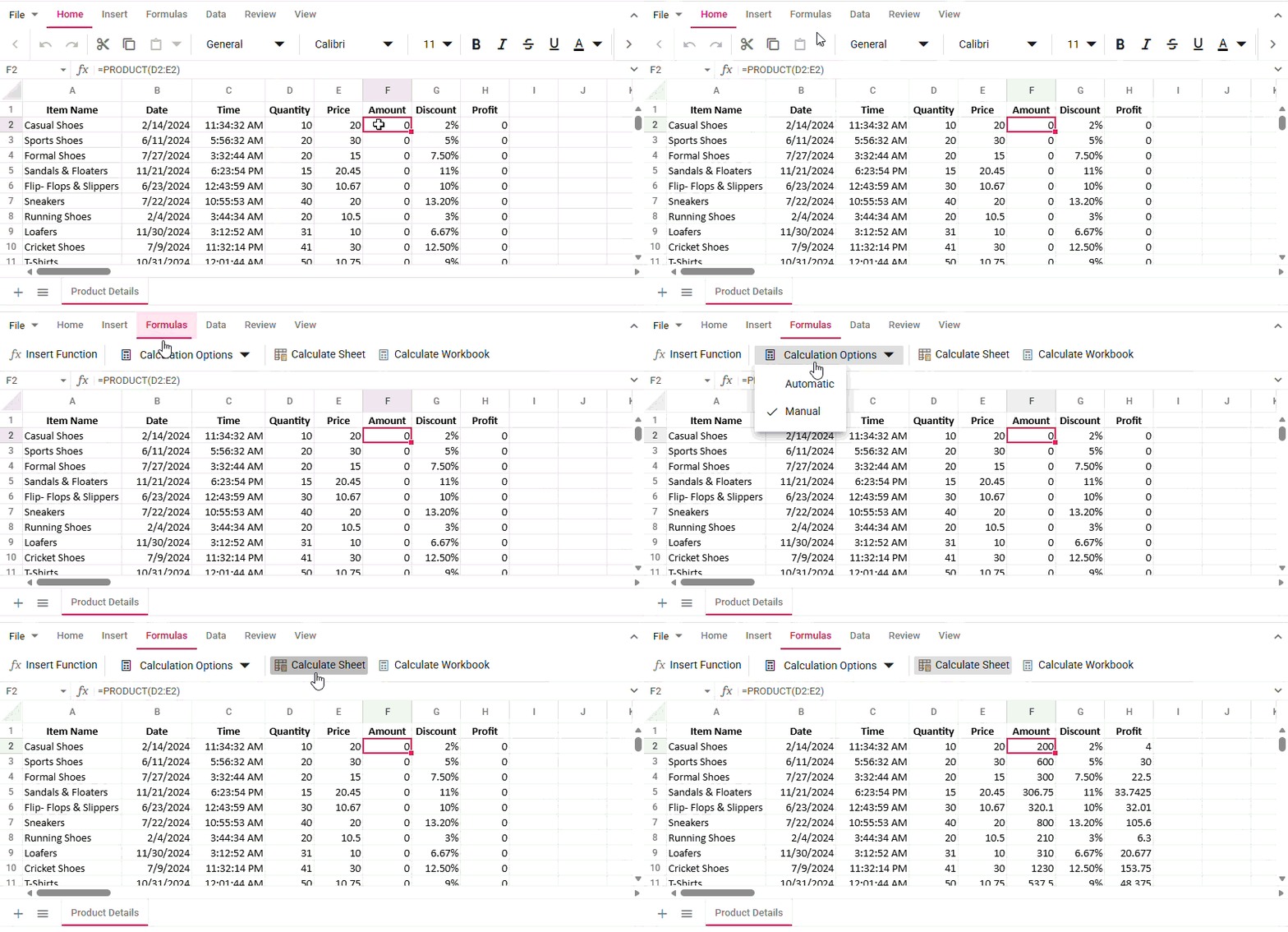
Once Manual Mode is active, users can refresh formulas through:
- Calculate sheet updates only the active sheet.
- Calculate workbook updates all sheets in the workbook.
Here’s a quick demo of how the manual calculation mode works in the Spreadsheet:
If your application needs custom workflow controls, you can also trigger recalculation programmatically using the calculateNow method.
For example, recalculate the entire workbook using calculateNow method:
// Spreadsheet with Manual Calculation Mode enabled
<SpreadsheetComponent
    ref={spreadsheetRef}
    calculationMode="Manual"
>
</SpreadsheetComponent>

// Trigger workbook recalculation
const recalcWorkbook = () => {
    spreadsheetRef.current?.calculateNow('Workbook');
};
Automatic vs. Manual calculation mode: When to use each
- Use Automatic when users truly need live-updating formulas in small spreadsheets (
< 500 rows) and real-time dashboards. - Use Manual when you care about responsiveness during heavy interaction:
- Large workbooks (
1,000+ rows) - Complex interdependent formulas
- Bulk data entry
- Imports/pastes
- Large workbooks (
- Final result review or reporting
A common pattern is: Use Manual while editing or importing, and recalculate on demand. Optionally switch back to Automatic for review.
Next steps
- Try Manual Calculation Mode in the Syncfusion React Spreadsheet Editor by setting
calculationMode="Manual". - Add a Recalculate Workbook button (or use the built-in ribbon commands).
- Test with your worst-case workbook and measure: input latency, time-to-interaction after edits, and overall perceived responsiveness.
No. Manual Calculation Mode only changes when formulas recalculate, not how they are evaluated. All results remain accurate once recalculation is triggered. Yes, temporarily. This is an expected trade‑off. Most applications mitigate this by providing clear recalculation actions (such as ribbon commands or buttons) or visual indicators showing that calculation is set to Manual. Not always. Manual mode is ideal for large, formula‑heavy sheets, bulk imports, and performance‑critical editing. For small sheets or real‑time dashboards, Automatic mode may be more appropriate, and you can switch modes at runtime as needed.Frequently Asked Questions
Will Manual Calculation Mode affect formula accuracy?
Can users forget to recalculate and see outdated values?
Is Manual Calculation Mode suitable for all spreadsheet workflows?
Conclusion
Thank you for reading! As spreadsheets grow, automatic recalculation becomes a bottleneck. Manual Calculation Mode in the Syncfusion React Spreadsheet Editor keeps editing fast by recalculating only when triggered, ensuring performance and reliability at scale.
Ready to deliver a freeze‑free spreadsheet experience? Try the Syncfusion React Spreadsheet Editor and see the difference.
If you’re a Syncfusion user, you can download the setup from the license and downloads page. Otherwise, you can download a free 30-day trial.
You can also contact us through our support forum, support portal, or feedback portal for queries. We are always happy to assist you!




 No spam, just valuable updates.