
 Sastha Prathap
TL;DR: Stop wasting time downloading and uploading files for minor Excel edits. Integrate Google Drive with your React Spreadsheet to open, edit, and save files directly within your application eliminating version conflicts and streamlining workflows. With backend APIs such as openFromJson and saveAsJson, you can enable secure, server-side processing and build a scalable, cloud-native Excel editor that delivers enhanced performance and an improved user experience.
Transform your React app into a cloud Excel editor
Modern web applications are increasingly cloud-first. Developers are expected to deliver experiences that let users work with files stored in cloud storage services such as Azure Blob Storage, AWS S3, Google Cloud Storage, Dropbox, or OneDrive without downloading, re-uploading, or switching tabs.
In this guide, you’ll learn how to integrate Google Drive with the Syncfusion React Spreadsheet, allowing users to open, edit, and save Excel files directly inside a React app using an ASP.NET Core backend. The result is a secure, high-performance, cloud-based Excel editor built for real-world enterprise apps.
Why Google Drive integration with React Spreadsheet matters
Google Drive is widely used for storing business-critical spreadsheets, financial reports, inventory lists, CRM exports, and operational data.
However, most applications force users to download files just to make small edits. This approach leads to:
- Poor user experience.
- Version conflicts.
- Security risks.
- Slower workflows.
By integrating Google Drive with our React Spreadsheet, you can:
- Eliminate file downloads and manual uploads.
- Keep users inside your application.
- Enable Excel-like editing in the browser.
- Maintain enterprise-grade security and performance.
Why choose Syncfusion React Spreadsheet?
The React Spreadsheet component is designed for cloud and enterprise scenarios.
Its key capabilities include:
- Built-in open and save APIs for backend-driven workflows.
- Server-side processing for better performance and security.
- Broad file format support: XLSX, XLS, CSV, XLSM, XLSB, and PDF.
- Rich Excel-like UI with ribbon, dialogs, formulas, and keyboard shortcuts.
- Optimized performance for large datasets and complex workbooks.
Combining the React Spreadsheet with Google Drive creates a true cloud-based Excel editing experience.
Create Excel-style data experiences in React with built-in formula support, cell formatting, workbook editing, large dataset handling, and seamless spreadsheet viewing.
Build React SpreadsheetTransform your app into a cloud-based Excel editor with React Spreadsheet and Google Drive integration
Managing Excel files in Google Drive is now simple and intuitive. With the React Spreadsheet and Google Drive API integration, you can open and save Excel files directly from the cloud, turning your app into a secure, cloud-based Excel editor without the usual complexity.
Open
- Direct cloud access: Seamlessly load Excel files from Google Drive using your backend API.
- Flexible file sources: Open files from local uploads, external URLs, blob data, Base64 strings, or server endpoints, ideal for cloud-based workflows.
- Smart workbook restoration: Use the openFromJson method to bring back full workbook structure, styles, and formulas.
- Custom logic hooks: Add validations or actions with beforeOpen and openComplete events.
- Broad format support: Works with
.xlsx,.xls,.xlsm,.xlsb, and.csvformats.
Save
- Secure cloud saving: Send updated spreadsheets back to Google Drive via authenticated API calls.
- Efficient data handling: Convert workbooks to JSON using the saveAsJson method for backend processing.
- Excel file generation: Backend transforms JSON into Excel streams using our libraries.
- Event-driven customization: Use beforeSave and saveComplete methods to log actions or apply validations.
- Export to PDF: Export spreadsheets as PDFs with layout options.
Ready to get started? Here’s what you need before we jump into the integration steps.
Prerequisites
- Frontend: A React app with the React Spreadsheet installed. Follow the Getting started with React Spreadsheet guide to set up your project.
- Backend: An ASP.NET Core Web API for handling open and save operations. Refer to the Web API repository for setup.
- You can also check out our detailed blog to set up the web service locally: Hosting Open and Save Services for Spreadsheet with ASP.NET Core and Docker.
- Install required NuGet Packages:
Install-Package Google.Apis.Drive.v3 - Google Drive API: Enable the Google Drive API and configure service account authentication for secure file access.
- Configure Google Cloud and Google Drive credentials:
- Open your
appsettings.jsonfile and add your Google Drive configuration details. This should include the service account credential file path, the Google Drive folder ID, and the app name created in the Google developers console (Project Name). Refer to the following code example."CredentialPath": "path-to-your-service-account-key.json", "FolderId": "your-google-drive-folder-id", "ApplicationName": "YourAppName"
- Open your
Important: Never expose your service account credential file (JSON key) in your React app or any client-side code. These credentials must always be stored securely on the server (ASP.NET Core backend), using environment variables or secure storage mechanisms. They should never be included in frontend code, public repositories, or version control systems.
Got everything set up? Let’s move on and make your app a cloud-powered Excel editor!
Step-by-Step guide: Open and save Excel Files from Google Drive in React Spreadsheet
Need to bring Excel files from Google Drive into your React app? Here’s how to do it in just two steps:
Opening Excel files from Google Drive to React Spreadsheet
Step 1: Fetch and convert the Excel file
Retrieve the Excel file from Google Drive using the API and convert it to Workbook JSON for the React Spreadsheet using the following code snippet.
using Google.Apis.Auth.OAuth2;
using Google.Apis.Drive.v3;
using Google.Apis.Services;
using Microsoft.AspNetCore.Mvc;
using Syncfusion.EJ2.Spreadsheet;

namespace WebAPI.Controllers
{
    [Route("api/[controller]")]
    [ApiController]
    public class SpreadsheetController : ControllerBase
    {
        //variables for storing GDrive folderId, ApplicationName, and Service-Accountkey credentials
        public readonly string folderId;
        public readonly string applicationName;
        public readonly string credentialPath;

        //constructor for assigning credentials
        public SpreadsheetController(IConfiguration configuration)
        {
            folderId = configuration.GetValue<string>("FolderId");
            credentialPath = configuration.GetValue<string>("CredentialPath");
            applicationName = configuration.GetValue<string>("ApplicationName");
        }


        [HttpPost]
        [Route("OpenExcelFromGoogleDrive")]
        public async Task<IActionResult> OpenExcelFromGoogleDrive([FromBody] FileOptions options)
        {
            try
            {
                // Create a memory stream to store file data
                MemoryStream stream = new MemoryStream();

                // Authenticate using Service Account
                GoogleCredential credential;

                // Load Google service account credentials
                using (var streamKey = new FileStream(credentialPath, FileMode.Open, FileAccess.Read))
                {
                    credential = GoogleCredential.FromStream(streamKey)
                        .CreateScoped(DriveService.Scope.Drive);
                }

                // Create Google Drive API service
                var service = new DriveService(new BaseClientService.Initializer()

                // Initialize Google Drive API client
                {
                    HttpClientInitializer = credential,
                    ApplicationName = applicationName,
                });

                // List Excel files in Google Drive folder
                var listRequest = service.Files.List();

                // Query Google Drive for Excel, CSV files in the specified folder
                listRequest.Q = $"(mimeType='application/vnd.openxmlformats-officedocument.spreadsheetml.sheet' or mimeType='application/vnd.ms-excel' or mimeType='text/csv') and '{folderId}' in parents and trashed=false";
                listRequest.Fields = "files(id, name)";
                var files = await listRequest.ExecuteAsync();
                // Find the requested file
                string fileIdToDownload = files.Files.FirstOrDefault(f => f.Name == options.FileName + options.Extension)?.Id;

                // Get the file ID for the requested file name
                if (string.IsNullOrEmpty(fileIdToDownload))

                // Get the file ID for the requested file name
                return NotFound("File not found in Google Drive.");

                // Download file content into memory stream
                var request = service.Files.Get(fileIdToDownload);
                await request.DownloadAsync(stream);
                stream.Position = 0;

                // Prepare file for Syncfusion Excel processing
                OpenRequest open = new OpenRequest

                // Wrap downloaded stream as FormFile for Syncfusion processing
                {
                    File = new FormFile(stream, 0, stream.Length, options.FileName, options.FileName + options.Extension)
                };

                // Convert Excel file to JSON using Syncfusion XlsIO
                var result = Workbook.Open(open);
                return Content(result, "application/json");
            }
            catch (Exception ex)
            {
                return BadRequest("Error occurred while processing the file: " + ex.Message);
            }
        }

        // Class to store FileOptions
        public class FileOptions
        {
            public string FileName { get; set; } = string.Empty;
            public string Extension { get; set; } = string.Empty;
        }
}
}
Step 2: Load the file in React
Now, call your backend and use the openFromJson method to display the file in the React Spreadsheet component.
const openFromGoogleDrive = () => {
        spreadsheet.showSpinner();

        // Make a POST request to the backend API to open the file from Google Drive.

        // Replace the URL with your local or hosted endpoint URL.
             fetch('https://localhost:your_port_number/api/spreadsheet/OpenExcelFromGoogleDrive', {
            method: 'POST',
            headers: {
                'Content-Type': 'application/json',
            },
            body: JSON.stringify({
                FileName: fileInfo.name,       // Name of the file to open
                Extension: fileInfo.extension, // File extension (.xlsx)
            }),
        })
            .then((response) => response.json()) // Parse the response as JSON
            .then((data) => {
                spreadsheet.hideSpinner();
                // Load the spreadsheet data into the UI
                spreadsheet.openFromJson({ file: data, triggerEvent: true });
            })
            .catch((error) => {
                spreadsheet.hideSpinner();
                window.alert('Error importing file from Google Drive: ' + error);

            }); };
Save edited Excel files in React Spreadsheet to Google Drive
Once your edits are done, push them to Google Drive to keep everything backed up and accessible in the cloud.
Step 1: Convert Spreadsheet to JSON
Use the saveAsJson method to serialize the React Spreadsheet and send it to the backend.
// Save the current spreadsheet to Google Drive
    const saveToGoogleDrive = () => {
        // Convert spreadsheet data to JSON
        spreadsheet.saveAsJson().then((json) => {
            const formData = new FormData();

            // Append required fields for backend API
            formData.append('FileName', loadedFileInfo.fileName);   // File name
            formData.append('SaveType', loadedFileInfo.saveType);   // Format type (Xlsx, Xls, Csv)
            formData.append('JSONData', JSON.stringify(json.jsonObject.Workbook)); // Spreadsheet data
            formData.append('PdfLayoutSettings', JSON.stringify({ FitSheetOnOnePage: false })); // PDF settings

            // Make a POST request to the backend API to save the file to Google Drive.

            // Replace the URL with your local or hosted endpoint URL.
            fetch('https://localhost:your_port_number/api/spreadsheet/SaveExcelToGoogleDrive', {
                method: 'POST',
                body: formData,
            })
                .then((response) => {
                    if (!response.ok) throw new Error(`Save failed: ${response.status}`);
                    window.alert('Workbook saved successfully to Google Drive.');
                })
                .catch((error) => {
                    window.alert('Error saving to Google Drive: ' + error);
                });
        });
    };
Step 2: Convert and upload to Google Drive
Then convert the JSON to Excel on the server and securely upload it to Google Drive.
Here’s the code snippet to implement this feature in your app.
[HttpPost]
[Route("SaveExcelToGoogleDrive")]
public async Task<IActionResult> SaveExcelToGoogleDrive([FromForm] SaveSettings saveSettings)
{
    try
    {
         //Generate Excel file stream using Syncfusion
        Stream generatedStream = Workbook.Save<Stream>(saveSettings);

        //Copy to MemoryStream to ensure full content is flushed and seekable
        MemoryStream excelStream = new MemoryStream();

        // Copy generated stream to MemoryStream for upload
        await generatedStream.CopyToAsync(excelStream);
        excelStream.Position = 0; // Reset position for upload

        // Prepare file name with extension based on SaveType
        string fileName = saveSettings.FileName + "." + saveSettings.SaveType.ToString().ToLower();

        // Validate service account credential file
        if (!System.IO.File.Exists(credentialPath))
            throw new FileNotFoundException($"Service account key file not found at {credentialPath}");

        //Authenticate using Service Account credentials
        GoogleCredential credential;

        // Load Google service account credentials
        using (var streamKey = new FileStream(credentialPath, FileMode.Open, FileAccess.Read))
        {
            credential = GoogleCredential.FromStream(streamKey)
                .CreateScoped(DriveService.Scope.Drive);
        }

        //Initialize Google Drive API service
        var service = new DriveService(new BaseClientService.Initializer()

        // Initialize Google Drive API client
        {
            HttpClientInitializer = credential,
            ApplicationName = applicationName,
        });

        //Prepare file metadata
        var fileMetadata = new Google.Apis.Drive.v3.Data.File()
        {
            Name = fileName
        };

        //Check if file already exists in the specified folder
        var listRequest = service.Files.List();
//Important: Restrict search to the configured folder to avoid updating unintended files
        listRequest.Q = $"name='{fileName}' and '{folderId}' in parents and trashed=false";

        // Query Google Drive for Excel, CSV files in the specified folder
        listRequest.Fields = "files(id)";
        var files = await listRequest.ExecuteAsync();

        // Reset stream position before upload (important for both update and create)
        excelStream.Position = 0;

        // Set MIME type dynamically based on SaveType
         string mimeType = saveSettings.SaveType switch
         {
            SaveType.Xlsx => "application/vnd.openxmlformats-officedocument.spreadsheetml.sheet",
            SaveType.Xls => "application/vnd.ms-excel",
            SaveType.Csv => "text/csv",
         };

        if (files.Files.Any())
        {
            // If file exists, update the existing file
            var updateRequest = service.Files.Update(fileMetadata, files.Files[0].Id, excelStream,
                mimeType);
            updateRequest.Fields = "id";
            await updateRequest.UploadAsync();
        }
        else
        {

            // If file does not exist, create a new file
            var createRequest = service.Files.Create(fileMetadata, excelStream,mimeType);
            createRequest.Fields = "id";
            await createRequest.UploadAsync();
        }

        return Ok("Excel file successfully saved/updated in Google Drive.");
    }
    catch (Exception ex)
    {
        return BadRequest("Error saving file to Google Drive: " + ex.Message);
    }
}
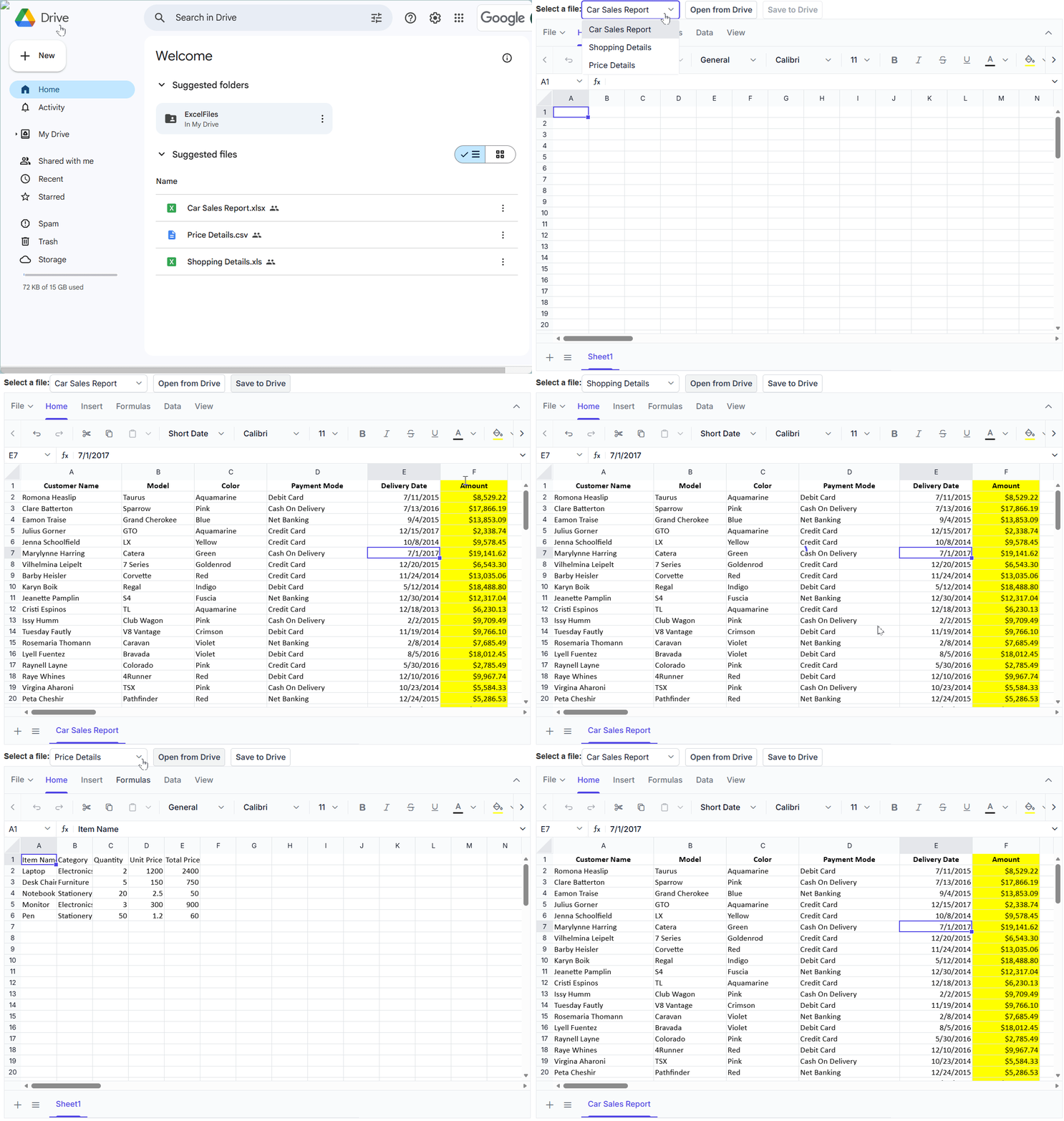
After executing the above code examples, we will get an output that resembles the following GIF.
GitHub reference
Also, refer to the integrating Google Drive with React Spreadsheet GitHub demo, featuring:
- React client sample
A ready-to-use frontend showcasing React Spreadsheet integrated with Google Drive for opening and saving Excel files.
- ASP.NET Core Web API backend
A secure backend service that handles file operations with Google Drive using service account authentication and the Drive API.
Frequently Asked Questions
What is the main purpose of integrating Google Drive with the React Spreadsheet?
The integration enables users to open, edit, and save Excel files directly from Google Drive within a React application, eliminating the need for file downloads or switching between platforms.
What file formats are supported when working with Google Drive integration?
How does the application open files from Google Drive?
The backend retrieves the file from Google Drive, converts it into Spreadsheet-compatible JSON, and loads it into the React Spreadsheet.
Reference: Open file from Google Drive.
How are edited spreadsheets saved back to Google Drive?
The client serializes the spreadsheet data to JSON and sends it to the backend, where it is converted into an Excel stream and uploaded to Google Drive.
Reference: Save file to Google Drive.
Why is a backend required for Google Drive integration?
The backend handles secure authentication, file retrieval, conversion, and upload operations, keeping Google Drive credentials and processing logic off the client.
What prerequisites are required to implement this integration?
A React app with Spreadsheet, an ASP.NET Core Web API backend, Google Drive API access, and configured service account credentials.
Can this integration handle large Excel files efficiently?
Yes. The React Spreadsheet is optimized for performance and server-side processing, making it suitable for larger datasets.
Reference: Advanced Open options.
Can this solution be used to build enterprise-grade applications?
Absolutely. The integration is scalable, secure, and designed to meet enterprise requirements, making it suitable for complex business applications.
What makes this solution a “cloud-based Excel editor”?
Since users can directly access, edit, and save files from cloud storage without local downloads, the application effectively functions as a full-featured cloud Excel editor.
Can this integration work with other cloud storage providers?
Yes. Similar integration patterns can be applied to other storage services, such as AWS S3, Azure Blob Storage, and Google Cloud Storage.
Build cloud‑connected Excel experiences with React Spreadsheet
Thanks for reading! Integrating Google Drive with the React Spreadsheet delivers a seamless, cloud-based Excel experience that simplifies file access, editing, and secure saving. This scalable approach is well-suited for modern web apps that require efficient data workflows and collaboration. By combining powerful spreadsheet functionality with trusted cloud storage, developers can build smarter, more responsive solutions with confidence.
Try our React Spreadsheet today and start building intelligent spreadsheet solutions in your React app!
If you’re an existing user, you can download the setup from the license and downloads page. Otherwise, you can download a free 30-day trial.
You can also contact us through our support forum, support portal, or feedback portal for queries. We are always happy to assist you!




 No spam, just valuable updates.