
 Mahesh Palanisamy
TL;DR: Quickly copy and paste events in Blazor Scheduler using built-in clipboard support. Enable keyboard shortcuts and context menus, or use API methods like CopyAsync, CutAsync, and PasteAsync for flexible event management. Advanced scenarios include copying data from a Blazor DataGrid and pasting it directly into the Scheduler for seamless integration.
The Syncfusion® Blazor Scheduler is a powerful tool for managing appointments and events. A key feature that significantly boosts productivity is clipboard support, which allows you to cut, copy, and paste appointments. This eliminates repetitive data entry and makes schedule adjustments quick and intuitive.
In this guide, you’ll learn how to enable and use the clipboard feature in the Blazor Scheduler, along with advanced customization options.
Prerequisites
Before you begin, ensure you have:
- A Blazor Web App project created using .NET 9 or later.
- Installed Blazor.Schedule and Syncfusion.Blazor.Themes NuGet packages.
- A valid Syncfusion license to register in the application’s Program.cs file.
- Added the Syncfusion Blazor service via the
builder.Services.AddSynfusionBlazor();in the Program.cs file.
Now, let’s dive into the steps to enable the clipboard functionality in the Blazor Scheduler.
Enabling clipboard functionality
To enable the clipboard feature, set the AllowClipboard property to true. You must also enable the AllowKeyboardInteraction property for the clipboard feature to work properly with keyboard shortcuts.
<SfSchedule TValue="AppointmentData"
            AllowClipboard="true"
            AllowKeyboardInteraction="true">
</SfSchedule>Syncfusion Blazor Scheduler helps you create intuitive booking, event, and calendar experiences with built-in views, recurring appointments, editing, rescheduling, localization, and flexible customization.
See Blazor Scheduler in ActionKeyboard shortcuts for clipboard operations
The Blazor Scheduler supports standard keyboard shortcuts to manage appointments efficiently. To use these shortcuts, click an appointment and press Ctrl+C (or Cmd+C on Mac) to copy or Ctrl+X (Cmd+X) to cut. Then, select the desired cell and press Ctrl+V (Cmd+V) to paste.
Here is a complete code example of a Scheduler with clipboard functionality enabled.
@using Syncfusion.Blazor.Schedule

<SfSchedule TValue="AppointmentData"
            Height="650px"
            @bind-SelectedDate="@SelectedDate"
            AllowClipboard="true"
            AllowKeyboardInteraction="true"
            ShowQuickInfo="false">
    <ScheduleEventSettings DataSource="@DataSource"></ScheduleEventSettings>
    <ScheduleViews>
        <ScheduleView Option="View.Day"></ScheduleView>
        <ScheduleView Option="View.Week"></ScheduleView>
        <ScheduleView Option="View.WorkWeek"></ScheduleView>
        <ScheduleView Option="View.Month"></ScheduleView>
        <ScheduleView Option="View.Agenda"></ScheduleView>
    </ScheduleViews>
</SfSchedule>

@code {
    private DateTime SelectedDate { get; set; } = new DateTime(2025, 1, 15);
    public List<AppointmentData> DataSource = new List<AppointmentData>
    {
        new AppointmentData
        {
            Id = 1,
            Subject = "Meeting with clients",
            StartTime = new DateTime(2025, 1, 15, 9, 30, 0),
            EndTime = new DateTime(2025, 1, 15, 11, 0, 0),
            IsAllDay = false
        },
        new AppointmentData
        {
            Id = 2,
            Subject = "Project Review",
            StartTime = new DateTime(2025, 1, 15, 12, 0, 0),
            EndTime = new DateTime(2025, 1, 15, 14, 0, 0),
            IsAllDay = false
        }
    };
    public class AppointmentData
    {
        public int Id { get; set; }
        public string Subject { get; set; }
        public string Location { get; set; }
        public DateTime StartTime { get; set; }
        public DateTime EndTime { get; set; }
        public string Description { get; set; }
        public bool IsAllDay { get; set; }
        public string RecurrenceRule { get; set; }
        public string RecurrenceException { get; set; }
        public Nullable<int> RecurrenceID { get; set; }
    }
}
Here’s a preview of the feature in action:
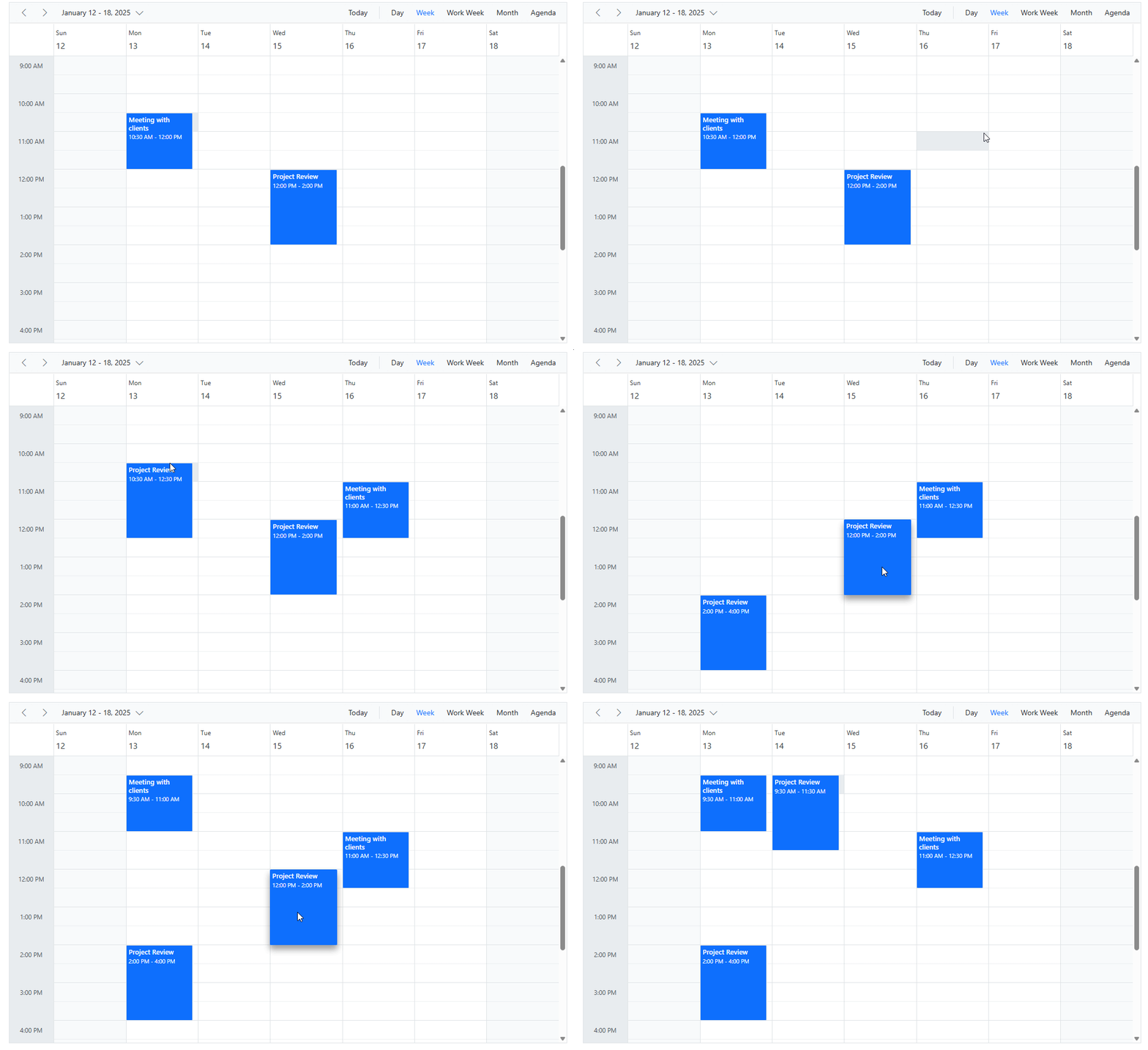
Clipboard operations with a context menu
Want more control? You can trigger clipboard actions programmatically using public methods. This is ideal for custom UI elements like a context menu.
The following table lists the available public methods:
| Method | Parameters | Description |
| CopyAsync | None | Duplicate the selected appointment. |
| CutAsync | None | Remove the selected appointment from its current slot. |
| PasteAsync | targetElement (Scheduler’s work-cell) | Paste the copied or cut appointment into the selected time slot. |
The following example demonstrates how to integrate a Syncfusion Blazor Context Menu to handle clipboard actions.
@using Syncfusion.Blazor.Schedule
@using Syncfusion.Blazor.Navigations

<div class="col-lg-12 control-section">
    <SfSchedule TValue="AppointmentData"
                @ref="ScheduleRef"
                Height="650px"
                @bind-SelectedDate="@SelectedDate"
                AllowClipboard="true"
                ShowQuickInfo="false">
        <ScheduleEventSettings DataSource="@EventDataSource"></ScheduleEventSettings>
        <ScheduleViews>
            …
        </ScheduleViews>
    </SfSchedule>
    <SfContextMenu TValue="MenuItem" Target=".e-schedule">
        <MenuItems>
            <MenuItem Text="Copy" Id="Copy" Hidden="@(!isEvent)" IconCss="e-icons e-copy"></MenuItem>
            <MenuItem Text="Cut" Id="Cut" Hidden="@(!isEvent)" IconCss="e-icons e-cut"></MenuItem>
            <MenuItem Text="Paste" Id="Paste" Hidden="@(!isCell)" IconCss="e-icons e-paste"></MenuItem>
        </MenuItems>
        <MenuEvents TValue="MenuItem" OnOpen="OnOpen" ItemSelected="OnItemSelected"></MenuEvents>
    </SfContextMenu>
</div>

@code {
    private DateTime SelectedDate { get; set; } = new DateTime(2025, 1, 8);
    private bool isCell;
    private bool isEvent;
    SfSchedule<AppointmentData> ScheduleRef;
    private AppointmentData EventData { get; set; }
    private CellClickEventArgs CellData { get; set; }
    private ElementInfo<AppointmentData> ElementData { get; set; }
    private List<AppointmentData> EventDataSource = new List<AppointmentData>()
    {
        new AppointmentData
        {
            …
        },
        new AppointmentData
        {
            …
        }
    };

    public async Task OnOpen(BeforeOpenCloseMenuEventArgs<MenuItem> args)
    {
        ElementData = await ScheduleRef.GetElementInfoAsync((int)args.Left, (int)args.Top);
        if (args.ParentItem == null && ElementData != null)
        {
            if (ElementData.ElementType == ElementType.Event)
            {
                EventData = ElementData.EventData;
                isCell = false;
                isEvent = true;
            }
            else if (ElementData.ElementType == ElementType.WorkCells || ElementData.ElementType == ElementType.DateHeader ||
            ElementData.ElementType == ElementType.AllDayCells)
            {
                isCell = true;
                isEvent = false;
                CellData = new CellClickEventArgs
                    {
                        StartTime = ElementData.StartTime,
                        EndTime = ElementData.EndTime,
                        IsAllDay = ElementData.IsAllDay,
                    };
            }
            else
            {
                args.Cancel = true;
            }
        }
    }
    public async Task OnItemSelected(MenuEventArgs<MenuItem> args)
    {
        var SelectedMenuItem = args.Item.Id;
        switch (SelectedMenuItem)
        {
            case "Copy":
                await CopyEvent(EventData);
                break;
            case "Cut":
                await CutEvent(EventData);
                break;
            case "Paste":
                if (isCell)
                {
                    await PasteEvent(CellData);
                }
                break;
        }
    }
    private async Task PasteEvent(CellClickEventArgs cellData)
    {
        await ScheduleRef.PasteAsync(cellData);
    }
    private async Task CopyEvent(AppointmentData eventData)
    {
        await ScheduleRef.CopyAsync(eventData);
    }
    private async Task CutEvent(AppointmentData eventData)
    {
        await ScheduleRef.CutAsync(eventData);
    }
    public class AppointmentData
    {
        …
    }
}
Here’s the feature demonstrated visually:
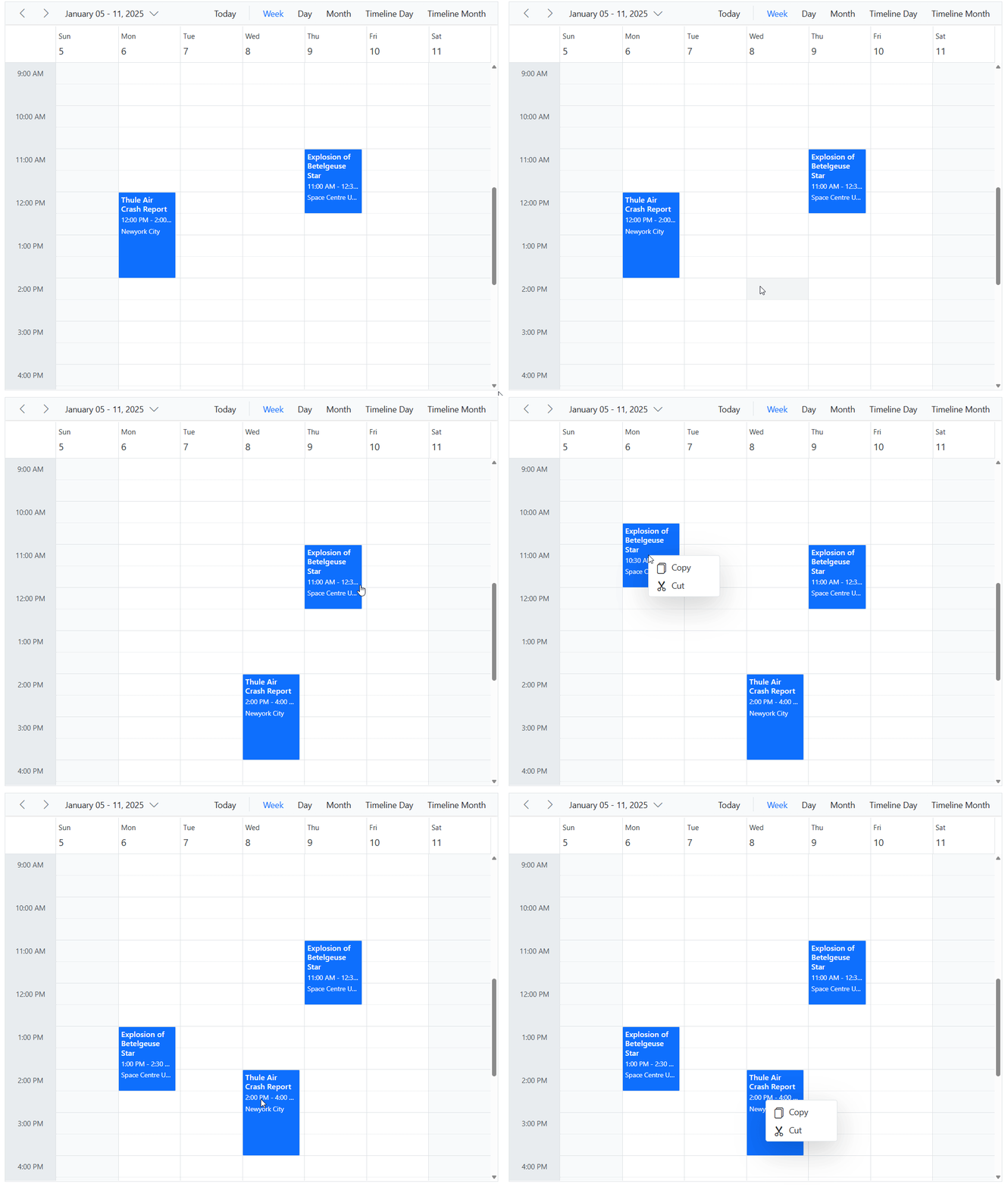
When users right-click, the menu displays Cut, Copy, and Paste options.
Advanced Customization: Copy data from Grid to Scheduler
The Blazor Scheduler’s Paste event enables you to modify appointment data before rendering. This is particularly helpful when copying data from an external source, such as Syncfusion Blazor DataGrid, and binding it to the Scheduler’s data model.
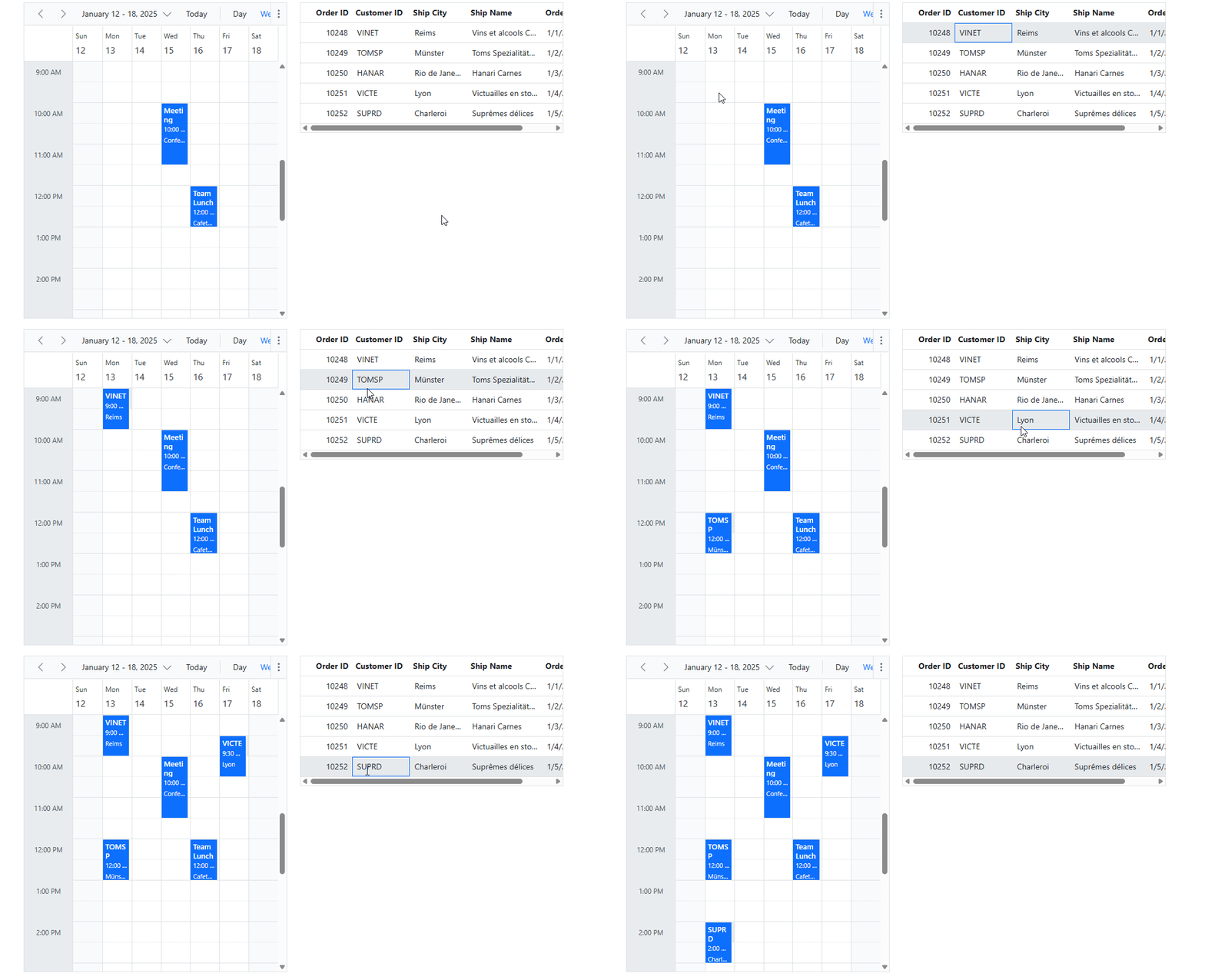
In this code example, data from a Blazor DataGrid is copied and pasted into the Scheduler. The Paste event intercepts the clipboard text, parses it, and maps it to a new appointment object.
Here’s how you can perform the copy-paste operation:
- Select a row in the DataGrid.
- Press Ctrl+C to copy the row data.
- Select a time slot in the Scheduler.
- Press Ctrl+V to paste. The Paste event handler will create a new appointment from the grid data.
Here is the implementation of the Paste event handler:
public async Task OnBeforePaste(PasteEventArgs<AppointmentData> args)
{
    if (args.ClipboardText is string stringData)
    {
        string[] dataArray = stringData.Split('\t');
        if (dataArray.Length >= 5)
        {
            int id;
            if (int.TryParse(dataArray[0], out id))
            {
                DateTime orderDate;
                DateTime.TryParse(dataArray[4], out orderDate);
                args.Data = new List<AppointmentData>
                {
                    new AppointmentData
                    {
                        Id = id,
                        Subject = $"{dataArray[1]}",
                        StartTime = orderDate,
                        EndTime = orderDate.AddHours(1),
                        Location = dataArray[2],
                        Description = $"Order from {dataArray[3]}"
                    }
                };
            }
        }
    }
}
And the below razor file code in your project:
<SfSchedule TValue="AppointmentData”
            AllowClipboard="true"
            ShowQuickInfo="false">
    <ScheduleEvents TValue="AppointmentData" Paste="OnBeforePaste"></ScheduleEvents>
</SfSchedule>

<SfGrid @ref="GridRef" DataSource="@GridData">
    <!-- Grid configuration and columns -->
</SfGrid>
Here’s a quick demo of the feature in action:
FAQs
1. Can I paste data from an external source, like DataGrid or Excel, into the Scheduler?
Yes. The Scheduler’s Paste event allows you to intercept clipboard data. You can handle this event to parse the text, map it to the AppointmentData model, and add it to the Scheduler.
2. What happens when pasting into an occupied time slot?
By default, the appointment is pasted into the selected time slot, even if it’s already occupied. To prevent overlapping, you can use the OnSchedulerActionBegin event with RequestType.EventCreate. In the event handler, you can check for existing appointments at the target time and either cancel the paste operation or modify the appointment’s time to resolve the conflict.
3. Can I copy and paste multiple appointments at once?
Yes. You can select multiple appointments using Ctrl+Click and then use the Copy, Cut, and Paste commands. The Scheduler will paste all copied appointments relative to the selected time slot.
4. Keyboard shortcuts for clipboard operations aren’t working. What should I check?
Ensure that both AllowClipboard and AllowKeyboardInteraction properties on the SfScheduler are set to true. Also, ensure the Scheduler component has focus when using the shortcuts.
5. The “Paste” option doesn’t appear in the context menu when right-clicked. Why?
This usually happens if there’s no data in the clipboard that the Scheduler can interpret as an appointment. Ensure you have a copied or cut appointment in the clipboard. Also, verify your context menu configuration, making sure the Target is set correctly (e.g., `.e-schedule .e-timeline-view .e-content-wrap table tbody tr td, .e-schedule .e-timeline-month-view .e-content-wrap table tbody tr td`).
GitHub reference
You can find the complete code example for copy and paste events in the Blazor Scheduler on the GitHub.

Conclusion
Thanks for reading! Clipboard support in the Syncfusion Blazor Scheduler helps manage appointments faster and more intuitively. With keyboard shortcuts and programmatic APIs, developers can build flexible, user-friendly scheduling interfaces. The Paste event adds even more power by enabling integration with other components like DataGrid.
For more details, refer to the official clipboard documentation in Blazor Scheduler.
If you’re a Syncfusion user, you can download the setup from the license and downloads page. Otherwise, you can download a free 30-day trial.
You can also contact us through our support forum, support portal, or feedback portal for queries. We are always happy to assist you!





 No spam, just valuable updates.