
 Vijayakumar Yoganandan
TL;DR: Build a focused VS Code setup for web development with extensions for HTML, CSS, JavaScript, formatting, live preview, API testing, debugging, collaboration, and browser automation. The recommendations are organized by common web-development tasks to help you choose tools that match your project.
Visual Studio Code supports a broad extension ecosystem that web developers can use for HTML, CSS, JavaScript, formatting, debugging, testing, API integration, and collaboration.
Why do extensions matter more in 2026?
Web development is evolving rapidly. AI-assisted coding, containers, browser automation, and remote collaboration now play a larger role in many web-development projects.
Why are most of the best extension lists outdated?
The challenge in 2026 isn’t finding extensions; it’s filtering out outdated, redundant, or bloated recommendations. Many popular lists still include tools that overlap with native VS Code features or no longer align with current development practices.
Why is this list different?
This article features 20 VS Code extensions that web developers use to write cleaner code, debug faster, collaborate better, and reduce context switching. Each extension solves a real problem in modern web development.
Before diving into the list, let’s quickly look at how to install and manage Visual Studio Code extensions efficiently.
How these web-development extensions were selected
The extensions in this guide were selected based on their relevance to common web-development tasks, including HTML and CSS authoring, JavaScript development, formatting, API testing, browser testing, collaboration, and deployment.
The list avoids recommending separate tools that unnecessarily duplicate one another or capabilities already provided by a project’s framework or build system. Choose extensions based on your web stack, testing framework, team standards, and existing development environment.
How to install Visual Studio Code extensions?
There are three ways to install extensions in VS Code. Choose the one that best fits your requirements:
1. The easy way: VS Code Marketplace
- Press Ctrl+Shift+X (or Cmd+Shift+X on Mac).
- Search the extension name (such as “Prettier”).
- Click Install.
- Reload VS Code only if the extension or editor prompts you to do so.
2. The command-line way
If you’re using the CLI, run the following command with the extension’s unique identifier present on the Marketplace (in the format publisher.extension-name):
code --install-extension esbenp.prettier-vscode3. Managing multiple extensions
Refer to the following command.
code --list-extensions
code --install-extension publisher.extension-name
code --uninstall-extension publisher.extension-name
Now that you know how to install and manage extensions, compare the following tools by the web-development problem each one solves.
The following extensions are organized by common web-development tasks.
AI-assisted development
1. GitHub Copilot
GitHub Copilot provides AI-assisted code suggestions for common web-development tasks, including component scaffolding, tests, documentation, and repetitive implementation patterns. It provides AI-powered code suggestions directly in the editor. Its core functionality includes inline code completion and optional conversational assistance through integrated chat features.
Debugging and testing
2. Quokka.js
Quokka.js provides immediate execution feedback while developers write JavaScript or TypeScript. It is useful for experimenting with APIs, validating short expressions, and testing small implementation ideas without setting up a complete project. It does not replace application tests or browser debugging.
3. Playwright Test for VS Code
Playwright Test for VS Code integrates browser testing into VS Code. It allows web developers to run and debug Playwright tests, use watch mode, inspect browsers, record tests, select locators, and review execution traces directly from the editor. It is useful for projects that use Playwright for end-to-end and cross-browser testing.
4. REST Client
The REST Client extension allows you to send HTTP requests and view the response in Visual Studio Code directly.
Frontend development
5. Live Sass Compiler
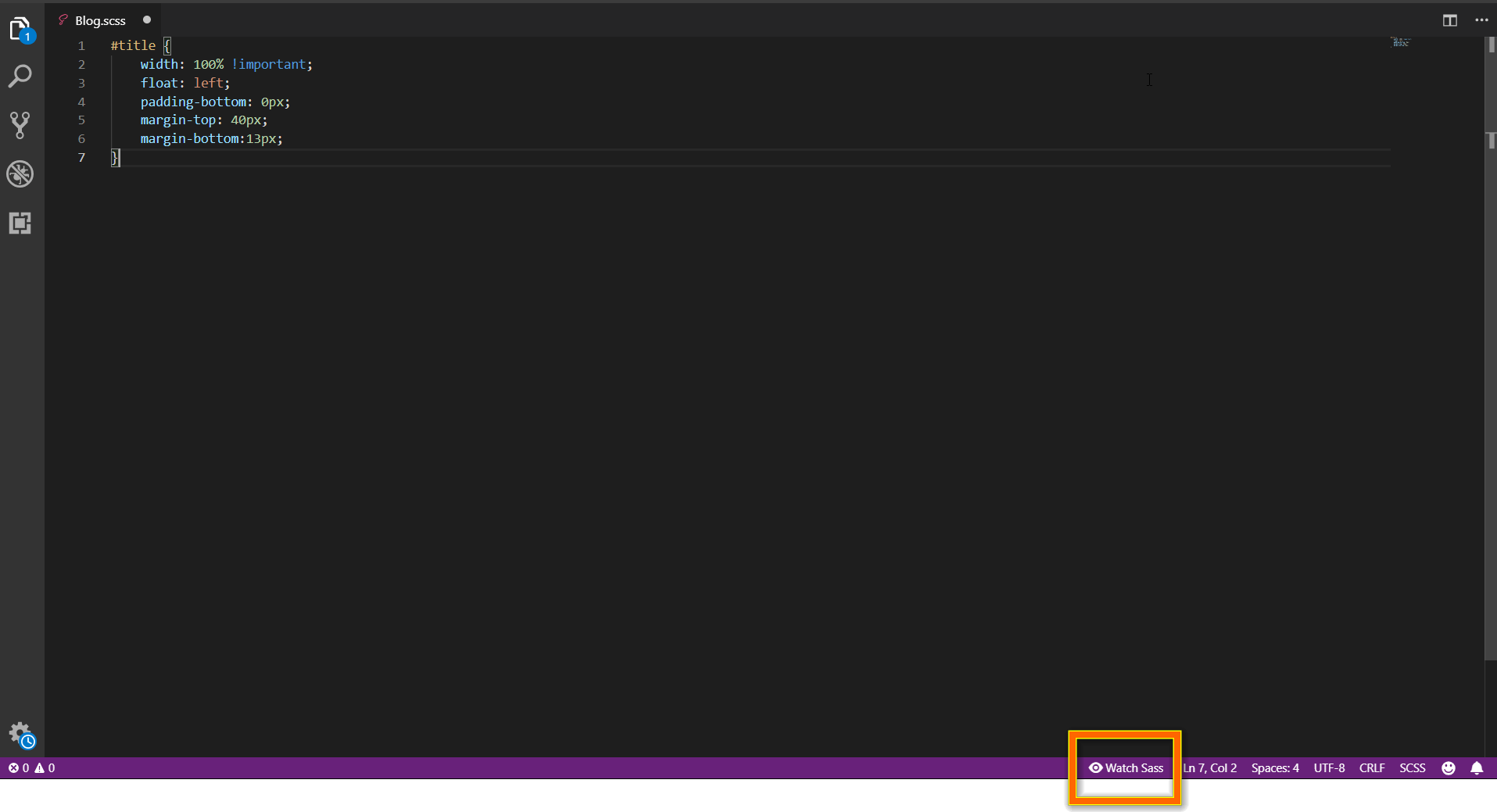
Live Sass Compiler watches Sass and SCSS files and generates CSS as developers save changes. It is useful for small projects that do not already compile Sass through Vite, Webpack, Angular CLI, or another build system.
6. Live Server
Live Server starts a local development server and reloads the browser when supported files change. It is useful for previewing static HTML, CSS, and JavaScript projects. Projects built with React, Angular, Vue, Vite, or another framework may not require it because those tools commonly provide their own development servers.
7. HTML CSS Support
HTML CSS Support provides autocompletion and suggestions for HTML and CSS code directly within the editor, significantly speeding up coding and reducing errors. It offers features like class and ID attribute autocompletion, quick navigation to CSS definitions, and inline style support.
8. Tailwind CSS IntelliSense
Tailwind CSS IntelliSense improves the Tailwind CSS development experience with class-name completion, syntax highlighting, linting, and hover previews. It is useful for web projects that use Tailwind CSS and helps developers identify invalid utility classes while writing markup and components.
Productivity and snippets
9. JavaScript (ES6) Code Snippets
The JavaScript (ES6) Code Snippets are used to set shortcut triggers for JavaScript code that can be used to invoke the full code instead of typing it on each instance. This can reduce repetitive typing when a project frequently uses common JavaScript patterns.
10. Path IntelliSense
Path IntelliSense speeds up file imports and reduces errors by providing intelligent file path autocompletion, especially in projects with complex folder structures.
Code quality and formatting
11. Prettier – Code formatter
Prettier formats code automatically to enforce consistent styling across files. It is widely used in individual and team projects to keep code readable and reduce formatting-related conflicts.
12. ESLint
ESLint identifies JavaScript and TypeScript rule violations while developers write code. With a shared project configuration, it can catch unused variables, problematic patterns, and inconsistent practices before code reaches review or continuous integration.
13. Code Spell Checker
Code Spell Checker checks for spelling errors in code, variable names, comments, and documentation. It’s useful in large codebases to improve readability and professionalism. By highlighting and suggesting corrections, it helps create clear, well-documented code.
14. SonarQube for IDE
SonarQube for IDE analyzes code as you type to report potential bugs, maintainability concerns, and supported security-related issues. It supports optional team-based quality rules.
Collaboration and version control
15. GitLens
GitLens adds file history, line authorship, and commit context to VS Code. It helps web developers investigate when code changed, why a line was introduced, and which commit contains the relevant change.
16. Live Share
Live Share enables real-time collaboration so teammates can view, edit, and debug code in their own VS Code. It boosts team productivity and streamlines development.
17. Error Lens
Error Lens makes diagnostics from ESLint, TypeScript, compilers, and other language tools more visible by displaying messages beside the affected code. It helps web developers notice errors and warnings without repeatedly opening the Problems panel.
.NET web development
18. C# Dev Kit
The C# Dev Kit provides IntelliSense, debugging, and project management for .NET apps. It helps you write, run, and test C# code more efficiently inside the lightweight VS Code editor.
Deployment
19. Container Tools
Container Tools helps developers build, manage, and deploy containerized applications from VS Code. It provides container and image management, Dockerfile and Compose assistance, and debugging support for Node.js, Python, and .NET applications running inside containers.
Container Tools replaces the functionality previously provided by Microsoft’s Docker extension. The former Docker extension is now a Docker Extension Pack that installs Container Tools. Developers working primarily with Docker can continue using their existing Dockerfiles, Compose files, and Docker runtime with this extension.
20. Remote development
The Remote Development extension pack lets developers work with projects in remote servers, containers, or WSL while retaining VS Code’s editor features. It is useful when the required runtime, infrastructure, or toolchain cannot be reproduced locally. Security depends on the remote environment and the organization’s configuration.
Special mention: Syncfusion Document Viewer Extension
The Syncfusion Document Viewer Extension lets developers inspect supported Word, Excel, CSV, and TSV files directly in VS Code. This can help when validating spreadsheets exported by a web application, reviewing CSV test data, or checking generated documents without leaving the editor.
It is also available from the Visual Studio Code Marketplace.
Choose the right VS Code extensions fast
| What You Want to Do | Recommended VS Code Extensions |
| Get AI-assisted coding suggestions | GitHub Copilot |
| Experiment with JavaScript or TypeScript | Quokka.js |
| Run and debug browser tests | Playwright Test for VS Code |
| Test REST APIs inside VS Code | REST Client |
| Preview a static HTML, CSS, or JavaScript project | Live Server |
| Compile Sass or SCSS in a small project | Live Sass Compiler |
| Complete HTML class and ID references | HTML CSS Support |
| Work with Tailwind utility classes | Tailwind CSS IntelliSense |
| Reuse common JavaScript patterns | JavaScript (ES6) Code Snippets |
| Complete file and import paths | Path IntelliSense |
| Format supported web files consistently | Prettier |
| Find JavaScript and TypeScript rule violations | ESLint |
| Check names, comments, and documentation | Code Spell Checker |
| Perform broader static analysis | SonarQube for IDE |
| Display errors and warnings beside the code | Error Lens |
| Investigate Git history and authorship | GitLens |
| Collaborate on code in real time | Live Share |
| Build and manage .NET applications | C# Dev Kit |
| Work with containerized web applications | Container Tools |
| Develop through remote servers, containers, or WSL | Remote Development |
| Inspect application-generated documents or data files | Syncfusion Document Viewer Extension |
Frequently Asked Questions
How do I install Visual Studio Code extensions?
You can install VS Code extensions via the Marketplace by pressing Ctrl+Shift+X (Cmd+Shift+X on Mac), searching for the extension name, and clicking Install.
Alternatively, you can use the following CLI command: code --install-extension publisher.extension-name
What are the best VS Code extensions for web developers?
Some of the best extensions include GitHub Copilot, Live Server, Prettier, ESLint, Container Tools, GitLens, and Live Share. These tools enhance productivity, code quality, debugging, and collaboration.
Which VS Code extension helps with code formatting?
Prettier – Code formatter is widely used to automatically format code and maintain consistent styling across projects.
Do ESLint and Prettier do the same job?
No. ESLint identifies code-quality and rule violations in JavaScript and TypeScript, while Prettier formats supported files.
Do I need Live Server for React, Angular, or Vue?
Usually not. Modern frameworks and build tools generally include their own development server and reload mechanism. Live Server is mainly useful for static HTML, CSS, and JavaScript projects.
Which VS Code extension is best for HTML and CSS?
HTML CSS Support is useful for class and ID completion and selector navigation. Style-specific tools such as Tailwind CSS IntelliSense or Live Sass Compiler are relevant only when the project uses those technologies. HTML CSS Support remains widely installed and supports configurable template languages.
Which VS Code extension helps with browser testing?
Playwright Test for VS Code supports running, recording, tracing, and debugging Playwright browser tests directly from the editor.
Conclusion
The best VS Code setup for web development depends on the technologies used by the project. Start with core tools such as ESLint and Prettier, then add HTML, CSS, testing, API, collaboration, or container extensions only when they solve a recurring need.
Avoid installing every recommendation at once. Add an extension only when it supports the project’s framework, testing approach, or team standards without duplicating an existing tool.
Looking for extensions beyond web development? See our broader guide to VS Code extensions for developers, covering AI coding, code quality, Git, containers, remote development, and document inspection.
When building web applications with data grids, charts, schedulers, and document-processing features, explore Blazor, ASP.NET Core, ASP.NET MVC, JavaScript, Angular, React, and Vue components.


 No spam, just valuable updates.