
 Deepa Thiruppathy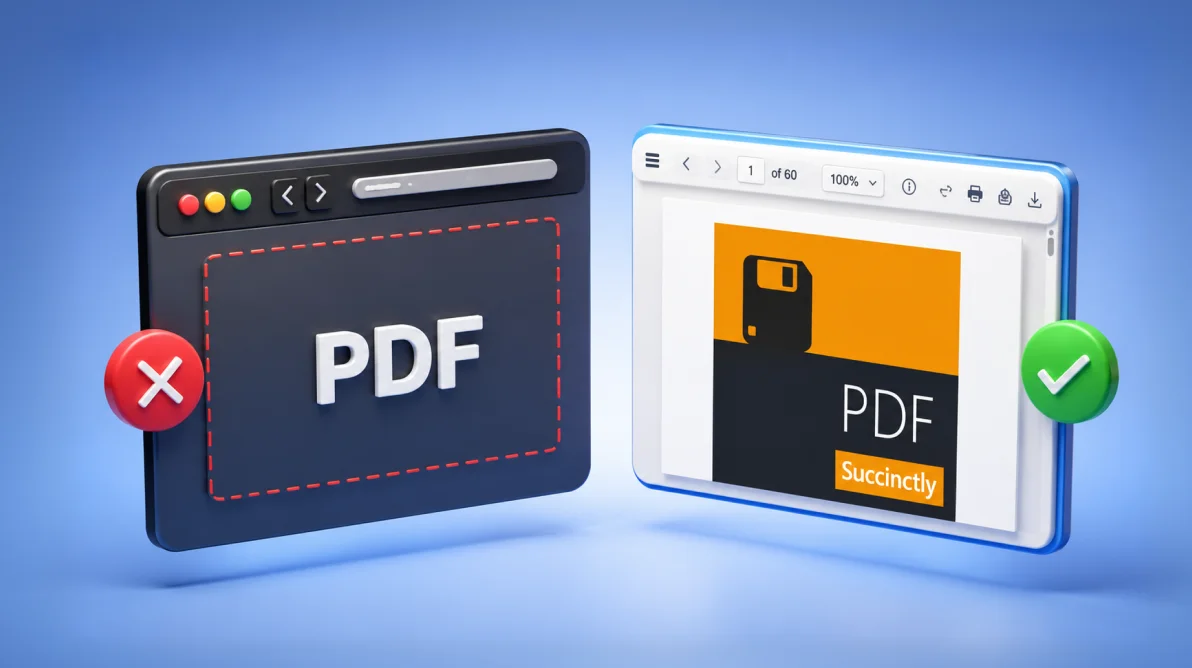
TL;DR: Iframe PDF embedding works for simple viewing, but breaks down in real web applications. This article explains why browser-based PDF rendering fails for search, navigation, annotations, security, mobile usability, and performance ,and how a JavaScript PDF viewer solves these limitations with reliable, interactive, and scalable document experiences.
Embedding a PDF in a website using an <iframe> is quick and convenient. For simple, read‑only use cases like displaying a static document on a desktop page, it can be enough.
But modern web applications rarely use PDFs that way.
In real products, you don’t just view documents. They search through them, jump between sections, annotate pages, fill out forms, and review large files across desktop and mobile devices. As soon as those expectations come into play, iframe-based PDF embedding begins to show serious limitations.
This article breaks down why iframe PDF embedding fails in production-grade applications and explains how Syncfusion® JavaScript PDF Viewer addresses those gaps for document-heavy workflows.
PDFs in real applications are interactive, not passive
In SaaS platforms, enterprise tools, and internal dashboards, PDFs are part of everyday workflows:
- Support teams search manuals while handling live tickets
- Legal teams navigate contracts and add review comments
- Finance teams scan large reports without downloading files
- Users expect the same responsiveness on mobile as on desktop
These workflows demand more than basic rendering. They require search, structured navigation, interaction tools, and consistent performance areas where browser-native PDF handling struggles.
5 Reasons iframe PDF embedding breaks down in practice
1. The browser controls rendering, not your application
When a PDF is embedded using an iframe, rendering is delegated entirely to the browser’s native PDF engine. That means:
- Behavior varies across Chrome, Firefox, Safari, and Edge
- Mobile browsers often refuse to render PDFs inline
- Browser updates can change PDF behavior without warning
- Developers have no control over loading strategy, UI, or rendering logic
Once rendering lives outside your application, so does consistency.
2. Navigation and search capabilities are inconsistent or missing
Large PDFs are unusable without proper navigation. With iframe embedding:
- Full‑text search is unreliable or unavailable
- Bookmarks and table of contents aren’t exposed consistently
- Users are forced into linear scrolling
- Visually locating pages is slow without thumbnails
For long, structured documents, iframe embedding turns simple tasks into productivity bottlenecks.
3. Annotations and review workflows are not supported
Native browser viewers treat PDFs as read‑only content.
That means no:
- Highlights or markup
- Comments or threaded reviews
- Drawing or ink annotations
- Persistent collaboration metadata
As a result, PDFs displayed via iframe can’t participate in review, approval, or collaboration workflows, making them unsuitable for many professional use cases.
4. Security and access controls are weak by design
Embedding a PDF with an iframe does not secure the document.
- Files remain accessible via direct URL
- Download and print controls are easily bypassed
- There’s no viewer‑level authentication or authorization
- No reliable way to track document access or interaction
For internal tools, regulated industries, or customer portals, these gaps create real risk.
5. Performance and mobile usability degrade at scale
Iframe embedding doesn’t scale well as documents grow larger or usage shifts to mobile:
- Large PDFs cause slow initial loads or frozen tabs
- Entire documents often load before any page is visible
- Memory usage spikes on low‑end devices
- Touch gestures and scrolling behavior are inconsistent
What works for a five‑page PDF quickly falls apart for a 200‑page report.
What developers actually need from a PDF experience
At this point, the issue becomes clear: iframe embedding solves display, not interaction.
Modern applications need PDF experiences that support:
- Reliable, document‑wide search
- Structured navigation (TOC, bookmarks, thumbnails)
- Annotations, comments, signatures, and form fields
- Fine‑grained control over downloads and printing
- Progressive loading and responsive performance
- Consistent behavior across browsers and devices
These capabilities move PDF handling from a browser feature into an application feature.
The next section shows how Syncfusion JavaScript PDF Viewer addresses each of these gaps directly.
How Syncfusion JavaScript PDF Viewer addresses iframe limitations
The JavaScript PDF Viewer gives you full control over how PDFs are displayed, searched, navigated, and interacted with across desktop and mobile browsers. Here’s how it addresses each iframe limitation, feature by feature.
1. Built-in bookmark navigation, page thumbnails, and toolbar controls
- Bookmark navigation: A bookmark (TOC) panel that renders document bookmarks as a navigable sidebar, letting you jump directly to any section without linear scrolling.
- Page thumbnails: It provides visual page access with a single click using the page thumbnail panel, particularly useful for large, image-heavy documents where page numbers aren’t meaningful.
- Toolbar navigation: The Toolbar-based navigation includes first/last page, previous/next page, and number-specific page through the toolbar, covering every navigation pattern you need during review workflows.
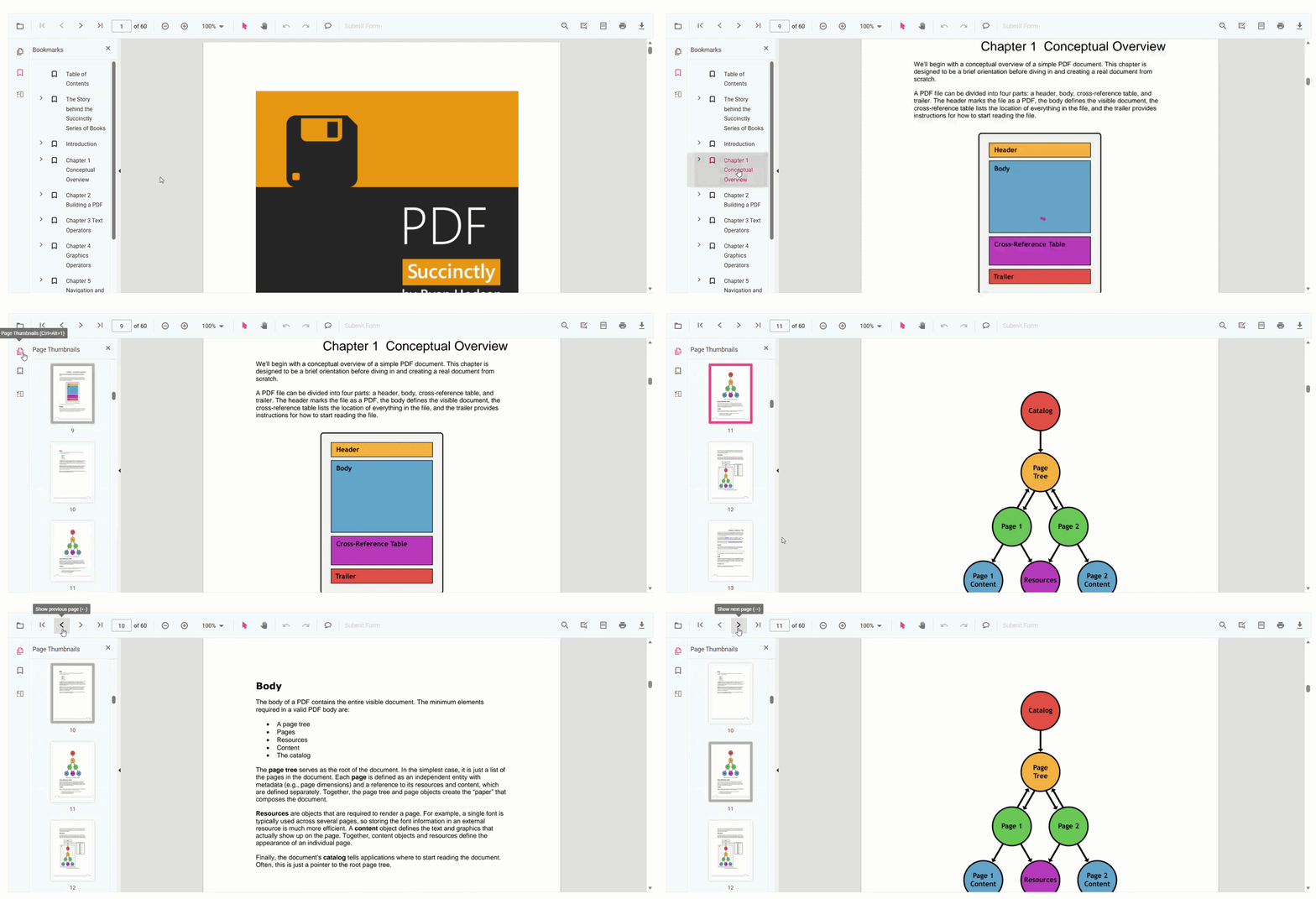
You shouldn’t rely on manual scrolling to navigate long PDFs. Explore bookmark, thumbnail, and page navigation in our live demo.
2. Reliable full-text search
- Advanced full-text search: Offers integrated text search without requiring additional configuration or custom code.
- Document-wide search: The search scans the entire PDF content, not just visible pages.
- Inline highlighting: Matching keywords are highlighted directly within pages for quick discovery.
- Direct navigation to results: Search results jump you to exact page locations, eliminating manual scrolling.
- Asynchronous search mode: For extremely large documents, asynchronous text search keeps the UI responsive while the search runs in the background.
- Reliable at scale: Search performs consistently even on large documents where browser‑native viewers fall short.
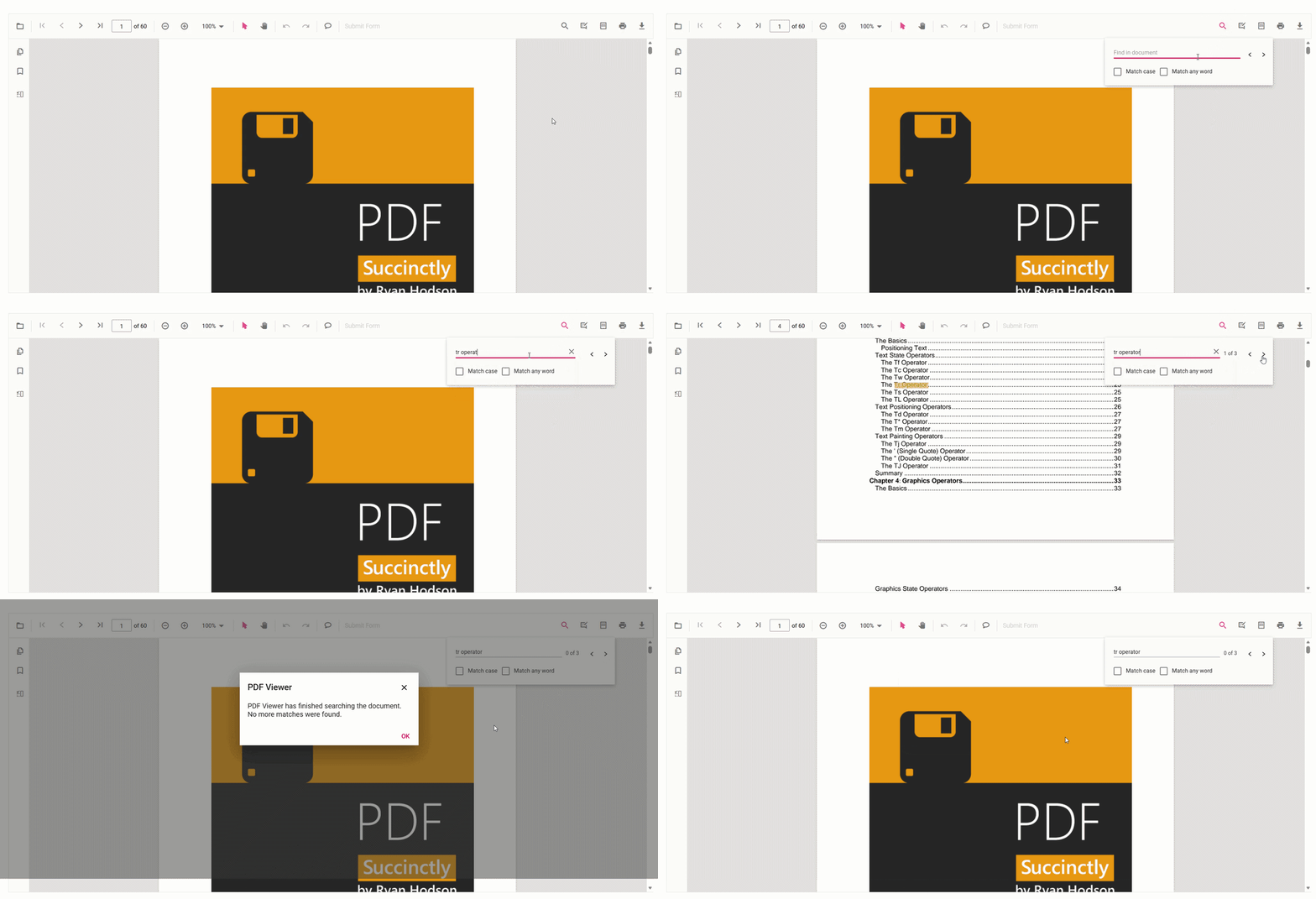
If you are downloading PDFs just to use Ctrl+F, the problem is with the viewer, not the document. See full-text search in the Syncfusion JavaScript PDF Viewer demo.
3. Annotations, comments, signatures, and form fields
- Annotations: Built‑in annotations to highlight, underline, strikethrough, and other markup, freehand ink, and shape annotations without custom implementation, unlike iframe embedding.
- Comments and review: The comments panel supports threaded discussions linked to specific document locations to enable document collaboration during review.
- Annotation persistence: Annotation data can be exported and imported across sessions. Review cycles don’t break when you close and reopen the viewer, a feature not available with basic iframe PDF embedding.
- Signatures: Our SDK supports draw text, and image-based signature annotation to enable approval and sign‑off workflows directly within the viewer.
- Form fields: You can create form fields, including textboxes, checkboxes, radio buttons, list boxes, dropdowns, and signature fields, using the built-in form designer toolbar option, and validation is also supported.
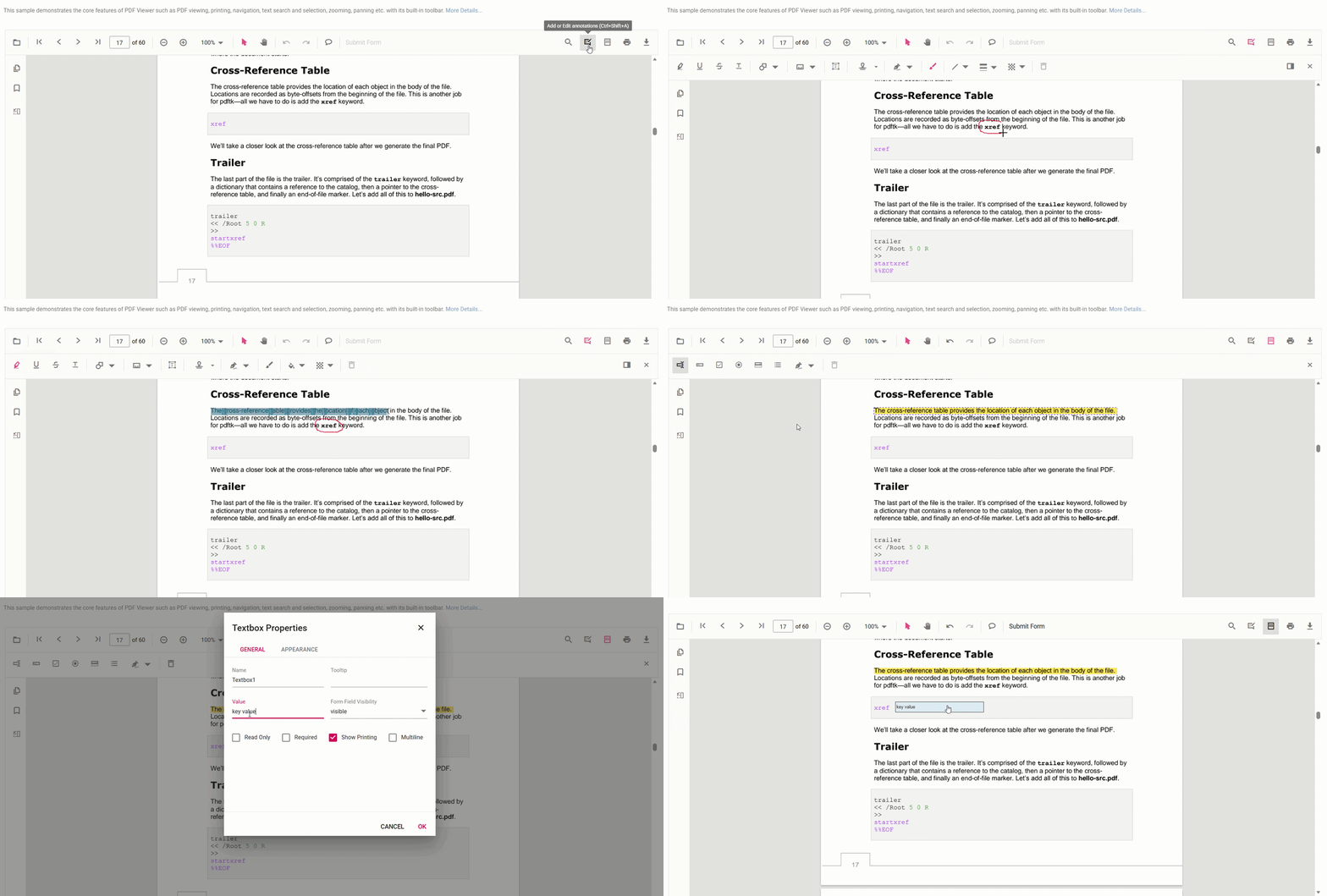
Your document review cycle doesn’t need a separate annotation or form fields; everything your reviewers need is already in our PDF Viewer SDK. Explore the annotation demo and form-designer demo in live!
4. Secure download and print controls
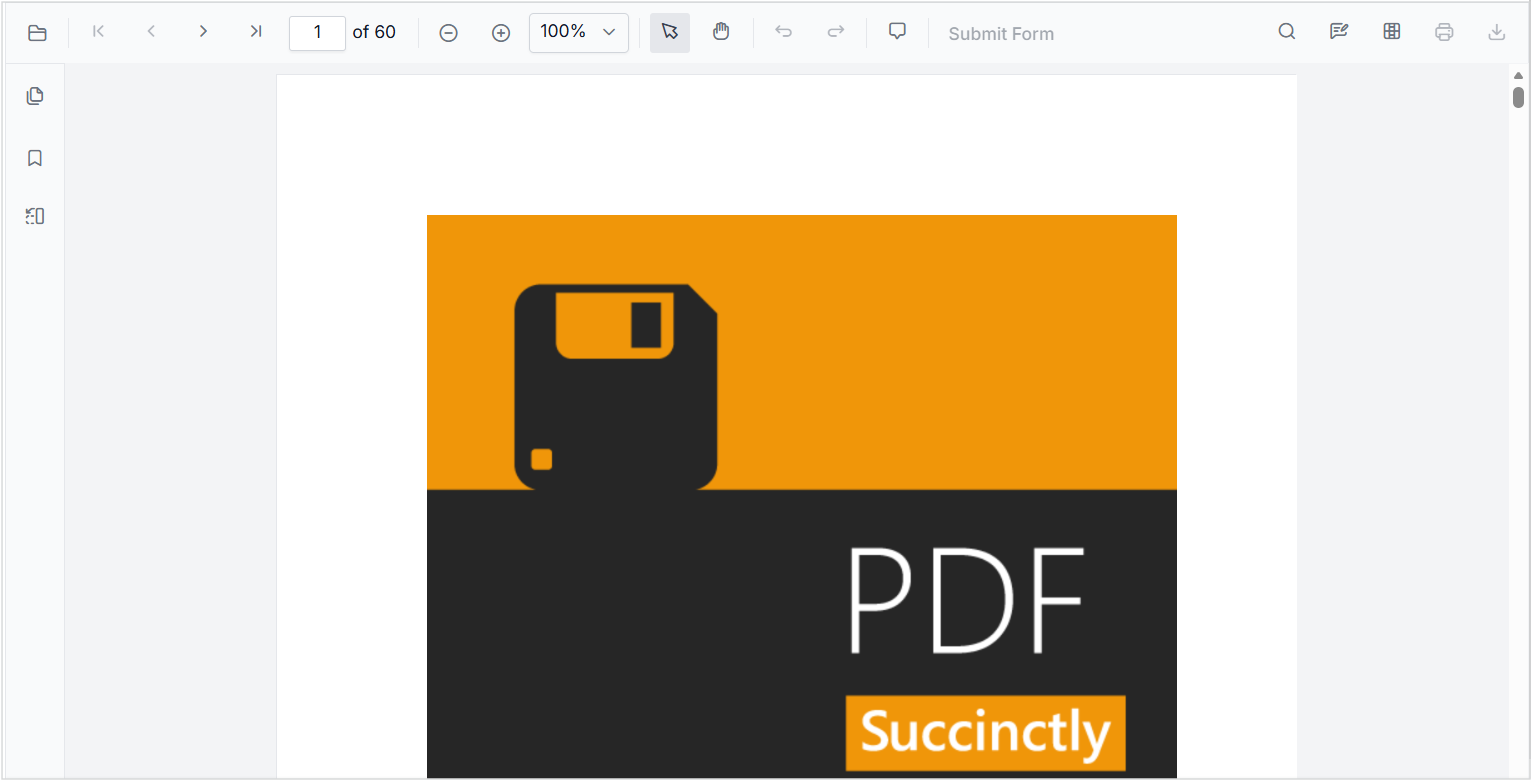
- No download and no print: You can disable and hide the Download and Print options from toolbar buttons.
- Toolbar customization: Offers flexible toolbar customization for developers to expose only the controls appropriate for their workflow. Remove anything that doesn’t belong.
- In-app viewing: The entire process stays inside your application, and files do not require a local download to be accessible.
The image below illustrates print and download options disabled in the our JavaScript PDF Viewer.
5. Tile-based rendering and progressive loading
- Tile-based rendering: Supports tile-based rendering that loads only the visible page area for instant page loading of image-heavy PDFs.
- Progressive loading: Loading only viewport pages to reduce time-to-first-page significantly compared to full-document load
- Responsive Design: Enable smooth scrolling and responsive design by surface zoom optimization, zoom level, and initial page rendering count.
6. Cross-browser and mobile compatibility out of the box
- No browser-specific tuning: The viewer behaves consistently without custom rendering logic across different browsers.
- Mobile-friendly UI: Support mobile toolbars and controls that are adapted for touch‑first mobile interactions.
Try the live demos of the JavaScript PDF Viewer. Upload a PDF and try freehand drawing, annotations, signatures, navigation, and search to experience the full PDF capability set.
Embed the Syncfusion JavaScript PDF Viewer in your website
Embedding a JavaScript PDF Viewer in your website is straightforward and requires only a few setup steps.
- Install the PDF Viewer package: Add the Syncfusion JavaScript PDF Viewer npm package and include the required CSS files in your project.
- Import modules: Import the PDF Viewer and Toolbar modules from our PDF Viewer package into your application.
- Initialize the PDF Viewer: Create a new PdfViewer instance by setting the documentPath and resourceUrl properties in a JavaScript HTML file.
Here’s the complete code block:
<!DOCTYPE html>
<html xmlns="http://www.w3.org/1999/xhtml">
<head>
    <title>Essential JS 2</title>
    <!-- Placeholder to add Essential JS 2 material theme -->
    <!-- Essential JS 2 PDF Viewer's script -->
    <script src="https://cdn.syncfusion.com/ej2/33.2.3/dist/ej2.min.js" type="text/javascript"></script>
    <script src="https://cdn.syncfusion.com/ej2/syncfusion-helper.js" type ="text/javascript"></script>
</head>
<body>
    <!--element which is going to render-->
    <div id="container">
        <div id="PdfViewer" style="height:580px;width:100%;"></div>
    </div>
    <script>
        //Initialize PDF Viewer component
        var pdfviewer = new ej.pdfviewer.PdfViewer({
            documentPath:'https://cdn.syncfusion.com/content/pdf/pdf-succinctly.pdf',
            resourceUrl:'https://cdn.syncfusion.com/ej2/33.1.44/dist/ej2-pdfviewer-lib'
        });
        ej.pdfviewer.PdfViewer.Inject(
            ej.pdfviewer.TextSelection,
            ej.pdfviewer.TextSearch,
            ej.pdfviewer.Print,
            ej.pdfviewer.Navigation,
            ej.pdfviewer.Toolbar,
            ej.pdfviewer.Magnification,
            ej.pdfviewer.Annotation,
            ej.pdfviewer.FormDesigner,
            ej.pdfviewer.FormFields,
            ej.pdfviewer.PageOrganizer
        );

        //PDF Viewer control rendering starts
        pdfviewer.appendTo('#PdfViewer');
    </script>
</body>
</html>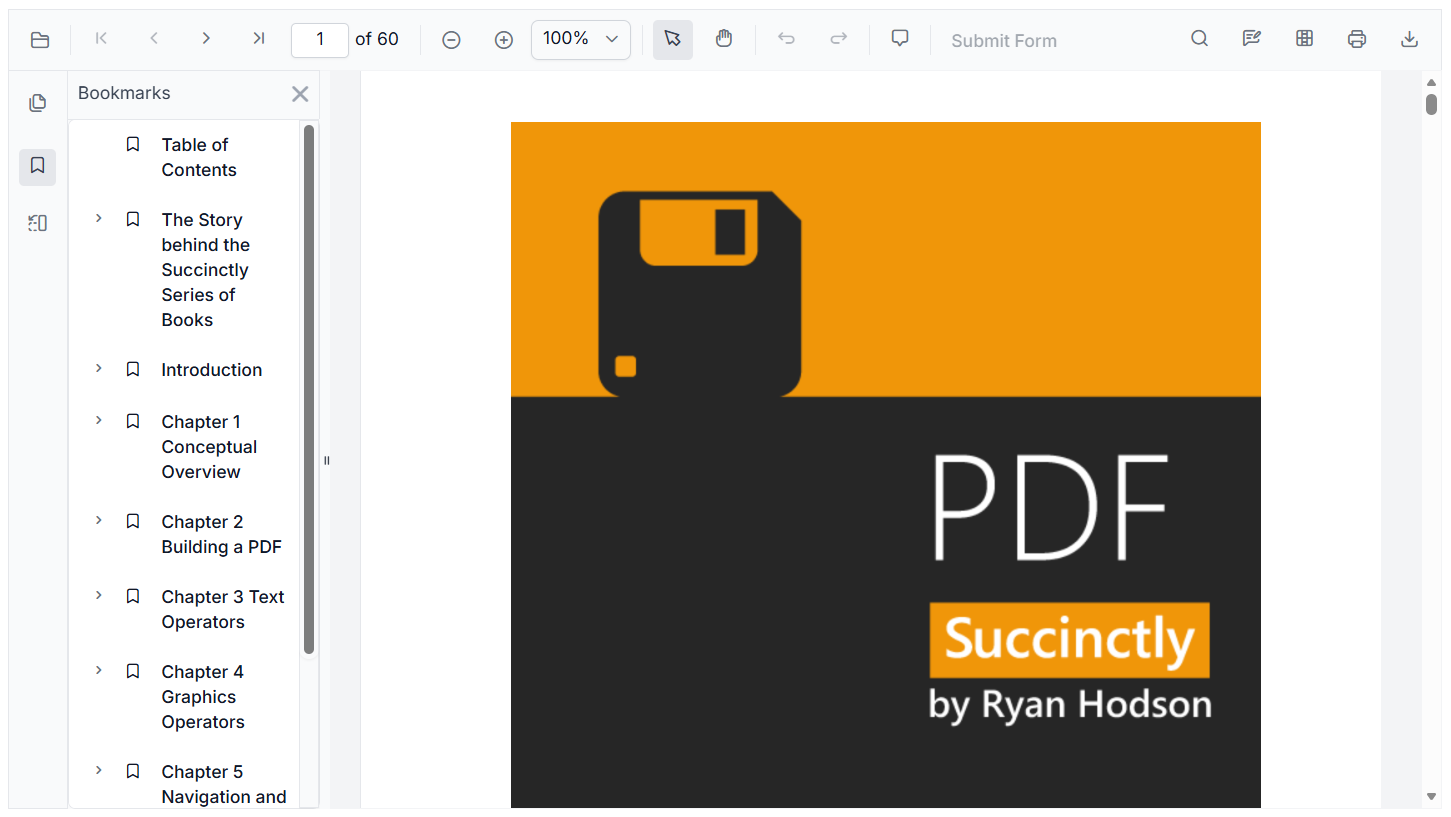
Want the full setup guide? Follow the our JavaScript PDF Viewer documentation.
Frequently Asked Questions
Yes, our JavaScript PDF Viewer supports drawing, text, and image-based signatures to add a user-customized signature.Can I upload image-type signatures in approval workflow PDFs?
Yes, the viewer has built-in options to organize pages, such as rotating, rearranging, inserting, copying, and deleting PDF pages directly within the viewer. This makes Syncfusion a practical option for any workflow that involves page-level document editing.Does Syncfusion provide support for rearranging or editing PDF pages in study materials?
Yes, Syncfusion PDF Viewer supports hyperlink navigation with custom options. Developers can control this behavior through configuration, like enable/disable hyperlink navigation, and setting where links open (in the current tab or a new one).Does Syncfusion PDF Viewer support hyperlink navigation within PDFs?
Yes. Syncfusion supports asynchronous text search, which runs the search operation in the background and keeps the viewer UI fully interactive while results are being found. This is particularly valuable for large multi-hundred-page documents.Can I search the text in extremely large files without freezing the UI?
Yes. Syncfusion JavaScript PDF Viewer includes built-in redaction tools that permanently remove sensitive text, images, and page regions from PDF files. This is an irreversible operation; redacted content cannot be recovered, which is the correct behavior for compliance-driven use cases.Can sensitive information be redacted before sharing a PDF with a third party?
Can I save and restore form fields when the PDF workflow moves between different sessions?
Conclusion
Thank you for reading! Iframe PDF embedding is suitable only for basic viewing. Once documents become searchable, reviewable, secure, and performance‑sensitive, browser‑native PDF rendering reaches its limits. Modern web applications require predictable behavior, deeper interaction, and tighter control than iframes can offer.
If PDFs play a meaningful role in your product, the question isn’t how to embed them, but how to integrate them.
The JavaScript PDF Viewer replaces the limitations of iframe-based PDF embedding with a complete document-viewing and interaction experience, built for real-world usage. Search, bookmarks, thumbnails, annotations, form fields, secure access controls, and tile-based rendering; all ship as part of one SDK, configurable for your specific workflow.
If you’re a Syncfusion user, you can download the setup from the license and downloads page. Otherwise, you can download a free 30-day trial.
You can also contact us through our support forum, support portal, or feedback portal for queries. We are always happy to assist you!



 No spam, just valuable updates.