
 Yuvaraj Gajaraj
TL;DR: Developers often need to move Word content seamlessly across platforms. This guide shows how to import Word documents into a .NET MAUI Rich Text Editor and export them back using DocIO, ensuring consistent formatting and productivity.
Bring native Word document handling to your cross‑platform .NET MAUI apps
Modern cross‑platform apps no longer work with plain text alone. They handle full‑fledged documents, rich formatting, images, and structured content that users expect to look consistent on every device.
Among these formats, Word documents remain a preferred choice for real‑world apps. Users expect to open a .docx file, edit it effortlessly, and save it back, whether they’re using a mobile device or a desktop. In a cross‑platform .NET MAUI app, delivering this experience reliably can be challenging.
That’s where the Syncfusion® .NET MAUI Rich Text Editor comes in. It simplifies document handling across iOS, Android, Windows, and macOS, allowing you to work with rich content while preserving formatting, images, and layout. With built‑in support for importing and exporting Word documents, content moves seamlessly between platforms without unexpected surprises.
This makes it a great fit for:
- Business and enterprise apps.
- Blog and content editors.
- Email composers.
- Collaborative and productivity tools.
What this article covers
In this blog, you’ll learn how to:
- Import a Word document into the Syncfusion .NET MAUI Rich Text Editor by converting it to HTML.
- Export edited content back to Word using Syncfusion .NET Word Library, without losing text, images, or formatting.
Let’s get started!
Getting started with .NET MAUI Rich Text Editor
First, create a .NET MAUI application.
Then, declare the SfRichTextEditor in your XAML page, where the converted Word content will be displayed.
For more details, refer to the Syncfusion .NET MAUI Rich Text Editor blog.
<?xml version="1.0" encoding="utf-8" ?>
<ContentPage xmlns="http://schemas.microsoft.com/dotnet/2021/maui"
             xmlns:x="http://schemas.microsoft.com/winfx/2009/xaml"
             xmlns:rte="clr-namespace:Syncfusion.Maui.RichTextEditor;assembly=Syncfusion.Maui.RichTextEditor"
             x:Class="MauiApp1.MainPage">
    <rte:SfRichTextEditor x:Name="richTextEditor" />
</ContentPage>
Note: Rich Text Editor features are organized into individual modules. To enable the import or export functionality, add the ImportExportService to the provider’s array.
Import a Word document into the .NET MAUI Rich Text Editor
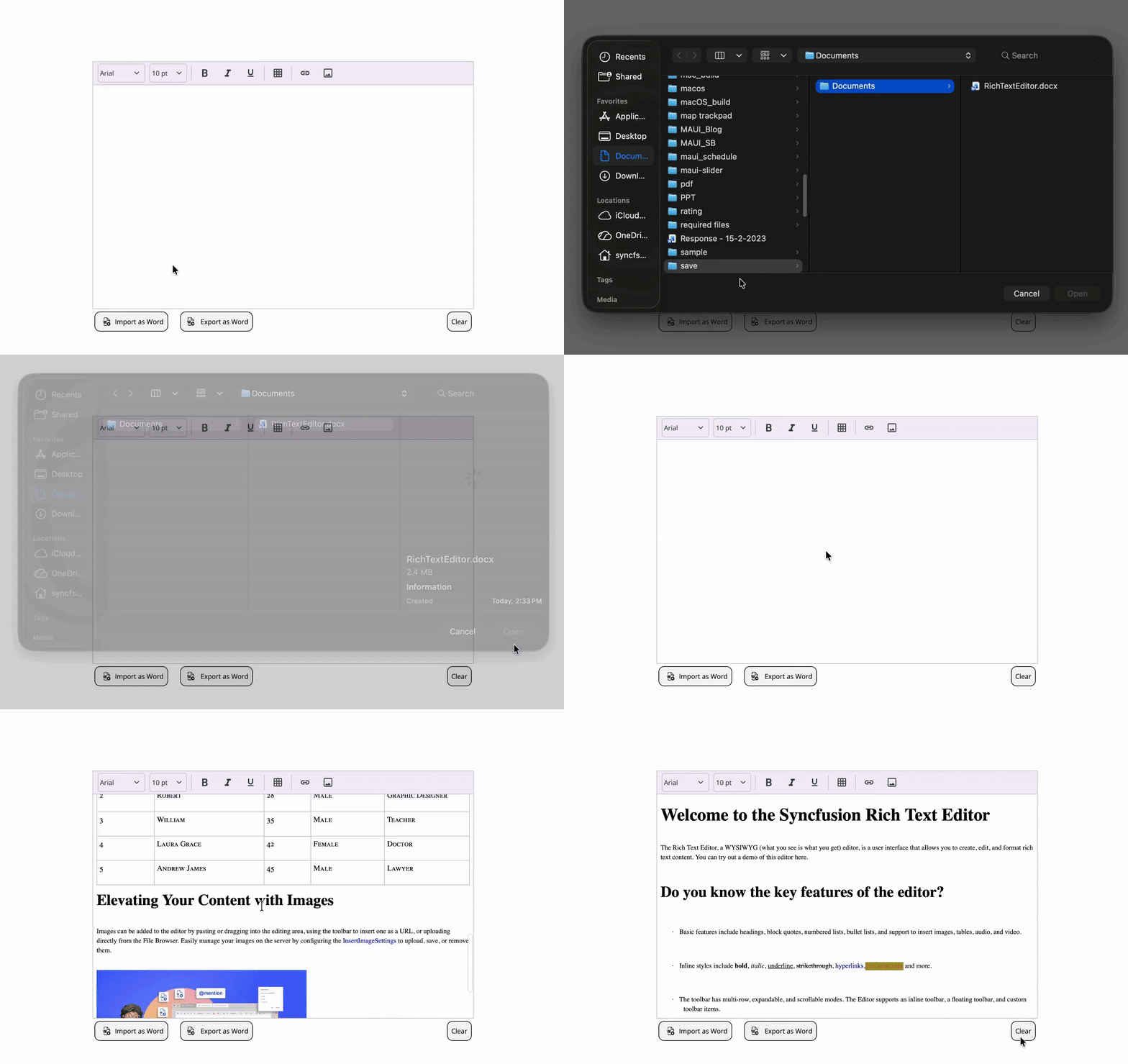
To bring Word content into the .NET MAUI Rich Text Editor, read the Word file stream and load it using the Syncfusion DocIO library.
Next, convert the Word document to HTML so the Rich Text Editor can render it accurately. To ensure images are displayed correctly, we encode them as Base64 and embed them inline, creating a self-contained HTML string. Finally, we assign this HTML string to the SfRichTextEditor.HtmlText property, so the content appears instantly in the Rich Text Editor UI.
Here is the implementation code:
using var inStream = await file.OpenReadAsync();
using var ms = new MemoryStream();
await inStream.CopyToAsync(ms);
ms.Position = 0;

using var document = new WordDocument(ms, FormatType.Automatic);

document.SaveOptions.ImageNodeVisited += (s, args) =>
{
    using var imgMs = new MemoryStream();
    args.ImageStream.Position = 0;
    args.ImageStream.CopyTo(imgMs);

    var bytes = imgMs.ToArray();
    string mime =
        bytes.Length > 3 && bytes[0] == 0xFF && bytes[1] == 0xD8 ? "image/jpeg" :
        bytes.Length > 8 && bytes[0] == 0x89 && bytes[1] == 0x50 && bytes[2] == 0x4E && bytes[3] == 0x47 ? "image/png" :
        bytes.Length > 6 && bytes[0] == 0x47 && bytes[1] == 0x49 && bytes[2] == 0x46 ? "image/gif" :
        bytes.Length > 2 && bytes[0] == 0x42 && bytes[1] == 0x4D ? "image/bmp" :
        "image/png";

    var data = Convert.ToBase64String(bytes);
    args.Uri = $"data:{mime};base64,{data}";
};

using var htmlStream = new MemoryStream();
document.Save(htmlStream, FormatType.Html);
htmlStream.Position = 0;

using var reader = new StreamReader(htmlStream);
var html = await reader.ReadToEndAsync();

richTextEditor.HtmlText = html;
Refer to the following image.
Export .NET MAUI Rich Text Editor content back to Word
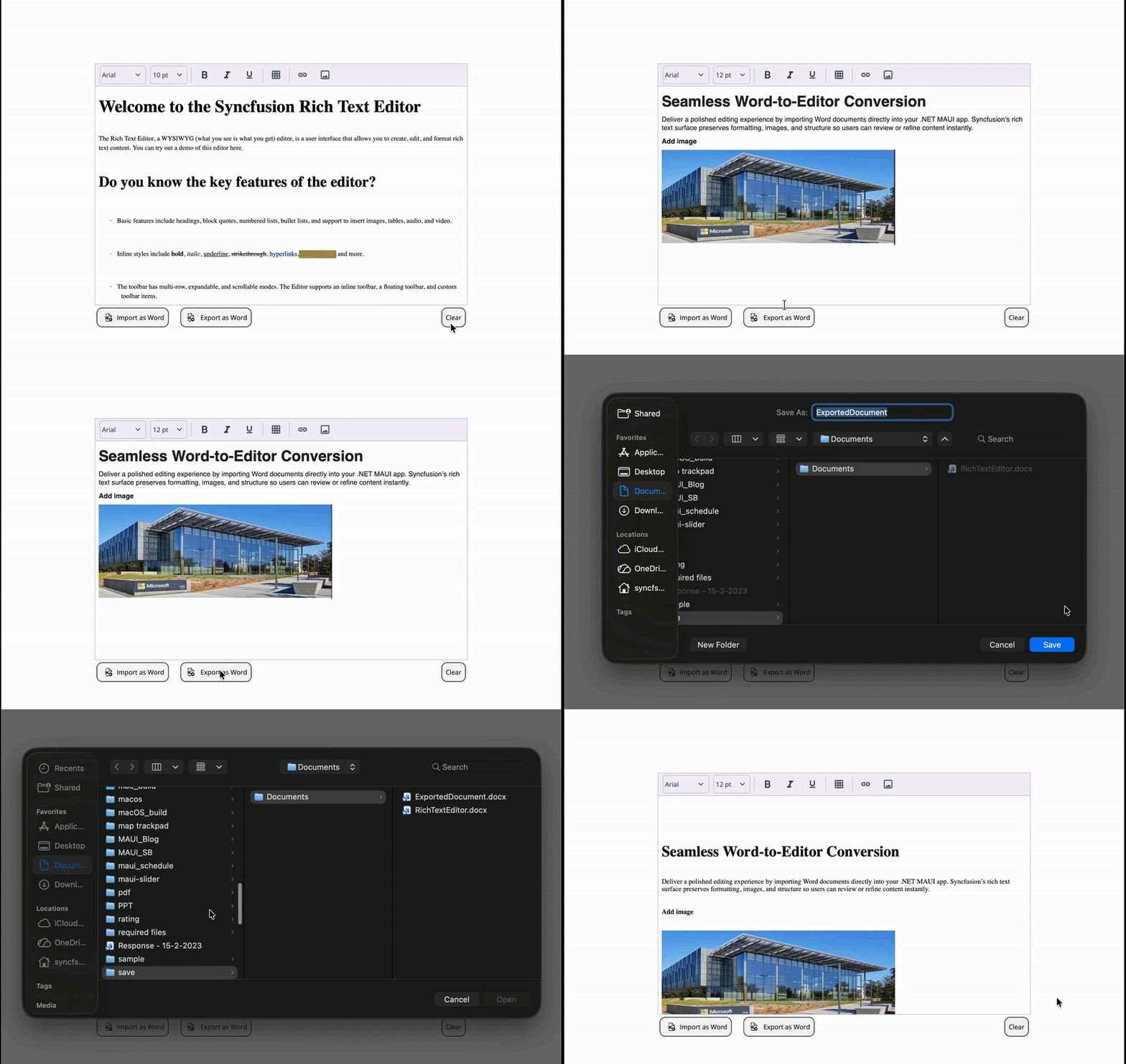
To export .NET MAUI Rich Text Editor content to a Word document, start by cleaning the HTML to remove escaped characters and extra quotes, ensuring valid markup for insertion.
Then, call the EnsureMinimal() method to generate the essential structure of the Word document, including sections and body, which is required before adding content.
After that, hook the ImageNodeVisited event to convert Base64-encoded images in the HTML into binary streams so they can be properly embedded in the Word file. Finally, save the document to a MemoryStream and export it as a .docx using the OS-native save dialog, allowing the user to choose the file name and location.
Refer to the following code example.
private async void OnExport(object sender, EventArgs e)
{
    var html = PrepareHtml(richTextEditor.HtmlText);

    using var document = new WordDocument();
    document.EnsureMinimal();
    document.HTMLImportSettings.ImageNodeVisited += OnImageNodeVisited;
    document.AddSection().Body.InsertXHTML(html);
    document.HTMLImportSettings.ImageNodeVisited -= OnImageNodeVisited;

    using var output = new MemoryStream();
    document.Save(output, FormatType.Docx);
    document.Close();
    output.Position = 0;

    // Shows the OS save dialog so the user can rename and choose the location.
    var saveResult = await FileSaver.Default.SaveAsync(
        "ExportedDocument.docx",
        output,
        CancellationToken.None);

    if (!saveResult.IsSuccessful && saveResult.Exception is not null)
        await DisplayAlertAsync("Export failed", saveResult.Exception.Message, "OK");
}

private static string PrepareHtml(string html) =>
    html.IndexOf('\\') >= 0
        ? Regex.Unescape(html).Trim('"')
        : html;

private static void OnImageNodeVisited(object sender, ImageNodeVisitedEventArgs args)
{
    if (string.IsNullOrWhiteSpace(args.Uri) ||
        !args.Uri.StartsWith("data:", StringComparison.OrdinalIgnoreCase))
        return;

    var stream = LoadDataUri(args.Uri);
    if (stream != null)
        args.ImageStream = stream;
}

private static Stream? LoadDataUri(string uri)
{
    var commaIndex = uri.IndexOf(',');
    if (commaIndex < 0)
        return null;

    var base64 = uri[(commaIndex + 1)..]
        .Trim()
        .Replace("\r", string.Empty)
        .Replace("\n", string.Empty)
        .Replace(" ", string.Empty);

    try
    {
        return new MemoryStream(Convert.FromBase64String(base64));
    }
    catch
    {
        return null;
    }
}
Here’s the output image.
Why does this work well in real apps?
- Keeps Word formatting consistent across platforms.
- Handles images without external dependencies.
- Works with a single shared MAUI codebase.
- Fits naturally into business, content, and document‑centric apps.
This makes it a solid choice for editors, internal tools, blogging apps, and document workflows.
GitHub reference
For more details, refer to the example for importing and exporting Word documents in .NET MAUI Rich Text Editor on GitHub.
Frequently Asked Questions
Can I display a Word document in the .NET MAUI Rich Text Editor?
Yes. Use Syncfusion DocIO’s WordDocument class to open the .docx file. Save the file in HTML format (using FormatType.Html). Assign the resulting HTML string to the SfRichTextEditor.HtmlText property to display the content.
How do I handle images when converting Word to HTML?
Use the document.SaveOptions.ImageNodeVisited event. This event lets you access each image as you convert from Word to HTML. Convert each image stream to a Base64-encoded data URI and set the args.Uri to this value so the image displays in HTML.
Does the HTML conversion preserve styles, lists, and tables?
DocIO’s HTML export keeps structure and formatting. Test complex elements with sample documents.
Can I bind the editor content using MVVM?
Yes. Bind a string property in your ViewModel to the SfRichTextEditor.HtmlText property. This supports two-way updates using the MVVM (Model-View-ViewModel) pattern.
How do I prevent whitespace/newlines from breaking data URIs on export?
When processing data URIs, ensure your LoadDataUri routine trims whitespace and removes carriage returns, line feeds, and spaces from the Base64 (encoded string) part before decoding. This helps the data URI parse correctly when exporting images from the document.

Conclusion
Thanks for reading! Importing and exporting Word documents in .NET MAUI doesn’t have to be complex. With the Syncfusion .NET MAUI Rich Text Editor and DocIO, you can seamlessly import, edit, and export Word files directly within your app, across both mobile and desktop platforms.
More than a basic text box, the Rich Text Editor delivers a polished, reliable document‑editing experience while preserving formatting, images, and structure. It’s ideal for document management, blogging, and collaborative applications where consistency and productivity matter.
This is a true cross‑platform document editor, not an afterthought.
Ready to level up your MAUI apps? Download our free trial and explore the full power of Syncfusion’s .NET MAUI suite.
Have questions? Reach out through our support forum, support portal, or feedback portal. We’re always happy to help.







 No spam, just valuable updates.