
 Deepak G
TL;DR: Multi‑format document handling in apps doesn’t need separate viewers. By converting Word, Excel, PowerPoint, Images, and XPS into PDF, the .NET MAUI PDF Viewer becomes a universal document hub. Developers get one streamlined interface for previewing, annotating, and collaborating across formats. The result: simpler workflows, consistent user experience, reduced complexity, and scalable cross‑platform document management.
The big idea: PDF as the universal document viewer layer
Modern cross-platform apps rarely deal with “just PDFs.” Users open Word docs, Excel sheets, PowerPoint decks, images, and even XPS files, often inside the same workflow. The problem: building and maintaining a separate viewer per format is costly, inconsistent across platforms, and hard to scale.
To create a smoother workflow, adopt a simpler approach: standardize PDF as the universal document viewer format. By converting incoming files to PDF, you enable seamless rendering through a single PDF Viewer component.
With this strategy in mind, this blog will guide you through setting up a unified document viewing workflow for your .NET MAUI apps.
Why convert everything to PDF?
PDF is a stable, layout-preserving format that works well for preview and review scenarios:
- Consistent UI rendering across mobile and desktop apps.
- One viewer instead of multiple format-specific viewers.
- Safe review workflows (annotations instead of editing the original).
- Easier enterprise controls (stream-based loading, reduced file persistence).
The star of the show: Syncfusion .NET MAUI PDF Viewer
The Syncfusion® .NET MAUI PDF Viewer natively supports PDF files and offers a rich interaction model. When combined with Syncfusion Document Processing Libraries, it becomes a complete, universal document viewing engine.
Once all documents are converted to PDF, the .NET MAUI PDF Viewer presents a single, consistent UI across all formats.
What you can preview: Supported document types
The Syncfusion .NET MAUI PDF Viewer supports converting and previewing the following five commonly used file types into PDF format:
- Word documents
- Excel workbooks
- PowerPoint presentations
- Images
- XPS files
Behind the scenes: Document conversion engine stack
To convert various file formats into PDF, Syncfusion offers a range of document processing libraries. Depending on the file type and your specific requirements, one or more of these libraries can be used:
- Word to PDF: Syncfusion.DocIORenderer.NET
- Excel to PDF: Syncfusion.XlsIORenderer.Net
- PowerPoint to PDF: Syncfusion.PresentationRenderer.NET
- Images to PDF: Syncfusion.Pdf.Imaging.NET
- XPS to PDF: Syncfusion.XpsToPdfConverter.NET
Each library handles format‑specific conversion, producing a PdfDocument object that can be passed to the viewer. Using this approach maintains high fidelity and preserves layouts.
Essential setup and configuration
1. First, we need to establish the foundation by creating a new .NET MAUI app. Then, install the required packages for the .NET MAUI PDF Viewer and document processing libraries.
Here’s the code you need:
<PackageReference Include="Syncfusion.DocIORenderer.NET" Version="*" />
<PackageReference Include="Syncfusion.Maui.PdfViewer" Version="*" />
<PackageReference Include="Syncfusion.Maui.TabView" Version="*" />
<PackageReference Include="Syncfusion.Pdf.Imaging.NET" Version="*" />
<PackageReference Include="Syncfusion.Presentation.NET" Version="*" />
<PackageReference Include="Syncfusion.PresentationRenderer.NET" Version="*" />

<PackageReference Include="Syncfusion.XlsIORenderer.NET" Version="*" />
<PackageReference Include="Syncfusion.XpsToPdfConverter.NET" Version="*" />
2. Next, configure the handlers in the MauiProgram.cs file as shown in the code below:
using Syncfusion.Maui.Core.Hosting;

public static MauiApp CreateMauiApp()
{
    var builder = MauiApp.CreateBuilder();
    builder
        .UseMauiApp<App>()
        .ConfigureSyncfusionCore();

    return builder.Build();
}
Building a universal document viewer in .NET MAUI
Let’s see the steps to build a seamless universal document viewing experience using the Syncfusion .NET MAUI PDF Viewer:
Step 1: Handle format-specific PDF conversions
Once the required Syncfusion libraries are configured, implement the logic to convert each supported file type into a PDF.
Below is a breakdown of the conversion logic for each supported format:
Word to PDF
To convert a Word document, use the DocIORenderer.ConvertToPDF(WordDocument) method, which converts a loaded WordDocument into a PdfDocument.
Refer to the example below.
// Loading an existing Word document
Assembly assembly = typeof(App).GetTypeInfo().Assembly;

using (WordDocument document = new WordDocument(
    assembly.GetManifestResourceStream("SampleName.Assets.InputDocument.docx"),
    FormatType.Docx))
{
    // Convert to PDF using DocIO's rendering engine
    using (DocIORenderer renderer = new DocIORenderer())
    {
        PdfDocument pdfDocument = renderer.ConvertToPDF(document);
        // Proceed to save as stream
    }
}
Note: You can check out more options and examples in the Word to PDF conversion guide.
Excel to PDF
Excel workbooks can be converted using the XlsIORenderer.ConvertToPDF(IWorkbook) method, which converts an IWorkbook (Excel document) into a PdfDocument.
Here’s the code example for quick conversion:
// Initialize Excel engine and open workbook
using (ExcelEngine excelEngine = new ExcelEngine())
{
    IApplication application = excelEngine.Excel;
    IWorkbook workbook = application.Workbooks.Open(
        assembly.GetManifestResourceStream("SampleName.Assets.InputDocument.xlsx"));

    // Convert workbook to PDF
    XlsIORenderer renderer = new XlsIORenderer();
    PdfDocument pdfDocument = renderer.ConvertToPDF(workbook);

    // Proceed to save as stream
}
Note: You can check out more options and examples in the Excel to PDF conversion guide.
PowerPoint to PDF
For PowerPoint presentations, the PresentationToPdfConverter.Convert(IPresentation) method handles the conversion of an IPresentation (PowerPoint presentation) object into a PdfDocument.
Please refer to the complete code block:
// Open PowerPoint presentation
using (IPresentation presentation = Presentation.Open(
    assembly.GetManifestResourceStream("SampleName.Assets.InputDocument.pptx")))
{
    // Convert slides to PDF pages
    PdfDocument pdfDocument = PresentationToPdfConverter.Convert(presentation);
    // Proceed to save as stream
}
Note: You can check out more options and examples in the PowerPoint to PDF conversion documentation.
Image to PDF
For image conversion, the PdfGraphics.DrawImage() method facilitates the conversion of images to PDF by drawing a PdfBitmap onto a PDF page. You can load images from various sources using the PdfBitmap class.
// Create a new PDF and add a page
PdfDocument document = new PdfDocument();

// Add a page to the document
PdfPage page = document.Pages.Add();
PdfGraphics graphics = page.Graphics;

// Load the image from the disk
FileStream imageStream = new FileStream("Autumn Leaves.jpg", FileMode.Open, FileAccess.Read);
PdfBitmap image = new PdfBitmap(imageStream);

// Draw the image
graphics.DrawImage(image, 0, 0);
Note: For more details, refer to the Image to PDF Conversion guide.
XPS to PDF
XPS documents can be converted using the XPSToPdfConverter.Convert(Stream) method, which converts an XPS file stream into a PdfDocument, preserving the document layout and the visual appearance of each page.
Code snippet to achieve this:
// Load XPS file and convert to PDF
XPSToPdfConverter converter = new XPSToPdfConverter();

using (FileStream xpsStream = new FileStream("sample.xps", FileMode.Open, FileAccess.ReadWrite))
{
    PdfDocument pdfDocument = converter.Convert(xpsStream);
    // Proceed to save as stream
}
Note: For detailed information, refer to the XPS to PDF conversion documentation.
Each of these conversions delivers a PdfDocument object, which can then be saved to a stream and passed to the .NET MAUI PDF Viewer for rendering.
Step 2: Save the PDF document as a stream (No disk required)
Once converted, save the PDF document as a MemoryStream. This allows you to pass the PDF directly to the .NET MAUI Viewer without needing to store it on disk, as shown in the code example below.
// Assuming `pdfDocument` is the result of any conversion (Word, Excel, etc.) from step 3
MemoryStream pdfStream = new MemoryStream();
pdfDocument.Save(pdfStream);
pdfStream.Position = 0; // Reset the stream position before passing to the viewer
Step 3: Preview the PDF using Syncfusion .NET MAUI PDF Viewer
Finally, load the PDF stream into the Syncfusion.Maui.PdfViewer component to render the document within your app.
Here’s how you can do it in code:
// Add SfPdfViewer in the MainPage.xaml.
<pdfViewer:SfPdfViewer x:Name="PdfViewer" />
// In your code-behind (e.g., MainPage.xaml.cs). Assuming `pdfStream` containing the converted PDF (from step 4).
pdfViewer.DocumentSource = pdfStream;
After completing the implementation, your app will display the converted PDF document using the Syncfusion .NET MAUI PDF Viewer.
Below is an example of what the final preview might look like when various types of documents are shown in tabs:
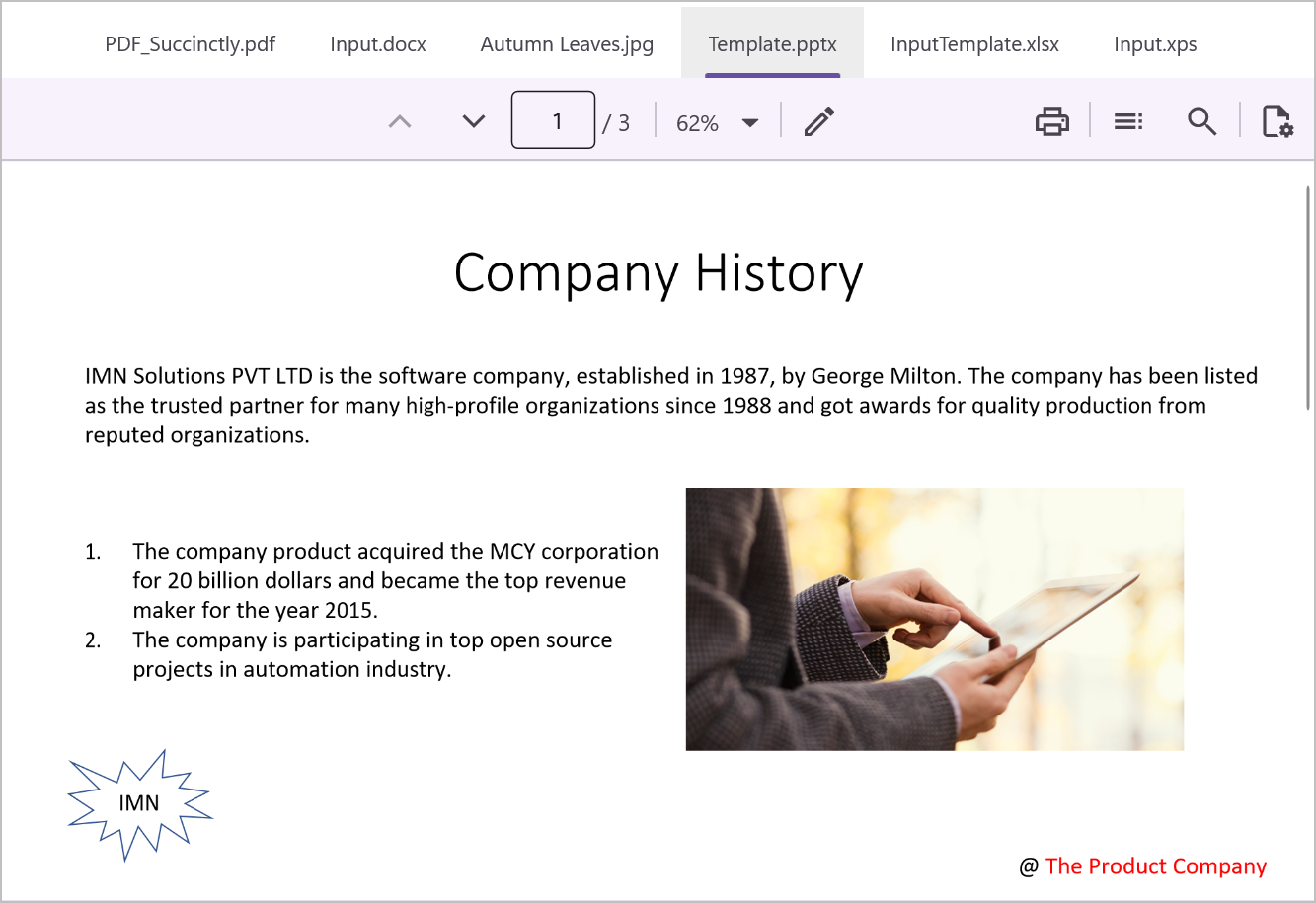
Syncfusion .NET MAUI PDF Viewer as the universal document viewing engine
Once documents are converted to PDF, the Syncfusion PDF Viewer becomes the central interface for interacting with them. Beyond simply displaying converted documents, the PDF Viewer acts as a powerful, universal document engine. It enhances the user experience by offering a rich set of features tailored for review, navigation, and collaboration:
- Comprehensive viewing: Smooth scrolling, pinch-to-zoom, and intuitive navigation across pages.
- Rich annotations: Built-in tools for highlighting, adding shapes, text notes, and stamps, ideal for collaborative workflows.
- Text search: Full-text search across the document with instant navigation to matched results.
- Text selection: Select and copy text from the document for reuse or reference.
- Export capabilities: Save annotated documents with all markups preserved for sharing.
That’s why the PDF Viewer is not just a passive display tool, but it is a full-fledged review and collaboration engine.
Why does this matter?
Since converted documents (e.g., Word, Excel, PowerPoint) may lose their native editing capabilities in PDF form, the annotation and review tools offered by the .NET MAUI PDF Viewer become essential. They allow users to:
- Suggest edits without modifying the original content.
- Collaborate effectively across teams.
- Maintain document integrity while enabling feedback.
This strategic use of the PDF format ensures controlled editing, consistent formatting, and streamlined workflows.
Note: For more details, refer to the Syncfusion .NET MAUI PDF Viewer documentation.
GitHub reference
We’ve put together a complete working demo for building a universal .NET MAUI document viewer on GitHub. You can also extend it to support additional formats where feasible, based on available Syncfusion APIs or third-party solutions.
Frequently Asked Questions
Is my original document data safe during the conversion process?
Yes. All document conversions using Syncfusion Document Processing Libraries occur locally within the app runtime. No files are uploaded to external servers or cloud services unless explicitly implemented by the developer. The original documents remain unchanged, ensuring data integrity and privacy throughout the conversion and preview process.
Does the PDF-based preview prevent unauthorized editing of documents?
Yes. By converting documents into PDF for preview, native editing capabilities of formats like Word, Excel, and PowerPoint are intentionally restricted. The Syncfusion .NET MAUI PDF Viewer provides controlled interaction through annotations only, helping prevent accidental or unauthorized content changes while still enabling review and feedback.
Can sensitive documents be previewed without saving files to disk?
Absolutely. Converted PDF documents can be stored and rendered directly from in-memory streams (such as MemoryStream) without writing files to disk. This approach minimizes data exposure, reduces persistence risks, and is well-suited for handling sensitive or confidential documents securely.

Ready to replace multiple viewers with one?
Thanks for reading! By combining the Syncfusion Document Processing Libraries with the .NET MAUI PDF Viewer, you can replace multiple document viewers with a single, universal viewing solution.
The result:
- Cleaner architecture
- Consistent UX
- Reduced complexity
- Scalable cross‑platform document workflows
If you’re a Syncfusion user, you can download the setup from the license and downloads page. Otherwise, you can download a free 30-day trial.
You can also contact us through our support forum, support portal, or feedback portal for queries. We are always happy to assist you!




 No spam, just valuable updates.