
 Sri Radhesh Nag Subash Sankar
TL;DR: What if your MAUI UI logic didn’t need converters or extra ViewModel properties at all? .NET 11 preview C# expressions let you embed tiny, safe, strongly typed C# snippets directly in XAML, cleaning up formatting, UI only math, and conditionals with source generated speed. Still experimental, but perfect for demos and early exploration.
Why this .NET 11 Preview feature is blowing up in the MAUI community
Designing clean UI in .NET MAUI sounds easy, but formatting text, combining values, or doing simple UI calculations often forces us to:
- Create one‑off converters,
- Spin up extra ViewModel properties, or
- Use clunky StringFormat hacks.
It all feels like too much work for something as small as showing a price. But .NET 11 fixes this with the new feature called C# Expressions in XAML. A small change with a huge, exciting impact!
With this preview feature, you can finally write short, safe C# expressions directly in XAML, no converter, no boilerplate, no ceremony.
What exactly are “C# Expressions in XAML”?
C# expressions in XAML let us embed short snippets directly into our bindings. Instead of pairing a binding with a converter, we can express the final display value directly in markup.
The feature is powered by the XAML Source Generator, which validates and generates strongly typed code from those expressions at build time. This keeps everything safe, fast, and readable, while making XAML feel much more natural.
Why this feature matters a lot
Here are the key benefits of using C# expressions in XAML:
- Faster onboarding: Beginners don’t need to learn converters or extra patterns just to display formatted values.
- Less boilerplate: Small, view-only transformations don’t force extra ViewModel properties or one-off converters.
- Stronger tooling: Source generation brings lightning-fast compile-time validation and a performance boost over older methods.
Together, these superpowers make our UI code feel as intuitive and lively as what we imagine on the screen.
When to use it (and when not to)
Like any tool, C# expressions in XAML shine in the right scenarios.
- Use it for small, presentational logic:
- Formatting values (Currency, date, etc.)
- Simple math
- String composition
- Toggling visuals based on a boolean
- Avoid it for complex, reusable, business-critical logic, including:
- Pricing rules
- Tax calculations
- Logic that needs unit tests or reuse across multiple screens
Rule of thumb: If the logic isn’t obvious in one quick read, move it to the ViewModel or domain layer.
Getting comfortable with the syntax
Here are a few small examples that reflect everyday UI scenarios where developers often fall back on converters or extra ViewModel properties today.
1) Currency formatting without a converter
We can format currency using standard C# formatting. It displays localized currency according to the device or app culture.
<Label Text="{$'{Price:C2}'}" />
2) Show a computed total directly in the UI
For basic totals, we can keep the logic right next to the label.
<Label Text="{$'Total: {Price * Quantity:C2}'}" />
3) Build user-friendly text with string interpolation
Instead of creating separate property in the ViewModel, we can directly perform string interpolation in XAML.
<Label Text="{$'{Quantity} × {ProductName}'}" />
4) Use a conditional expression for status
For the simple UI state, there is no need for converters anymore.
<Label Text="Active" IsVisible="{IsActive}" />
<Label Text="Inactive" IsVisible="{!IsActive}" />
5) Conditional styling stays clean too
We can also switch colors based on the state.
<Label Text="{IsActive ? 'Active' : 'Inactive'}"
       TextColor="{IsActive ? Colors.Green : Colors.Gray}" />
Mini page walkthrough: Before vs. after
Want to see the magic? Nothing beats comparing a classic page with one upgraded to C# expressions in XAML for .NET MAUI.
Before: Works, but adds extra steps
A typical XAML page might start with bindings like these:
<Label Text="{Binding Price, StringFormat='{}{0:C2}'}" />
<Label Text="{Binding Total}" />
<Label Text="{Binding DisplayText}" />
To support this, we often introduce ViewModel properties that exist purely for formatting the UI.
public string DisplayText => $"{Quantity} × {ProductName}";

public decimal Total => Price * Quantity;
After: The UI reads like the UI
With C# expressions in XAML, the page instantly feels more direct and readable. Instead of hiding display logic in the ViewModel, you can now express it right where it belongs—front and center in the UI!
Our XAML transforms, looking cleaner, more expressive, and aligning perfectly with our original creative vision!
<ContentPage x:DataType="local:ProductViewModel">
 <VerticalStackLayout Spacing="6" Padding="16">
   <Label Text="{ProductName}"
          FontAttributes="Bold"
          FontSize="18" />
   <Label Text="{$'{Price:C2}'}" />
   <Label Text="{$'{Quantity} × {ProductName}'}" />
   <Label Text="{$'Total: {Price * Quantity:C2}'}" />
   <Label Text="Active"
          IsVisible="{IsActive}"
          TextColor="Green" />
   <Label Text="Inactive"
          IsVisible="{!IsActive}"
          TextColor="Gray" />
 </VerticalStackLayout>
</ContentPage>
Note: For more details, refer to the example for XAML C# expressions in .NET MAUI (.NET 11) GitHub.
How this fits into MVVM
It is important to emphasize that C# expressions in XAML are a presentation convenience, not a replacement for MVVM or ViewModels. Use expressions for short, UI-focused transformations. Keep business logic, calculations that affect behavior, and shared rules in the ViewModel or domain layer where they can be tested and reused.
Is it production-ready?
At this stage, the feature is not production ready. It is experimental and tied to the .NET 11 preview and XamlSourceGen.
This makes it excellent for learning, prototyping, and internal demos. However, for customer-facing releases, it is better to wait for stable support unless you control the full deployment environment and are comfortable with preview dependencies.
How to try it (Beginner-friendly setup)
If you want to experiment safely, start small and follow these steps:
Step 1: Enable preview features
Use the .NET 11 preview and enable the preview tag.
<EnablePreviewFeatures>true</EnablePreviewFeatures>
Step 2: Turn on XAML source generation
Next, make sure XAML source generation is enabled. This feature works only with active XamlSourceGen.
<MauiXamlInflator>SourceGen</MauiXamlInflator>
Step 3: Use x:DataType for your page
Prefer compiled bindings with x:DataType so expressions are strongly typed and tool support is better.
x:DataType="local:MainViewModel" Step 4: Start with simple expressions
Finally, add one expression at a time. Formatting values (like prices or labels) are usually the easiest and safest place to begin.
The future of .NET MAUI
C# expression in XAML nudges MAUI toward more natural, C#-centric markup workflows. By reducing boilerplate and enabling compile-time checks via source generation, the developer experience becomes clearer and less error-prone.
As .NET 11 progresses, you can expect this feature to evolve and stabilize, potentially becoming a standard part of how developers write XAML in .NET MAUI.
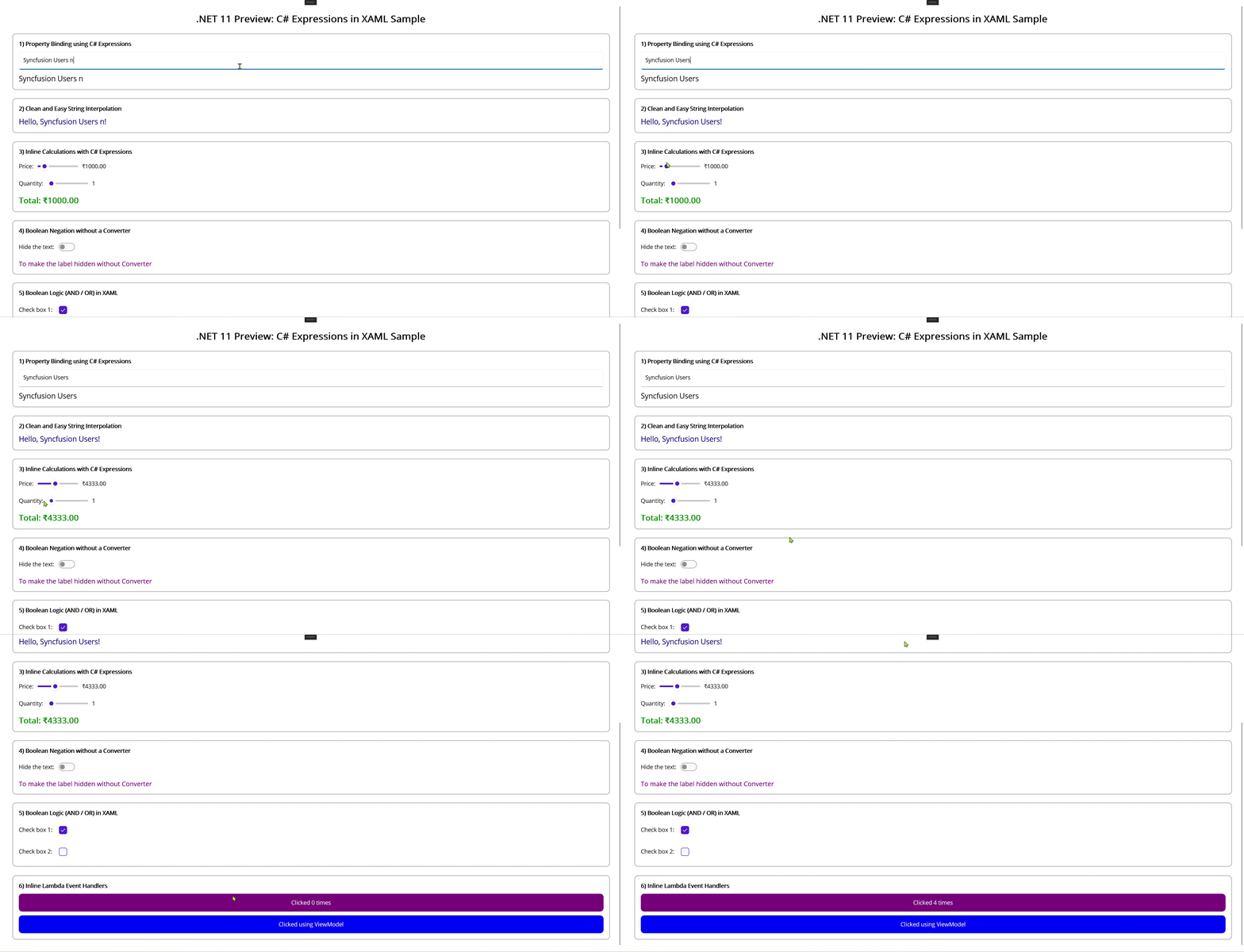
Refer to the following image.
Frequently Asked Questions
No. This feature works only when XamlSourceGen is enabled because the expressions are processed and compiled through a source generator. Without it, the XAML tooling/parser won’t understand or translate the expressions.Can I use C# expressions in XAML without enabling XamlSourceGen?
Not yet. C# expressions in XAML are currently experimental and tied to .NET 11 preview builds. It’s great for learning, demos, and prototypes, but for customer-facing production apps it’s safer to wait until it becomes officially supported and stable.Is this feature stable enough for production apps?
No. They’re meant for small UI transformations like formatting, string interpolation, or basic calculations. Converters and MVVM are still important for reusable transformations, complex logic, and business rules that should be tested and shared across screens.Do C# expressions replace converters or MVVM patterns?
Only simple and safe expressions are intended to work well. We should avoid async calls and multi-step operations. The purpose is to keep UI logic lightweight and readable, not to move app logic into XAML.Can I call methods inside a C# expression in XAML?
Typically, no. Because expressions are compiled via the source generator. They’re strongly typed and avoid some reflection-heavy behavior common in classic bindings. In most cases, performance should be equal or better, depending on the page and scenario.Will these expressions slow down my app?
Yes. Using x:DataType is recommended because it improves type safety, enables better compile-time checking, and usually provides better IntelliSense while authoring XAML.Does this work with x:DataType (compiled bindings)?

Looking ahead
Thanks so much for reading! If you’re diving into .NET MAUI, this is truly one of the most thrilling improvements ahead. C# expressions in XAML bring excitement, clarity, and an incredibly intuitive way to shape UI logic. As .NET 11 evolves, this tool will only become more powerful and transformative!
Whether it’s your first MAUI project or you’re perfecting your UI architecture, this addition is set to supercharge your workflow, making development fast, clean, and genuinely rewarding!
If you’re using Syncfusion .NET MAUI controls, the latest version of Essential Studio is available from your license and downloads page. New to Syncfusion? You can try the full suite with a 30‑day free trial and experience a production‑ready collection of high‑performance MAUI controls that pair perfectly with the .NET 11 workflow.
If you have questions or need help, feel free to reach out through our support forum, feedback portal, or support portal. Our team is always happy to assist you!







 No spam, just valuable updates.