
Overview
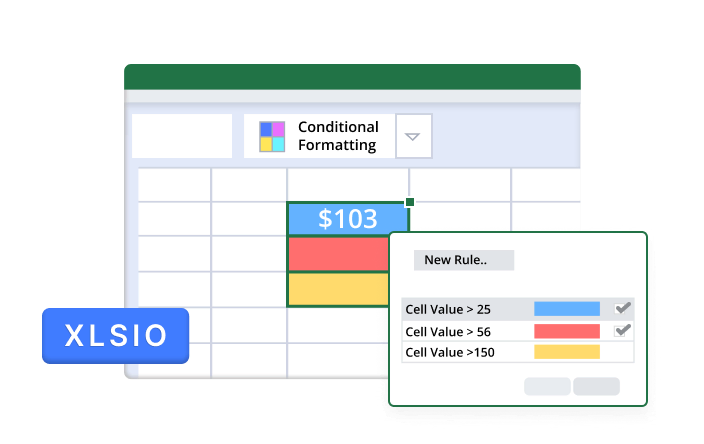
The Syncfusion .NET Excel Library (XlsIO) enables users to apply formatting to cells based on specific conditions dynamically. This feature improves the readability and automation of cell styles in the worksheet.
Conditional formatting Code Example
This example code shows how to apply conditional formatting to an Excel worksheet using the Syncfusion .NET Excel Library with just a few lines of code in C#.
Key features of conditional formatting
Discover how the conditional formatting features in the Syncfusion Excel Library enhance data visualization by applying dynamic formatting rules to highlight key data based on specific conditions.
Highlight cells
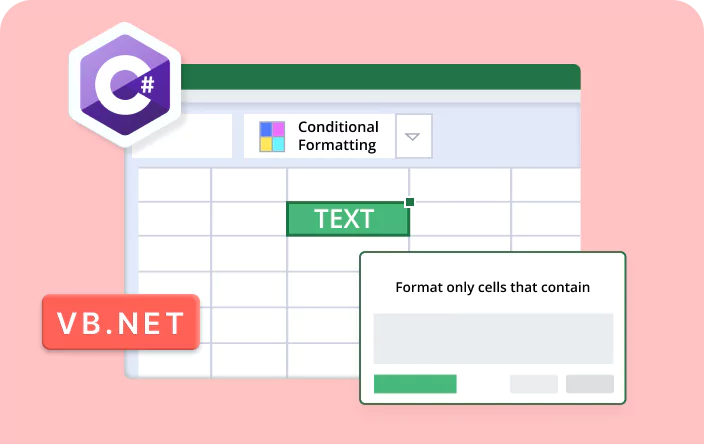
Apply conditional formatting to highlight specific cells based on criteria, enhancing data visibility by drawing attention to important values. This makes it easier to identify trends or outliers in your reports.
Top/Bottom
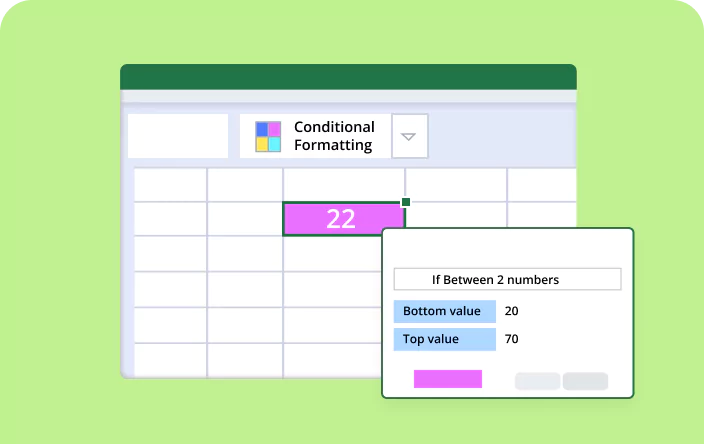
The top/bottom conditional formatting option emphasizes the highest and lowest values within a selected range, making it useful for quickly identifying top performers or areas that need attention, thereby aiding in data analysis.
Data bars
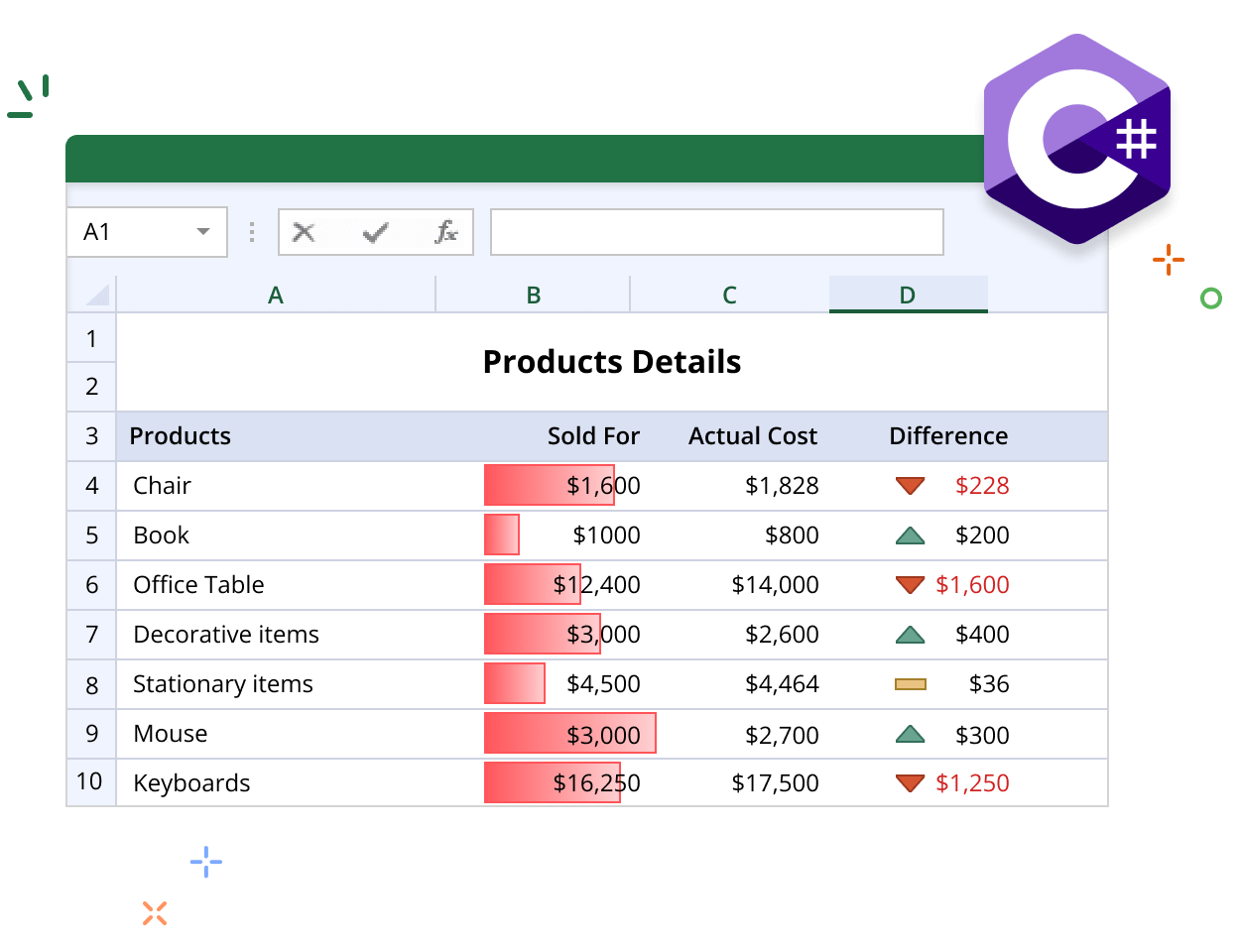
Data bars visually represent the magnitude of values in cells by adding colored bars directly within the cells. This provides a quick, at-a-glance understanding of data distribution and comparison across your dataset.
Color scales
Color scales allow you to apply a gradient color format to cells based on their values, enabling easy comparison and analysis. This helps users visualize data trends and variations effectively.
Icon sets
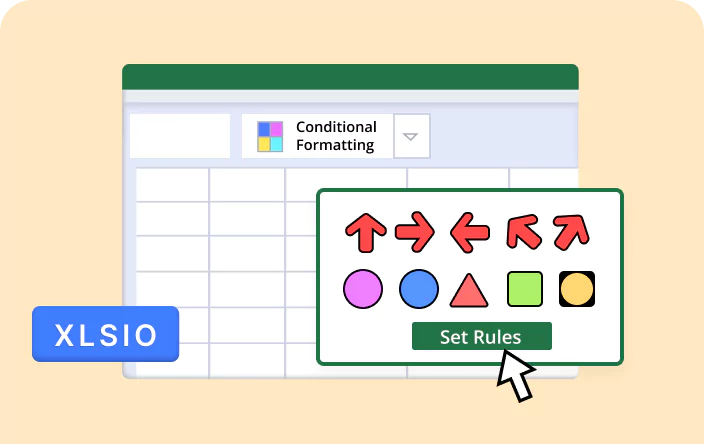
Icon sets enable you to add visual indicators, such as arrows or symbols, to cells based on their values. This enhances data presentation by providing immediate context and interpretation, making reports more intuitive.
Explore Conditional Formatting References
Discover valuable resources from our blog and knowledge base to enhance your efficiency in using conditional formatting.

Knowledge base
How to set criteria for icon set conditional formats in Excel using XlsIO
Syncfusion .NET Excel Library Resources
Explore these resources for comprehensive guides, knowledge base articles, insightful blogs, and ebooks.


Product Updates


Technical Support


Frequently Asked Questions
How do I apply conditional formatting for an entire worksheet using the Syncfusion Excel Library?
You need to select the maximum number of rows and column values, which are 1,048,576 rows and 16,384 columns, while creating a conditional format using the Syncfusion Excel Library.
What types of icons are supported in Syncfusion Excel Library?
The Syncfusion Excel Library supports 5 arrows, 5 arrows gray, 5 boxes,5 quarters, 5 ratings, 4 arrows,4 arrows gray, 4 ratings, 4 red to black, 4 traffic lights, 3 arrows, 3 arrows gray, 3 flags, 3 signs, 3 stars, 3 symbols, 3 symbols 2, 3 traffic lights 1, 3 traffic lights 2, 3 triangles icon sets for creating or editing conditional formatting in Excel documents.
Is negative bar formatting supported in data bar conditional formatting?
Yes. You can use negative data bar conditional formatting in the Syncfusion Excel Library.
How do I provide formulas in conditional formatting using the Syncfusion Excel Library?
You can add formulas in conditional formatting using FirstFormula and SecondFormula properties using the Syncfusion Excel Library?
How many color scales in conditional formatting are supported in the Syncfusion Excel Library?
The Syncfusion Excel Library supports 2-color scale and 3-color scale types in conditional formatting.
What are the directions for data bar conditional formatting supported in the Syncfusion Excel Library?
The Syncfusion Excel Library supports context, right to left, and left to right data bar conditional formatting.
Trusted by the world’s leading companies
Our Customers Love Us




Want to create, View, and edit Excel files in C# or VB.NET?
No credit card required.