.NET Excel Library – CSV-to-Excel Conversion in C#
- Convert CSV documents to Excel formats.
- Preserve data types.
- Set delimiter when converting to Excel.
No credit card required.
Explore ExamplesNo credit card required.


Trusted by the world’s leading companies
Overview
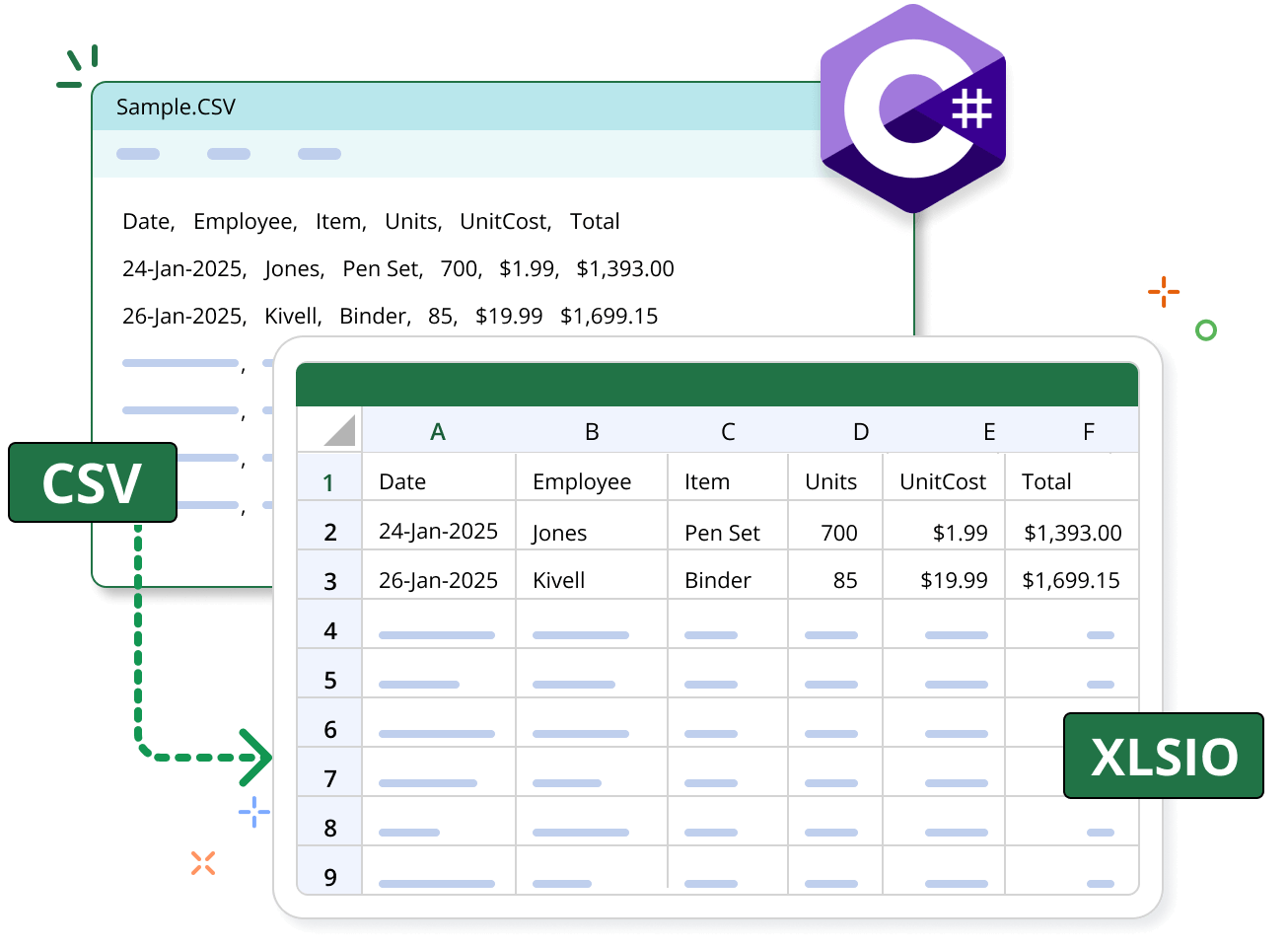
The Syncfusion .NET Excel Library (XlsIO) offers comprehensive support for converting CSV files to Excel format. It allows users to create Excel documents from CSV files, supporting various CSV formats. Formats such as CSV, TXT, and other delimited files can be converted into Excel formats like .xlsx, .xls, .xlsm, and .xltm.
How to save a CSV file in C#
This example code shows how to save a CSV file as an Excel document using the Syncfusion .NET Excel Library with just a few lines of code in C#.
CSV-to-Excel conversion references
Discover valuable resources from our blog and knowledge base to enhance your efficiency in converting CSV data to Excel format.
Knowledge base
How to convert a CSV file into an Excel document using XlsIO in PowerShell
Explore these resources for comprehensive guides, knowledge base articles, insightful blogs, and ebooks.


Product Updates


Technical Support


Frequently Asked Questions
How do I open an existing CSV file using the Syncfusion Excel Library?
To open a CSV file, you must specify its delimiter. If the delimiter is a comma (,), no specification is needed, as the Syncfusion Excel library defaults to a comma (,). However, for delimiters like tab (\t), semicolon (;), colon (:), space ( ), or the equals sign (=), you must specify the delimiter during opening to ensure accurate parsing and handling of CSV data.
How do I open an existing TSV file using the Syncfusion Excel Library?
To open an existing TSV (tab-separated values) file using the Syncfusion Excel Library, you need to specify the tab delimiter before opening the document using the Excel library.
What is the qualifier of the CSV documents in the Syncfusion Excel Library?
The double quotes symbol is used as the qualifier value.
Is it possible to convert an XLSX document to a CSV document?
Yes. Syncfusion provides support for XLSX-to-CSV conversion. You can specify the required delimiter when saving the CSV document.
What is the maximum number of rows and columns allowed in CSV documents using the Syncfusion Excel Library?
The Syncfusion Excel Library allows a maximum of 1,048,576 rows and 16,384 columns when loading or saving a CSV document.
Is it possible to merge multiple CSV files into a single Excel file using the Syncfusion Excel Library?
Yes, it is possible to merge multiple CSV files into a single Excel file using the Syncfusion Excel Library.
Is it possible to save a CSV document after making changes using the Syncfusion Excel Library?
Yes. Syncfusion Excel Library provides support for both reading and writing CSV documents. So, you can open any CSV document and save it after the changes are finished.
Our Customers Love Us




See Real Success Stories
Developers around the world trust Syncfusion’s Essential Studio to simplify complex projects and speed up delivery. With a vast library of UI controls, powerful SDKs, and reliable support, Essential Studio helps teams build enterprise-ready applications with confidence.
Read Our Customer StoriesIndustry
Software development
75% Cost reduction
50% Faster development

Industry
Utilities (oil and gas)

450+ hours saved
Streamlined processes and hours of development effort saved.

Advanced, flexible features
Empowered users through robust and versatile functionality.
Industry
Software and technology
1000+ of hours saved
Accelerated development with enterprise-ready UI components.

Efficient file management
Streamlined workflows with document libraries without building them from scratch.
Industry
Software and technology

2 Years of delay avoided
Two years of delays prevented with proactive planning.

On-time delivery
Projects delivered on schedule using trusted controls.
Industry
IT services and IT consulting

Improved performance
Large datasets handled with easy customization and quick debugging.

Highly customizable
Plug-and-play controls with quick template integration.
Industry
Professional services
Instant access
Quick availability of features and resources.
Reduced dependencies
Fewer dependencies for faster development.
Rated by users across the globe



Want to create, View, and edit Excel files in C# or VB.NET?
No credit card required.

Awards
Greatness—it’s one thing to say you have it, but it means more when others recognize it. Syncfusion® is proud to hold the following industry awards.