
 Nipuni Arunodi
TL;DR: This guide covers 20 VS Code extensions for AI-assisted coding, code quality, Git, API testing, containers, remote development, and document inspection. Each recommendation explains the problem it solves, where it provides the most value, and when to skip it to avoid overlapping tools and an unnecessarily cluttered editor.
Why most VS Code setups become unproductive
If you have used VS Code for a while, you have probably installed extensions that no longer match your projects. As that list grows, suggestions can overlap, background tools can compete for the same task, and it becomes harder to identify which extensions are genuinely useful.
The challenge is not finding more extensions. It is deciding:
- Which extension solves a recurring development problem?
- Does VS Code or another installed tool already provide the feature?
- Will the extension support your current language, project, or team?
- Does its value justify adding another tool to the editor?
This guide covers 20 VS Code extensions for common development needs, including AI-assisted coding, code quality, API testing, Git, containers, remote development, and document inspection. It also explains when an extension may be unnecessary or overlap with another recommendation.
How these VS Code extensions were selected
The extensions in this guide were selected based on their ability to address recurring development needs without unnecessarily duplicating another recommended tool. Each extension meets one or more of the following criteria:
- Solves a clear coding, testing, debugging, collaboration, or project-management problem.
- Provides a useful capability beyond VS Code’s standard editor experience.
- Supports common individual or team-development scenarios.
- Can reduce repetitive work, improve code quality, or simplify project navigation.
- Has a clearly defined audience and an equally clear reason to skip it.
The list is not intended as a universal installation checklist. Choose extensions based on your languages, project architecture, team standards, security requirements, and existing development tools.
AI-assisted development
1. GitHub Copilot: Accelerating repetitive development work
GitHub Copilot is most useful for repetitive or predictable tasks such as boilerplate generation, API integration patterns, data-transfer-object mappings, documentation, and test scaffolding. It can reduce the time spent writing familiar setup code, particularly when developers are moving between languages or frameworks.
Its suggestions still require review. Code involving complex business rules, security-sensitive decisions, or unusual edge cases should be validated through testing and normal code review. Treat Copilot as a development accelerator rather than a source of truth.
Keep it when: Repetitive coding takes up a meaningful part of your development time.
Skip it when: Your organization restricts AI coding tools or another installed assistant already provides the same capability.
Code quality and consistency
2. ESLint: Catching JavaScript and TypeScript issues earlier
ESLint reports rule violations while developers write JavaScript and TypeScript. With a shared project configuration, it can identify unused variables, problematic patterns, and inconsistent practices before the code reaches review or continuous integration.
Its value comes from enforcing repository-level standards rather than individual formatting preferences. Use ESLint for code-quality rules and a formatter such as Prettier for code layout.
Keep it when: The repository has a shared ESLint configuration that also runs during continuous integration.
Skip it when: The project does not use supported languages or another linter already performs the same checks.
3. Code Spell Checker: Improving names, comments, and documentation
Code Spell Checker identifies spelling errors in variable names, comments, Markdown, configuration files, and documentation. It can prevent misspelled domain terms and confusing identifiers from spreading through a shared repository.
For projects containing specialized terminology, maintain a project dictionary so valid technical words do not generate repeated warnings.
Keep it when: Clear naming and documentation are important to contributors and maintainers.
Skip it when: The project contains little natural-language content or valid domain terminology creates excessive noise.
4. Prettier: Standardizing code formatting across teams
Prettier formats supported files according to a shared configuration. It can remove routine formatting discussions from code reviews by applying consistent indentation, line wrapping, quotation, and spacing decisions.
Prettier controls how code looks; it does not replace ESLint, tests, or static analysis. Configure it as the project’s formatter and avoid enabling another formatter for the same file types.
Keep it when: The repository uses Prettier as its shared formatter.
Skip it when: Another formatter already controls the project.
5. Stylelint: Enforcing standards in growing stylesheet codebases
Stylelint identifies invalid or inconsistent patterns in CSS and related stylesheet formats. It is particularly useful when several developers contribute to shared styles, reusable components, or a design system.
Keep it when: The repository has shared stylesheet rules and substantial CSS-related code.
Skip it when: The application contains little custom CSS or another tool already performs the same validation.
6. SonarQube for IDE: Detecting deeper code-quality issues
SonarQube for IDE analyzes code as developers write it and reports potential bugs, maintainability concerns, and supported security-related issues. It can complement language-specific linters when a project needs broader static analysis.
Keep it when: Static analysis is part of the project’s quality process and the team can act on its findings.
Skip it when: Existing compiler, linter, and testing feedback is already sufficient for a small or short-lived project.
General development productivity
7. Auto Rename Tag: Keeping paired markup tags synchronized
Auto Rename Tag updates the corresponding opening or closing tag when its pair is renamed. This can prevent mismatched markup during HTML, JSX, or XML refactoring.
For example, changing a nested element from section to article can update its closing tag automatically instead of leaving invalid markup to be found later.
Keep it when: You regularly edit nested paired-tag formats.
Skip it when: Your language tooling or VS Code configuration already provides reliable linked-tag editing.
8. Path Intellisense: Simplifying navigation in large codebases
Path Intellisense reduces the cognitive load of manually typing long or complex file paths. In large-scale projects with deeply nested structures, it improves both speed and accuracy when importing modules.
Over time, this eliminates frequent micro-interruptions, especially in projects where files are spread across multiple layers of directories.
Keep it when: Your projects contain deep folder structures or frequent manual path references.
Skip it when: Your language server or framework already provides accurate path and import completion.
9. Peacock: Improving visual context in multi-project workflows
Peacock allows developers to assign different colors to VS Code workspaces, making it easier to distinguish between multiple open projects.
This small visual distinction becomes surprisingly helpful when working across multiple environments simultaneously.
Keep it when: You regularly keep several similarly named projects or environments open.
Skip it when: You normally work in one VS Code window or workspace colors reduce readability.
10. GitLens: Adding detailed Git history to code investigation
GitLens adds file, line, authorship, and commit-history context to VS Code. This can help developers investigate when a behavior changed, why a line was introduced, or who has relevant historical context.
Keep it when: You regularly investigate unfamiliar or long-lived repositories.
Skip it when: VS Code’s built-in Git features already provide the information you need.
11. Quokka.js: Experimenting with JavaScript and TypeScript
Quokka.js provides immediate execution feedback while developers write JavaScript or TypeScript. It can help with learning APIs, validating transformation logic, and testing short ideas without preparing a complete project.
It should not replace application tests or runtime debugging because isolated code may behave differently when integrated with framework state, network requests, or browser APIs.
Keep it when: You frequently prototype or learn JavaScript and TypeScript concepts.
Skip it when: Your project’s existing test runner already provides sufficiently fast feedback.
API, container, and remote development
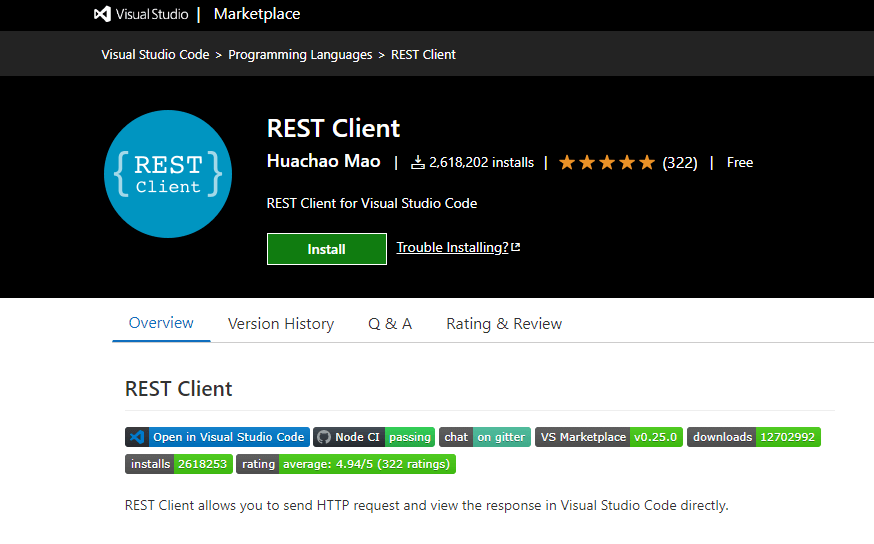
12. REST Client: Testing APIs from versionable request files
REST Client lets developers send HTTP requests from text files in VS Code and inspect the responses without opening a separate API client. Request examples can be stored with the project, shared with contributors, and reviewed alongside code changes.
Keep it when: You need lightweight, versionable API request examples.
Skip it when: Your team already maintains requests in another API-testing platform or requires more complex collection management.
13. Container Tools: Managing container resources without leaving VS Code
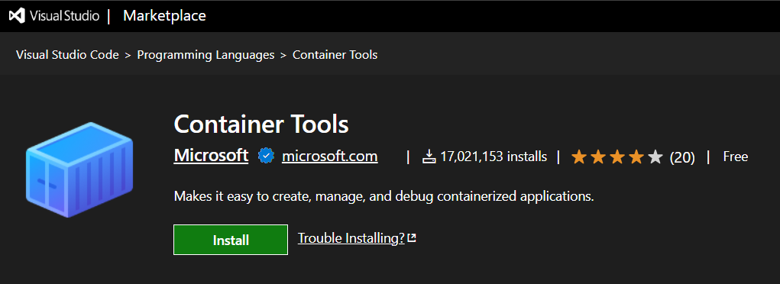
Container Tools brings common container operations into VS Code. Developers can inspect containers and images, work with registries, review logs, manage volumes and networks, and receive assistance while editing Dockerfiles and Compose files.
The extension is useful when container-related checks regularly interrupt development. For example, a developer can inspect a running service, review its logs, or check an image without repeatedly moving between the editor and separate management tools.
Microsoft now provides the former Docker extension’s container-management, language-service, and debugging capabilities through Container Tools. Existing Dockerfiles, Compose configurations, and Docker-based projects remain supported; the extension also supports Podman as an alternative container runtime.
Keep it when: Containers, images, registries, or Compose configurations are part of regular development or troubleshooting.
Skip it when: The project does not use containers or the team already manages all container operations effectively through scripts and command-line tools.
14. Dev Containers: Creating reproducible development environments
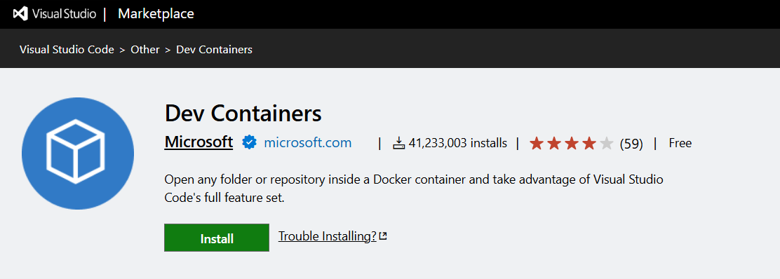
Dev Containers lets developers use a container as a complete development environment. Teams can define project runtimes, system dependencies, tools, and extensions in a consistent setup that can be reproduced across development machines.
Unlike the Docker extension, which helps developers work with container resources, Dev Containers uses the container itself as the development environment.
Keep it when: The team needs a consistent project setup, isolated toolchains, or simpler onboarding.
Skip it when: The project is easy to run locally or does not use container-based development.
Dev Containers is a current Microsoft extension intended for reproducible and isolated development environments.
15. Remote – SSH: Working directly on remote development machines
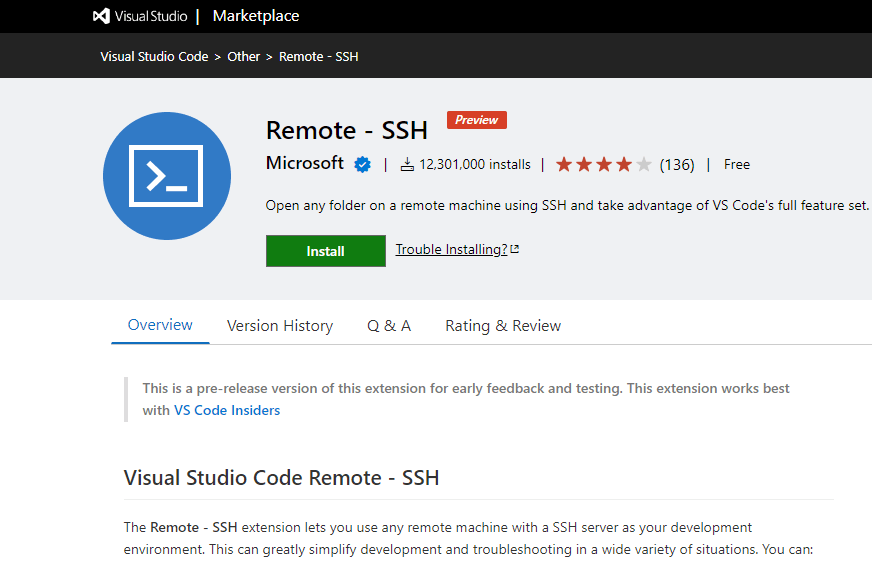
Remote – SSH lets developers open folders and use VS Code features against a trusted remote machine. It can be useful when the application, data, toolchain, or infrastructure cannot be reproduced locally.
Keep it when: Development depends on a remote server, cloud virtual machine, or specialized environment.
Skip it when: All development happens locally or organizational policy prohibits direct remote access.
Language and frontend tools
16. C# Dev Kit: Adding project-level .NET tooling to VS Code
C# Dev Kit provides project management, testing, debugging, and language features for C# development in VS Code. It is useful for developers who want a more integrated .NET experience while continuing to work in VS Code.
Keep it when: You develop C# or .NET applications and need project-level tooling inside VS Code.
Skip it when: The project does not use .NET or your team performs development in another IDE.
17. Live Server: Previewing static frontend changes quickly
Live Server starts a local development server and refreshes the browser when supported files change. It is useful for static HTML, CSS, and JavaScript projects that do not already include a framework development server.
Modern frameworks generally provide their own development and hot-reload commands, making Live Server unnecessary in many Angular, React, Vue, ASP.NET Core, and similar projects.
Keep it when: You need a quick preview for a static frontend project.
Skip it when: The project already has a framework development server.
18. Import Cost: Flagging unexpectedly large frontend dependencies
Import Cost displays estimated package-size information next to JavaScript and TypeScript imports. It can alert developers to unexpectedly large dependencies while they are evaluating package choices.
Treat the displayed value as an early indicator rather than a replacement for production bundle analysis. Tree shaking, compression, dynamic imports, and build configuration can affect the final bundle size.
Keep it when: Bundle size is an active frontend-performance concern.
Skip it when: The project is backend-focused or build-time analysis already provides sufficient information.
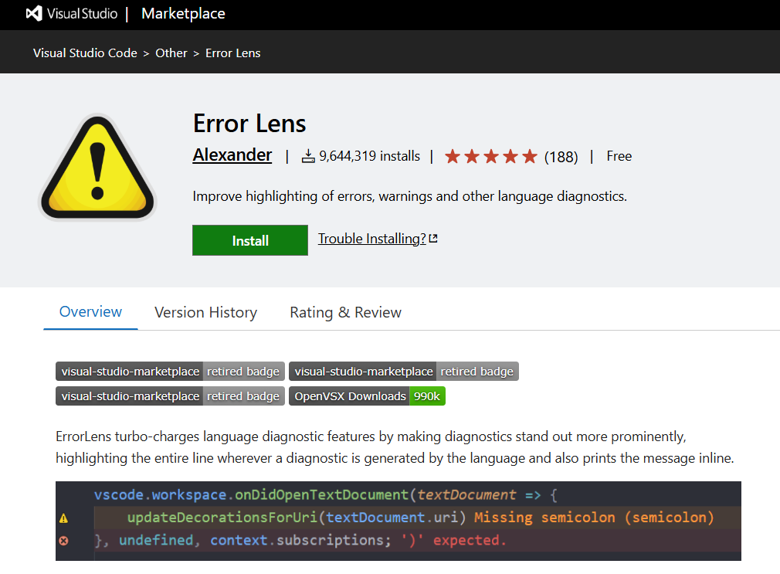
19. Error Lens: Making diagnostics visible beside the affected code
Error Lens makes diagnostics from compilers, linters, and language services more visible by highlighting the affected line and displaying the message inline. It does not generate new errors or warnings; it makes existing diagnostics easier to notice.
This is particularly useful when ESLint, TypeScript, or another language tool reports issues that are easy to miss as underlines or entries in the Problems panel.
Keep it when: You want errors and warnings displayed close to the code that caused them.
Skip it when: Inline messages make the editor feel crowded or interfere with readability.
Document inspection
20. Syncfusion Document Viewer: Inspecting documents without leaving VS Code
The Syncfusion Document Viewer extension lets developers open and inspect supported Word, Excel, CSV, and TSV files directly in VS Code.
This is useful when an application imports, exports, generates, or validates documents. For example, developers can review an exported Excel workbook, inspect CSV test data, or check a generated Word document alongside the code responsible for producing it.
Keep it when: Document generation, export validation, or tabular-data inspection is part of development.
Skip it when: The project does not work with supported document formats.

Choose the right VS Code extensions based on your workflow
| Situations | Recommended extensions | Why this works | When to skip |
| I want to code faster with less manual effort | GitHub Copilot | Reduces repetitive coding and speeds up development | Skip it when AI coding tools are restricted or not required |
| I need consistent, clean, production-ready code | ESLint, Prettier, SonarQube for IDE | Catches errors early and enforces standards across teams | Skip SonarQube for small projects |
| I’m working on frontend/UI development | Live Server, Stylelint, Auto Rename Tag | Supports static preview, stylesheet validation, and paired-tag editing | Skip Live Server when the project already has a framework development server |
| I work with APIs, containers, or remote environments | REST Client, Container Tools, Dev Containers, or Remote – SSH | Supports API testing, container management, reproducible development environments, and remote development | Install only the tools required by the project environment |
| My project is large and getting harder to manage | GitLens, Path Intellisense; Import Cost for frontend bundles | Improves navigation, performance awareness, and code understanding | Import Cost not relevant for backend-heavy apps |
| I work in a team or enterprise environment | SonarQube for IDE, GitLens, ESLint | Enhances maintainability, collaboration, and code quality | Overkill for solo or small projects |
| I switch between multiple projects or technology stacks | Peacock and VS Code Profiles | Peacock visually distinguishes workspaces, while Profiles separate extensions and settings by development scenario | Skip Peacock when you use one workspace; skip separate Profiles when all projects use the same configuration |
| I’m learning or experimenting with JavaScript | Quokka.js, Live Server | Enables fast feedback without full setup | Not needed in structured production workflows |
| I want a minimal but powerful setup | ESLint, Prettier, GitHub Copilot, GitLens | Covers speed, quality, and collaboration with minimal overhead | Add more only when needed |
Frequently Asked Questions
Can VS Code extensions help beginners?
Yes. Extensions can display errors earlier, suggest code, standardize formatting, and provide faster feedback. Beginners should start with a small language-specific setup rather than installing a large extension pack without understanding each tool.
How many VS Code extensions should I install?
There is no universal ideal number. Install extensions that solve a recurring project need, and periodically disable tools that duplicate native VS Code features or other installed extensions. Profiles can help keep different project configurations separate.
Do ESLint and Prettier do the same job?
No. ESLint identifies code-quality and rule violations in JavaScript and TypeScript, while Prettier formats supported files. Configure them to complement each other and avoid overlapping formatting rules.
Are VS Code extensions safe?
Treat extensions as development tools that may interact with source code, files, terminals, or remote services depending on their purpose. Verify the publisher, review the extension’s documentation and permissions, keep it updated, and follow your organization’s approved-extension policy.
Can too many extensions slow down VS Code?
Some extensions perform background analysis, start language services, add interface elements, or activate for particular project types. Install only relevant tools, use Profiles for different projects, and disable extensions that add no measurable value to your work.
What is the difference between Container Tools and Remote - SSH?
Container Tools helps developers manage containerized applications, including containers, images, registries, Dockerfiles, and Compose configurations. Remote – SSH lets developers work with files and tools on a remote machine through VS Code. Install either extension only when the project uses the corresponding environment.
What is the difference between Container Tools and Dev Containers?
Container Tools helps developers build, manage, inspect, and debug containerized applications. Dev Containers uses a container as the complete development environment, including its runtime, dependencies, tools, and extensions. A project may use both: Container Tools for container resources and Dev Containers for a reproducible development setup.
Conclusion
Most developers do not need every popular VS Code extension. A useful setup is one in which each extension addresses a recurring problem without duplicating another tool.
Start with the essentials for your language and project:
- A linter for supported code-quality rules.
- One formatter.
- One AI assistant, if permitted and useful.
- Git, API, container, testing, or remote-development tools only when the project requires them.
Review the setup periodically. Keep an extension when it saves time, prevents repeated mistakes, or supports a shared team standard. Disable it when it creates overlapping suggestions, ignored warnings, or unnecessary interface clutter.
If you primarily build websites and frontend applications, see our guide to the best VS Code extensions for web development, including tools for HTML, CSS, JavaScript, live preview, formatting, and browser testing.




 No spam, just valuable updates.