
 Kompelli Sravan Kumar Kompelli Lakshman
TL;DR: Heavy popup content can block the UI thread and cause lag. Improve .NET MAUI Popup performance by reusing the popup view with ContentTemplate, loading data only when needed, virtualizing long lists, and keeping animations lightweight and fast.
Your .NET MAUI app can feel fast until a popup opens with heavy UI. Then you see it: stuttering animations, slow scrolling, and a fragile feel that users notice immediately.
Syncfusion® .NET MAUI Popup is designed for performance; however, when integrating popups with large datasets or complex layouts, you still need optimization to ensure a consistently smooth experience.
In this blog, we will show you how to improve your app’s performance when using Syncfusion .NET MAUI Popup by applying the following proven techniques:
- Lazy initialization (create/load only when needed)
- Content caching (reuse the same view across opens)
- Virtualization for large lists
- Smooth, jank-free animations
- A safe content template lifecycle strategy
With these strategies, you will achieve faster load times, reduced memory usage, and a seamless user experience across Android, iOS, Windows, and macOS.
Speed up .NET MAUI Popup: Best practices
Let’s integrate Syncfusion .NET MAUI Popup into a .NET MAUI app and apply these performance techniques.
Note: To get started with .NET MAUI Popup, check the official documentation.
Scenario: Product details popup with a large variants list.
For this example, we’ll work with a sample application that shows a list of products. When the user taps a product, a popup displays product details, along with a potentially long list of variants (we simulate 1,000 variants to stress-test performance).
The goal is to reduce:
- Tap-to-visible time (how fast the popup appears).
- UI thread works during open/close animations.
- Memory churn caused by repeated view creation.
You can explore the complete sample implementation used in this walkthrough from the GitHub repository.
How it works (what usually makes popups slow)
Popups often feel slow for a few predictable reasons:
- View creation cost: Building a complex visual tree each time you open the popup.
- Data loading cost: Populating collections and binding large data at the wrong time (often right as the popup animates in).
- List rendering cost: Creating UI containers for hundreds/thousands of rows without virtualization.
- Animation contention: Doing heavy work on the UI thread while the popup is animating.
The patterns below directly target these bottlenecks.
Step 1: Cache and reuse the popup content via ContentTemplate
We start by ensuring that the popup’s content is created only once and then reused. This caching approach prevents the framework from rebuilding the entire visual tree each time the popup opens, reducing unnecessary CPU work and memory use.
By wrapping our _popupView inside a DataTemplate and assigning it to ProductPopup.ContentTemplate, the first time the popup is shown, the Syncfusion .NET MAUI Popup reuses that same instance on every subsequent open instead of recreating it.
Here’s how you can do it in code:
private ProductDetailsPopupView? _popupView; // This will hold our cached view
private readonly MainViewModel _viewModel;

public MainPage()
{
    InitializeComponent();
    _viewModel = new MainViewModel();
    BindingContext = _viewModel;

    _viewModel.RequestOpenPopup += async (s, product) =>
    {
        if (_popupView == null) // Create the view only on the first open
        {
            _popupView = new ProductDetailsPopupView
            {
                BindingContext = _viewModel // Keep the same ViewModel instance
            };
            // Assign the cached view using a DataTemplate
            ProductPopup.ContentTemplate = new DataTemplate(() => _popupView);
        }

        // ... (rest of the popup opening logic)
    };
    // ...
}
In the above code example, ContentTemplate returns the same cached view instance, so the UI tree is not recreated on every open. That’s a direct win for CPU and GC pressure.
Step 2: Lazy initialize popup data only when the user taps (on-demand)
Even with a cached view, you can still slow down your app by preparing data too early (for example, during page initialization). A better approach is to load popup data only when the user actually taps a product.
In our sample, the product details and variant information are populated on demand, right before the popup opens. This keeps the app lightweight at startup while ensuring the popup always displays the correct information for the selected product.
When OnProductTapped is triggered, InitializeDetails updates the popup’s data source, refreshes the variants list, and resets SelectedVariant to null. This guarantees a consistent initial state, for example, keeping Add to Cart disabled until a variant is chosen.
Code snippet to achieve this:
public void OnProductTapped(Product product)
{
    SelectedProduct = product;
    InitializeDetails(product); // Prepares popup data just before showing
    RequestOpenPopup?.Invoke(this, product); // Signals MainPage to open the popup
}
By updating the popup’s data only when it’s needed, you avoid unnecessary work during page load and ensure each product tap produces accurate, up-to-date details.
Step 3: Virtualized list for large datasets
Large lists inside a popup can seriously impact performance if the UI is forced to create a view for every row. Using a virtualized list ensures that only the visible items are rendered, while off‑screen containers are recycled as the user scrolls.
In our sample, we display a large set of variants (simulated at 1,000 items) using the Syncfusion .NET MAUI ListView. Since it’s virtualized by design, it creates UI elements only for items currently in view and reuses them as you scroll. This greatly reduces memory usage and keeps the popup responsive, even with large datasets.
Below is the code you need:
<SfListView:SfListView x:Name="VariantsList"
                       Grid.Row="1"
                       ItemsSource="{Binding Variants}"
                       SelectedItem="{Binding SelectedVariant, Mode=TwoWay}"
                       SelectionMode="Single" >
Step 4: Fluid, jank-free animations
Even small UI stalls become noticeable during animations. To keep the popup feeling fluid, let the animation run without competing for UI thread time, and fine-tune the animation settings to feel quick and natural.
To ensure the popup opens and closes smoothly without stuttering, we rely on SfPopup’s built-in animations and avoid heavy operations during these critical UI moments.
Setting AnimationDuration to a short value (e.g., 180ms) and Animation Easing to a curve like SinOut makes the Fade animation feel fast and natural, contributing significantly to a responsive user experience.
Add this to your project:
<syncfusion:SfPopup
…
    AnimationMode="Fade"
    AnimationDuration="180"  <!-- A quick, snappy duration -->
    Easing="SinOut" <!-- Enhances fluidity -->>
…
</syncfusion:SfPopup>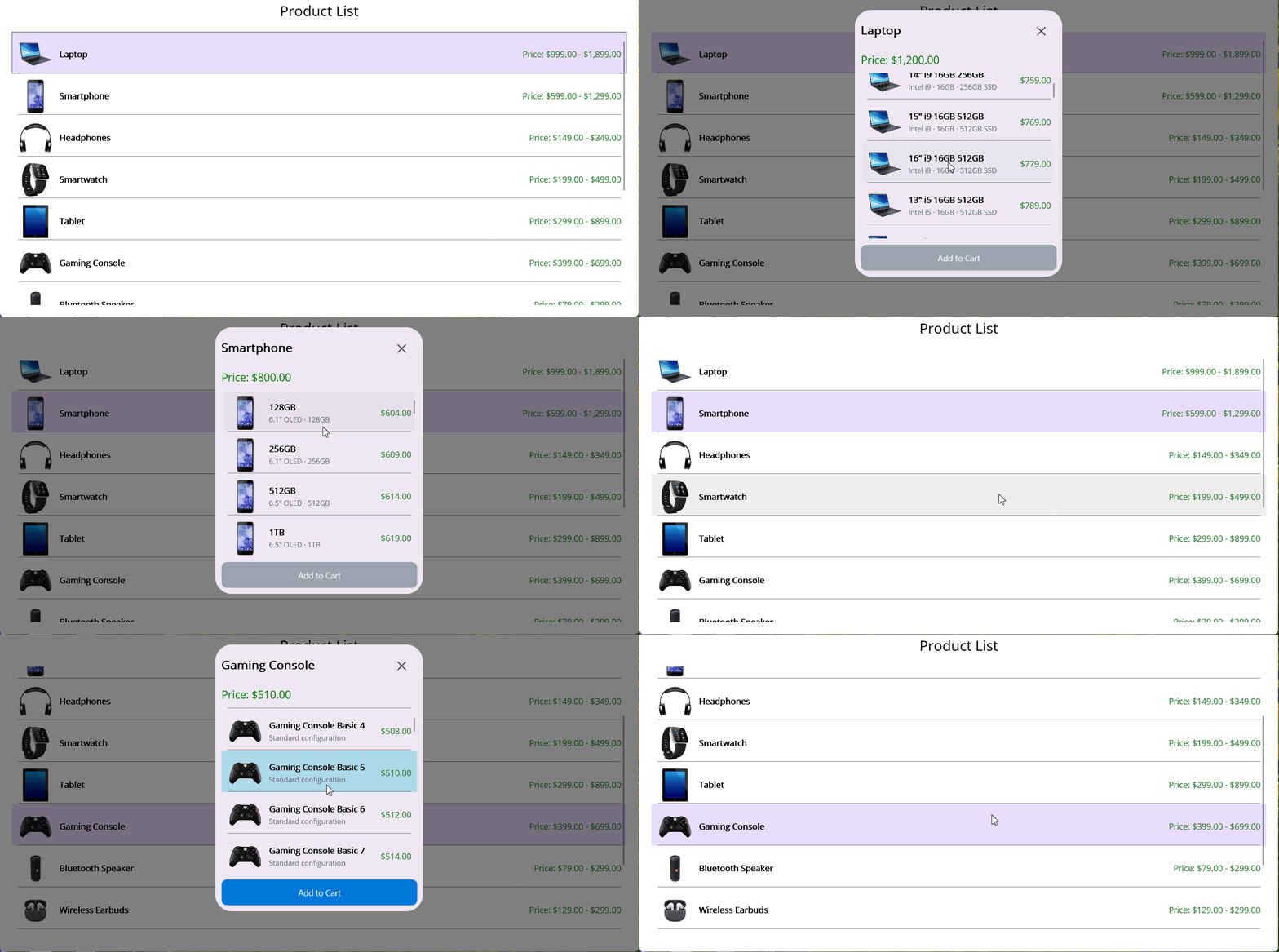
Content template strategy (lifecycle guidance)
When you cache popup content, keep these rules in mind:
- Cache the view when the layout is expensive to build, and you open the popup frequently.
- Refresh only the data (bindings/collections) per open, not the entire view.
- Be intentional about state reset (selected items, button enabled states) so the cached UI doesn’t “leak” previous selections.
This gives you the best of both worlds: fast open + correct content.
GitHub reference
Explore the complete working sample used in this article on GitHub, including popup caching, lazy data loading, and list virtualization techniques.
Start with lazy initialization (create popup content only when needed), then add caching if the content is heavy. Yes, the patterns (defer work, reuse views, virtualize lists, tune animations) apply across Android, iOS, Windows, and macOS. Yes, slightly. Caching trades small, persistent memory for much lower CPU and allocation overhead on repeated opens; overall UX improves for heavy content. Yes, the same principles help any model or transient UI that contains complex content or long lists. Track tap-to-visible time, UI thread CPU during open, and scroll FPS. Compare before vs after changes.Frequently Asked Questions
Which pattern should I apply first?
Do these techniques work on cross-platform?
Will caching increase memory usage?
Can I apply these patterns to other popups or dialogs?
How do I measure whether the optimizations helped?

Conclusion
Thank you for reading! You can build a popup from scratch, but performance tuning often becomes the real cost: lifecycle quirks, animation jank, and list rendering edge cases across platforms.
Using a mature control like Syncfusion .NET MAUI Popup can reduce that risk, especially when you apply the patterns above (reuse, defer work, virtualize, tune animations) to keep behavior consistent across Android, iOS, Windows, and macOS.
If you’re a Syncfusion user, you can download the setup from the license and downloads page. Otherwise, you can download a free 30-day trial.
You can also contact us through our support forum, support portal, or feedback portal for queries. We are always happy to assist you!







 No spam, just valuable updates.