
 Sumathi Uthayakumar
TL;DR: Learn to redact PDFs in Android apps using .NET MAUI. Remove sensitive text, patterns, and images permanently to safeguard data and meet compliance standards. Take control of document security now!
Mobile document workflows are now essential for businesses. Professionals rely on Android apps to view and share PDFs, making work faster and more convenient. However, these PDFs often contain sensitive data such as personal details or financial information. If not secured, they can lead to serious risks like data leaks and compliance issues.
This is where the Syncfusion .NET PDF Library helps. Combined with .NET MAUI, it enables developers to build secure Android apps and integrate features such as PDF redaction, ensuring confidential information stays protected. In this guide, we’ll show you how to redact PDFs on Android using the Syncfusion .NET PDF Library with .NET MAUI.

Why PDF redaction is essential
Businesses today face stringent compliance requirements, including GDPR (General Data Protection Regulation), HIPAA (Health Insurance Portability and Accountability Act), and financial regulations. Mobile-first operations in legal, healthcare, and finance often involve sharing PDFs containing sensitive information. If this data is not properly handled, it can lead to leaks, penalties, and reputational damage.
Masking or hiding text isn’t enough; hidden content can still be extracted. True security requires permanent removal of sensitive data from PDFs. This makes PDF redaction a critical feature for Android apps, ensuring compliance and protecting confidential information.
Step-by-step guide to setting up an Android app for PDF redaction
To implement PDF redaction in your Android app, set up the environment and integrate the Syncfusion .NET PDF Library. Follow these steps:
Step 1: Create a new .NET MAUI project
Begin by opening Visual Studio 2022. From the available templates, select .NET MAUI App, enter your desired project name, and click Create to initialize the project.
Step 2: Add the required NuGet package
Next, install the Syncfusion.Pdf.Imaging.Net.Core package. This package provides the imaging support necessary for performing redaction operations.
Step 3: Include required namespaces
After installing the package, add the following namespaces in your code-behind file to access the PDF functionalities:
using Syncfusion.Pdf;
using Syncfusion.Pdf.Graphics;
using Syncfusion.Pdf.Grid;
using Syncfusion.Drawing;
using Syncfusion.Pdf.Redaction;
Step 4: Load or create a PDF document
Before applying redaction, ensure you have a PDF document ready. You can either load an existing file or create a new one.
The following example demonstrates how to open an existing PDF document.
//Open an existing PDF document.
Assembly assembly = typeof(MainPage).GetTypeInfo().Assembly;
string basePath = "Load_and_Save_PDF_MAUI.Resources.Data.";
Stream inputStream = assembly.GetManifestResourceStream(basePath + "Input.pdf");
PdfLoadedDocument document = new PdfLoadedDocument(inputStream);
Note: For complete steps and additional examples on creating PDFs, refer to the official user guide.
How to apply PDF redaction using .NET PDF Library
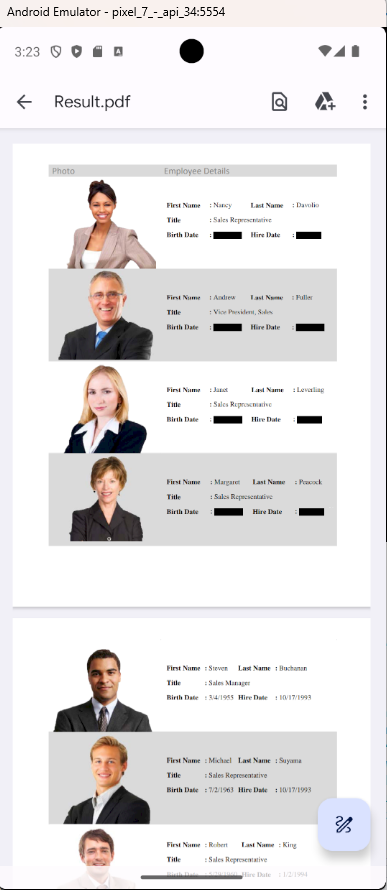
Once you have loaded or created a PDF document, the next step is to apply redaction. To make the redaction permanent, call the document.Redact() method, as shown in the following example:
//Create a redaction object
PdfRedaction redaction = new PdfRedaction(new RectangleF(343, 147, 60, 17));

//Add a redaction object into the redaction collection of the loaded page
page.AddRedaction(redaction);

//Redact the contents from the PDF document
document.Redact();
After applying PDF redaction, the selected content is completely removed from the document, as shown in the final output.
Explore Android PDF redaction options with .NET MAUI PDF Library
The Syncfusion .NET PDF Library provides multiple options to permanently delete confidential content and ensure compliance in Android apps. These include:
Let’s explore each option in detail.
1. Text-based redaction
To redact sensitive text in a PDF on Android and clearly indicate that content was removed, you can overlay customizable text on the redacted area. Syncfusion’s PDF library allows you to modify the appearance, including font, style, color, and brush.
Here is a code example that demonstrates the redacted output shown below.
//Create a redaction object
PdfRedaction redaction = new PdfRedaction(new RectangleF(343, 167, 100, 25), Color.Black);

//Font for the overlay text
PdfStandardFont font = new PdfStandardFont(PdfFontFamily.Courier, 10);

//Draw text on the redacted area
redaction.Appearance.Graphics.DrawString("Redacted", font, PdfBrushes.Red, new PointF(5, 5));

//Add a redaction object into the redaction collection of the loaded page
page.AddRedaction(redaction);

//Redact the contents from the PDF document
document.Redact();
Refer to the following image.
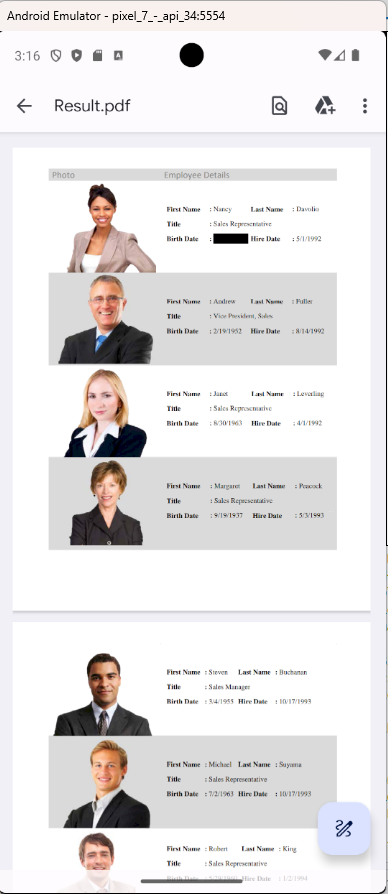
In a real-world scenario, a law firm redacts client names and sensitive clauses before sharing contracts with external auditors to maintain confidentiality.
2. Pattern-based redaction
For areas such as signatures or stamps, you can apply patterns over the redacted region to indicate intentional removal, while ensuring the hidden data is permanently deleted. The following example demonstrates how to use the Appearance property to apply a mosaic pattern:
//Create a PDF redaction for the page
PdfRedaction redaction = new PdfRedaction(new RectangleF(341, 149, 64, 14));

//Draw a mosaic pattern on the redaction bounds
RectangleF rect = new RectangleF(0, 0, 8, 8);
PdfTilingBrush tillingBrush = new PdfTilingBrush(rect);
tillingBrush.Graphics.DrawRectangle(PdfBrushes.Gray, new RectangleF(0, 0, 2, 2));
tillingBrush.Graphics.DrawRectangle(PdfBrushes.White, new RectangleF(2, 0, 2, 2));
………
rect = new RectangleF(0, 0, 16, 14); PdfTilingBrush tillingBrushNew = new PdfTilingBrush(rect);
tillingBrushNew.Graphics.DrawRectangle(tillingBrush, rect);

//Draw rectangle on the redacted bounds
redaction.Appearance.Graphics.DrawRectangle(tillingBrushNew, new RectangleF(0, 0, 64, 14));

//Add a redaction object into the redaction collection of the loaded page
page.AddRedaction(redaction);

//Redact the contents from the PDF document
document.Redact();
Check out the image shown below.
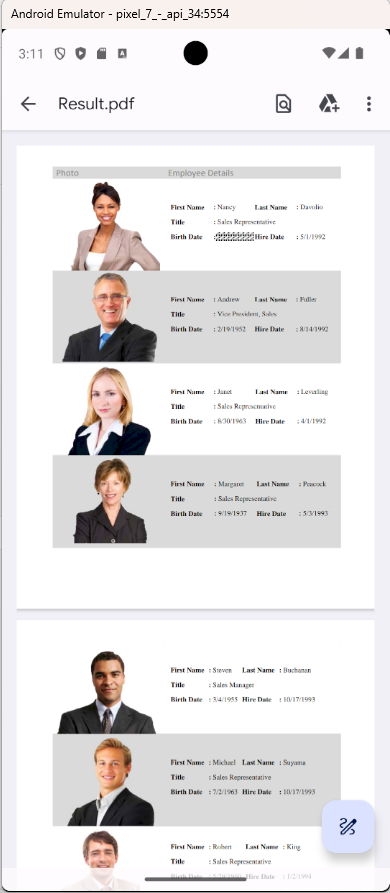
In a real-world scenario, healthcare organizations often redact doctor signatures and hospital stamps before sharing medical reports online.
3. Image-based redaction
If you need to redact sensitive images, such as company logos or handwritten signatures, you can draw a custom image, such as a Redacted stamp, on the redacted area while permanently deleting the original content.
//Create a PDF redaction for the page
PdfRedaction redaction = new PdfRedaction(new RectangleF(63, 57, 182, 157));

//Draw the image on the redacted bounds
PdfImage image = new PdfBitmap("Image.png");
redaction.Appearance.Graphics.DrawImage(image, new RectangleF(0, 0, 182, 157));

//Add a redaction object into the redaction collection of the loaded page
page.AddRedaction(redaction);

//Redact the contents from the PDF document
document.Redact();
Take a look at the following.
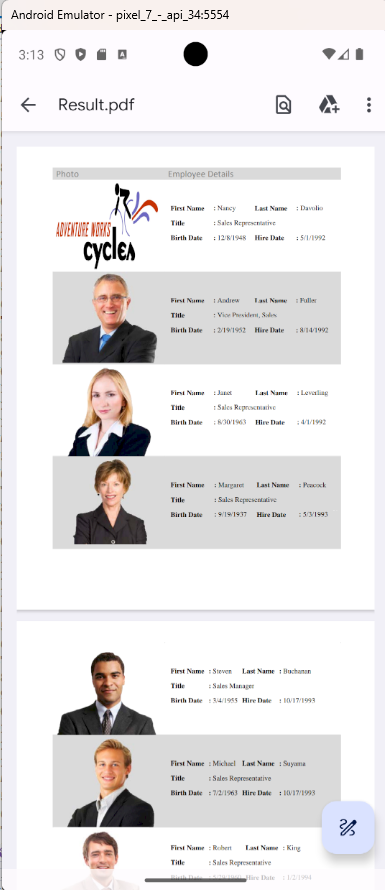
In a real-world use case, the HR department redacts employee photos and company logos before sharing internal reports with external consultants.
4. Annotation-based Redaction
For compliance-driven workflows, Syncfusion’s .NET PDF Library for Android enables teams to mark areas for redaction during the review phase and apply them later. This approach is ideal for a collaborative approval process, ensuring that sensitive data is permanently removed before final publishing.
The following code example demonstrates how to mark content for redaction and then apply it.
//Create a new Redaction annotation.
PdfRedactionAnnotation annot = new PdfRedactionAnnotation();

//Assign the Bounds value
annot.Bounds = new Rectangle(100, 120, 100, 100);

//Assign the InnerColor
annot.InnerColor = Color.Black;

//Assign the Bordercolor
annot.BorderColor = Color.Yellow;

//Assign the Textcolor
annot.TextColor = Color.Blue;

//Assign the font
annot.Font = new PdfStandardFont(PdfFontFamily.Helvetica, 10);

//Assign the OverlayText
annot.OverlayText = "REDACTION";

//Assign the TextAlignment
annot.TextAlignment = PdfTextAlignment.Right;

//Assign the RepeatText
annot.RepeatText = true;
annot.SetAppearance(true);

//Add the annotation to the page.
page.Annotations.Add(annot);

//Redact the contents from the PDF document
document.Redact();
Check out the image shown below.
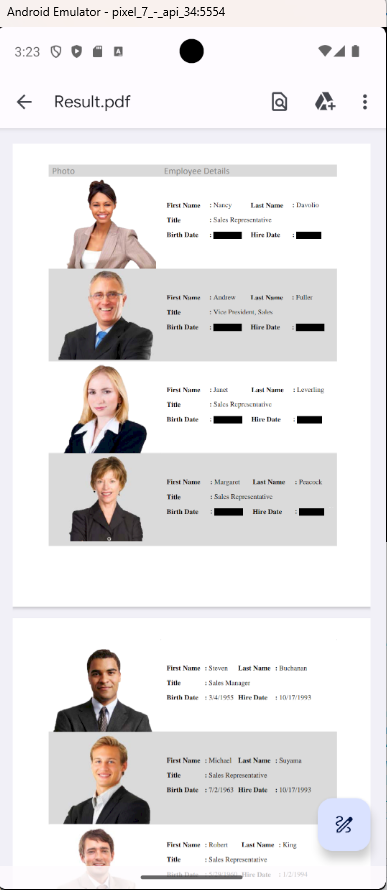
In a real-world use case, financial institutions mark sensitive transaction details for redaction, obtain compliance team approval, and then apply permanent removal.
Advanced PDF redaction customization
Beyond basic PDF redaction techniques, Syncfusion’s .NET PDF Library offers advanced features to control the appearance of the redacted areas and introduces extra methods for handling sensitive content:
Customization options
- Fill color on redacted area: Highlight redacted regions for transparency in compliance workflows.
- Redaction without fill color: Maintain a clean, professional look by removing sensitive content without overlays or filling.
- Customize redaction appearance: Adjust colors, patterns, and overlay text to align with branding or regulatory standards.
Use the following code example to apply a fill color to a redacted area.
//Create a PDF redaction for the page
PdfRedaction redaction = new PdfRedaction(new RectangleF(343, 147, 60, 17));

//Set fill color for the redaction bounds
redaction.FillColor = Color.Red;;

//Add a redaction object into the redaction collection of the loaded page
page.AddRedaction(redaction);

//Redact the contents from the PDF document
document.Redact();
Take a look at the image below.
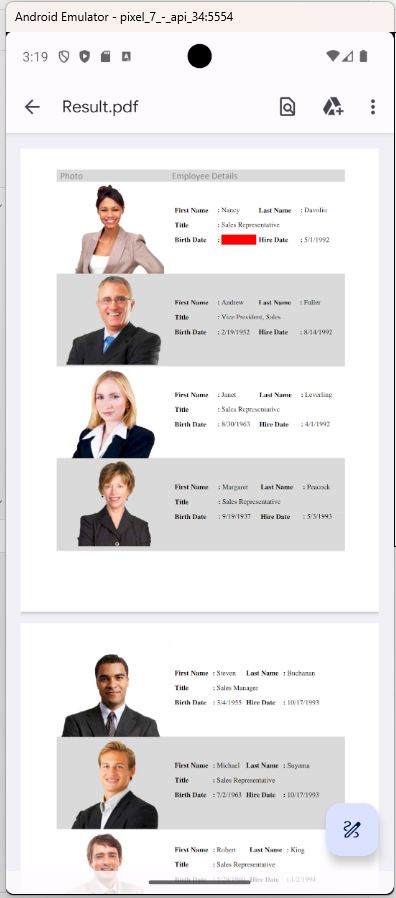
Note: For more details about customizing redaction appearance, refer to the documentation.
Advanced technique: Regex-based redaction
Use regular expressions to automatically find and redact sensitive text, ideal for large documents or automated processes.
Refer to the following code example to implement regex-based redaction.
TextLineCollection collection = new TextLineCollection();
//Extract text from first page.
string extractedText = page.ExtractText(out collection);

foreach (TextLine line in collection.TextLine)
{
    foreach (TextWord word in line.WordCollection)
    {
        //Define regular expression pattern to search for dates in the format MM/DD/YYYY
        string datePattern = @"\b\d{1,2}\/\d{1,2}\/\d{4}\b";

        //Search for dates
        MatchCollection dateMatches = Regex.Matches(word.Text, datePattern);

        //Add redaction if the match is found
        foreach (Match dateMatch in dateMatches)
        {
            string textToFindAndRedact = dateMatch.Value;
            if (textToFindAndRedact == word.Text)
            {
                //Create a redaction object.
                PdfRedaction redaction = new PdfRedaction(word.Bounds, Syncfusion.Drawing.Color.Black);

                //Add a redaction object into the redaction collection of the loaded page.
                page.AddRedaction(redaction);
            }
        }
    }
}

//Redact the contents from the PDF document.
document.Redact();
View the image shown below.
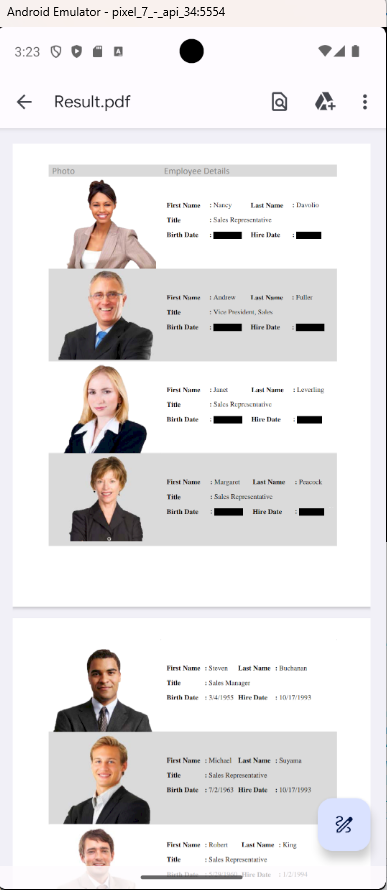
Note: For more details on regex-based PDF redaction, refer to the documentation.
Conclusion
Thank you for reading! By integrating PDF redaction into your app, you can protect user privacy, prevent data leaks, and maintain regulatory compliance.
Choosing Syncfusion’s .NET MAUI PDF Redaction Library for Android apps offers:
- Secure redaction: Permanently remove sensitive or hidden data from PDFs.
- Flexible options: Text-based, pattern-based, image-based, and annotation-based redaction to fit diverse workflows.
- Cross-platform ready: Built for .NET MAUI, ensuring seamless integration with modern Android apps.
- Compliance support: Helps meet major data protection standards like GDPR and HIPAA.
Ready to protect sensitive information? Start using the Syncfusion .NET PDF Library and explore the documentation to securely redact confidential data from your PDFs.
If you’re a Syncfusion user, you can download the setup from the license and downloads page. Otherwise, you can download a free 30-day trial.
You can also contact us through our support forum, support portal, or feedback portal for queries. We are always happy to assist you!



 No spam, just valuable updates.