
 Ramkumar Ravy
TL;DR: Explores ways to open and load DOCX files directly in the browser with React, including local uploads, loading from remote URLs, and cloud storage sources using a backend conversion to a browser-friendly format.
In today’s fast-paced digital landscape, the demand for browser-based document handling has surged across industries. From legal firms reviewing contracts to educators grading assignments, and HR teams managing onboarding forms, users expect seamless access to Word documents without the need for desktop applications.
Traditional document workflows often rely on installed software, limiting accessibility and collaboration. But modern web applications are shifting toward in-browser document editing, enabling users to view, edit, and collaborate on Word (DOCX) files directly within their browsers, anytime, anywhere.
Here are the key benefits of browser-based document handling.
- Platform independence: Users can access and edit documents from any device—Windows, macOS, Linux, or mobile—without worrying about software compatibility.
- No installation required: Eliminates the need for Microsoft Word or other desktop applications, reducing friction for end users.
- Real-time collaboration: Enables multiple users to view and edit documents simultaneously, with features like comments and track changes.
- Improved accessibility: Ideal for remote teams, educational platforms, and customer-facing portals where ease of access is critical.
This shift has created a growing need for robust, developer-friendly tools that can handle Word documents efficiently in web environments. That’s where the Syncfusion® React DOCX Editor steps in. It gives you a comprehensive solution that meets these demands with precision and flexibility.
Whether you’re looking to open Word documents in the browser, load DOCX files in React, or integrate cloud-based document workflows, Syncfusion Document Editor offers a rich, Word-like experience with powerful features, seamless integration, and enterprise-grade performance.
Syncfusion React Document Editor: A complete document editing solution
Syncfusion DOCX Editor is a full-featured, Word-like editor built for the web. It supports DOCX, RTF, and TXT formats and offers a rich set of features, including:
- Text formatting, tables, images, hyperlinks.
- Track changes and comments.
- Export to PDF and Word.
- Seamless integration with React, Angular, and Vue.
- Multiple document loading options: Local files, remote URLs, and Azure Blob Storage.
Whether you’re building a document-heavy enterprise app or a lightweight form editor, Syncfusion provides the tools to deliver a professional-grade experience, right in the browser.
Getting started with Syncfusion Document Editor in React
1. Set up your React project
Start by creating a new React application. You can use Create React App (CRA) or Vite, but CRA remains the most straightforward option for beginners.
npx create-react-app syncfusion-doc-editor
cd syncfusion-doc-editor
This command scaffolds a fully configured React project with support for JSX, bundling, and development tooling. After navigating into the folder, your project structure is ready for installing Syncfusion components.
2. Install Syncfusion Document Editor
Next, download the Syncfusion Document Editor package.
npm install @syncfusion/ej2-react-documenteditorThis package includes everything required to render and interact with DOCX files in the browser. You don’t need additional Syncfusion packages for core editing functionality; the component automatically loads dependent UI features as required.
3. Import required styles
Syncfusion UI components rely on their own CSS for consistent rendering. Without these styles, elements like toolbars, dialogs, lists, and buttons may not appear correctly.
Import the following to your index.css to ensure proper styling:
@import '../node_modules/@syncfusion/ej2-base/styles/material.css';
@import '../node_modules/@syncfusion/ej2-buttons/styles/material.css';
@import '../node_modules/@syncfusion/ej2-inputs/styles/material.css';
@import '../node_modules/@syncfusion/ej2-popups/styles/material.css';
@import '../node_modules/@syncfusion/ej2-lists/styles/material.css';
@import '../node_modules/@syncfusion/ej2-navigations/styles/material.css';
@import '../node_modules/@syncfusion/ej2-splitbuttons/styles/material.css';
@import '../node_modules/@syncfusion/ej2-dropdowns/styles/material.css';
@import "../node_modules/@syncfusion/ej2-documenteditor/styles/material.css";
4. Create and embed the Document Editor component
Next, create a new file named DocumentEditor.js inside the src folder, and initialize the Syncfusion Document Editor using the code example below:
import React, { useRef, useEffect } from 'react';
import { DocumentEditorContainerComponent, Toolbar } from '@syncfusion/ej2-react-documenteditor';

DocumentEditorContainerComponent.Inject(Toolbar);

function DocumentEditor() {
    const containerRef = useRef(null);

    const defaultSFDT = `{
        "sections": [
            {
                "blocks": [
                    {
                        "inlines": [
                            {
                                "text": "Welcome to Syncfusion Document Editor!",
                                "characterFormat": {
                                    "bold": true,
                                    "fontSize": 14
                                }
                            }
                        ]
                    }
                ]
            }
        ]
    }`;

    useEffect(() => {
        if (containerRef.current) {
            containerRef.current.documentEditor.open(defaultSFDT); // Empty document
            containerRef.current.documentEditor.documentName = 'New Document';
            containerRef.current.documentEditor.focusIn();
        }
    }, []);

    return (
        <DocumentEditorContainerComponent
            ref={containerRef}
            id="container"
            height="100vh"
            enableToolbar={true}
        />
    );
}

export default DocumentEditor;
The above code injects the toolbar for a Word-like editing experience and loads a default SFDT document when the component mounts.
Note: Syncfusion uses SFDT (Syncfusion Document Text) format for efficient document rendering and editing. In the example above, we load a document using SFDT to initialize the editor with simple content.
5. Use the component in App.js
After creating the editor component, you need to embed it in your App.js file, as shown in the code example:
import React from 'react';
import DocumentEditor from './DocumentEditor';

function App() {
    return (
        <div className='App'>
            <DocumentEditor />
        </div>
    );
}

export default App;
This step ensures the editor becomes the primary view of your React application. You can later wrap it in routing or layout components if needed.
6. Run your application
Start the application using the start script.
npm start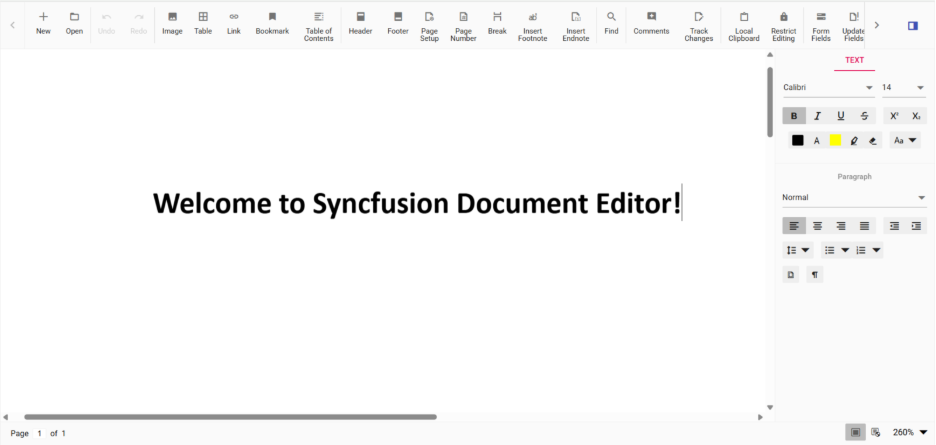
Open and load a DOCX file in React: Flexible options with Syncfusion
Loading DOCX documents in a React application is a common requirement for developers building document-centric workflows. Syncfusion React Document Editor makes this process seamless, offering multiple ways to load DOCX files with minimal setup and maximum flexibility.
Opening a Word document using the built-in toolbar
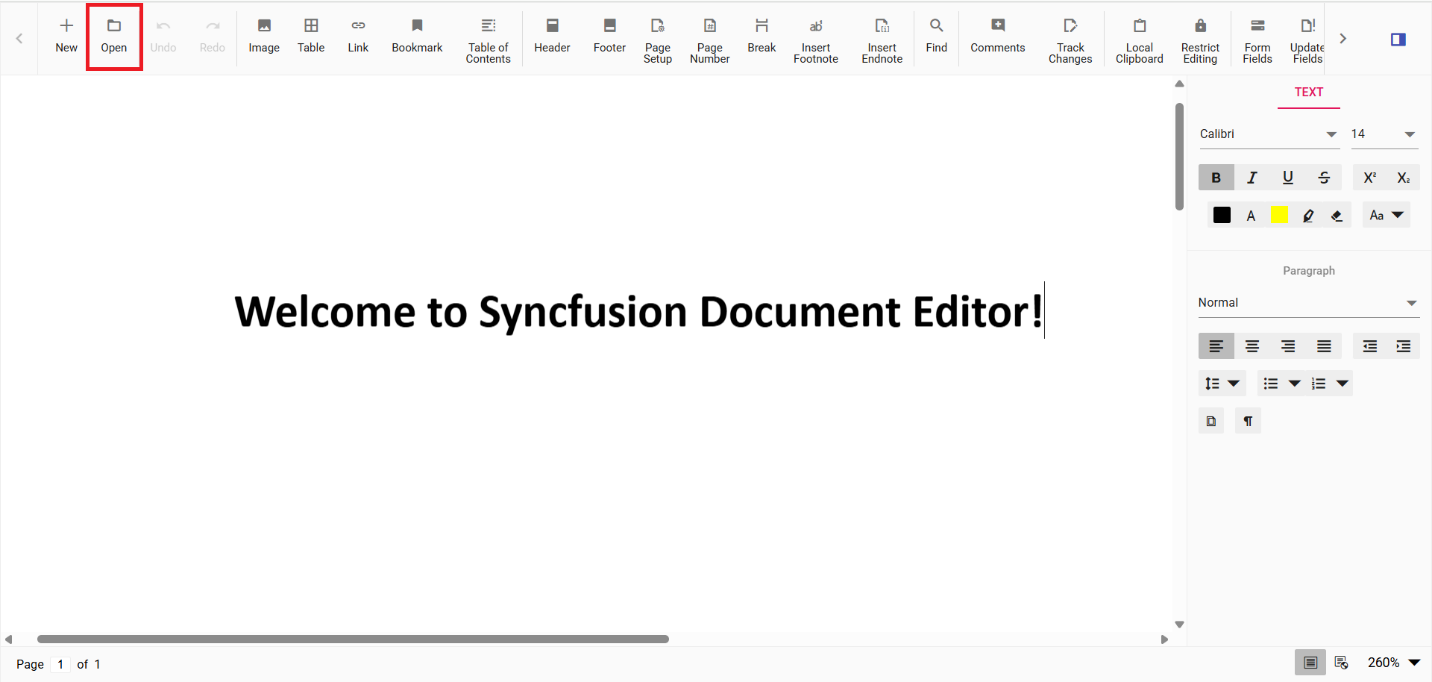
Syncfusion Document Editor supports local file uploads via its built-in toolbar. To enable this feature, use the DocumentEditorContainerComponent with the enableToolbar={true} property, as shown in the earlier example.
The toolbar includes an Open button that allows users to upload DOCX or SFDT files directly from their local machine. This method is especially useful for non-technical users who prefer a graphical interface over drag-and-drop zones or manual file input fields.
Document loading methods supported by Syncfusion
Syncfusion supports multiple document loading strategies, making it ideal for both simple and enterprise-grade applications.
1. Loading DOCX from a Remote URL
To load a document from a remote URL, use a server-side API that fetches the DOCX file, converts it to the SFDT format, and sends it back to the client.
Here’s how you can do it in client-side code:
function onClick() {
    const http = new XMLHttpRequest();
    const content = { fileUrl: "https://example.com/sample.docx" };
    const baseurl = "/api/documenteditor/ImportFileURL";
    http.open("POST", baseurl, true);
    http.setRequestHeader("Content-Type", "application/json;charset=UTF-8");
    http.onreadystatechange = () => {
        if (http.readyState === 4 && (http.status === 200 || http.status === 304)) {
            container.documentEditor.open(http.responseText);
        }
    };
    http.send(JSON.stringify(content));
}
Below is the code you need in the Server-Side (.NET Core):
[AcceptVerbs("Post")]
public string ImportFileURL([FromBody] FileUrlInfo param)
{
    using (WebClient client = new WebClient())
    {
        MemoryStream stream = new MemoryStream(client.DownloadData(param.fileUrl));
        WordDocument document = WordDocument.Load(stream, FormatType.Docx);
        string json = Newtonsoft.Json.JsonConvert.SerializeObject(document);
        document.Dispose();
        stream.Dispose();
        return json;
    }
}
public class FileUrlInfo
{
    public string fileUrl { get; set; }
}
Note: You must host your own API to convert DOCX to SFDT. For additional information, refer to our official documentation.
2. Loading DOCX from an Azure Blob Storage
Syncfusion supports loading documents directly from Azure Blob Storage using a custom backend.
Here’s how you can do it in Client-side (React) code:
function loadFromAzure() {
    fetch('http://localhost:62870/api/documenteditor/LoadFromAzure', {
        method: 'POST',
        headers: { 'Content-Type': 'application/json;charset=UTF-8' },
        body: JSON.stringify({ documentName: 'Getting Started.docx' })
    })
    .then(response => response.json())
    .then(json => {
        container.documentEditor.open(JSON.stringify(json));
    })
    .catch(error => console.error(error));
}
Below is the code you need in the Server-side (.NET Core):
[HttpPost("LoadFromAzure")]
public IActionResult LoadFromAzure([FromBody] Dictionary<string, string> jsonObject)</string, string>
{
    var stream = new MemoryStream();
    string fileName = jsonObject["documentName"];
    var blobServiceClient = new BlobServiceClient(_storageConnectionString);
    var containerClient = blobServiceClient.GetBlobContainerClient(_storageContainerName);
    var blockBlobClient = containerClient.GetBlockBlobClient(fileName);
    blockBlobClient.DownloadTo(stream);
    WordDocument document = WordDocument.Load(stream, FormatType.Docx);
    string json = JsonConvert.SerializeObject(document);
    document.Dispose();
    stream.Close();
    return json;
}
Note: Make sure to install the Azure.Storage.Blobs NuGet package and configure your Azure credentials in appsettings.json. For additional information, please refer to the documentation.
Other cloud storage options
Syncfusion Document Editor also supports loading documents from various cloud platforms, making it ideal for enterprise-grade applications that store documents remotely. The other cloud storage options are;
Each of these integrations requires a backend service to fetch the DOCX file, convert it to the SFDT format, and load it into the editor.
Why Syncfusion React Document Editor is the best choice
When integrating Word document functionality into a React application, developers need more than just basic rendering; they need performance, flexibility, and a rich feature set. Syncfusion React Document Editor delivers all of this and more, making it the go-to solution for modern web applications.
Syncfusion Document Editor replicates the familiar Microsoft Word interface, allowing users to format text, insert tables, images, hyperlinks, and more, all within the browser.
Here are some key advantages:
- High performance: Optimized for speed and scalability, the editor handles large documents with ease, ensuring smooth performance even in enterprise-grade applications.
- Real-time collaboration: Features like track changes, comments, and read-only modes enable collaborative workflows, ideal for teams working on shared documents.
- Customizable UI: Developers can tailor the toolbar, enable or disable features, and integrate the editor seamlessly into their app’s design and logic.
- Export and Save options: Export documents to PDF, Word (DOCX), or save them as SFDT format for server-side processing or future editing.
- Flexible integration: Supports multiple document loading methods:
- Local file upload
- Remote URLs
- Azure Blob Storage
- Other cloud storage platforms like AWS S3, DropBox, Google Drive, and more.
- Developer-friendly features
- React-first architecture with easy-to-use components
- Comprehensive documentation and live demos
- Commercial-grade support from Syncfusion’s team Frequent updates with new features and improvements
The common use cases include,
- Document review: Legal teams reviewing contracts and agreements.
- Form filling: HR departments managing onboarding forms and policy acknowledgments.
- Content editing: Marketing teams collaborating on proposals and reports.
- Education: Teachers and students working on assignments and feedback.
Frequently Asked Questions
Yes. The pattern is the same, but each provider requires its own backend handler to fetch the file from different resources securely and convert to SFDT.Do I need separate integrations for Azure, AWS S3, Google Drive, OneDrive, Dropbox, Box, etc.?
Yes. Syncfusion provides a Next.js quick start for the React Document Editor to create app, install the package, import CSS, and add the component.Can I integrate the React Document Editor in Next.js Application?
Yes. Syncfusion provides ready to deploy docker image for document web APIs and sample Web API projects that includes the mandatory APIs (open, paste with formatting, restrict editing, spell checking, and save). You can pull and deploy it or customize it from their GitHub projects.Does Syncfusion provide a ready-to-deploy server or Docker image to speed up backend setup?
SFDT (Syncfusion Document Text) is a JSON-based format optimized for in-browser rendering, editing, and incremental updates. DOCX is a zipped XML file that’s heavier to parse on the client. Converting DOCX → SFDT on the server gives better performance and a simpler client-side model.Why does the editor use SFDT internally instead of loading DOCX directly in React?
You can run the editor fully client side for basic editing, but a server is required for operations like opening formats other than SFDT, paste with formatting, restrict editing, spell check, and saving to formats other than SFDT/DOCX.When is a server required and when do we need a pure client only setup?
Conclusion
Thank you for reading! As web applications continue to evolve, the ability to handle Word documents directly in the browser has become a critical feature across industries. Syncfusion React DOCX Editor stands out as a powerful, flexible, and developer-friendly solution that brings a full-fledged Word-like experience to modern web apps.
If you’re looking to streamline document handling in your React application, Syncfusion React Document Editor is not just a choice—it’s the solution.
If you’re a Syncfusion user, you can download the setup from the license and downloads page. Otherwise, you can download a free 30-day trial.
You can also contact us through our support forum, support portal, or feedback portal for queries. We are always happy to assist you!



 No spam, just valuable updates.