
 Anand Panchamoorthi
TL;DR: In the 2025 Volume 4 release, Syncfusion introduced a JavaScript PDF Library that helps developers create, edit, and sign PDFs in JavaScript for fully client-side applications. The library enables you to generate, read, modify, and manage PDF documents programmatically, entirely in the browser without a backend. It supports JavaScript, TypeScript, Angular, React, Vue, ASP.NET Core, and ASP.NET MVC, allowing you to build PDF reports with formatted text, images, shapes, hyperlinks, lists, and digital signatures.
Generating or editing PDFs in web applications often requires server-side tools or PDF microservices, increasing infrastructure cost and security risk. As part of the 2025 Volume 4 release, Syncfusion® introduced a JavaScript PDF Library that lets you create, edit, and sign PDFs entirely in the browser, no server required.
From text and images to annotations, forms, and digital signatures, this library delivers everything you need to build fast, flexible, and secure PDF workflows for modern JavaScript and TypeScript applications. The beta version of the Syncfusion JavaScript PDF package is available on npm.js, making it easy to get started right away. Embed a fast, secure PDF viewer into your JavaScript apps with Syncfusion JavaScript PDF Viewer SDK. Display documents accurately, navigate pages, search text, annotate PDFs, fill forms, and handle large files with smooth performance.
Why choose a fully client-side JavaScript PDF library?
- No backend servers or PDF microservices to maintain
- Sensitive documents never leave the user’s browser
- Faster PDF generation for SaaS and internal applications
- Ideal for finance, healthcare, compliance, and enterprise web apps
Creating PDFs with multiple page settings
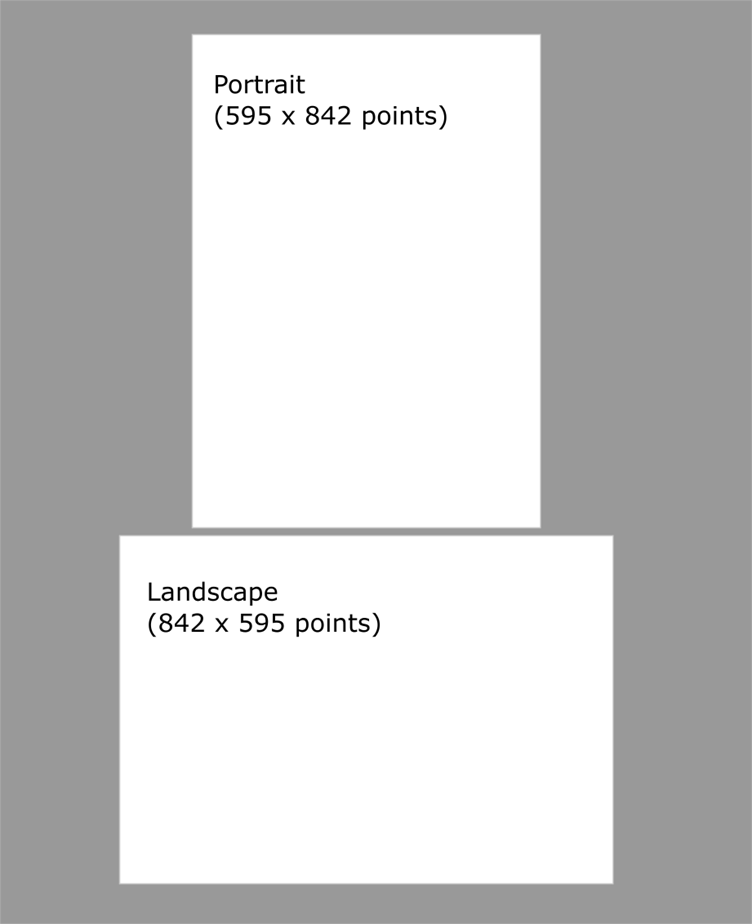
The JavaScript PDF library supports both the popular PDF 1.7 (ISO 32000-1) standard and the latest PDF 2.0 (ISO 32000-2). You can create PDF files containing sections with various page settings, including different margins, page sizes, orientations, and even rotations.
This flexibility is essential for generating professional documents such as reports, presentations, and technical manuals. You can easily create multi-page PDF documents from scratch using the Syncfusion JavaScript PDF Library. Choose from standard or custom page sizes and configure page orientation as needed.
Note: For more information, refer to Pages in the JavaScript PDF Library.
Adding text, shapes, and images in PDFs
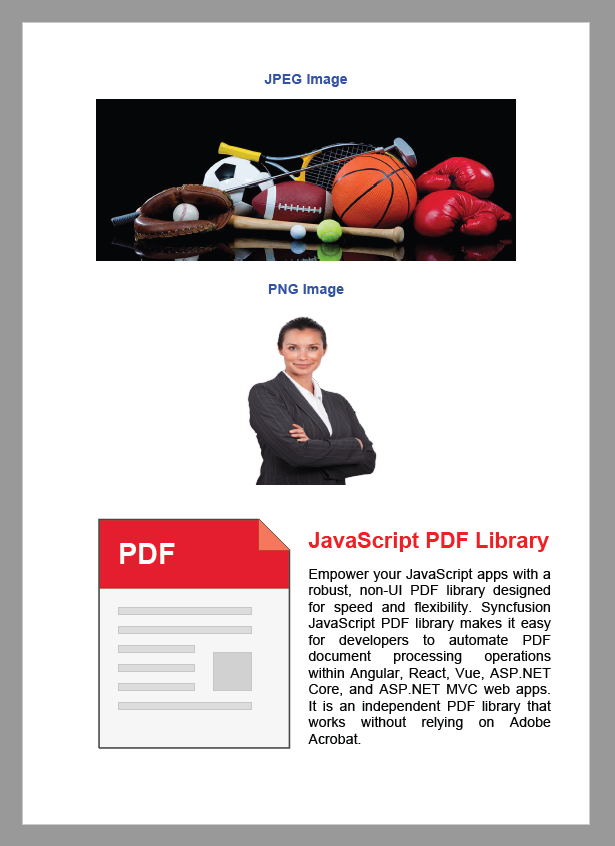
Beyond static layouts, the library enables you to programmatically draw text, shapes, and images, allowing you to build dynamic, data-rich, and branded documents such as invoices, certificates, dashboards, charts, and marketing one-pagers.
You can draw text, shapes, and images on a PDF using the Syncfusion JavaScript PDF Library. Refer to the Sample for drawing these elements on a PDF page.
Note: Explore the guides for Text in JavaScript PDF Library, Shapes in JavaScript PDF Library, and Images in JavaScript PDF Library.
Unicode and Right-to-Left (RTL) text support
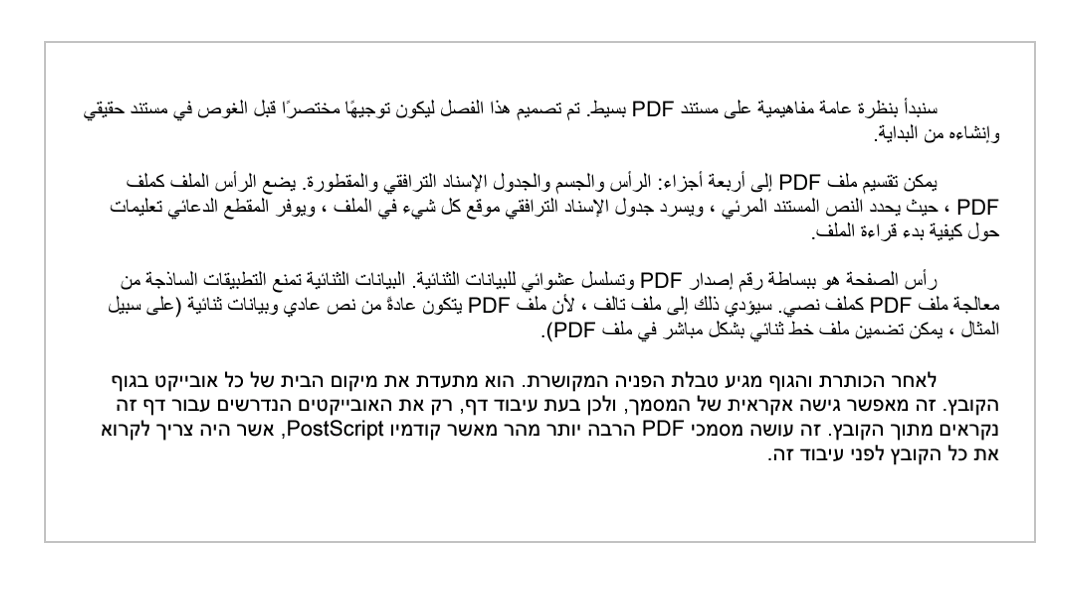
To support global applications, the library offers robust Unicode and RTL text rendering using TrueType font (.ttf).
In right-to-left scripts, text begins on the right side of the page and flows leftward. Common RTL languages include Arabic, Persian, and Urdu. The library also supports bidirectional text, where RTL and LTR content coexist, such as Arabic sentences containing English words or numbers. For example, Arabic text flows right-to-left, while numerals remain left-to-right.
The Syncfusion JavaScript PDF Library supports the following font types:
- Standard PDF font (14 built-in fonts)
- Chinese, Japanese, and Korean (CJK) fonts
Note: To dive deeper, see RTL Text in JavaScript PDF Library documentation.
Bullets and lists
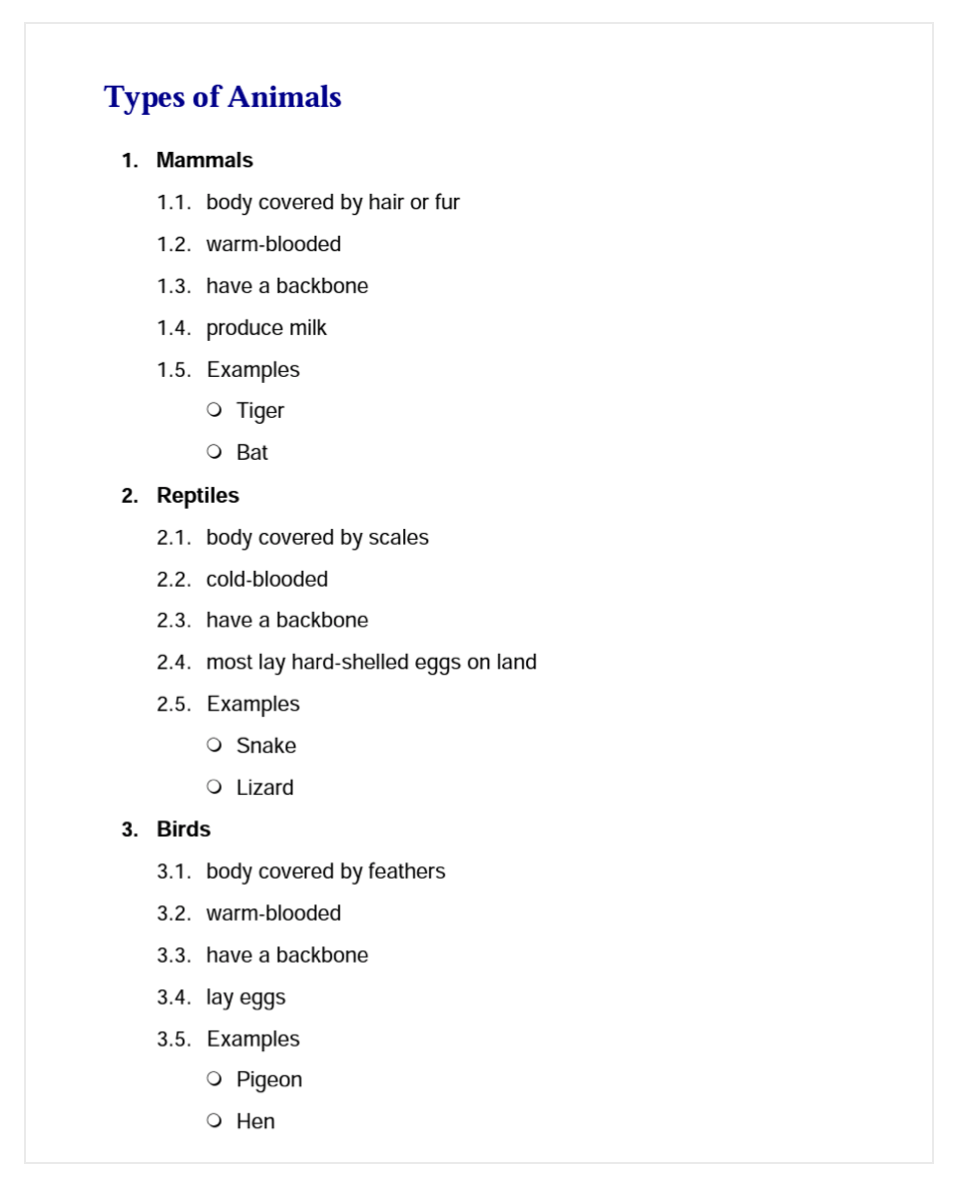
Creating structured content is simple with built-in support for ordered and unordered lists. Ordered lists can display numbers, alphabetic characters, or Roman numerals, while unordered lists provide multiple built-in bullet styles.
This makes it easy to format instructional content, summaries, and reports within your PDF documents.
Bookmarks
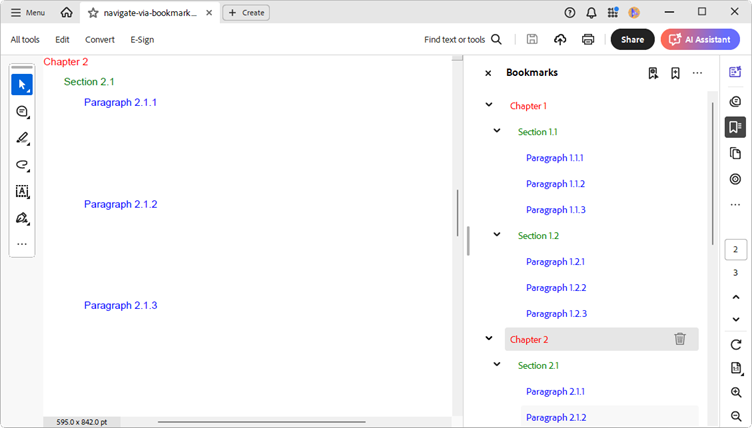
For better navigation in large or complex documents, the JavaScript PDF Library supports hierarchical bookmarks. These bookmarks provide users with an organized structure and allow them to jump directly to specific pages, chapters, or sections.
As a result, readers can quickly find relevant information, significantly improving the user experience.
Note: For more details, refer to the Bookmarks in JavaScript PDF Library documentation.
Annotations
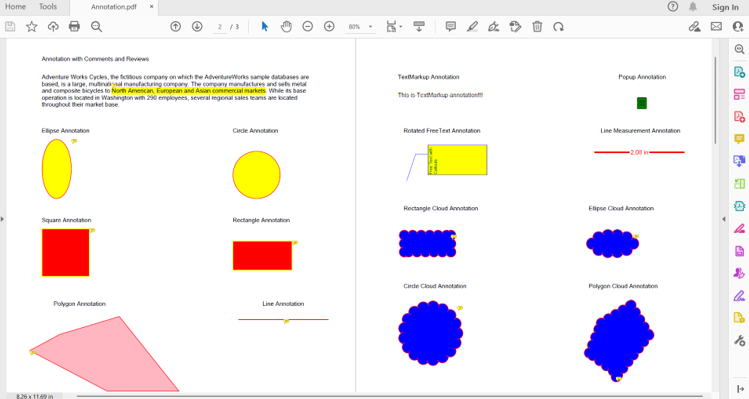
Annotations play a critical role in document review and collaboration workflows. The Syncfusion JavaScript PDF Library supports a comprehensive set of annotation types, including highlights, underlines, strikethroughs, stamps, comments, free text, ink annotations, and shapes.
Using the JavaScript PDF Library, you can programmatically add rich, interactive annotations to PDF documents directly in the browser. These annotations enable reviewers to highlight important content, add contextual comments, and visually mark up documents, helping teams collaborate more effectively and communicate feedback with greater clarity.
For a complete overview of the annotation model and detailed guidance on when and how to use each annotation type, refer to the Annotation in JavaScript PDF Library documentation.
Form filling
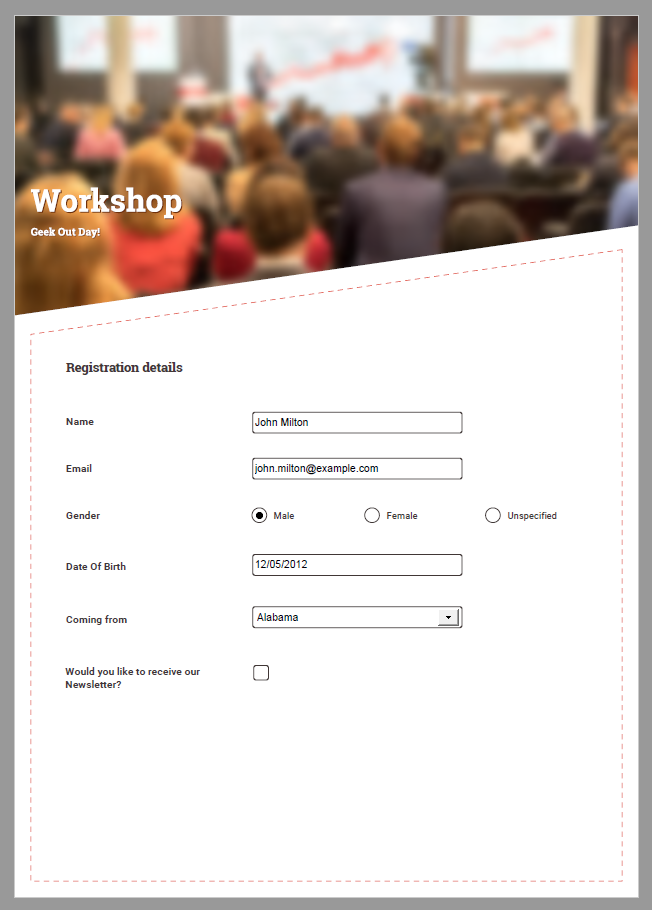
Interactive forms, commonly known as AcroForms, consist of various fields used to collect and manage user input within PDF documents. With the Syncfusion JavaScript PDF Library, you can programmatically create, modify, populate, and flatten form fields entirely in the browser.
The provided sample demonstrates how to dynamically fill existing form fields and, optionally, flatten them to make the content non‑editable. This approach is ideal for workflows such as data collection, form submission, and final document generation.
For a complete overview of supported form field types and advanced customization options, refer to the Form Fields in the JavaScript PDF Library documentation.
Hyperlinks
Hyperlinks add interactivity to PDF documents by allowing users to navigate seamlessly to other sections within the document, external web pages, or external files. By incorporating links, you can make PDFs easier to explore and significantly improve the end‑user experience.
Web Navigation
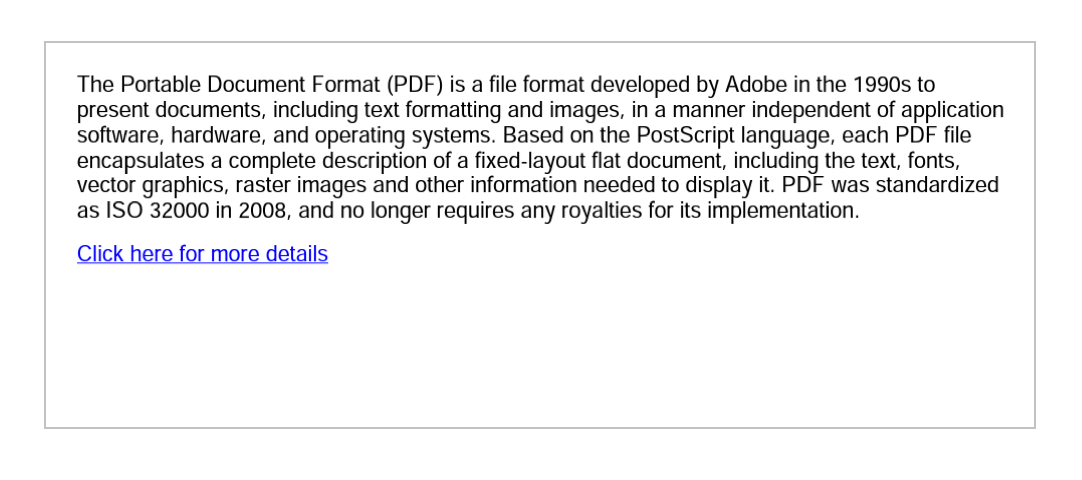
You can add hyperlinks to a PDF to enable navigation to external web pages, allowing users to open URLs directly from the document. The Syncfusion JavaScript PDF Library provides full control over link creation and customization, including supported hyperlink styles and behaviors.
For detailed instructions on adding and configuring web links, refer to the Web navigation in JavaScript PDF Library documentation.
Internal document navigation
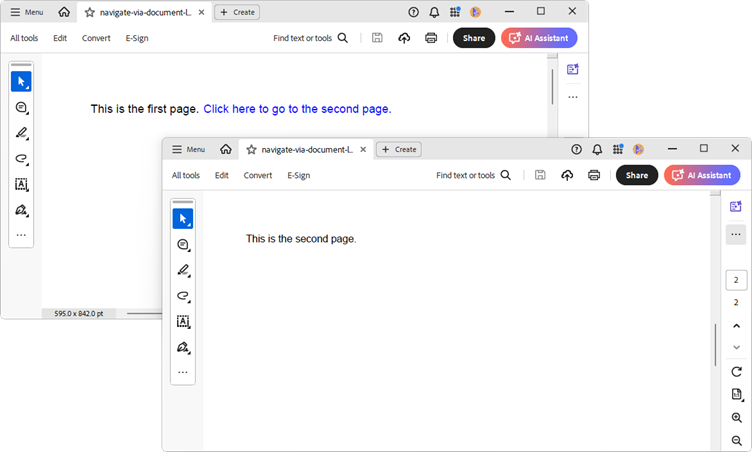
Interactive internal links are essential for navigating between different pages or sections within a PDF, especially in long or structured documents. With the Syncfusion JavaScript PDF Library, you can easily add document link annotations that allow users to jump to specific locations with a single click.
This functionality is particularly useful for reports, manuals, and reference documents where quick navigation improves usability.
For more details, see the Internal document navigation in JavaScript PDF Library documentation.
External document navigation
External document navigation enables users to open and navigate to another PDF or an external file directly from the current document. This feature is useful for linking related documents, attachments, or supplementary resources.
For implementation details and supported options, refer to the External document navigation in JavaScript PDF Library documentation.
Digital signing PDFs in JavaScript
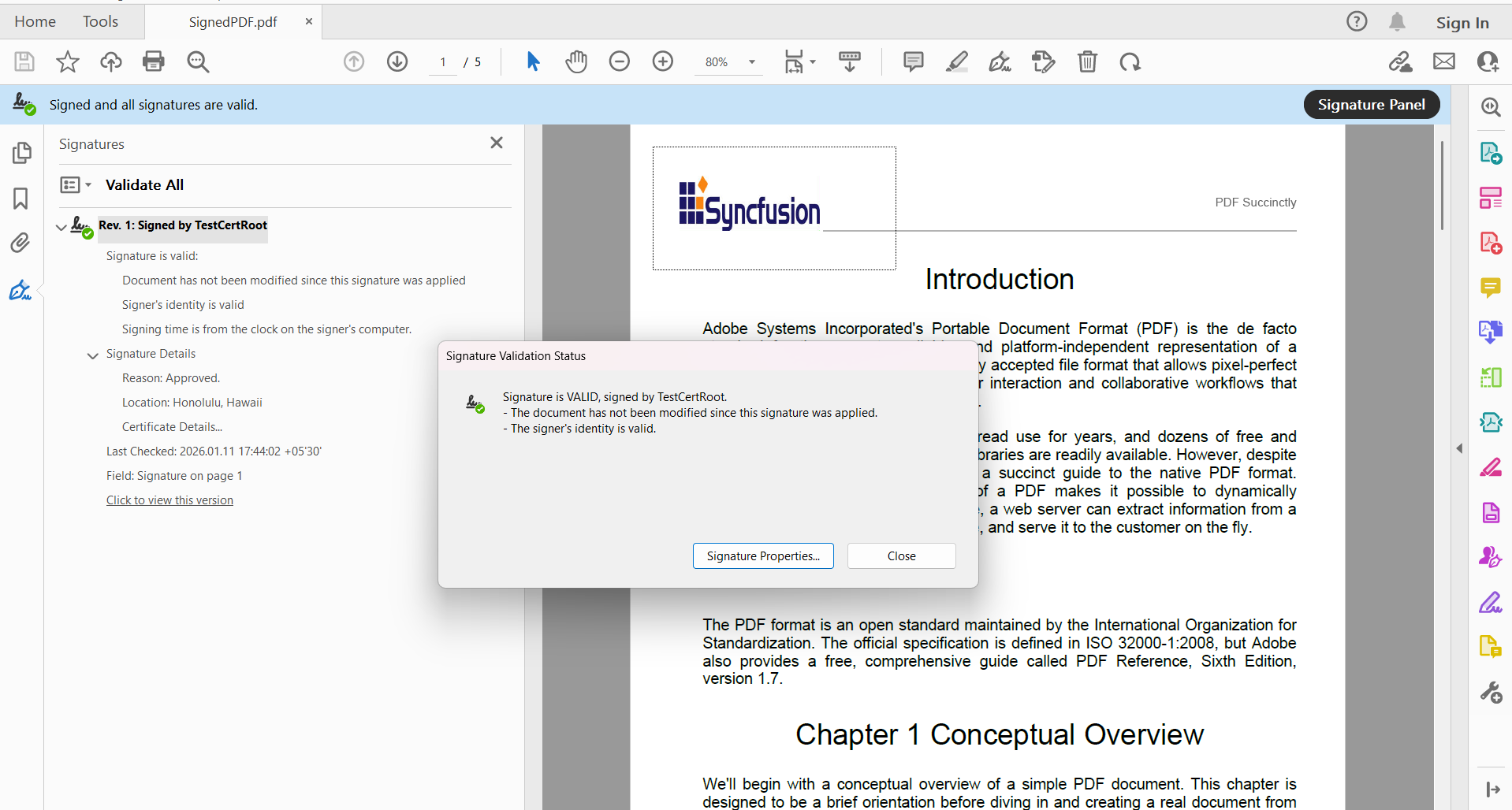
The PDF Library supports creating, validating, and managing digital signatures in PDF documents, ensuring authenticity, integrity, and security. You can add digital signatures using X.509 certificates (.pfx files with private keys) and customize appearance, digest algorithms, and cryptography standards.
The included sample demonstrates how to digitally sign a PDF document programmatically using the Syncfusion JavaScript PDF Library.
Note: Refer to the Digital Signature in JavaScript PDF Library.
Extracting text and images from PDFs
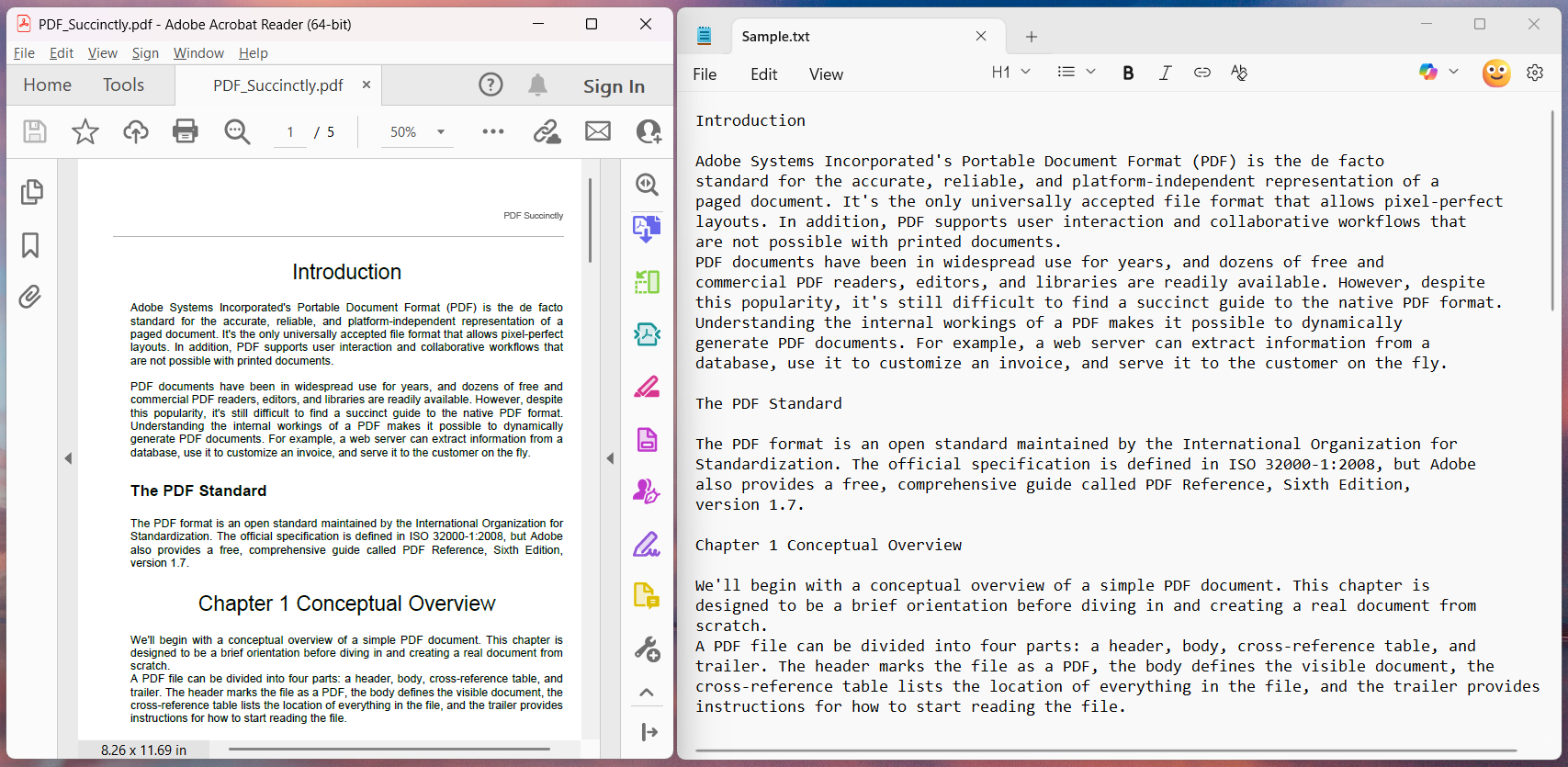
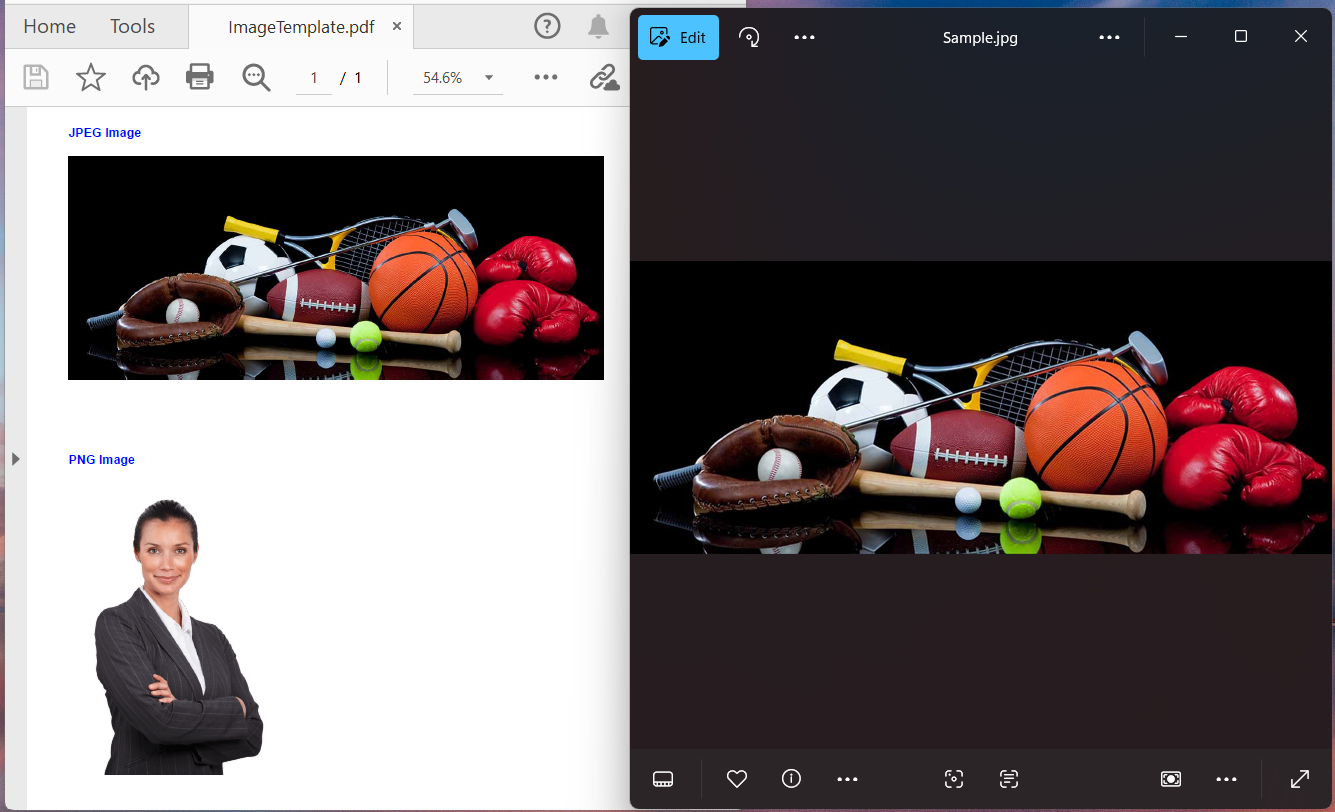
The Syncfusion JavaScript PDF Library provides efficient tools for extracting text and images from PDF documents. You can retrieve text for indexing, searching, or analytics and extract embedded images directly in the browser.
Note: Refer to Text Extraction in JavaScript PDF Library and Image Extraction in TypeScript PDF Library.
Redaction
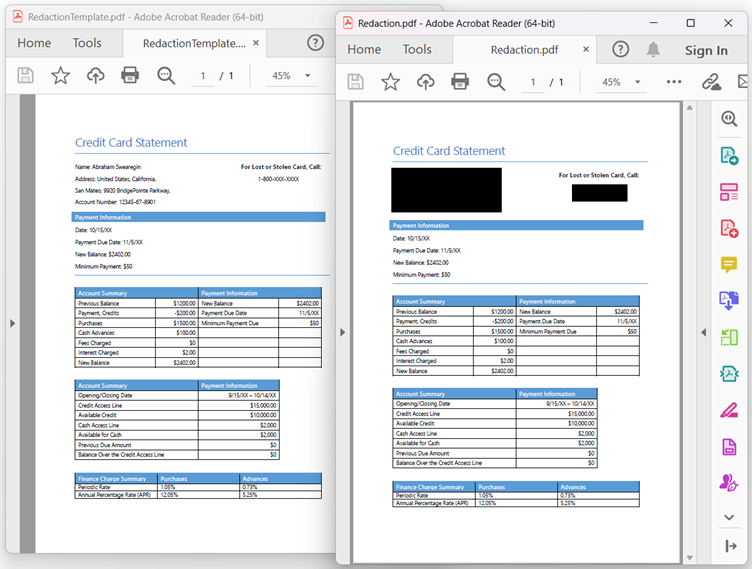
Redaction allows you to permanently remove sensitive or confidential information from PDF documents while preserving the overall structure and integrity of the file. This is a critical feature for meeting privacy and compliance requirements, including regulations such as GDPR.
Using the Syncfusion JavaScript PDF Library, you can programmatically redact content to ensure protected information cannot be recovered or viewed.
For more details, refer to Redaction in JavaScript PDF Library documentation.
Create or generate PDF files in TypeScript
This section demonstrates how to create a simple yet visually rich PDF document using the Syncfusion JavaScript PDF Library in a TypeScript application. This example demonstrates how to render text, shapes, images, and hyperlinks, and then export the result as a downloadable PDF file directly from the browser.
Installing the Syncfusion TypeScript PDF package
All Syncfusion Essential JS 2 packages are published in the npmjs.com registry, making them easy to install and manage.
To install the Syncfusion JavaScript PDF library, run the following command:
npm install @syncfusion/ej2-pdf --saveOptional: Image and data extraction Support
If your application requires text and image extraction features, install the additional data extraction package:
npm install @syncfusion/ej2-pdf-data-extract --saveAfter installation, place an ej2-pdf-lib folder alongside your built static assets (for example, in the public or dist directory). This folder must contain all required .js and .wasm files.
Next, ensure that your server is configured to serve .wasm files with the following MIME type:
Content-Type: application/wasmNote: These additional steps are required only for text and image extraction features. They are not necessary for basic PDF creation.
Dependencies
The following dependencies are required to use the TypeScript PDF Library in your application:
|-- @syncfusion/ej2-compression

|-- @syncfusion/ej2-base
Create a PDF document using TypeScript
The following steps walk you through creating and downloading a PDF document from a TypeScript application.
Step 1: Add a Button in index.html
Begin by adding a button to your index.html file. This button acts as the trigger that initiates PDF generation using the Syncfusion TypeScript PDF API when clicked from the browser.
<html>
    <head>
        <title> Button onclick Example </title>
    </head>
    <body>
        <button id =”normalButton”> Create PDF document </button>
    </body>
</html>
Step 2: Import the required PDF namespaces
Next, open the index.ts file and import the necessary classes from the Syncfusion PDF package. These namespaces provide APIs for programmatically creating, designing, and exporting a PDF document.
import {
    PdfDocument,
    PdfPageSettings,
    PdfMargins,
    PdfPage,
    PdfGraphics,
    PdfBrush,
    PdfPen,
    PdfFont,
    PdfFontFamily,
    PdfFontStyle,
    PdfTextWebLinkAnnotation
} from '@syncfusion/ej2-pdf';
Step 3: Handle Button click and generate the PDF
Now, attach a click event handler to the button. When the user clicks Create PDF document, a new PDF file is created, populated with graphics, text, shapes, and annotations, and then downloaded to the browser.
Add the following code inside your button click handler:
button.element.onclick = (): void => {
    // Create a new PDF document
    let pdf: PdfDocument = new PdfDocument();
    let settings: PdfPageSettings = new PdfPageSettings({
        margins: new PdfMargins(0)
    });

    // Add a new page
    let page: PdfPage = pdf.addPage(settings);
    let g: PdfGraphics = page.graphics;

    // PDF brushes with different colors
    let gray: PdfBrush   = new PdfBrush({ r: 64,  g: 64,  b: 64  });
    let black: PdfBrush  = new PdfBrush({ r: 0,   g: 0,   b: 0   });
    let white: PdfBrush  = new PdfBrush({ r: 255, g: 255, b: 255 });
    let violet: PdfBrush = new PdfBrush({ r: 255, g: 153, b: 255 });

    // Pens for lines
    let redPen: PdfPen    = new PdfPen({ r: 255, g: 0,   b: 0   }, 2);
    let violetPen: PdfPen = new PdfPen({ r: 148, g: 0,   b: 211 }, 2);
    let greenPen: PdfPen  = new PdfPen({ r: 0,   g: 128, b: 0   }, 2);
    let bluePen: PdfPen   = new PdfPen({ r: 0,   g: 0,   b: 255 }, 2);

    // Draw rectangles and text
    g.drawRectangle(
        { x: 0, y: 0, width: g.clientSize.width, height: g.clientSize.height },
        gray
    );
    g.drawRectangle(
        { x: 0, y: 0, width: g.clientSize.width, height: 130 },
        black
    );
    g.drawRectangle(
        { x: 0, y: 400, width: g.clientSize.width, height: g.clientSize.height - 450 },
        white
    );

    let headerFont: PdfFont = pdf.embedFont(
        PdfFontFamily.timesRoman,
        35,
        PdfFontStyle.regular
    );
    g.drawString(
        'Enterprise',
        headerFont,
        { x: 10, y: 20, width: 150, height: 200 },
        violet
    );

    g.drawRectangle(
        { x: 10, y: 63, width: 140, height: 35 },
        violet
    );

    let subHeadingFont: PdfFont = pdf.embedFont(
        PdfFontFamily.timesRoman,
        16,
        PdfFontStyle.regular
    );
    g.drawString(
        'Reporting Solutions',
        subHeadingFont,
        { x: 15, y: 70, width: 130, height: 200 },
        black
    );

    let yPos: number = 30;

    // Header points
    let bodyFont: PdfFont = pdf.embedFont(
        PdfFontFamily.timesRoman,
        11,
        PdfFontStyle.regular
    );
    let bulletHeaderFont: PdfFont = pdf.embedFont(
        PdfFontFamily.zapfDingbats,
        10,
        PdfFontStyle.regular
    );

    yPos = drawHeaderPoint(
        g,
        'Develop cloud-ready reporting applications in as little as 20% of the time.',
        yPos,
        bulletHeaderFont,
        bodyFont,
        white,
        violet
    );
    yPos = drawHeaderPoint(
        g,
        'Proven, reliable platform thousands of users over the past 10 years.',
        yPos,
        bulletHeaderFont,
        bodyFont,
        white,
        violet
    );
    yPos = drawHeaderPoint(
        g,
        'Microsoft Excel, Word, Adobe PDF, RDL display and editing.',
        yPos,
        bulletHeaderFont,
        bodyFont,
        white,
        violet
    );
    yPos = drawHeaderPoint(
        g,
        'Why start from scratch? Rely on our dependable solution frameworks',
        yPos,
        bulletHeaderFont,
        bodyFont,
        white,
        violet
    );

    // Body content
    yPos += 105;

    let bulletBodyFont: PdfFont = pdf.embedFont(
        PdfFontFamily.zapfDingbats,
        16,
        PdfFontStyle.regular
    );
    let bodyContentFont: PdfFont = pdf.embedFont(
        PdfFontFamily.timesRoman,
        17,
        PdfFontStyle.regular
    );

    yPos = drawBodyContent(g, 'Deployment-ready framework tailored to your needs.', yPos, bulletBodyFont, bodyContentFont, white, violet);
    yPos = drawBodyContent(g, 'Our architects and developers have years of reporting experience.', yPos, bulletBodyFont, bodyContentFont, white, violet);
    yPos = drawBodyContent(g, 'Solutions available for web, desktop, and mobile applications.', yPos, bulletBodyFont, bodyContentFont, white, violet);
    yPos = drawBodyContent(g, 'Backed by our end-to-end product maintenance infrastructure.', yPos, bulletBodyFont, bodyContentFont, white, violet);
    yPos = drawBodyContent(g, 'The quickest path from concept to delivery.', yPos, bulletBodyFont, bodyContentFont, white, violet);

    let headerBulletsXposition: number = 45;
    yPos = 350;

    // Section 1: The Experts
    let titleFont: PdfFont = pdf.embedFont(
        PdfFontFamily.timesRoman,
        20,
        PdfFontStyle.regular
    );

    g.drawLine(
        redPen,
        { x: headerBulletsXposition, y: yPos + 92 },
        { x: headerBulletsXposition, y: yPos + 145 }
    );
    g.drawString(
        'The Experts',
        titleFont,
        { x: headerBulletsXposition + 10, y: yPos + 90, width: 150, height: 200 },
        black
    );

    g.drawLine(
        violetPen,
        { x: headerBulletsXposition + 280, y: yPos + 92 },
        { x: headerBulletsXposition + 280, y: yPos + 145 }
    );
    g.drawString(
        'Accurate Estimates',
        titleFont,
        { x: headerBulletsXposition + 290, y: yPos + 90, width: 300, height: 200 },
        black
    );

    g.drawString(
        'A substantial number of .NET reporting applications use our frameworks',
        bodyFont,
        { x: headerBulletsXposition + 10, y: yPos + 115, width: 250, height: 200 },
        black
    );
    g.drawString(
        'Given our expertise, you can expect estimates to be accurate.',
        bodyFont,
        { x: headerBulletsXposition + 290, y: yPos + 115, width: 250, height: 200 },
        black
    );

    // Section 2: Product Licensing
    yPos += 200;

    g.drawLine(
        greenPen,
        { x: headerBulletsXposition, y: yPos + 32 },
        { x: headerBulletsXposition, y: yPos + 85 }
    );
    g.drawString(
        'Product Licensing',
        titleFont,
        { x: headerBulletsXposition + 10, y: yPos + 30, width: 250, height: 200 },
        black
    );

    g.drawLine(
        bluePen,
        { x: headerBulletsXposition + 280, y: yPos + 32 },
        { x: headerBulletsXposition + 280, y: yPos + 85 }
    );
    g.drawString(
        'About Syncfusion',
        titleFont,
        { x: headerBulletsXposition + 290, y: yPos + 30, width: 250, height: 200 },
        black
    );

    g.drawString(
        'Solution packages can be combined with product licensing for great cost savings.',
        bodyFont,
        { x: headerBulletsXposition + 10, y: yPos + 55, width: 250, height: 200 },
        black
    );
    g.drawString(
        'Syncfusion has more than 7,000 customers including large financial institutions and Fortune 100 companies.',
        bodyFont,
        { x: headerBulletsXposition + 290, y: yPos + 55, width: 250, height: 200 },
        black
    );

    // Footer
    let footerFont: PdfFont = pdf.embedFont(
        PdfFontFamily.timesRoman,
        8,
        PdfFontStyle.italic
    );
    g.drawString(
        'All trademarks mentioned belong to their owners.',
        footerFont,
        { x: 10, y: g.clientSize.height - 30, width: 250, height: 200 },
        white
    );

    let annot: PdfTextWebLinkAnnotation = new PdfTextWebLinkAnnotation(
        { x: g.clientSize.width - 100, y: g.clientSize.height - 30, width: 70, height: 10 },
        { r: 255, g: 255, b: 255 },
        null,
        0,
        { text: 'www.syncfusion.com', font: footerFont, url: 'http://www.syncfusion.com' }
    );
    page.annotations.add(annot);

    // Save the PDF
    pdf.save('Sample.pdf');
    pdf.destroy();
};
Step 4: Add helper methods for header and body content
Create reusable helper functions to draw bullet-style header points and body text consistently throughout the document.
function drawHeaderPoint(
    g: PdfGraphics,
    text: string,
    y: number,
    bulletFont: PdfFont,
    bodyFont: PdfFont,
    white: PdfBrush,
    violet: PdfBrush
) {
    g.drawString('l', bulletFont, { x: 220, y: y, width: 100, height: 100 }, violet);
    g.drawString(text, bodyFont, { x: 240, y: y, width: 400, height: 100 }, white);
    return y + 15; // Move down for next header
}

function drawBodyContent(
    g: PdfGraphics,
    text: string,
    y: number,
    bulletBodyFont: PdfFont,
    bodyContentFont: PdfFont,
    white: PdfBrush,
    violet: PdfBrush
) {
    g.drawString('3', bulletBodyFont, { x: 35, y: y, width: 100, height: 100 }, violet);
    g.drawString(text, bodyContentFont, { x: 60, y: y, width: 500, height: 100 }, white);
    return y + 25; // Move down for next body content
}
Step 5: Run the Application
The quickstart project is already configured to compile and run in the browser. Use the following command to launch the application:
npm startWhen you click the Create PDF document button, a fully formatted PDF file named Sample.pdf is generated and downloaded automatically.
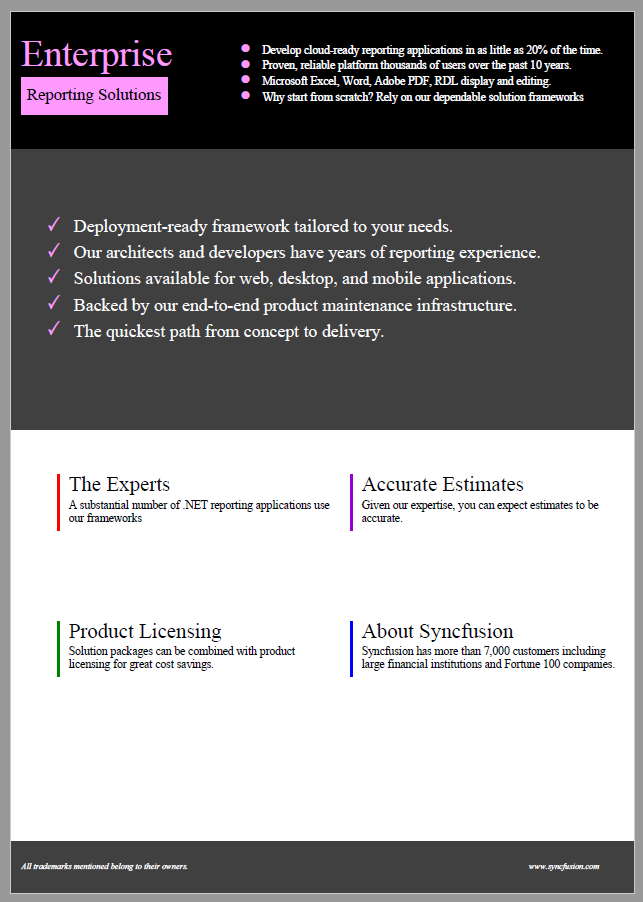
The sample shows how to create a PDF document programmatically using Syncfusion JavaScript PDF library.
Frequently Asked Questions
Can I use EJ2 PDF and Pure React together?
Yes! As EJ2 PDF is non-UI JavaScript library, We can easily integrate it with Pure React components. Check the documentation for more insights. https://help.syncfusion.com/document-processing/pdf/pdf-library/javascript/create-pdf-document-react.
Is EJ2 PDF compactable with fully client based web application?
Yes! EJ2 PDF is native JavaScript library, no servers required to use it. It is fully compactable with fully client based web applications.
What platforms and frameworks are supported by EJ2 PDF?
EJ2 PDF supports a wide range of platforms and frameworks, including TypeScript, JavaScript, Angular, React, Vue, ASP.NET Core, and ASP.NET MVC, enabling seamless integration across both front‑end and server‑side applications.
What can I do with the EJ2 PDF library?
EJ2 PDF allows you to programmatically read, create, and manipulate PDF documents, including adding content, modifying existing PDFs, and applying advanced PDF features within your applications.
Do I need Adobe Acrobat to use EJ2 PDF?
No. EJ2 PDF operates independently of Adobe Acrobat, enabling complete PDF processing through code without relying on any external PDF tools.
Is EJ2 PDF suitable for advanced PDF workflows?
Yes. EJ2 PDF provides advanced PDF capabilities that can be seamlessly embedded into applications, making it suitable for enterprise‑grade and complex PDF processing workflows.
Conclusion
In this blog, we explored how to create, edit, sign, and manage PDFs entirely in the browser using the JavaScript PDF Library introduced in the 2025 Volume 4 release. By following the provided examples, you can build secure, high-performance, client-side PDF workflows without relying on backend services.
We encourage you to explore the library’s documentation to discover more features that can help you create and manipulate PDFs effectively.
To learn more, explore the complete list of enhancements in the 2025 Volume 4 Release Notes and What’s New pages.
If you’re already a Syncfusion user, download the latest version of Essential Studio from the license and downloads page. New users can start with a 30-day free trial to explore all our components and capabilities.
If you have any questions or need assistance, feel free to contact us through our support forum, support portal, or feedback portal. We are always here to assist you!




 No spam, just valuable updates.