
 Praveenkumar
TL;DR: Curious about seamless HTML to PDF in C#? Discover how Syncfusion’s library simplifies the process, from installation to advanced features like form conversion and PDF encryption. It converts the exact content of HTML to PDF, preserving all graphics, text, fonts, links, and the layout, using the Chromium Blink engine.
Are you a C# developer looking to convert HTML content into professional PDF documents effortlessly? This guide will show you how to master HTML to PDF conversion in C# using the versatile Syncfusion HTML to PDF converter library. Say goodbye to layout issues and complex code, as this tool allows you to convert entire webpages or just a portion, making your PDF look exactly like the original HTML.
While going through a webpage, you may want to download the HTML content as a PDF file for further reference. In that case, you need a versatile converter to convert the exact content of HTML to PDF.
Using the Syncfusion HTML-to-PDF converter library, you can convert an entire webpage into a PDF file, or just convert a portion of the page with C#. Your PDF will look exactly like the webpage you have converted. The HTML-to-PDF converter preserves all graphics, text, fonts, links, and the layout of the original HTML document or webpage. It uses the Chromium Blink engine to convert HTML pages to PDF documents. It can be easily integrated into any application with five simple lines of code.
In this blog post, we are going to cover in detail how to convert HTML to PDF in C#, provided by the Syncfusion HTML-to-PDF converter.
Contents:
- Getting started with App creation
- Convert HTML string to PDF
- Convert HTML File to PDF
- Convert existing URL to PDF
- Convert ASP.NET Core Web Razor page to PDF
- Convert ASP.NET Core MVC view to PDF
- Convert HTML forms to fillable PDF Forms
- Convert a part of a webpage to PDF
- Convert authenticated webpage to PDF
- Convert HTML to PDF files in Cloud Platforms
- HTTP GET and POST
- HTML-to-PDF conversion with proxy
- Virtual viewport
- Additional delay
- Add headers and footers
- Automatically create a table of contents
- Automatically create bookmark hierarchy
- Encrypt PDF with a password
Getting started with app creation
To begin converting HTML to PDF in a C# application, follow these simple steps to set up your .NET project and install the required library using Visual Studio or the command line via NuGet:
Step 1: Create a new .NET Core Console application
Open Visual Studio and start a new project by selecting .NET Core console application.
Step 2: Install the HTML-to-PDF conversion library
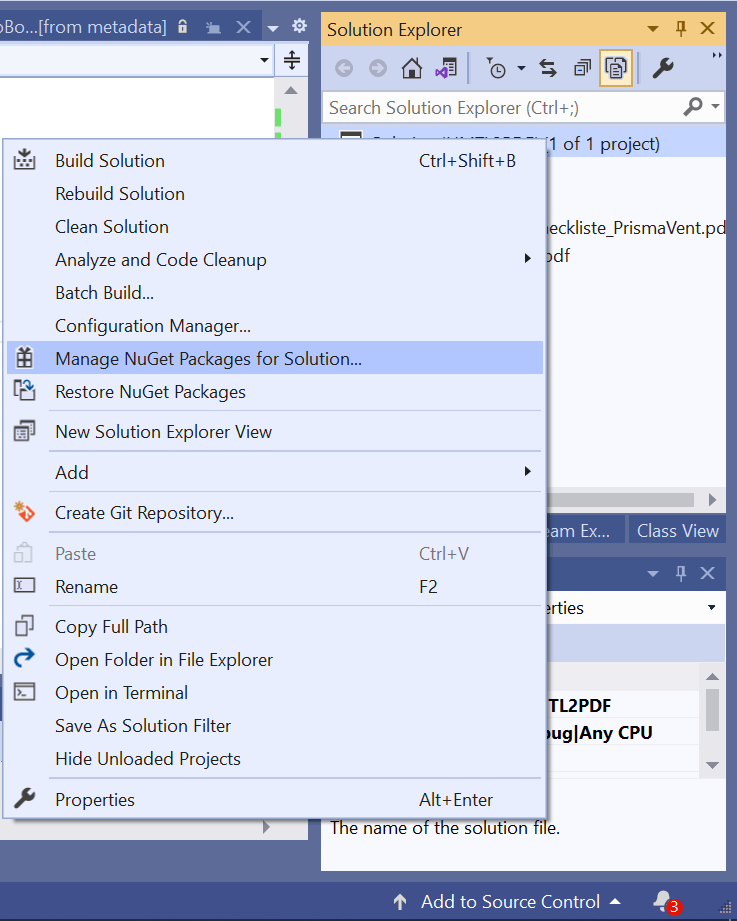
In the Solution Explorer, right-click on your project and choose Manage NuGet Packages. Refer to the following screenshot.
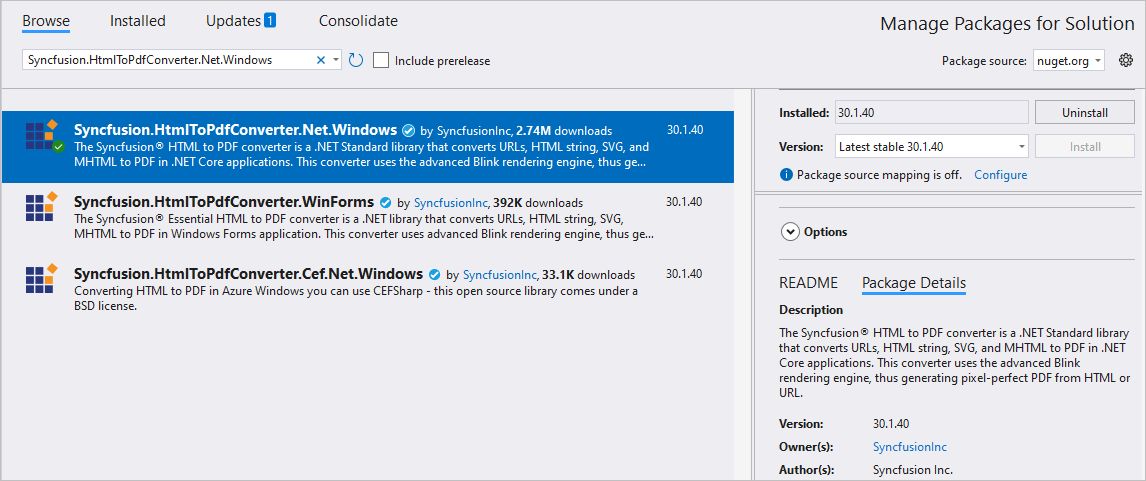
Step 3: Search and install the Syncfusion HTML-to-PDF converter
- For Windows, install: Syncfusion.HtmlToPdfConverter.Net.Windows.
- For Linux install: Syncfusion.HtmlToPdfConverter.Net.Linux.
- For MacOS, install: Syncfusion.HtmlToPdfConverter.Net.Mac.
You can also install the package via the NuGet Package Manager Console using the appropriate command for your platform.
Note: For more details about NuGet packages for converting HTML to PDF using the Syncfusion HTML to PDF library, refer to the official documentation.
Convert HTML string to PDF
Once you’ve set up your project and installed the Syncfusion HTML-to-PDF converter, you can easily convert an HTML string into a PDF document using just a few lines of C# code.
//Initialize HTML to PDF converter with Blink rendering engine
HtmlToPdfConverter htmlConverter = new HtmlToPdfConverter();

//Convert HTML File to PDF
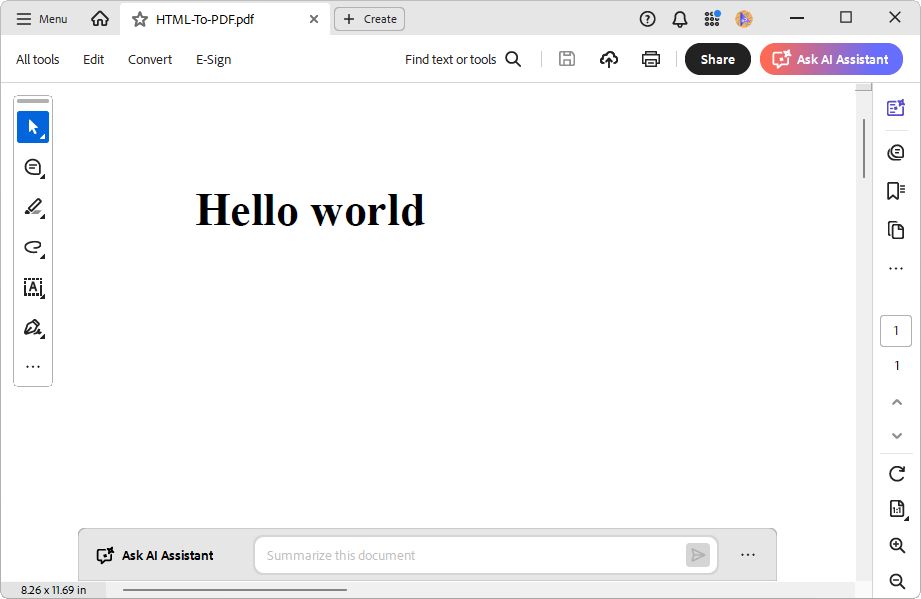
PdfDocument document = htmlConverter.Convert("<h1>Hello world</h1>", "");

//Save and closes the PDF document
document.Save(fileStream);
document.Close(true);
By executing this example, you will get a PDF document like in the following image.

Convert HTML file to PDF
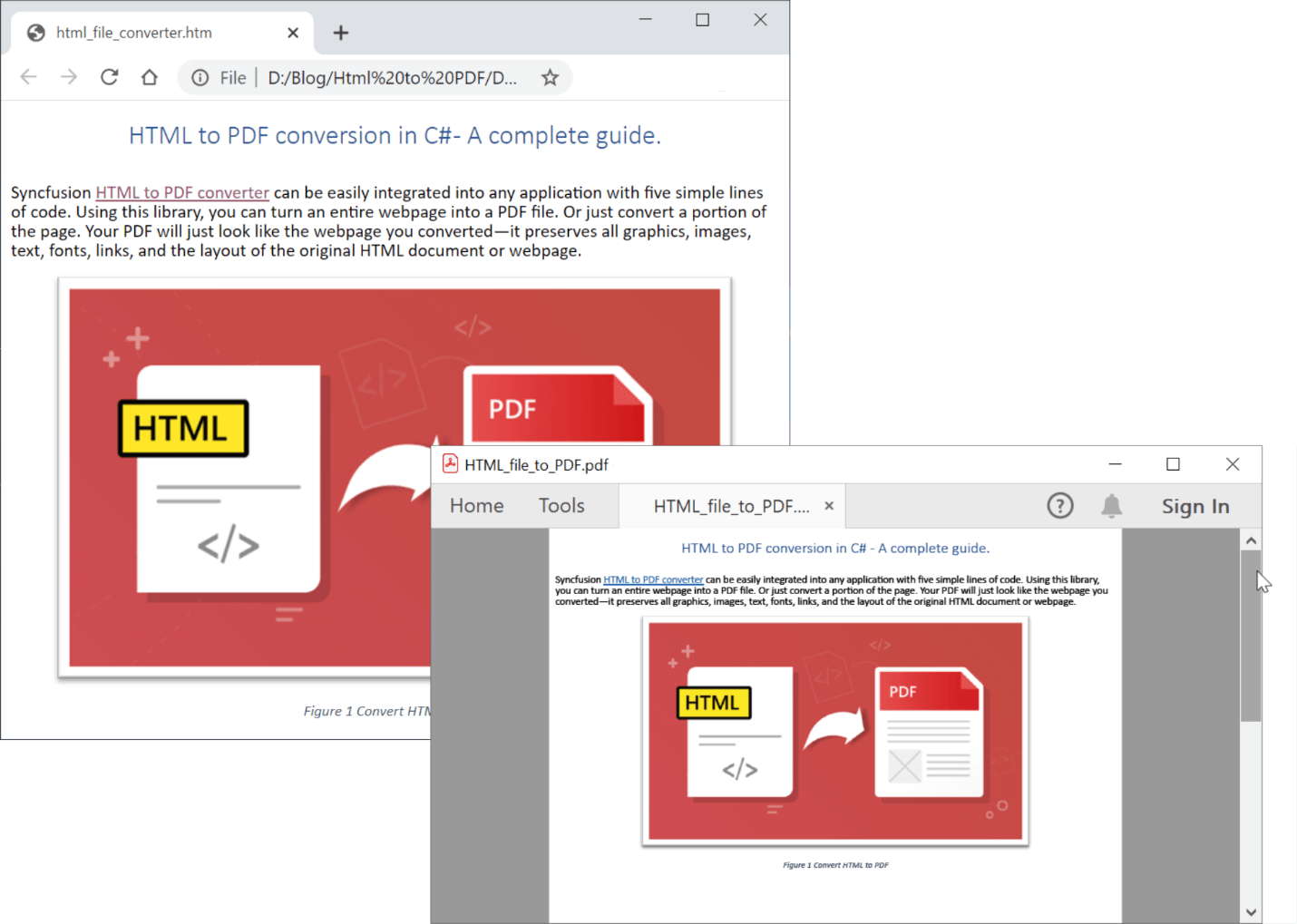
You can easily convert HTML files with images, CSS styles, forms, hyperlinks, and JavaScript to a high-quality PDF document using the Syncfusion HTML-to-PDF converter in C#.
Refer to the following code example to convert a local HTML file to PDF.
//Initialize HTML to PDF converter with Blink rendering engine
HtmlToPdfConverter htmlConverter = new HtmlToPdfConverter();

//Convert HTML File URL to PDF
PdfDocument document = htmlConverter.Convert(Path.GetFullPath("../../../../../Data/html file converter html"));

//Save and closes the PDF document
document.Save("HTML_file_to_PDF.pdf");
document.Close(true);
By executing this example, you will get a PDF document like in the following image.
Convert URL to PDF
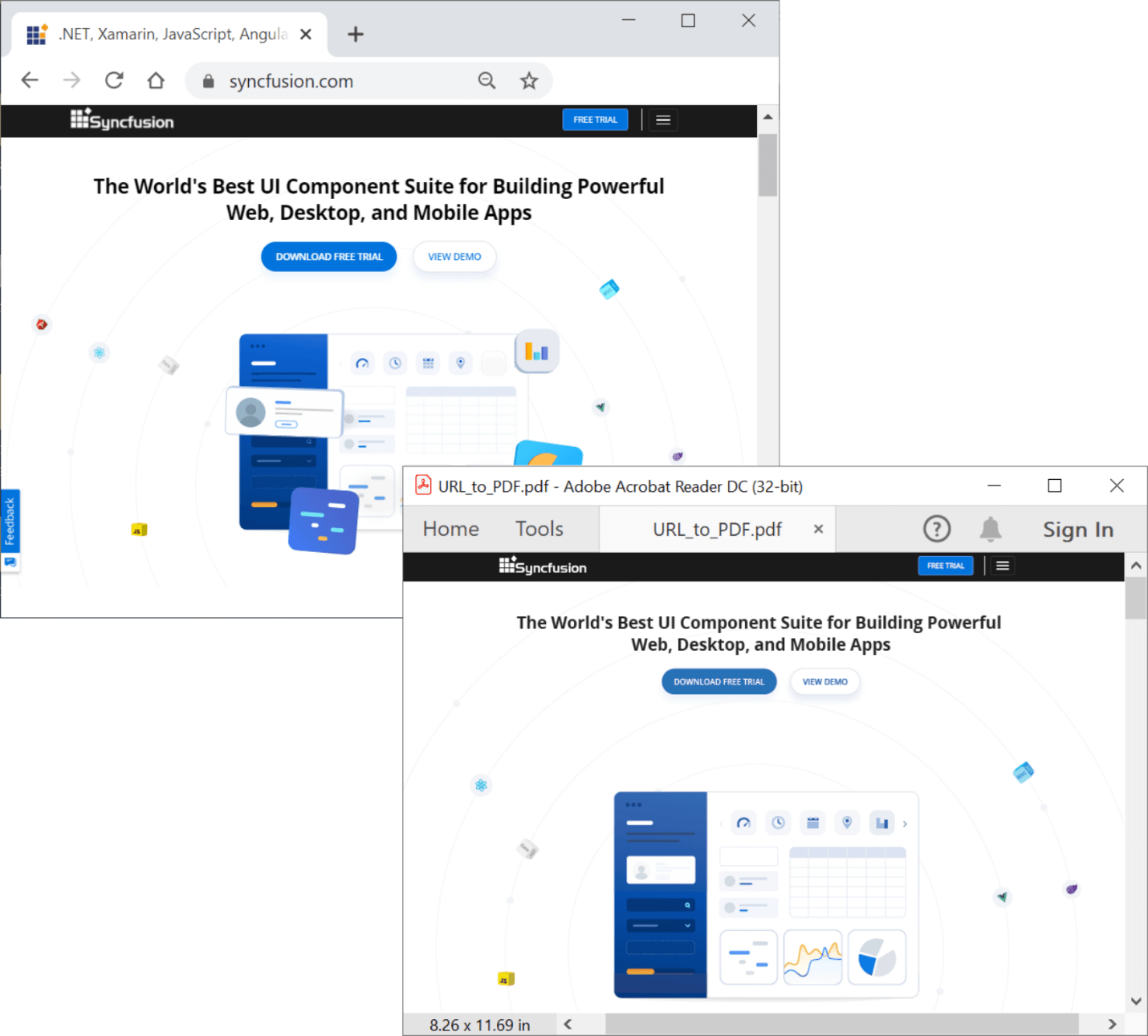
You can easily convert a URL to a well-formatted PDF document using the Syncfusion HTML-to-PDF converter in C#. Using this option, you can archive web content, generate reports, or share styled web pages offline.
Refer to the following code example to convert an existing URL to PDF.
//Initialize HTML to PDF converter with Blink rendering engine
HtmlToPdfConverter htmlConverter = new HtmlToPdfConverter();

BlinkConverterSettings blinkConverterSettings = new BlinkConverterSettings();
blinkConverterSettings.ViewPortSize = new Syncfusion.Drawing.Size(1440, 0;

//Assign Blink converter settings to HTML converter
htmlConverter.ConverterSettings = blinkConverterSettings;

//Convert existing URL to PDF
PdfDocument document = htmlConverter.Convert("https://www.syncfusion.com/"):

//Save and closes the PDF document
document.Save("URL_to_PDF.pdf");
document.Close(true);
By executing this example, you will get a PDF document like in the following image.
Convert ASP.NET Core web Razor page to PDF
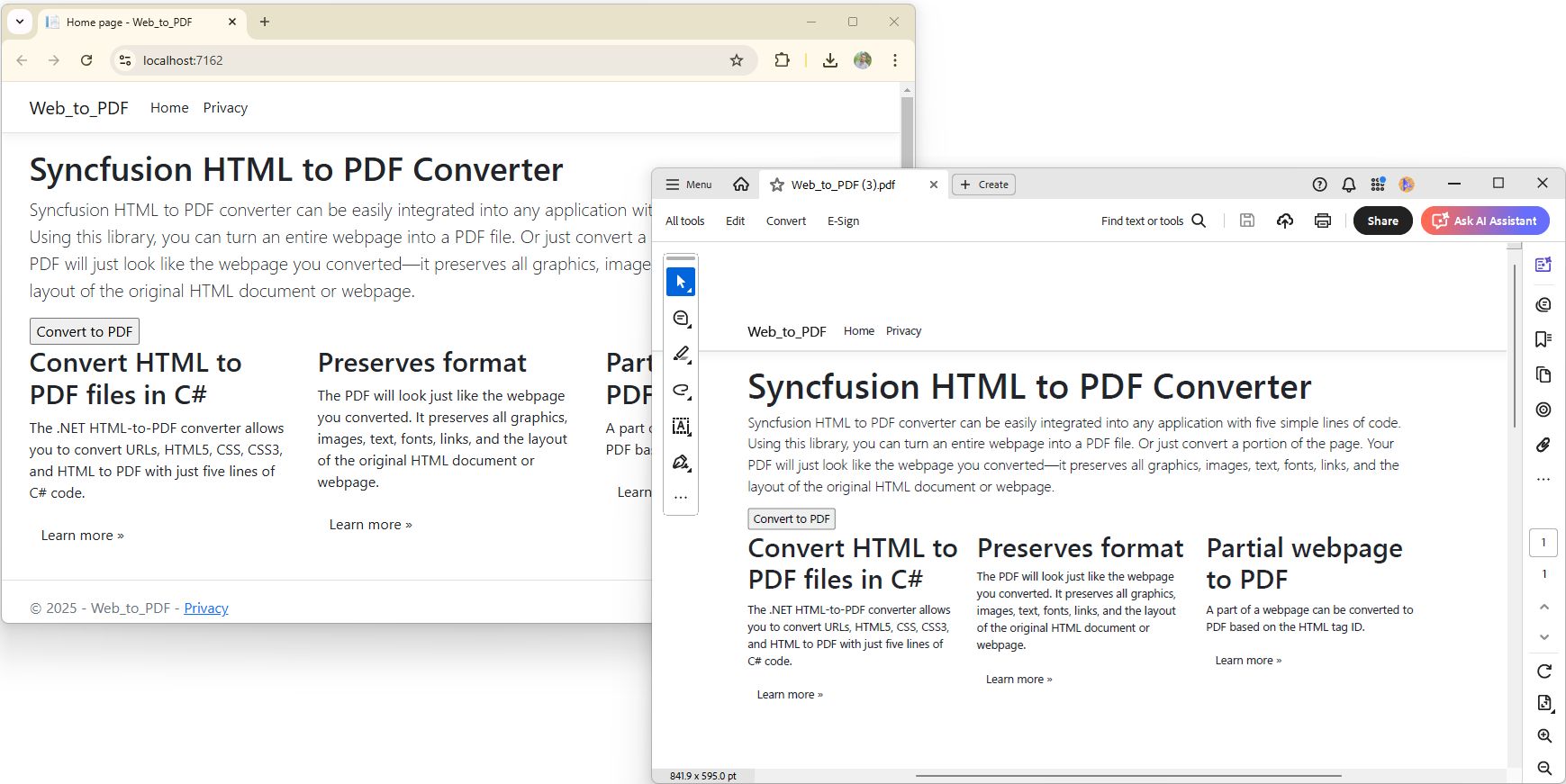
With the help of our Syncfusion HTML-to-PDF converter, you can convert the ASP.NET core Razor pages to PDF with a few lines of code in C#.
Refer to the following code example to convert an ASP.NET Core web Razor page to PDF.
public async Task<IActionResult> OnPostAsync()
{

   //Initialize HTML to PDF converter with the Blink rendering engine
   HtmlToPdfConverter htmlConverter = new HtmlToPdfConverter();

   BlinkConverterSettings blinkConverterSettings = new BlinkConverterSettings()
   {
       ViewPortSize = new Syncfusion.Drawing.Size(1440, 0),
       Orientation = PdfPageOrientation.Landscape
   };

   //Assign Blink converter settings to HTML converter
   htmlConverter.ConverterSettings = blinkConverterSettings;

   string url = Microsoft.AspNetCore.Http.Extensions.UriHelper.GetEncodedUrl(HttpContext.Request);

   //Convert existing URL to PDF
   PdfDocument document = htmlConverter.Convert(url);

   //Saving the PDF to the MemoryStream
   MemoryStream stream = new MemoryStream();

   document.Save(stream);

   //Close the PDF document and the HTML converter
   document.Close(true);
   htmlConverter.Close();

   //Download the PDF document in the browser
   return File(stream.ToArray(), System.Net.Mime.MediaTypeNames.Application.Pdf, "Web_to-PDF.pdf");
}
By executing this example, you will get a PDF document like in the following image.
Convert ASP.NET Core MVC view to PDF
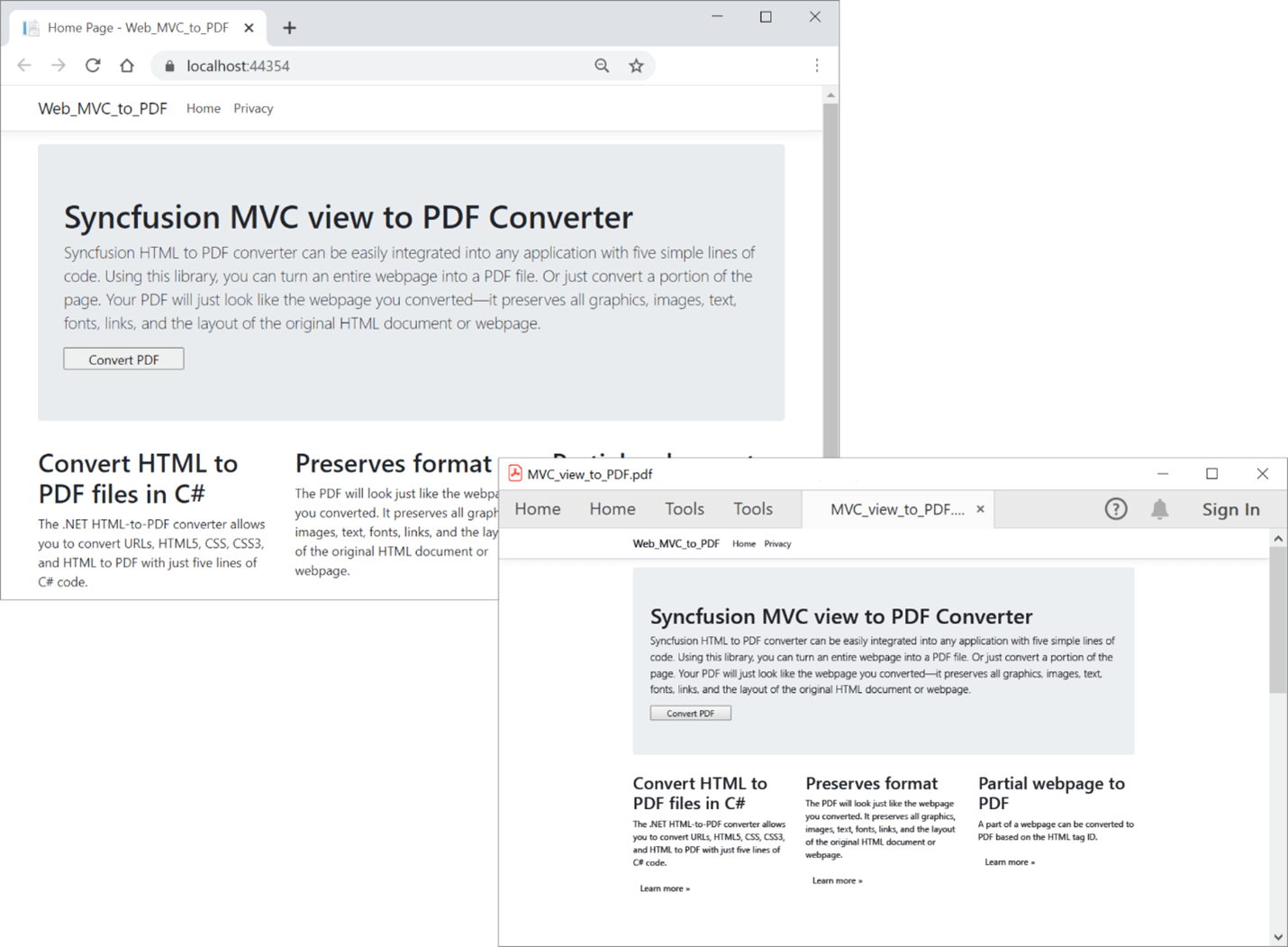
This topic will explain how to convert an ASP.NET Core MVC view to PDF. An MVC application has a separate view and controller. Here, we are going to convert the current view to PDF.
Refer to the following code example to convert an ASP.NET Core MVC view to PDF.
public IActionResult ExportToPDF()
{
   //Initialize HTML to PDF converter with Blink rendering engine
   HtmlToPdfConverter htmlConverter = new HtmlToPdfConverter();

   BlinkConverterSettings blinkConverterSettings(); = new BlinkConverterSettings()
   {
       ViewPortSize = new Syncfusion.Drawing.Size(1440, 0),
       Orientation = PdfPageOrientation.Landscape
   };

   //Assign Blink settings to HTML converter
   htmlConverter.ConverterSettings = blinkConverterSettings;

   //Get the current URL
   string url = Microsoft.AspNetCore.Http.Extensions.UriHelper.GetEncodedUrl(HttpContext.Request);

   url = url.Substring(0, url.LastIndexOf('/'));

   //Convert URL to PDF
   PdfDocument document = htmlConverter.Convert(url);
   MemoryStream stream = new MemoryStream();
   //Close the PDF document and the HTML converter
   document.Save(stream);
   document.Close(true);
   htmlConverter.Close();
   return File(stream.ToArray(), System.Net.Mime.MediaTypeNames.Application.Pdf, "MVC_view_to_PDF.pdf");
}
By executing this example, you will get a PDF document like in the following image.
Convert HTML forms to fillable PDF Forms
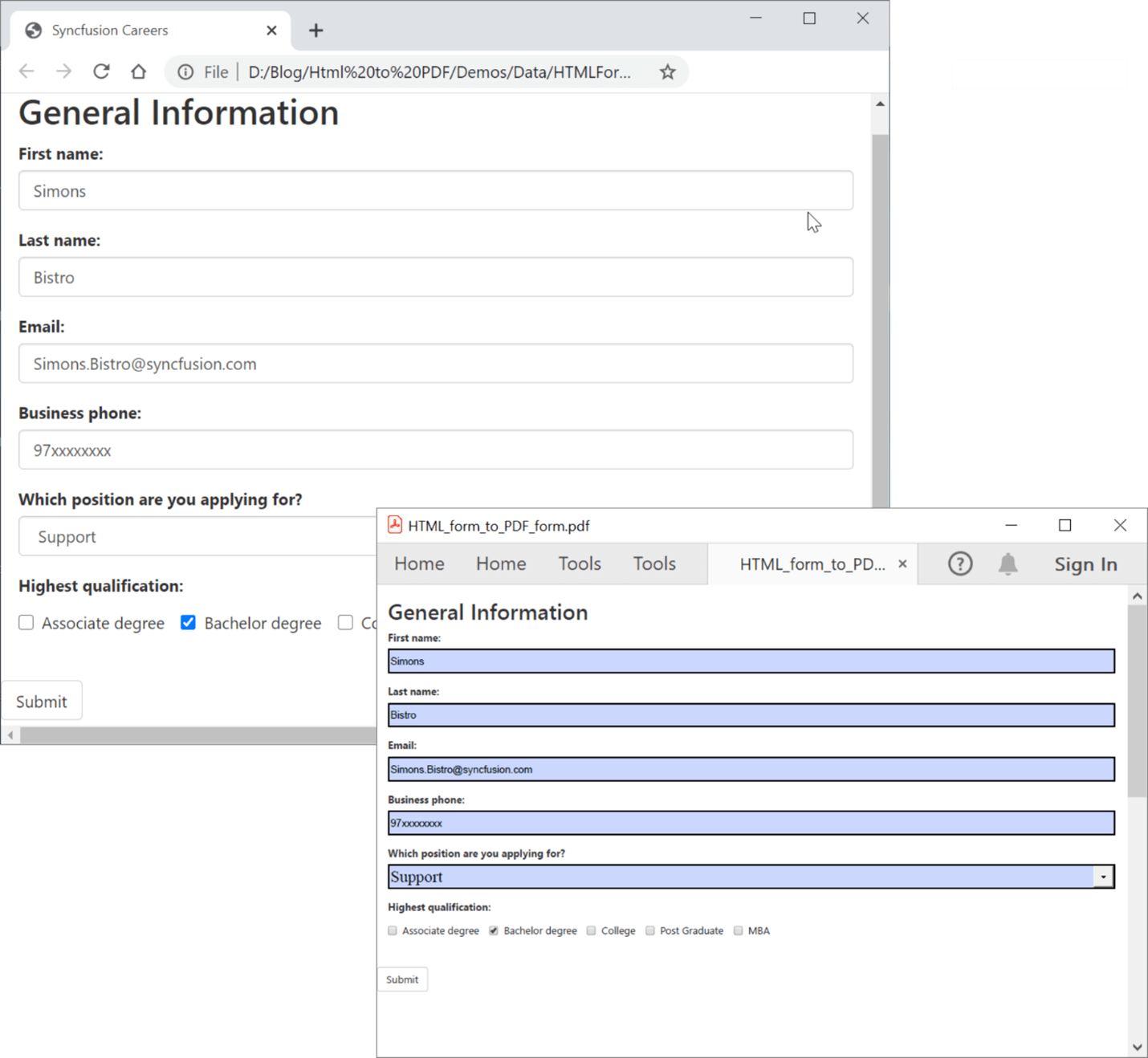
With the HTML-to-PDF converter library, you can easily convert the web form fields to an interactive PDF form in C#. Enable the EnableForm property by setting its value as true to convert an HTML form to PDF form.
Refer to the following code example to convert HTML forms to PDF forms.
//Initialize HTML to PDF converter with Blink rendering engine
HtmlToPdfConverter htmlConverter = new HtmlToPdfConverter();

BlinkConverterSettings blinkConverterSettings = new BlinkConverterSettings();

//Convert web forms to PDF interactive forms
blinkConverterSettings.EnableForm = true;

//Assign Blink converter settings to HTML converter
htmlConverter.ConverterSettings = blinkConverterSettings;

//Convert HTML File to PDF
PdfDocument document = htmlConverter.Convert(Path.GetFullPath("../../../../../Data/HTMLForm.html"));

Filestream fileStream = new FileStream("HTML_form_to_PDF_form.pdf".
FileMode.OpenOrCreate, FileAccess.ReadWrite);

//Save and closes the PDF document
document.Save(fileStream);
document.Close(true);
htmlConverter.Close();
By executing this example, you will get a PDF document like in the following image.
Convert a part of a webpage to PDF
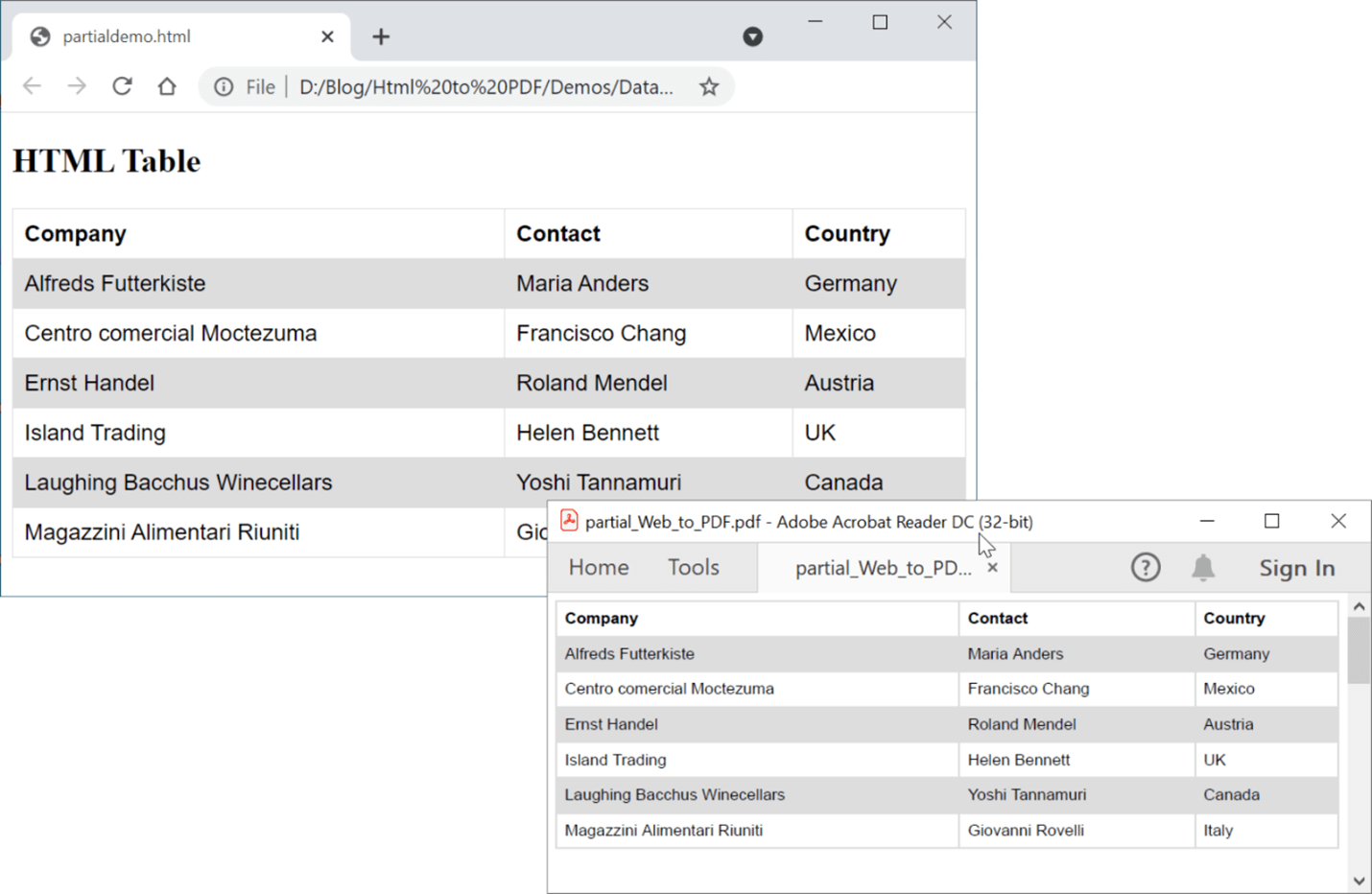
The Blink rendering engine also provides support for converting part of an HTML document like a table, a div, or image elements from the URL or HTML string. You can convert the HTML element by specifying the HTML element ID like in the following code example.
//Initialize HTML to PDF converter.
HtmlToPdfConverter htmlConverter = new HtmlToPdfConverter();

htmlConverter.ConvertSettings= new BlinkConverterSettings() {ViewPortSize = new Syncfusion.Drawing.Size(1280, 1024)}

//Convert URL to PDF document.
PdfDocument document = htmlConverter.ConverterPartialHtml(File.ReadAllText("../../../../../Data/partialdemo.html")
"","details");

//Save and closes the PDF document.
document.Save("Partial-webpage-to-PDF.pdf");
document.Close(true);
htmlConverter.Close();
By executing this example, you will get a PDF document like in the following image.
Convert authenticated webpage to PDF
Our Syncfusion HTML-to-PDF converter can convert any webpage to a PDF file. However, some webpages require authentication before access can be granted. In such cases, we have to provide the authentication details to the converter. That way, the converter can log in to access the page.
In this section, we are going to convert webpages with various authentication types into PDF.
Form authentication
The HTML-to-PDF converter for C# can convert webpages that use the ASP.NET forms authentication mechanism to login.
In this case, if the forms authentication is set to use cookies to store the forms-authentication ticket, then the corresponding cookie needs to be sent by the converter to the page that is to be converted.
You can set the value of the cookie in the Cookies property available in the BlinkConverterSettings.
Refer to the following code snippets to convert the secured webpage to PDF.
string cookieName = ".AspNetCore.Identity.Application";
//Get cookie value from HttpRequest object for the requested page.
string cookieValue = string.Empty;
if (Request.Cookies[cookieName] != null)
{
   cookieValue = Request.Cookies[cookieName];
}

//Initialize HTML to PDF converter with the Blink rendering engine.
HtmlToPdfConverter htmlConverter = new HtmlToPdfConverter();

BlinkConverterSettings settings = new BlinkConverterSettings();

settings.ViewPortSize = new Syncfusion.Drawing.Size(1440, 0);

//Add cookies as name and value pair.
settings.Cookies.Add(cookieName, cookieValue);

//Assign Blink settings to HTML converter.
htmlConverter.ConverterSettings = settings;

//Get the current URL.
string url = Microsoft.AspNetCore.Http.Extensions.UriHelper.GetEncodedUrl(HttpContext.Request);

url = url.Substring(0, url.LastIndexOf('/'));

//Convert URL to PDF.
PdfDocument document = htmlConverter.Convert(url);
MemoryStream stream = new MemoryStream();
document.Save(stream);
return File(stream.ToArray(), System.Net.Mime.MediaTypeNames.Application.Pdf, "MVC_view_to_PDF.pdf");
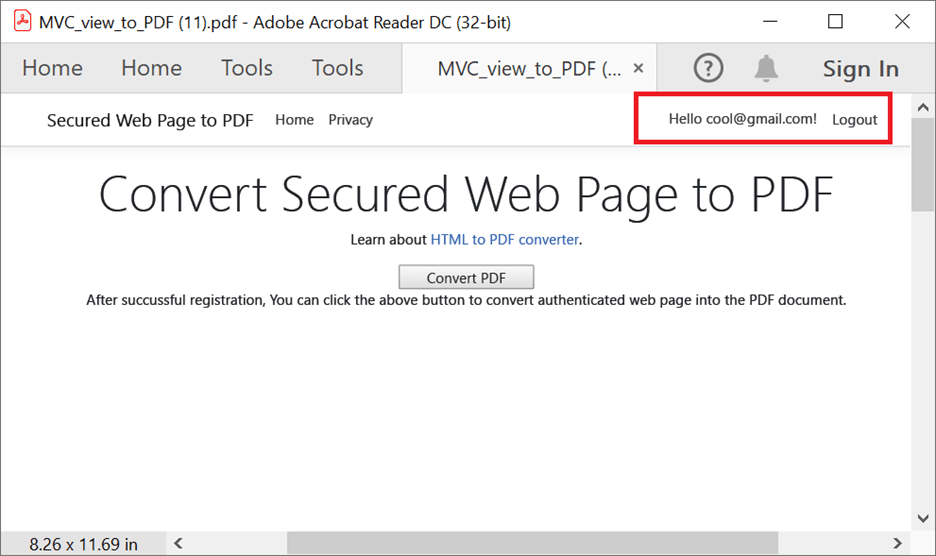
By executing this example, you will get a PDF document like in the following image.
Windows authentication
The webpage you want to convert may be protected with Windows authentication. The Blink rendering engine provides support for converting Windows authenticated webpages to a PDF document by providing the username and password.
Refer to the following code example.
HtmlToPdfConverter htmlConverter = new HtmlToPdfConverter();

BlinkConverterSettings blinkConverterSettings = new BlinkConverterSettings();

blinkConverterSettings.Username = "username";

blinkConverterSettings.Password = "password";

//Assign Blink converter settings to HTML converter.
htmlConverter.ConverterSettings = blinkConverterSettings;

//Convert URL to PDF.
PdfDocument document = htmlConverter.Convert("https://www.example.com");

FileStream fileStream = new FileStream("Sample.pdf", FileMode.CreateNew, FileAccess.ReadWrite);

//Save and close the PDF document.
document.Save(fileStream);
document.Close(true);
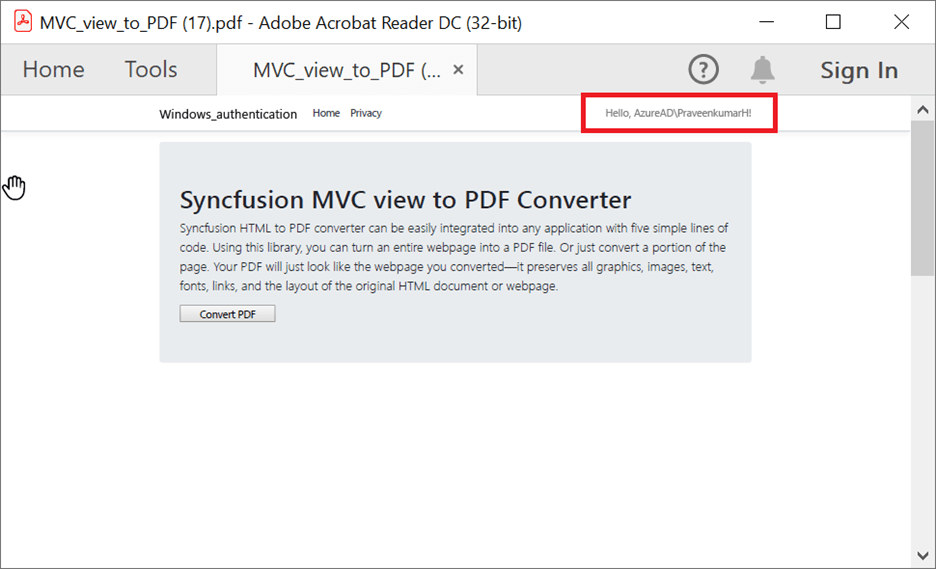
By executing this example, you will get a PDF document like in the following image.
Convert HTML to PDF files in Cloud Platforms
Convert HTML files to PDF in AWS
Amazon Web Services (AWS) is a comprehensive cloud platform. It allows us to host our apps quickly and securely.
Using the Syncfusion HTML-to-PDF converter library, you can easily deploy your apps in AWS to convert HTML or any webpage into a PDF document.
Note: For more details, refer to the HTML-to-PDF file conversion in AWS documentation and our GitHub demo.
Convert HTML files to PDF in Docker
Docker is an open-source platform for building, testing, and deploying apps in any environment quickly. Docker applications run in containers that can be used on any system: a developer’s laptop, systems on premises, or in the cloud.
Use our HTML-to-PDF converter library to convert HTML or any webpage into a PDF document in Docker.
Note: For more details, refer to the HTML-to-PDF file conversion in Docker documentation and our GitHub demo.
Convert HTML to PDF in Azure App Service
Azure App Service is a platform as a service (PaaS). It allows you to create and deploy web and mobile apps with the cloud service for any platform or device.
Using our Syncfusion HTML-to-PDF converter library, users can convert HTML or any webpage into a PDF document in Azure App Service on Linux with or without a Docker container.
Note: For more details, refer to:
- Azure App Service on Linux documentation and GitHub demo.
- Azure App Service on Linux with Docker documentation and GitHub demo.
Convert HTML to PDF in Azure Functions
Azure Functions is a serverless cloud-native service. With it, you can deploy and execute code without any web server or configurations.
You can use our HTML-to-PDF converter library to easily convert HTML or any webpage into a PDF document in Azure Functions.
Note: For more details, refer to converting HTML-to-PDF file in Azure App Function Linux documentation and GitHub demo.
HTTP GET and POST
Also, the HTML-to-PDF converter for C# supports transmitting parameters to a webpage. There are two methods to access a webpage:
- GET
- POST
By default, Blink uses the GET method. By using the HTTP GET method, the parameters can be passed in the query string.
In the POST method, you can pass the parameters using the HttpPostFields property.
Refer to the following code example to access a webpage using the HTTP POST method.
HtmlToPdfConverter htmlConverter = new HtmlToPdfConverter();

BlinkConverterSettings settings = new BlinkConverterSettings();

//Add HTTP post parameters to HttpPostFields.
settings.HttpPostFields.Add("firstName", "Andrew");
settings.HttpPostFields.Add("lastName", "Fuller");

//Assign Blink converter settings to HTML converter.
htmlConverter.ConverterSettings = settings;

//Convert URL to PDF.
PdfDocument document = htmlConverter.Convert("https://www.example.com");

FileStream fileStream = new FileStream("Sample.pdf", FileMode.CreateNew, FileAccess.ReadWrite);

//Save and close the PDF document.
document.Save(fileStream);
document.Close(true);
Use the following code snippet to access a webpage using the HTTP GET method.
HtmlToPdfConverter htmlConverter = new HtmlToPdfConverter();

BlinkConverterSettings settings = new BlinkConverterSettings();

string url = "https://www.example.com";

Uri getMethodUri = new Uri(url);
string httpGetData = getMethodUri.Query.Length > 0 ? "&" : "?" + String.Format("{0}={1}", "firstName", "Andrew");

httpGetData += String.Format("&{0}={1}", "lastName", "Fuller");

string urlToConvert = url + httpGetData;

//Assign Blink converter settings to HTML converter.
htmlConverter.ConverterSettings = settings;

//Convert URL to PDF.
PdfDocument document = htmlConverter.Convert(urlToConvert);

FileStream fileStream = new FileStream("Sample.pdf", FileMode.CreateNew, FileAccess.ReadWrite);

//Save and close the PDF document.
document.Save(fileStream);
document.Close(true);
HTML-to-PDF conversion with proxy
The Syncfusion HTML-to-PDF converter supports both system proxy and manual proxy.
System proxy
By default, the HTML-to-PDF converter for C# uses system proxy settings for converting HTML to PDF. If the proxy server is configured in the system, then the rendering engine automatically uses the same settings for the conversion.
Follow these steps to configure the system proxy settings:
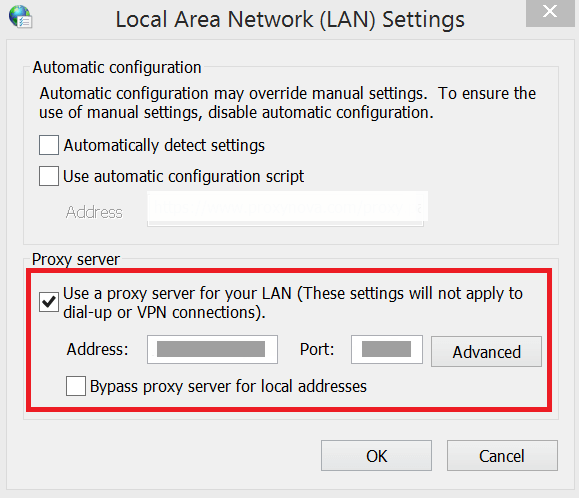
- First, navigate to Control Panel -> Network and Internet -> Internet Options.
- From the Internet properties window, open LAN settings under the connections tab.
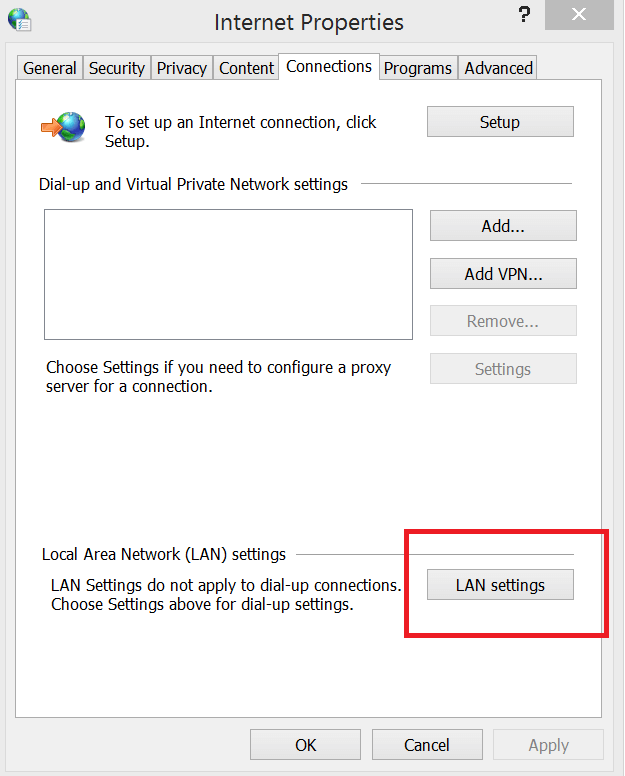
- Then, set the proxy server address and port in the LAN settings window.
Manual proxy
You can specify the manual proxy settings for the conversion using the ProxySettings property.
Refer to the following code example to configure the manual proxy settings for the HTML-to-PDF conversion.
//Initialize the HTML to PDF converter with the Blink rendering engine.
HtmlToPdfConverter htmlConverter = new HtmlToPdfConverter();

BlinkConverterSettings settings = new BlinkConverterSettings();

//Set manual proxy settings.
settings.ProxySettings.HostName = "127.0.0.1";
settings.ProxySettings.PortNumber = 8080;
settings.ProxySettings.Type = BlinkProxyType.HTTP;

//Assign Blink converter settings to HTML converter.
htmlConverter.ConverterSettings = settings;

//Convert URL to PDF.
PdfDocument document = htmlConverter.Convert("https://www.google.com");

FileStream fileStream = new FileStream("Sample.pdf", FileMode.CreateNew, FileAccess.ReadWrite);

//Save and close the PDF document.
document.Save(fileStream);
document.Close(true);
Virtual Viewport
You can adjust the HTML content size in a PDF using the ViewPortSize property of the HTML-to-PDF converter for C#.
Refer to the following code example to adjust the viewport size.
//Initialize the HTML to PDF converter with the Blink rendering engine.
HtmlToPdfConverter htmlConverter = new HtmlToPdfConverter();

BlinkConverterSettings blinkConverterSettings = new BlinkConverterSettings();

//Set Blink viewport size.
blinkConverterSettings.ViewPortSize = new Size(800, 0);

//Assign Blink converter settings to HTML converter.
htmlConverter.ConverterSettings = blinkConverterSettings;

//Convert URL to PDF.
PdfDocument document = htmlConverter.Convert("https://www.google.com");

FileStream fileStream = new FileStream("Sample.pdf", FileMode.CreateNew, FileAccess.ReadWrite);

//Save and close the PDF document.
document.Save(fileStream);
document.Close(true);
Additional delay
Additional delay is the waiting time of the converter to load external resources (styles, scripts, images, etc.). You can set that delay time using the AdditionalDelay property while converting HTML to PDF.
Refer to the following code example to set additional delay time.
//Initialize the HTML to PDF converter with the Blink rendering engine.
HtmlToPdfConverter htmlConverter = new HtmlToPdfConverter();

BlinkConverterSettings blinkConverterSettings = new BlinkConverterSettings();

// Set additional delay; units in milliseconds.
blinkConverterSettings.AdditionalDelay = 3000;

//Assign Blink converter settings to HTML converter.
htmlConverter.ConverterSettings = blinkConverterSettings;

//Convert URL to PDF.
PdfDocument document = htmlConverter.Convert("https://www.google.com");

FileStream fileStream = new FileStream("Sample.pdf", FileMode.CreateNew, FileAccess.ReadWrite);

//Save and close the PDF document.
document.Save(fileStream);
document.Close(true);
Add headers and footers
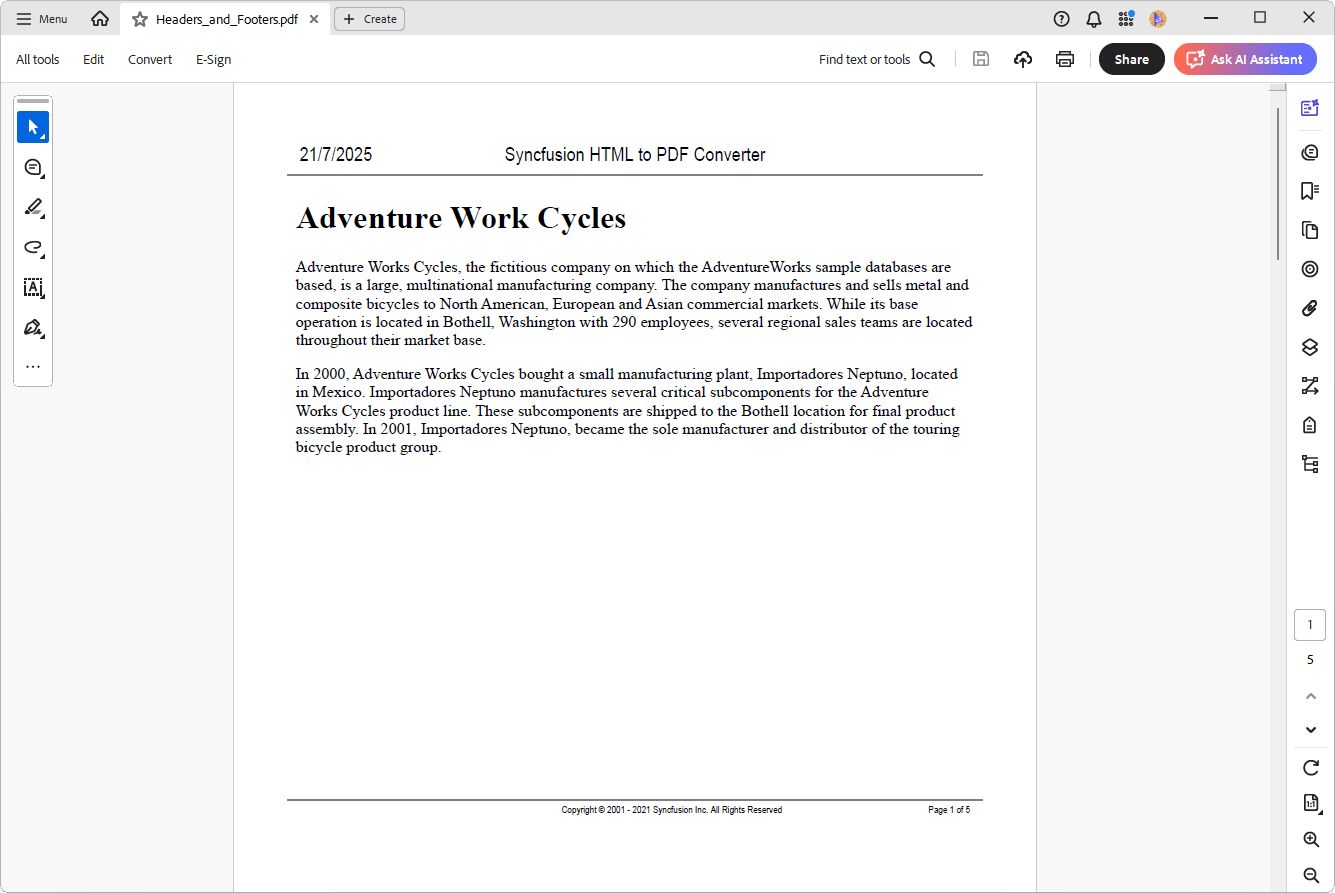
With the HTML-to-PDF converter for C#, you can place common content applicable for all the pages either in the header or the footer.
You can also add images, text, shapes, page numbers, and hyperlinks in the header and footers.
Note: For more information, refer to Working with Headers and Footers documentation.
Refer to the following code snippet.
//Initialize the HTML to PDF converter with the Blink rendering engine
HtmlToPdfConverter(htmlConverter = new
HtmlToPdfConverter(HtmlRenderingEngine.Blink);

BlinkConverterSettings blinkConverterSettings = new BlinkConverterSettings();

blinkConverterSettings.ViewPortSize = Syncfusion.Drawing.Size(794, 1123);

//Adding header
blinkConverterSettings.PdfHeader = CreateHeader();
//Adding footer.
blinkConverterSettings.PdfFooter = CreateFooter();

//Assign Blink converter settings to HTML converter
htmlConverter.ConverterSettings = blinkConverterSettings;

//Convert HTML File to PDF
PdfDocument document = htmlConverter.Convert(Path.GetFullPath("../../../../../Data/html_file_converter.htm"));

FileStream fileStream = new FileStream("Headers_and_Footers.pdf",
FileMode.OpenOrCreate, FileAccess.ReadWrite);

//Save and close the PDF document
document.Save(fileStream);
document.Close(true);
htmlConverter.Closed();
Refer to the below code example to create header template.
//Create header for HTML to PDF converter
public static PdfPageTemplateElement CreateHeader()
{
      RectangleF bounds = new RectangleF(0, 0, PdfPageSize.A4.Width, 30);

      //Create a new page template and assigning the bounds
      PdfPageTemplateElement header = new PdfPageTemplateElement(bounds);

      PdfFont font = new PdfStandardFont(PdfFontFamily.Helvetica, 14);

      PdfBrush brush = new PdfSolidBrush(Color.Black);

      string headerText = "Syncfusion HTML to PDF Converter";

      SizeF textSize = font.MeasureString(headerText);

      string date = DateTime.Now.ToString("dd/M/yyyy");

      //Drawing text field in header
      header.Graphics.DrawingString(headerText,DateTime, font, brush, new PointF((bounds.Width-textSize.Width) /2,5));

      //Drawing date text in header.
      header.Graphics.DrawString(DateTime.Now.ToSring("dd/M/yyyy") font, brush, new PointF(10, 5));

     //Drawing line in header.
      header.Graphics.DrawLine(PdfPens.Gray, new PointF(0, bounds.Height - 2), new PointF(bounds.Width, bounds.Height - 2));

      return header;
}

Refer to the below code example to create a footer templatge.

//Create footer for HTML to PDF converter
public static PdfPageTemplateElement CreateFooter()
{
      RectangleF bounds = new RectangleF(0, 0, PdfPageSize.A4.Width, 30);

      //Create a new page template and assigning the bounds
      PdfPageTemplateElement footer = new PdfPageTemplateElement(bounds);

      PdfFont font = new PdfStandardFont(PdfFontFamily.Helvetica, 7);

      PdfBrush brush = new PdfSolidBrush(Color.Black);

      string footerText = "Copyright © 2001 - 2021 Syncfusion Inc. All Rights Reserved";

       SizeF textSize = font.MeasureString(footerText);

       //Create a text field to draw in the footer
       PdfCompositeField compositeField = new PdfCompositeField(font, brush, footerText);

       //Create page number field to show page numbering in footer, this field automatically gets an update for each page.
       PdfPageNumberField pageNumber = new PdfPageNumberField(font, brush);
       PdfPageCountField count = new PdfPageCountField(font, brush);
       PdfCompositeField pageNumberField = new PdfCompositeField(font, brush, "Page {0} of {1}", pageNumber, count);

       //Drawing line in footer.
       footer.Graphics.DrawLine(PdfPens.Gray, new PointF(0, 2), new PointF(bounds.Width, 2));
       //Drawing text field in footer
       compositeField.Draw(footer.Graphics, new PointF((bounds.Width - textSize.Width) / 2, 5));
       //Drawing page number field in footer.
       pageNumberField.Draw(footer.Graphics, new PointF((bounds.Width - 120), 5));

       return footer;
}
By executing this example, you will get a PDF document like in the following image.
Our Syncfusion HTML to PDF converter also supports converting HTML headres and footers into the PDF document. For more information, refer to the user guide documentation.
Automatically create a table of contents
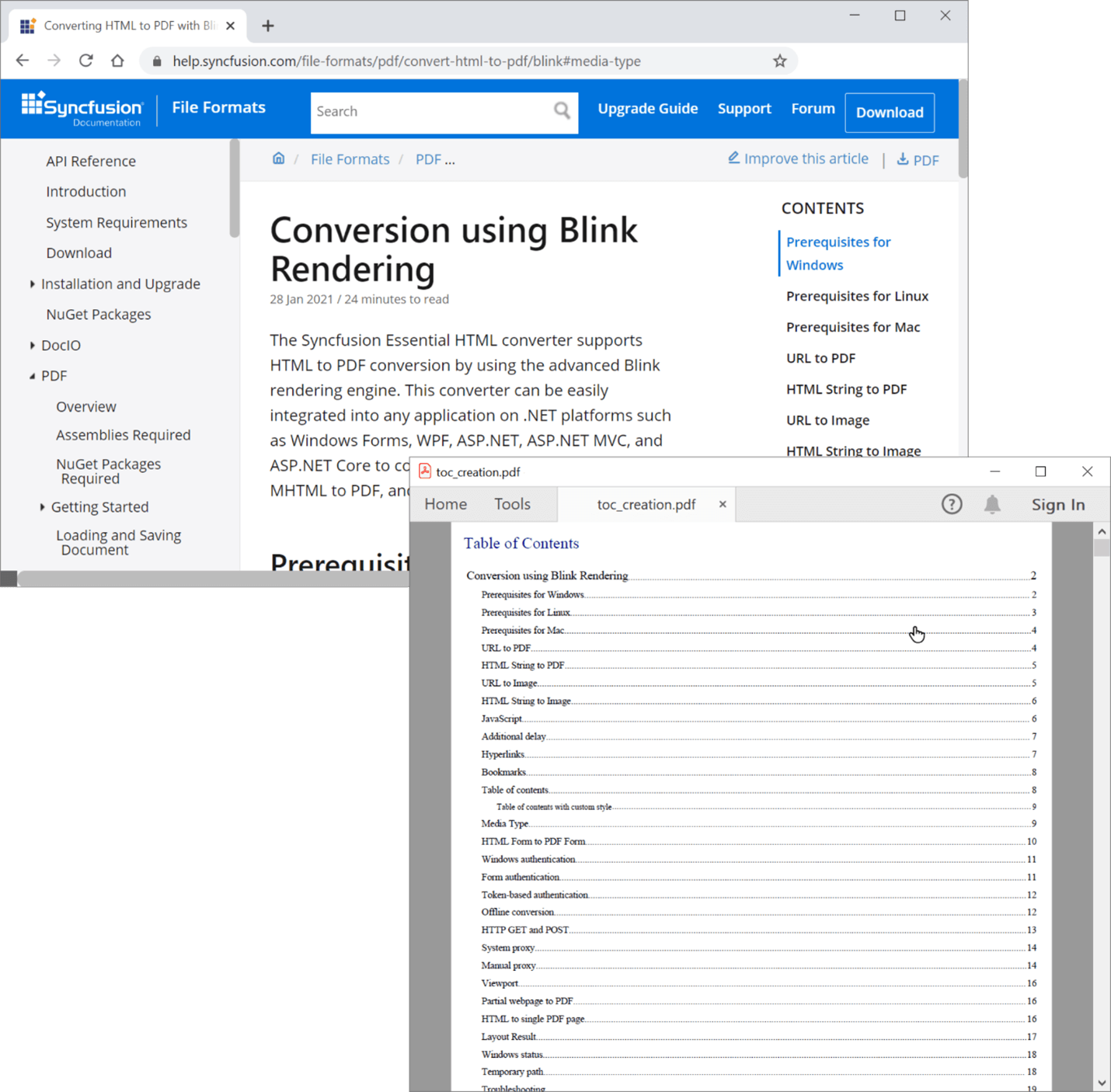
A table of contents helps us easily navigate within a document while searching for a piece of specific information or a topic. With the help of the HTML-to-PDF converter, you can automatically create a table of contents in a PDF document using C#.
To do so, you just need to enable the EnableToc property in the converter settings. Then, the TOC will be automatically created from the <h> tag. There’s support for <h1> to <h6> header levels.
Refer to the following code example to automatically create a table of content in a PDF document.
//Initialize the HTML to PDF converter with the Blink rendering engine.
HtmlToPdfConverter htmlConverter = new HtmlToPdfConverter();

BlinkConverterSettings blinkConverterSettings = new BlinkConverterSettings();

//Enable automatic TOC creation.
blinkConverterSettings.EnableToc = true;

//Assign Blink converter settings to HTML converter.
htmlConverter.ConverterSettings = blinkConverterSettings;

//Convert HTML File to PDF.
PdfDocument document = htmlConverter.Convert("https://help.syncfusion.com/file-formats/pdf/convert-html-to-pdf/blink");

FileStream fileStream = new FileStream("toc_creation.pdf", FileMode.OpenOrCreate, FileAccess.ReadWrite);

//Save and close the PDF document.
document.Save(fileStream);
document.Close(true);
By executing this example, you will get a PDF document like in the following image.
Customize the style of the TOC creation
You can also customize the style of the TOC using the HtmlToPdfTocStyle API.
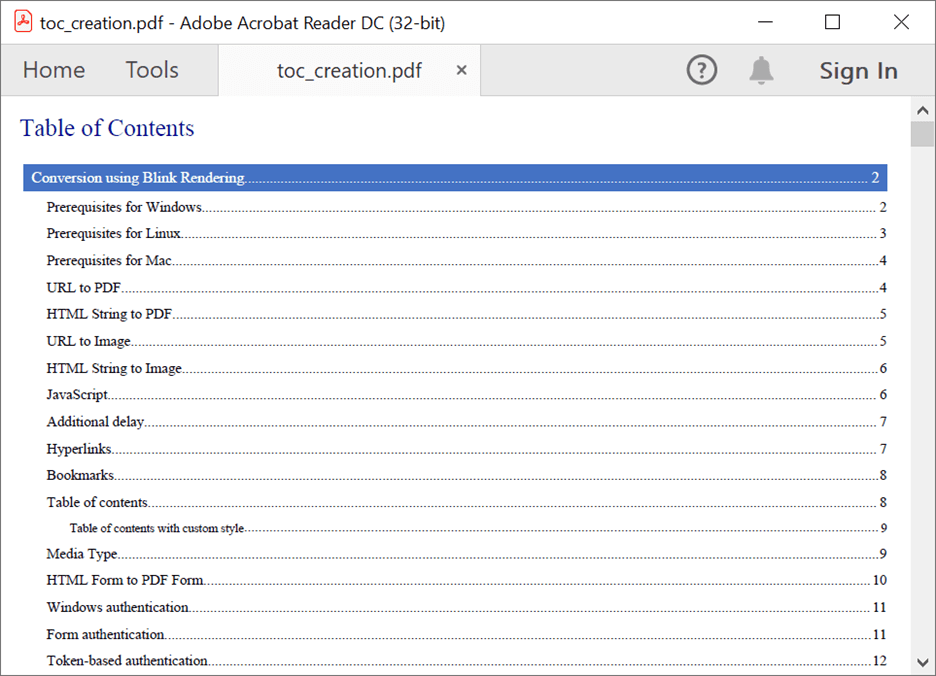
Refer to the following code snippet to customize the level 1 (H1) heading in a TOC.
//Initialize the HTML to PDF converter with the Blink rendering engine.
HtmlToPdfConverter htmlConverter = new HtmlToPdfConverter();

BlinkConverterSettings blinkConverterSettings = new BlinkConverterSettings();

//Enable automatic TOC creation.
blinkConverterSettings.EnableToc = true;

//Set the style for level 1(H1) items in the table of contents.
HtmlToPdfTocStyle tocstyleH1 = new HtmlToPdfTocStyle();
tocstyleH1.Font = new PdfStandardFont(PdfFontFamily.TimesRoman, 10, PdfFontStyle.Regular);
tocstyleH1.BackgroundColor = new PdfSolidBrush(new PdfColor(Color.FromArgb(68, 114, 196)));
tocstyleH1.ForeColor = PdfBrushes.White;
tocstyleH1.Padding = new PdfPaddings(5, 5, 3, 3);

//Apply this style to level 1 (H1) headings of the TOC.
blinkConverterSettings.Toc.SetItemStyle(1, tocstyleH1);

//Assign Blink converter settings to HTML converter.
htmlConverter.ConverterSettings = blinkConverterSettings;

//Convert HTML File to PDF.
PdfDocument document = htmlConverter.Convert("https://help.syncfusion.com/file-formats/pdf/convert-html-to-pdf/blink");

FileStream fileStream = new FileStream("toc_creation.pdf", FileMode.OpenOrCreate, FileAccess.ReadWrite);

//Save and close the PDF document.
document.Save(fileStream);
document.Close(true);
By executing this example, you will get a PDF document like in the following image.
Automatically create bookmark hierarchy
You can use bookmarks to navigate to various headings within a PDF document. With the help of the HTML-to-PDF converter, you can easily create a bookmark hierarchy.
For that, you just need to enable the EnableBookmarks property in the converter settings. Then, the bookmarks will be automatically created from the <h> tags. It provides support from <h1> to <h6> header levels.
Refer to the following code example to automatically create bookmarks in a PDF document.
//Initialize the HTML to PDF converter with the Blink rendering engine.
HtmlToPdfConverter htmlConverter = new HtmlToPdfConverter();

BlinkConverterSettings blinkConverterSettings = new BlinkConverterSettings();

//Enable automatic bookmark creation.
blinkConverterSettings.EnableBookmarks = true;

//Assign Blink converter settings to HTML converter.
htmlConverter.ConverterSettings = blinkConverterSettings;

//Convert HTML File to PDF.
PdfDocument document = htmlConverter.Convert("https://help.syncfusion.com/file-formats/pdf/convert-html-to-pdf/blink");

FileStream fileStream = new FileStream("bookmark_creation.pdf", FileMode.OpenOrCreate, FileAccess.ReadWrite);

//Save and close the PDF document.
document.Save(fileStream);
document.Close(true);
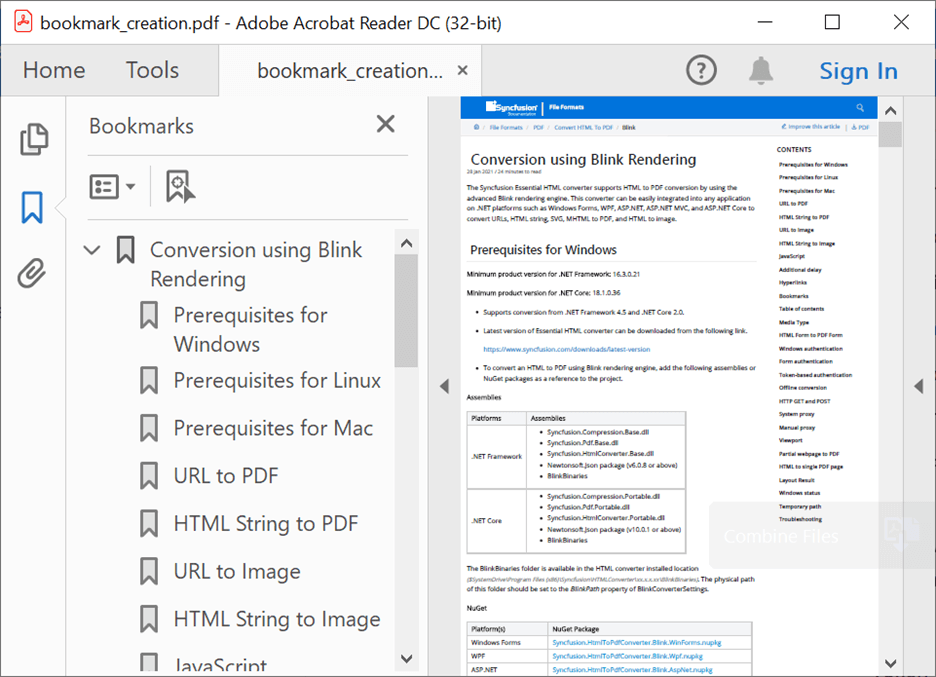
By executing this example, you will get a PDF document like in the following image.
Encrypt PDFs with passwords
With the password-protection support in our HTML-to-PDF converter, you can keep sensitive information more secure.
Note: For more information, refer to Working with Security documentation.
Refer to the following code example to set a password to a converted PDF document.
//Initialize the HTML to PDF converter with the Blink rendering engine.
HtmlToPdfConverter htmlConverter = new HtmlToPdfConverter();

BlinkConverterSettings blinkConverterSettings = new BlinkConverterSettings();
blinkConverterSettings.ViewPortSize = new Syncfusion.Drawing.Size(800, 0);

//Assign Blink converter settings to HTML converter.
htmlConverter.ConverterSettings = blinkConverterSettings;

//Convert particular div in a web page to PDF.
PdfDocument document = htmlConverter.Convert("https://www.syncfusion.com/");

//Set password to the PDF document.
document.Security.UserPassword = "syncfusion";
document.Security.Permissions = PdfPermissionsFlags.CopyContent | PdfPermissionsFlags.Print;

FileStream fileStream = new FileStream("Web_to_PDF_password.pdf", FileMode.OpenOrCreate, FileAccess.ReadWrite);

//Save and close the PDF document.
document.Save(fileStream);
document.Close(true);
Resource
You can download all of these samples from the HTML-to-PDF document conversion in the C# demo.

Conclusion
Thanks for reading! In this blog post, we have learned the various ways to convert HTML content to a PDF document in C# using our Syncfusion HTML-to-PDF converter library. So, try out these methods and leave your feedback in the comments section of this blog post!
For existing customers, the new version of Essential Studio® is available for download from the License and Downloads page. If you are not yet a Syncfusion customer, you can try our 30-day free trial to check out our available features.
You can also contact us through our support forum, support portal, or feedback portal. We are happy to assist you!
 No spam, just valuable updates.
Comments (6)
Thanks Praveenkumar, You have written a wonderful article on HTML to PDF Converter. It helped me a lot and hope for your future achievements.
I notice you only reference .NET Core. Can this also work with .NET 4.x?
Thanks
Yes, it will work in the .NET framework also.
you can use the below NuGet package to use the HTML to PDF conversion in .NET framework applications.
https://www.nuget.org/packages/Syncfusion.HtmlToPdfConverter.WinForms/
For more details please refer to our documentation.
https://help.syncfusion.com/file-formats/pdf/converting-html-to-pdf
Nice Blog! Thanks for sharing the Information.
Does it works if the html contains canvas chart? and does it also places the canvas in the correct position or do we need to manually position the chart in the pdf?
Our Blink converter internally makes use of chromium executable in headless mode for converting HTML to PDF. It will preserve the PDF document like how the input HTML is displayed in chromium-based web browsers (chrome print preview).
So, it will preserve the canvas charts as it is displayed in web browser. Kindly make sure, the provided URL or HTML text is preserving the chart properly in web browser.