
 George Livingston
TL;DR: If your PDFs are bloated, start with image downsampling, then subset fonts, strip metadata, optimize page content, disable incremental updates, and flatten or remove forms/annotations; remove attachments when possible. All steps are one‑liners using Syncfusion Essential PDF for .NET (C# / VB.NET)
Syncfusion Essential PDF is a .NET PDF library that can be used to optimize or compress your PDF documents. Reducing the PDF file size can help you by optimizing bandwidth cost, network transmission, and digital storage. It is especially useful in areas like archiving, emailing, and using PDF documents in web-based applications. Essential PDF supports the following optimizations:
- Shrinking all images.
- Optimizing fonts.
- Removing metadata.
- Optimizing page content.
- Disabling incremental updates.
- Removing or flattening form fields.
- Removing or flattening annotations.
In this blog, we will look at each of these optimizations and how to implement them.

Reducing PDF file size by shrinking all images
PDF files often contain multiple high-resolution images, which can significantly increase the file size. Removing these images is usually not an option, as they are essential for many documents. However, downsampling images, reducing the number of pixels, is one of the most effective ways to compress PDF files without compromising critical content.
With Syncfusion Essential PDF, developers can easily optimize PDFs using the CompressImage API available in the CompressionOptions class. Additionally, the ImageQuality property allows precise control over image resolution, enabling a balance between file size reduction and image quality in both C# and VB.NET applications.
//Create a new compression option object.

PdfCompressionOptions options = new PdfCompressionOptions();
options.CompressImages = true;

//Image quality is a percentage.

options.ImageQuality = 10;
Reducing PDF file size by optimizing fonts
PDF documents often include embedded fonts that contain unnecessary glyphs and font tables, which can increase file size. Since not all glyph data is required to render the text, removing unused glyphs and unwanted font tables is an effective way to optimize PDF files.
With Syncfusion Essential PDF, developers can reduce file size by enabling the OptimizeFont property, automatically removing redundant font data. This approach helps streamline the PDF content while preserving text integrity, making it ideal for .NET applications using C# or VB.NET.
PdfCompressionOptions options = new PdfCompressionOptions();
options.OptimizeFont = true;Reducing PDF file size by removing metadata
PDF files may contain unnecessary metadata that adds to the overall file size without contributing to the document’s content or functionality. Removing this metadata is a simple yet effective way to optimize PDF file size.
Using Syncfusion Essential PDF, developers can easily remove metadata by enabling the RemoveMetadata property in the PdfCompressionOptions class. This helps streamline the PDF and reduce its size in .NET applications using C# or VB.NET.
PdfCompressionOptions options = new PdfCompressionOptions();
options.RemoveMetadata = true;
Reducing PDF file size by optimizing page contents
PDF documents may contain unnecessary elements such as commented lines, excessive white spaces, and uncompressed content that increase file size. Optimizing page contents helps reduce PDF size by removing these elements, converting end-of-line characters to spaces, and compressing uncompressed data.
With Syncfusion Essential PDF, developers can enable the OptimizePageContents property in the PdfCompressionOptions class to clean and compress page content automatically. This results in a more efficient and lightweight PDF, ideal for .NET applications using C# or VB.NET.
PdfCompressionOptions options = new PdfCompressionOptions();
options.OptimizePageContents = true;
Reducing PDF file size by disabling incremental updates
PDF files often use incremental updates to append changes to the end of the document without rewriting the entire file. While this preserves the original content, it can lead to larger file sizes over time. Disabling incremental updates forces the PDF to be rewritten completely, resulting in a more compact file.
With Syncfusion Essential PDF, developers can disable incremental updates by setting the IncrementalUpdate property to false in the FileStructure of a PdfLoadedDocument. This method effectively reduces file size in .NET applications using C# or VB.NET.
//Load the existing PDF document.

PdfLoadedDocument loadedDocument = new PdfLoadedDocument(@"input.pdf");

//Restructure the complete document.

loadedDocument.FileStructure.IncrementalUpdate = false;Reducing PDF file size by removing form fields
Interactive form fields in PDF documents can increase file size, especially when they are no longer needed. If form fields and their values are unnecessary, they can be removed. If they are required but no longer need to be editable, flattening them is a great way to reduce file size while preserving the visual layout.
Using Syncfusion Essential PDF, developers can remove or flatten form fields with a simple method. By checking the flatten flag, the form fields can be flattened using FlattenFields() or removed entirely using the Fields. RemoveAt() method. This technique is effective for optimizing PDFs.
public void RemoveFormFields(PdfLoadedDocument ldoc, bool flatten)
{
    if (flatten)
    {
        ldoc.Form.Flatten = true;
    }
    else
    {
        int count = ldoc.Form.Fields.Count;
        for (int i = count - 1; i >= 0; i--)
        {
            ldoc.Form.Fields.RemoveAt(i);
        }
    }
}
Reducing PDF file size by removing annotations
Annotations in PDF documents, such as comments, highlights, and notes, can increase file size, especially when they are no longer needed. If annotations are unnecessary, they can be removed. Flattening them is a great way to preserve their appearance while reducing file size if they are required but don’t need further editing.
With Syncfusion Essential PDF, developers can effectively reduce PDF file size by managing annotations. You can flatten all annotations using the FlattenFields() method of the PdfLoadedDocument class, which converts them into static content. Alternatively, if annotations are not needed, you can iterate through each page and remove them using the RemoveAt() method. Both approaches help streamline the document and reduce file size.
public void RemoveAnnotations(PdfLoadedDocument ldoc, bool flatten)
{
    foreach(PdfPageBase page in ldoc.Pages)
    {
        if (flatten)
        {
           page.Annotations.Flatten = true;
        }
        else
        {
            int count = page.Annotations.Count;
            for (int i = count - 1;i >= 0; i--)
            {
              page.Annotations.RemoveAt(i);
            }
        }
    }
}
Additional tip: Reduce PDF file size by removing attachments
Attachments embedded in PDF files, such as documents, images, or other media, can significantly increase file size. If these attachments are no longer needed, removing them is an effective way to optimize PDF file size.
With Syncfusion Essential PDF, developers can easily remove attachments from a PDF document using the PdfAttachmentCollection. This helps streamline the document and reduce its size.
public void RemoveAttachments(PdfLoadedDocument ldoc)
{
    if (ldoc.Attachments != null)
    {
        int count = ldoc.Attachments.Count;
        for (int i = count - 1; i >= 0; i--)
        {
            ldoc.Attachments.RemoveAt(i);
        }
    }
}
GitHub sample
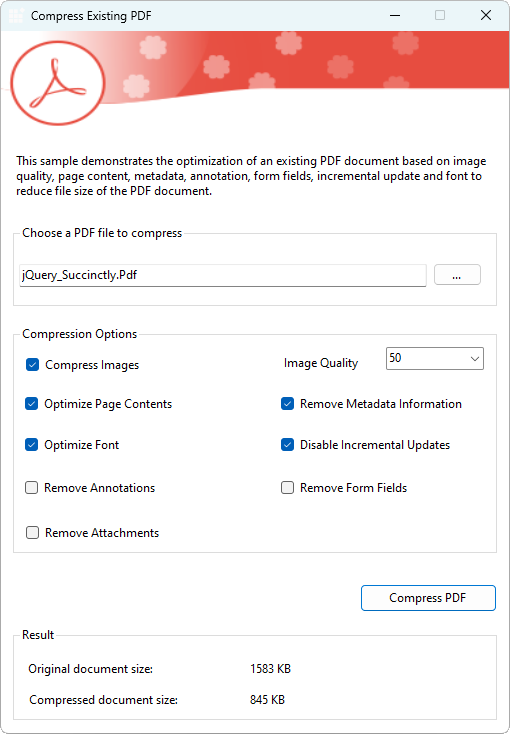
For more details about this sample, refer to the complete compress PDF application demo on the GitHub repository.
Wrapping up
As you can see, Essential PDF provides a variety of optimization mechanisms for compressing a PDF document. Use them effectively to generate compressed documents for increased efficiency and productivity in a document management system. Take a moment to peruse the documentation, where you’ll find other options and features, all with accompanying code examples.
If you are new to our PDF library, following our getting started guide is highly recommended.
If you’re already a Syncfusion user, you can download the product setup from the license and download page. Otherwise, you can download a free 30-day trial.
Do you have any questions or require clarification about these features? Please let us know in the comments below. You can also contact us through our support forum, support portal, or feedback portal. We are happy to assist you!
 No spam, just valuable updates.
Comments (2)
Is it possible to reduce a pdf document 92, 032 KB to 1, 749 KB?
I need to integrate it into my application developed at home with winforms vb.net
Hi,
Yes, we can compress a PDF file from 92 MB to 1.749 MB but it is based on the input document structure, usually we will compress PDF inner objects which is already not in the best compression.
For example if a document has more number of images with low compression then we can compress the document further by shrinking all the images to best compression also we can use other options provided in this blog
• Optimizing fonts.
• Removing metadata.
• Optimizing page content.
• Disabling incremental updates.
• Removing or flattening form fields.
• Removing or flattening annotations.
Usually we cannot further compress the PDF document if it is already in the best compression state.
Regards,
Praveen