
 Praveenkumar
TL;DR: Discover 8 proven methods to split PDF files in C# using the Syncfusion® PDF Library, including splitting by page, range, bookmarks, and preserving accessibility tags. Ideal for developers automating PDF workflows in .NET applications.
Splitting a PDF document is a common use case in PDF document manipulation. It helps reduce the PDF file size by breaking down large documents into smaller pieces to send them via email or any other form of digital distribution.
With the help of the Syncfusion PDF Library, you can easily split large PDF documents, and you can also automate the split function for batch processing.
In this blog, we are going to explore the following six ways in which a PDF document can be split:
- Split a PDF document into multiple files.
- Split specific pages into a separate PDF document.
- Split a range of pages into a separate PDF document.
- Split a PDF document based on PDF bookmarks.
- Find specific text in a page and split it into a separate PDF.
- Split a PDF document into multiple files with a specific number of pages.
Let’s get started!

Getting Started with App Creation
- Launch Visual Studio and create a new Console Application targeting .NET Framework 4.6.2 or higher.
- Install the Syncfusion PDF Library via NuGet. For detailed instructions, refer to the required NuGet package link.
- Import the necessary namespace to enable PDF splitting functionality in your application.
using Syncfusion.Pdf.Parsing;
Split a PDF document into multiple files
The primary need of splitting a PDF document is to reduce the file size of the document. For example, if an organization generates reports containing the paychecks for all employees, then they need to split the entire PDF file into individual files and email them separately to the respective employees.
We can easily split each page in a PDF document into individual PDF documents with the following two steps:
- Load the PDF document.
- Call the Split function with an output file pattern.
The following code example shows how to split an existing PDF document.
//Load PDF document
PdfLoadedDocument document = new PdfLoadedDocument("PDF_Succinctly.pdf");
//Split PDF document with pattern
document.Split("Document-{0}.pdf");
//Close the document
document.Close(true);
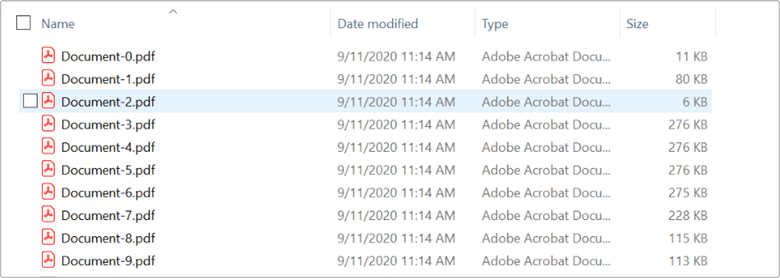
By executing this code example, you will get individual PDF documents as shown in the following image.
Split specific pages into a separate PDF document
With a large PDF document, there may be occasions where only a single page needs to be reviewed by someone. In that case, it would be very effective to send that particular page instead of the complete document.
The following code example shows how to split a particular page from an existing PDF document.
//Load the PDF document
PdfLoadedDocument loadedDocument = new PdfLoadedDocument("PDF_Succinctly.pdf");
//Create new PDF document
PdfDocument document = new PdfDocument();
//Import the particular page from the existing PDF
document.ImportPage(loadedDocument, 8);
//Save the new PDF document
document.Save("PDF_Succinctly8.pdf");
//Close the PDF document
document.Close(true);
loadedDocument.Close(true);
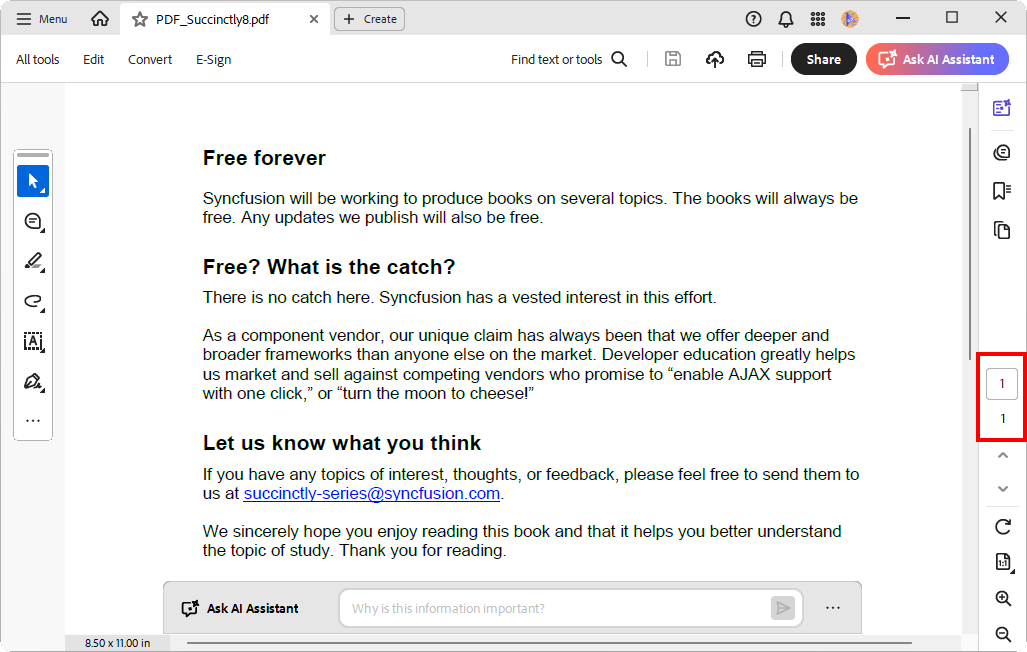
By executing this code, you will get a PDF document like the one in the following screenshot.
Split a range of pages into a separate PDF document
With the help of the Syncfusion® PDF Library, you can split a range of pages from a large PDF document into an individual PDF. This will help the user send only the pages that need further processing, instead of sending the whole PDF document.
The following code example shows how to split a range of pages from an existing PDF document.
//Create the page range values.
int[,] values = new int[,] { { 1, 5 }, { 3, 9 } };
//Load the PDF document
PdfLoadedDocument loadedDocument = new PdfLoadedDocument("../../../../Data/PDF_Succinctly.pdf");
//Split the pages into fixed number
loadedDocument.SplitByRanges("Output-{0}.pdf", values);
//Close the PDF document
loadedDocument.Close(true);
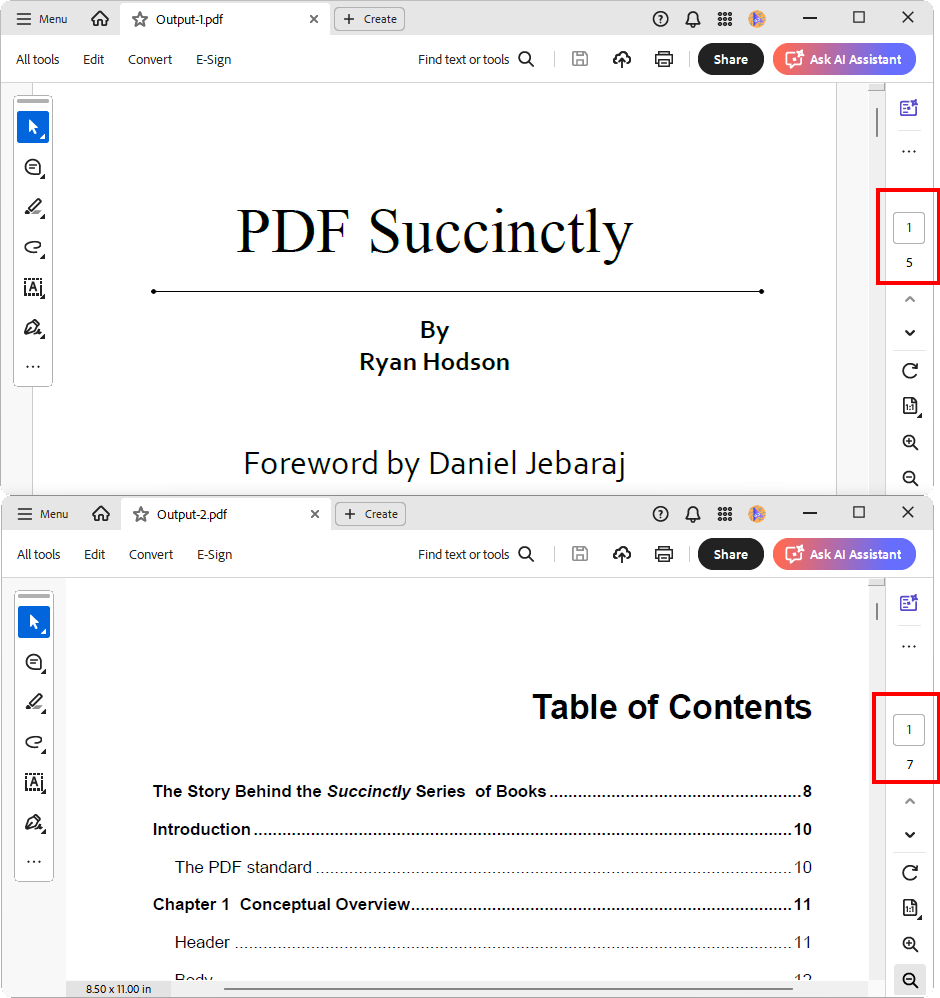
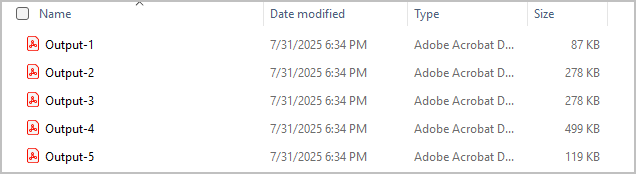
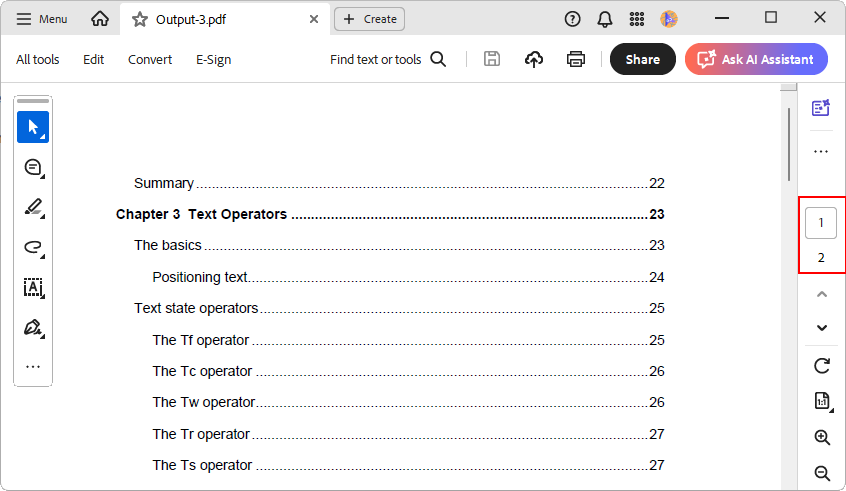
By executing this code, you will get a PDF document with multiple pages as shown in the following screenshot.
Split by a fixed number of pages into a PDF document
Using the Syncfusion® PDF Library, you can split a large PDF document into multiple smaller documents, each containing a fixed number of pages. This is especially useful when you want to divide a lengthy document into manageable sections for easier sharing, reviewing, or archiving.
The following example demonstrates how to split an existing PDF document into multiple files, each containing a specific number of pages.
//Load the PDF document
PdfLoadedDocument loadedDocument = new PdfLoadedDocument("../../../../Data/PDF_Succinctly.pdf");
//Split the pages into fixed number
loadedDocument.SplitByFixedNumber("Output-{0}.pdf", 2);
//close the document
loadedDocument.Close(true);
By executing this code, you will get multiple PDF files, each containing 2 pages, as illustrated below.
Split a PDF document based on PDF bookmarks
A PDF document may contain bookmarks that indicate different sections. You can split a PDF document by sections using these bookmarks in cases where different sections of a PDF document should be reviewed by different people.
The following code example shows how to split a PDF document using a bookmark.
//Load the PDF document
PdfLoadedDocument loadedDocument = new PdfLoadedDocument("../../../../Data/PDF_Succinctly.pdf");

//Get the bookmarks from the PDF document
PdfBookmarkBase bookmarks = loadedDocument.Bookmarks;

//Create a dictionary to hold the pages and its index
Dictionary<string, int[]> splitRange = new Dictionary<string, int[]>();

//Iterate all the bookmarks and it is page range
for (int i = 0; i < bookmarks.Count; i++)
{
    PdfLoadedBookmark bookmark = bookmarks[i] as PdfLoadedBookmark;
    if (bookmark.Destination != null)
    {
        int startIndex = bookmark.Destination.PageIndex;
        int endIndex = startIndex;

        // If bookmark has child bookmarks, set endIndex to the last child's page index
        if (bookmark.Count > 0)
        {
            foreach (PdfLoadedBookmark child in bookmark)
            {
                if (child.Destination != null)
                    endIndex = child.Destination.PageIndex;
            }
        }
        splitRange[bookmark.Title] = new[] { startIndex, endIndex };
    }
}

//Split the PDF document based on the bookmark page range.
foreach (var sRange in splitRange)
{
    string title = sRange.Key;
    int startIndex = sRange.Value[0];
    int endIndex = sRange.Value[1];

    //Create a new PDF document.
    PdfDocument document = new PdfDocument();
    //Import the pages to the new PDF document.
    document.ImportPageRange(loadedDocument, startIndex, endIndex);
    //Save the document in a specified folder.
    document.Save(title + ".pdf");
    //Close the document.
    document.Close(true);
}
loadedDocument.Close(true);
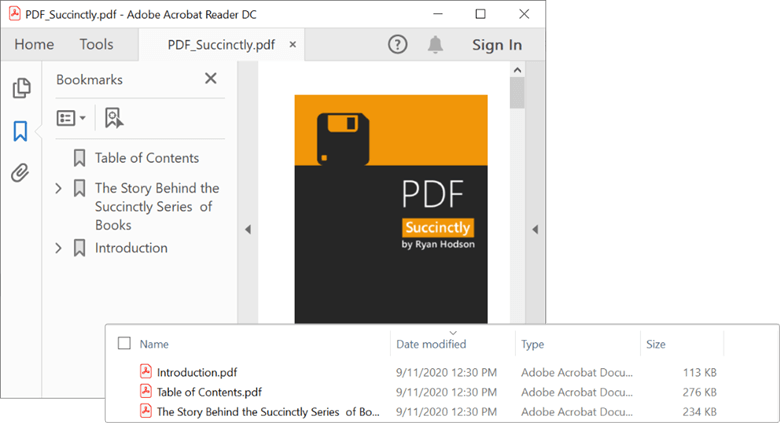
On executing the code in this example, you will get individual PDF documents that each contain a different section of the original document, as shown in the following screenshot.
Find a page with specific text and split it into a separate PDF
With the find text feature, you can split a particular page from a PDF based on the keyword present in the page. This will help you create a new document with the content you want.
The following code example shows how to split a PDF document using the find text feature.
//Load the PDF document
PdfLoadedDocument loadedDocument = new PdfLoadedDocument("PDF_Succinctly.pdf");
Dictionary<int, List<RectangleF>> textFound = new Dictionary<int, List<RectangleF>>();
//Find the text in the PDF document
loadedDocument.FindText("portable", out textFound);

PdfDocument document = new PdfDocument();

//Import page based on the find text index
foreach (int index in textFound.Keys)
{
  if (textFound[index].Count > 0)
  {
    document.ImportPage(loadedDocument, index);
  }
}

//Save the PDF document
document.Save("portable.pdf");
//Close the document
document.Close(true);
loadedDocument.Close(true);
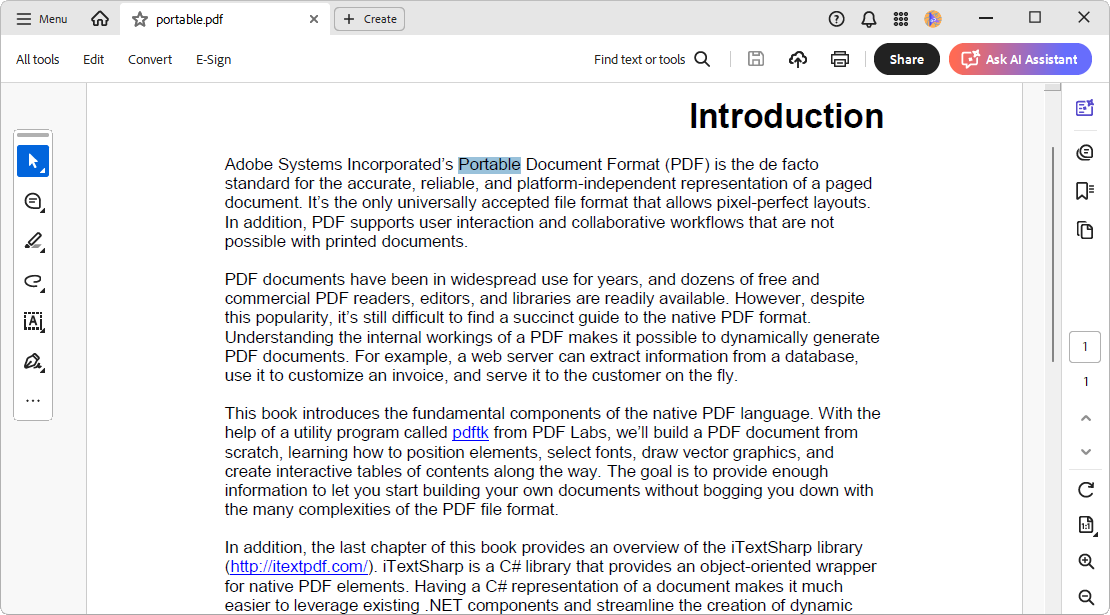
In the above code example, we have searched for the text portable in the PDF. The text was found only in one page. That page has been split as a separate PDF file as shown in the following screenshot.
Remove unused resources when splitting PDF files
When splitting a PDF document, it’s common for unused resources, such as fonts, images, or metadata, to be carried over into the output files. These unnecessary elements can increase the file size and reduce performance. With the Syncfusion PDF Library, you can optimize the output by removing these unused resources during the split process.
This ensures that each resulting PDF contains only the essential content, making the files lighter and more efficient for storage and sharing.
//Create the values.
int[,] values = new int[,] { { 2, 5 }, { 8, 10 } };
//Load the PDF document.
PdfLoadedDocument loadedDocument = new PdfLoadedDocument("Input.pdf");
//Set an output file pattern.
const string destinationFilePattern = "Output{0}.pdf";
//Create the split options object.
PdfSplitOptions splitOptions = new PdfSplitOptions();
//Enable the removal of unused resources property.
splitOptions.RemoveUnusedResources = true;
//Split the document by ranges.
loadedDocument.SplitByRanges(destinationFilePattern, values, splitOptions);
//Close the document.
loadedDocument.Close(true);
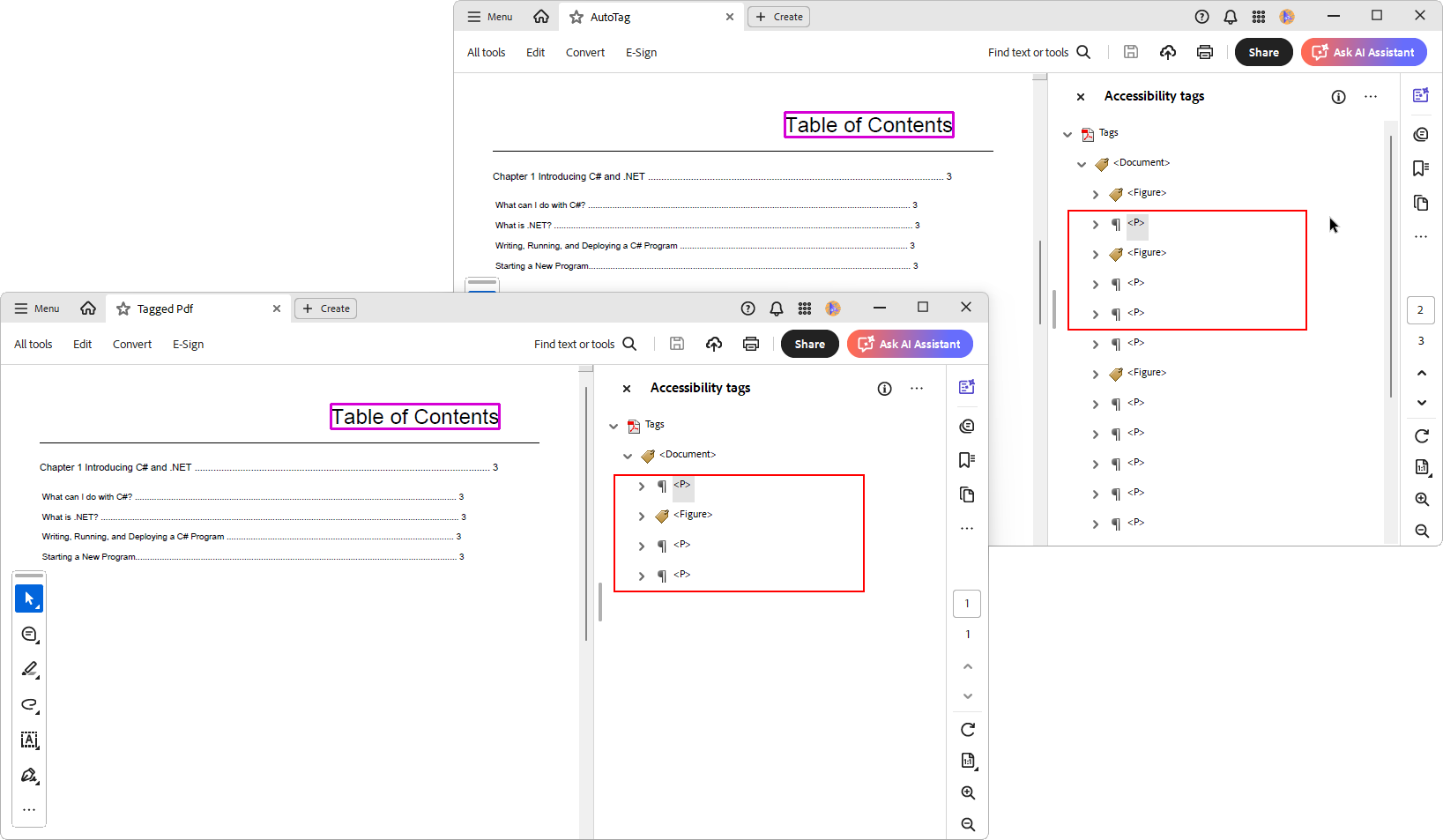
Split PDF files without losing accessibility tags
When working with tagged PDF documents, it’s important to preserve accessibility features such as reading order, alternative text, and structural elements. The Syncfusion® PDF Library supports importing these accessibility tags when splitting a PDF, ensuring that the resulting documents remain compliant with accessibility standards like PDF/UA.
This is especially useful for organizations that need to maintain accessibility across all distributed documents, such as educational institutions, government agencies, and enterprises focused on inclusivity.
By enabling tag preservation during the split process, you ensure that screen readers and other assistive technologies can continue to interpret the content correctly in the split files.
//Load the PDF document.
PdfLoadedDocument loadedDocument = new PdfLoadedDocument("../../../../Data/Tagged_PDF.pdf");
//Create the split options object.
PdfSplitOptions splitOptions = new PdfSplitOptions();
//Enable the Split tags property.
splitOptions.SplitTags = true;
//Split the document by ranges.
loadedDocument.SplitByFixedNumber("Output{0}.pdf", 1, splitOptions);
//Close the document.
loadedDocument.Close(true);
When you run the above example, the resulting PDF files will retain the accessibility tags associated with each corresponding page from the original document, as shown below.
GitHub Sample
You can download all of these samples of splitting PDF documents on GitHub.
Conclusion
In this blog post, we learned six easy ways to split a PDF document using C#. I hope this blog post has been helpful to you. Splitting a PDF helps you reduce document file sizes and separate out your desired content. It also reduces the time spent on file transactions.
If you have any questions about these features, please let us know in the comments section below. You can also contact us through our support forums, Direct-Trac, or feedback portal. We are always happy to assist you!
 No spam, just valuable updates.
Comments (3)
Praveenkumar, the best!
Thanks Praveenkumar !
can we split one A4 into 2 pages A5 ?
Hi RICARDO,
At present, we do not have direct support for splitting the PDF document page into 2 pages in our PDF library. However, we can achieve your requirement by using PdfTemplate, we have created a sample to split the A4 document page into two A5 pages in a PDF document. We have attached the sample and output document for your reference, try the sample on your end and let us know whether it is suitable for you.
Sample: https://www.syncfusion.com/downloads/support/directtrac/general/ze/PdfSample-475580774
Document: https://www.syncfusion.com/downloads/support/directtrac/general/pd/TemplateOutput1-1397890039
You can refer to the below KB documentation link for more details,
KB: https://www.syncfusion.com/kb/9955/how-to-split-pdf-page-into-half-using-c-and-vb-net
Regards,
Chinnu M