
 Balavignesh RaviChandran
TL;DR: Quickly create UML sequence diagrams in Blazor using Diagram Library and Mermaid syntax. Learn the UmlSequenceDiagramModel API for participants, messages, and activation boxes. Explore advanced customization, save/load functionality, and export formats like PNG, JPEG, and SVG.
UML sequence diagrams are a powerful tool to visualize how objects interact in a specific scenario over time. They show the sequence of messages exchanged between participants, helping developers and stakeholders understand system behavior, clarify requirements, and design better architecture.
In this guide, we’ll learn how to build, customize, and share dynamic UML sequence diagrams in a Blazor application using the Syncfusion Blazor Diagram Library. We’ll cover the UmlSequenceDiagramModel API, customization options, and export functionality, all with practical examples.

What is a UML sequence diagram?
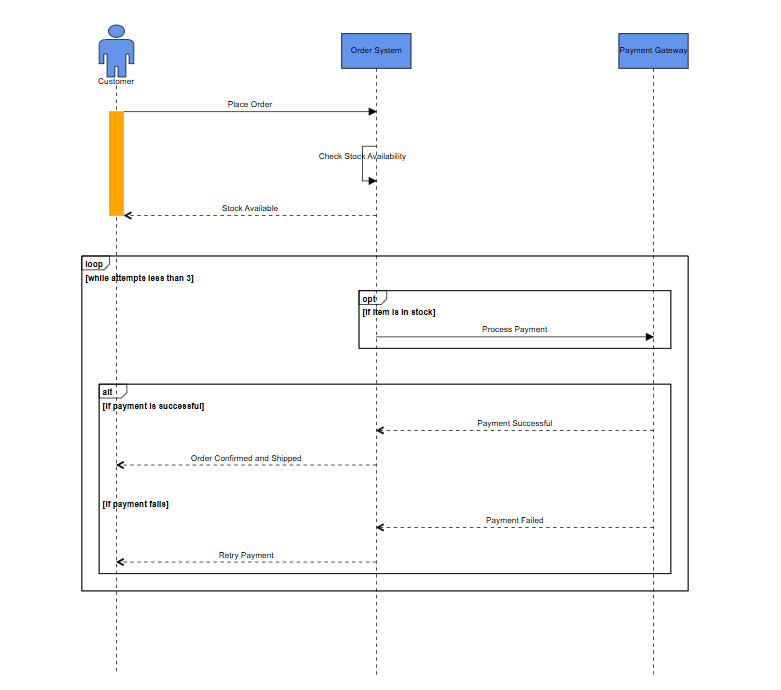
A UML sequence diagram illustrates how different parts of a system interact over time. It focuses on the order of messages exchanged between objects, making it easier to understand workflows and the collaboration between components.
Take a look at the UML sequence diagram below for reference.
Key elements
Understanding the core components of a UML sequence diagram is essential before you start creating one. These elements define how interactions are represented and interpreted:
- Participants: Represent objects or entities involved in the interaction. A participant can be either a user (actor) or an object.
- Lifelines: A vertical dashed line, depicting an object’s existence over time.
- Messages: Arrows indicating communication between lifelines. Common types include:
- Synchronous (solid arrow): Sender waits for a response.
- Asynchronous (open arrow): The sender continues without waiting for a reply.
- Return messages (dashed arrow): Shows the response to a previous message.
- Self-message: Represents a message for internal operations.
- Create message: Represents the creation of a new object during interaction.
- Destroy message: Indicates the termination of an object.
- Activations: Vertical rectangles on a lifeline showing when an object is active.
- Fragments: Grouping related interactions under logical conditions, such as:
- Alternative flows (alt): Represents if/else logic.
- Optional interactions (opt): Occurs only under certain conditions.
- Loops (loop): Represents a repetitive sequence.
By visualizing these interactions, teams can clarify requirements, spot potential issues early, and improve system design.
Creating UML sequence diagrams in Blazor
Prerequisites
Before you begin, make sure the following are installed:
- .NET SDK (version 6.0 or later)
- Visual Studio 2022 or Visual Studio Code with the C# extension
Step 1: Set up the Blazor project
Start by creating a new Blazor WebAssembly project. Run these commands:
dotnet new blazorwasm -o UMLSequenceDiagram
cd UMLSequenceDiagram
Step 2: Install Syncfusion packages
Navigate to your app’s directory and install all Syncfusion Blazor Diagram NuGet package using the following command:
dotnet add package Syncfusion.Blazor.Diagrams
dotnet add package Syncfusion.Blazor.Themes
Step 3: Register Syncfusion services
Open Program.cs and register the Syncfusion Blazor service:
// Program.cs
using Syncfusion.Blazor;

// ...
var builder = WebAssemblyHostBuilder.CreateDefault(args);
// ...
builder.Services.AddSyncfusionBlazor(); // Add this line
Step 4: Add Syncfusion Blazor script and style reference
Open wwwroot/index.html and include the theme and script references inside the <head> tag:
<!-- wwwroot/index.html -->
<head>
    ...
    <link href="_content/Syncfusion.Blazor.Themes/bootstrap5.css" rel="stylesheet" />
    <script src="_content/Syncfusion.Blazor.Diagrams/scripts/sf-diagramcomponent.min.js"></script>
</head>
Step 5: Initialize the Blazor Diagram component
Open Pages/Index.razor and add the following code to create a diagram surface:
@page "/"
@using Syncfusion.Blazor.Diagrams

<SfDiagramComponent @ref="DiagramInstance"
                    Height="700px"
                    Model="@DiagramModel">
</SfDiagramComponent>

@code {
    private SfDiagramComponent DiagramInstance;
    private UmlSequenceDiagramModel DiagramModel;

    protected override void OnInitialized()
    {
        // Initialize the model here
        InitializeDiagramModel();
    }

    private void InitializeDiagramModel()
    {
        // All the participant, message, and fragment code should go here
    }
}
Your Blazor application now renders a diagram layout.
Step 6: Creating a UML sequence diagram
You can create UML sequence diagrams in Blazor using Syncfusion Diagram in two ways:
Method 1: Using the API
The Syncfusion Blazor Diagram Library provides a flexible API called UmlSequenceDiagramModel that allows you to define UML sequence diagrams programmatically. This approach provides you with full control over participants, messages, activation boxes, and fragments, enabling accurate visualization.
To create a sequence diagram using the above API, define the following:
- Participants: Use the UmlSequenceParticipant class to define participantswith properties such as ID, Content, and IsActor, as shown below:
List<UmlSequenceParticipant> participants = new List<UmlSequenceParticipant>()
{
    new UmlSequenceParticipant() { ID = "Customer", Content = "Customer", IsActor = true },
    new UmlSequenceParticipant() { ID = "OrderSystem", Content = "Order System", IsActor = false },
    new UmlSequenceParticipant() { ID = "PaymentGateway", Content = "Payment Gateway", IsActor = false }
};
Refer to the following image.

Defining participants with properties
- Messages: Define interactions between participants using the
UmlSequenceMessageclass. Each message includes the sender (FromParticipantID), receiver (ToParticipantID), content, and type (synchronous, asynchronous, reply, self, create, or delete):List<UmlSequenceMessage> messages = new List<UmlSequenceMessage>() { new UmlSequenceMessage() { ID = "MSG1", Content = "Place Order", FromParticipantID = "Customer", ToParticipantID = "OrderSystem", MessageType = UmlSequenceMessageType.Synchronous }, new UmlSequenceMessage() { ID = "MSG2", Content = "Check Stock Availability", FromParticipantID = "OrderSystem", ToParticipantID = "OrderSystem", MessageType = UmlSequenceMessageType.Synchronous }, … … new UmlSequenceMessage() { ID = "MSG8", Content = "Retry Payment", FromParticipantID = "OrderSystem", ToParticipantID = "Customer", MessageType = UmlSequenceMessageType.Reply } };
- Activation Boxes: Specify activation periods for participants using the UmlSequenceActivationBox class. These indicate when a participant is active during the interaction, based on message IDs as shown below:
new UmlSequenceParticipant()
{
    ID = "Customer",
    Content = "Customer",
    IsActor = true,
    ActivationBoxes = new List<UmlSequenceActivationBox>()
    {
        new UmlSequenceActivationBox() { ID = "act2", StartMessageID = "MSG1", EndMessageID = "MSG3" }
    }
}
Refer to the following image.
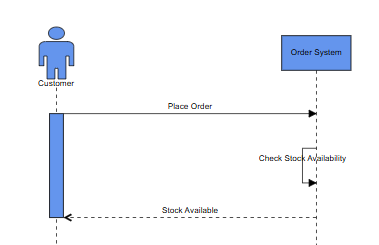
Specifying activation periods for participants
- Fragments: Groups messages under control structures such as loops, alternatives, or optional flows using the UmlSequenceFragment class and the UmlSequenceFragmentCondition. Refer to the following code example.
List<UmlSequenceFragment> fragments = new List<UmlSequenceFragment>()
{
    new UmlSequenceFragment()
    {
        ID = "Frag3",
        FragmentType = UmlSequenceFragmentType.Loop,
        Conditions = new List<UmlSequenceFragmentCondition>()
        {
            new UmlSequenceFragmentCondition()
            {
                Content = "while attempts less than 3",
                Fragments = new List<UmlSequenceFragment>()
                {
                    new UmlSequenceFragment()
                    {
                        ID = "Frag1",
                        FragmentType = UmlSequenceFragmentType.Optional,
                        Conditions = new List<UmlSequenceFragmentCondition>()
                        {
                            new UmlSequenceFragmentCondition()
                            {
                                Content = "if item is in stock",
                                MessageIds = new List<string> { "MSG4" }
                            }
                        }
                    },
                    new UmlSequenceFragment()
                    {
                        ID = "Frag2",
                        FragmentType = UmlSequenceFragmentType.Alternative,
                        Conditions = new List<UmlSequenceFragmentCondition>()
                        {
                            new UmlSequenceFragmentCondition()
                            {
                                Content = "if payment is successful",
                                MessageIds = new List<string> { "MSG5", "MSG6" }
                            },
                            new UmlSequenceFragmentCondition()
                            {
                                Content = "if payment fails",
                                MessageIds = new List<string> { "MSG7", "MSG8" }
                            }
                        }
                    }
                }
            }
        }
    }
};
Refer to the following image.
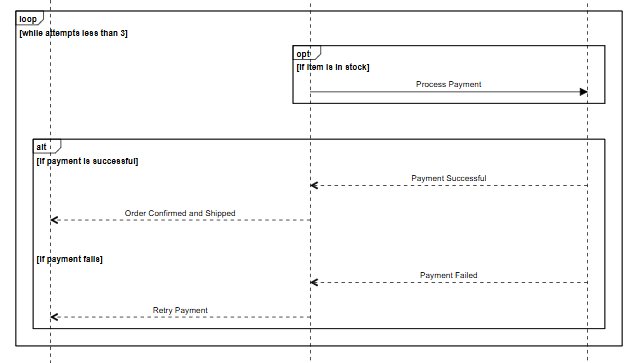
Grouping messages using fragments
- Adjust the horizontal spacing between lifelines using the SpaceBetweenParticipants property for better readability.
// Assign model
DiagramModel = new UmlSequenceDiagramModel()
{
    SpaceBetweenParticipants = 300,
    Participants = participants,
    Messages = messages,
    Fragments = fragments
};
After configuring the model, assign it to the diagram’s Model property as shown below:
  <SfDiagramComponent @ref="DiagramInstance" Height="700px" Model="@DiagramModel>
  </SfDiagramComponent>
Note: To refresh the sequence diagram, update the diagram’s model property and call the UpdateFromModelAsync method.
Method 2: Using Mermaid Syntax
Prefer a quick, text-based approach? Syncfusion Blazor Diagram also supports Mermaid syntax, a popular diagramming language. This method is ideal for importing diagrams from external sources or generating them quickly and efficiently.
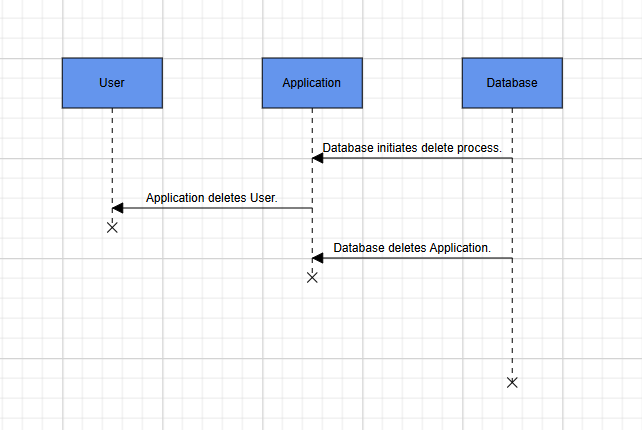
sequenceDiagram
    participant User as User
    participant Application as Application
    participant Database as Database
    Database->>Application: Database initiates delete process.
    destroy User
    Application->>User: Application deletes User.
    destroy Application
    Database->>Application: Database deletes Application.
Refer to the following image.
To load a Mermaid-based sequence diagram in Blazor, use the loadDiagramFromMermaid method as shown below.
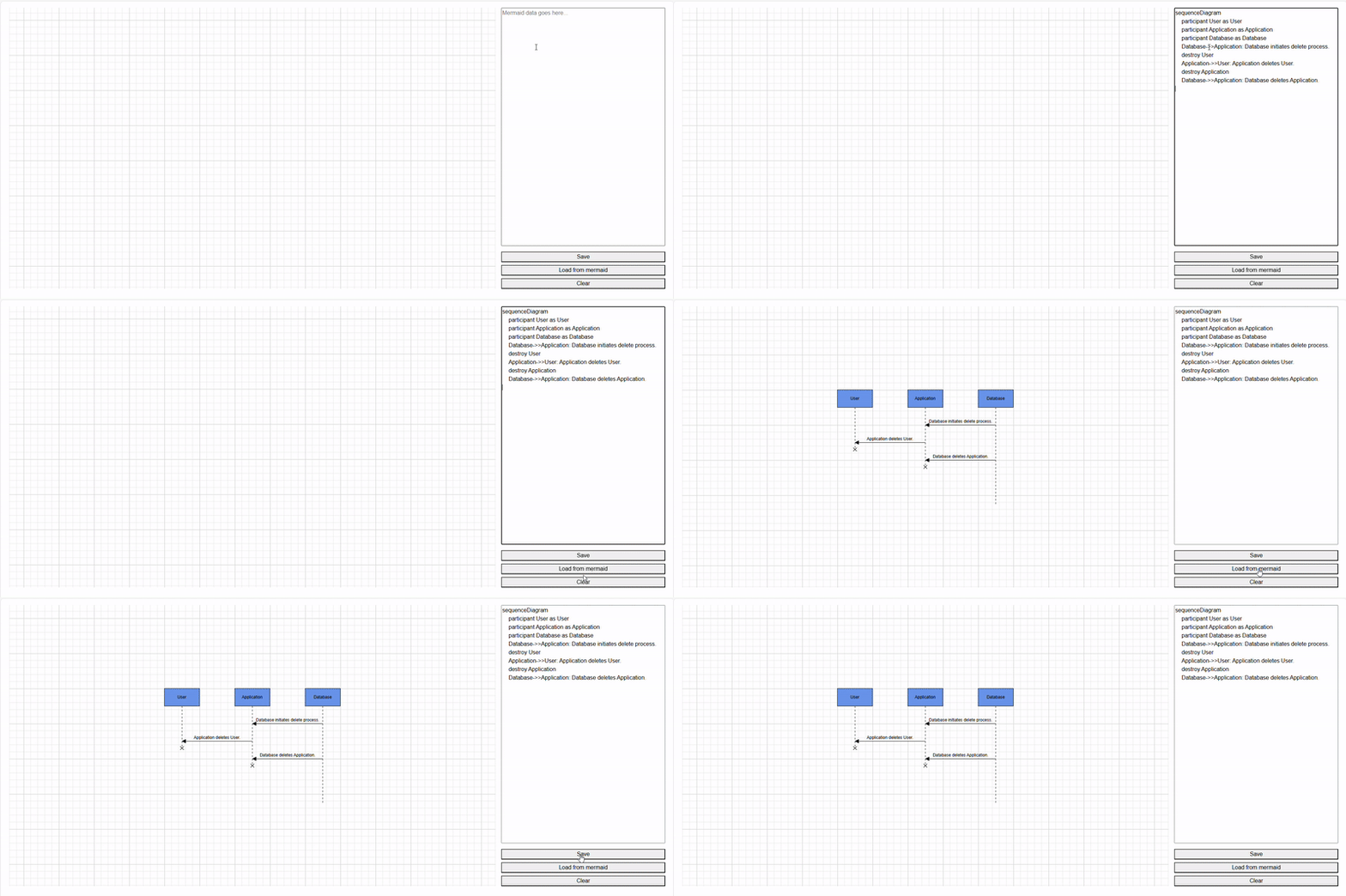
await diagramComponent.LoadDiagramFromMermaidAsync(mermaidData); In the above method, pass a Mermaid-formatted string as an argument, and render the corresponding UML sequence diagram within the diagram component.
This approach enables easy import of diagrams from external sources using Mermaid syntax, allowing for seamless integration with other tools and documentation, as illustrated in the following image.
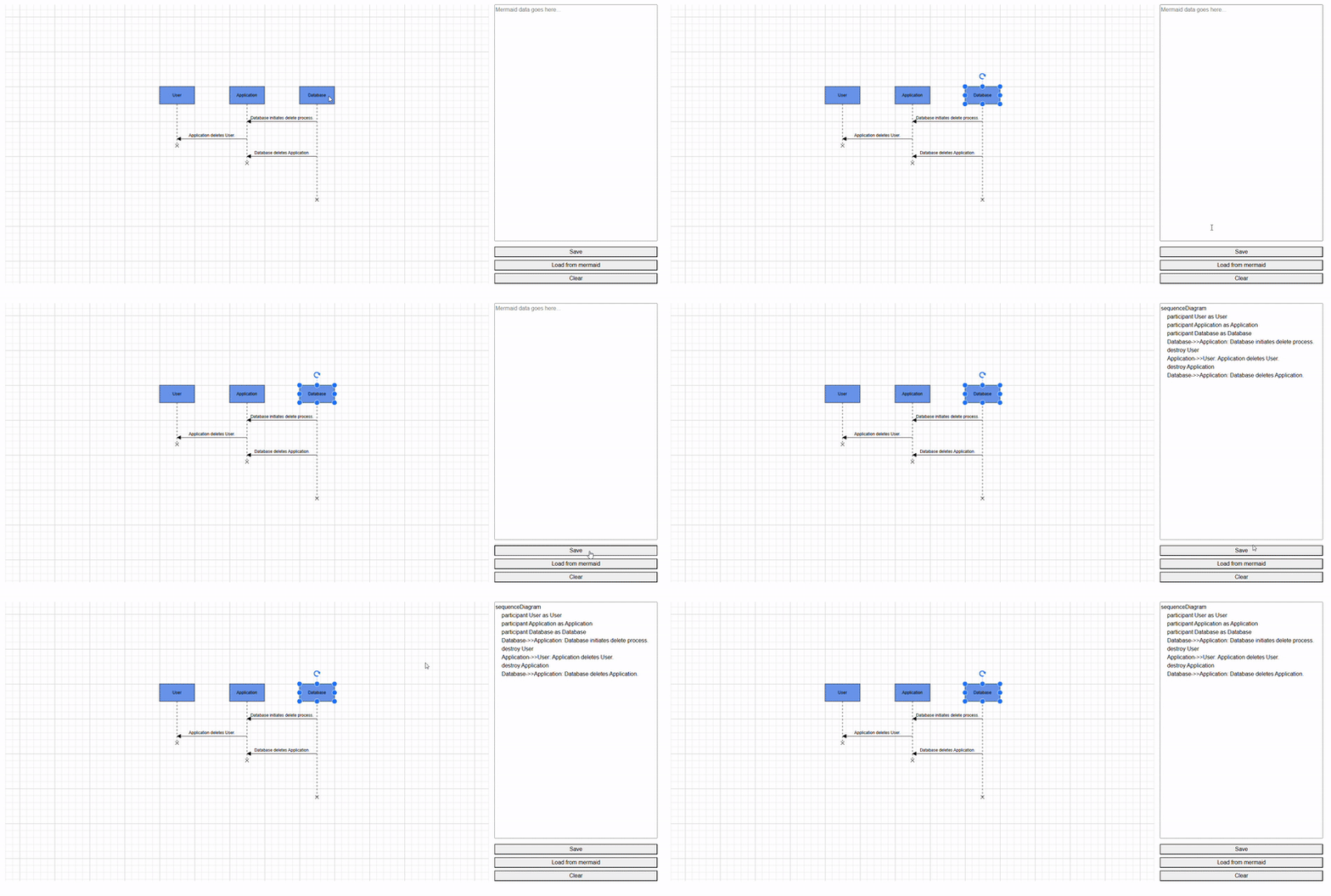
You can also export the current diagram as Mermaid syntax using the saveDiagramAsMermaid method, as shown below.
mermaidData = diagramComponent.SaveDiagramAsMermaid();This returns a string representation of the sequence diagram, which can be saved, shared, or reused.
Refer to the following image.
Customizing sequence diagram styles
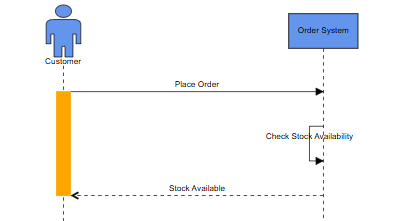
You can easily customize the appearance of sequence diagram objects, such as nodes and connectors, using NodeCreating and ConnectorCreating events. These events fire during diagram initialization, allowing you to apply custom styles dynamically.
Refer to the following code example.
//Callback method for nodecreating event
private void NodeCreating(IDiagramObject obj)
{
    Node node = obj as Node;
    if(node.Data is UmlSequenceActivationBox activationBox)
    {
        node.Style = new ShapeStyle() { Fill = "orange", StrokeColor = "orange" };
        };
    }

public void OnConnectorCreating(IDiagramObject args)
{
    Connector connector = args as Connector;
    connector.Style.Fill = "black";
    connector.Style.StrokeColor = "black";
    connector.Style.Opacity = 1;
    connector.TargetDecorator.Style.Fill = "black";
    connector.TargetDecorator.Style.StrokeColor = "black";
}
Note: You can download the complete working sample here, UMLFromMermaid.
Exporting and printing diagrams
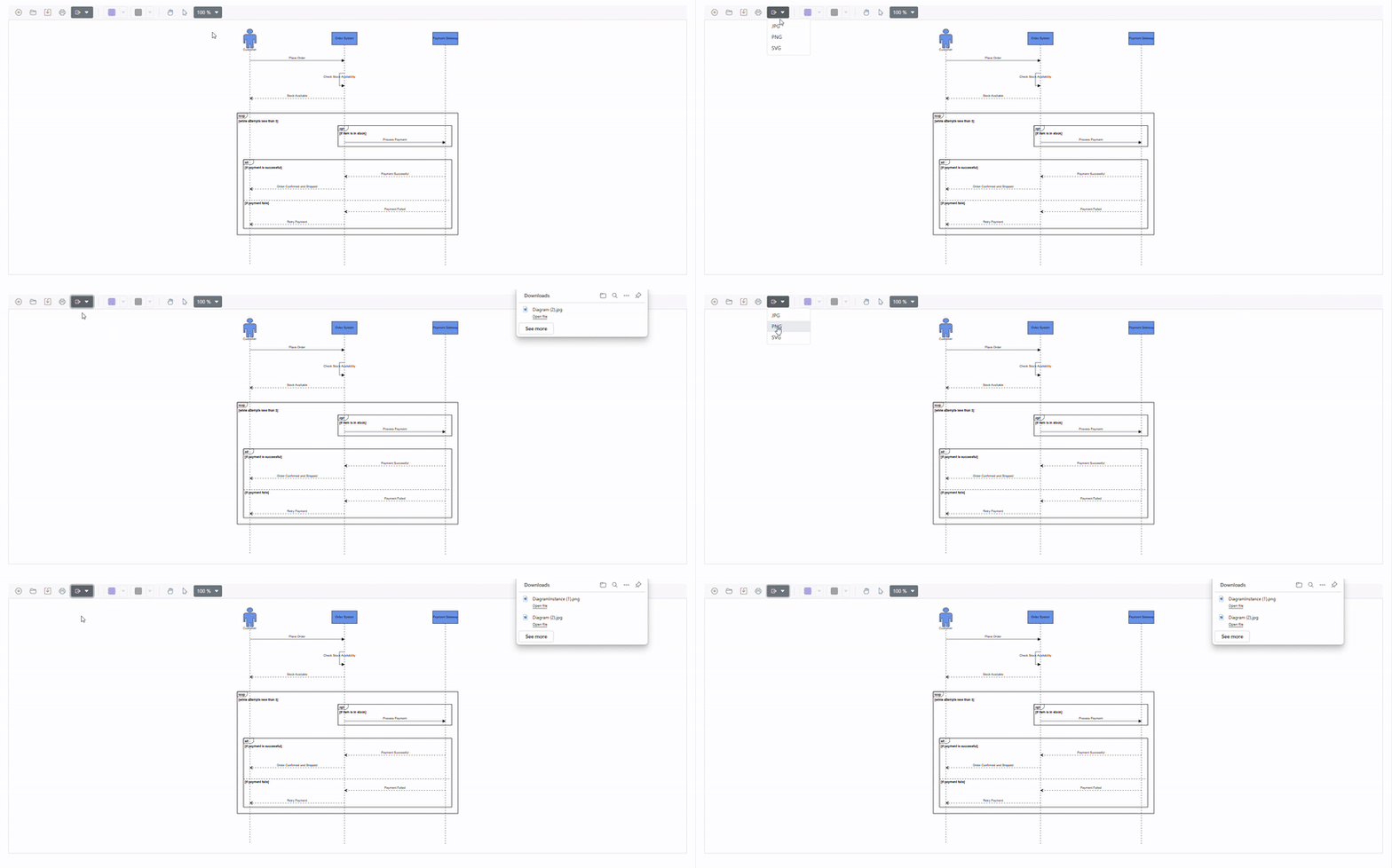
Once your diagram is ready, you can export it as an image in JPEG, PNG, or SVG formats for documentation or sharing. Simply click the Export option in the toolbar.
Refer to the following image.
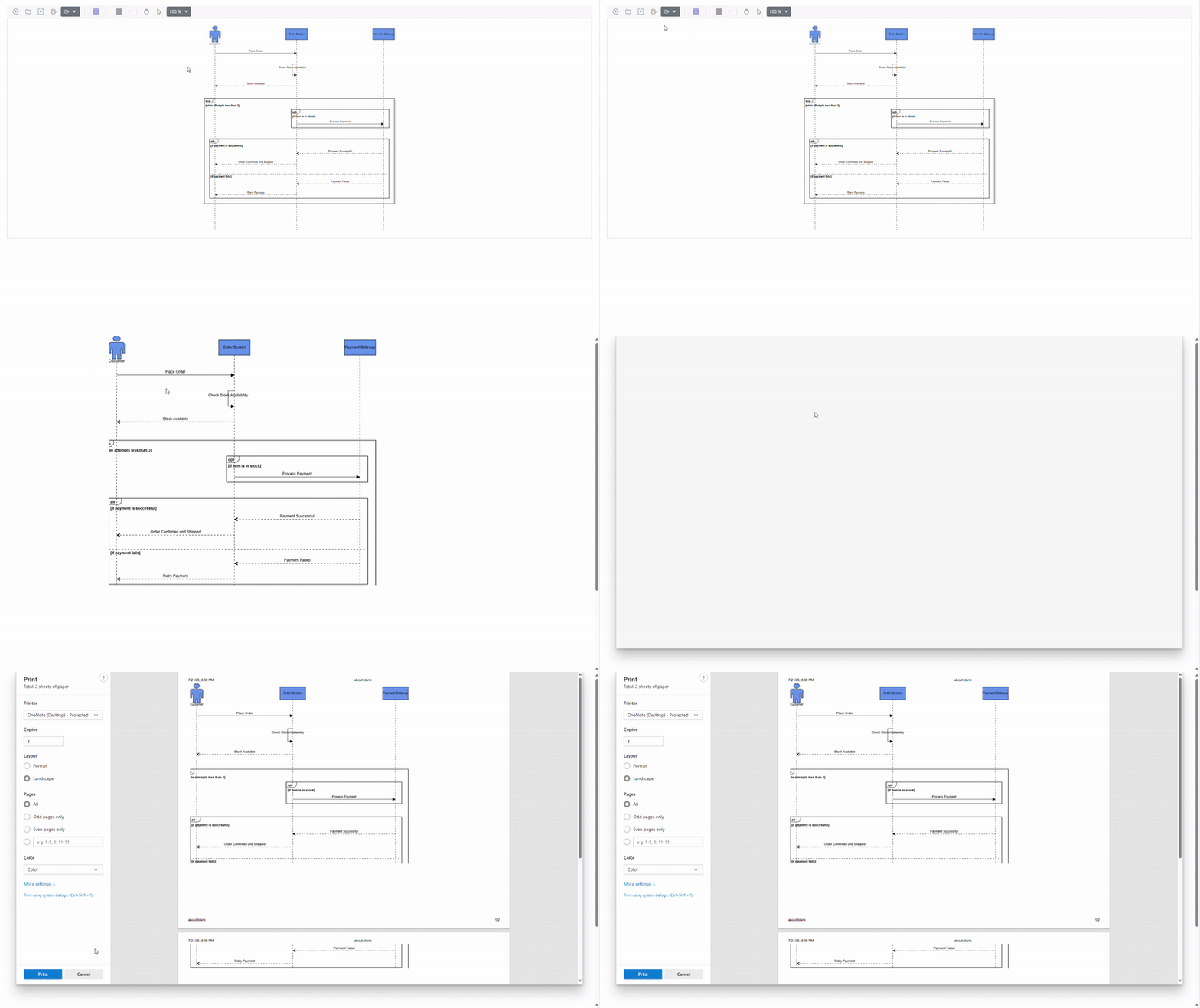
To print, click the Print button in the toolbar to open the print dialog as shown below:
Pan and zoom options
The Blazor Diagram Library provides intuitive navigation features:
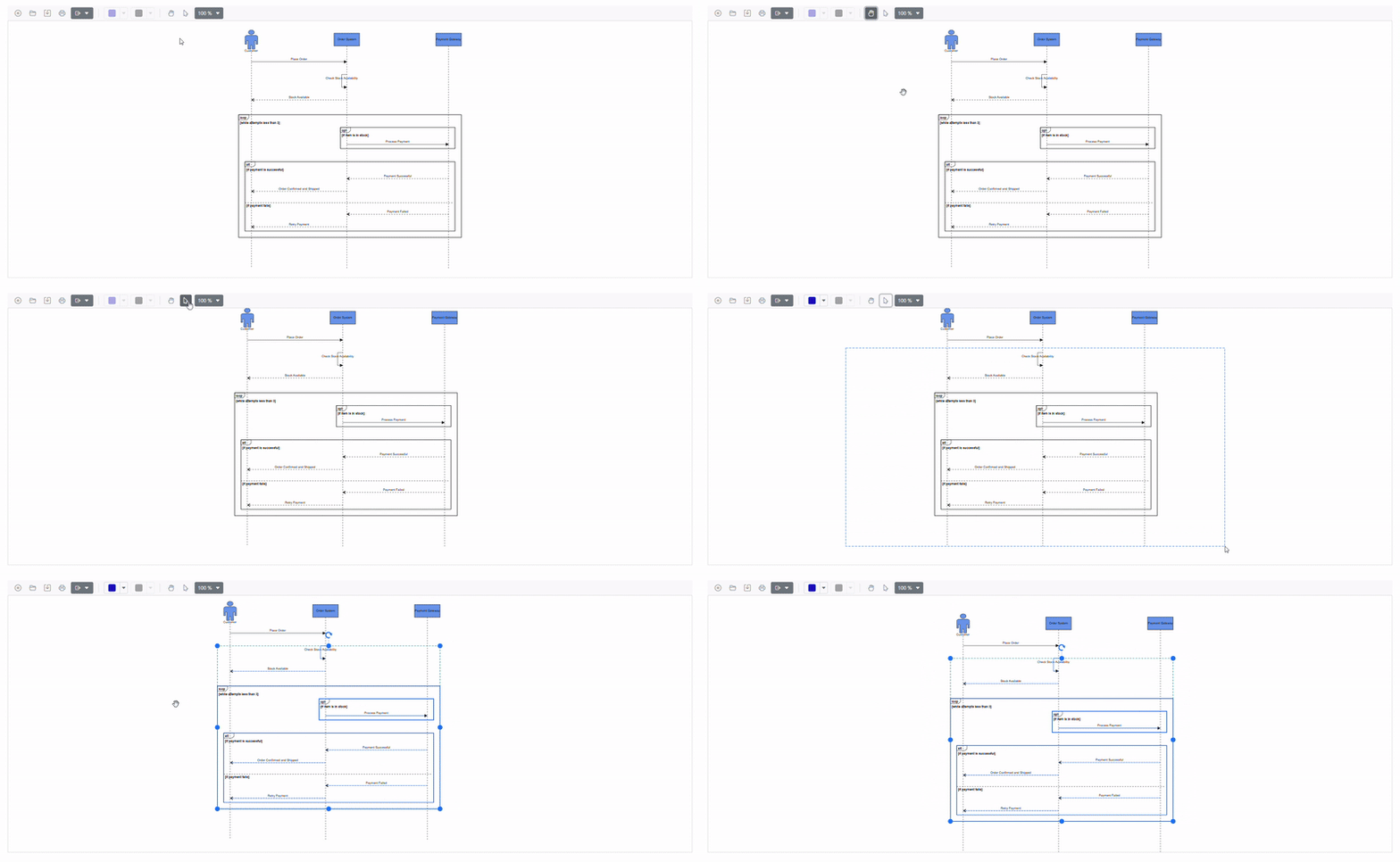
- Pan using scrollbars: Move horizontally or vertically using the scrollbars.
- Pan using the mouse wheel: Rotate the wheel to scroll left or right. Hold Shift to scroll vertically.
- Pan using the pan tool: Select the Pan tool from the toolbar and drag the diagram with the left mouse button.
Refer to the following image,
Zoom options:
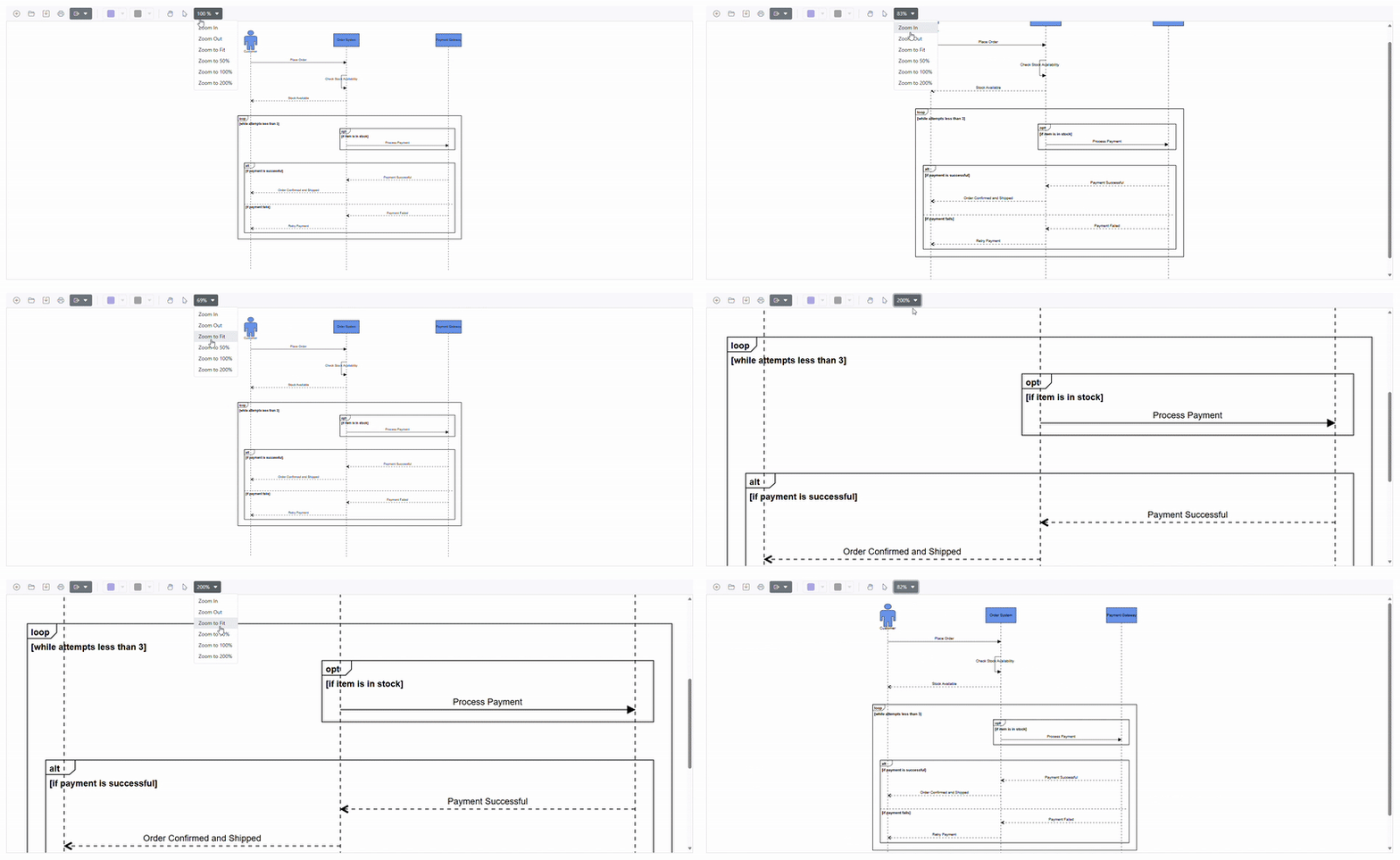
- Keyboard shortcuts: Press Ctrl + mouse wheel to zoom in or out.
- Toolbar option: Use the zoom dropdown for quick adjustments.
Refer to the following image.
Loading and saving a diagram
The Blazor Diagram Library makes it simple to save your work and reload it later, ensuring you can resume where you left off.
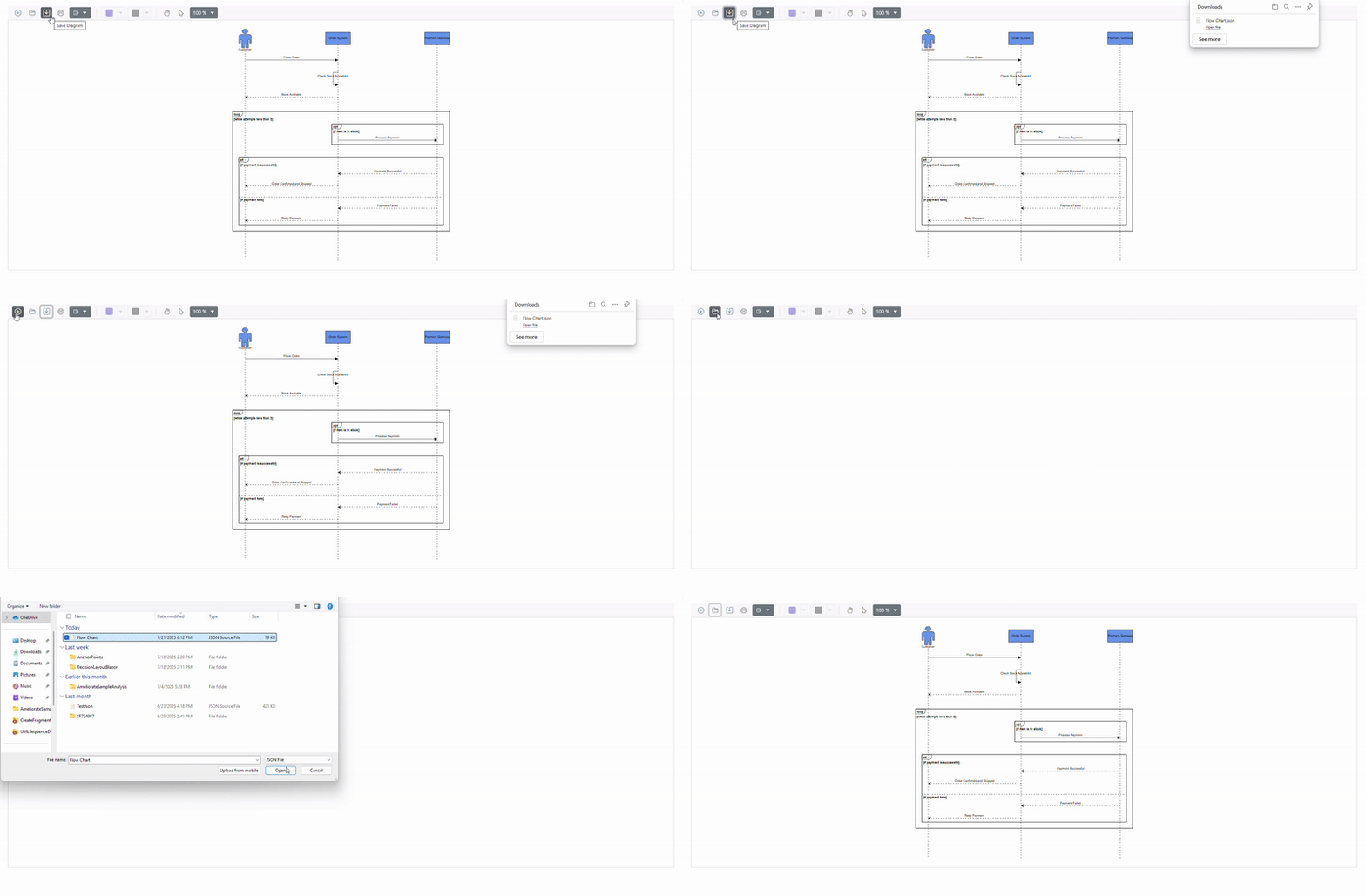
- Save a diagram: Click the Save Diagram option in the toolbar to store your current diagram on your local drive.
- Load a diagram: Use the Open Diagram option in the toolbar to load a previously saved file onto the canvas.
This feature provides flexibility and convenience, allowing you to resume work seamlessly or update existing diagrams without having to start from scratch. It’s an essential capability for efficiently managing complex diagrams.
Refer to the following code example.
 public async Task LoadDiagram()
 {
     DiagramInstance.BeginUpdate();
     ExtensionType = ".json";
     await FileUtil.Click(jsRuntime);
     await DiagramInstance.EndUpdateAsync();
 }
 public async Task OnUploadFileSelected(UploadingEventArgs args)
 {
      if (args.FileData.Type == "json")
      {
          string json = await FileUtil.LoadFile(jsRuntime, args.FileData);
          json = json.Replace(System.Environment.NewLine, string.Empty);
          await DiagramInstance.LoadDiagramAsync(json.ToString());
          FitOptions options = new FitOptions() { Mode = FitMode.Both, Region = DiagramRegion.Content };
          DiagramInstance.FitToPage(options);
          await UploadFiles.ClearAllAsync();
      }
  }
public async Task Download(string fileName)
{
    string data = DiagramInstance.SaveDiagram();
    await FileUtil.SaveAs(jsRuntime, data, fileName);
}
Refer to the following image.
Reference
For more details, refer to the UMLSequenceDiagram GitHub demo.
Conclusion
Thanks for reading! This guide showed you how to create UML sequence diagrams in Blazor using the Syncfusion Blazor Diagram Library. With features like Mermaid syntax support, advanced customization, and export options, you can easily build interactive diagrams for your applications. Similarly, you can use Syncfusion to create other diagramming solutions such as flowcharts, organization charts, or network diagrams.
For more information and advanced features, refer to the official documentation.
UML Diagram is also available in the following Syncfusion Components: Angular, React, Vue, and JavaScript.
If you’re a Syncfusion user, you can download the setup from the license and downloads page. Otherwise, you can download a free 30-day trial.
You can also contact us through our support forum, support portal, or feedback Portal for queries. We are always happy to assist you!






 No spam, just valuable updates.