
 Mohanaselvam Jothi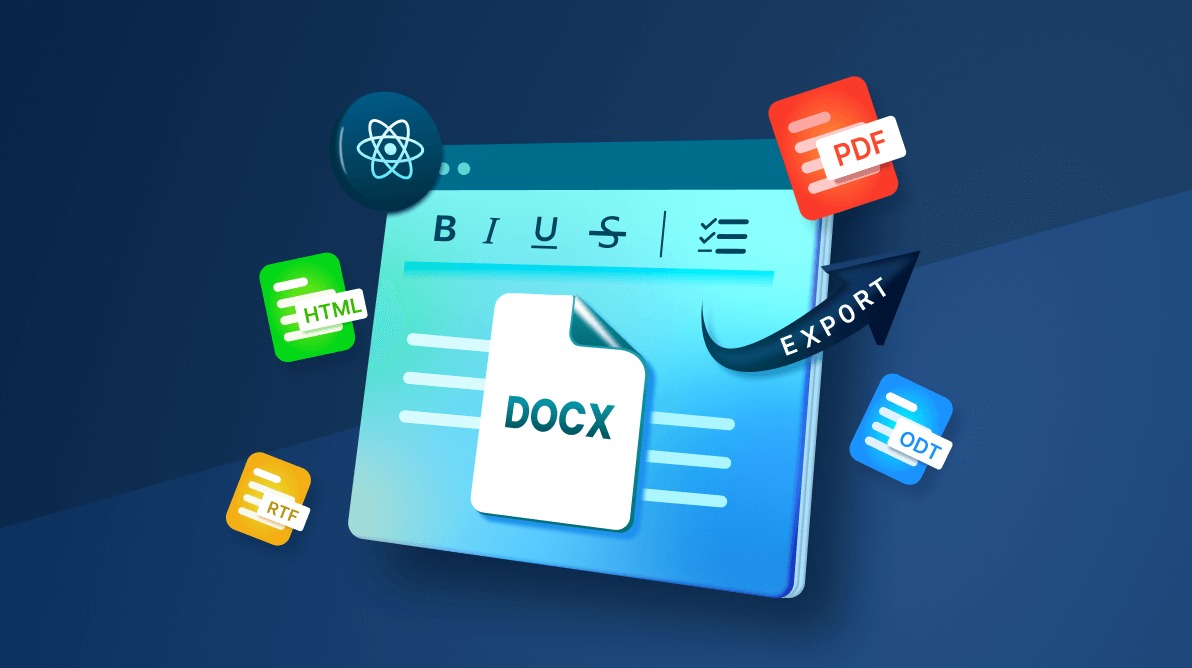
TL;DR: Still juggling multiple document tools just to share files in your React app? With the advanced export options in Syncfusion React DOCX Editor, you can generate DOCX, PDF, HTML, Markdown, and more from a single editor, with no broken formatting and no manual conversions. You can enable scalable document sharing, reduce conversion errors, and simplify collaboration across teams. The result is faster exports, consistent formatting, and a future-proof workflow that supports both lightweight client apps and enterprise-grade server deployments.
The real problem with document export in React apps
If you’ve ever built a document heavy React app, you already know the pain.
A document gets written once, but somehow needs to exist as a:
- DOCX for editing,
- PDF for approvals,
- Markdown for internal docs,
- HTML for publishing.
And the moment exporting isn’t built-in, everything slows down. Manual conversions might work once or twice, but they don’t scale. They introduce errors and waste time. People copy-paste content, use third-party converters, or redo the same work in multiple tools. Formatting breaks. Layouts shift. Everyone gets frustrated.
What you really need is one editor with multiple export options, all handled in a clean, predictable way.
This is exactly where the Syncfusion® React DOCX Editor changes the game.

Advanced export options in React DOCX Editor
The Syncfusion React DOCX Editor supports a flexible, unified document export experience across teams and platforms. It uses fast, in‑browser exports for common formats and a server‑side Web API for formats that need higher accuracy.
Key features
- Client‑side speed with server‑side reliability.
- Export modern and legacy formats from one editor.
- Consistent formatting across outputs.
- Suitable for both lightweight and enterprise apps.
This hybrid approach delivers efficient exports without compromising quality.
Client-side exporting (Instant, no server)
For everyday use cases, exporting directly from the React app is often enough, with no server involved.
You can export to:
- SFDT: For drafts, autosave, and round-trip editing.
- DOCX: Share editable files via Microsoft Word or Google Docs.
- DOTX: Use templates to maintain consistent branding and styles.
- TXT: Export plain text for tickets, wikis, or simple tools.
Server-side exporting (Heavy lifting, perfect output)
Some formats need extra processing, especially when layout, pagination, or print quality matter. That’s where the server-side Web API comes in.
Using it, you can export to:
- PDF: For finalized documents, printing, or e-signature.
- HTML: Publish to web portals or embed in apps.
- RTF: For compatibility with rich text editors.
- Markdown: Ideal for developer docs and wikis.
- ODT: A widely supported open format for cross-platform use.
- WordML: Useful for XML-based workflows and systems that require structured document data.
Let’s build a React DOCX Editor and integrate both client-side and server-side export options. By the end, you’ll have a production-ready workflow for seamless document-sharing across formats and platforms.
Server-side export setup for React DOCX Editor
Follow these steps to set up a server-side Web API that enables exporting documents from the Syncfusion React DOCX Editor to formats like PDF, HTML, RTF, Markdown, and ODT.
Step 1: Create a new ASP.NET Core Web API project
First, create a new ASP.NET Core Web API project using your preferred development environment or the .NET CLI.
Step 2: Add the required NuGet packages
Then, install the following NuGet packages to enable document import and export functionalities:
- Syncfusion.EJ2.WordEditor.AspNet.Core: Provides a server-side support for handling SFDT content from the Document Editor.
- Syncfusion.DocIORenderer.Net.Core: Converts Word documents to formats like PDF, HTML, RTF, Markdown, ODT, and WordML.
Step 3: Define export endpoints in the controller
Add a controller named DocumentEditorController.cs to handle export requests. Include endpoint logic to process SFDT input and return converted documents.
Here’s how you can do it in code:
[AcceptVerbs("Post")]
[HttpPost]
[EnableCors("AllowAllOrigins")]
[Route("Export")]
public FileStreamResult Export([FromBody] SaveParameter data)
{
    string fileName = data.FileName;
    string format = RetrieveFileType(string.IsNullOrEmpty(data.Format) ? fileName : data.Format);

    if (string.IsNullOrEmpty(fileName))
    {
        fileName = "Document1.docx";
    }

    WDocument document;
    if (format.ToLower() == ".pdf")
    {
        Stream stream = WordDocument.Save(data.Content, FormatType.Docx);
        document = new Syncfusion.DocIO.DLS.WordDocument(stream, Syncfusion.DocIO.FormatType.Docx);
    }
    else
    {
        document = WordDocument.Save(data.Content);
    }

    return SaveDocument(document, format, fileName);
}

private string RetrieveFileType(string name)
{
    int index = name.LastIndexOf('.');
    string format = index > -1 && index < name.Length - 1
        ? name.Substring(index)
        : ".doc";
    return format;
}

private FileStreamResult SaveDocument(WDocument document, string format, string fileName)
{
    Stream stream = new MemoryStream();
    string contentType = "";

    if (format.ToLower() == ".pdf")
    {
        contentType = "application/pdf";
        DocIORenderer render = new DocIORenderer();
        PdfDocument pdfDocument = render.ConvertToPDF(document);
        stream = new MemoryStream();
        pdfDocument.Save(stream);
        pdfDocument.Close();
    }
    else
    {
        WFormatType type = GetWFormatType(format);
        switch (type)
        {
            case WFormatType.Rtf:
                contentType = "application/rtf";
                break;
            case WFormatType.WordML:
                contentType = "application/xml";
                break;
            case WFormatType.Html:
                contentType = "application/html";
                break;
            case WFormatType.Dotx:
                contentType = "application/vnd.openxmlformats-officedocument.wordprocessingml.template";
                break;
            case WFormatType.Docx:
                contentType = "application/vnd.openxmlformats-officedocument.wordprocessingml.document";
                break;
            case WFormatType.Doc:
                contentType = "application/msword";
                break;
            case WFormatType.Dot:
                contentType = "application/msword";
                break;
            case WFormatType.Odt:
                contentType = "application/vnd.oasis.opendocument.text";
                break;
            case WFormatType.Markdown:
                contentType = "text/markdown";
                break;
        }
        document.Save(stream, type);
    }

    document.Close();
    stream.Position = 0;

    return new FileStreamResult(stream, contentType)
    {
        FileDownloadName = fileName
    };
}

internal static WFormatType GetWFormatType(string format)
{
    if (string.IsNullOrEmpty(format))
        throw new NotSupportedException("EJ2 Document Editor does not support this file format.");

    switch (format.ToLower())
    {
        case ".dotx":
            return WFormatType.Dotx;
        case ".docx":
            return WFormatType.Docx;
        case ".docm":
            return WFormatType.Docm;
        case ".dotm":
            return WFormatType.Dotm;
        case ".dot":
            return WFormatType.Dot;
        case ".doc":
            return WFormatType.Doc;
        case ".rtf":
            return WFormatType.Rtf;
        case ".txt":
            return WFormatType.Txt;
        case ".xml":
            return WFormatType.WordML;
        case ".odt":
            return WFormatType.Odt;
        case ".html":
            return WFormatType.Html;
        case ".md":
            return WFormatType.Markdown;
        default:
            throw new NotSupportedException("EJ2 Document Editor does not support this file format.");
    }
}
Step 4: Run the web API
Build and run the web API locally to verify that the export endpoints are working as expected.
Client-side setup: Create a React DOCX Editor
Once your server-side export API is up and running, you can move on to building the client-side React app using the Syncfusion React Document Editor.
It allows users to view, edit, and export Word documents directly in the browser without relying on external plugins.
Step 1: Create a new React app
First, create a new React project on the local machine.
Step 2: Install the Syncfusion React Document Editor
Now, install the Syncfusion React DOCX Editor NPM package.
npm install @syncfusion/ej2-react-documenteditor --saveStep 3: Import the required styles
To ensure proper styling, import the necessary CSS styles in your App.css or index.css file.
Here’s the code you need:
@import '../node_modules/@syncfusion/ej2-base/styles/material.css';
@import '../node_modules/@syncfusion/ej2-buttons/styles/material.css';
@import '../node_modules/@syncfusion/ej2-inputs/styles/material.css';
@import '../node_modules/@syncfusion/ej2-popups/styles/material.css';
@import '../node_modules/@syncfusion/ej2-lists/styles/material.css';
@import '../node_modules/@syncfusion/ej2-navigations/styles/material.css';
@import '../node_modules/@syncfusion/ej2-splitbuttons/styles/material.css';
@import '../node_modules/@syncfusion/ej2-dropdowns/styles/material.css';
@import '../node_modules/@syncfusion/ej2-documenteditor/styles/material.css';
Step 4: Integrate the React DOCX Editor with advanced export options
Now, create the Exporting.js file in the src folder to render the DOCX Editor and configure the advanced export options using the Web API.
Code example for quick integration:
import * as React from 'react';
import { useEffect, useRef } from 'react';
import { DocumentEditorContainerComponent, Ribbon } from '@syncfusion/ej2-react-documenteditor';
import "./index.css";

DocumentEditorContainerComponent.Inject(Ribbon);

// Add the Service URL for server-dependent features
let hostUrl = "http://localhost:5257/api/documenteditor/";

const Exporting = () => {
    const container = useRef(null);
    const defaultSFDT = `{
        "sections": [{
            "blocks": [{
                "inlines": [{
                    "text": "Welcome to Syncfusion Document Editor!",
                    "characterFormat": {
                        "bold": true,
                        "fontSize": 14
                    }
                }]
            }]
        }]
    }`;

    useEffect(() => {
        if (container.current) {
            container.current.documentEditor.open(defaultSFDT);
            container.current.documentEditor.documentName = 'Getting Started';
            container.current.documentEditor.focusIn();
        }
    }, []);

    // Ribbon File tab Export menu
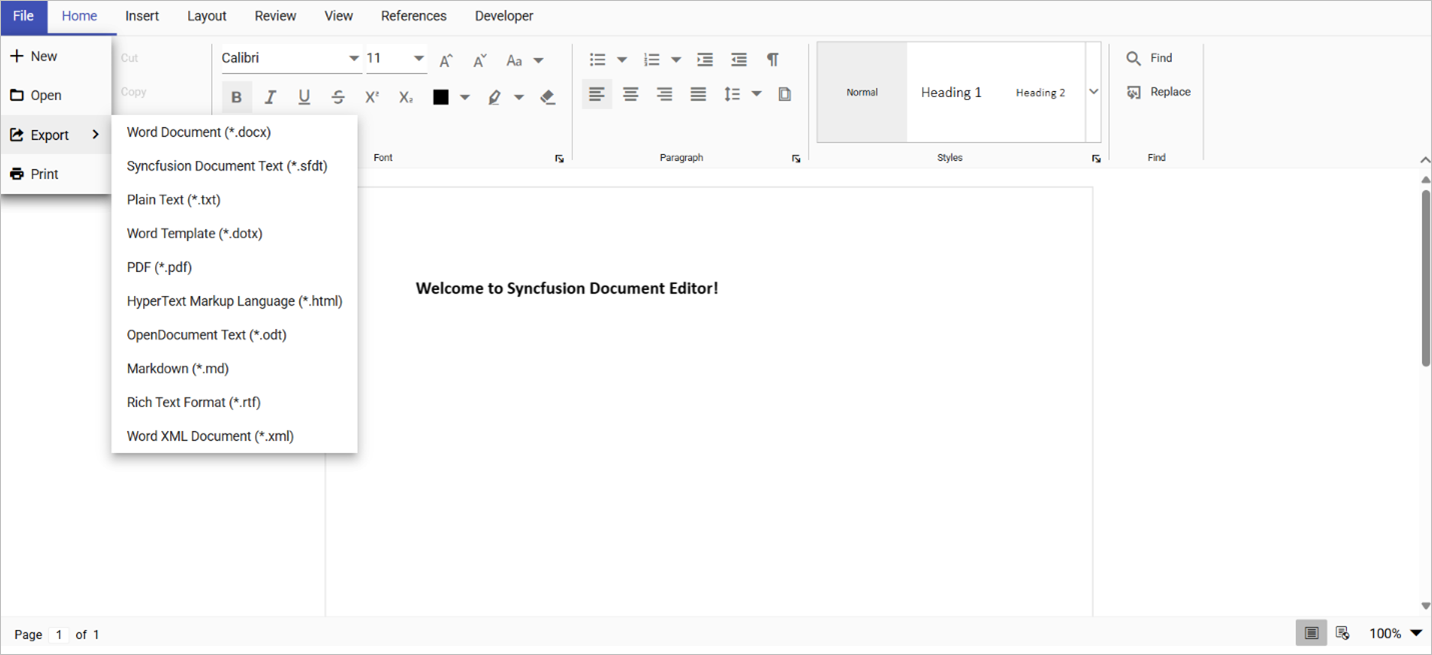
    const ribbonExportItems = [
        { text: 'Word Document (*.docx)', id: 'docx' },
        { text: 'Syncfusion Document Text (*.sfdt)', id: 'sfdt' },
        { text: 'Plain Text (*.txt)', id: 'text' },
        { text: 'Word Template (*.dotx)', id: 'dotx' },
        { text: 'PDF (*.pdf)', id: 'pdf' },
        { text: 'HyperText Markup Language (*.html)', id: 'html' },
        { text: 'OpenDocument Text (*.odt)', id: 'odt' },
        { text: 'Markdown (*.md)', id: 'md' },
        { text: 'Rich Text Format (*.rtf)', id: 'rtf' },
        { text: 'Word XML Document (*.xml)', id: 'wordml' },
    ];

    const fileMenuItems = [
        'New',
        'Open',
        { text: 'Export', id: 'export', iconCss: 'e-icons e-export', items: ribbonExportItems },
        ‘Print’,
    ];

    // Common export handler used by Ribbon menu
    const handleExportById = (value) => {
        switch (value) {
            case 'docx':
                container.current.documentEditor.save('Sample', 'Docx');
                break;
            case 'sfdt':
                container.current.documentEditor.save('Sample', 'Sfdt');
                break;
            case 'text':
                container.current.documentEditor.save('Sample', 'Txt');
                break;
            case 'dotx':
                container.current.documentEditor.save('Sample', 'Dotx');
                break;
            case 'pdf':
                formatSave('Pdf');
                break;
            case 'html':
                formatSave('Html');
                break;
            case 'odt':
                formatSave('Odt');
                break;
            case 'md':
                formatSave('Md');
                break;
            case 'rtf':
                formatSave('Rtf');
                break;
            case 'wordml':
                formatSave('Xml');
                break;
            default:
                break;
        }
    };

    const onFileMenuItemClick = (args) => {
        if (args && args.item && args.item.id) {
            if (args.item.id !== 'export') {
                handleExportById(args.item.id);
            }
        }
    };

    function formatSave(type) {
        let format = type;
        let url = container.current.documentEditor.serviceUrl + 'Export';
        let fileName = container.current.documentEditor.documentName;
        let http = new XMLHttpRequest();
        http.open('POST', url);
        http.setRequestHeader('Content-Type', 'application/json;charset=UTF-8');
        http.responseType = 'blob';

        let sfdt = {
            Content: container.current.documentEditor.serialize(),
            Filename: fileName,
            Format: '.' + format
        };

        http.onload = function () {
            if (http.status === 200) {
                let responseData = http.response;
                let blobUrl = URL.createObjectURL(responseData);
                let downloadLink = document.createElement('a');
                downloadLink.href = blobUrl;
                downloadLink.download = fileName + '.' + format.toLowerCase();
                document.body.appendChild(downloadLink);
                downloadLink.click();
                document.body.removeChild(downloadLink);
                URL.revokeObjectURL(blobUrl);
            } else {
                console.error('Request failed with status:', http.status);
            }
        };

        http.send(JSON.stringify(sfdt));
    }

    return (
        <div className="control-pane">
            <div className="control-section">
                <div id="documenteditor_container_body">
                    <DocumentEditorContainerComponent
                        id="container"
                        ref={container}
                        style={{ display: 'block' }}
                        height={'690px'}
                        toolbarMode="Ribbon"
                        ribbonLayout="Classic"
                        serviceUrl={hostUrl}
                        enableToolbar={true}
                        locale="en-US"
                        fileMenuItems={fileMenuItems}
                        fileMenuItemClick={onFileMenuItemClick}
                    />
                </div>
            </div>
        </div>
    );
};

export default Exporting;
Step 5: Launch the application
To see the React DOCX Editor in action:
- Start your Web API service.
- Then, run your React app using the following command.
npm start
After executing the above code examples, we will get the output as shown in the following image.
Real-world use cases
Here are some practical scenarios where advanced export options in the React DOCX Editor can streamline document-sharing:
- Legal teams – Contract review: Export to PDF or DOCX for sharing finalized agreements or editable drafts across legal teams.
- Finance – Invoice & report distribution: Generate PDF or HTML exports for client-facing invoices and internal financial reports.
- HR – Policy templates & letters: Use the DOTX and DOCX formats to maintain consistent branding across HR documents and templates.
- Engineering – Developer documentation: Export to Markdown or HTML for publishing technical documents to GitHub, wikis, or internal portals.
- Education – Course material sharing: Support ODT and PDF formats for distributing training content across diverse platforms.
GitHub reference
Also, refer to the advanced export options in the Syncfusion React DOCX Editor GitHub demo.
Frequently Asked Questions
What export formats are supported by the Syncfusion React DOCX Editor?
The DOCX Editor supports SFDT, DOCX, DOTX, TXT, RTF, HTML, Markdown, ODT, WordML, and PDF export formats.
Do I need Word installed on my device to edit or export documents?
No, you do not need Microsoft Word installed. The DOCX Editor works directly in the browser.
Which formats require server-side support for import and export?
Server-side support is required to import or export documents in PDF, HTML, RTF, Markdown, ODT, WordML, and DOCX(import).
Can I use only client-side export without setting up a server?
Yes, you can export DOCX, DOTX, TXT, and SFDT without a server.
Get started with advanced export in React DOCX Editor today
Thanks for reading! With Syncfusion’s powerful components and APIs, building a React DOCX Editor with advanced export capabilities is easier than ever.
Whether you’re building solutions for legal, finance, HR, education, or enterprise teams, this setup gives you the flexibility to export documents in the formats your users need. With both client-side and server-side options, you can deliver a seamless document-sharing experience across platforms.
Are you already a Syncfusion user? You can download the product setup from our license and downloads page. If you’re not yet a Syncfusion user, you can download a 30-day trial.
If you have questions, contact us through our support forum, support portal, or feedback portal. We are always happy to assist you!


 No spam, just valuable updates.