
 Manikanda Akash Munisamy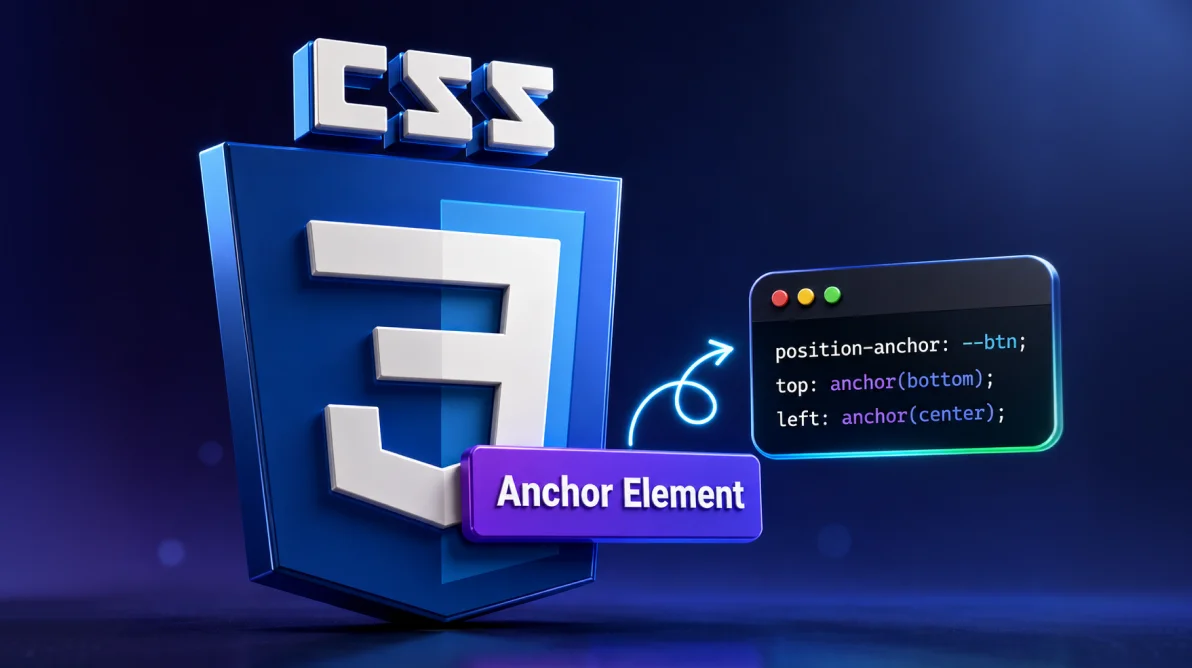
TL;DR: CSS Anchor Positioning became production-ready in 2026, enabling tooltips, dropdowns, and popovers to be positioned natively in CSS without JavaScript libraries. With Interop support, developers can now build many overlay UI patterns with smaller bundles, better performance, built-in overflow handling, and significantly less positioning logic.
For years, frontend developers relied on JavaScript libraries like Popper.js and Floating UI just to position tooltips, dropdowns, and popovers correctly.
Even simple overlay components required:
- Scroll listeners
- Resize observers
- Collision detection
- Manual viewport calculations
That may finally be changing.
With Interop 2026 delivering consistent cross-browser behavior, CSS Anchor Positioning is now safe to use in production. UI elements can be positioned relative to other elements declaratively in CSS, while the browser itself handles layout updates, collision detection, overflow handling, and repositioning as part of its rendering pipeline.
For many modern UI patterns, positioning no longer needs to be a JavaScript problem.
This article explains:
- What CSS Anchor Positioning replaces
- How it works
- Why it matters for performance
- When teams should adopt it in real-world applications
What is CSS anchor positioning and what problem does it solve?
CSS Anchor Positioning allows one element to be positioned relative to another element anywhere in the DOM, without requiring a parent‑child relationship. Conceptually, it extends position: absolute by letting you reference an explicit anchor rather than a positioned ancestor.
Before this feature, positioning logic typically looked like this:
- Measure the anchor location with
getBoundingClientRect - Calculate offsets manually
- Recalculate on scroll and resize
- Add logic for viewport collisions
// Traditional JavaScript approach
function positionTooltip(anchor, tooltip) {
    const anchorRect = anchor.getBoundingClientRect();
    tooltip.style.left = anchorRect.left + 'px';
    tooltip.style.top = (anchorRect.bottom + 8) + 'px';

    // Handle viewport overflow
    const tooltipRect = tooltip.getBoundingClientRect();
    if (tooltipRect.right > window.innerWidth) {
        tooltip.style.left = (window.innerWidth - tooltipRect.width) + 'px';
    }
}

// Recalculate on scroll and resize
window.addEventListener('scroll', () => positionTooltip(anchor, tooltip));
window.addEventListener('resize', () => positionTooltip(anchor, tooltip));
With anchor positioning, that entire flow moves into CSS.
/* Define the anchor */
.trigger-button {
  anchor-name: --my-anchor;
}

/* Position relative to it */
.tooltip {
    position: absolute;
    position-anchor: --my-anchor;
    bottom: anchor(top);
    left: anchor(left);
    margin-bottom: 8px;

    /* Automatic fallback if overflow */
    position-try-fallbacks: flip-block, flip-inline;
}
The browser tracks layout changes automatically. No event listeners, no manual reflow management, and no JavaScript positioning code.
Why CSS anchor positioning improves performance
The most significant advantage of anchor positioning is not syntax; it’s shifting work away from JavaScript and into the browser’s layout engine.
Bundle size
Typical positioning libraries add real weight:
- Popper.js:
~7 kBgzipped - Floating UI:
~8 kBgzipped - Full tooltip solutions:
10–15 kB+
CSS Anchor Positioning adds zero JavaScript.
Runtime cost
JavaScript‑based positioning recalculates element geometry during scroll and resize events, often triggering layout thrashing. Anchor positioning runs as part of the browser’s optimized layout pass.
In practice, this results in smoother scrolling and fewer main-thread interruptions, especially noticeable on lower-end devices.
Memory and maintenance
JavaScript libraries maintain state, observers, and event listeners for every positioned element. Native anchor positioning has no JavaScript memory footprint and dramatically reduces maintenance complexity.
How CSS anchor positioning works
You don’t need deep knowledge of the specification to use anchor positioning effectively, but understanding three core concepts helps.
CSS Anchor Positioning introduces three key concepts:
Defining an anchor with anchor-name
Any element can be declared as an anchor:
.button {
    anchor-name: --button-anchor;
}
When multiple elements share the same anchor-name, the browser resolves the appropriate anchor based on scope and containing layout context, not simply DOM order.
Positioning relative to the anchor
Positioned elements reference anchors using the anchor() function:
.tooltip  {
    position: absolute;
    position-anchor: --button-anchor;
    top: anchor(bottom);
    left: anchor(center);
    translate: -50% 0;
}
Handling viewport overflow
The browser can automatically try fallback positions:
.tooltip {
    position-try-fallbacks: flip-block, flip-inline;
}
If the preferred position overflows the viewport, the browser selects the first viable alternative without JavaScript.
Common UI examples
Tooltip
Tooltips are one of the most natural use cases. Anchor positioning allows tooltips to stay attached during scroll, adapt to viewport edges, and remain readable without custom logic.
<button class="help-button" id="help-btn">
    Help
</button>
<div class="tooltip" id="help-tooltip">
    This feature helps you manage your settings efficiently.
</div>.help-button {
anchor-name: --help-anchor;
}
.tooltip {
position: absolute;
position-anchor: --help-anchor;
/* Default: appear above the button */
bottom: anchor(top);
left: anchor(center);
translate: -50% 0;
margin-bottom: 8px;
/* Fallback strategies */
position-try-fallbacks: flip-block, /* Below if can't fit above */
flip-inline flip-block;
/* Styling */
background: #333;
color: white;
padding: 8px 12px;
border-radius: 4px;
max-width: 200px;
z-index: 1000;
}Dropdown menu
Dropdowns benefit from built‑in collision handling and alignment logic, enabling clean, declarative menus that respond naturally to layout changes.
.menu-trigger {
    anchor-name: --menu-anchor;
}

.dropdown {
    position: absolute;
    position-anchor: --menu-anchor;

    /* Align left edge, appear below */
    top: anchor(bottom);
    left: anchor(left);
    margin-top: 4px;

    /* Handle viewport edges */
    position-try-fallbacks: flip-block,
                            flip-inline,
                            flip-block flip-inline;

    /* Prevent horizontal overflow */
    max-width: calc(100vw - 16px);
}
Contextual popover
Popovers placed to the side or corner of an element can define multiple fallback strategies, ensuring usability across screen sizes and orientations.
.context-trigger {
    anchor-name: --context-anchor;
}

.context-menu {
    position: absolute;
    position-anchor: --context-anchor;

    /* Appear to the right of trigger */
    left: anchor(right);
    top: anchor(top);
    margin-left: 8px;
    /* Smart fallbacks */
    position-try-fallbacks: flip-inline,      /* Try left side if right overflows */
                            flip-block,       /* Try below if both sides overflow */
                            flip-inline flip-block;
}
Common pitfalls and how to avoid them
- Missing position
Anchor positioning requiresposition: absoluteorposition: fixed. Without it, positioning will fail silently. - Containing block mismatches
Anchors are scoped to their containing block. If an anchored element cannot “see” its anchor, positioning fails. Keeping anchors and positioned elements in the same stacking context or usingposition: fixedsolves this. - No overflow fallbacks
Without position-try-fallbacks, elements may clip at viewport edges. Always define at least one fallback strategy. - Missing z-index
Anchor positioning does not manage stacking context. Tooltips and popovers still need appropriate z-index values.
Browser support in 2026: Why it’s safe to use
Interop inclusion signals that browser vendors are committed to consistent behavior. As of 2026, CSS Anchor Positioning is part of Interop, with support across major engines:
- Chrome and Edge: Supported since mid-2024
- Safari: Supported starting early 2026
- Firefox: Supported as of early 2026
This results in broad evergreen‑browser coverage, making anchor positioning suitable for most modern web applications.
Progressive enhancement strategy
For teams that need to support older browsers, progressive enhancement is straightforward:
/* Fallback for older browsers */
.tooltip {
    position: absolute;
    /* Fixed offset positioning */
    top: 100%;
    left: 0;
    margin-top: 8px;
}

/* Enhanced positioning for supporting browsers */
@supports (anchor-name: --test) {
    .trigger {
        anchor-name: --tooltip-anchor;
    }

    .tooltip {
        position-anchor: --tooltip-anchor;
        top: anchor(bottom);
        left: anchor(center);
        translate: -50% 0;
        position-try-fallbacks: flip-block;
    }
}
A minimal JavaScript fallback can be loaded only when the feature is unsupported, keeping modern users on the native path.
// Only load JS positioning for unsupported browsers
if (!CSS.supports('anchor-name', '--test')) {
    import('./legacy-positioning.js');
}
Migrating from Popper.js or floating UI
Most teams can migrate without sweeping changes.
Start by replacing simple tooltips and dropdowns. Keep JavaScript fallbacks where required, monitor analytics for browser support, and gradually remove legacy code as outdated browsers drop off.
For most developers, the learning curve is measured in hours, not weeks, and the migration can be done component by component with low risk.
When You Should (and Shouldn’t) Use Anchor Positioning
Use CSS Anchor Positioning if:
- You target modern evergreen browsers
- You have multiple positioned UI elements
- Performance and bundle size matter
- You want simpler, more maintainable UI logic
Stick with JavaScript positioning if:
- You must support very old browsers
- You rely on highly custom, animated positioning logic
- You need pixel‑perfect control beyond current CSS capabilities
Frequently Asked Questions
Yes. Multiple positioned elements can reference the same anchor-name with no conflicts or performance penalty. Each positions itself independently.Can multiple elements anchor to the same anchor element?
The positioned element loses its anchor reference and reverts to standard What happens if the anchor element is hidden with display: none?
position: absolute behavior. No errors occur, it gracefully degrades. Use visibility: hidden instead to preserve anchor references.
Yes. The browser automatically tracks anchor position through transforms, rotations, and keyframe animations. No manual updates needed, a key advantage over JavaScript solutions.Does CSS Anchor Positioning work with CSS transforms and animations?
Conclusion
CSS Anchor Positioning has crossed the line from experimental feature to production-ready platform capability. With consistent cross‑browser support in 2026, frontend teams can rely on native CSS for common UI positioning patterns.
By moving positioning logic into the browser’s layout engine, applications reduce JavaScript overhead, improve scroll performance, and simplify long‑term maintenance.
For modern web applications, CSS Anchor Positioning should now be the default approach. JavaScript libraries still have a place in edge cases, but for most everyday UI needs, CSS alone is finally enough.



 No spam, just valuable updates.