
 Sumathi Uthayakumar
TL;DR: Angular spreadsheets can experience alignment, selection, and performance problems when freeze panes, filtering, and virtual scrolling are combined with large datasets. This article explains why these Excel-like features interact poorly in real-world scenarios and how the resulting issues affect UX, scalability, and maintainability.
Everything works perfectly during development until real users start working with real data.
Freeze panes are enabled. Filters are applied. Virtual scrolling keeps performance smooth. But once users scroll deep into large datasets or apply multiple filters, problems surface: frozen headers drift out of alignment, selections jump to the wrong rows, and scrolling behavior becomes unpredictable.
These issues are common in Angular Spreadsheet applications, and they are not caused by incorrect configuration. They stem from how spreadsheet features interact internally when applications scale.
In this blog, you’ll learn:
- Why combining these three features breaks Angular Web Spreadsheets when rendering is not coordinated.
- The root architectural cause and where it surfaces in enterprise applications
- How the Syncfusion Angular Spreadsheet Editor resolves the conflict through a unified rendering architecture
The hidden conflict in Angular Spreadsheets
Modern Angular spreadsheets are expected to deliver Excel‑like behavior while handling large datasets. To achieve this, developers rely on three core capabilities:
- Freeze panes to keep headers and key columns visible
- Filtering to dynamically change which rows are shown
- Virtual scrolling to maintain performance with large datasets
Each feature solves a real problem. The trouble begins when they are combined.
Freeze panes depend on fixed row and column positions. Filtering continuously changes row visibility and order. Virtual scrolling improves performance by recycling DOM rows instead of rendering everything at once. When these systems operate independently, the spreadsheet gradually loses track of how rendered rows map to actual data.
The result is subtle at first, then disruptive:
- Header misalignment during scrolling
- Incorrect row or cell selection
- Scroll jumps after filtering
- Bugs that appear only with large datasets
These are architectural conflicts, not surface-level bugs.
Why do these issues appear only at scale?
Small datasets rarely expose the problem. With limited rows, rendering and scrolling remain predictable, and DOM recycling has little impact.
At scale, however:
- Virtual scrolling constantly reuses DOM elements
- Filtering recalculates visible rows in real time
- Freeze panes expect stable layout positions
Without coordination, rendered rows no longer represent real data indexes. User interactions, clicks, selections, and edits can map to the wrong records. This is why teams often see issues only after deployment, when real data and usage patterns come into play.
What developers typically experience?
In production Angular applications, these conflicts surface as:
- Broken UX: Frozen headers no longer align with data during scroll
- Data risk: Users edit or select the wrong row after filtering
- Performance tradeoffs: Disabling virtualization fixes bugs but degrades performance
- Maintenance overhead: Fragile workarounds and scroll offset hacks
These problems are especially costly in enterprise tools such as financial reporting systems, operational dashboards, and internal data management applications, where accuracy and usability are critical.
How Syncfusion Angular Spreadsheet Editor eliminates the triple-feature conflict
The Angular Spreadsheet Editor is designed with a unified rendering architecture. Instead of treating freezing, filtering, and virtualization as separate processes, it recalculates:
- Visible rows
- Frozen headers
- Scroll position
- Selection state
in a single coordinated render cycle, based on the underlying data.
This ensures that:
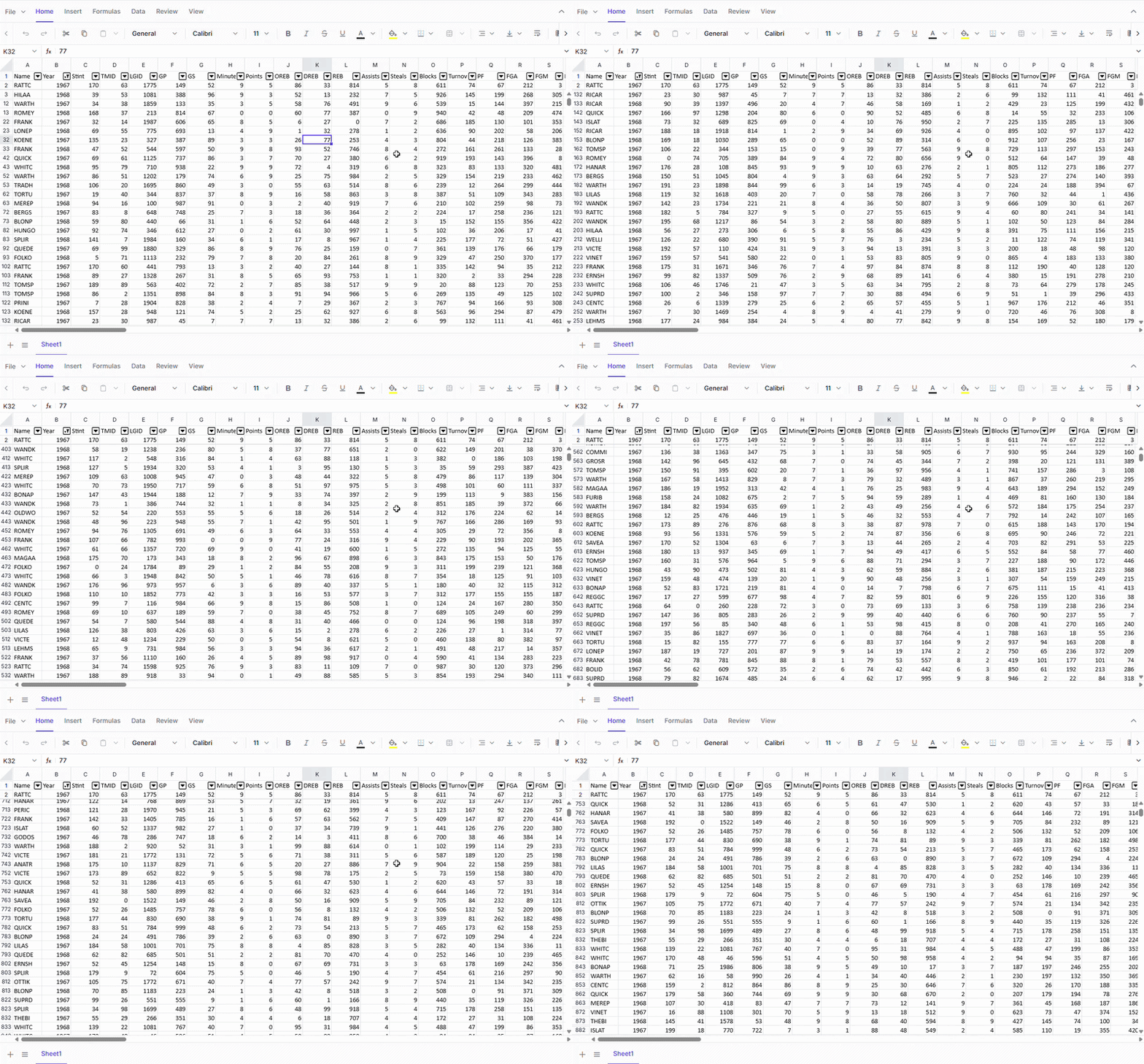
- Frozen headers stay aligned during scrolling and filtering
- Cell selection remains accurate
- Virtual scrolling helps prevent interactions from mapping to the wrong row
even when working with large enterprise datasets.
Evaluating Spreadsheet components for reliable Excel-like behavior? See the live demo.
Freeze panes: Headers that lock, scroll that flows
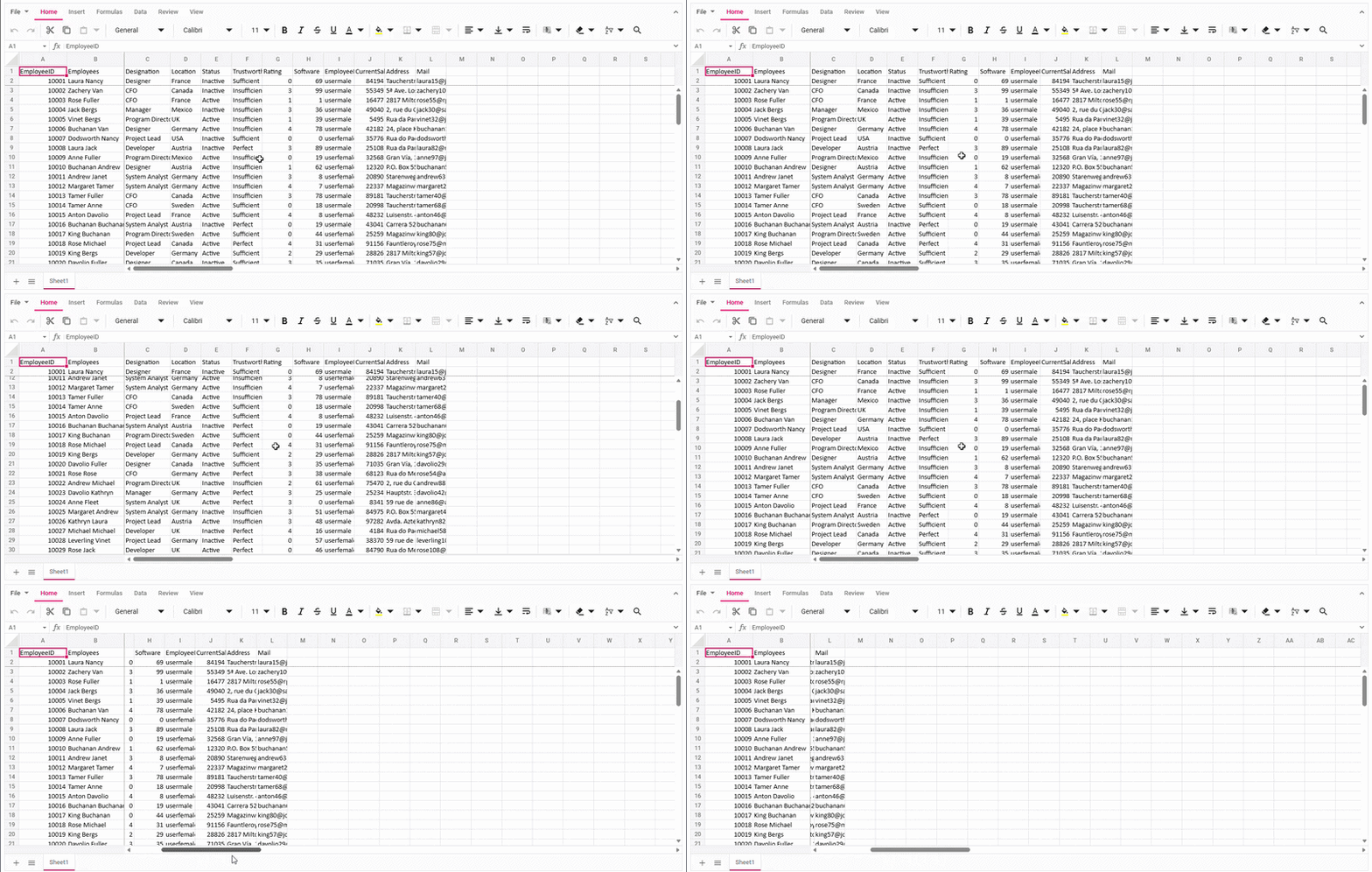
Freeze panes keep header rows and key columns visible, helping users maintain context as they navigate large spreadsheets. The Angular Spreadsheet Editor supports freezing rows, columns, or both, with consistent behavior even when filtering and virtualization are enabled.
You can apply freeze panes using the Ribbon or the following APIs in the Sheet configuration:
| Property/Method | Purpose |
| frozenRows | Lock rows during vertical scrolling |
| frozenColumns | Lock columns during horizontal scrolling |
| freezePanes() | Applies freezing programmatically at runtime |
The following example freezes the top 2 rows and the left 2 columns:
<ejs-spreadsheet #spreadsheet>
    <e-sheets>
        <e-sheet [frozenRows]=2 [frozenColumns]=2>
            <e-ranges>
                <e-range [dataSource]='tradeData'></e-range>
            </e-ranges>
        </e-sheet>
    </e-sheets>
</ejs-spreadsheet>

export class AppComponent implements OnInit {
    public tradeData?: object[];
    @ViewChild('spreadsheet')
    public spreadsheetObj?: SpreadsheetComponent;
    ngOnInit(): void {
        this.tradeData = tradeData;
    }
}
Check out the Angular Spreadsheet Freeze Panes documentation for more details.
Filter engine: Responsive filtering with stable selection behavior
Syncfusion’s filter engine allows users to filter thousands of rows without breaking scroll position or selection accuracy.
Applying filters
Filtering is enabled by default using allowFiltering. Users and developers can apply filters via:
- Ribbon toolbar
- Right‑click context menu
- Keyboard shortcut:
Ctrl + Shift + L - Programmatic API: applyFilter()
Programmatic filtering APIs
For advanced use cases, the filter engine provides full programmatic control:
| API | Purpose |
| applyFilter() | Applies criteria-based filtering |
| clearFilter() | Clears all active filters or a single column’s filter |
| beforeFilter | Fires before filtering begins, useful for validation or state sync |
| filterComplete | Fires after filtering completes, ideal for exports or UI updates |
| isFiltered | Identify filtered rows programmatically |
The following example applies a filter programmatically on data load:
<ejs-spreadsheet #spreadsheet (dataBound)="dataBound()">
  <e-sheets>
    <e-sheet>
      <e-ranges>
        <e-range [dataSource]="tradeData"></e-range>
      </e-ranges>
    </e-sheet>
  </e-sheets>
</ejs-spreadsheet>

export class AppComponent implements OnInit {
    public tradeData?: object[];
    @ViewChild('spreadsheet')
    public spreadsheetObj?: SpreadsheetComponent;
    ngOnInit(): void {
        this.tradeData = tradeData;
    }
    dataBound(){
        if (this.spreadsheetObj!.activeSheetIndex === 0) {
            let departments: string[] = ['Sweden', 'Canada', 'UK'];
            let predicateList: any[] = []
            departments.forEach((department: string) => {
                predicateList.push({
                    field: 'D',
                    predicate: 'or',
                    operator: 'equal',
                    value: department
                });
            })
            this.spreadsheetObj!.applyFilter(predicateList);
        }
    };
}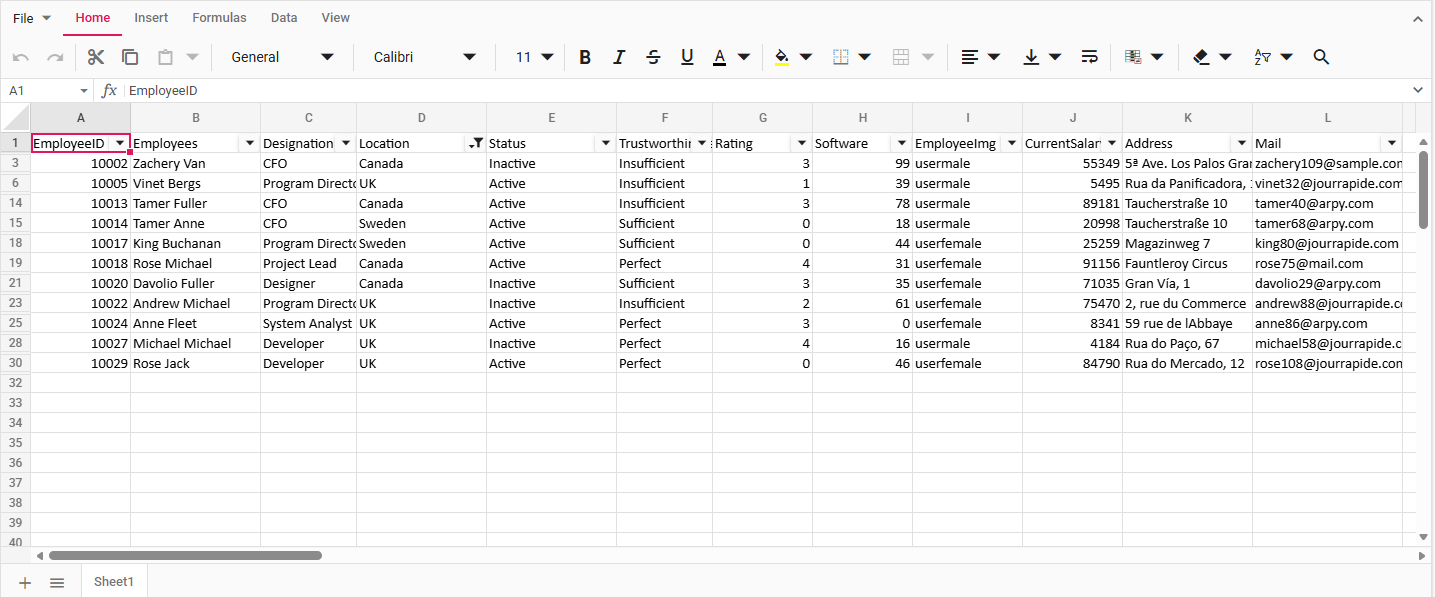
Filtering can be applied, cleared, and reapplied without causing scroll jumps or selection drift, even with frequently changing datasets.
Virtualization: Performance without rendering lag
Virtual scrolling allows spreadsheets to handle massive datasets by rendering only the visible rows instead of the entire dataset.
In Syncfusion, virtualization is enabled by default using scrollSettings.enableVirtualization.
The configuration is shown explicitly below, so developers can see where it is controlled and toggle it when required.
<ejs-spreadsheet
    #spreadsheet
    [allowScrolling]="true"
    [scrollSettings]="{ isFinite: true, enableVirtualization: true  }">
</ejs-spreadsheet>
Developers can explicitly control this behavior to balance performance and UX as needed.
Navigation in virtualized sheets
Users can smoothly navigate large datasets using:
- Arrow keys
- Mouse wheel
- Horizontal and vertical scroll bars
Because virtualization is coordinated with freeze panes and filtering, recycled rows maintain correct alignment and selection mapping even during deep scrolling.
Want to see how freeze panes, filtering, and virtual scrolling behave together? Check the live demo or refer to the User Guide.
Real-world impact on enterprise applications
In enterprise environments, these architectural differences have real consequences:
- Finance and reporting tools depend on frozen headers for context while navigating wide datasets.
- Operations and HR systems rely on accurate row selection during filtering to avoid costly data errors.
- Data-heavy Angular applications must maintain performance without sacrificing correctness.
Spreadsheets that cannot reliably coordinate these features often become bottlenecks rather than productivity tools.
Frequently Asked Questions
Can freeze panes, filtering, and virtual scrolling be safely used together in Angular?
Yes, but only when the spreadsheet engine coordinates these features at the rendering level. Without this, conflicts typically appear as datasets grow.
Avoiding virtual scrolling may reduce visible issues, but it often introduces performance problems. The better approach is to use a spreadsheet solution designed to handle both together.Should I avoid virtual scrolling if my spreadsheet uses heavy filtering?
Testing with realistic data volume, deep scrolling, and repeated filter actions is essential. Many issues do not surface with small sample datasets.How can developers evaluate spreadsheet behavior before production rollout?
While this post focuses on Angular, similar conflicts can occur in other web spreadsheet implementations when rendering, filtering, and virtualization are not tightly coordinated.Are these conflicts specific to Angular, or common across web spreadsheets?
Conclusion
Thank you for reading! Freeze panes, filtering, and virtual scrolling frequently conflict in Angular spreadsheets when implemented independently. The issue becomes visible only with large datasets and real-world usage.
The Angular Spreadsheet Editor coordinates all three features at the rendering level, delivering:
- Accurate selection
- Stable frozen headers
- Smooth scrolling with large datasets
For Angular applications where Excel‑like behavior is non‑negotiable, understanding this interaction is essential before choosing or implementing a spreadsheet solution.
If you’re a Syncfusion user, you can download the setup from the license and downloads page. Otherwise, you can download a free 30-day trial.
You can also contact us through our support forum, support portal, or feedback portal for queries. We are always happy to assist you!




 No spam, just valuable updates.