
 Sumathi Uthayakumar
TL;DR: Large Excel imports in Angular Spreadsheet freeze the UI because synchronous XLSX parsing (styles, formats, objects) blocks the main thread. Optimize imports by disabling style/format parsing, enforcing server-side cell and file size thresholds, and using openFromJson with selective deserialization for predictable performance and lower memory usage.
Have you ever uploaded an Excel file and watched your web app freeze instantly? It happens more often when users try to import Excel files in Angular. A large workbook can easily slow down the browser, trigger memory spikes, or get stuck while reading the file, making the entire page feel unresponsive.
Most Angular apps freeze during large Excel imports because the browser tries to parse every cell, style, formula, and object on the main thread. This leads to long pauses, high memory usage, and unpredictable “page unresponsive” errors.
Syncfusion® Angular Spreadsheet Editor avoids these issues by loading only what’s necessary, enforcing file size and data limits, and allowing large workbooks to open quickly via lightweight JSON loading rather than full XLSX parsing.
In this blog, you’ll learn three specific techniques to fix this:
- Skip heavy formatting using IgnoreStyle and IgnoreFormat.
- Prevent server overload using MaximumDataLimit and MaximumFileSize.
- Load large workbooks faster using openFromJson with selective deserialization.
Let’s dive deeper into these techniques that make large Excel imports fast and reliable.
Why large Excel imports silently break web apps
Large Excel files don’t just “take longer.” They often trigger a chain reaction that feels like a crash:
- The page freezes because parsing blocks the UI thread.
- Memory jumps due to styles, formats, images, and workbook metadata.
- Imports time out on slower machines or remote environments.
- Users get no actionable error, just a stuck screen or killed tab.
This is especially common in enterprise scenarios where “normal” spreadsheets contain hundreds of thousands of cells plus formatting rules, validations, and embedded objects.
How Syncfusion Angular Spreadsheet eliminates large file import failures
Many apps fail because they load everything at once. Syncfusion Angular Spreadsheet Editor is designed to avoid that pattern by letting you:
- Load only what you need (data vs. styling/features)
- Enforce thresholds before a file overwhelms the system
- Open workbooks from lightweight JSON for faster startup
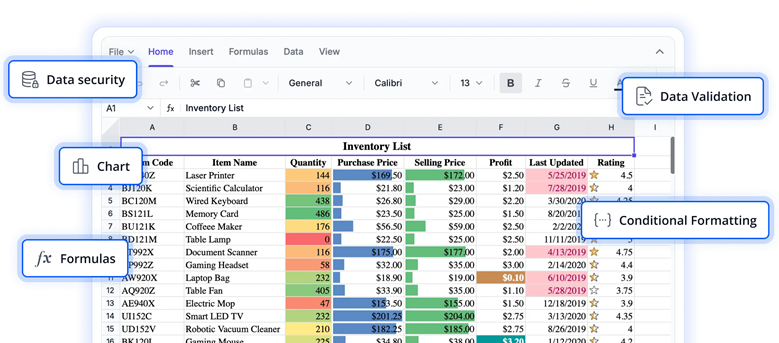
Curious to see the Angular Spreadsheet in action? Explore the live demo.
Parsing options: Load only what you need
Most Excel imports fail not because of data volume alone, but because of formatting overhead. Styles, number formats, and empty-cell metadata dramatically increase parsing cost, even when your app only needs raw values.
Syncfusion solves this with WorkbookParseOptions. By enabling IgnoreStyle and IgnoreFormat properties on the server, the spreadsheet loads only raw data, skipping the formatting overhead entirely.
Here is a server-side example:
public IActionResult Open(IFormCollection openRequest)
{
    OpenRequest open = new OpenRequest();
    ...
    // Enable parsing options to skip styles and formats for faster loading
    open.ParseOptions = new WorkbookParseOptions()
    {
        IgnoreStyle = true,
        IgnoreFormat = true
    };
    ...
    // Process and return the parsed workbook data
    return Content(Workbook.Open(open));
}
By disabling style and format parsing:
- Only raw cell values are processed
- JSON payload size is reduced
- Memory usage drops significantly
- Import time improves immediately
Note: These options are ideal when styles and number formats aren’t important for your use case, and the goal is to load the Excel data as quickly as possible.
What you gain
- Faster file loading
- Lower memory usage
- Smaller JSON payloads sent to the client
This is ideal for “data pipeline” imports where formatting is irrelevant (finance exports, HR records, inventory loads).
Threshold limits: Stop the file before it crashes the app
Large Excel files don’t just overload the browser; they can spike server memory too. Without a safety check, a single oversized upload can silently degrade your entire application’s performance.
Syncfusion’s threshold limits give you a clear control point. You can define:
- MaximumDataLimit: The maximum number of cells allowed.
- MaximumFileSize: The maximum file size in bytes.
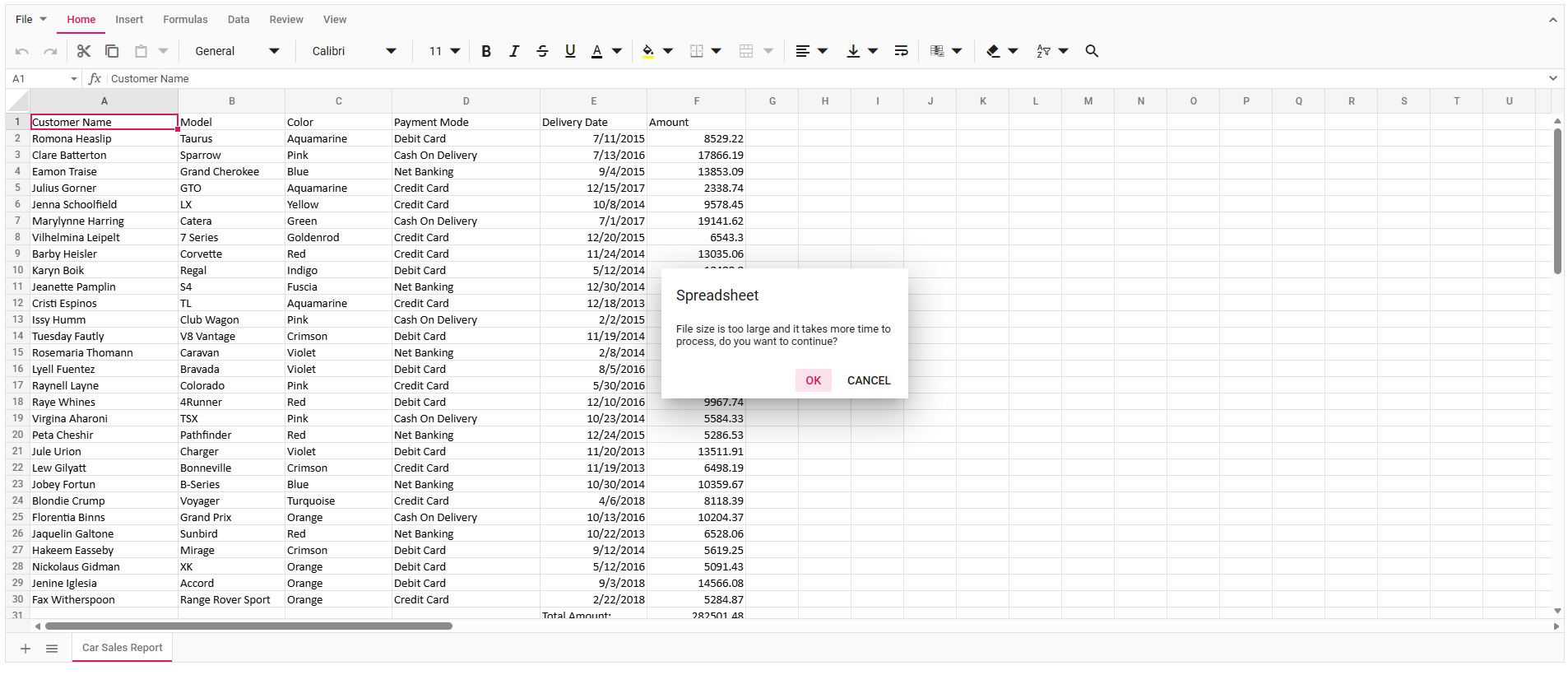
What happens when a limit is exceeded
- An alert message appears:
The file is large. Cancelstops the import cleanlyOKcontinues (only if your app logic permits it)
This single check prevents crashes, timeouts, and memory overloads caused by unexpectedly large uploads, and gives users clarity rather than confusion.
You can configure the thresholds API on the server side using the following code example:
public IActionResult Open(IFormCollection openRequest)
{
    OpenRequest open = new OpenRequest();
    open.File = openRequest.Files[0];
    open.Guid = openRequest["Guid"];

    // Set maximum allowed number of cells
    open.ThresholdLimit.MaximumDataLimit = 1000000; // 1,000,000 cells

    // Set maximum allowed file size in bytes (e.g., 5MB)
    open.ThresholdLimit.MaximumFileSize = 5000000;

    var openbook = Content(Workbook.Open(open));
    return openbook;
}
The above code example enforces a safety gate before parsing becomes expensive, protecting both the user experience and backend stability.
JSON serialization: Parse once, open instantly
Parsing a full XLSX file on every file open is expensive. If the workbook includes charts, images, conditional formatting, or complex styles, that overhead adds up fast.
Syncfusion Angular Spreadsheet solves this with JSON serialization options. These let you exclude specific features, such as styles, formats, charts, images, wrap, and more, from the Workbook JSON object when opening it via the openFromJson method.
Why JSON-based loading is faster
Using openFromJson, you can:
- Avoid repeated XLSX parsing
- Exclude features your app doesn’t need
- Reduce JSON size and processing time
- Improve load speed for large or complex workbooks
Syncfusion also supports selective deserialization. You can choose exactly which parts of the JSON to ignore during loading. Previously, openFromJson always loaded every element: styles, formulas, conditional formatting, charts, images, validations, and Notes. Now you control that explicitly.
Client-side example:
// Load workbook JSON — ignore styles for faster rendering of the spreadsheet
.openFromJson(
    { file: fileJson },
    { ignoreStyle: true }
);
This gives you fine-grained control over the loading process, exactly what you need when you import large Excel files in Angular apps with complex structures.
Want to know more details about these techniques? Explore the full Angular Spreadsheet documentation.
Configuring Syncfusion Angular Spreadsheet for large file imports
Here’s how to integrate the Syncfusion Spreadsheet into your Angular app from scratch.
Step 1: Install Angular CLI
You can use Angular CLI to set up your Angular applications. To install Angular CLI, use the following command:
npm install -g @angular/cliStep 2: Create a new Angular application
You can create a new Angular application using the following Angular CLI command:
ng new my-appChoose your preferred stylesheet format (CSS/SCSS) and SSR options when prompted.
Step 3: Install the Syncfusion Spreadsheet package
For Angular 12 and above (Ivy distribution):
Install the @syncfusion/ej2-angular-spreadsheet package in the application.
//  Navigate into your project
cd my-app
npm install @syncfusion/ej2-angular-spreadsheet
For Angular versions below 12 (ngcc build):
Install the @syncfusion/ej2-angular-spreadsheet@ngcc package in the application.
npm install @syncfusion/ej2-angular-spreadsheet@ngccIf using ngcc, the package.json entry looks like:
@syncfusion/ej2-angular-spreadsheet:"20.2.38-ngcc"Step 4: Add required CSS references
Next, add the required CSS reference to src/styles.css.
@import '../node_modules/@syncfusion/ej2-base/styles/material.css';
@import '../node_modules/@syncfusion/ej2-inputs/styles/material.css';
@import '../node_modules/@syncfusion/ej2-buttons/styles/material.css';
@import '../node_modules/@syncfusion/ej2-splitbuttons/styles/material.css';
@import '../node_modules/@syncfusion/ej2-lists/styles/material.css';
@import '../node_modules/@syncfusion/ej2-navigations/styles/material.css';
@import '../node_modules/@syncfusion/ej2-popups/styles/material.css';
@import '../node_modules/@syncfusion/ej2-dropdowns/styles/material.css';
@import '../node_modules/@syncfusion/ej2-spreadsheet/styles/material.css';
@import '../node_modules/@syncfusion/ej2-grids/styles/material.css';
Step 5: Add the Spreadsheet component
Update your component file to import the module and render the spreadsheet.
import { NgModule } from '@angular/core'
import { BrowserModule } from '@angular/platform-browser'
import { SpreadsheetAllModule } from '@syncfusion/ej2-angular-spreadsheet'
import { Component, OnInit, ViewChild } from '@angular/core';
import { SpreadsheetComponent } from '@syncfusion/ej2-angular-spreadsheet';
import { data } from './datasource';

@Component({
    imports: [SpreadsheetAllModule],
    standalone: true,
    selector: 'app-container',
    template: "
        <ejs-spreadsheet #spreadsheet>
            <e-sheets>
                <e-sheet>
                    <e-ranges>
                        <e-range [dataSource]='data'></e-range>
                    </e-ranges>
                    <e-columns>
                        <e-column [width]=90></e-column>
                        <e-column [width]=100></e-column>
                        <e-column [width]=96></e-column>
                        <e-column [width]=120></e-column>
                        <e-column [width]=130></e-column>
                        <e-column [width]=120></e-column>
                    </e-columns>
                </e-sheet>
            </e-sheets>
        </ejs-spreadsheet>
    "
})
export class AppComponent implements OnInit {
    public data?: object[];
    @ViewChild('spreadsheet')
    public spreadsheetObj?: SpreadsheetComponent;
    // Load data from your local datasource on component initialization
    ngOnInit(): void {
        this.data = data;
    }
};
Step 6: Run the application
Start your application using:
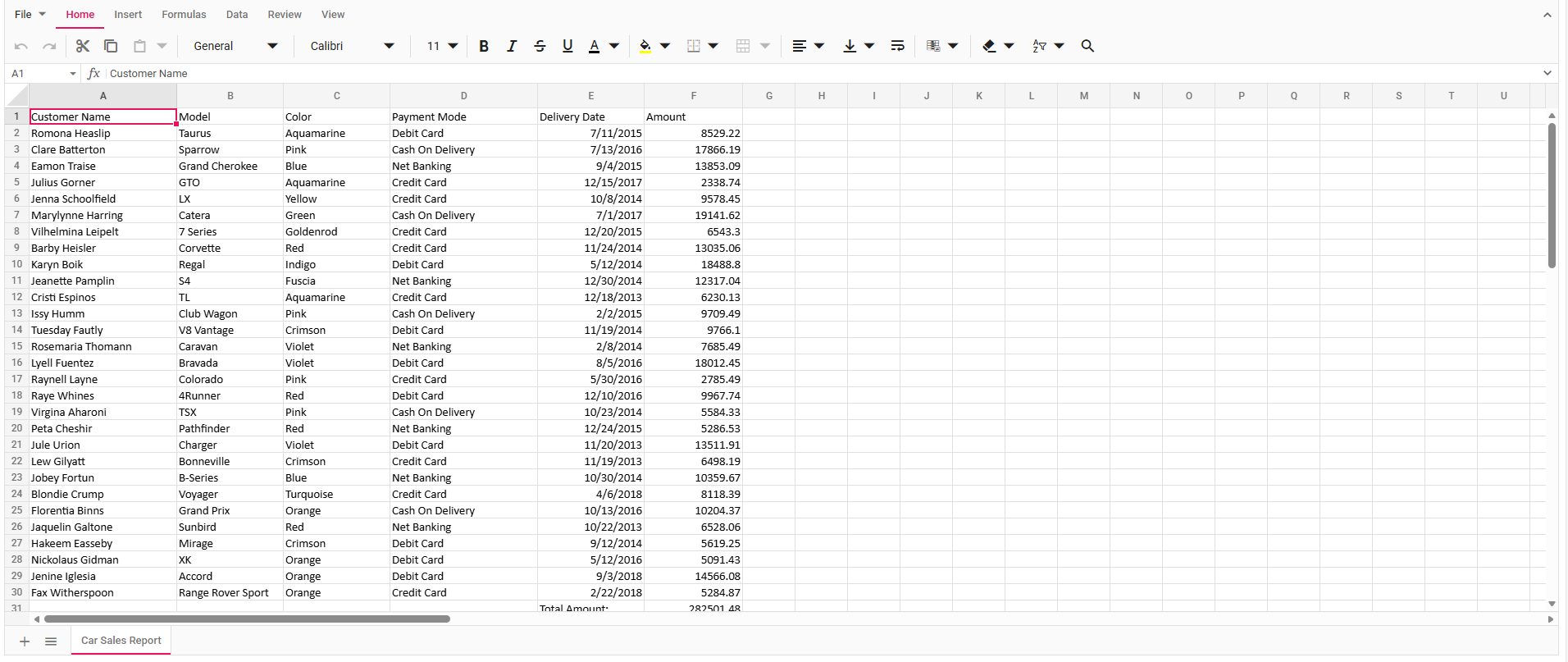
ng serveHere’s what the Spreadsheet looks like:
Want more info about setting up the Angular Spreadsheet? See complete setup details.
Performance metrics: Import 500k cells under 5 seconds
Most web-based spreadsheet editors struggle to load even 100,000 cells without freezing the browser. The Syncfusion Angular Spreadsheet Editor processes half a million cells with validation in 4.16 seconds and keeps the UI fully responsive throughout.
| Dataset Description | Import Time |
| 100,000 cells with formatting | 3.85s |
| 250,000 cells with formatting | 3.96s |
| 100,000 cells with validation | 2.06s |
| 250,000 cells with validation | 3.77s |
| 500,000 cells with validation | 4.16s |
| 100,000 cells with sorting/filtering | 3.68s |
| 250,000 cells with sorting/filtering | 5.73s |
| 500,000 cells with sorting/filtering | 8.59s |
As the dataset size increases from 100K → 250K → 500K cells, import time scales nearly linearly with no exponential slowdowns, memory cliffs, or sudden crashes. That’s the performance baseline you need to ship enterprise-grade Angular apps with confidence.
Curious how fast Syncfusion really is? Explore the complete Spreadsheet Performance Metrics in our documentation.
Yes. Set MaximumDataLimit and MaximumFileSize on the server. If a file exceeds either limit, the Spreadsheet displays an alert, allowing the user to cancel rather than crashing the app. No. These options only affect how the file is loaded into the Angular app. Excel (.xlsx, .xls) and CSV files are supported, along with JSON and remote data sources. Yes. Combining parse optimizations with row and column virtualization further improves performance. Angular 12 and above using the Ivy distribution, with ngcc builds available for older versions.Frequently Asked Questions
Can I restrict users from uploading oversized Excel files?
Does ignoring styles modify the original Excel file?
Which Excel formats are supported for import?
Can these optimizations be used with virtual scrolling?
What Angular versions are supported?
Conclusion
Thank you for reading! Large Excel imports don’t fail because Angular is slow, they fail because browsers are asked to do too much work at once. Syncfusion’s Angular Spreadsheet Editor provides a production-ready solution with three focused techniques:
- Selective parsing to skip unnecessary formatting
- Threshold limits to block dangerous uploads
- JSON-based loading to avoid repeated XLSX processing
You can build Angular applications that handle large Excel files reliably, predictably, and at enterprise scale.
Ready to Handle Large Excel Files Without Crashes or Timeouts? Explore Syncfusion’s Angular Spreadsheet Editor. If you’re a Syncfusion user, you can download the setup from the license and downloads page. Otherwise, you can download a free 30-day trial.
You can also contact us through our support forum, support portal, or feedback portal for queries. We are always happy to assist you!




 No spam, just valuable updates.