
 Vikas S
TL;DR: Adding a small AI layer inside your WPF PDF Viewer changes how users read and explore documents. Deliver instant summaries, contextual answers, and guided follow‑ups using Azure OpenAI and local embeddings, without sacrificing privacy.
Turning a PDF viewer into something much smarter
Once you see a PDF answer questions, summarize itself, and guide users through follow‑up prompts, it’s hard to go back to a traditional viewer. What started as a simple document display becomes a conversation interface, where users spend less time searching and more time understanding.
In this post, we’ll walk through how to integrate an AI assistant directly into the Syncfusion® WPF PDF Viewer using Azure OpenAI and SmartComponents.LocalEmbeddings. The end result is a clean, chat‑based experience that turns static PDFs into something users can actually interact with while still keeping document data private.
How the AI assistant fits into your WPF app
The solution is made up of a few focused pieces that work together:
- Syncfusion WPF PDF Viewer: Loads and displays PDF documents, and provides APIs to extract text from pages.
- SfAIAssistView: A chat interface that enables users to interact with the assistant through questions and suggestions.
- SmartComponents.LocalEmbeddings: Converts PDF content into semantic vectors for fast, privacy-friendly search and context matching.
- AzureOpenAIClient: Connects to Azure OpenAI to generate intelligent responses based on user queries and relevant document content.
Together, these components enable real-time document summarization, contextual Q&A, and interactive guidance, all within your WPF app.
No switching tools, no external viewers.
Where this is genuinely useful
This isn’t just a cool demo feature. It’s especially helpful when users need to:
- Get a quick summary of a large document.
- Ask specific questions without manually hunting for answers.
- Explore technical, legal, or internal PDFs more efficiently.
- Stay within privacy or compliance boundaries.
Why developers actually like this approach
From a developer’s point of view, this setup has a few real advantages:
- Interactive experience: Users engage with PDFs through natural language.
- Efficiency: Saves time by summarizing and answering instantly.
- Flexible: Easily adaptable for different domains and workflows.
- Privacy-friendly: Uses local embeddings to keep data secure.
Prerequisites
To get started, ensure you have:
- Visual Studio 2022 or newer with the WPF workload installed.
- The Syncfusion.PdfViewer.WPF NuGet package.
- An Azure OpenAI resource and a valid API key.
- SmartComponents.LocalEmbeddings NuGet package.
Creating a smart PDF workflow: Integrate an AI Assistant into a WPF PDF Viewer
Follow these steps to integrate the AI Assistant into the Syncfusion WPF PDF Viewer control:
Step 1: Load the PDF document
Use the WPF PDF Viewer control to open and load your PDF file in the WPF application.
pdfViewer.Load("../../../Data/GIS Succinctly.pdf");This control handles rendering and interaction with the document.
Step 2: Initialize the AI Assistant ViewModel
Then create an instance of the AIAssistViewModel to connect the PDF Viewer to the AI assistant.
viewModel = new AIAssitViewModel(pdfViewer);
DataContext = viewModel;
Refer to the following constructor logic.
public AIAssitViewModel(PdfViewerControl viewer)
{
    pdfViewer = viewer;
    Chats = new ObservableCollection<object>();
    suggestion = new ObservableCollection<string>();
    CurrentUser = new Author() { Name = pdfViewer.CurrentUser };
    microsoftAIExtension = new MicrosoftAIExtension("Your-AI-Key");
    Chats.CollectionChanged += Chats_CollectionChanged;
}
This sets up the chat system and links it to the WPF PDF Viewer and AI backend.
Step 3: Extract PDF text and generate embeddings
The ExtractDetailsFromPDF() method in the AIAssitViewModel extracts text from each page and sends it to the MicrosoftAIExtension for embedding.
Here’s the code you need:
private async Task<string> ExtractDetailsFromPDF()
{
    List<string> extractedText = new List<string>();
    Syncfusion.Pdf.TextLines textLines = new Syncfusion.Pdf.TextLines();

    for (int pageIndex = 0; pageIndex < pdfViewer.PageCount; pageIndex++)
    {
        string text = $"... Page {pageIndex + 1} ...\n";
        text += pdfViewer.ExtractText(pageIndex, out textLines);
        extractedText.Add(text);
    }

    await microsoftAIExtension.CreateEmbeddedPage(extractedText.ToArray());
    return extractedText.ToString();
}
Refer to the embedding logic in MicrosoftAIExtension.
public async Task CreateEmbeddedPage(string[] chunks)
{
    var embedder = new LocalEmbedder();
    PageEmbeddings = chunks
        .Select(x => KeyValuePair.Create(x, embedder.Embed(x)))
        .ToDictionary(k => k.Key, v => v.Value);
}
This converts each page into a semantic vector for fast and secure search.
Step 4: Handle user questions intelligently
When a user sends a message, the ViewModel triggers the AI to generate a contextual response.
See the code snippet to achieve this:
private async void Chats_CollectionChanged(object sender, NotifyCollectionChangedEventArgs e)
{
    if (e.NewItems != null && e.NewItems.Count > 0)
    {
        var item = e.NewItems[0] as ITextMessage;
        if (item != null && item.Author.Name == currentUser.Name)
        {
            string answer = await microsoftAIExtension.AnswerQuestion(item.Text);
            Chats.Add(new TextMessage
            {
                Author = new Author { Name = "AIAssistant" },
                DateTime = DateTime.Now,
                Text = answer
            });

            Suggestion.Clear();
            await AddSuggestions(answer);
        }
    }
}
Here’s the code to implement the answer logic in MicrosoftAIExtension.
public async Task<string> AnswerQuestion(string question)
{
    var embedder = new LocalEmbedder();
    var questionEmbedding = embedder.Embed(question);

    var results = LocalEmbedder.FindClosestWithScore(
        questionEmbedding,
        PageEmbeddings.Select(x => (x.Key, x.Value)),
        5, 0.5f);

    StringBuilder builder = new StringBuilder();
    foreach (var result in results)
    {
        builder.AppendLine(result.Item);
    }

    string message = builder.ToString();
    var answer = await GetAnswerFromGPT(
        "You are a helpful assistant. Use the provided PDF document pages and pick a precise page to answer the user question. Provide the answer in plain text.",
        question);

    return answer;
}
This finds the most relevant pages and sends them to Azure OpenAI for a response.
Step 5: Display AI responses in chat
The assistant’s response is added to the chat UI for the user to view:
Chats.Add(new TextMessage {
    Author = new Author { Name = "AIAssistant" },
    DateTime = DateTime.Now,
    Text = answer
});
This uses SfAIAssistView to show the conversation in a user-friendly format.
Step 6: Generate follow-up suggestions
After answering, the assistant automatically suggests related questions. This helps users dig deeper without having to think about what to ask next.
Here’s how that looks in code:
private async Task AddSuggestions(String text)
{
    string suggestions = await microsoftAIExtension.GetAnswerFromGPT(
        "You are a helpful assistant. Your task is to analyze the answer and ask 3 short one-line suggestion questions that user asks.",
        text);

    var suggestionList = suggestions.Split(new[] { '\n', '\r' }, StringSplitOptions.RemoveEmptyEntries);
    foreach (var suggestion in suggestionList)
    {
        Suggestion.Add(suggestion);
    }
}
Refer to the following output image.
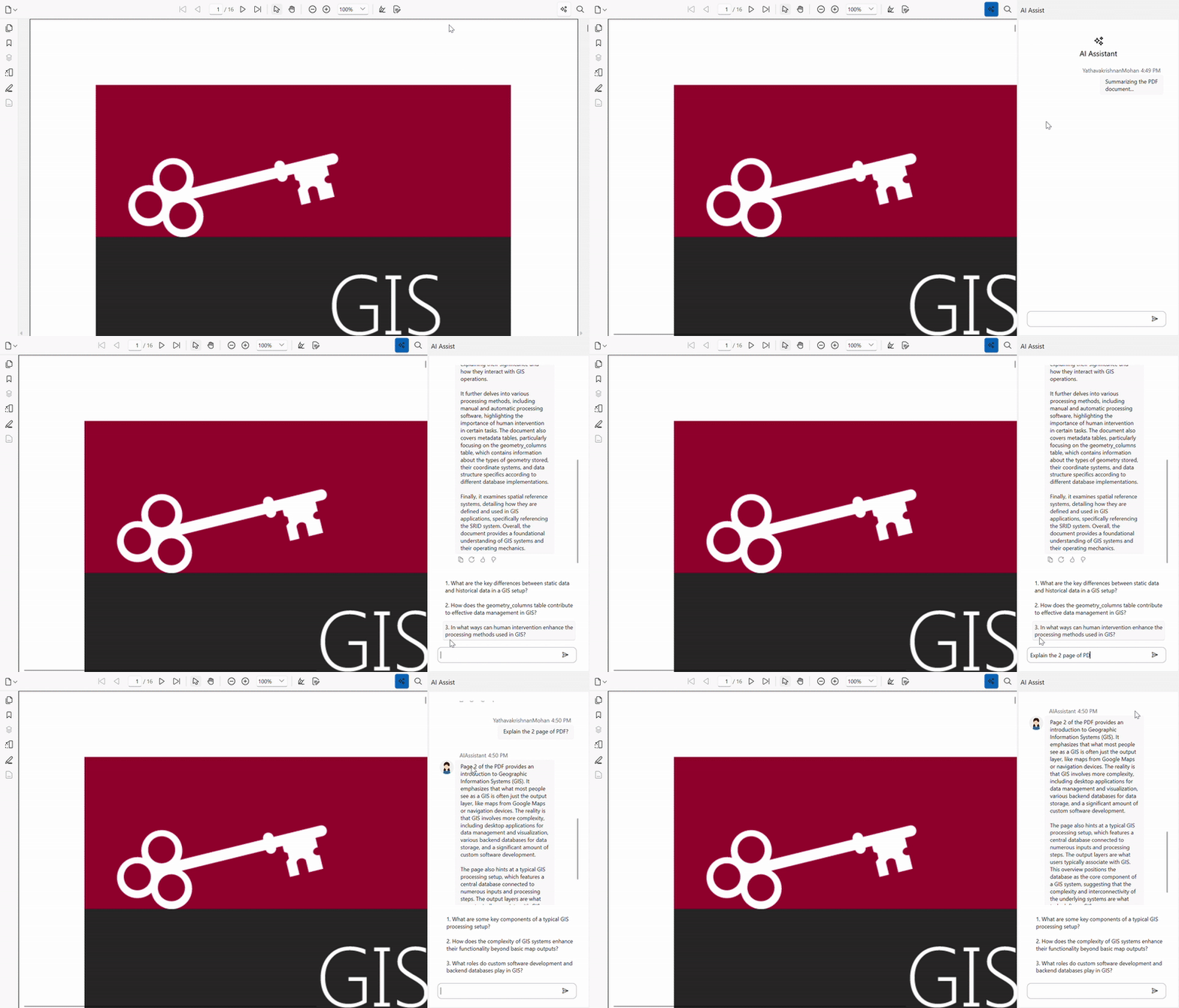
What the user experience looks like
From the user’s perspective, it feels like chatting with the document itself:
- Ask a question
- Get a clear answer
- Click a suggestion and keep going.
All without leaving the PDF viewer.
GitHub reference
For more details, refer to the integrating AI assistant in WPF PDF Viewer GitHub demo.
Frequently Asked Questions
How does the AI assistant answer PDF questions in WPF?
The assistant extracts text from PDFs, generates local embeddings, and utilizes Azure OpenAI to deliver context-aware responses.
Is the full PDF sent to Azure OpenAI?
No. Only relevant text excerpts are shared with Azure OpenAI, while embeddings remain local to protect privacy.
Can it quickly summarize large PDFs?
Yes. The assistant summarizes large PDFs by extracting document content and generating concise overviews based on relevant information.
Is this safe for enterprise or sensitive documents?
Yes. The use of local embeddings supports compliance with privacy and other requirements for sensitive documents.
Can this be customized for different documents?
Yes. It works across manuals, reports, legal files, and domain‑specific PDFs.
One small AI upgrade that completely changes the PDF experience
Thanks for reading! By adding an AI assistant to the Syncfusion WPF PDF Viewer, you turn PDFs from static files into interactive experiences. With local embeddings handling search and Azure OpenAI handling reasoning, you get accurate, private, and genuinely useful document intelligence without complicating your app.
This approach reduces manual effort, improves efficiency, enhances document exploration, and creates interactive workflows.
If you’re a Syncfusion user, you can download the setup from the license and downloads page. Otherwise, you can download a free 30-day trial.
You can also contact us through our support forum, support portal, or feedback portal for queries. We are always happy to assist you!


 No spam, just valuable updates.