
 Arun Kumar Chandrakesan
TL;DR: Digital signatures fail in production when workflows ignore permissions, timestamps, and validation. Follow 4 best practices: signature type selection, certificate-based signing, full metadata/appearance, and certification flags for multi-sign, to ship browser-based signing that stands up in real review chains.
A PDF that looks signed is not necessarily a PDF that can be trusted.
In regulated workflows, legal reviews, compliance audits, and financial approvals, a signature must do more than display a name or image. It must prove who signed the document, confirm that the content has not changed, and record when the signing occurred. Without those guarantees, a PDF fails validation regardless of how convincing it appears.
This guide outlines four essential best practices for implementing secure, legally aligned PDF digital signatures in JavaScript using the Syncfusion® JavaScript PDF Library. Each practice focuses on technical correctness, audit readiness, and long-term validation, without relying on server-side processing or external tools.
Why digital signatures define trust in regulated PDF workflows
Digital trust is not assumed; it is verified.
A PDF becomes trustworthy only when its signature can reliably answer three questions:
- Who signed the document?
Verified through a cryptographic identity bound to the file. - Was the document altered after signing?
Guaranteed through tamper-evident cryptographic protection. - When did the signing occur?
Anchored to a verifiable timestamp.
These guarantees are delivered only by an X.509 certificate-based digital signatures aligned with standards such as eIDAS and the ESIGN Act. Unlike visual or simple electronic signatures, certificate-backed signatures validate consistently across enterprise PDF viewers and audit tools.
With this foundation in place, the next sections focus on how to implement digital signatures correctly in JavaScript-based workflows.
Quick setup overview (Syncfusion JavaScript PDF signing)
The Syncfusion JavaScript PDF Library runs entirely in the browser with no server-side processing, no Adobe dependency, and no additional package installation required.
Before applying the best practices covered in this guide, ensure you have a working PDF signing setup by referring to the Syncfusion JavaScript PDF Library documentation for detailed getting-started instructions.
At a high level, a JavaScript-based PDF signing workflow includes:
- Loading a browser-based PDF library
- Creating or opening a PDF document
- Adding a digital signature field
- Applying a certificate-backed signature
- Saving the signed PDF for validation
For step-by-step instructions on creating and configuring digital signature fields, refer to the official documentation.
4 best practices for secure PDF digital signatures in JavaScript
The following four practices of a PDF digital signature cover everything from choosing the right signature type to managing complex multi-party approval workflows. Each practice is demonstrated with complete implementation using the Syncfusion JavaScript PDF Library.
1. Choose the right signature type for your workflow
Not every document requires the highest signature level protection. Using advanced signing everywhere increases file size, processing time, and implementation complexity without adding meaningful value for low-risk workflows.
The right choice depends on the level of trust the workflow demands.
| Signature Type | Protection Level | Best For |
| Simple Electronic Signature (SES) | Visual only | Internal approvals, informal acknowledgments, and everyday organizational tasks |
| Standard Digital Signature | Cryptographic identity + tamper-proof | Contracts, HR documents, and onboarding forms |
| Digital Signature with Trusted Timestamp | Identity + integrity + signing time proof | Legal, financial, and regulated compliance workflows |
For most enterprise use cases, standard digital signatures or timestamped signatures provide the right balance of security and performance.
Choosing the correct type upfront prevents downstream validation failures and avoids unnecessary rework.
Curious to learn more about the different signature types that best fit your workflow? Explore Interactive Signature Fields and Digital Signature documentation.
2. Use certificate-based signing for legal enforceability
A digital signature becomes legally enforceable only when it is backed by a valid X.509 certificate.
Certificate-based signing:
- Identity-verified through the signer’s
X.509certificate - Tamper-proof, with any post-signing edit instantly revealed
- Legally aligned with
ESIGNandeIDASrequirements - Audit-ready, with timestamped evidence of when the signature was applied
- Produces signatures that validate across PDF viewers
For regulated workflows, adding a trusted timestamp further strengthens the signature by proving when it was signed, which is critical in audits and disputes.
The Syncfusion JavaScript PDF Library supports certificate-based signing with configurable cryptographic standards and digest algorithms.
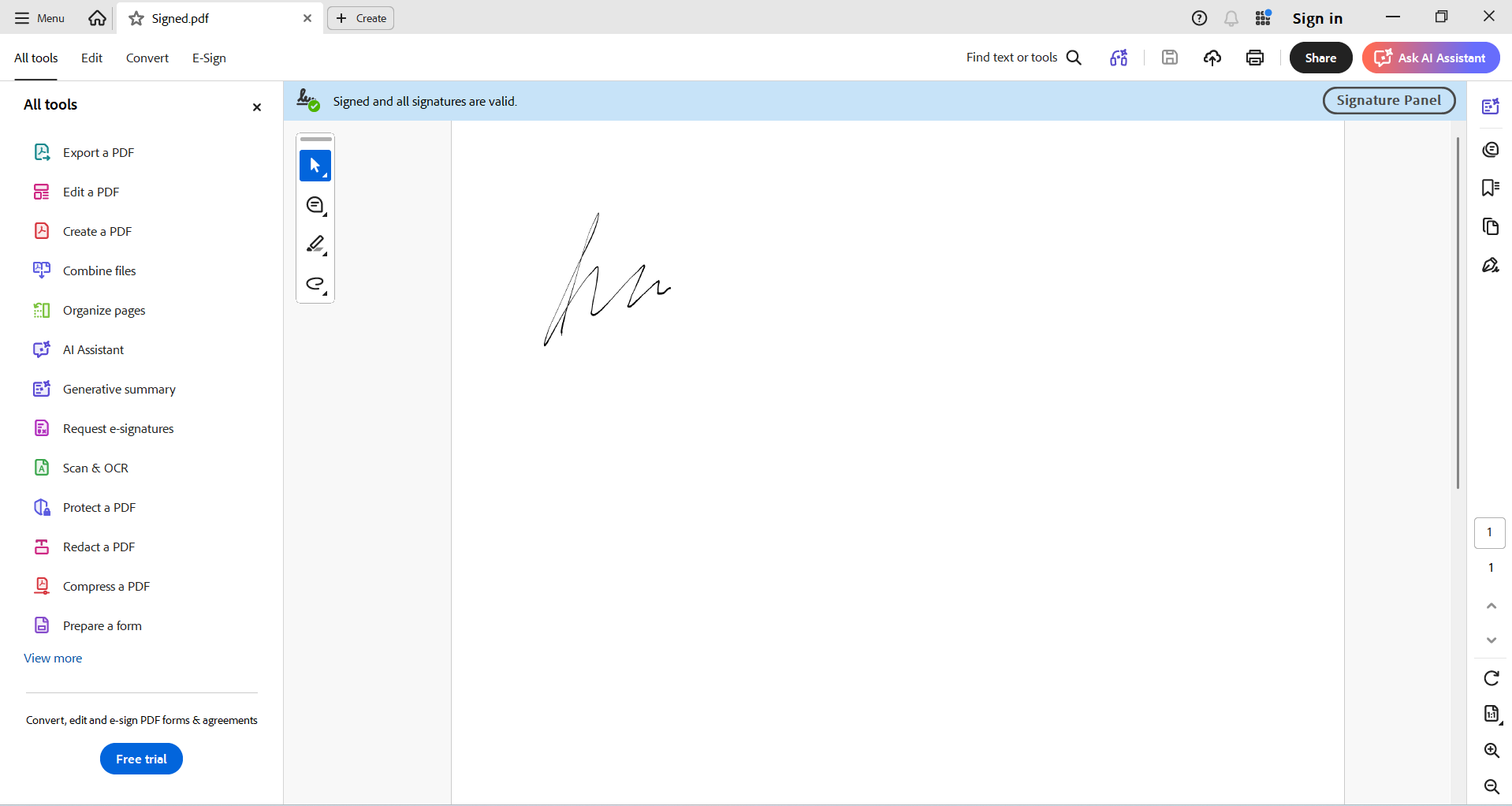
The following example applies to CAdES signing with SHA-256 hashing, a strong, standard-aligned combination for regulated workflows.
// Base64 string of the PFX certificate used for digital signing
const certData = "MIIGwgIBAzCCBn4GCSqGSIb3D……. 8AGCSqG"

// Base64 string of the signature image
const imageData = "iVBORw0KGgoAAAANS………………..fQAAAEsC"

// Create a new document;
var document = new ej.pdf.PdfDocument();

// Add a new page to the document
var page = document.addPage();

// Access the PDF form
var form = document.form;

// Create a new signature field
var field = new ej.pdf.PdfSignatureField(page, 'Signature', { x: 10, y: 10, width: 200, height: 200 });

// Create a new signature using PFX data and private key
var sign = ej.pdf.PdfSignature.create(certData, "syncfusion", {
    cryptographicStandard: ej.pdf.CryptographicStandard.cades,
    digestAlgorithm: ej.pdf.DigestAlgorithm.sha256,
});

// Get the normal appearance graphics for the signature field
var graphics = field.getAppearance().normal.graphics;

// Create an image from a base64-encoded bitmap
var image = new ej.pdf.PdfBitmap(imageData);

//Draw the image to fill the signature widget
graphics.drawImage(image, { x: 10, y: 10, width: 100, height: 100 });

// Set the signature to the field
field.setSignature(sign);

// Add the field into the PDF form
form.add(field);

// Save the document
document.save('Signed.pdf');

// Destroy the document
document.destroy();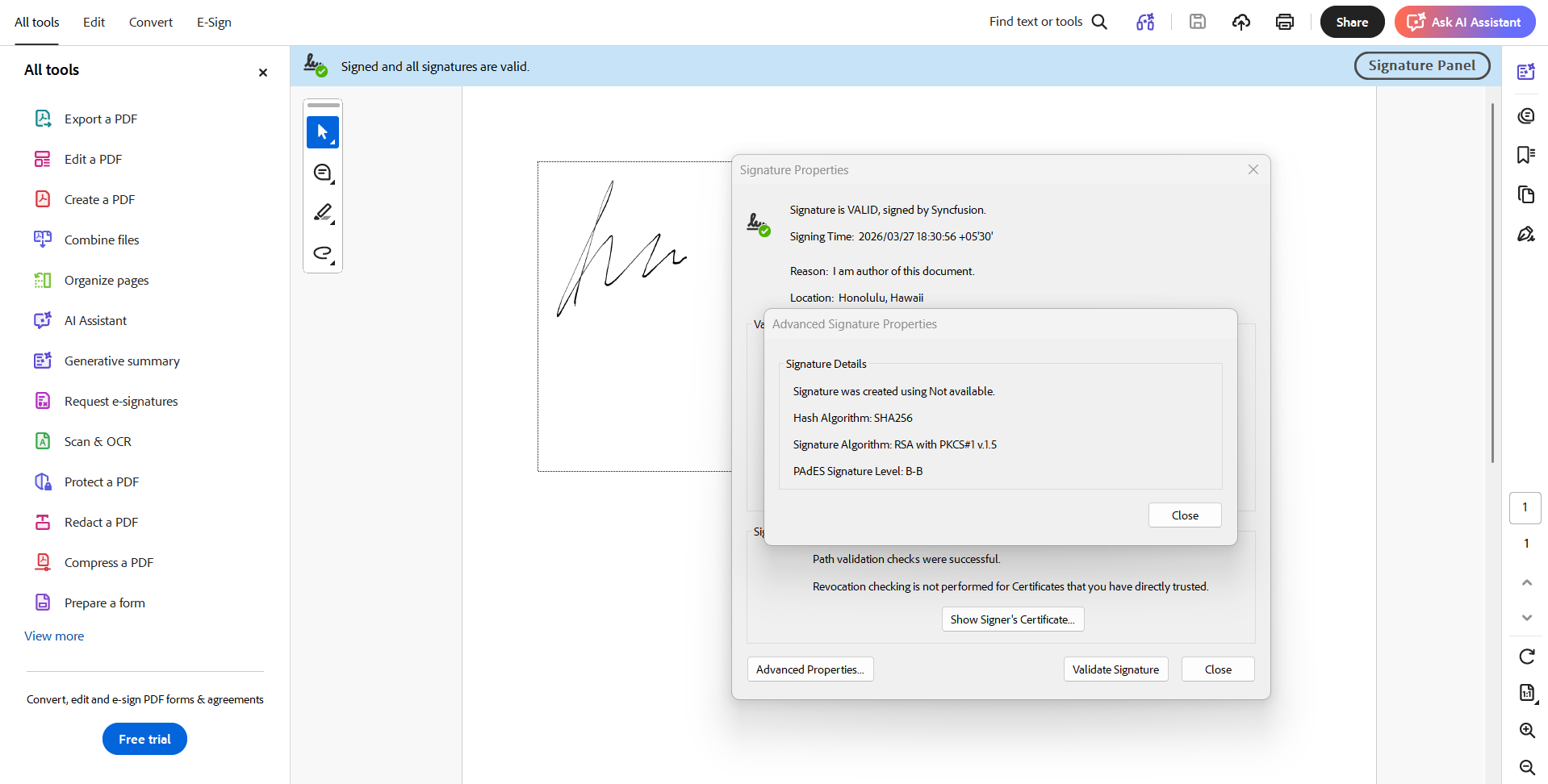
Certificate-based signing confirms technical validity, but a correctly validated signature still needs to communicate clearly to human reviewers. That’s where appearance and metadata configuration become essential.
3. Configure signature appearance and metadata completely
A signature can be cryptographically valid and still fail an audit.
Auditors, reviewers, and compliance teams rely on what they can see as much as what software can validate. A production-grade signature must communicate clearly at a glance.
Every signature should include:
- Visible signer details: Name, reason, and location
- Embedded metadata: Signer identity, purpose, and context
- Consistent appearance: Recognizable layout, timestamp, and optional image or stamp
These details allow reviewers to confirm authenticity without opening technical validation panels, while still validating correctly under cryptographic inspection.
The Syncfusion JavaScript PDF Library provides full API control over all appearance and metadata properties. The following code example adds contact info, location, reason, and a custom visual layout to the signature field.
// Base64 string of the PFX certificate used for digital signing
const certData = "MIIGwgIBAzCCBn4GCSqGSIb3D……. 8AGCSqG"

// Base64 string of the signature image
const imageData = "iVBORw0KGgoAAAANS………………..fQAAAEsC"

// Create a new document;
var document = new ej.pdf.PdfDocument();

// Add a new page to the document
var page = document.addPage();

// Access the PDF form
var form = document.form;

// Create a new signature field
var field = new ej.pdf.PdfSignatureField(page, 'Signature', { x: 10, y: 10, width: 300, height: 300 });

// Create a new signature using PFX data and private key
var sign = ej.pdf.PdfSignature.create(certData, "syncfusion", {
    cryptographicStandard: ej.pdf.CryptographicStandard.cades,
    digestAlgorithm: ej.pdf.DigestAlgorithm.sha256,
    contactInfo: '[email protected]',
    locationInfo: 'USA',
    reason: 'Testing signature'
});

// Get the graphics from the signature appearance
var graphics = field.getAppearance().normal.graphics;

// Draw rectangle border and background
graphics.drawRectangle({ x: 0, y: 0, width: 280, height: 80 }, new ej.pdf.PdfPen({ r: 0, g: 0, b: 0 }, 1), new ej.pdf.PdfBrush({ r: 255, g: 255, b: 255 }));

// Draw signature image
graphics.drawImage(new ej.pdf.PdfBitmap(imageData), { x: 5, y: 5, width: 70, height: 70 });

// Draw signature text
graphics.drawString(
    'Digitally Signed by Syncfusion'
    new ej.pdf.PdfStandardFont(ej.pdf.PdfFontFamily.helvetica, 9),
    { x: 80, y: 8, width: 195, height: 15 },
    new ej.pdf.PdfBrush({ r: 0, g: 0, b: 0 })
);

graphics.drawString(
    'Reason: Testing signature',
    new ej.pdf.PdfStandardFont(ej.pdf.PdfFontFamily.helvetica, 8),
    { x: 80, y: 28, width: 195, height: 12 },
    new ej.pdf.PdfBrush({ r: 0, g: 0, b: 0 })
);

graphics.drawString(
    'Location: USA',
    new ej.pdf.PdfStandardFont(ej.pdf.PdfFontFamily.helvetica, 8),
    { x: 80, y: 45, width: 195, height: 12 },
    new ej.pdf.PdfBrush({ r: 0, g: 0, b: 0 })
);

// Set the signature to the field
field.setSignature(sign);

// Add the field into the PDF form
form.add(field);

// Save the document
document.save('Signed.pdf');

// Destroy the document
document.destroy();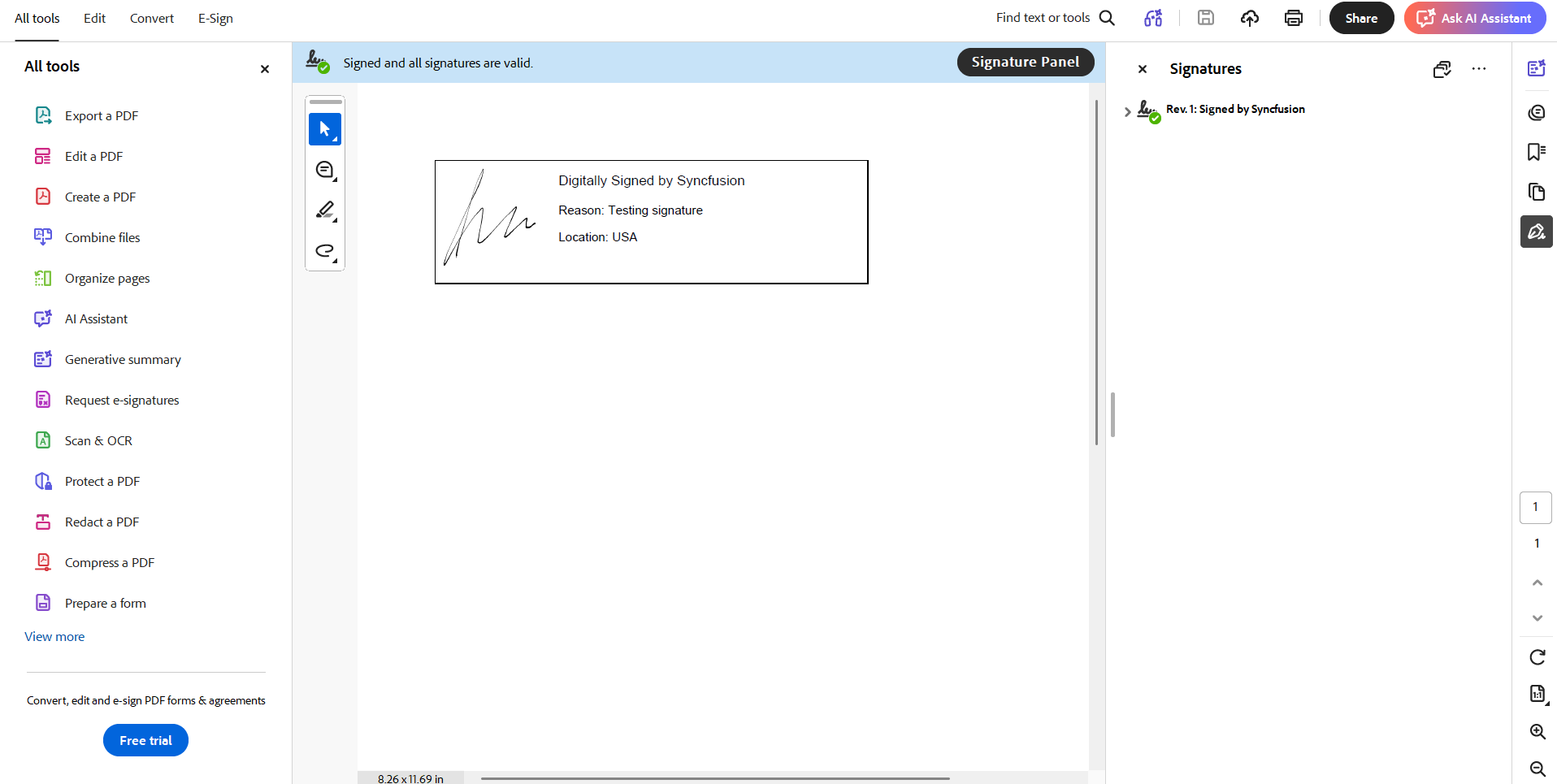
A complete signature satisfies both machine validation and human review, a requirement in most regulated workflows.
4. Design multi-signature workflows that preserve validity
Multi-party approvals introduce a common risk: each new signature can accidentally invalidate the previous one.
Properly designed workflows ensure that:
- Earlier signatures remain valid as additional signers complete the document.
- Reviewers can add comments or annotations without breaking signatures.
- Permissions are explicitly defined at signing time.
This requires configuring document certification and modification permissions correctly for each signer.
The Syncfusion JavaScript PDF Library gives developers full control over multi-signature workflows through its PdfCertificationFlags API. Beyond workflow permissions, it also supports flexible cryptographic options, including CMS and CAdES standards and multiple digest algorithms, so each organization can apply the exact level of protection their workflow requires.
The following example demonstrates a two-signature workflow:
- A certifying signature applied first, defining allowed changes.
- Subsequent approval signatures added without altering protected content.
// Base64 string of the PFX certificate used for digital signing
Const certData = "MIIGwgIBAzCCBn4GCSqGSIb3D……. 8AGCSqG"

// Base64 string of the signature image
const imageData = "iVBORw0KGgoAAAANS………………..fQAAAEsC"

// Create a new PDF document
var document = new ej.pdf.PdfDocument();

// Add a new page to the document
var page = document.addPage();

// Add the first visible signature field
var field = new ej.pdf.PdfSignatureField(page, 'Signature', { x: 50, y: 50, width: 150, height: 150 });

// Add the second visible signature field
var field2 = new ej.pdf.PdfSignatureField(page, 'Signature1', { x: 50, y: 250, width: 150, height: 150 });

// Create a certifying signature (CMS + SHA-256), allowing form fill
var signature = ej.pdf.PdfSignature.create(certData, "syncfusion", {
    cryptographicStandard: ej.pdf.CryptographicStandard.cms,
    digestAlgorithm: ej.pdf.DigestAlgorithm.sha256,
    reason: 'I am author of this document.',
    documentPermissions: ej.pdf.PdfCertificationFlags.allowFormFill
});

// Get the normal appearance graphics for the signature field
var graphics = field.getAppearance().normal.graphics;

// Create an image from a base64-encoded bitmap
var image = new ej.pdf.PdfBitmap(imageData);

//Draw the image to fill the signature widget
graphics.drawImage(image, { x: 0, y: 0, width: 100, height: 100 });

//Draw the image to the page graphics
page.graphics.drawImage(image, { x: 50, y: 250, width: 100, height: 100 });

// Bind the certifying signature to the first signature field
field.setSignature(signature);

// Add the first signature field
document.form.add(field);

// Add the second signature field
document.form.add(field2);

// Save the current state to a Uint8Array
var data = document.save();

// Dispose of the first document
document.destroy();

// Reopen the saved bytes as a new PdfDocument
var ldocument = new ej.pdf.PdfDocument(data);

// Retrieve the second signature field by index (0-based; index 1 = the second field)
field = ldocument.form.fieldAt(1);

// Create the second signature (certify with forbid changes)
signature = ej.pdf.PdfSignature.create(certData, "syncfusion", {
    cryptographicStandard: ej.pdf.CryptographicStandard.cms,
    digestAlgorithm: ej.pdf.DigestAlgorithm.sha256,
});

// Bind the signature to the second field
field.setSignature(signature);

// Save the document
ldocument.save('output.pdf');

// Dispose of the document
ldocument.destroy();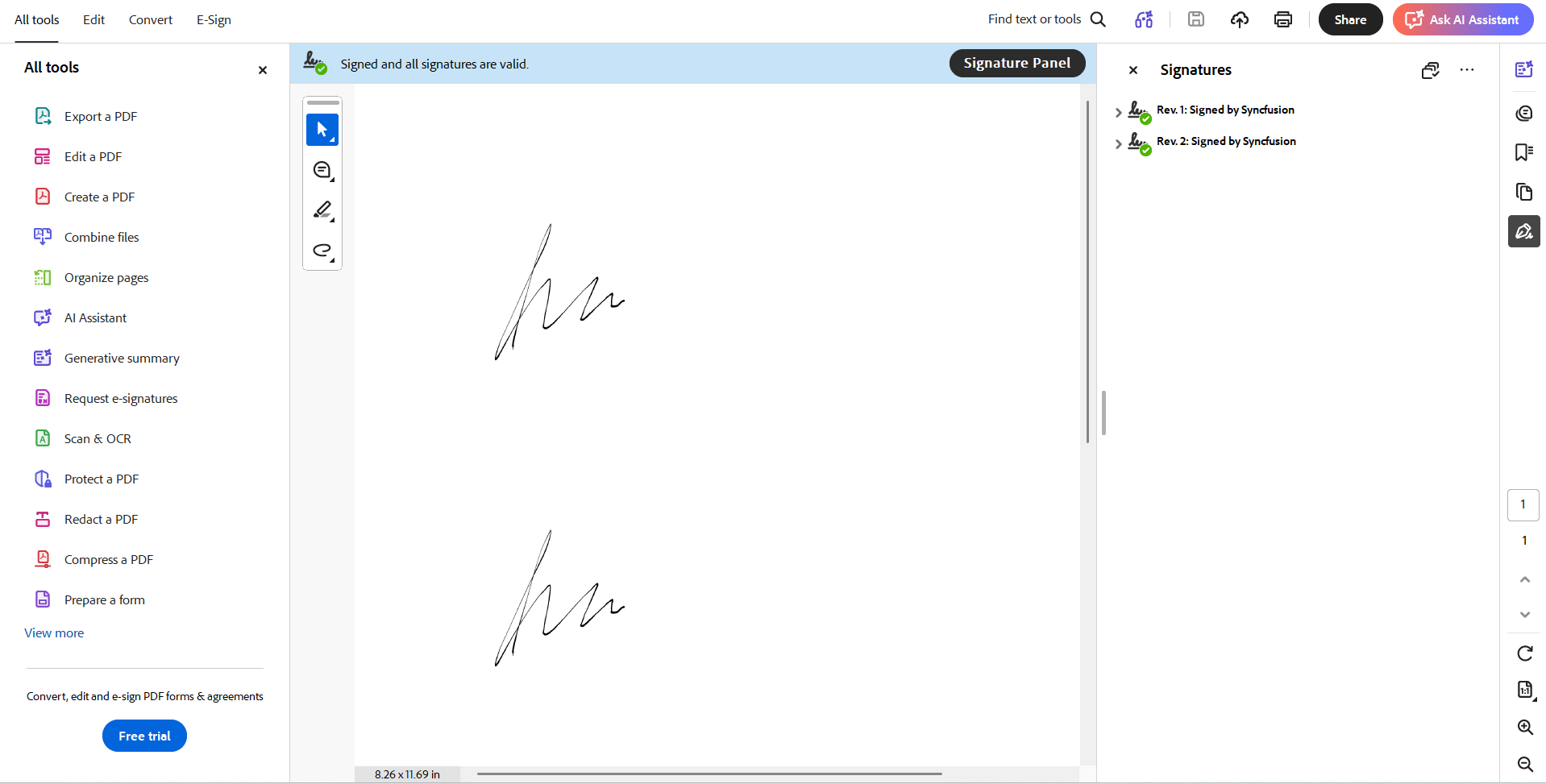
Multi-party approval workflows, sequential review chains, and regulated signing processes all demand this level of control. Syncfusion ships it ready to configure. When implemented correctly, multi-signature PDFs remain valid throughout the entire approval chain, without manual intervention or re-signing.
Curious to explore more digital signature standards, workflows, and implementation examples? Explore the Digital Signature documentation.
Beyond signing: Syncfusion’s complete PDF toolkit for JavaScript developers
Digital signatures are one part of a complete PDF workflow. In real-world applications, documents move through multiple stages: creation, editing, annotation, protection, reviews, and signing. Enterprise workflows require a full-stack PDF engine, not just a signing API.
The Syncfusion JavaScript PDF Library covers the entire PDF lifecycle without external tools or Adobe dependencies:
- Create PDF documents: Generate PDFs from scratch using a flexible, developer-friendly API.
- Add or edit text, images, and graphics: Insert text blocks, shapes, and visual elements programmatically.
- Annotations: Add highlights, comments, notes, and markup for document review workflows.
- Form fields: Create, populate, import, export, and flatten form fields for structured data capture.
- Merge and split PDFs: Combine multiple PDFs or split a single PDF into individual parts.
- Watermarks: Apply text or image watermarks for branding, security, or classification.
- Hyperlinks and bookmarks: Add navigation links and bookmark structures for smooth document movement.
- Text and image extraction: Retrieve text content and embedded images from PDF pages.
- Redaction: Permanently remove sensitive content using text or shape-based redaction.
Every capability listed above is available in the browser, no server-side runtime required.
Looking for more detailed information and complete code implementation examples for all features? Visit the Syncfusion JavaScript PDF Library documentation.
Frequently Asked Questions
Yes. A single Can I reuse the same certificate for signing multiple documents?
X.509 certificate can be used to sign multiple documents. Each signed PDF carries its own unique cryptographic signature, even when the same certificate is reused.
Yes, you can remove the signature by deleting the associated signature field. However, plan your workflow structure before signing to avoid post-signing field removal.Can a digital signature be removed from a PDF once applied?
Yes. Modifying the document structure after signing, including adding or removing pages, altering content, or changing form fields outside the permissions defined at signing time, invalidates existing signatures.Does adding pages after signing break the signature?
Minimally. Stronger digest algorithms, such as Does using a stronger digest algorithm significantly increase PDF file size?
SHA-256 or SHA-512, increase the cryptographic signature payload, but the difference in overall file size is negligible in practice for standard document sizes.
Yes. The library supports text and shape-based redaction to permanently remove sensitive content before a signature is applied. Always complete redaction before signing; applying a signature first and redacting afterward will invalidate the signature.Can I redact sensitive information before applying a digital signature?
Yes. Syncfusion provides a full PDF Viewer component for JavaScript that supports rendering, annotation, form filling, and signature validation directly in the browser, no server rendering required.Is a PDF Viewer available for JavaScript to render and validate signed PDFs?

Conclusion
Thank you for reading! Implementing secure PDF digital signatures in JavaScript does not require a complex server-side pipeline.
By following these four best practices, you can ensure that your signed PDFs:
- Prove signer identity
- Detect any post-signing modification
- Validate across viewers and audit tools
- Remain compliant in regulated workflows
The Syncfusion JavaScript PDF Library brings all four practices together in a single browser-native API. Your applications can deliver documents that remain trusted, verifiable, and legally compliant across every stage of the business process.
If you’re a Syncfusion user, you can download the setup from the license and downloads page. Otherwise, you can download a free 30-day trial.
You can also contact us through our support forum, support portal, or feedback portal for queries. We are always happy to assist you!



 No spam, just valuable updates.