
 Parthasarathy Ranjan
TL;DR: Modern spreadsheets aren’t complete without intuitive clipboard support. This guide shows how to implement and customize cut, copy, and paste operations in a React Spreadsheet, whether through the UI or APIs. You’ll also learn how to handle data from external sources and restrict specific paste actions to preserve data integrity.
Clipboard support is one of those features users only notice when it doesn’t work. If you’re building an app with a spreadsheet-like UI, people expect Excel-style cut/copy/paste, keyboard shortcuts, and sane behavior when they paste data from outside your app.
In this post, we’ll walk through how to handle clipboard operations in the Syncfusion® React Spreadsheet, including:
- Cut, copy, and paste.
- Paste options (All / Values / Formats).
- Pasting from external sources (Excel, Google Sheets, etc.).
- Preventing paste entirely.
- Allowing external paste but forcing values-only to keep your sheet clean.
Why clipboard handling matters (in real apps)
Developers usually run into clipboard issues in a few common scenarios:
- Data-entry screens: Users paste formatted tables and blow up your styling, column formats, or validations.
- Template-based sheets: You want to protect formulas and layout, but still let users paste values.
- Controlled environments: You may need to disable cut/paste for compliance or to avoid accidental edits.
- Interop with Excel: Users expect copy/paste from Excel to “just work,” including number formats.
This is where built-in clipboard support helps, but the key is knowing how to control it.
Clipboard operations in Syncfusion React Spreadsheet
When you’re working with Spreadsheets, cut, copy, and paste aren’t just basic actions; they’re the backbone of smooth data handling. The component offers a robust set of options for managing data:
- Cut, copy, and paste: Perform standard clipboard operations on cells, ranges, and formulas.
- External clipboard support: Copy data from external sources such as Excel or other applications and paste it into the Spreadsheet.
- Paste options: Choose whether to paste entire cells, values only, or formats only for more control over data handling.
- Rich content handling: Copy and paste charts, images, and hyperlinks within the Spreadsheet.
- Keyboard shortcuts: Use familiar shortcuts such as
Ctrl+C,Ctrl+X, andCtrl+Vfor quick clipboard actions.
Create Excel-style data experiences in React with built-in formula support, cell formatting, workbook editing, large dataset handling, and seamless spreadsheet viewing.
Build React SpreadsheetEnable clipboard operations
The Syncfusion React Spreadsheet includes built-in clipboard functionality, making these operations easy to use. If you need to enable/disable them globally, use the enableClipboard property (enabled by default).
<SpreadsheetComponent enableClipboard={true} />Cut like a pro
Need to move data around in your Spreadsheet? That’s where the Cut operation comes in. It allows you to move data without creating duplicates. When you cut cells, rows, or columns, the content is stored in the clipboard but remains in place until you paste it. The original data is removed only after the paste action is completed.
The Syncfusion React Spreadsheet makes moving data straightforward. Here are the different ways to perform a cut:
- Ribbon shortcut: Click the Cut button in the HOME tab of the Ribbon.

Cut data via the Home Tab - Context Menu: Right-click the target cell and select Cut option from the context menu.
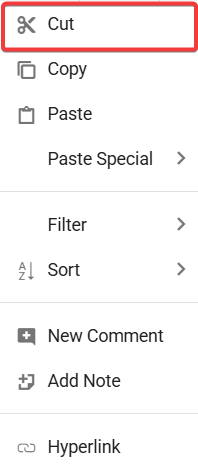
Cut data via context menu - Keyboard shortcut: Press Ctrl + X (Windows) or Command + X on Mac for the quickest way to cut data.
- API support: Use the cut() method to trigger the cut action programmatically. When called without parameters, it cuts data based on the current selection. When a range address is provided, it cuts data from the specified range.
Try this in your code:// cuts the currently selected range spreadsheet.cut(); // cuts the given address range spreadsheet.cut('A2:C5');
Copy made simple: Duplicate data in the Syncfusion React Spreadsheet
Sometimes you don’t need to move data; just create an extra copy. The Copy operation lets you duplicate selected cells, rows, or columns and store them in the clipboard, ready to be pasted anywhere in the Spreadsheet.
The Syncfusion React Spreadsheet offers multiple ways to copy data, allowing you to choose the most convenient approach:
- Ribbon shortcut: Click the Copy button in the HOME tab.

Copy data via Ribbon Tab - Context Menu: Right-click the target cell or range and select Copy from the context menu.
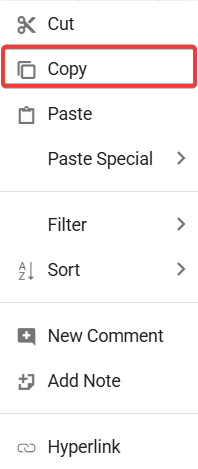
Copy data via context menu - Keyboard shortcut: Press Ctrl + C (Windows) or Command + C (Mac) for quick copying.
- API support: Use the cut() method when copying through code. When called without parameters, it copies data based on the current selection. When a range address is provided, it copies data from the specified range.
Code snippet:// copy the currently selected range spreadsheet.copy(); // copy data from the specified range spreadsheet.copy('A2:C5')
Paste in React Spreadsheet
The Paste operation allows you to insert clipboard content into cells, rows, or columns quickly and accurately. It enables you to move copied or cut data into the Spreadsheet with full control over what gets pasted.
Paste options available:
- Paste All: Pastes both values and their original formatting.
- Paste Values: Pastes only the values, without any formatting.
- Paste Formats: Applies formatting such as font styles, colors, background colors, and number formats (date, currency, etc.) without modifying existing values.
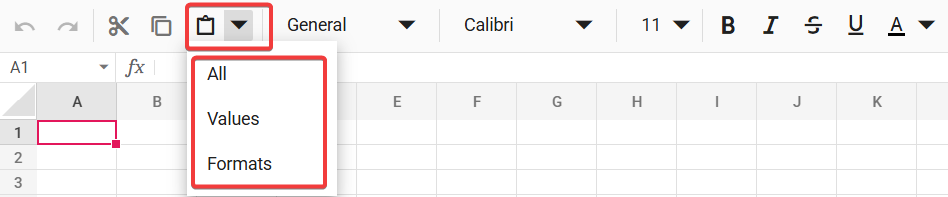
Paste Special via Ribbon
Paste from anywhere: External clipboard made easy
The React Spreadsheet supports pasting data copied from external applications such as Excel. Supported content includes values, number formats (date, currency, percentage), text formatting (bold, italic, font color), and basic cell formatting like background color and borders. This ensures imported data retains its readability and structure.
Ways to paste data in Syncfusion React Spreadsheet:
- Ribbon shortcut: Click the Paste button in the HOME tab as shown below.

Paste data via Ribbon - Context Menu: Right-click a cell and choose the Paste or Paste Special option from the context menu.
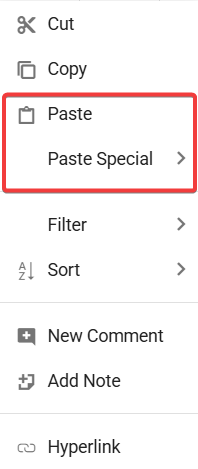
Paste data via context menu - Keyboard shortcut: Press
Ctrl + V(Windows) orCommand + V(Mac) for the quickest way to paste. - API support: Use the paste() method to control paste behavior programmatically. Calling paste() without parameters pastes content into the current selection. Providing a range address and an optional PasteSpecialType enumeration, lets you specify both the target location and paste behavior.
Here’s how you can do it in code:// Paste the selected cell. spreadsheet.paste(); // Paste all the clipboard content to the specified range. spreadsheet.paste('B2', 'All'); // Paste only the values to the specified range. spreadsheet.paste('B3', 'Values'); // Apply only the formats to the specified range. spreadsheet.paste('B4', 'Formats');
In the code example above, the paste() method gives you full control over where and how clipboard data is inserted, making it easy to handle simple and advanced paste scenarios.
Here’s a quick demo of the feature in action:
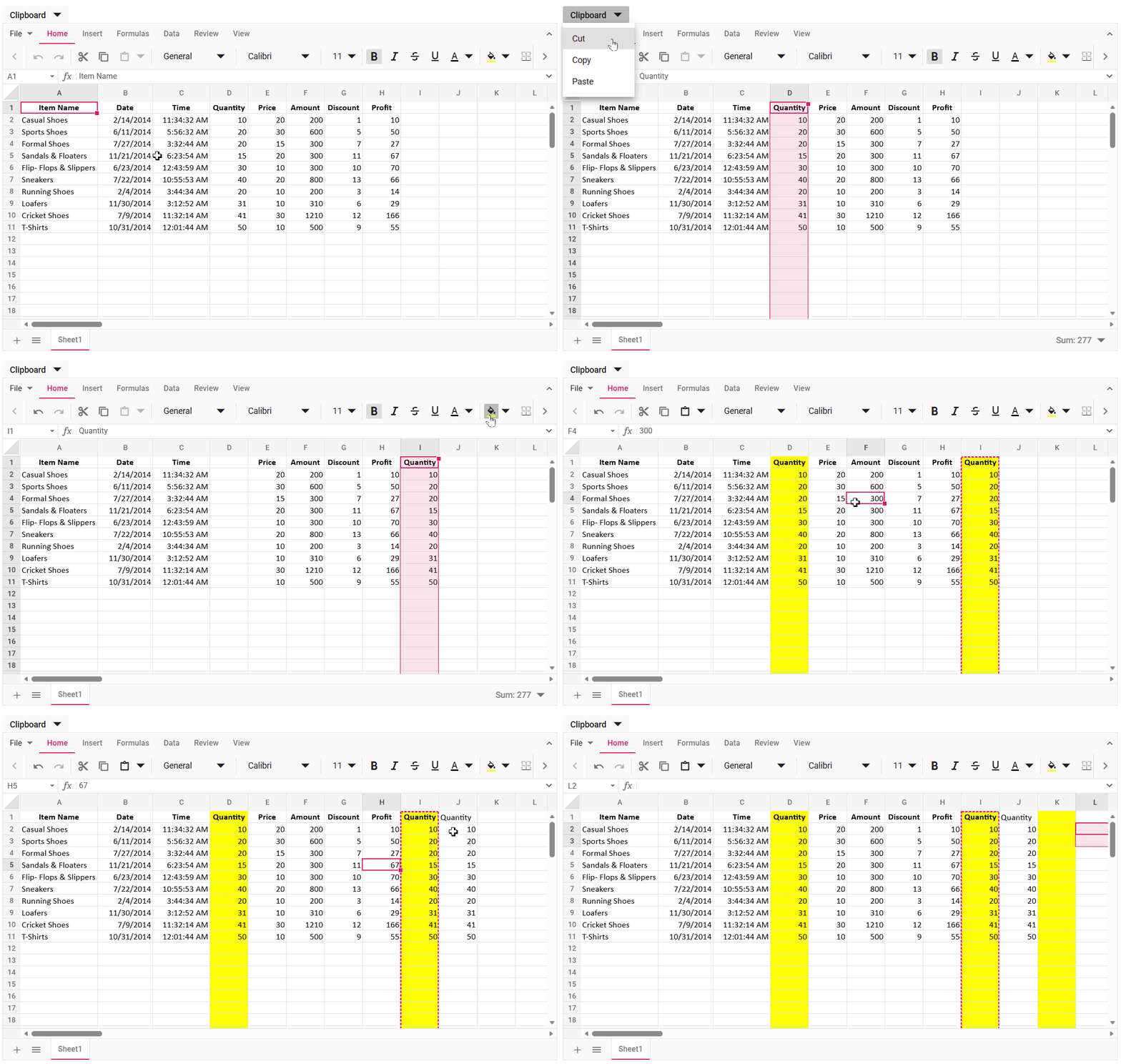
Prevent paste action in Spreadsheets
Uncontrolled paste operations can introduce unwanted data, styles, or even break formulas. With the React Spreadsheet, you can intercept and stop a paste action before it’s applied.
The key is the actionBegin event. This event fires before any spreadsheet action occurs, including paste operations. By detecting a paste request and canceling it, you can completely prevent the action.
Code snippet to achieve this:
const onActionBegin = (pasteArgs) => {
    if (
        pasteArgs.args.action === 'clipboard' &&
        pasteArgs.args.eventArgs.requestType === 'paste'
    ) {
        pasteArgs.args.eventArgs.cancel = true;
    }
};
Here’s a quick demo of how paste actions can be blocked.
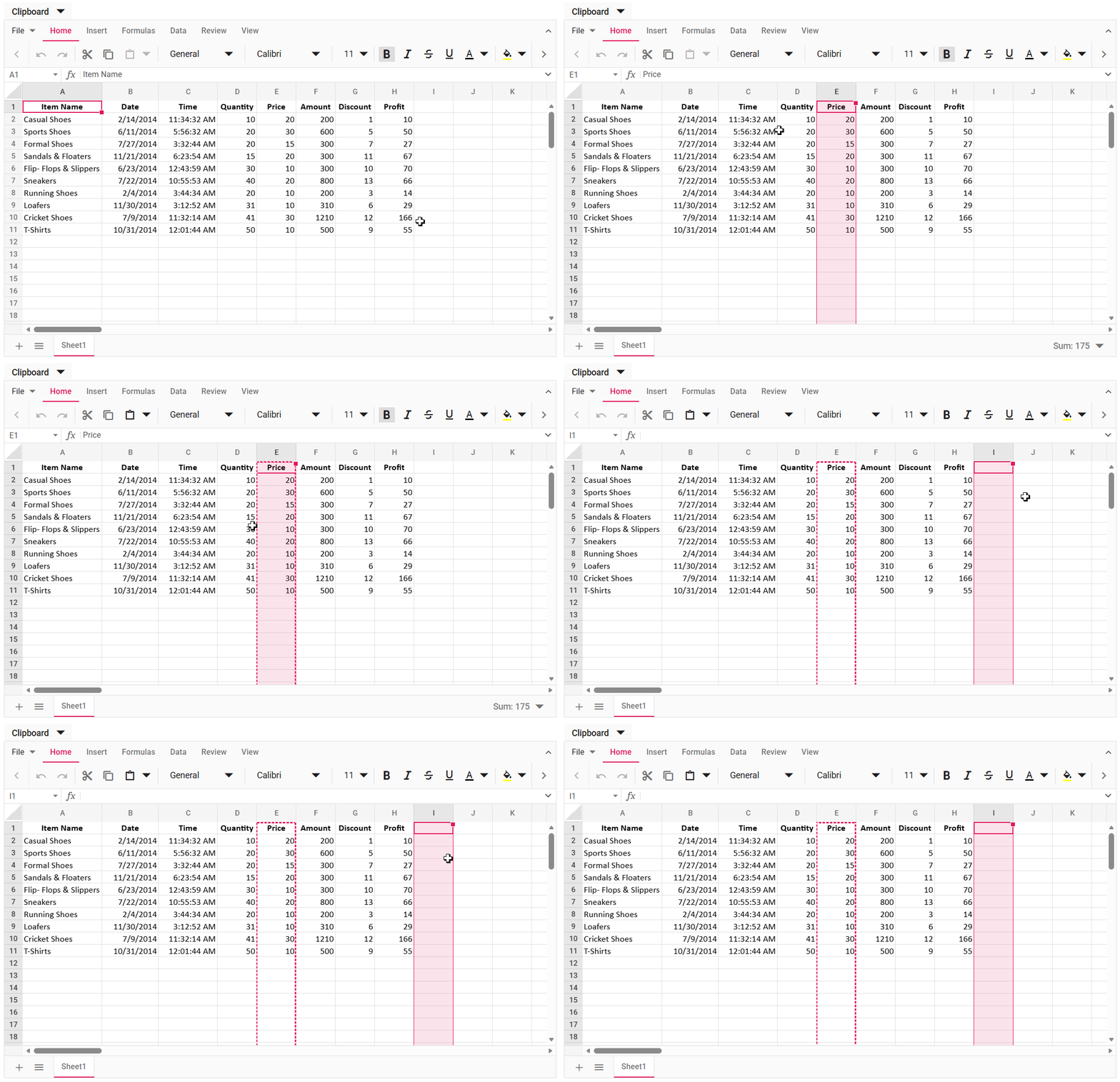
Paste only cell values from external copy-paste
When pasting data from applications like Excel or Google Sheets, formatting such as fonts, colors, and borders often comes along. If you want to keep your Spreadsheet clean and consistent, you can allow only the values to be pasted and strip out all styles.
You can achieve this behaviour using three key events:
- actionBegin: Triggered before any spreadsheet action occurs (such as paste, sort, or format). Use this event to detect an upcoming paste operation and determine whether the data is coming from an external clipboard source.
- beforeCellUpdate: Triggered just before a cell’s value or properties are updated. At this stage, you can remove formatting and retain only the raw value before it is written to the cell.
actionComplete: Triggered after the paste operation finishes. Use this event to reset any temporary state or cleanup logic related to the paste action.
The code example below shows how to paste only values from an external clipboard.
//To check the content copied from external clipboard
let isPasteFromExternalClipboard;
//Event Triggers before any action starts in the Spreadsheet
const onActionBegin = (args) => {
    // To check the requested type is paste and content copied is from external clipboard.
    if (
        args.args.eventArgs &&
        args.args.eventArgs.requestType === 'paste' &&
        (args.args.eventArgs.copiedInfo === null ||
            args.args.eventArgs.copiedInfo ===undefined)
    ) {
        //Enabling Boolean
        isPasteFromExternalClipboard = true;
    }
};
//Event Triggers just before a cell’s value or property is updated
const onBeforeCellUpdate = (args) => {
    if(isPasteFromExternalClipboard) {
        if (args.cell) {
            //To remove styles and formatting and paste only values to cells
            const value = args.cell.value;
            args.cell = { value: value };
        }
    }
};
//Event Triggers after an action is completed
const onActionComplete = (args) => {
    if(
        args.action === 'clipboard' &&
        args.eventArgs.requestType=== 'paste'
    ){
        //Reset Boolean
        isPasteFromExternalClipboard = false;
    }
};
<SpreadsheetComponent
    actionBegin={onActionBegin}
    actionComplete={onActionComplete}
    beforeCellUpdate={onBeforeCellUpdate}
>
</SpreadsheetComponent>
As a result, only raw cell values are pasted, with all formatting removed.
See the feature in action below:
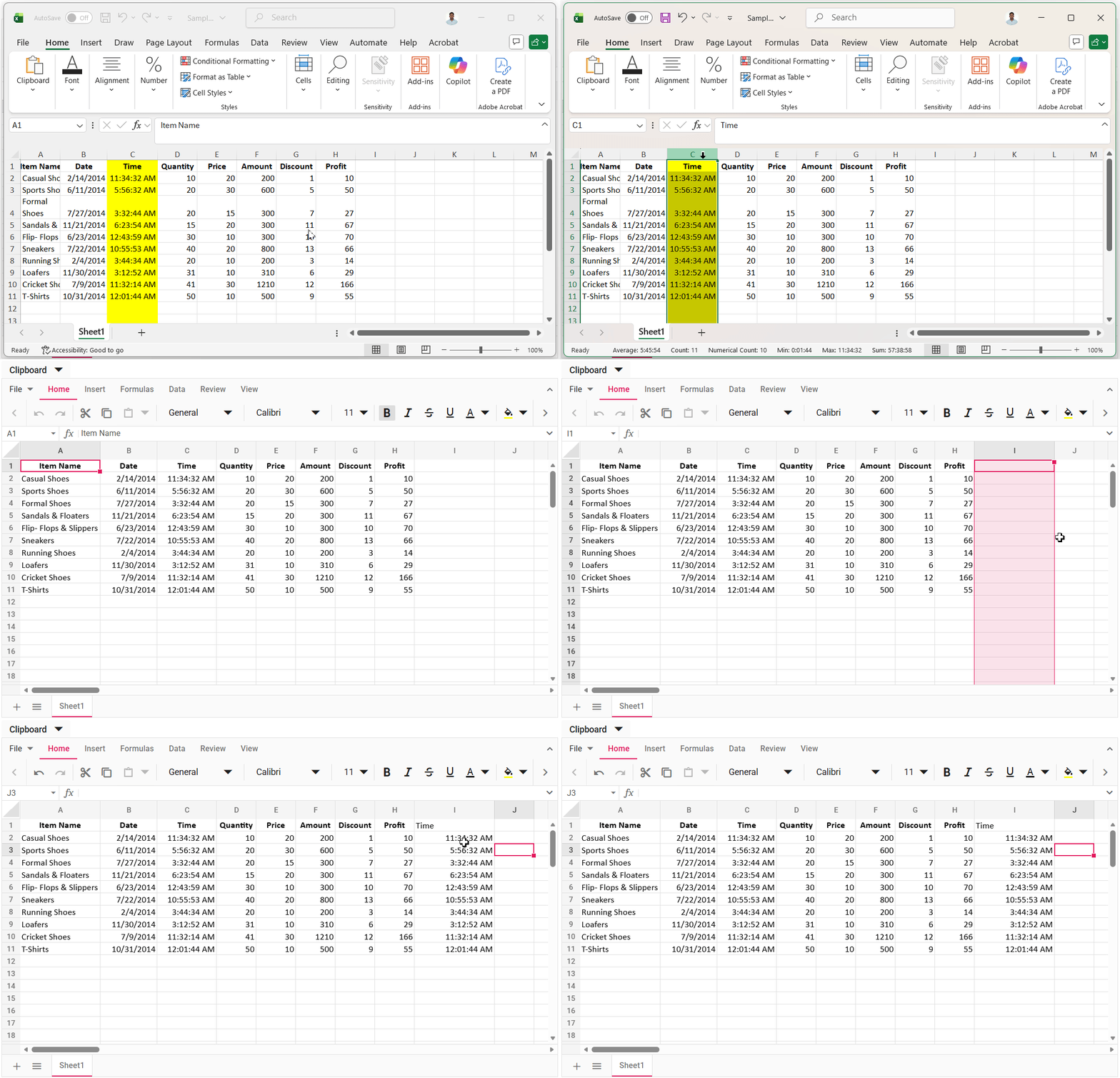
Next steps (try it yourself)
- Start here: Clipboard in React Spreadsheet component (docs).
- Run a sample and test these scenarios: internal copy/paste, external paste from Excel, paste-values-only, and paste-blocking.
- If you want a working project you can fork, use the linked GitHub samples from the post, and wire in the event handlers above.
Frequently Asked Questions
The actionBegin event lets you check if copiedInfo is null or underfined, which indicates an external clipboard source.How do I detect whether pasted content came from an external source or inside the spreadsheet?
Yes. You can override the default paste behavior by intercepting the actionBegin event when the Is it possible to override Paste options and introduce custom user logics?
requesteType is paste and then overwrite the incoming value or style payload before it’s applied to the cells.
You can copy from a protected sheet, but the cut action is blocked because protection prevents modifying the source cells. Copied data can still be pasted into an unprotected sheet since the target sheet allows edits.Can I cut or copy data from a protected sheet and paste it into an unprotected sheet?
Yes. You can block copy actions for specific protected cells by checking the selected range during the copy event and canceling it only for those cells, while still allowing copying from other permitted cells.Can I restrict users from copying certain protected cells but allow copying from others?
Conclusion
Thank you for reading! Clipboard support isn’t just Ctrl+C/Ctrl+V; it’s a big part of whether your spreadsheet UI feels trustworthy. With Syncfusion React Spreadsheet, you can rely on default Excel-like behavior, and then add guardrails where real apps need them: preventing paste, or allowing paste while stripping formatting from external sources.
Syncfusion Spreadsheet is also available for JavaScript, Angular, Vue, ASP.NET Core, and ASP.NET MVC platforms, making it easy to integrate across your tech stack.
If you’re a Syncfusion user, you can download the setup from the license and downloads page. Otherwise, you can download a free 30-day trial.
You can also contact us through our support forum, support portal, or feedback portal for queries. We are always happy to assist you!




 No spam, just valuable updates.