
 Saravanan G
TL;DR: The Blazor Rich Text Editor’s code block feature quietly transforms technical writing by delivering clean, readable, and customizable code formatting with minimal effort. A sleek language selector, intuitive toolbar controls, smart indentation, and clean‑paste behavior elevate the editing experience far beyond basic text formatting. The result is a lightweight but powerful tool that enhances tutorials, documentation, and developer‑focused content with surprising ease.
If you write technical content, such as blogs, tutorials, how‑to guides, or documentation, you know the importance of clear, readable code formatting.
That’s where the Syncfusion Blazor Rich Text Editor’s Code Block feature stands out.
In this guide, you’ll discover how to add and customize code blocks inside the Blazor Rich Text Editor. We’ll also learn the practical tips, must‑know shortcuts, and configuration examples that elevate your content experience.
Let’s dive in!
Why code blocks matter more than you think
Developers don’t read paragraphs first; they hunt for code. Code blocks help your readers:
- Understand examples faster.
- Copy code without losing formatting.
- Scan your content more easily.
- Trust your technical accuracy.
What you can do with code blocks in Blazor RTE
The code block feature in the Syncfusion Blazor Rich Text Editor enables users to insert and format code snippets directly within the editor’s content area.
When you add the CodeBlock command to the toolbar, it appears as a toggleable button that applies the code-friendly formatting, typically using the <pre> and <code> HTML tags, to either selected text or a newly created block.
This makes it much easier to display programming code, scripts, or structured text in a monospaced font with a clear, distinguishable background, significantly improving readability.
Beyond its basic functionality, the feature offers extensive customization options. We can:
- Add the InsertCode button to the toolbar.
- Style the code block with custom CSS, such as adjusting background color, padding, or syntax highlighting.
- Configure the editor to handle code blocks in both HTML and Markdown modes.
- Integrate third-party libraries, such as CodeMirror, for advanced code editing or syntax highlighting.
Thanks to this flexibility, the Code Block feature becomes especially valuable for technical blogs, documentation platforms, learning portals, and any app that needs clean, professional code presentation. Its ease of use and customization features make it a powerful asset for building developer-friendly content experiences. Spend less time building content editing features from scratch. Syncfusion Blazor Rich Text Editor includes ready-to-use support for formatting, media insertion, hyperlinks, tables, lists, and rich HTML content editing.
Prerequisites
To get started, ensure the following prerequisites are installed and configured on your development machine:
How to add code blocks in the Blazor Rich Text Editor
Follow these steps to add and configure the code block feature in the Blazor Rich Text Editor.
Step 1: Create a Blazor server application
Start by creating a new Blazor Server application using Visual Studio. Next, install the Syncfusion.Blazor.RichTextEditor NuGet package, configure the necessary style and script references, and follow the steps outlined in the getting started documentation.
Step 2: Add the Rich Text Editor to your application
Now, add the following code to the Index.razor page to include the Blazor Rich Text Editor component.
@using Syncfusion.Blazor.RichTextEditor

<SfRichTextEditor>
</SfRichTextEditor>
Step 3: Add the Code block tool item to the toolbar
Configure the toolbar to include the CodeBlock command. This adds the Code Block tool alongside other formatting options, such as Bold, Italic, and more.
@using Syncfusion.Blazor.RichTextEditor

<SfRichTextEditor ID="code-block">
    <RichTextEditorToolbarSettings Items="Tools">
    </RichTextEditorToolbarSettings>
</SfRichTextEditor>

@code {
    private List<ToolbarItemModel> Tools = new List<ToolbarItemModel>()
    {
        new ToolbarItemModel() { Command = ToolbarCommand.CodeBlock },
        new ToolbarItemModel() { Command = ToolbarCommand.Bold },
        new ToolbarItemModel() { Command = ToolbarCommand.Italic },
        new ToolbarItemModel() { Command = ToolbarCommand.Underline },
        new ToolbarItemModel() { Command = ToolbarCommand.CreateLink },
        new ToolbarItemModel() { Command = ToolbarCommand.Image },
        new ToolbarItemModel() { Command = ToolbarCommand.CreateTable },
        new ToolbarItemModel() { Command = ToolbarCommand.Separator },
        new ToolbarItemModel() { Command = ToolbarCommand.SourceCode },
    };
}
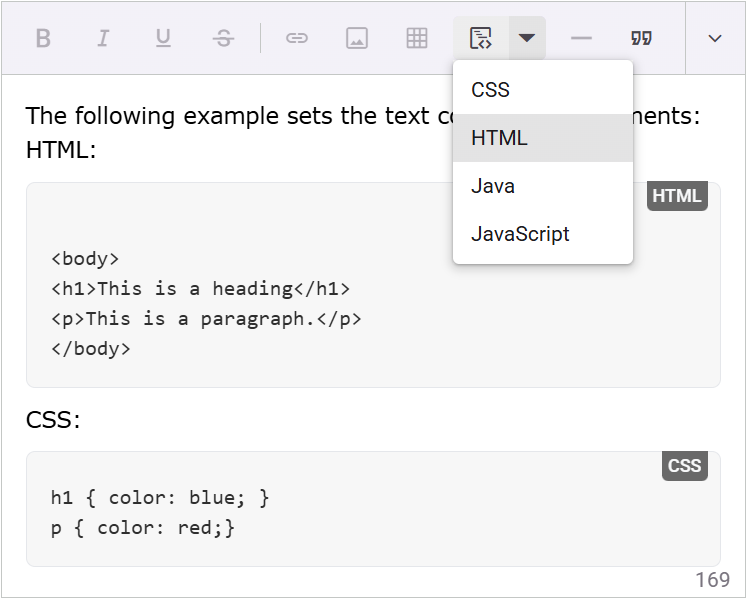
Step 4: Configuring code block languages
The Code Block feature supports customizable programming languages via the RichTextEditorCodeBlockSettings property, specifically the Languages and DefaultLanguage options.
@using Syncfusion.Blazor.RichTextEditor

<SfRichTextEditor ID="code-block">
    <RichTextEditorToolbarSettings Items="Tools">
    </RichTextEditorToolbarSettings>

    <RichTextEditorCodeBlockSettings
        Languages="languages"
        DefaultLanguage="javascript" />
</SfRichTextEditor>

@code {
    private List<CodeBlockLanguageModel> languages = new List<CodeBlockLanguageModel>
    {
        new CodeBlockLanguageModel { Label = "CSS",        Language = "css" },
        new CodeBlockLanguageModel { Label = "HTML",       Language = "html" },
        new CodeBlockLanguageModel { Label = "Java",       Language = "java" },
        new CodeBlockLanguageModel { Label = "JavaScript", Language = "javascript" }
    };

    private List<ToolbarItemModel> Tools = new List<ToolbarItemModel>()
    {
        new ToolbarItemModel() { Command = ToolbarCommand.CodeBlock },
        new ToolbarItemModel() { Command = ToolbarCommand.Bold },
        new ToolbarItemModel() { Command = ToolbarCommand.Italic },
        new ToolbarItemModel() { Command = ToolbarCommand.Underline },
        new ToolbarItemModel() { Command = ToolbarCommand.CreateLink },
        new ToolbarItemModel() { Command = ToolbarCommand.Image },
        new ToolbarItemModel() { Command = ToolbarCommand.CreateTable },
        new ToolbarItemModel() { Command = ToolbarCommand.Separator },
        new ToolbarItemModel() { Command = ToolbarCommand.SourceCode },
    };
}
This gives your users a friendly dropdown to pick the right language.
Editing tips: Make working with code blocks easier
Editing content around code blocks requires care to preserve code integrity and maintain clean formatting. Follow these tips for a smooth editing experience:
- Adding text before a code block: Place the cursor at the start of the code block’s first line and press the Enter key to create an empty line above. Press Enter again to start a new paragraph for text.
- Inserting text after a code block: Place the cursor at the end of the code block’s last line and press the Enter key three times to exit the code block and create a new paragraph below.
- Using shortcuts: Press Ctrl+Shift+B (or Cmd+Shift+B on macOS) to insert a code block at the cursor’s position.
- Preserving formatting when pasting: Paste code into a code block using Ctrl+Shift+V (or Cmd+Shift+V on macOS) to avoid external formatting (e.g., fonts or colors) and maintain the monospaced style.
- Changing languages: When switching the language of a code block via the dropdown, verify that the code aligns with the new language for accurate syntax highlighting in the rendered output.
- Previewing content: Since live syntax highlighting is not available during editing, use the editor’s preview mode to verify how code blocks render with syntax highlighting before publishing.
Enabling tab-based line indentation in code blocks
The code block feature also supports tab-based indentation to properly align code. This feature is crucial for languages like Python, where indentation is syntactically significant.
- Using the Tab key: Pressing Tab within a code block typically inserts a tab character (\t) or spaces (usually four, depending on the editor’s default configuration). Use Shift+Tab to outdent selected lines.
- Toolbar commands: Include the Indent and Outdent buttons in the toolbar to increase or decrease indentation.
Want to explore more?
For more details, you can check out:
- Code blocks in the Blazor Rich Text Editor GitHub demo.
- Blazor Rich Text Editor documentation.
- Syncfusion demos for hands‑on exploration.

Wrapping up
Thanks for reading! The code block feature in Syncfusion Blazor Rich Text Editor provides everything needed for a clean and professional code presentation. It’s a reliable tool for documentation platforms, technical blogs, educational sites, and any app where readable code matters.
Try our Blazor component by downloading a free 30-day trial or from our NuGet package. Feel free to have a look at our online examples and documentation to explore other available features.
If you have any questions, please let us know in the comments section below. You can also contact us through our support forum, support portal, or feedback portal. We are always happy to assist you!







 No spam, just valuable updates.