
 RajaVignesh BalaSankar
TL;DR: The fastest way to automate PDFs
Syncfusion .NET PDF Library lets developers merge, split, convert, and secure PDFs in minutes with clean C# APIs, no heavy setup, and no external dependencies. Prefer zero backend work? Their ready‑to‑deploy Docker‑based Document Processing Web APIs give you instant PDF automation through simple REST endpoints. From conversions to enterprise‑grade security, Syncfusion delivers a fast, scalable, end‑to‑end document workflow solution.
PDF automation is no longer optional: It’s essential
Modern applications rely on fast, reliable, and fully automated document workflows. Whether you’re generating invoices, processing forms, or producing reports, businesses expect these tasks to run seamlessly in the background, with no manual steps, no delays. As organizations move beyond traditional, manual PDF handling, automation has become essential. It minimizes human error, accelerates internal operations, and ensures documents are processed consistently and accurately at scale.
But developers often lose critical time wrestling with infrastructure instead of building features. That’s where Syncfusion® changes the game.
Get a complete PDF workflow in 20 minutes
Syncfusion .NET PDF Library makes this possible with straightforward APIs, true cross‑platform support, and high‑performance components designed for real‑world business needs.
Not familiar with .NET? No problem. Syncfusion also provides a ready‑to‑deploy Docker image for its Document Processing Web APIs, enabling you to launch PDF-automation services without configuring servers or managing runtime environments. With Docker, you benefit from simple deployment, easy scaling, and a consistent environment across platforms. With zero configuration, you gain instant access to essential PDF operations, including:
- Merge
- Split
- Compress
- Rotate
- Protect
Plus full Office‑to‑PDF conversion, all through simple HTTP endpoints.
For enterprise teams seeking PDF automation with minimal setup and complexity, the Syncfusion Document Processing Web APIs provide a streamlined pathway to deployment, accelerating time-to-value.

The real problem: Merging, splitting, converting & securing PDFs takes way too long
While PDF management may appear straightforward, most traditional approaches introduce unnecessary complexity for development teams. Time spent on environment preparation delays feature delivery, increases project overhead, and ultimately affects business outcomes. Common enterprise challenges include:
- Performance issues: Large PDFs or batch operations often slow down or fail unexpectedly.
- Inconsistent accuracy: Text extraction, formatting, or layout detection often produces incorrect or unpredictable results.
- High resource usage: Memory and CPU consumption spike during heavy PDF processing, affecting overall app performance.
- Lack of a unified workflow: Developers must combine multiple tools just to merge, split, convert, and secure documents.
With these constraints, delivering consistent and scalable PDF automation becomes resource-intensive, an inefficiency modern organizations cannot afford in a competitive market.
Syncfusion .NET PDF Library: Your all‑in‑one PDF power tool
Syncfusion .NET PDF Library removes operational complexity by providing the speed, reliability, and flexibility required for enterprise document workflows. Programmatic PDF operations from generation to conversion enable teams to rapidly deliver business outcomes. This solution stands out because:
- Lightweight and dependency-free: Ready to use without requiring any external components.
- Cross-platform support: Runs seamlessly on Windows, Linux, macOS, Docker, Azure Functions, and AWS Lambda.
- Scales effortlessly: Suitable for small apps all the way up to enterprise-grade workloads.
This methodology reduces complexity across the workflow, enabling enterprises to implement scalable, reliable PDF automation aligned with operational goals.
Looking beyond document processing, what if you need interactive PDF capabilities?
Syncfusion offers a powerful PDF Viewer SDK that allows you to view, annotate, select, organize, and design forms directly in your apps. The PDF Viewer SDK requires a separate license, which doesn’t include document processing libraries. This makes it easy to choose only the viewing capabilities you need while keeping your PDF workflow flexible.
Note: Want to see it in action? Try out our PDF Viewer SDK live demo.
Setting up: What you need before you start
Before you try any PDF operations, you’ll need to install the required Syncfusion NuGet packages. This ensures your project has everything it needs to work with the .NET PDF Library. Use the following command to add it to your project:
dotnet add package Syncfusion.Pdf.Net.CoreNote: Looking for more details on PDF Creation? Explore the full user guide on how to create or generate a PDF file in C# and VB.NET.
Merge PDFs with a few lines of code
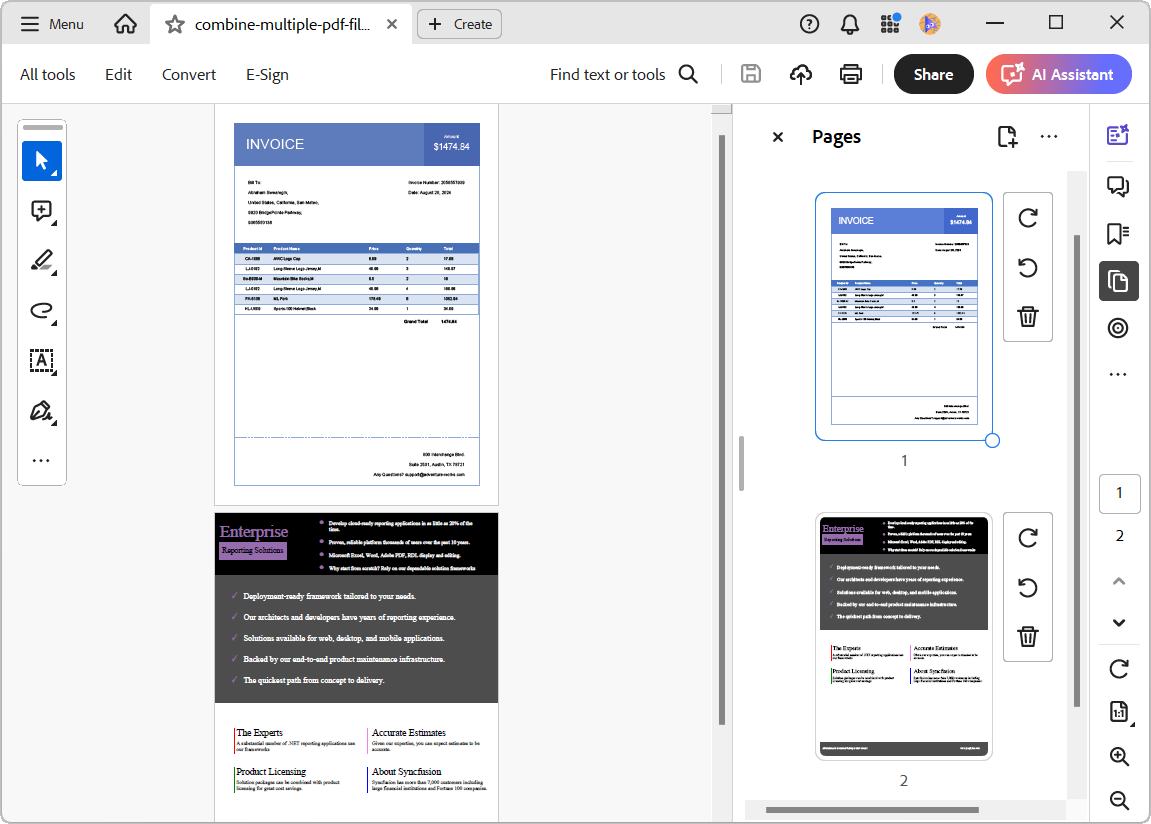
Merging documents is a common requirement across many domains, such as combining invoices, assembling contract bundles, or grouping analysis reports. With Syncfusion PDF Library, merging PDFs is extremely straightforward, and these capabilities make it truly simple to use:
- Clean and intuitive APIs: Simple method calls like PdfDocumentBase.Merge() handles merging without extra steps.
- No external dependencies: Works out of the box, no plug‑ins, no special system requirements.
- Fast and optimized processing: Built to handle large files and batches efficiently.
- Consistent output: Ensures reliable results across platforms without manual adjustments.
Here’s how simple the merging process looks in code:
using (PdfDocument finalDocument = new PdfDocument())
{
    // Get the stream from existing PDF documents
    using (FileStream firstStream = new FileStream("data/file1.pdf", FileMode.Open, FileAccess.Read))
    using (FileStream secondStream = new FileStream("data/file2.pdf", FileMode.Open, FileAccess.Read))
    {
        // Create a stream array for merging
        Stream[] streams = { firstStream, secondStream };

        // Merge PDF documents
        PdfDocumentBase.Merge(finalDocument, streams);

        // Save the document
        finalDocument.Save("Output.pdf");
    }
}
This merges documents in seconds, no temporary files, no complex pipelines.
Split PDFs into multiple files
Large PDFs often need to be split for indexing, archiving, or use in cloud‑based systems, and our .NET PDF Library makes this process incredibly simple by allowing developers to extract exactly the pages they need with minimal code and zero configuration.
Here’s how it makes PDF splitting easy and efficient:
- Select specific pages or page ranges using clean, intuitive APIs.
- Handle large documents with optimized performance, even during batch operations.
- Generate separate PDFs instantly, without complex logic or external tools.
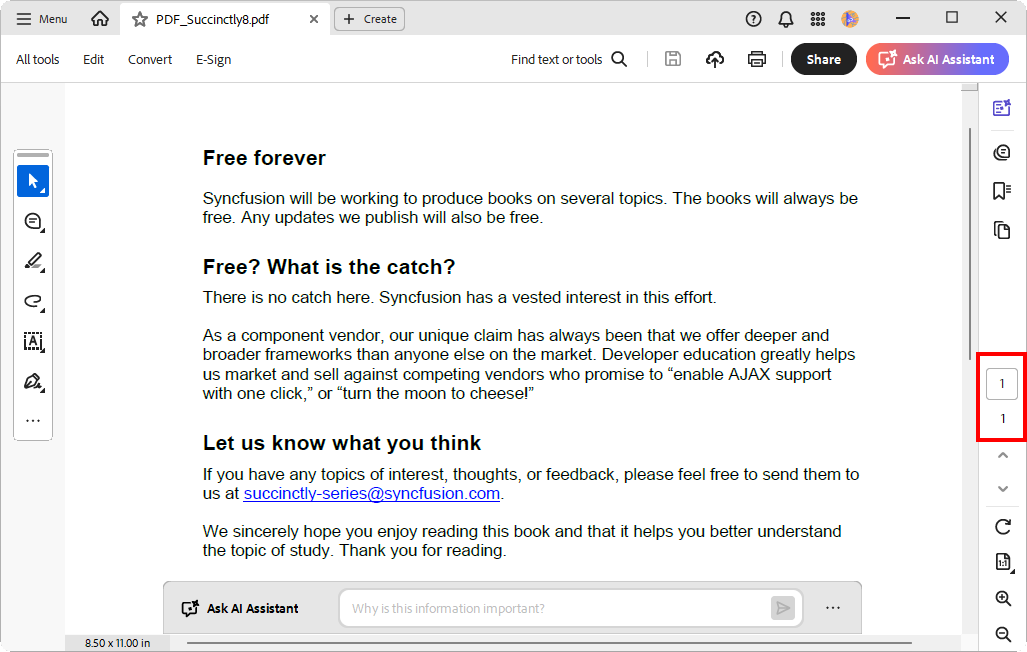
Below is the code snippet for extracting a single page:
// Load the PDF document
PdfLoadedDocument loadedDocument = new PdfLoadedDocument("PDF_Succinctly.pdf");

// Create new PDF document
PdfDocument document = new PdfDocument();

// Import the particular page from the existing PDF
document.ImportPage(loadedDocument, 8);

// Save the new PDF document
document.Save("PDF_Succinctly8.pdf");

// Close the PDF documents
document.Close(true);
loadedDocument.Close(true);
Refer to the following image.
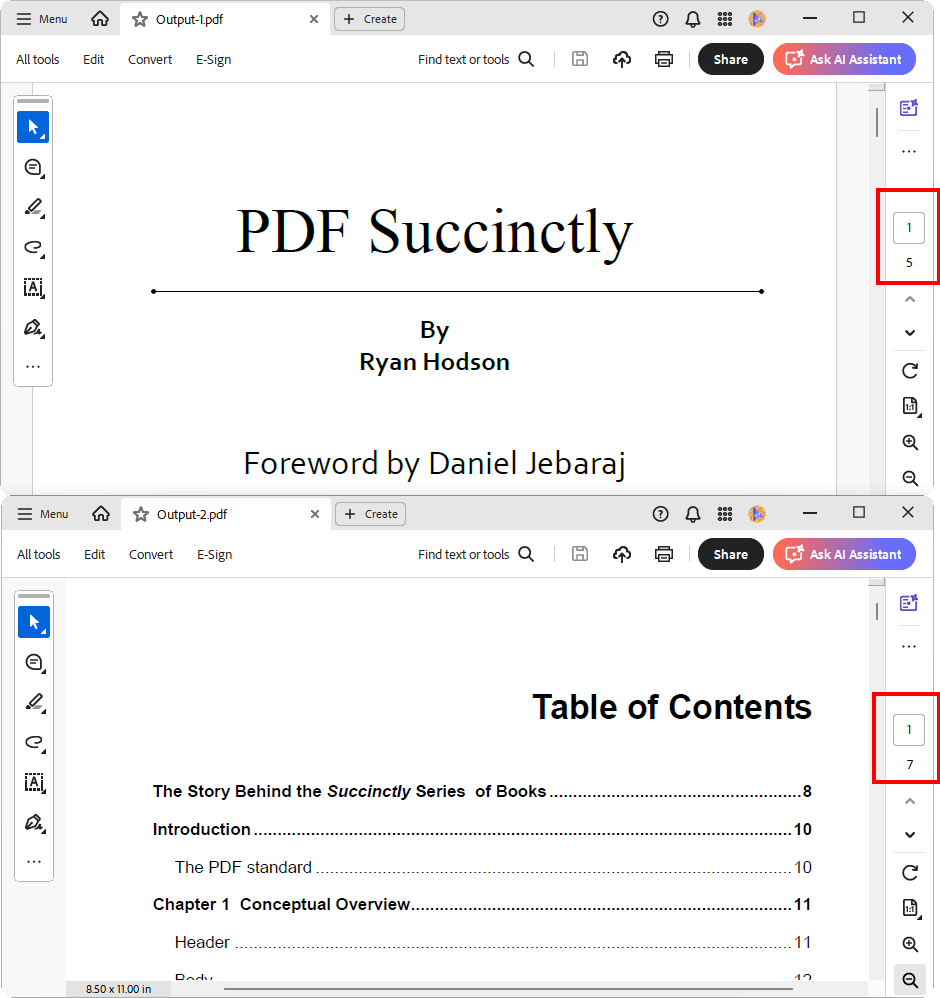
Instead of extracting a single page, we can also split the document by selecting a page range, as shown below:
// Create the page range values.
int[,] values = new int[,] { { 1, 5 }, { 3, 9 } };

// Load the PDF document
PdfLoadedDocument loadedDocument = new PdfLoadedDocument("../../../../Data/PDF_Succinctly.pdf");

// Split the pages into fixed number
loadedDocument.SplitByRanges("Output-{0}.pdf", values);

// Close the PDF document
loadedDocument.Close(true);
See the image below for clarification.
Convert Word/Excel/HTML/Image files to PDF perfectly
Syncfusion .NET PDF Library makes PDF conversion effortless and dependable. Whether you’re working with Word, Excel, HTML, or images, the library ensures high accuracy and layout fidelity across all document formats.
Let’s see how to convert Word to PDF, images to PDF, and HTML to PDF using our .NET libraries.
Convert Word to PDF (DOCX to PDF)
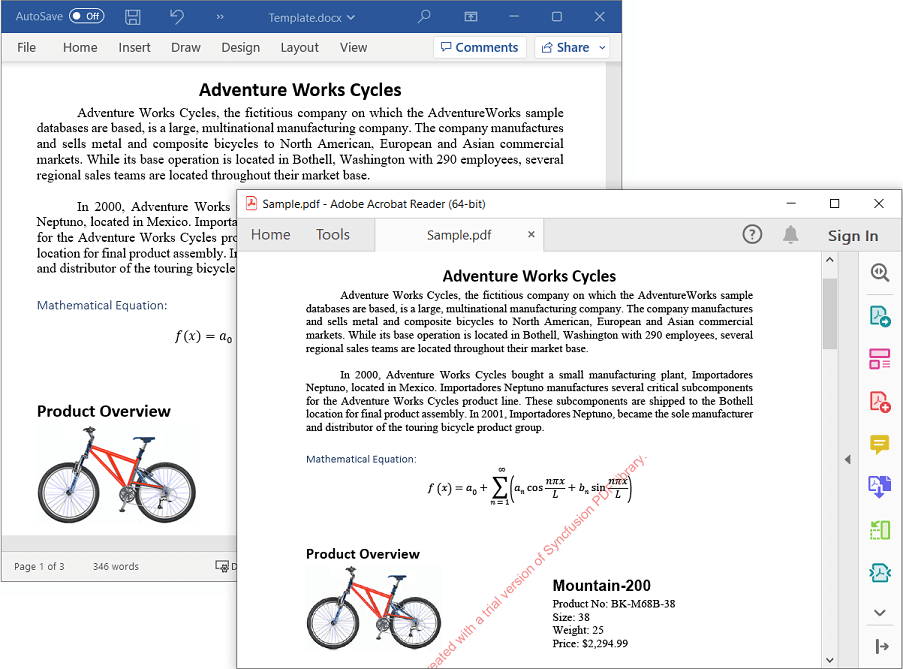
Syncfusion .NET Word Library makes it easy to convert Word documents into clean, accurate PDFs without losing formatting or layout. This is especially useful for workflows that rely on document templates or automated report generation.
Here’s why converting Word to PDF with Syncfusion is valuable:
- Preserves formatting and layout: Even with complex styles, tables, and headers/footers.
- Delivers consistent output: Essential for automated document generation.
- Handles large documents: Processes dynamic content without performance issues.
- Produces professional PDFs: Ideal for reports, contracts, letters, and mail merge outputs.
Here’s the code to convert a Word document to PDF:
// Open the Word document file stream.
using (FileStream inputStream = new FileStream("Template.docx", FileMode.Open, FileAccess.Read))
{
    // Loads an existing Word document.
    using (WordDocument wordDocument = new WordDocument(inputStream, FormatType.Automatic))
    {
        // Creates an instance of DocIORenderer.
        using (DocIORenderer renderer = new DocIORenderer())
        {
            // Converts Word document into PDF document.
            using (PdfDocument pdfDocument = renderer.ConvertToPDF(wordDocument))
            {
                // Saves the PDF file to the file system.
                using (FileStream outputStream = new FileStream("Output.pdf", FileMode.Create, FileAccess.ReadWrite))
                {
                    pdfDocument.Save(outputStream);
                }
            }
        }
    }
}
The image that follows details this process.
Convert HTML-to-PDF
The HTML-to-PDF converter transforms webpages and dynamic HTML content into accurate PDFs, preserving the original appearance. This is perfect for apps that generate invoices, receipts, or form submissions.
Here’s what makes our HTML to PDF conversion effective:
- Preserves full layout fidelity: Including CSS, fonts, tables, and positioning.
- Handles dynamic content: Supports JavaScript-rendered dashboards, forms, and templates.
- Ensures pixel-perfect rendering: Ideal for branded or style-heavy documents.
- Versatile export options: Perfect for web pages, invoices, tickets, certificates, and reports.
Use the following code snippet for HTML‑to‑PDF conversion:
// Initialize HTML to PDF converter.
HtmlToPdfConverter htmlConverter = new HtmlToPdfConverter();
BlinkConverterSettings blinkConverterSettings = new BlinkConverterSettings();

// Set Blink viewport size.
blinkConverterSettings.ViewPortSize = new Syncfusion.Drawing.Size(1280, 0);

// Assign Blink converter settings to HTML converter.
htmlConverter.ConverterSettings = blinkConverterSettings;

// Convert URL to PDF document.
PdfDocument document = htmlConverter.Convert("https://www.syncfusion.com");

// Create a filestream.
FileStream fileStream = new FileStream("HTML-to-PDF.pdf", FileMode.CreateNew, FileAccess.ReadWrite);

// Save and close the PDF document.
document.Save(fileStream);
document.Close(true);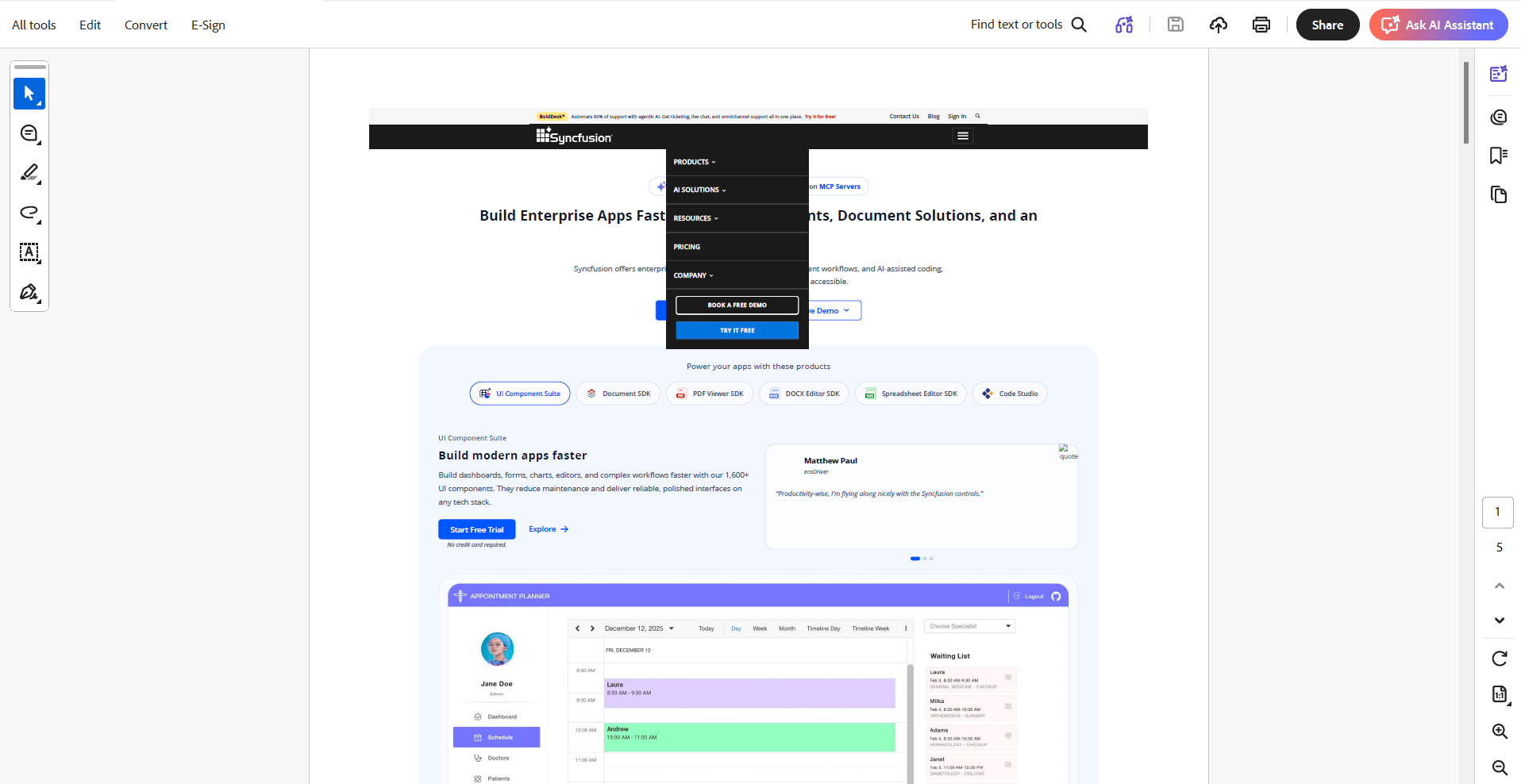
Convert images to PDF
For scanning apps, mobile uploads, or workflows that handle photos as documents, our image-to-PDF conversion feature enables smooth and accurate conversion of images into high‑quality, standards‑compliant PDFs.
Here’s why image-to-PDF conversion with Syncfusion is valuable:
- Preserves image quality: Maintains clarity and resolution without distortion or compression loss.
- Supports multi-image conversion: Easily creates multi-page PDFs from multiple scans.
- Automatic formatting: Handles scaling and alignment for clean, consistent output.
- Versatile use cases: Perfect for scanned documents, ID proofs, receipts, and photo archiving.
Refer to the code snippet for image‑to‑PDF conversion:
// Your existing code starts here
ImageToPdfConverter imageToPdfConverter = new ImageToPdfConverter();
imageToPdfConverter.PageSize = PdfPageSize.A4;
imageToPdfConverter.ImagePosition = PdfImagePosition.TopLeftCornerOfPage;

using (FileStream imageStream = new FileStream(
    Path.Combine(AppDomain.CurrentDomain.BaseDirectory, "Data", "Autumn Leaves.jpg"),
    FileMode.Open, FileAccess.Read))
{
    using (PdfDocument pdfDocument = imageToPdfConverter.Convert(imageStream))
    {
        pdfDocument.Save(Path.Combine(
            AppDomain.CurrentDomain.BaseDirectory,
            "Output",
            "Output.pdf"));
    }
}
Review the image below for a visual overview.

Secure PDFs with enterprise‑grade features
The .NET PDF library delivers robust, enterprise-grade PDF security designed to protect sensitive data across industries. It includes reliable password protection to restrict access, precise permission controls to limit actions like printing or copying, and trusted digital signatures to verify authenticity and detect tampering. Together, these features ensure your PDFs remain secure, compliant, and safe for sharing in critical workflows.
Password protection
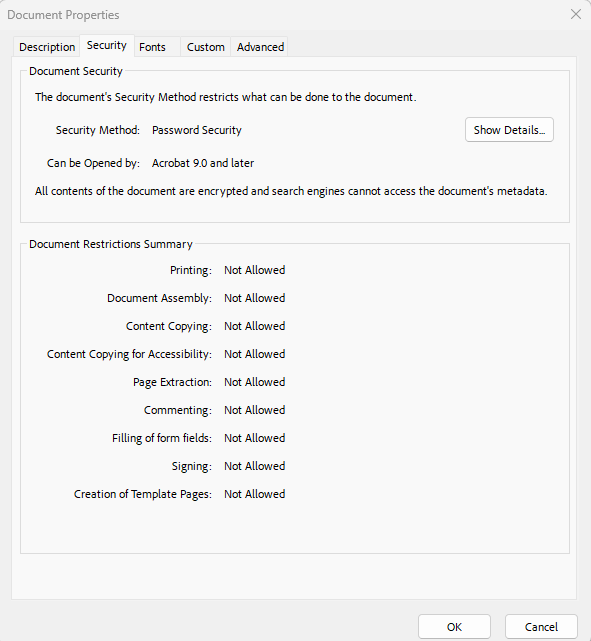
Our comprehensive PDF Library allows you to encrypt PDFs with user and owner passwords, preventing unauthorized access. User passwords restrict opening the document, while owner passwords control editing permissions.
Use the following code snippet to secure your PDF with password protection:
// Reading security settings of the document
PdfSecurity security = pdf.Security;

// Set the document's permission settings
security.UserPassword = "password123";
security.OwnerPassword = "adminaccess
See the accompanying image for more context.
Digital signatures
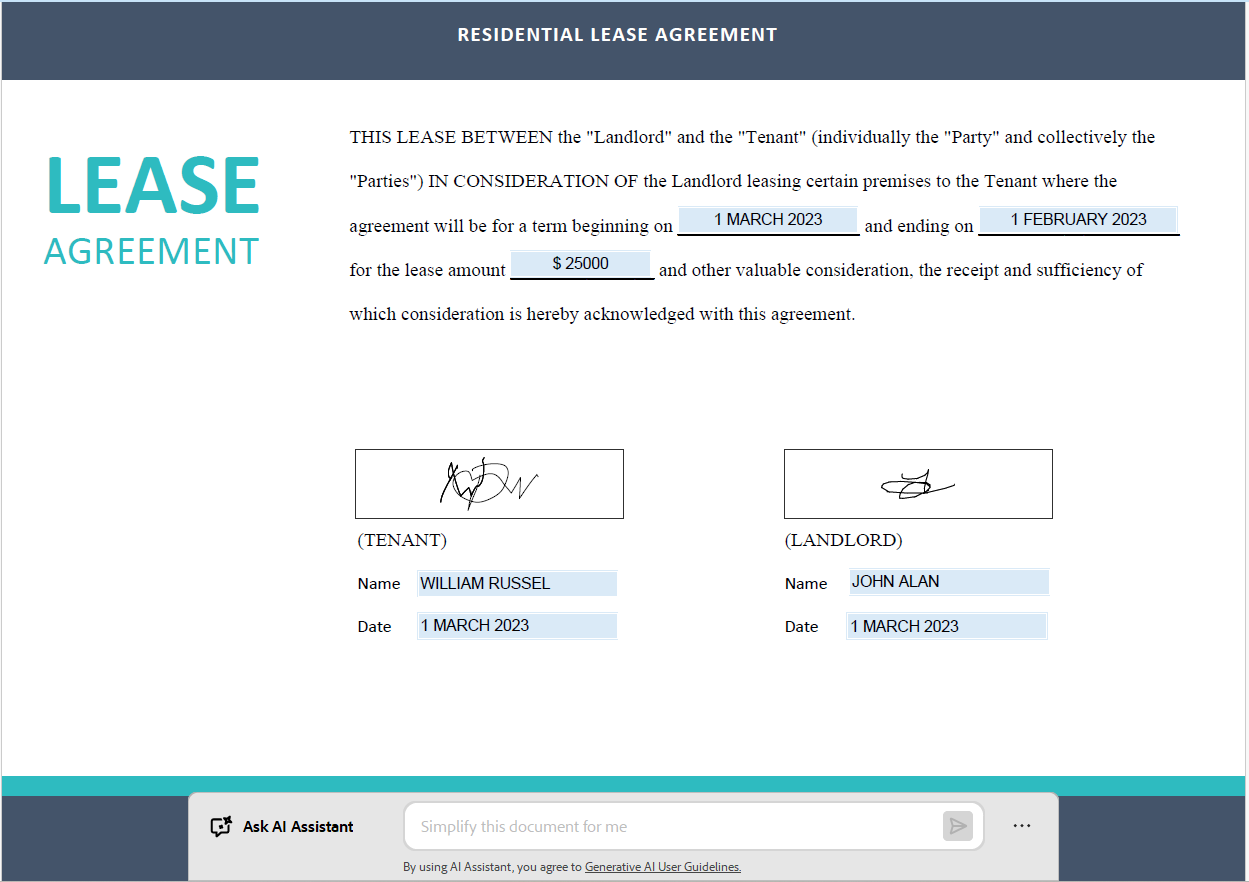
It also enables us to digitally sign PDFs with X.509 certificates, ensuring document authenticity, integrity, and non-repudiation. Digital signatures provide compliance with legal standards and create reliable audit trails for sensitive documents.
Use the following code snippet to digitally sign your PDF:
PdfSignature signature = new PdfSignature(pdf, page, certificate, "Signature");Review the image below for a visual overview.
Prefer JavaScript?
Syncfusion also offers the JavaScript PDF Library for secure, client‑side document processing with built‑in protection features and flexible browser‑based workflows.
Want to give it a try? Explore the JavaScript PDF Library live demo.
Tired of building from scratch? Try our ready‑to‑deploy Document Processing Web APIs
If you don’t want to spend time setting up servers, writing backend code, or configuring libraries, Syncfusion’s ready-to-deploy Document Processing Web APIs allow you to automate PDFs quickly and effortlessly. You can deploy the Docker image to your environment and instantly access powerful document features via simple REST endpoints.
Below are the things you get right away to deploy Document Processing Web APIs:
- A ready‑to‑deploy Docker image packed with built‑in PDF APIs.
- Ideal for quick deployment and fast PDF automation in any project without needing to be familiar with .NET.
- Developer‑friendly with zero .NET learning curve.
- Reduce infrastructure costs by deploying in your own cloud environment.
- Enhanced security with your own cloud infrastructure.
- Zero coding or backend setup required to start using it.
- Support for merge, split, convert, compress, and secure operations.
- Works with any frontend or backend via straightforward REST calls.
If you’re interested in hosting the ready‑to‑deploy Docker image for Syncfusion’s Document Processing Web APIs, refer to our Docker image hosting guide.
Frequently Asked Questions
No. Syncfusion lets you merge, split, convert, and secure PDFs programmatically without any viewer component.Do I need a PDF viewer to perform PDF operations?
It runs seamlessly on Windows, Linux, macOS, Docker containers, Azure Functions, and AWS Lambda.Which platforms support the PDF Library?
Yes. The library is optimized for performance. It can efficiently handle large documents and batch operations.Can Syncfusion handle large or complex PDFs?
Absolutely, merge, split, convert, and secure operations can be chained effortlessly in a single pipeline.Is it possible to combine multiple operations in one workflow?
Use the ready‑to‑deploy Document Processing Web APIs, which expose PDF operations through simple REST endpoints.How do I get started without writing backend code?
Yes. Conversions from Word, HTML, and images preserve fonts, formatting, tables, and visual structure.Does the library maintain layout accuracy during conversions?
Yes. You can set a user password, an owner password, and fine‑tune specific permissions.Can I restrict actions like printing or copying while securing a PDF?
Yes. You can apply multiple signatures, including sequential and certifying signatures, in one document.Does Syncfusion support multiple digital signatures?
Definitely, the library is built for high performance, scalability, and reliable automation across enterprise systems.Is Syncfusion suitable for enterprise workloads?

Final thoughts: A complete PDF automation system in 20 minutes
Thank you for taking the time to read this blog. Building PDF workflows doesn’t have to take days, and Syncfusion proves it. With our .NET PDF library and ready‑to‑use APIs, we can move from setup to production in as little as 20 minutes. The platform is fast, stable, and built to handle real‑world document workloads.
Here are the key takeaways:
- Supports complete PDF workflows, including creation, conversion, merging, splitting, and automation.
- Provides enterprise‑grade security with password protection, permission controls, and digital signatures.
- Offers high‑performance APIs optimized for modern apps and large‑scale processing.
- Ensures consistent behavior across platforms, enabling seamless integration with any tech stack.
To get started, try the Syncfusion .NET PDF Library SDK to generate, modify, and automate PDFs effortlessly. If you’re a Syncfusion user, you can download the setup from the license and downloads page. Otherwise, you can download a free 30-day trial.
You can also contact us through our support forum, support portal, or feedback portal for queries. We are always happy to assist you!
 No spam, just valuable updates.