
 Ramkumar Ravy
TL;DR: Embedding PDFs in HTML using native tags like <embed>, <iframe>, and <object> is simple but limited in interactivity and browser compatibility. This guide compares these methods with a JavaScript PDF Viewer that supports annotations, form filling, and responsive design for modern web apps. Learn the pros, cons, and best approach for your project.
As a developer, you’ve probably struggled with how to embed a PDF in HTML or find the best HTML PDF Viewer; native tags seem easy, but they often fail to deliver consistent rendering or interactive features across browsers.
Struggling with messy displays and poor mobile support? Syncfusion JavaScript PDF Viewer changes the game with annotations, form filling, and seamless cross-platform performance.
This guide compares native HTML methods with Syncfusion JavaScript PDF Viewer’s HTML solution to help you choose the best approach for your web applications.
Let’s find the perfect solution for your project’s PDF Viewer in HTML needs!

Native HTML tags: Embedding PDFs in HTML
Method 1: Using the <embed> tag
The <embed> tag in HTML is one of the simplest ways to embed PDFs in HTML. It allows us to quickly view and incorporate external content, such as multimedia (videos, audio, PDFs) or interactive applications like Flash or SVG, directly into a webpage.
<embed src="gis-succinctly.pdf" type="application/pdf" height="650px" width="100%">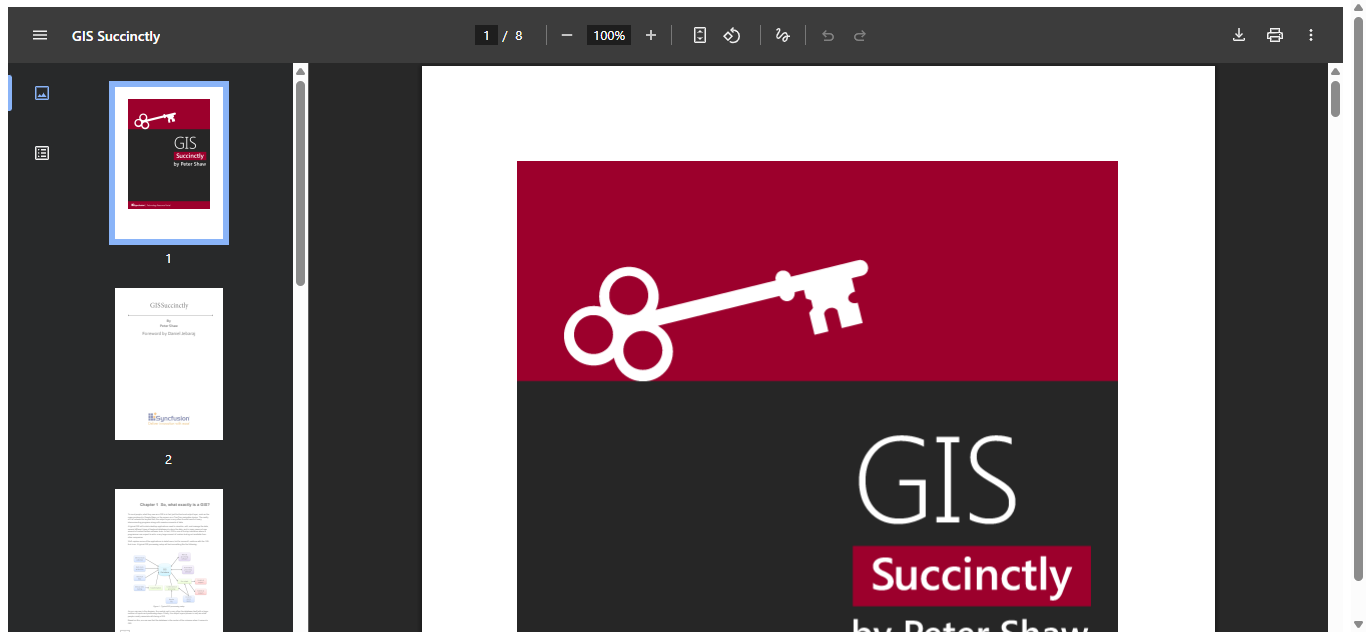
Advantages:
- Minimal setup: Quick to implement with just a single line, perfect for rapid prototyping.
- Inline rendering: Displays the PDF directly within the page, offering a seamless experience for simple documents.
Disadvantages:
- No fallback support: If the browser doesn’t support PDF rendering, users won’t see any alternative content.
- Inconsistent behavior: Rendering may vary across browsers, leading to unpredictable results.
- Limited functionality: No built-in tools for search, annotation, or navigation.
When to use:
Use <embed> for fast, inline PDF viewing where browser compatibility is controlled and advanced features are not required.
Method 2: Using the <iframe> tag
The <iframe> tag embeds another HTML document within the current page, effectively creating a window to external content.
<iframe src="gis-succinctly.pdf" width="100%" height="650px"></iframe>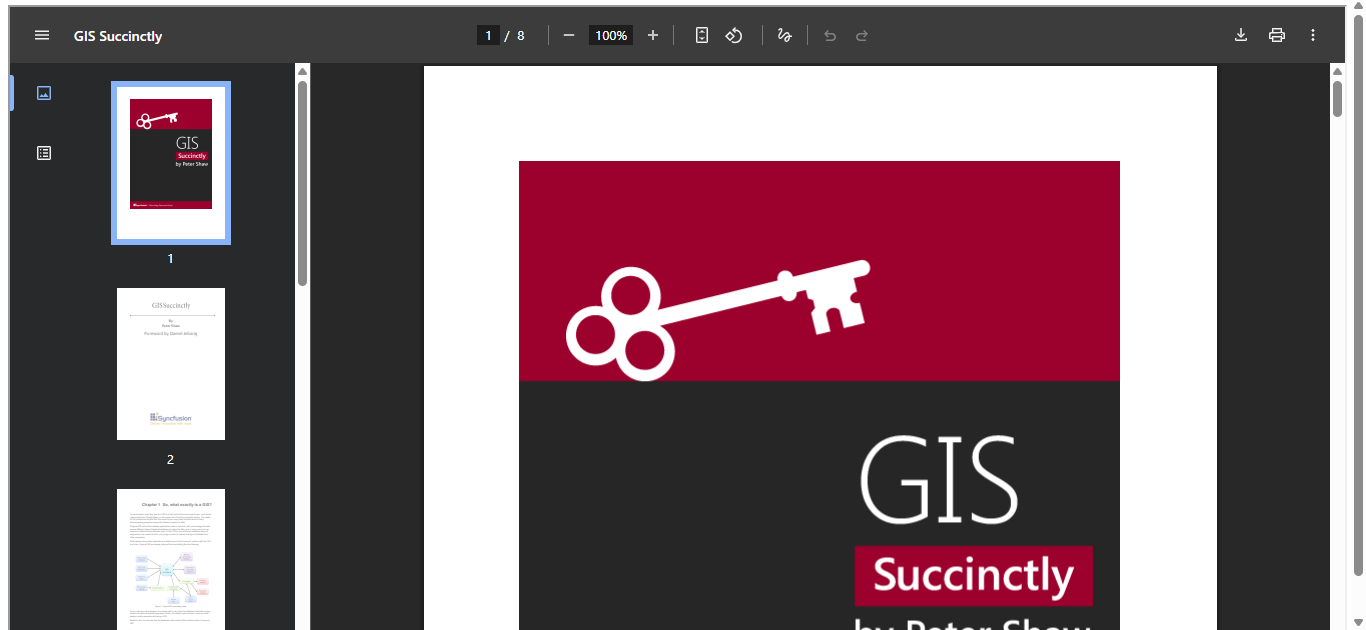
Advantages:
- Simple external embedding: Easily integrates PDFs hosted on other servers.
- Styling flexibility: The iframe container can be styled using CSS for layout control.
Disadvantages:
- No native PDF controls: Users can only view the document; no search or navigation tools are available.
- Security concerns: Embedding from external domains may trigger cross-origin restrictions or browser warnings.
- Accessibility limitations: Limited support for screen readers and other accessibility tools.
When to use:
Use <iframe> to embed PDFs in HTML when you need to display external PDF sources and prioritize layout flexibility over interactive features
Method 3: Using the <object> tag
The <object> tag is a versatile HTML element used to embed various types of external resources, such as images, videos, PDFs, or even entire web pages, into a webpage. Developers often use the <object> tag when they need to view a PDF in HTML without relying on JavaScript. It supports fallback content and offers better integration with diverse media formats.
<object data="gis-succinctly.pdf" type="application/pdf" width="100%" height="650px"></object>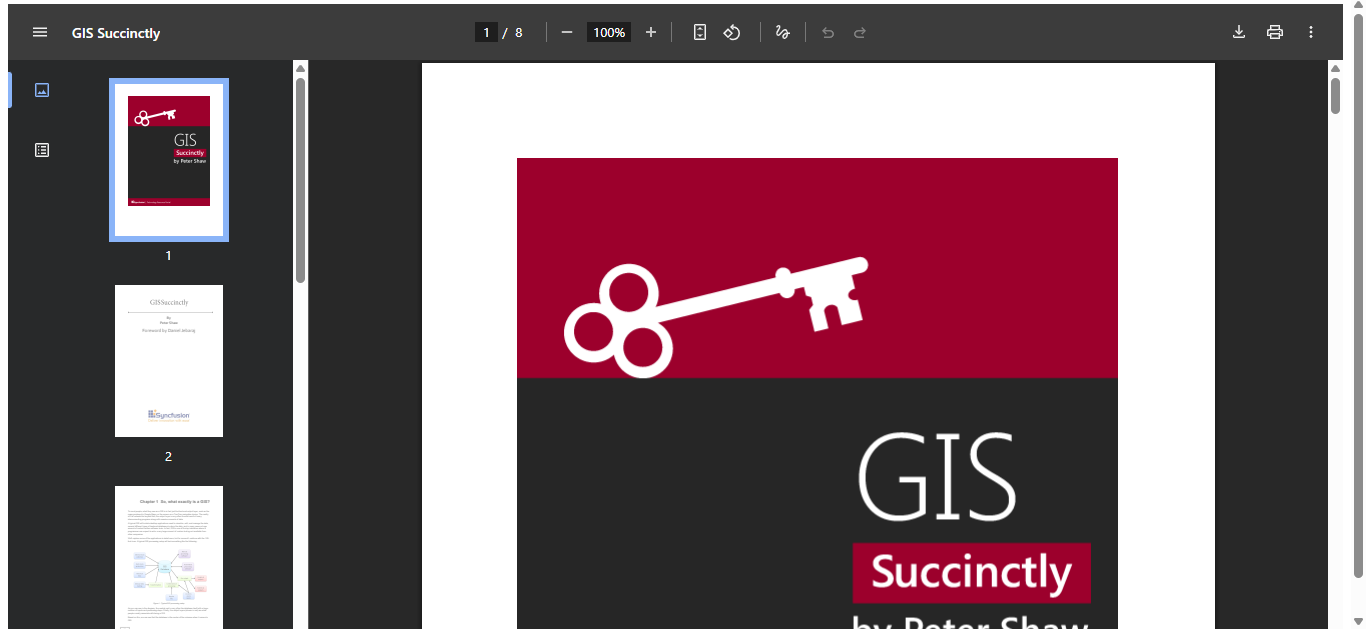
Advantages:
- Native HTML support: No need for external libraries or scripts.
- Fallback capability: Allows developers to provide alternative content if the PDF fails to load.
Disadvantages:
- Limited interactivity: No support for search, annotation, or zoom.
- Browser-dependent rendering: Behavior and controls vary across browsers.
- Poor mobile responsiveness: Layout may not adapt well to smaller screens.
When to use:
Use the <object> tag when you need a simple, no-frills way to embed a PDF in HTML and want to provide fallback content for older or unsupported browsers. It’s best suited for static documents where interactivity is not a priority.
Method 4: Combining <object> and <iframe>
To ensure maximum compatibility across browsers, you can nest an <iframe> inside an <object> tag. This technique provides a graceful fallback: if the browser fails to render the PDF using the <object>tag in HTML, it will automatically try to load it using the <iframe>. This approach works without JavaScript and improves reliability for users on older or less capable browsers.
<object
    data="gis-succinctly.pdf"
    type="application/pdf"
    width="100%"
    height="100%">

    <iframe
        src="gis-succinctly.pdf"
        width="100%"
        height="100%"
        style="border: none;">
    </iframe>
</object>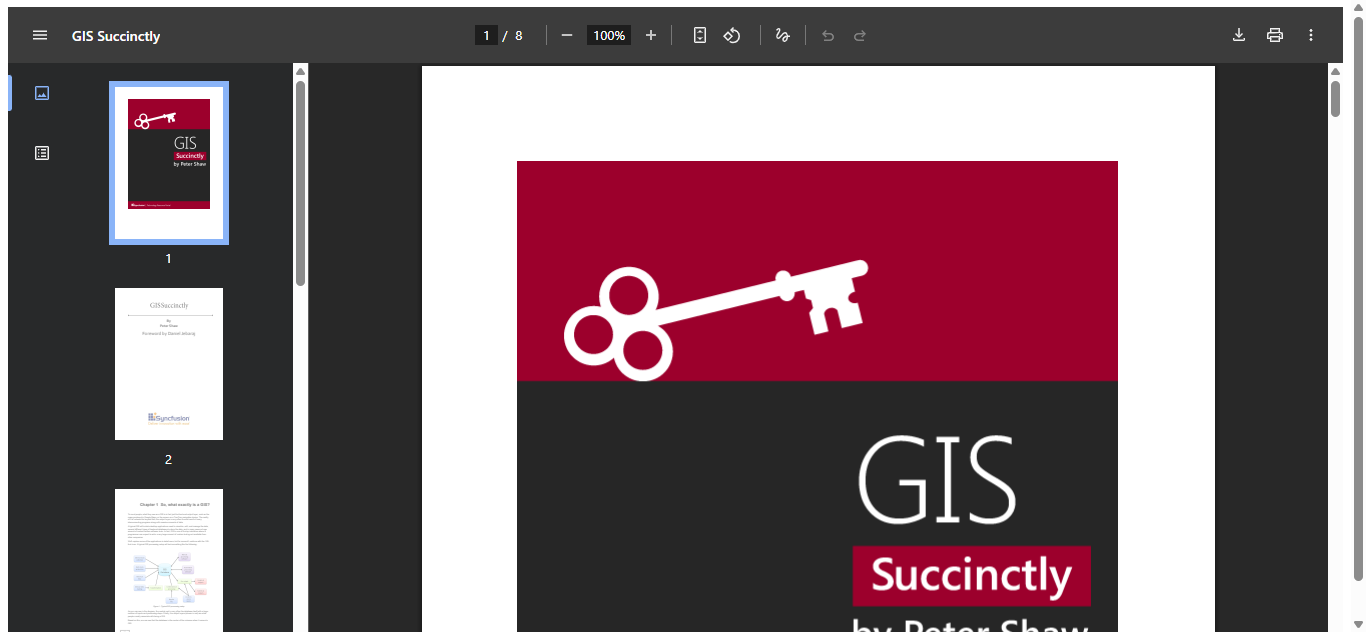
Advantages:
- Enhanced compatibility: Increases the likelihood of successful rendering across different browsers and devices.
- Flexible fallback: Supports multiple fallback options, such as download links or alternative viewers.
- No external dependencies: Relies solely on native HTML.
Disadvantages:
- No advanced features: Still lacks support for annotations, search, or form filling.
- Potential performance issues: Some browsers may attempt to load both elements simultaneously.
- Limited UI control: Cannot customize the viewer interface or restrict actions like download or print.
When to use:
Use the <object> + <iframe> tag combination when:
- You want to maximize compatibility across browsers to load PDF in HTML without using JavaScript-based viewers.
- You need a fallback mechanism for older or less capable browsers.
- Your use case involves simple PDF viewing in HTML without interactivity.
Syncfusion JavaScript PDF Viewer’s HTML solution: A developer’s power tool to embed PDFs in HTML
The Syncfusion JavaScript PDF Viewer is a robust and feature-rich component designed for embedding and interacting with PDF documents directly within web applications.
Whether you’re building a customer portal, e-learning platform, legal document system, or healthcare dashboard, Syncfusion’s JavaScript PDF Viewer provides the flexibility and control developers need to deliver a polished, interactive PDF viewing experience in HTML.
Here’s a basic example of how to embed a PDF in HTML using Syncfusion’s JavaScript PDF Viewer:
<!DOCTYPE html>
<html xmlns="http://www.w3.org/1999/xhtml">
  <head>
      <title> Embed PDF in HTML using JavaScript PDF Viewer </title>
      <!-- Essential JS 2 PDF Viewer's script -->
      <script src="https://cdn.syncfusion.com/ej2/30.1.37/dist/ej2.min.js" type="text/javascript"></script>
      <link rel="stylesheet" href="https://cdn.syncfusion.com/ej2/30.1.37/material.css">
      <script src="https://cdn.syncfusion.com/ej2/syncfusion-helper.js" type="text/javascript"></script>
  </head>
  <body>
      <!--element which is going to render in HTML tags-->
      <div id="container">
          <div id="PdfViewer" style="height:650px;width:100%;"></div>
      </div>
      <script>
          //Initialize PDF Viewer component
          var pdfviewer = new ej.pdfviewer.PdfViewer({
              documentPath: 'https://cdn.syncfusion.com/content/pdf/gis-succinctly.pdf',
              resourceUrl: 'https://cdn.syncfusion.com/ej2/30.1.37/dist/ej2-pdfviewer-lib'
          });
          //PDF Viewer control rendering starts in HTML
          pdfviewer.appendTo('#PdfViewer');
      </script>
  </body>
</html>
For more details on configuration, customization, and advanced features of Syncfusion JavaScript PDF Viewer’s HTML solution, check out the official documentation. It includes step-by-step instructions on how to embed a PDF in HTML, enable annotations, and form filling.
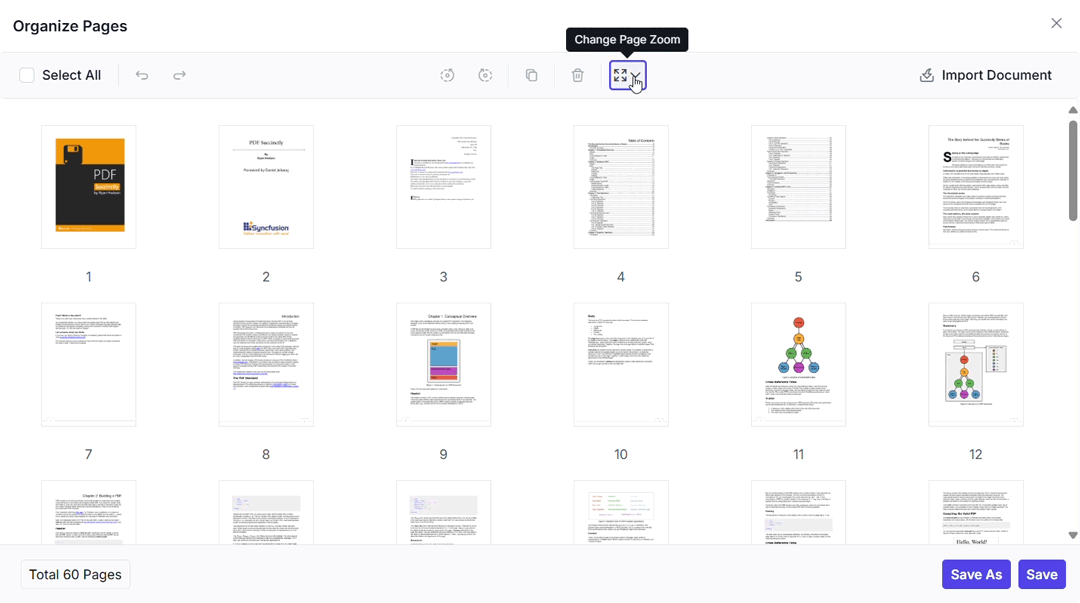
Key features for developers
1. Feature-rich PDF Viewer
- Built-in toolbar with tools for zoom, search, print, and page navigation.
- Support for fillable PDF forms, enabling user input directly in the viewer.
- Text selection and copying for easy content extraction.
- Annotation tools, including highlight, underline, strikeout, and notes, plus page organization features like rotate, copy, or delete, are ideal for custom document workflows.
2. Customizable UI
- Adapt the viewer’s appearance to match your app’s design.
- Theme support for Material 3, Bootstrap 5, Fluent 2, Tailwind CSS, and high-contrast modes, ensuring seamless integration with modern frameworks.
3. Security controls
- Disable download or print options for sensitive documents.
- Support for encrypted PDFs and password protection.
- No reliance on browser plugins, reducing security risks.
4. Performance optimization
- Efficient handling of large PDFs with lazy loading and virtual scrolling.
- Smooth performance across devices for a responsive user experience.
5. Cross-browser consistency
- Reliable rendering on Chrome, Firefox, Safari, Edge, and mobile browsers.
- Eliminates browser-specific quirks, unlike native HTML PDF embed methods
6. Accessibility support
- Keyboard navigation and WCAG-compliant design for inclusive access.
- Screen reader compatibility for broader usability.
Real-world use cases:
These scenarios demonstrate why developers prefer advanced solutions when embedding PDFs in HTML, thereby providing a rich PDF viewing experience within HTML.
- Healthcare systems: Display patient records securely with restricted download/print options and form-filling for consent forms.
- Legal platforms: Enable annotations and page organization for contract reviews and case documentation.
- E-Learning platforms: Provide interactive course materials with search, highlight, and responsive design for mobile learners.
- Customer portals: Allow users to view invoices, policies, or statements with secure access and consistent rendering.
- Real estate & insurance apps: Embed property documents or claim forms with annotation and form support.
Comparison table: Native HTML tags vs. Syncfusion JavaScript PDF Viewer’s HTML solution
| Feature | <embed> | <iframe> | <object> | <object> + <iframe> | Syncfusion EJ2 PDF Viewer |
| Inline display | Supported | Supported | Supported | Supported | Supported |
| Toolbar and navigation | Not Supported | Not Supported | Not Supported | Not Supported | Supported |
| Search and zoom | Limited | Limited | Limited | Not Supported | Supported |
| Annotations and form filling | Not Supported | Not Supported | Not Supported | Not Supported | Supported |
| UI customization | Not Supported | Not Supported | Not Supported | Not Supported | Supported |
| Mobile optimization | Not Supported | Not Supported | Not Supported | Limited | Supported |
| Accessibility support | Not Supported | Not Supported | Not Supported | Not Supported | Supported |
| Security features | Not Supported | Not Supported | Not Supported | Not Supported | Supported |
| Performance with large PDFs | Not Supported | Not Supported | Not Supported | Not Supported | Supported |
| Cross-browser compatibility | Limited | Limited | Limited | Limited | Supported |
| Fallback support | Not Supported | Not Supported | Supported | Supported | Supported |
Decision checklist: Which HTML PDF viewing method should you use?
| Use case | Recommended approach |
| ✅ Quick static display | <embed> or <iframe> |
| ✅ Fallback support for older browsers | <object> or <object> + <iframe> or Syncfusion JavaScript PDF Viewer |
| ✅ Custom UI, annotations, form filling | Syncfusion JavaScript PDF Viewer |
| ✅ Mobile responsiveness and accessibility | Syncfusion JavaScript PDF Viewer |
| ✅ Secure document handling (disable download/print) | Syncfusion JavaScript PDF Viewer |
| ✅ Large document performance | Syncfusion JavaScript PDF Viewer |
Conclusion
Choosing the right HTML method to view PDFs in your web application depends on your project’s complexity and user expectations.
Suppose your needs are limited to basic, static PDF viewing, such as embedding a read-only document with native HTML tags like <embed>, <iframe>, <object>, or a combination of <object> and <iframe>. It offers a quick and simple solution. However, these methods lack interactivity, customization, and consistent behavior across browsers and devices.
For applications that demand a more advanced, interactive, and secure PDF viewing HTML experience in HTML, the Syncfusion JavaScript PDF Viewer is a purpose-built solution that delivers enterprise-grade functionality.
Part of the Essential JS 2 suite, it integrates seamlessly with popular frameworks like as Angular, React, Vue, ASP.NET Core, and MVC, making it ideal for scalable, enterprise-grade solutions.
Explore the full potential of Syncfusion’s JavaScript PDF Viewer with the live demo and get detailed guidance on initialization and configuration from the official documentation.
The new version is available for current customers to download from the license and downloads page. If you are not a Syncfusion customer, you can try our 30-day free trial for our newest features.
You can also contact us through our support forums, support portal, or feedback portal. We are always happy to assist you!



 No spam, just valuable updates.