



Document Viewer Extension for Visual Studio Code
-
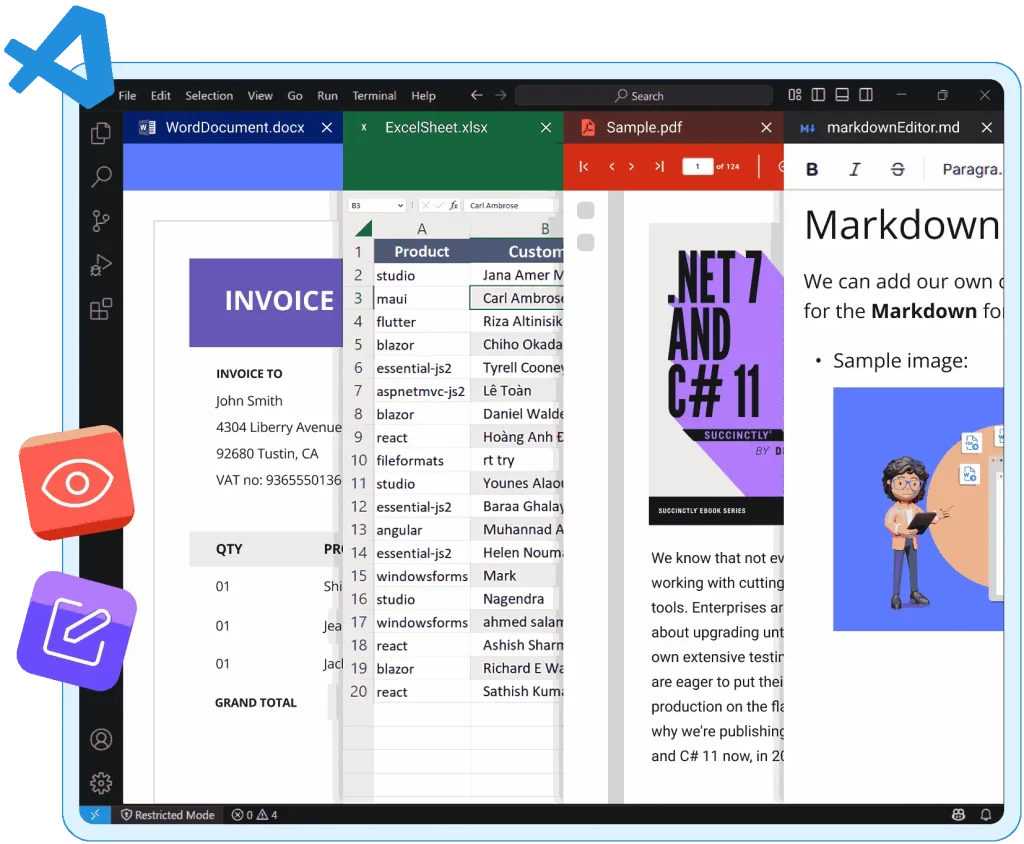
Access Word, Excel, PDF, Markdown, and other files directly within VS Code without switching apps.
-
Quickly preview high-fidelity documents and perform light edits like text updates and formatting tweaks.
Trusted by the world's leading companies
How to Use
Frequently Asked Questions
The Syncfusion® Document Viewer lets you open and view Word, Excel, PDF, CSV, and TSV files directly in the VS Code editor.
You can view Microsoft Word documents directly in VS Code using the Syncfusion Document Viewer extension. Simply install the extension from the VS Code marketplace, then open any .docx file in your workspace. The extension provides a built-in viewer that renders Word documents with formatting preserved, allowing you to read and perform basic editing operations without leaving your development environment.
Yes, the Syncfusion Document Viewer extension supports minimal editing of Microsoft Word documents. While it's primarily designed for viewing, you can perform basic text modifications and content updates. However, for advanced formatting and complex editing tasks, you may still need to use Microsoft Word for full functionality.
The Syncfusion Document Viewer extension allows you to view and edit Excel files directly in VS Code. After installing the extension, you can:
- Open .xlsx files with preserved formatting and cell structure.
- Edit cell contents and values.
- View multiple worksheets within the same file.
- Perform basic spreadsheet operations like filtering and sorting.
- Configure read-only mode if you only need viewing capabilities.
The extension provides enhanced viewing for CSV and TSV files with proper column alignment and formatting. Features include:
- Column-aligned display: Automatically formats CSV/TSV data into readable columns.
- Sorting capabilities: Sort data by any column in ascending or descending order.
- Filtering options: Filter rows based on specific criteria.
- Large file handling: Efficiently handles large CSV and TSV files without performance issues.
- Customizable display: Configure column widths and viewing preferences.
Yes, you can view PDF files directly in Visual Studio using the Syncfusion Document Viewer extension. To view the files:
- Install the Document Viewer extension from the VS Code marketplace.
- Open a .pdf file in your workspace.
- The extension will render the PDF within VS Code, allowing you to view the document with preserved formatting. You can navigate pages, zoom in and out, and search text within the PDF.
Current Status: As of the latest version, Markdown support is not yet available but is planned for future updates. The extension currently focuses on Microsoft Office documents (Word, Excel), PDFs, and CSV and TSV files. For Markdown viewing in VS Code, you'll need to use alternative extensions until Syncfusion adds this capability.
To install the Syncfusion Document Viewer extension:
- Open VS Code.
- Go to Extensions (Ctrl+Shift+X).
- Search "Syncfusion Document Viewer."
- Click "Install" on the official Syncfusion extension.
- Restart VS Code if prompted.
- The extension will automatically handle supported file types (.docx, .xlsx, .pdf, .csv, .tsv).
Currently supported formats include:
- Microsoft Word: .docx files.
- Microsoft Excel: .xlsx files.
- PDF: .pdf files..
- Spreadsheet formats: .csv (Comma Separated Values) and. tsv (Tab Separated Values).
- Upcoming support: Markdown files (planned for future releases)
Yes, the extension offers configuration options including:
- Read-only mode: Prevent accidental editing of documents.
- Display preferences: Customize how documents are rendered.
- Sorting and filtering settings: Configure default behaviors for spreadsheet files.
- Performance options: Adjust settings for handling large files.
The Syncfusion Document Viewer stands out by offering:
- Multi-format support: Handles Office documents, PDFs, and spreadsheet files in one extension.
- Editing capabilities: Allows basic editing, unlike other viewers.
- Professional rendering: High-quality document display with formatting preservation.
- Active development: Regular updates and planned feature additions.
- Enterprise-grade quality: Built by Syncfusion, known for professional development tools.
Current limitations include:
- Markdown support: Not yet available (coming in future updates).
- Advanced editing: Limited to basic modifications compared to native Office applications.
- File size: Very large documents may have performance considerations.
- Complex formatting: Some advanced Word and Excel features may not render perfectly.
- Collaboration: Real-time collaboration features are not available.
Common solutions include:
- Restart VS Code: Resolves most loading issues.
- Update extension: Ensure you have the latest version installed.
- Check file permissions: Verify you have read/write access to the document.
- Clear cache: Reload the window (Ctrl+Shift+P > Reload Window).
- Compatibility: Ensure your VS Code version is compatible with the extension.
We would love to hear from you! Please contact us through our feedback portal.
No. The extension uses pure JavaScript Word Processor, Spreadsheet, and PDF Viewer components to parse and render your files entirely on the client side. Your document data never leaves your machine, and no internet connection or server-side processing is required.
Frequently Asked Questions
The Document Viewer lets you open and view Word, Excel, PDF, Markdown, CSV, and TSV files directly in the VS Code editor.
To install the Document Viewer extension:
- Open VS Code.
- Go to Extensions (Ctrl+Shift+X).
- Search for "Document Viewer."
- Click Install on the official Syncfusion® extension.
- Restart VS Code if prompted.
- The extension will automatically handle supported file types (.docx, .xlsx, .pdf, .csv, .tsv).
Yes, you can view PDF files directly in Visual Studio using the Document Viewer extension:
- Install the Document Viewer extension from the VS Code Marketplace.
- Open a .pdf file in your workspace.
- The extension will render the PDF within VS Code, allowing you to view the document with preserved formatting. You can navigate pages, zoom in or out, and search for text within the PDF.
The Document Viewer extension allows you to view and edit Excel files (.xlsx) directly in VS Code. After installing the extension, you can:
- Open .xlsx files with preserved formatting and cell structure.
- Edit cell contents and values.
- View multiple worksheets within the same file.
- Perform basic spreadsheet operations, such as filtering and sorting.
- Configure read-only mode if you only need viewing capabilities.
You can view Markdown (.md) files directly in VS Code using the Document Viewer extension. Simply install the extension from the VS Code marketplace and open any .md file in your workspace. The extension provides a built-in viewer that renders markdown files with formatting, allowing you to read and perform basic editing operations without leaving your development environment.
The extension provides enhanced viewing for CSV and TSV files with proper column alignment and formatting. Features include:
- Column-aligned display: Automatically formats CSV/TSV data into readable columns.
- Sorting capabilities: Sort data by any column in ascending or descending order.
- Filtering options: Filter rows based on specific criteria.
- Large file handling: Efficiently handles large CSV and TSV files without performance issues.
- Customizable display: Configure column widths and viewing preferences.
The Document Viewer stands out by offering:
- Multi-format support: Handles Office, PDF, Markdown, and spreadsheet files in one extension.
- Editing capabilities: Allows basic editing, unlike other viewers.
- Professional rendering: High-quality document display with formatting preservation.
- Active development: Regular updates of planned feature additions.
- Enterprise-grade quality: Built by Syncfusion®, known for professional development tools.
Common solutions include:
- Restart VS Code: Resolves most loading issues.
- Update extension: Ensure you have the latest version installed.
- Check file permissions: Verify you have read/write access to the document.
- Clear cache: Reload the window (Ctrl+Shift+P > Reload Window).
- Compatibility: Ensure your VS Code version is compatible with the extension.
Currently supported formats include:
- Microsoft Word: .docx, .dotx, .docm, .dot, .doc, .rtf
- Microsoft Excel: .xlsx, .xls, .xlsm, .xltx, .xltm, .xlsb, .xlt
- PDF: .pdf
- Spreadsheet: .csv (comma-separated values) and. tsv (tab-separated values)
- Markdown: .md
You can view Microsoft Word documents (.docx) directly in VS Code using the Document Viewer extension. Simply install the extension from the VS Code marketplace, then open any .docx file in your workspace. The extension provides a built-in viewer that renders Word documents with formatting preserved, allowing you to read and perform basic editing operations without leaving your development environment.
Yes, as of the latest version, the Document Viewer extension does support Markdown (.md) files in Visual Studio Code. In addition to Markdown, it allows the viewing and light editing of Microsoft Office documents (Word, Excel), PDFs, and CSV and TSV files in the VS Code editor.
Yes, the Document Viewer extension supports basic editing of Microsoft Word documents. While it's primarily designed for viewing, you can perform basic text modifications and content updates. However, for advanced formatting and complex editing tasks, you may still need to use Microsoft Word for full functionality.
Current limitations include:
- Markdown Editing: Adding images currently requires a valid image URL, as support for adding file paths is not provided.
- Advanced editing: Limited to basic modifications compared to native Office applications.
- File size: Very large documents may slow performance.
- Complex formatting: Some advanced Word and Excel features may not render perfectly.
- Collaboration: Real-time collaboration features are not available.
Yes, the extension offers configuration options including:
- Read-only mode: Prevent accidental editing of documents.
- Display preferences: Customize how documents are rendered.
- Sorting and filtering settings: Configure default behaviors for spreadsheet files.
- Performance options: Adjust settings for handling large files.
We would love to hear from you! Please contact us through our feedback portal.
No. The extension uses pure JavaScript Word Processor, Spreadsheet, PDF Viewer, and Markdown editor components to parse and render your files entirely on the client side. Your document data never leaves your machine, and no internet connection or server-side processing is required.
Syncfusion Document Viewer Extension Resources
Additional References
Explore valuable resources, including our feature tour and documentation, to learn more about the Document Viewer Extension.
Syncfusion Word Processor
Syncfusion Spreadsheet
Syncfusion PDF Viewer
Syncfusion Extensions
Additional References
Explore valuable resources, including our feature tour and documentation, to learn more about the Document Viewer Extension.
Syncfusion Word Processor
Syncfusion Spreadsheet
Syncfusion PDF Viewer
Syncfusion® Markdown Editor
Syncfusion Extensions
Are you interested in requesting a feature for this extension?
We'd love to hear your thoughts
Additional References
Explore valuable resources, including our feature tour and documentation, to learn more about the Document Viewer Extension.
Syncfusion Word Processor
The JavaScript Word Processor control is behind our VS Code Document Viewer. It renders Word files and lets you edit them entirely on your machine—no uploads, no latency. Look at its full editing, formatting, and printing toolkit on the product page.
Syncfusion Spreadsheet
The Excel-like JavaScript Spreadsheet allows users to view Excel, CSV, and TSV files in VS Code, with full client-side support for formulas, sorting, and filtering. Explore the complete set of data analysis features on the product page.
Syncfusion® Markdown Editor
The JavaScript Rich Text Editor powers our VS Code Document Viewer, which enables seamless Markdown previews. This mobile-friendly WYSIWYG editor for HTML and Markdown offers modular architecture for easy customization. Users can format content; insert images, links, tables, and lists; and generate clean HTML or Markdown output. Learn more on our product page.
Syncfusion PDF Viewer
The JavaScript PDF Viewer control powers our VS Code PDF Viewer extension. It enables seamless viewing, annotation, and printing of PDF files directly in your workspace. Dive into its robust toolkit for text search, zooming, form filling, and markup annotations on the product page.

Syncfusion Extensions
Syncfusion® provides a collection of VS Code extensions to enhance developer productivity. Easily manage documents, migrate projects, generate sample code, and scaffold new apps using ready-to-use templates.
The Complete JavaScript UI Toolbox
Accelerate development with 145+ enterprise-grade components—DataGrid, Charts, Scheduler, Gantt Chart, Kanban, rich text and spreadsheet editors, PDF tools, and dozens more. All high-performance, responsive, and ready for production.