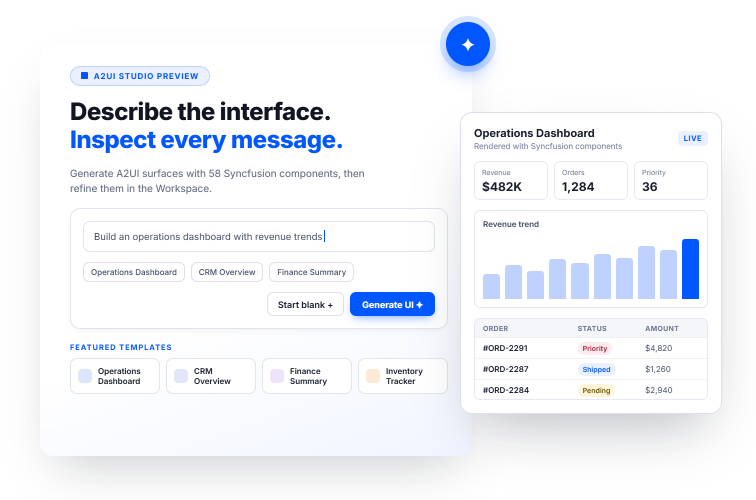
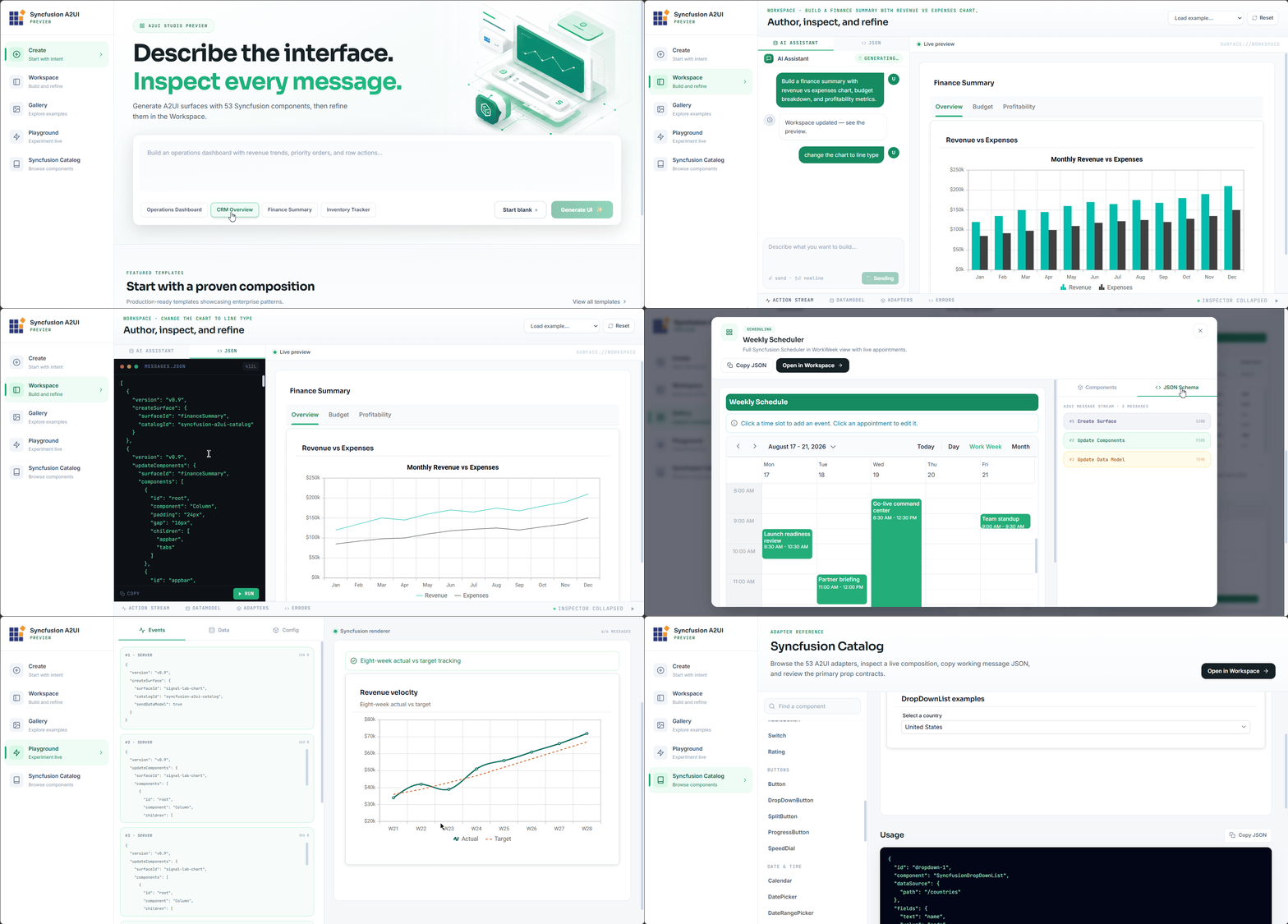
A visual authoring environment for A2UI interfaces
Start with a prompt or template, preview the interface with Syncfusion components, refine it through AI-assisted changes or direct JSON editing, and take the resulting A2UI definition into your application.
HOW IT WORKS
Start, Preview, Refine, and Use
Move from an interface idea to a structured A2UI definition through a short, visual workflow.
Describe
Typewhatyouneedorpickastartertemplate.
Preview
See it rendered with Syncfusion components.
Refine
Adjust layout, columns and data in the Workspace.
Copy
Take the A2UI definition into your application.
STARTER TEMPLATES
Start with a template that fits your task
Choose a starting design and adapt it to your interface requirements.
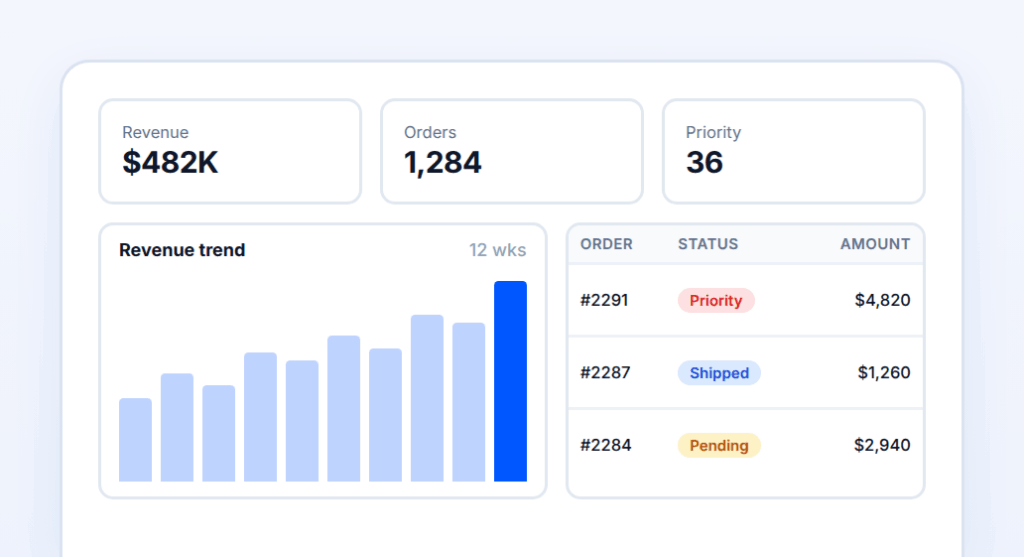
Operations Dashboard
Review orders, revenue trends, and priority items.
Chart
Data Grid
Message
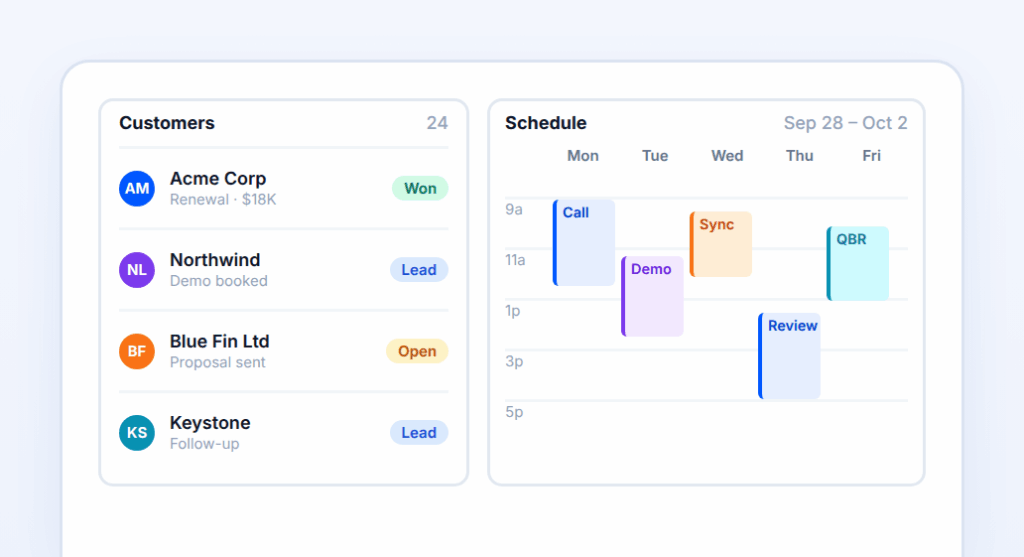
CRM Overview
Track customers, activity, and upcoming meetings.
Data Grid
Scheduler
Card
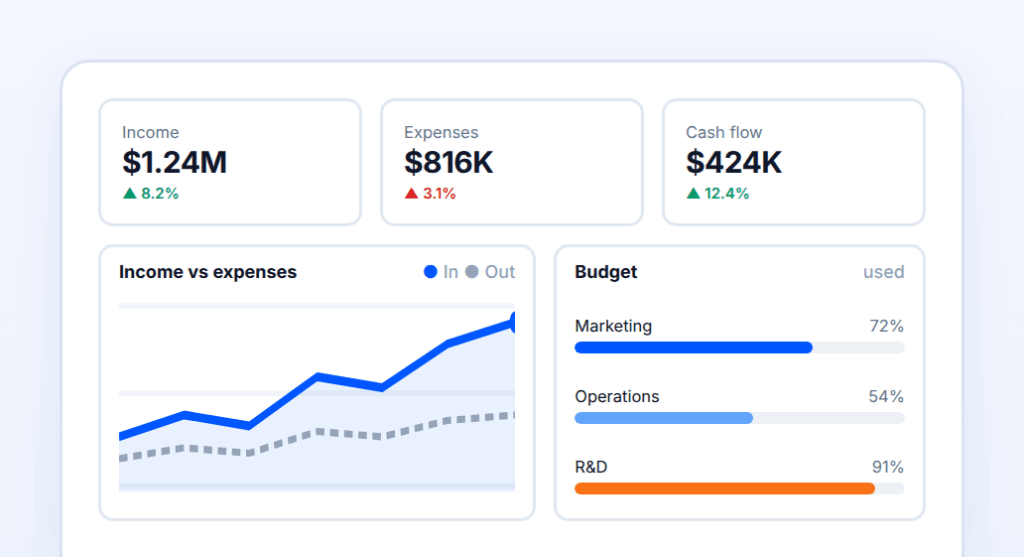
Finance Summary
Compare income, expenses, cash flow, and budget figures.
Chart
Card
Data Grid
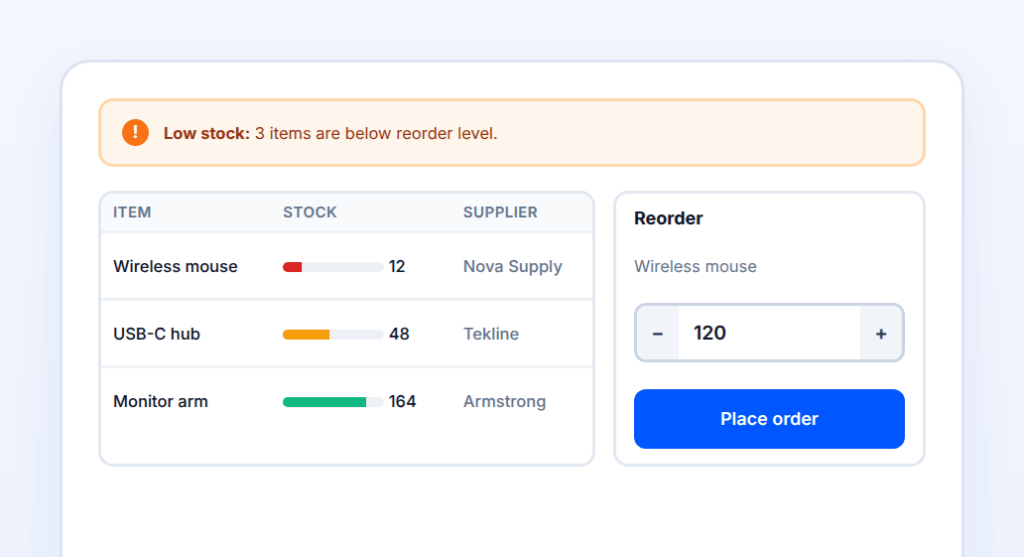
Inventory Tracker
Monitor stock levels, alerts, and suppliers.
Data Grid
Input
Message
INSIDE A2UI COMPOSER
Everything you need to create and refine an A2UI interface
Move from an initial idea to a structured definition using focused tools for generation, refinement, exploration, and preview.
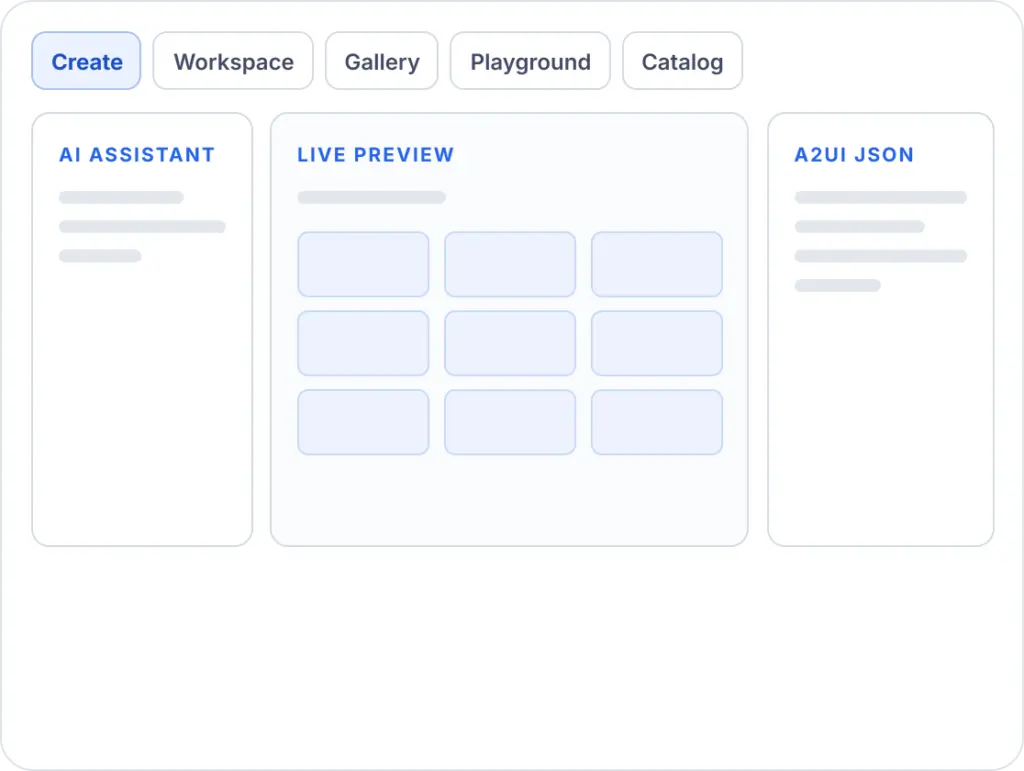
Create
Generate an interface from a prompt or starter template.
Workspace
Refine with AI, edit A2UI JSON, and review the live preview together.
Gallery
Browse reusable starter experiences and open them in Composer.
Playground
Experiment with individual components and structured definitions.
Catalog
supported Syncfusion component adapters.
BUILT WITH SYNCFUSION A2UI COMPONENTS
Compose with components your app can render
Use supported Syncfusion components for data, visualization, input, scheduling, navigation, and layout while designing and previewing your A2UI interface.
Experiences created in the composer generate structured A2UI definitions that can be rendered and extended across supported application environments.This enables teams to design once, refine continuously, and deliver UIs more efficiently.
DELIVERY PIPELINE
1
↓
Compose in Composer
Prompts, templates and reusable blocks
2
↓
Structured A2UI definition
Reusable, version-controlled experience model
3
↓
Rendered across environments
Supported application platforms
4
Refined continuously
Design once, extend over time
DESIGN ONCE, DELIVER ANYWHERE
From composition to delivery
Experiences created in the composer generate structured A2UI definitions that can be rendered and extended across supported application environments.This enables teams to design once, refine continuously, and deliver UIs more efficiently.
DELIVERY PIPELINE
1
↓
Compose in Composer
Prompts, templates and reusable blocks
2
↓
Structured A2UI definition
Reusable, version-controlled experience model
3
↓
Rendered across environments
Supported application platforms
4
Refined continuously
Design once, extend over time
FROM COMPOSITION TO APPLICATION
Take your A2UI definition into your application
Composer designs and refines the interface definition. Your application or agent then uses that structure at runtime.
DELIVERY PIPELINE
1
Compose in Composer
Prompts, templates or reusable blocks
2
A2UI definition
Structured JSON
3
Application / agent
Connect data and logic
4
A2UI runtime
Render Syncfusion UI in supported environments
WHY A2UI COMPOSER
Move from an interface idea to a reusable A2UI definition faster
Give teams a clearer way to prototype, review, refine, and standardize agent-driven interfaces before runtime.
Faster prototyping
Turn a prompt or template into a previewable interface quickly.
Predictable agent UI
Define a reusable interface structure instead of letting the agent invent every screen.
Visual + JSON refinement
Refine through AI-assisted changes or edit the underlying definition directly.
Consistent Syncfusion UI
Preview and render with supported Syncfusion components and familiar interaction patterns.
Frequently asked questions
Understand what Composer creates and what happens next.
Composer creates A2UI JSON definitions that describe an interface. It does not generate React component source code or a complete deployed application.
Yes. Request changes through the AI Assistant or edit the JSON directly. Review the result after each change, especially when a precise layout or field setting matters.
Use components supported by the Composer's A2UI catalog. Check the component reference for availability; support for the entire Syncfusion React library should not be assumed.
Design your UI in A2UI Composer and export it as A2UI JSON. When your agent sends that JSON, the Syncfusion A2UI renderer shows it as native Syncfusion components. You don't have to write any UI code by hand.
Composer creates A2UI JSON definitions that describe an interface. It does not generate React component source code or a complete deployed application.
Yes. Request changes through the AI Assistant or edit the JSON directly. Review the result after each change, especially when a precise layout or field setting matters.
Use components supported by the Composer's A2UI catalog. Check the component reference for availability; support for the entire Syncfusion React library should not be assumed.
Design your UI in A2UI Composer and export it as A2UI JSON. When your agent sends that JSON, the Syncfusion A2UI renderer shows it as native Syncfusion components. You don't have to write any UI code by hand.
Create your first interface with A2UI Composer
Start with a prompt or template, refine the result, and copy the A2UI definition for your application.