Turn AI responses into interactive interfaces

Build AI-ready, adaptive applications with Syncfusion’s reusable A2UI components that can be dynamically discovered, configured, and assembled.

Banner

Agent-defined interfaces rendered with trusted UI components

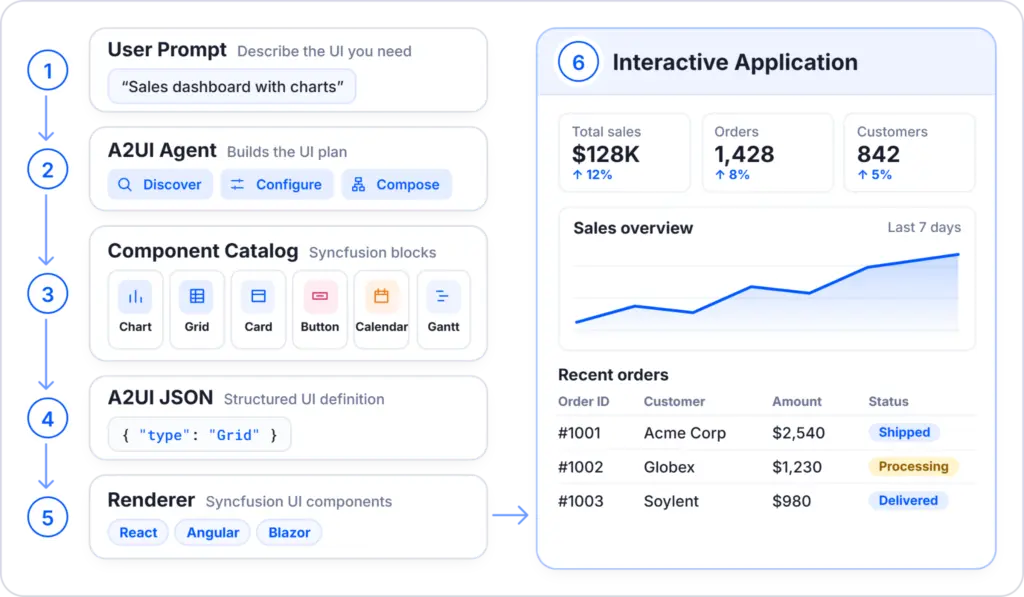
A2UI (Agent-to-User Interface) lets an AI agent respond with a structured UI definition rather than plain text. Syncfusion’s A2UI components render these definitions as interactive Syncfusion UI, so the forms, grids, and dashboards already in use become reusable building blocks that agents can discover, configure, and assemble. Built on Syncfusion’s mature UI platform, A2UI components provide a trusted, enterprise-grade foundation for creating adaptive application experiences.

From an agent response to interactive application UI

The runtime turns structured A2UI messages into validated, data-bound Syncfusion components and routes user interaction back into the application workflow.

User request

Intent or action

AI agent

Creates A2UI messages

A2UI runtime

Validate & process

Component surface

Map data & controls

Interactive UI

Render in the app

Use familiar enterprise UI as agent-driven building blocks

Give agents access to supported Syncfusion controls across the interface patterns your applications already need.

Data & Visualization Components
data-grid

Data Grid

Display and organize records in rows and columns.

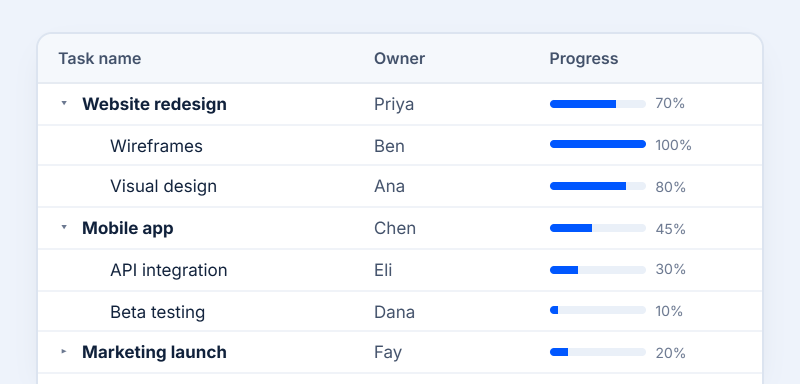
tree-grid

Tree Grid

Explore records with parent-child relationships.

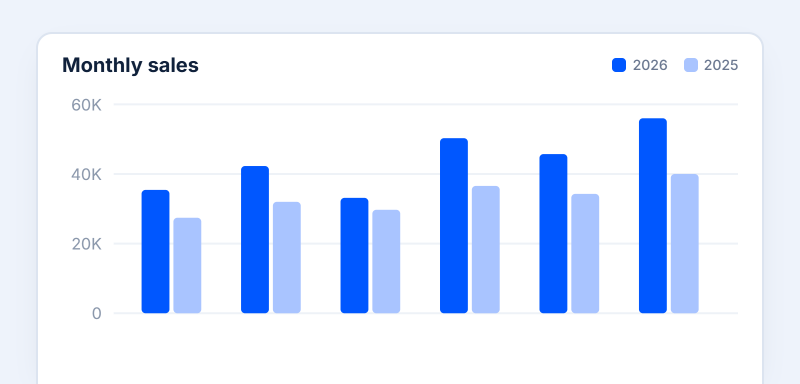
charts

Chart

Show patterns and comparisons in your data.

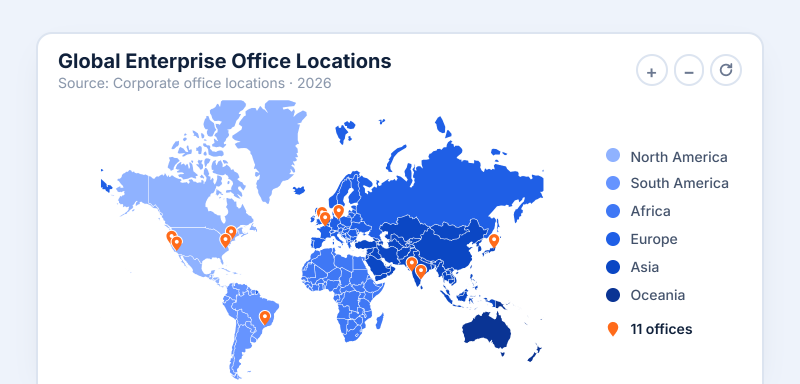
maps

Map

Present data in a map-based geographic view.

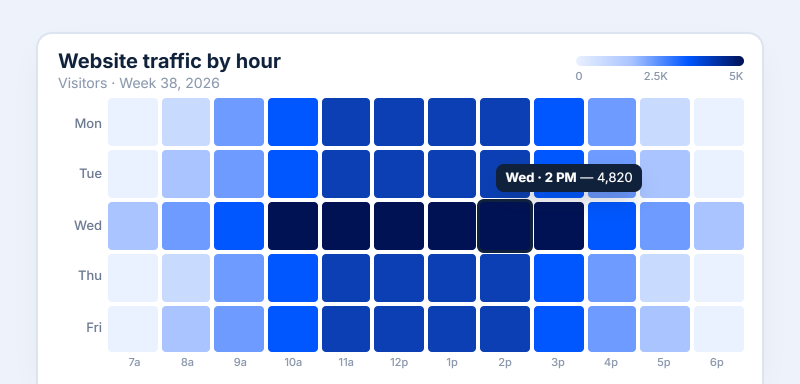
heat-map

HeatMap

Color-coded matrix to reveal data patterns.

Input Components
textbox

Text

Add a heading, label, or body text to a UI.

combo-box

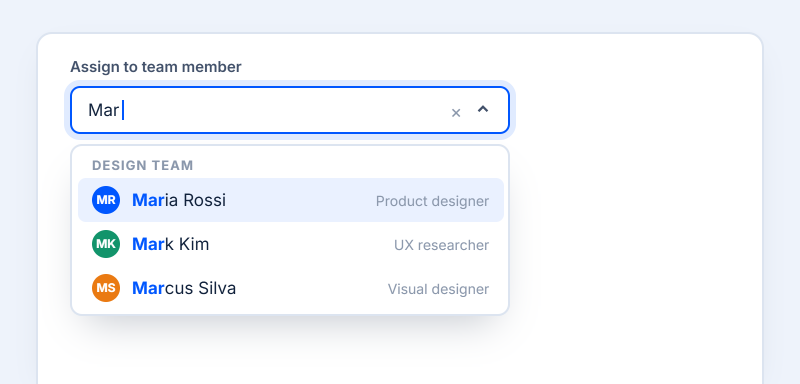
ComboBox

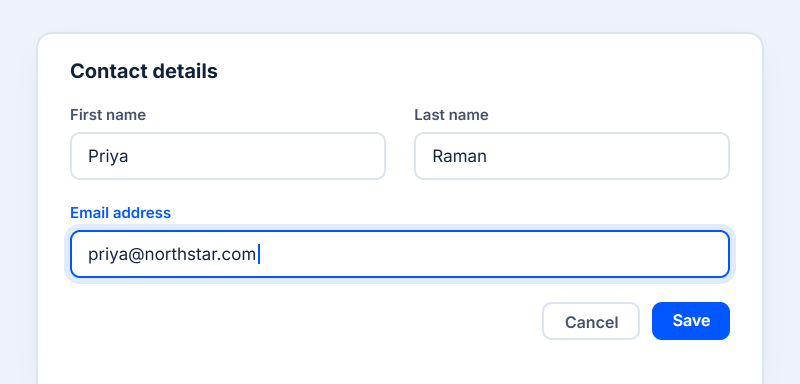
Type to filter and select a single option.

dropdown-list

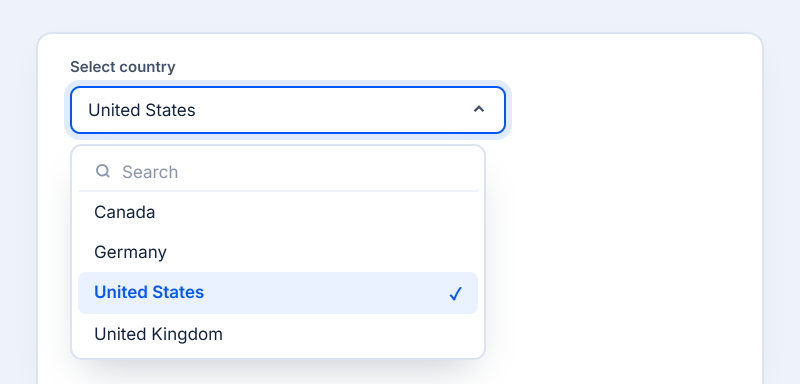
Dropdown

Let people choose from a list of options.

Scheduling Components
scheduler

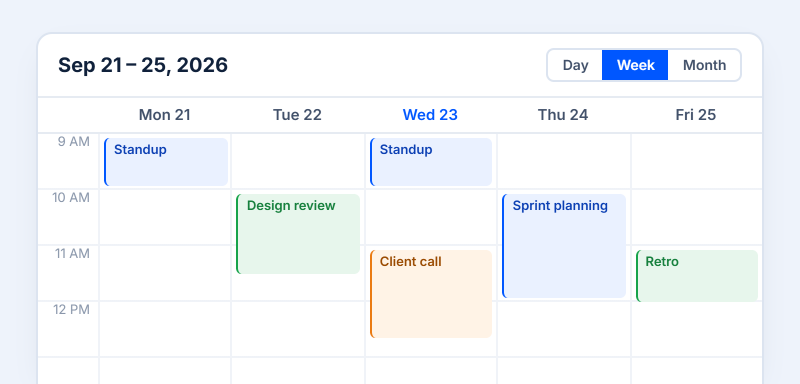
Scheduler

Manage appointments across calendar views.

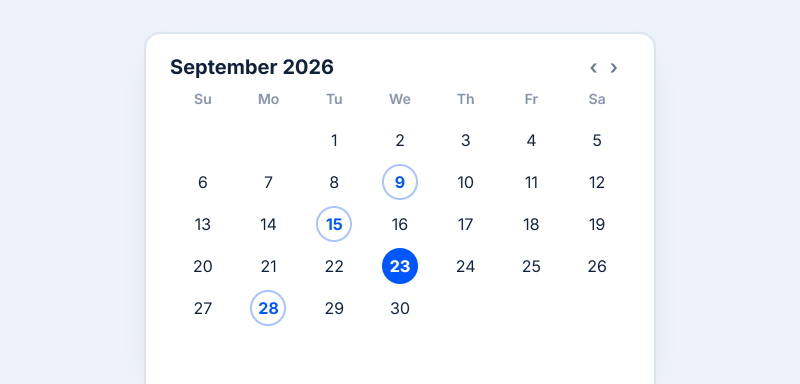
calendar

Calendar

Browse a calendar and quickly choose a date.

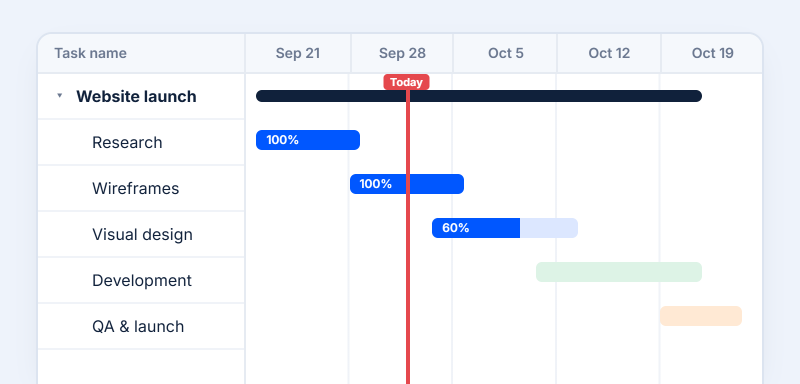
gantt-chart

GanttChart

Plan tasks, dependencies, and timelines.

Navigation Components
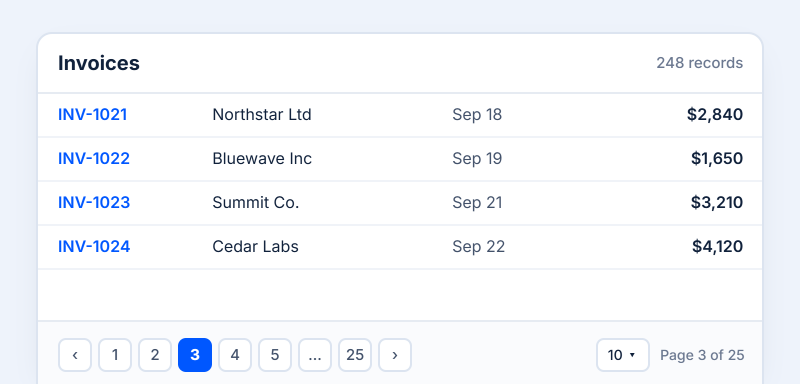
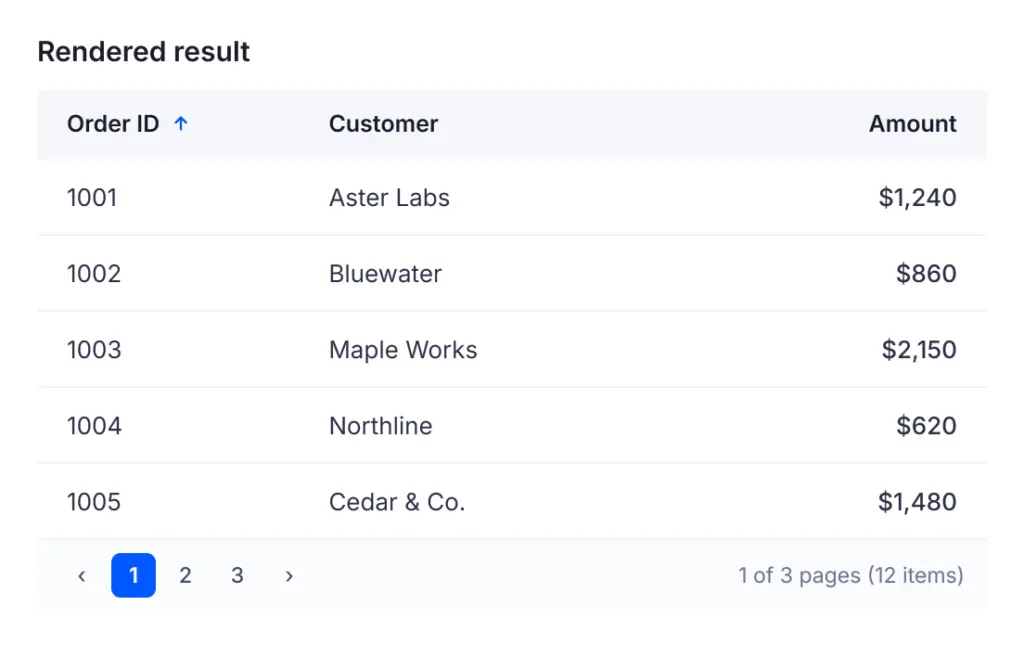
pager

Pager

Move between pages and set the page size.

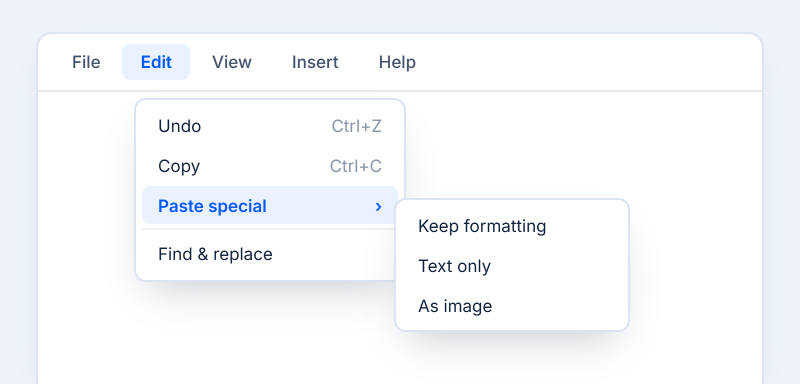
menus

Menu

Help people move between your app sections.

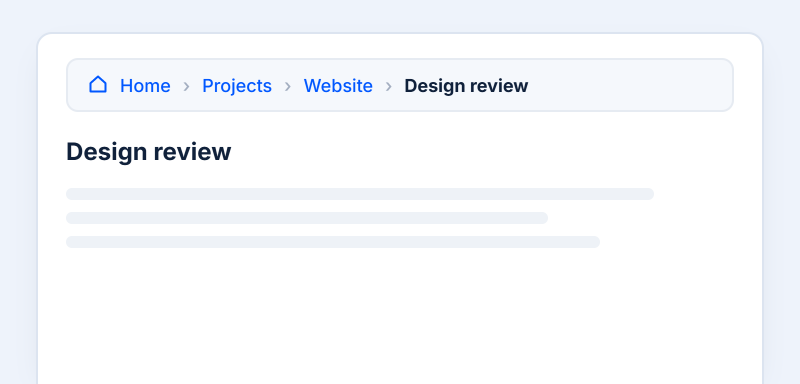
breadcrumb

Breadcrumb

Show where a page sits in the navigation.

Layout Components
skeleton

Skeleton

Placeholder with shimmer while content loads.

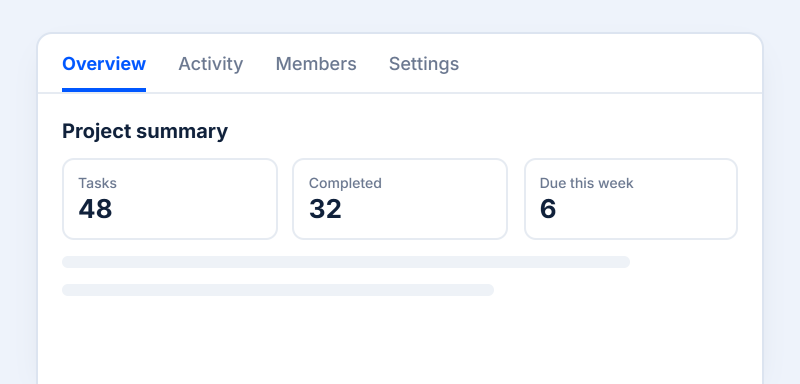
tabs

Tabs

Switch between related views in one place.

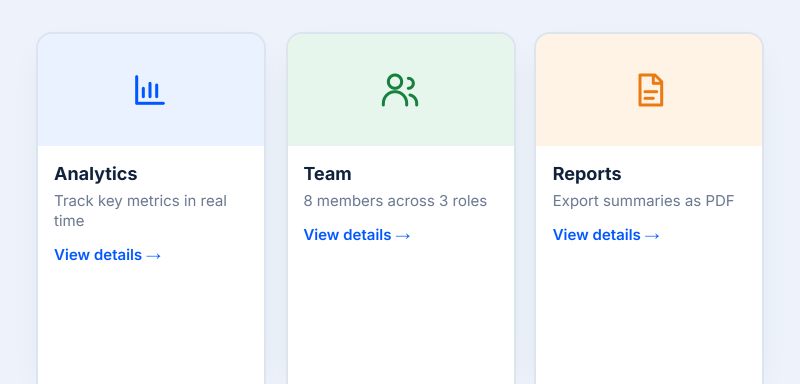
cards

Cards

Group related information in a single container.

Document Solutions
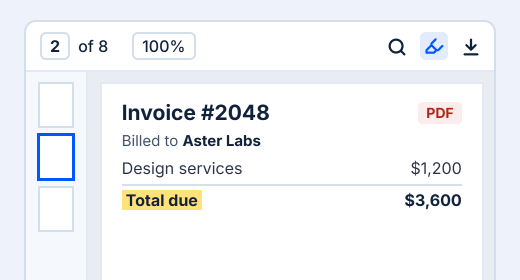
pdf-viewer

PDF Viewer

View, annotate, and fill forms in PDF files. 

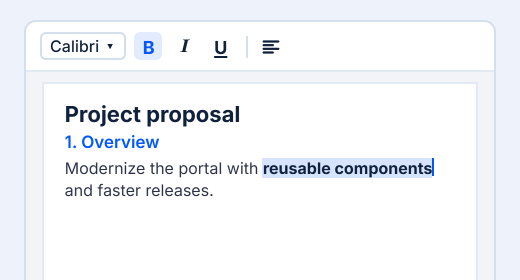
DOCX Editor

Create, edit, and format Word documents.

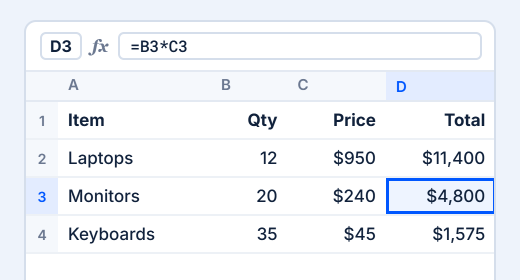
Spreadsheet

Excel-like grid with formulas, sheets, and file support.

See an A2UI definition become real application UI

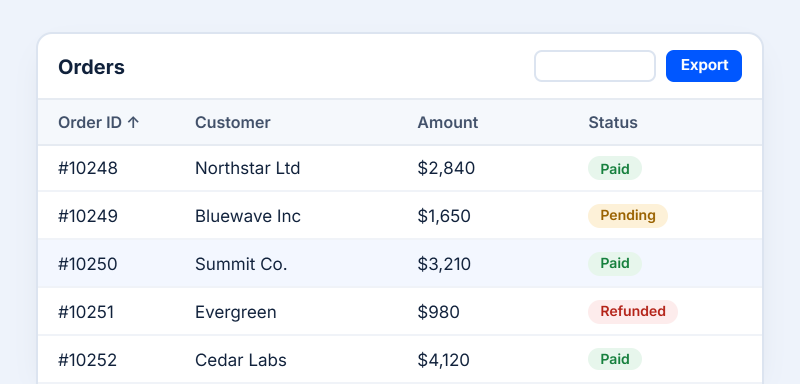
An agent can describe a Syncfusion component using structured A2UI data. The runtime validates the definition, maps it to the corresponding component, and renders it inside the application.

				
					{
  "id": "orders-grid",
  "component": "SyncfusionDataGrid",
  "dataSource": { "path": "/orders" },
  "allowPaging": true,
  "allowSorting": true,
  "columns": [
    { "field": "id", "headerText": "Order ID" },
    { "field": "customer", "headerText": "Customer" },
    { "field": "amount", "headerText": "Amount" }
  ]
}


{
  "id": "orders-grid",
  "component": "SyncfusionDataGrid",
  "dataSource": { "path": "/orders" },
  "allowPaging": true,
  "allowSorting": true,
  "columns": [
    { "field": "id", "headerText": "Order ID" },
    { "field": "customer", "headerText": "Customer" },
    { "field": "amount", "headerText": "Amount" }
  ]
}

{
  "id": "orders-grid",
  "component": "SyncfusionDataGrid",
  "dataSource": { "path": "/orders" },
  "allowPaging": true,
  "allowSorting": true,
  "columns": [
   { "field": "id", "headerText": "Order ID" },
   { "field": "customer", "headerText": "Customer" },
   { "field": "amount", "headerText": "Amount" }
  ]
}

Built for dynamic agent-driven UI

Use a controlled runtime layer instead of asking an agent to generate arbitrary application markup.

validated-definitions

Validated definitions

Validate incoming A2UI messages before rendering the interface.

data-bound-components

Data-bound UI

Connect structured agent data to interactive Syncfusion controls.

bidirectional-interaction

Bidirectional interaction

Route user actions back to the application or agent workflow.

reliable-rendering

Reliable rendering

Render supported components through a consistent, reliable runtime.

Add Syncfusion A2UI to your application

Install the runtime, configure the component catalog and renderer, then connect your agent or backend to the application workflow.

1

Install the package

Install the A2UI package and a Syncfusion theme in your React application.

npm install @syncfusion/ej2-react-a2ui @syncfusion/ej2-tailwind3-theme
2

Add the required styles

Import the theme styles for the components your A2UI definition uses (for example, DataGrid) in src/App.css.

@import "@syncfusion/ej2-tailwind3-theme/styles/grid/index.css";

Use material3, fluent2, bootstrap5 or another theme in place of tailwind3.

3

Render an A2UI definition

Create a MessageProcessor with the Syncfusion catalog, pass it your A2UI messages, and render the surface with SyncfusionA2UIProvider.

import { useState, useEffect, useRef } from 'react';
import { syncfusionCatalog, SyncfusionA2UIProvider } from '@syncfusion/ej2-react-a2ui';
import { MessageProcessor } from '@a2ui/web_core/v0_9';

function App() {
    const [surface, setSurface] = useState(null);

    const processor =
        useRef(new MessageProcessor(syncfusionCatalog())).current;

    useEffect(() => {
        const sub = processor.onSurfaceCreated(setSurface);
        processor.processMessages(GRID_MESSAGES); // your A2UI v0.9 definition

        return () => sub.unsubscribe();
    }, [processor]);

    return surface && <SyncfusionA2UIProvider surface={surface} />;
}

A definition is a set of A2UI v0.9 messages: createSurface, updateComponents and updateDataModel.

4

Connect an agent

Send the user's prompt to your A2UI agent and pass the A2UI messages it returns to the processor. The interface is generated and updated automatically.

const res = await fetch(AGENT_URL, {
    method: 'POST',
    headers: { 'content-type': 'application/json' },
    body: JSON.stringify({
        jsonrpc: '2.0',
        id: `req-${Date.now()}`,
        method: 'message/send',
        params: {
            message: {
                kind: 'message',
                messageId: `msg-${Date.now()}`,
                role: 'user',
                parts: [{ text: prompt }]
            }
        }
    }),
});

const envelope = await res.json();

const messages =
    envelope?.result?.artifacts?.[0]?.parts?.[0]?.data?.a2uiEnvelope;

if (messages) {
    processor.processMessages(messages);
}

User actions in the generated UI go back to the agent through the MessageProcessor action handler, so the agent can update the surface.

5

Run the application

Start the app and try a prompt such as “Show me last quarter's sales by region.”

1

Install the package

Install the A2UI package and a Syncfusion theme in your Angular application.

npm install @syncfusion/ej2-angular-a2ui @syncfusion/ej2-tailwind3-theme

Note: Requires Node.js 20+ and Angular CLI 17 or later.

2

Add the required styles

Import the theme styles for the components your A2UI definition uses (for example, DataGrid) in src/styles.css.

@import "@syncfusion/ej2-tailwind3-theme/styles/grid/index.css";

Note: Use material3, fluent2, bootstrap5 or another theme in place of tailwind3.

3

Register the Syncfusion catalog

In src/app/app.config.ts, provide the A2UI renderer with the Syncfusion catalog and an action handler.

import { A2UI_RENDERER_CONFIG, A2uiRendererService } from '@a2ui/angular/v0_9';
import { syncfusionCatalog } from '@syncfusion/ej2-angular-a2ui';

export const appConfig: ApplicationConfig = {
    providers: [
        {
            provide: A2UI_RENDERER_CONFIG,
            useValue: {
                catalogs: [syncfusionCatalog],
                actionHandler: (action: unknown) =>
                    console.log('surface action:', action),
            },
        },
        A2uiRendererService,
    ],
};
4

Render an A2UI definition

Add SyncfusionA2UIProvider to your component and pass your A2UI messages to the syncfusion-a2ui-provider element.

import { Component, signal } from '@angular/core';
import { SyncfusionA2UIProvider } from '@syncfusion/ej2-angular-a2ui';

@Component({
    standalone: true,
    selector: 'app-root',
    imports: [SyncfusionA2UIProvider],
    template: `
        @if (messages(); as msgs) {
            <syncfusion-a2ui-provider
                [messages]="msgs"
                [dataContextPath]="'/'" />
        }
    `,
})
export class AppComponent {
    // your A2UI v0.9 definition
    protected readonly messages =
        signal<unknown[] | null>(GRID_MESSAGES);
}

Note: A definition is a set of A2UI v0.9 messages: createSurface, updateComponents and updateDataModel.

5

Connect an agent

Send the user's prompt to your A2UI agent and pass the returned messages to A2uiRendererService. The interface is generated and updated automatically.

private readonly renderer = inject(A2uiRendererService);

protected async sendQuery(): Promise<void> {
    const response = await postAgentEnvelope({
        jsonrpc: '2.0',
        id: `req-${Date.now()}`,
        method: 'message/send',
        params: {
            message: {
                kind: 'message',
                messageId: `msg-${Date.now()}`,
                role: 'user',
                parts: [{ text: this.query() }]
            }
        },
    });

    const messages = extractA2uiEnvelope(response);

    if (messages) {
        this.renderer.processMessages(messages as never);
    }
}
1

Install the package

Add the Syncfusion A2UI NuGet package to your Blazor Web App.

dotnet add package Syncfusion.Blazor.A2UI

Note: Requires .NET 8, 9 or 10. In Visual Studio, run Install-Package Syncfusion.Blazor.A2UI from the Package Manager Console.

2

Add the namespaces

Add the A2UI namespaces to _Imports.razor.

@using Syncfusion.Blazor
@using Syncfusion.A2UI.Core.Processing
@using Syncfusion.A2UI.Core.Serialization
@using Syncfusion.A2UI.Core.State
@using Syncfusion.Blazor.A2UI.NodeView
@using Syncfusion.Blazor.A2UI.SyncfusionComponents
3

Register the services

Register Syncfusion Blazor and the A2UI services with the Syncfusion components in Program.cs.

using Syncfusion.Blazor;
using Syncfusion.Blazor.A2UI.SyncfusionComponents;

builder.Services.AddSyncfusionBlazor();
builder.Services.AddHttpClient();
builder.Services.AddA2UIWithSyncfusionComponents();
4

Add the theme and script

Reference a Syncfusion theme in the head and the Syncfusion script in the body of App.razor.

<head>
    <link href="_content/Syncfusion.Blazor.Themes/fluent2.css" rel="stylesheet" />
</head>

<body>
    <script src="_content/Syncfusion.Blazor.Core/scripts/syncfusion-blazor.min.js"
            type="text/javascript"></script>
</body>
5

Render an A2UI definition

In Home.razor, parse your A2UI messages, pass them to MessageProcessor, and render the surface with SyncfusionA2UIProvider.

@page "/"
@rendermode InteractiveServer
@using System.Text.Json
@inject MessageProcessor Processor

<SyncfusionA2UIProvider Surface="@surface" />

@code {
    private SurfaceModel? surface;

    protected override void OnInitialized()
    {
        // Json holds your A2UI v0.9 definition
        var messages =
            A2uiJson.ParseMessages(JsonDocument.Parse(Json).RootElement);

        Processor.ProcessMessages(messages);
        surface = Processor.Model.GetSurface("orders");
    }
}

Note: A definition is a set of A2UI v0.9 messages: createSurface, updateComponents and updateDataModel.

6

Connect an agent

Post the user's prompt to your A2UI agent with HttpClient and pass the returned messages to MessageProcessor. The interface is generated and updated automatically.

var response = await Http.PostAsJsonAsync(AgentUrl, new
{
    jsonrpc = "2.0",
    id = $"req-{DateTimeOffset.UtcNow.ToUnixTimeMilliseconds()}",
    method = "message/send",
    @params = new
    {
        message = new
        {
            kind = "message",
            messageId = $"msg-{DateTimeOffset.UtcNow.ToUnixTimeMilliseconds()}",
            role = "user",
            parts = new[] { new { text = _query } }
        }
    }
});

using var doc =
    JsonDocument.Parse(await response.Content.ReadAsStringAsync());

var envelope = doc.RootElement
    .GetProperty("result")
    .GetProperty("artifacts")[0]
    .GetProperty("parts")[0]
    .GetProperty("data")
    .GetProperty("a2uiEnvelope");

Processor.ProcessMessages(
    A2uiJson.ParseMessages(envelope)
);

Note: Subscribe to Processor.Model.OnAction to send user actions in the generated UI back to the agent, so it can update the surface.

7

Run the application

Start the app and try a prompt such as "Show me last quarter's sales by region."

Add the A2UI package to your .NET MAUI application.

Install-Package Syncfusion.Maui.A2UI

Next: Add styles and render your first definition.

Support for more platforms is coming soon.

Build dynamic UI by using A2UI Composer

Describe the interface you need, preview it live with Syncfusion components, and copy a ready-to-use A2UI definition. Hand-written JSON is no longer needed.

start-with-a-request

Describe

Type what you need or pick a starter template.

review-the-preview

Preview

See it rendered with Syncfusion components.

refine-the-design

Refine

Adjust layout, columns and data in the Workspace.

copy-the-definition

Copy

Take the A2UI definition into your application.

Use A2UI Composer to shape the interface

Start from a prompt or template, preview the surface, refine the A2UI JSON, and then use the resulting definition in your application.

Why choose Syncfusion’s A2UI components?

Modern applications contain valuable UI assets such as forms, grids, dashboards, workflows, and business screens. Syncfusion’s A2UI components help organizations transform these assets into reusable building blocks that can be used repeatedly — without rewriting applications or replacing existing user experiences.

Accelerate application modernization

Modernize one screen at a time without replacing the underlying application.

Increase reusability

Forms, grids, and dashboards already owned become building blocks instead of being rebuilt.

Improve consistency

Every composed screen inherits the same design language, behavior, and accessibility standards.

Reduce complexity

AI assembles trusted components, so the resulting interface stays predictable and easy to review.

Support enterprise governance

Maintain visibility and control across applications and teams.

Accelerate AI adoption

New UIs are composed from components rather than hand-written screens.

Build agent-driven UI with Syncfusion A2UI Components

Add structured, interactive interfaces to your application using supported Syncfusion components and a controlled A2UI runtime.
Build agent-driven UI with Syncfusion A2UI Components

Add structured, interactive interfaces to your application using supported Syncfusion components and a controlled A2UI runtime.