Trusted by the world’s leading companies
Overview
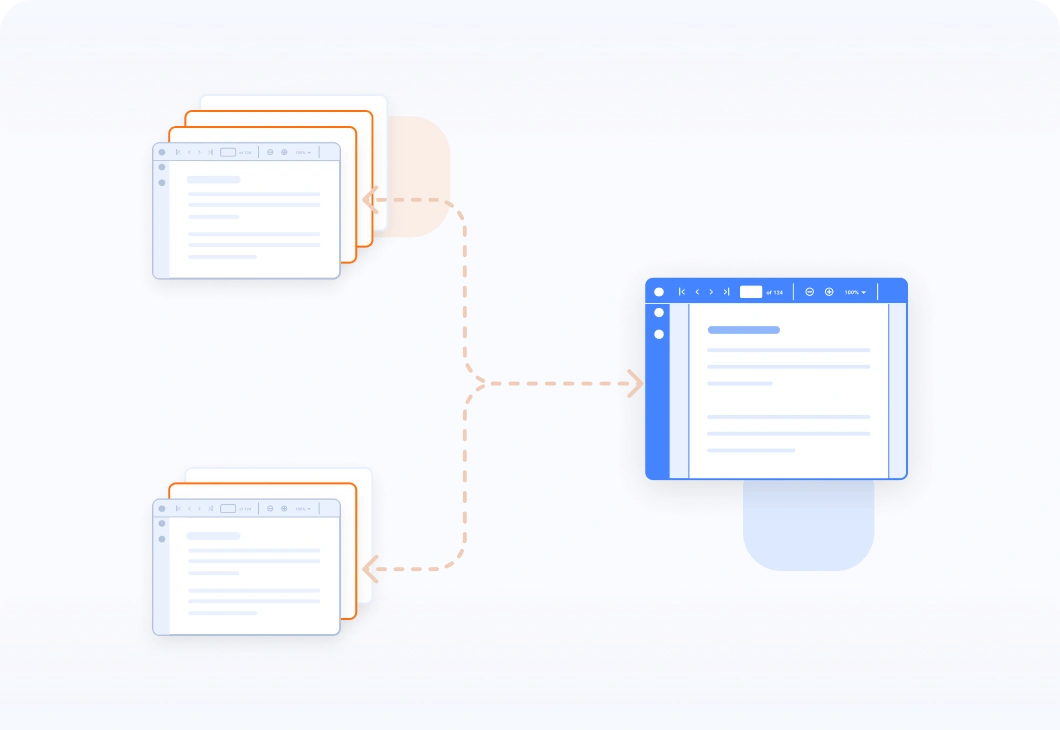
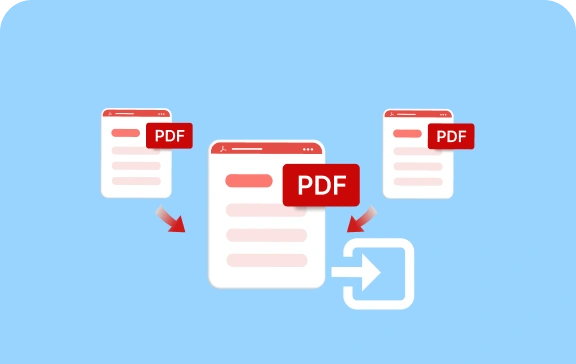
The Syncfusion .NET PDF library makes it easy to merge or combine multiple PDF files into a single PDF document in C#. The process is simple and efficient, and the merged PDF files retain their original formatting, layout, annotations, bookmarks, form fields, and appearance.
The merge PDF feature works seamlessly on these platforms: WinForms, WPF, Blazor, .NET MAUI, .NET Core, WinUI, Xamarin, and UWP.
Try C# PDF Examples in Playground app.

How to merge PDF files in C#
- Install Syncfusion.Pdf.Net.Core NuGet package in your project.
- Create a PdfDocument object.
- Create two FileStream objects to represent the two input PDF files.
- Call the PdfDocumentBase.Merge() method to merge the two input PDF files into the PdfDocument object.
- Save the PdfDocument object to the MemoryStream object.
Here is an example of how to merge PDF files in C# using the Syncfusion .NET PDF library. You can merge multiple PDF files into a single PDF document with just a few lines of code.
//Create a PDF document
using (PdfDocument finalDocument = new PdfDocument())
{
//Get the stream from an existing PDF document
using (FileStream firstStream = new FileStream("File1.pdf", FileMode.Open, FileAccess.Read))
using (FileStream secondStream = new FileStream("File2.pdf", FileMode.Open, FileAccess.Read))
{
//Create a PDF stream for merging
Stream[] streams = { firstStream, secondStream };
//Merge PDF documents
PdfDocumentBase.Merge(finalDocument, streams);
//Save the document into a stream
using (MemoryStream outputStream = new MemoryStream())
{
finalDocument.Save(outputStream);
}
}
}PDF - Merge options
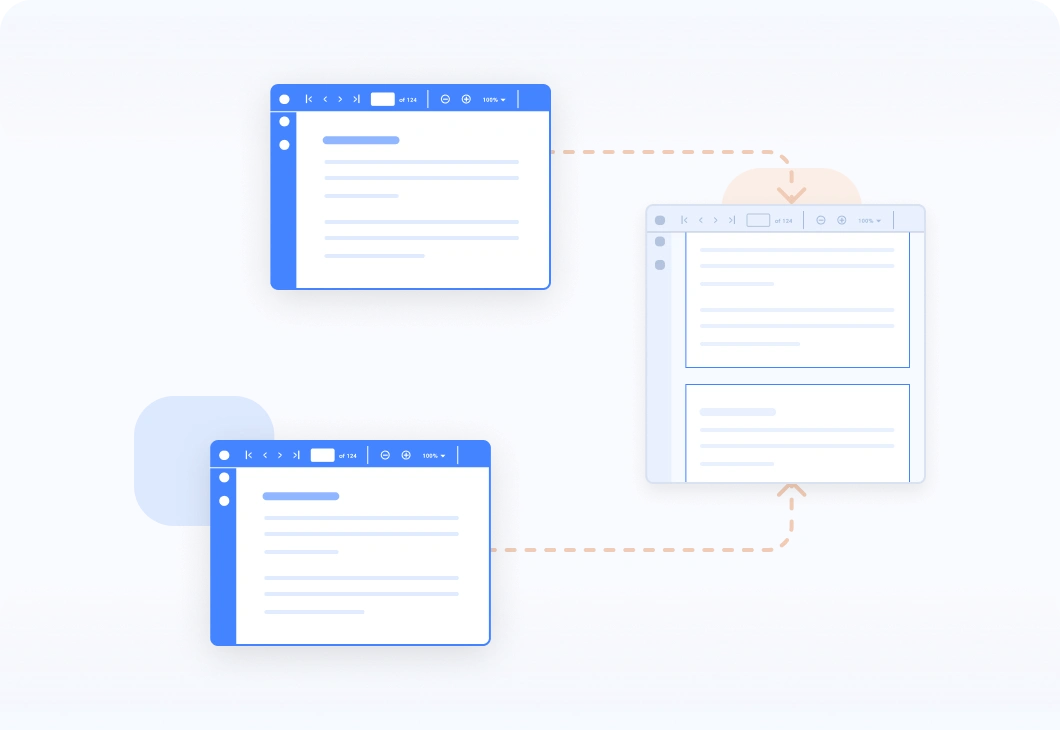
Merge specific range of pages from different PDF documents
Merging specific ranges of pages from different PDF documents is a quick and easy way to combine different parts of documents into a single PDF document.
//Create a new PDF document
using (PdfDocument finalDocument = new PdfDocument())
{
//Open the first PDF file
using (FileStream firstStream = new FileStream("File1.pdf", FileMode.Open, FileAccess.Read))
{
//Load the first PDF document
PdfLoadedDocument loadedDocument1 = new PdfLoadedDocument(firstStream);
//Import a range of pages from the first PDF document into the final document
//The range starts at page 2 and ends at the last page
finalDocument.ImportPageRange(loadedDocument1, 1, loadedDocument1.Pages.Count - 1);
//Open the second PDF file
using (FileStream secondStream = new FileStream("File2.pdf", FileMode.Open, FileAccess.Read))
{
//Load the second PDF document
PdfLoadedDocument loadedDocument2 = new PdfLoadedDocument(secondStream);
//Import a range of pages from the second PDF document into the final document.
//The range starts at page 2 and ends at page 5
finalDocument.ImportPageRange(loadedDocument2, 2, 5);
//Save the final document into a memory stream
using (MemoryStream outputStream = new MemoryStream())
{
finalDocument.Save(outputStream);
}
}
}
}Extend margin
Extend the margin of PDF pages while merging PDF documents.
//Create a new PDF document
using (PdfDocument outputDocument = new PdfDocument())
{
//Create a new instance for the document margin
PdfMargins documentMargins = new PdfMargins();
//Set the margin to 50 points on all sides
documentMargins.All = 50;
//Set the document margins
outputDocument.PageSettings.Margins = documentMargins;
//Load the first PDF document
using (FileStream firstPDFStream = new FileStream("File1.pdf", FileMode.Open, FileAccess.Read))
{
//Load the second PDF document
using (FileStream secondPDFStream = new FileStream("File2.pdf", FileMode.Open, FileAccess.Read))
{
//Create a list of streams to merge
Stream[] streams = { firstPDFStream, secondPDFStream };
//Create a merge options object
PdfMergeOptions mergeOptions = new PdfMergeOptions();
//Enable the extend margin option
mergeOptions.ExtendMargin = true;
//Merge the PDF documents
PdfDocumentBase.Merge(outputDocument, mergeOptions, streams);
//Save the document to a memory stream
using (MemoryStream outputMemoryStream = new MemoryStream())
{
outputDocument.Save(outputMemoryStream);
}
}
}
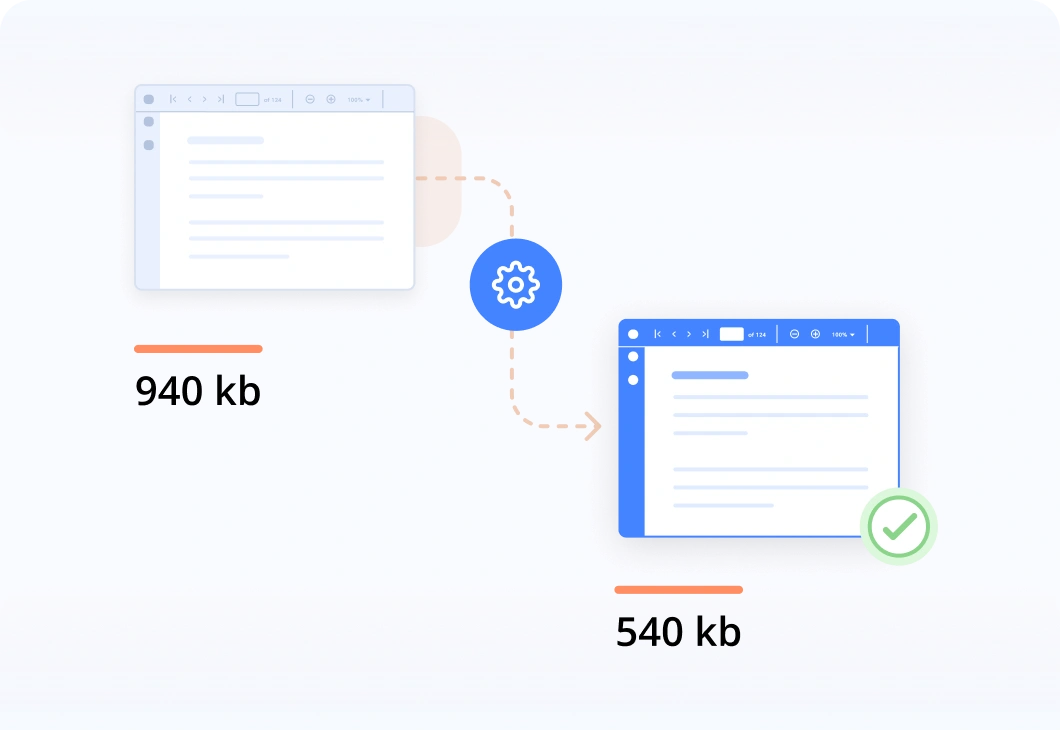
}Optimize PDF resources
Optimize PDF resources when merging multiple PDF documents into a single PDF document.
//Create a new PDF document
using (PdfDocument outputDocument = new PdfDocument())
{
//Load the first PDF document
using (FileStream firstPDFStream = new FileStream("File1.pdf", FileMode.Open, FileAccess.Read))
{
//Load the second PDF document
using (FileStream secondPDFStream = new FileStream("File2.pdf", FileMode.Open, FileAccess.Read))
{
//Create a list of streams to merge
Stream[] streams = { firstPDFStream, secondPDFStream };
//Create a merge options object
PdfMergeOptions mergeOptions = new PdfMergeOptions();
//Enable the optimize resources option
mergeOptions.OptimizeResources = true;
//Merge the PDF documents
PdfDocumentBase.Merge(outputDocument, mergeOptions, streams);
//Save the document to a memory stream
using (MemoryStream outputMemoryStream = new MemoryStream())
{
outputDocument.Save(outputMemoryStream);
}
}
}
}Add bookmarks to merged PDF documents
When merging multiple PDF files, users can create bookmarks based on the titles of individual files. This will help quickly navigate to specific sections of the merged file.
//Create a PDF document
using (PdfDocument finalDocument = new PdfDocument())
{
//Load the first PDF document
using (FileStream firstStream = new FileStream("File1.pdf", FileMode.Open, FileAccess.Read))
//Load the second PDF document
using (FileStream secondStream = new FileStream("File2.pdf", FileMode.Open, FileAccess.Read))
{
//Create a list of streams to merge
Stream[] streams = { firstStream, secondStream };
//Merge PDF documents
PdfDocumentBase.Merge(finalDocument, streams);
//Create a bookmark for the first PDF file
PdfBookmark bookmark1 = finalDocument.Bookmarks.Add("Chapter 1 - Barcodes");
//Set the destination page for the first bookmark
bookmark1.Destination = new PdfDestination(finalDocument.Pages[0]);
//Set the destination for the first bookmark
bookmark1.Destination.Location = new PointF(20, 20);
//Create a bookmark for the second PDF file
PdfBookmark bookmark2 = finalDocument.Bookmarks.Add("Chapter 2 - HTTP Succinctly");
//Set the destination page for the second bookmark
bookmark2.Destination = new PdfDestination(finalDocument.Pages[3]);
//Set the destination for the second bookmark
bookmark2.Destination.Location = new PointF(20, 20);
// Save the document into a stream
using (MemoryStream outputStream = new MemoryStream())
{
finalDocument.Save(outputStream);
}
}
}Use cases
Merging PDF files using the Syncfusion.NET PDF library is a fast and efficient way to manage multiple PDF documents using C#. Besides this process, developers can also:
- Create a new PDF document with certain pages from an existing PDF document.
- Combine multiple PDF files from the disk and stream.
- Import or insert pages from one PDF file to another.
- Import a page or range of pages from one document to another without bookmarks.
- Specify a range of pages to be merged from separate PDF documents.
- Combine password-protected PDF documents.
- Rotate PDF pages and merge.
- Convert landscape to portrait and merge.
- Crop PDF pages and combine.
- Merge and fill form field.
- Create bookmarks based on the combined document.
- Combine and digitally sign the PDFs.
- Extend the margin of PDF pages while merging PDF files.
References
- Merge all PDF files in a folder in C#
- Merge PDF documents using C#
- Best practices to append, merge, and import pages from PDF documents
- Merge PDF documents with grouped bookmarks in C#
- Create TOC (Table of Contents) when merging PDF documents
- Merge PDF documents from ArrayList using C#
- Reduce file size while merging PDF documents in C#
- Insert images in PDF and merge with multiple PDF documents using C#
Awards
Greatness—it’s one thing to say you have it, but it means more when others recognize it. Syncfusion® is proud to hold the following industry awards.