
 Diljith Harshan
TL;DR: This blog explains how to convert Word documents to PDFs in C# using the Syncfusion DocIO library. It covers converting to PDF/A and PDF/UA formats, embedding fonts, preserving form fields, and more, all without needing Microsoft Word installed.
PDFs are the go-to format for sharing documents across platforms, but converting Word files to PDF can be tricky, especially if you want to preserve formatting, accessibility, and interactivity. In this blog, we’ll show you how to use Syncfusion’s DocIO library in C# to convert Word documents to PDF effortlessly. Whether you’re building a document automation tool or a reporting system, this guide will help you generate high-quality PDFs with minimal code.
This converter offers several options to customize Word to PDF conversion,
- Embed complete or subset font information for TrueType fonts.
- Substitute alternate fonts from the device or upload the original fonts.
- PDF conformance level ‘PDF/A1B‘ or ‘PDF/X-1a:2001‘.
- Convert accessible Word document (508 compliance) to Accessible or Tagged PDF
- Export the headings or bookmarks in the Word document as PDF bookmarks.
- Export the Word form fields as PDF form fields during Word to PDF conversion.
- Adjust JPEG image quality and resolution for optimizing the converted PDF file size.
This converter supports all the elements of a typical Word document like text, formatting, images, tables, hyperlinks, fields, bookmarks, table of contents, shapes, headers, footers, etc. Refer to our documentation to know more about Word to PDF-conversion.
Steps to perform Word to PDF conversion programmatically in C# without Microsoft Office or interop:
Step 1: Create a new C# console application (.NET Framework) project.
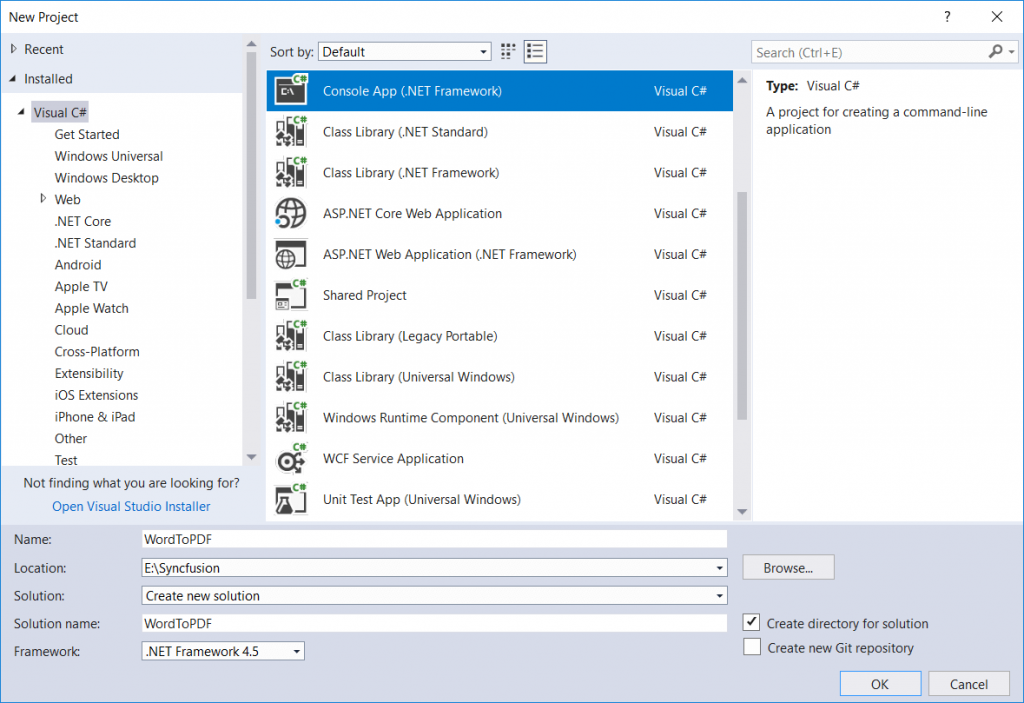
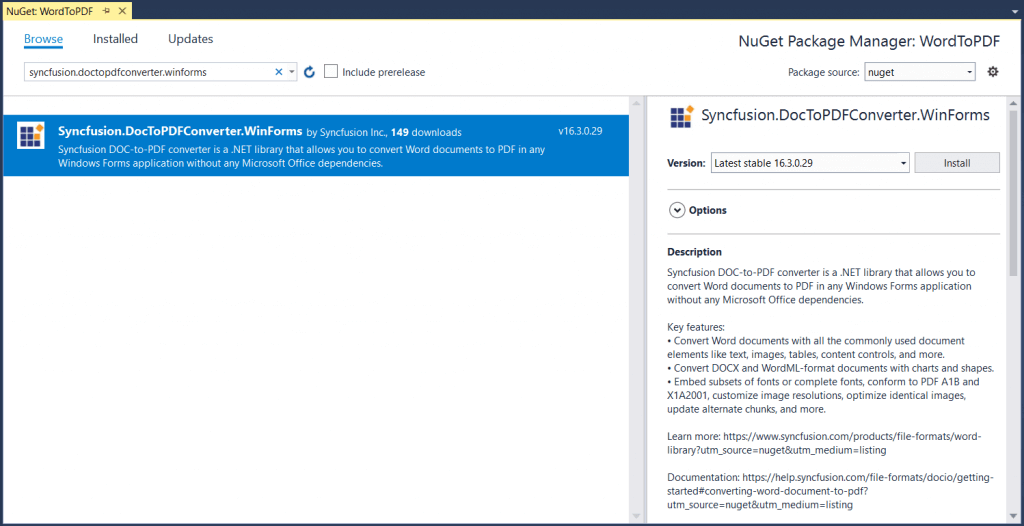
Step 2: Install DocToPDFConverter.WinForms NuGet package as a reference to your applications from NuGet.org. This package contains Syncfusion libraries to perform Word to PDF conversion without Microsoft Office or interop.Note: Starting with v16.2.0.x, if you reference Syncfusion assemblies from trial setup or from the NuGet feed, include a license key in your projects. Refer to link to learn about generating and registering Syncfusion license key in your application to use the components without trail message.
Step 3: Include the following namespace in the Program.cs file.The following code snippet is used to open the Word document with DocIO.
using Syncfusion.DocIO;
using Syncfusion.DocIO.DLS;
using Syncfusion.DocToPDFConverter;
using Syncfusion.Pdf;
Step 4: Use the following code snippet to create Word file with simple text.
//Get the path of existing Word document
string fullpath = @".../../DocToPDF.docx";

//Loads an existing Word document
WordDocument wordDocument = new WordDocument(fullpath, FormatType.Docx);

//Creates an instance of the DocToPDFConverter
DocToPDFConverter converter = new DocToPDFConverter();

//Converts Word document into PDF document
PdfDocument pdfDocument = converter.ConvertToPDF(wordDocument);

//Releases all resources used by DocToPDFConverter
converter.Dispose();

//Closes the instance of document objects
wordDocument.Close();

//Saves the PDF file
pdfDocument.Save("DocToPDF.pdf");

//Closes the instance of document objects
pdfDocument.Close(true);
The following screenshot illustrates the input Word document.
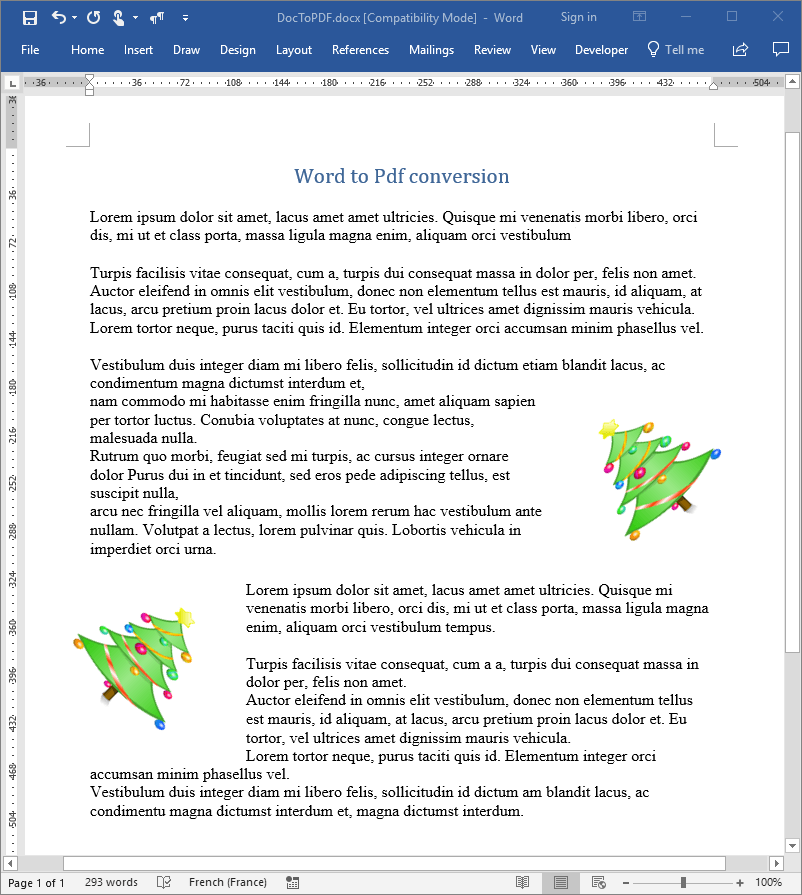
The next screenshot shows the final PDF document converted from the Word document.
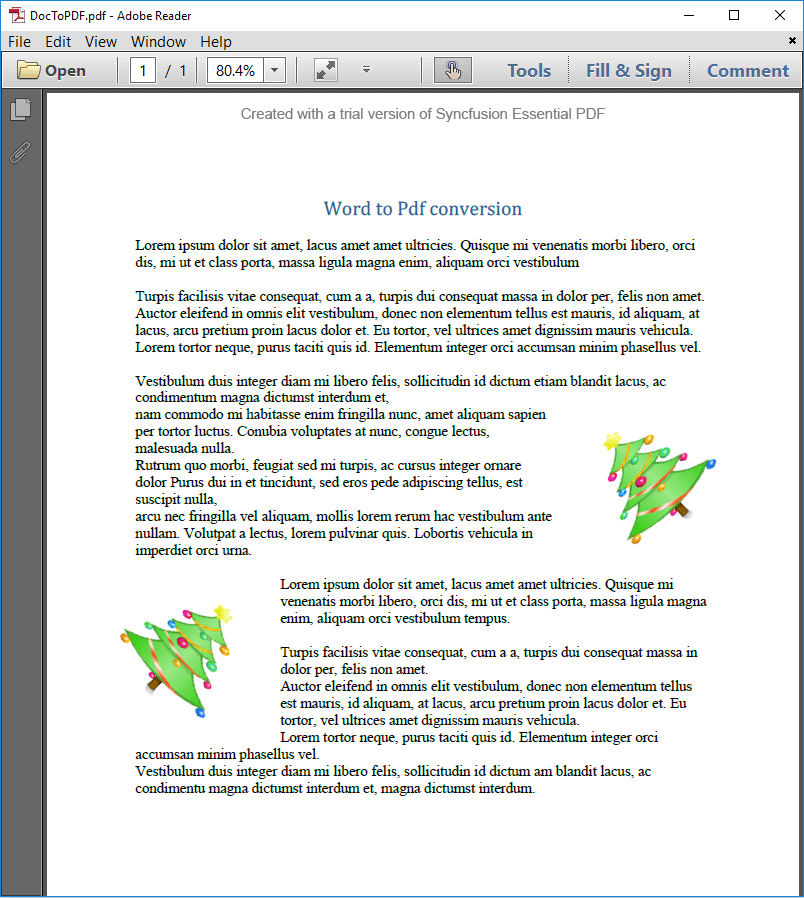
A complete working example of Word to PDF conversion can be downloaded from this GitHub Repository
An online link for Word to PDF conversion example.
If you want to convert Word documents to PDF in Xamarin or ASP.NET Core applications or the Azure environment, please check the following pages.
FAQs
Q1: Does Syncfusion DocIO require Microsoft Word to be installed for converting documents to PDF?
No, DocIO performs Word-to-PDF conversions entirely through its own engine, eliminating the need for Microsoft Word or Office Interop dependencies.
Q2: Can DocIO generate standards-compliant PDFs like PDF/A and PDF/UA?
Yes, DocIO supports both PDF/A for archival purposes and PDF/UA for accessibility, ensuring your PDFs meet industry standards for long-term storage and screen reader compatibility.
Q3: How well does DocIO preserve document features like form fields and comments during conversion?
DocIO retains form fields, comments, and other interactive elements during conversion, allowing you to create fillable and annotated PDFs directly from Word documents.
Q4: Is font embedding supported in the generated PDFs to maintain consistent appearance across devices?
Yes, DocIO allows embedding fonts in the output PDF, ensuring that the document looks consistent regardless of the viewer’s system configuration.
Conclusion
Whether you need to convert a Word document to PDF in any .NET platform, the Syncfusion Word to PDF converter libraries makes work easier for .NET developers. Take a moment to peruse the Word to PDF conversion documentation, where you can find other options and features, all with code examples. If you are new to our DocIO library, it is highly recommended to follow our Getting Started documentation.
Explore more about the rich set of Syncfusion Word Framework and PDF Framework features.
 No spam, just valuable updates.
Comments (3)
Comments. Shapes. Dynamic fields. Charts. are not supported
If we use printing word document, do these features are supported ?
Hi Kamel Gazzah,
This blog is published in 2014 that doesn’t include the recently added features. Please find the recent status of the mentioned features,
* Shapes – Predefined shapes are supported while converting DOCX and WordML format documents to PDF.
* Dynamic fields – Fields like page number, date time, IF, and more. Please refer our UG documentation page about fields for more information.
https://help.syncfusion.com/file-formats/docio/working-with-fields#updating-fields
* Charts – Charts are supported from .NET framework 4.0 onwards while converting DOCX and WordML format documents to PDF.
* Comments – not supported
If we use printing word document, do these features are supported?
The supported features vary depending on the application used for printing the Word document. The supported features of printing the Word document using Syncfusion libraries are same as Word to PDF conversion.
Please refer our Word to PDF UG documentation page for latest features and more information about the supported features.
https://help.syncfusion.com/file-formats/docio/word-to-pdf
I always used a third-party tool for conversion. but instantly I read your blog and I found it well explanatory and useful. I will try it myself too.