
 Arulraj Aboorvasamy
TL;DR: Discover how Visual Studio 2026 revolutionizes coding with AI features like GitHub Copilot, adaptive paste, and smart debugging. Boost efficiency in IDE, MCP, Git, and cloud development for innovative app building.
Hey developers! The latest updates for Visual Studio 2026 (versions 18.0.0 to 18.1.1) have been unveiled. Microsoft has packed this release with AI features that will transform how you code, letting you focus on creating innovative solutions while boosting efficiency.
In this post, we’ll break down the key features by category, highlighting AI integrations that make coding smarter and faster. We’ll also sprinkle in practical examples to illustrate each new capability. Let’s jump in and start with improvements to the IDE itself.
IDE improvements that feel fresh
Visual Studio 2026 refines the core IDE to feel more intuitive and AI-aware.
A modern look you’ll love
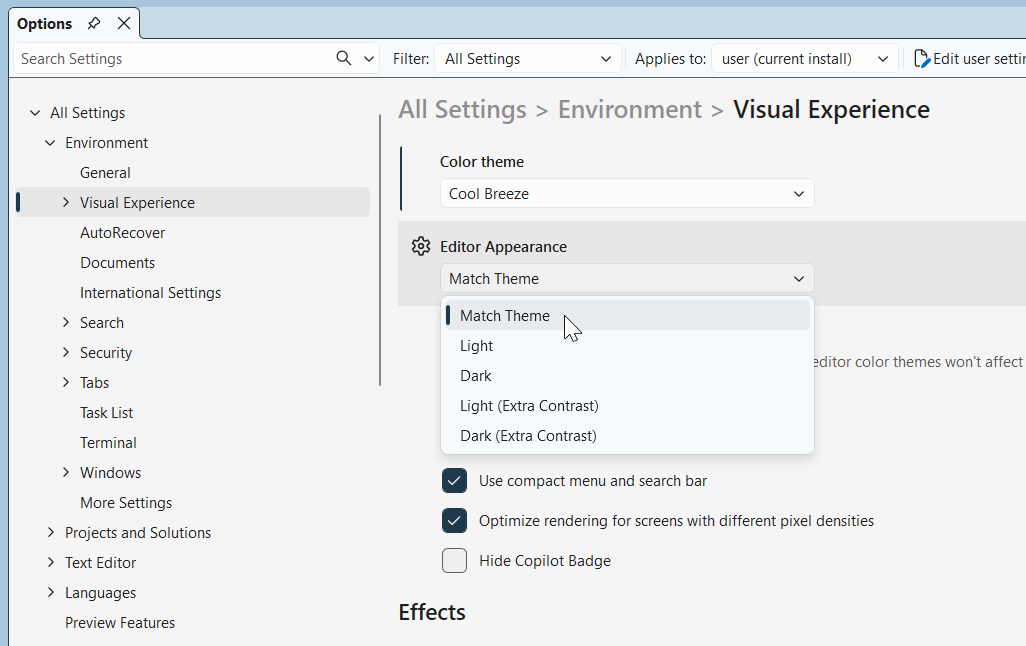
You now get a refreshed Fluent UI with 11 new tinted themes. Enjoy customizable editor appearances and a modern settings experience that seamlessly roams your preferences across devices.
Setup Assistant saves hours
Missing .NET SDKs? No problem. The new Setup Assistant identifies dependencies and installs them with a single click. No more setup headaches, just code.
MCP enhancements for AI workflows
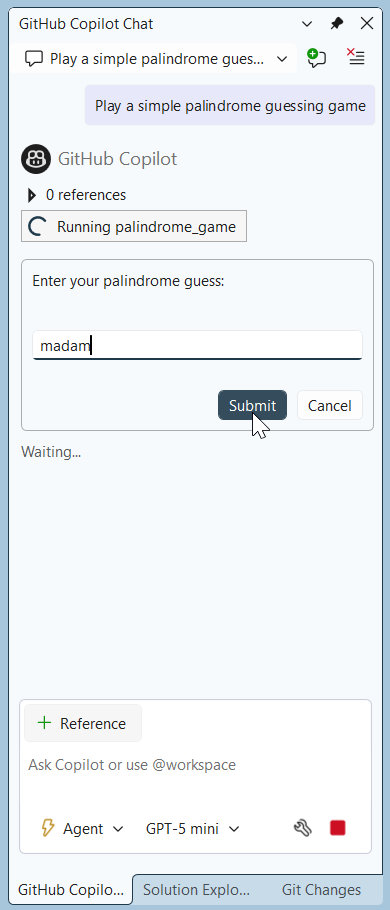
One standout feature is the MCP (Model Context Protocol) enhancements for managing AI server authentications. You can manage credentials for Microsoft or GitHub accounts in one place and even view server instruction files directly in VS. This feature is ideal for Copilot chats that require additional context.
Mermaid chart rendering
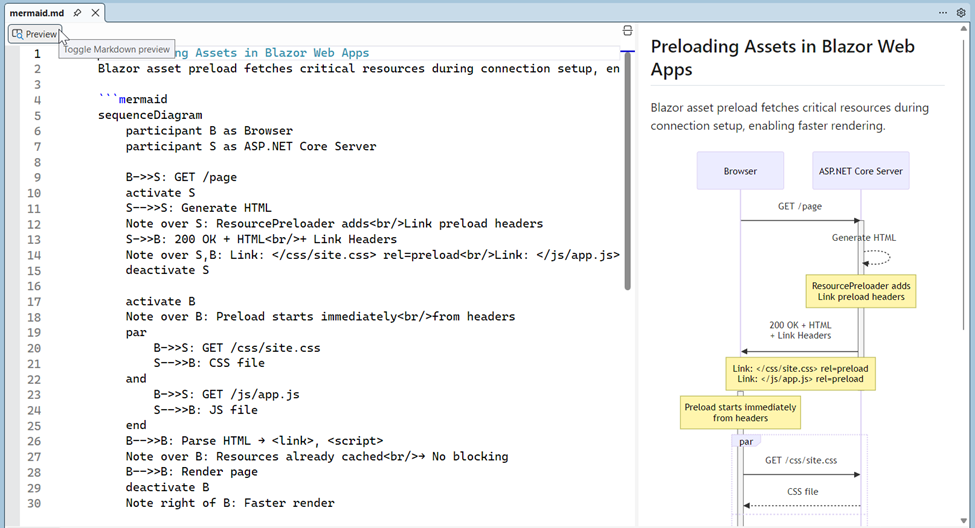
Ever wanted to visualize your architecture without leaving the editor? Now you can. Write Mermaid syntax in the Markdown Editor, hit the preview button, and Visual Studio generates visual charts from your syntax.
The following image shows the preloading assets in Blazor Web Apps using a sequence diagram.
Code coverage everywhere
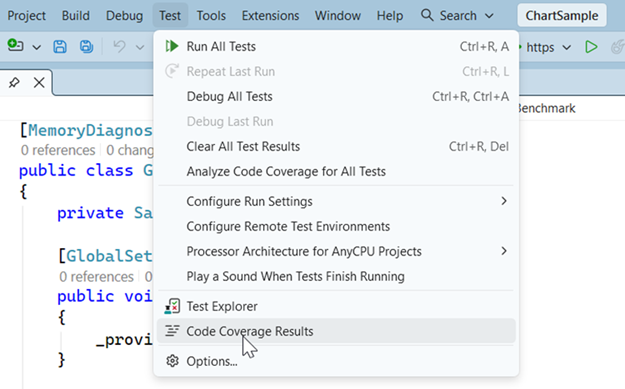
We can now see the parts of our code that are tested across all editions of Visual Studio. It’s simple, clear, and helps you write better tests.
Productivity enhancements
You will love the productivity boosts in VS 2026; they put AI at your fingertips. Let’s explore!
Adaptive paste
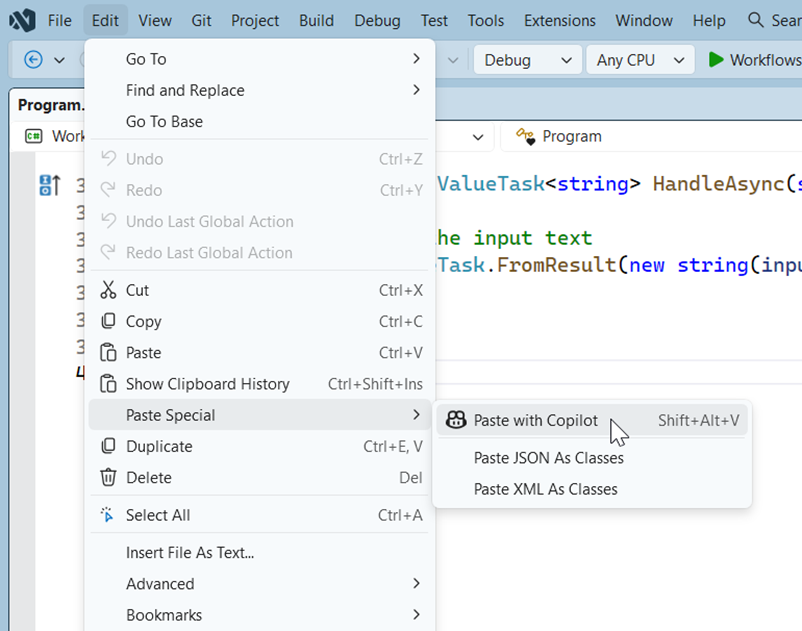
Copy-paste just became smart. We can drop the code, hit the Tab key, and watch how it adapts. This feature fixes names, formatting, and even translates languages. It’s like magic for your clipboard.
Smarter code actions
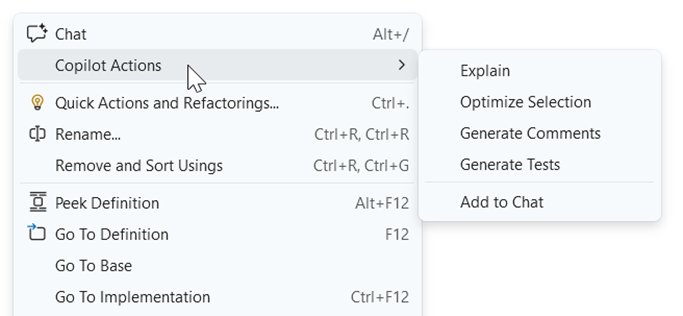
Code actions now appear in the right-click menu with five dynamic options based on your selection. Plus, the WinForms Expert Agent guides you on modern patterns like MVVM or async/await. This feature is invaluable when you modernize legacy apps with Syncfusion controls.
GitHub Copilot gets supercharged
GitHub Copilot evolves massively in VS 2026, changing how we collaborate with AI.
Cloud Agent for heavy lifting
The new GitHub Cloud Agent (in preview) enables you to delegate tasks, such as UI cleanups or refactoring the cloud for GitHub-connected projects. You can now review changes before creating PRs, ensuring you stay in control.
Context-aware chats
The Copilot pulls context from URLs you paste in chats, incorporating public web content for smarter responses. It also leverages remote indexes for improved code search and awareness of external symbols.
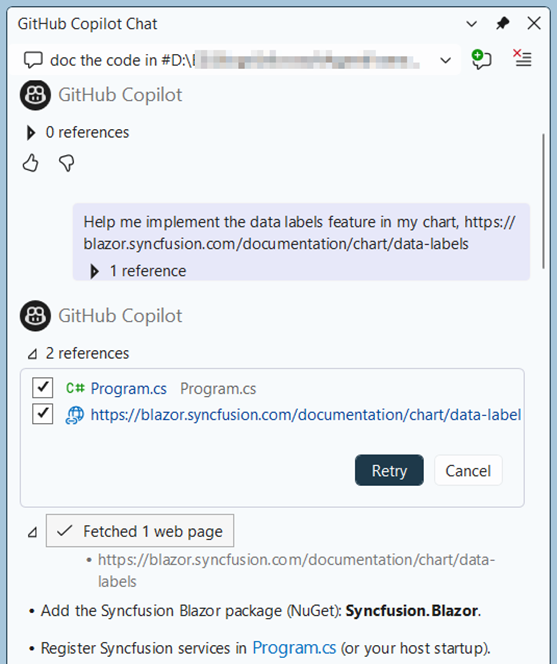
Refer to the following images.
Here, we are pasting a URL directly into the Copilot Chat prompt to get the details on the page.
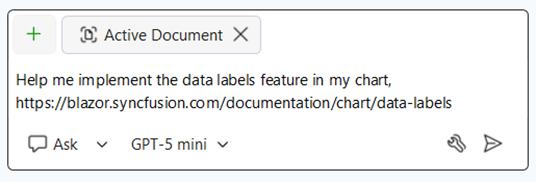
Then, you can see the web page is fetched and processed based on the prompt.
Debugging and diagnostics made smarter
Debugging and diagnostics are no longer a manual grind. They’re intelligent, automated, and adaptive, with Copilot taking the lead so you can focus on crafting exceptional code.
Debug with Copilot
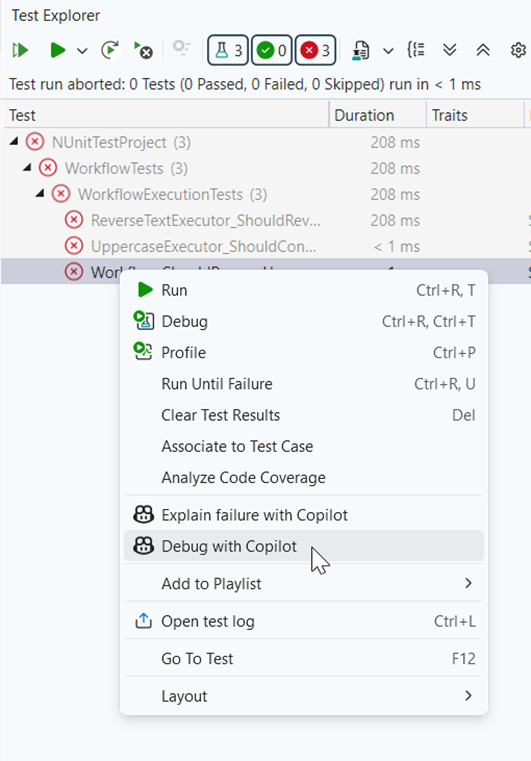
Debugging gets an AI overhaul; we can now troubleshoot smarter with Copilot, fixing unbound breakpoints by analyzing symbols and modules. The Debugger Agent automates unit test fixes: it hypothesizes causes, edits code, and re-runs until success.
To achieve this, we need to select the Debug with Copilot option on the failed test case.
Then, debugging begins as shown in the following image.
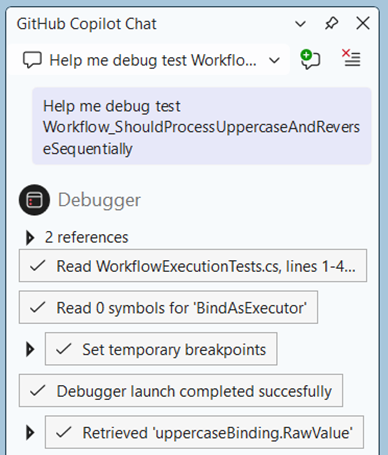
Here, the exception analysis pulls repo history from GitHub or Azure DevOps for context-aware insights. The inline features display if-condition results, variables, and post-return values, along with AI breakdowns.

Profiler Copilot Agent
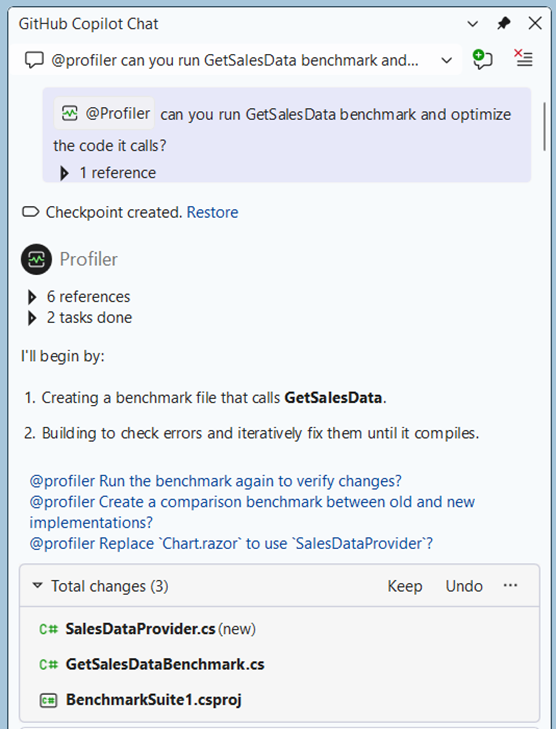
The Profiler Copilot Agent analyzes CPU/memory, generates benchmarks, and suggests optimizations. We can use this to profile heavy apps.
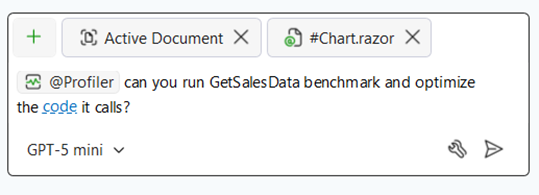
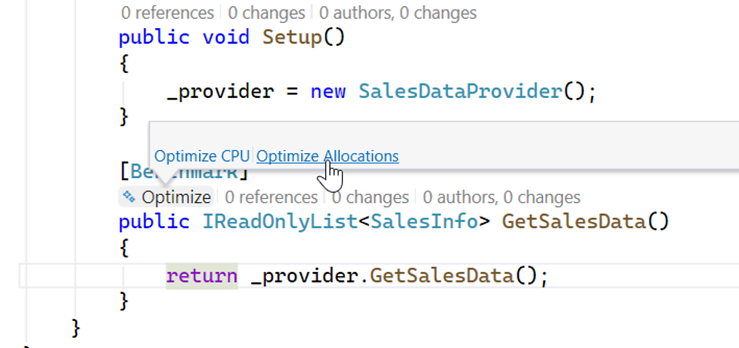
You can also click the CodeLens of your Benchmark performance tests to find a one-click entry point to optimize allocations.
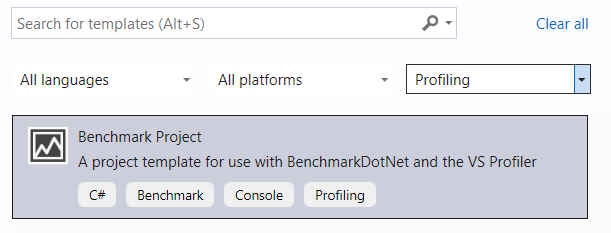
Benchmark project template
There is also a new Benchmark Project template that scaffolds a fully configured benchmarking project with built-in support for profiling and Copilot insights.
Next-level Git tooling
Managing code reviews and version control just got a major upgrade with Copilot’s Git integrations. From inline PR comments to intelligent suggestions, these enhancements make collaboration smoother and keep your workflow efficient.
Inline PR comments and reviews
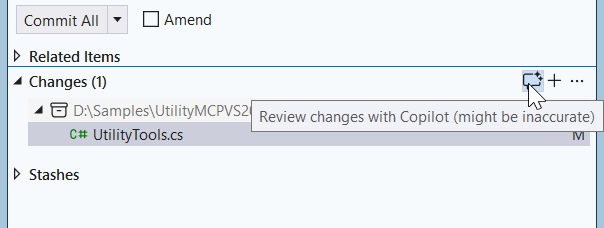
Copilot now enhances code reviews by suggesting fixes for bugs or performance issues in local changes. You’ll notice the sparkle comment button in the Git Changes window, making it simple to add AI-powered review comments.
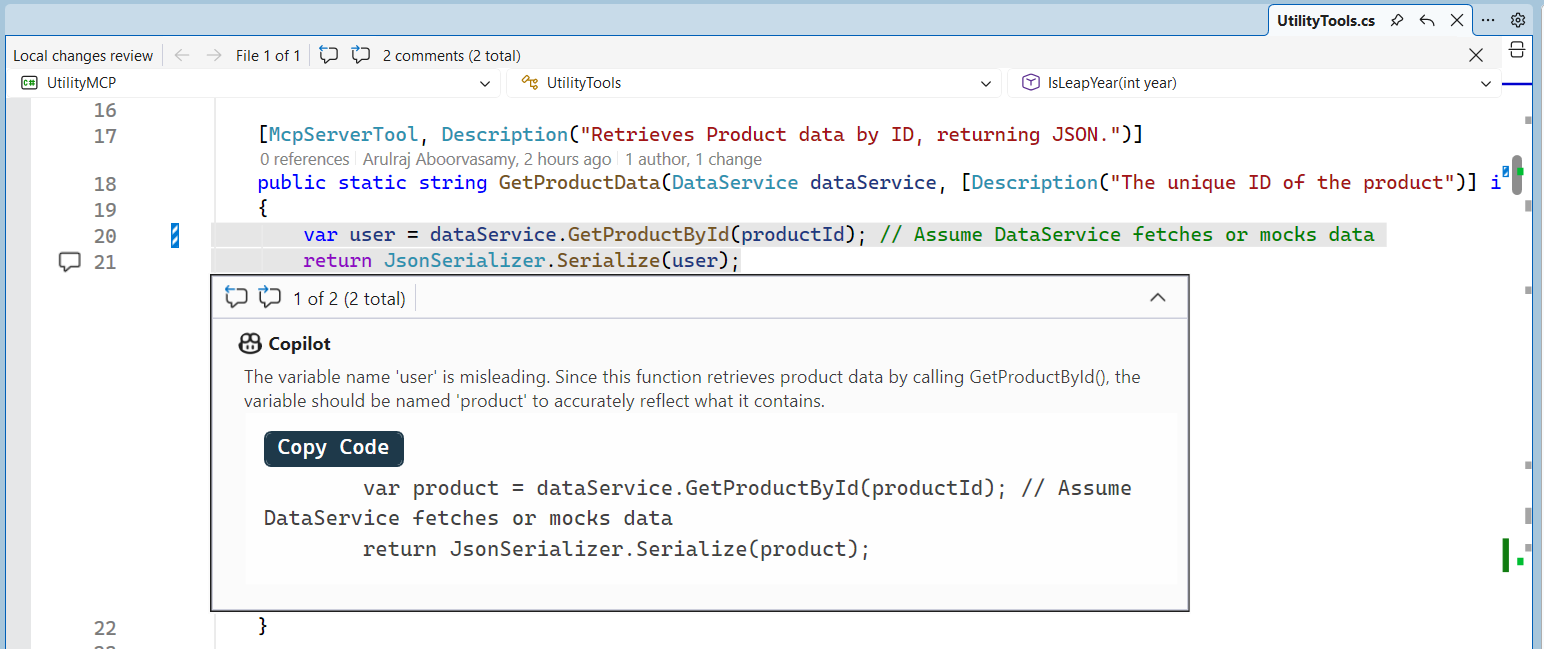
We can streamline version control by using inline PR comments in the diff view, allowing you to view, edit, and render Markdown right there.
We need to enable both the Pull Request Comments and the Enable Git preview features to avail these PR commenting features.
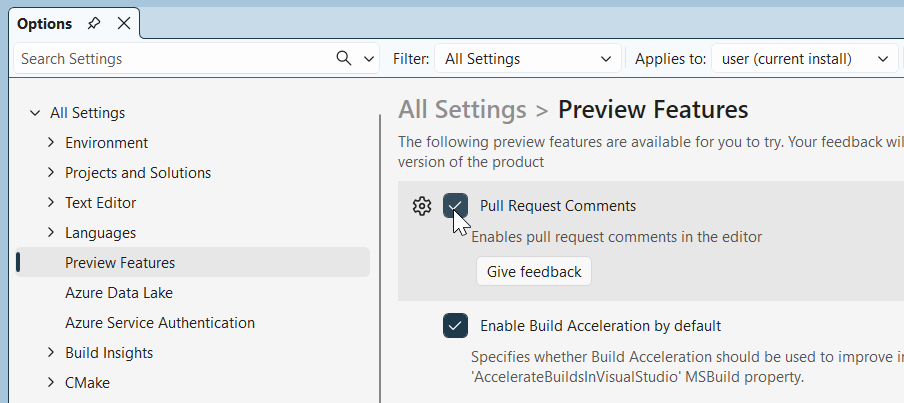
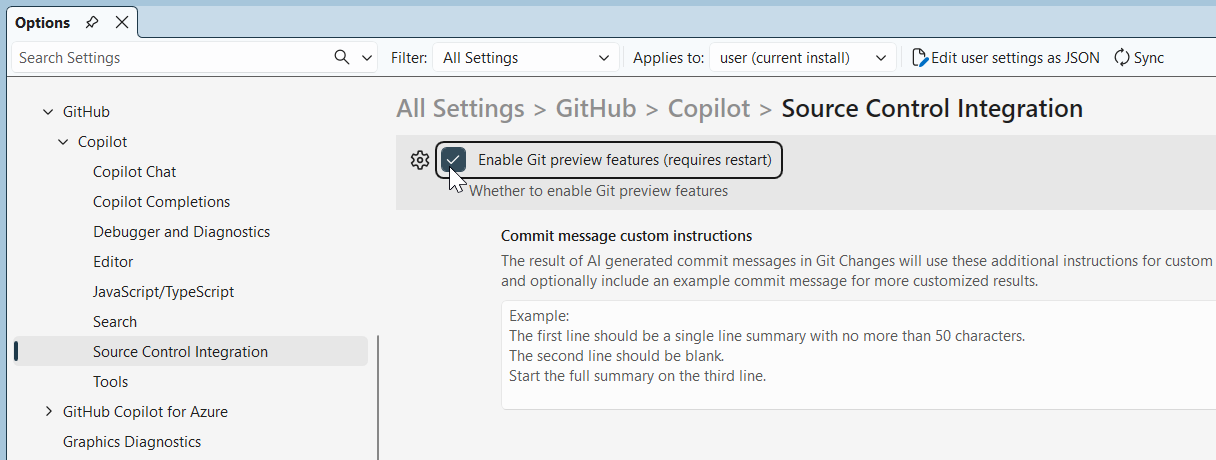
Git context in Copilot chats
Copilot chats now understand Git context, letting you reference #changes or #commit for quick summaries. Navigation is easier too, thanks to the new list view in Git Changes.
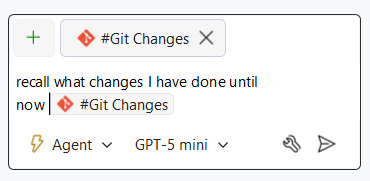
Cloud and .NET related updates
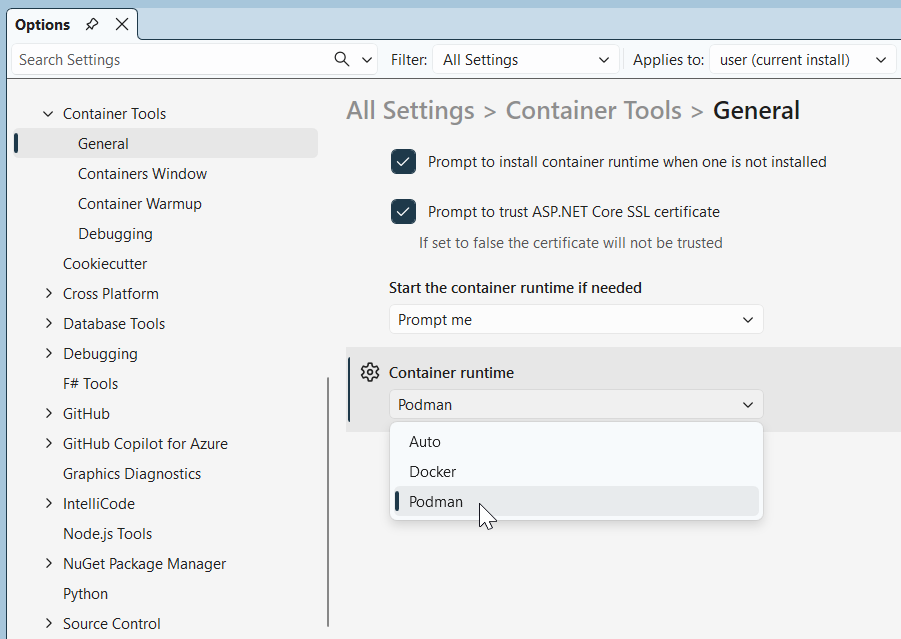
Podman support
Finally, cloud dev supports Podman for containers, making you runtime-agnostic.
Full .NET 10 and C#14 support
Visual Studio 2026 now fully supports .NET 10 and C#14, unlocking powerful new language features and performance improvements. You can build faster .NET 10 apps with AI-assisted cloud deployments, and MCP enhancements make cloud AI workflows even smoother.
Here’s a quick example from C#14 using params spans in ASP.NET Core on .NET 10:
public void ProcessData(params ReadOnlySpan<string> items)
{
    // Use Syncfusion PDF component to generate report
    using var pdfDoc = new Syncfusion.Pdf.PdfDocument();

    pdfDoc.Pages.Add()
        .Graphics.DrawString(
            string.Join(", ", items),
            new PdfStandardFont(PdfFontFamily.Helvetica, 12),
            PdfBrushes.Black,
            new PointF(0, 0)
        );
}
Ready for VS 2026? Syncfusion has you covered
Syncfusion® Essential Studio 2025 Volume 4 is now available, offering comprehensive support for Visual Studio 2026. Upgrade confidently and enjoy a smooth, hassle-free development experience.
Syncfusion Code Studio is an integrated, AI‑assisted IDE built to boost developer productivity with context‑aware coding, intelligent refactoring, and optimized workflows, all within your development environment.
Start building smarter today with Syncfusion Code Studio!
Wrapping up
Thanks for reading! Visual Studio 2026 puts AI at the heart of development, letting you focus on creativity while it handles repetitive tasks. If you’re using these features, they will amplify your productivity in Blazor, ASP.NET Core, and beyond.
Ready to explore all the details? Check out the Visual Studio 2026 release notes.
What feature excites you most? Drop a comment!
You can also contact us through our support forum, support portal, or feedback portal for queries. We are always happy to assist you!




 No spam, just valuable updates.