
 Shalini Suresh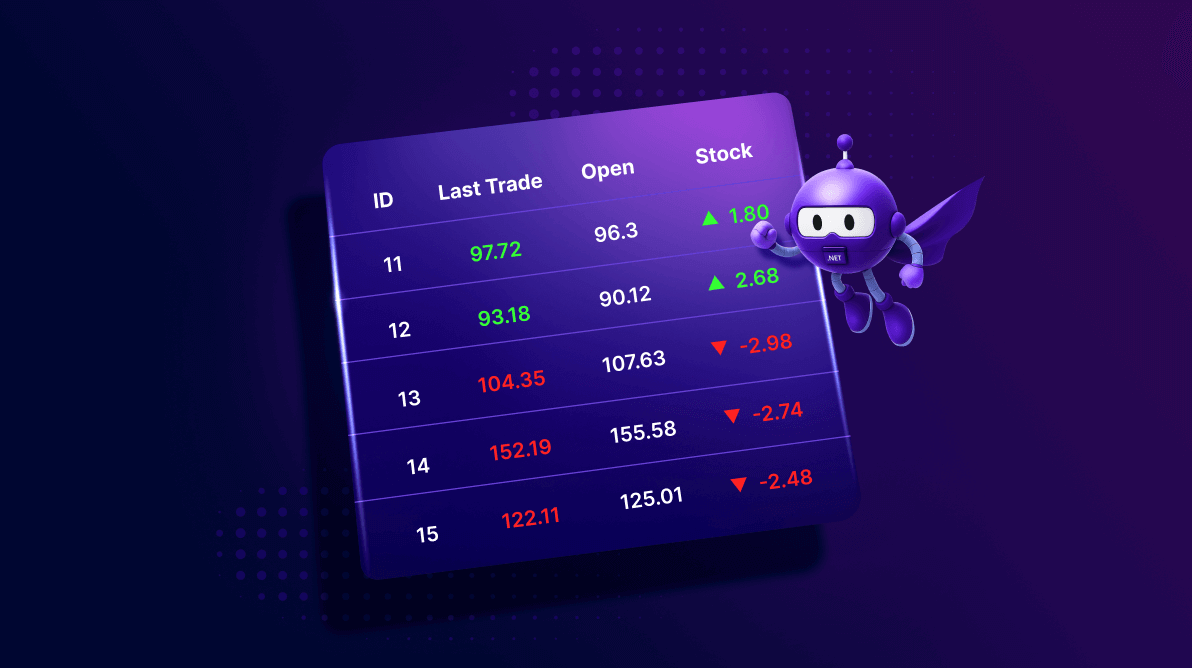
TL;DR: Learn how to stream real-time updates from Firebase Realtime Database into a .NET MAUI DataGrid to build live, auto-refreshing dashboards. This guide shows how to subscribe to server-sent updates, bind data to ObservableCollection, and optionally add polling for resilience. You’ll also learn how to enhance visuals with templates, converters, and responsive styling, ideal for stock tickers, monitoring tools, and trading-style UIs.
Building real-time dashboards in .NET MAUI often comes with a key challenge: ensuring backend data changes instantly reflect in the UI. Static snapshots or delayed updates leave users with outdated views.
In this guide, you’ll implement real-time updates in Syncfusion® .NET MAUI DataGrid by combining:
- Firebase Realtime Database (RTDB) for live data.
- Firebase REST streaming (Server-Sent Events / SSE) for near real-time change delivery.
ObservableCollection+INotifyPropertyChangedso the Syncfusion .NET MAUI DataGrid refreshes automatically.- Polling fallback to recover if the stream drops.
- Optional styling via converters/templates (arrows, color coding, numeric formatting).
This pattern works well for dashboards and trading-style UIs across iOS, Android, Windows, and macOS (Mac Catalyst).
Why choose the Syncfusion .NET MAUI DataGrid for live dashboards?
When building real-time dashboards, the choice of grid control directly impacts performance, responsiveness, and user experience. Syncfusion .NET MAUI DataGrid stands out because it’s designed to handle continuous updates while keeping the UI smooth and professional. Its key advantages include:
- Smooth, cell-level updates: Responds instantly to
INotifyPropertyChanged, so cells refresh without re-rendering the entire grid. - Rich UX: Sorting, selection, responsive columns, and templating let you build data-heavy UIs that still feel snappy.
- Built for performance: Virtualization and lightweight rendering keep scrolling fast even with frequent updates.
- Flexible styling: Template columns, triggers, and styles let you emphasize what matters like rising prices, thresholds, or alerts.
- Enterprise-ready: Backed by dedicated support, extensive documents, and production-grade reliability.
Create feature-rich data tables with Syncfusion .NET MAUI DataGrid. Easily add sorting, filtering, editing, paging, templates, and export options to your .NET MAUI apps.
Explore .NET MAUI DataGridImplementing .NET MAUI DataGrid real-time updates (Firebase + SSE)
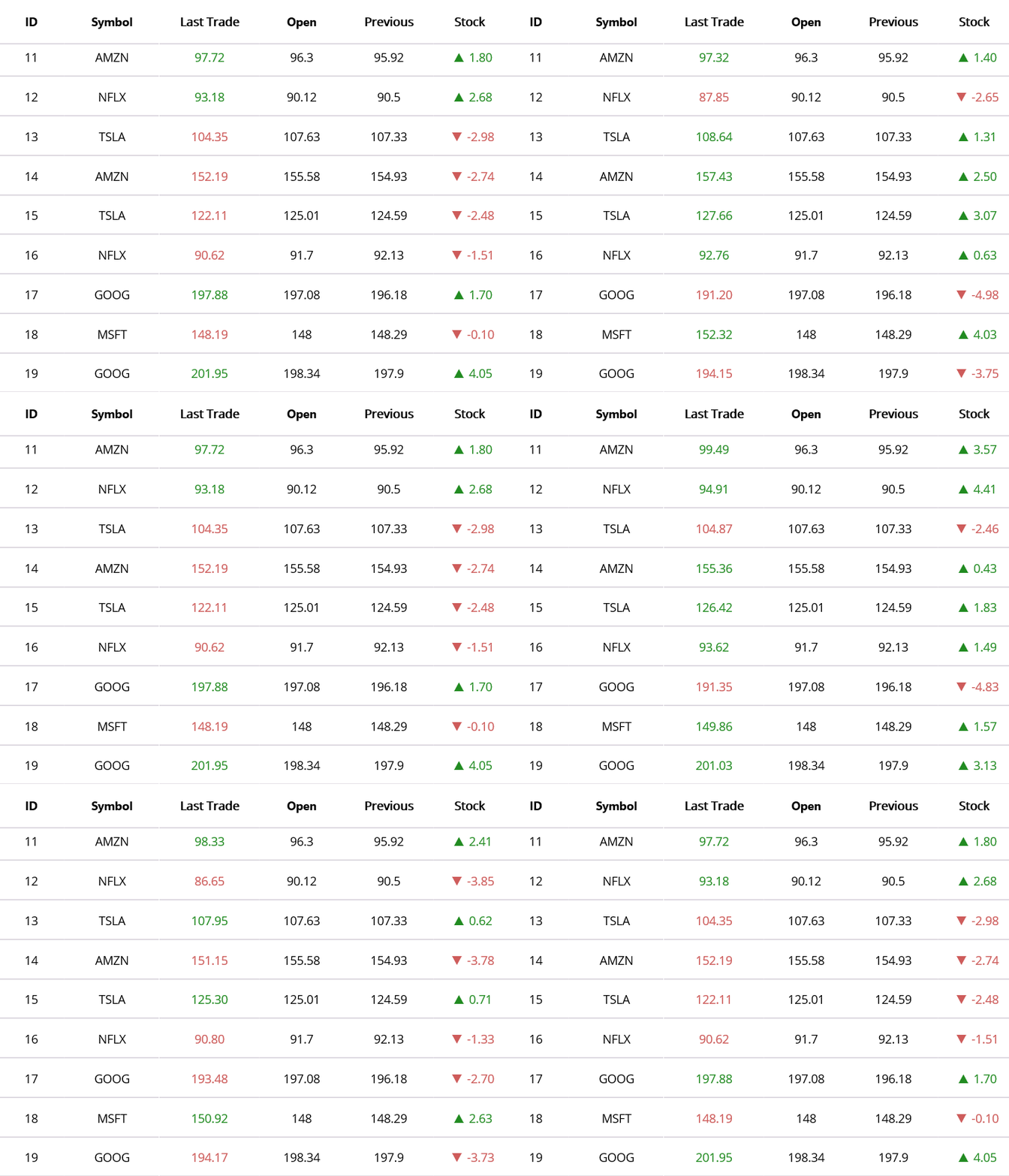
Learn how to build a dynamic stock dashboard in .NET MAUI using Syncfusion DataGrid with live data updates, custom templates, and converters for a visually rich experience.
Step 1: Create and configure Firebase Realtime Database
To enable real-time data updates, we need a data source that supports live synchronization. For this demo, we’ll use Firebase Realtime Database (RTDB), which provides continuous, instant updates across all connected devices.
Creating a Firebase project
- First, go to the Firebase console.
- Click Create a Project, enter the project name, and click Continue.
- After the project is created, open the left navigation panel, expand Build, and select Realtime Database.
- In the Realtime Database section, click Create Database, choose a database location, and set the initial security rules.
- Click Next to configure the security rules for your database.
- Select Start in test mode and click Enable at the bottom. Your database will now be created successfully.
Configure Database rules
To manage access and security in your Firebase Realtime Database, you need to configure database rules.
- Navigate to the Realtime Database page in Firebase Console and click on the Rules tab at the top.
- For development, you can allow read/write access without authentication and publish the rules.
{
    "rules": {
        ".read": true,
        ".write": true
    }
}- For production, always apply stricter security by enabling Firebase Authentication to protect your data.
- Get your Database URL: Copy the RTDB URL from the Firebase console (e.g.
https://your-project-id-default-rtdb.firebaseio.com). - Connects to Firebase: Uses the project’s base URL to access the Firebase Realtime Database.
- Loads initial Snapshot: Fetches the latest stock data and updates headers and rows for the grid.
- Starts background loops:
- Listens to real-time updates via Server-Sent Events (SSE) from Firebase.
- Periodically refreshes data every few seconds for redundancy.
- Randomly updates stock values locally to simulate live changes.
- Pushes simulated stock records to Firebase at a fixed interval.
- Processes incoming data: Converts JSON tokens into dynamic objects and updates the observable collections.
- Notifies UI: Updates headers and rows on the main thread, triggering the Syncfusion DataGrid to refresh automatically.
Step 2: Add a Firebase streaming service (SSE)
Firebase RTDB supports REST streaming using text/event-stream. The service below opens a stream you can read continuously.
public sealed class StocksService
{
    private const string DbBase = "https://your-project-id-default-rtdb.firebaseio.com";
    private const string PathStocks = "/stocks.json";
    private readonly string _authToken;
    private readonly HttpClient _http;

    // Build Firebase URL with auth token
    private string StocksUrl => string.IsNullOrWhiteSpace(_authToken)
        ? $"{DbBase}{PathStocks}"
        : $"{DbBase}{PathStocks}?auth={_authToken}";

    // Open SSE stream for real-time stock updates
    public async Task<Stream?> TryOpenSseAsync(CancellationToken ct)
    {
        var request = new HttpRequestMessage(HttpMethod.Get, StocksUrl);
        request.Headers.Add("Accept", "text/event-stream");

        var response = await _http.SendAsync(request, HttpCompletionOption.ResponseHeadersRead, ct);
        if (!response.IsSuccessStatusCode)
        {
            response.Dispose();
            return null;
        }

        return await response.Content.ReadAsStreamAsync(ct);
    }
}
Register the service
This ensures a single instance of StocksService streams data, and the ViewModel updates data in real time.
builder.Services.AddSingleton<StocksService>();      // Service for Firebase operations
builder.Services.AddSingleton<StockViewModel>();     // ViewModel for binding to UI
Why this matters: A singleton service prevents accidental multiple SSE connections and keeps resource usage predictable.
Step 3: Building the ViewModel for real-time updates
The StockViewModel is responsible for managing the observable collections bound to the Syncfusion .NET MAUI DataGrid (headers and rows) to display live stock data. It acts as the bridge between the UI and the data source by:
- Connecting to
StocksService: Handles Firebase operations such as retrieving and pushing data. - Loading snapshots: Fetches the latest stock data and initializes the grid with headers and rows.
- Listening to Server‑Sent Events (SSE): Subscribes to Firebase’s real‑time stream to capture live updates.
- Updating observable collections: Ensures that changes in stock data automatically refresh the DataGrid.
This ViewModel pattern keeps the UI responsive and ensures that stock dashboards reflect the latest data without manual refreshes.
Code snippet to achieve this:
public class StockViewModel
{
    public async Task InitializeAsync()
    {
        // Fetch and load the latest data from the database
        await LoadSnapshotAsync();

        // Start real-time data streaming from Firebase using SSE
        Task.Run(() => StreamLoopAsync(_streamCts.Token));

        // Start periodic polling as a fallback to ensure data consistency
        Task.Run(() => PollLoopAsync(TimeSpan.FromSeconds(3), _pollCts.Token));

        // Apply local demo changes to simulate live updates
        Task.Run(() => DemoChangeLoopAsync(TimeSpan.FromSeconds(1.5), _demoCts.Token));

        // Push records to Firebase
        if (EnableRemoteSimulation)
        {
            Task.Run(() => RemoteSimLoopAsync(RemoteSimulationPeriod, _remoteSimCts.Token));
        }
    }
}
Note: Check the StockViewModel class on GitHub for more details.
Step 4: Designing the XAML layout for real-time updates
In this step, you need to bind the DataGrid to the Stocks collection in the ViewModel, ensuring that any changes in the data source are instantly reflected in the UI. We also integrate TextForegroundConverter to apply conditional formatting for stock changes.
Here’s how you can do it in code:
<ContentPage.Resources>
    <local:SignToColorConverter x:Key="SignToColor"/>
    <local:SignToArrowConverter x:Key="SignToArrow"/>
    <Style TargetType="syncfusion:DataGridHeaderCell"/>
        <Setter Property="TextColor" Value="Black"/>
        <Setter Property="FontAttributes" Value="Bold"/>
    </Style>
</ContentPage.Resources>

<Grid RowDefinitions="*" Padding="12">
    <syncfusion:SfDataGrid x:Name="grid"
                           ItemsSource="{Binding Rows}"
                           ColumnWidthMode="Auto"/>
</Grid>
By following these steps, you’ve built a responsive, real-time stock data grid in .NET MAUI using the Syncfusion DataGrid. It streams live updates, applies dynamic styling instantly, and runs smoothly on iOS, Android, macOS, and Windows, perfect for stock dashboards, trading apps, or any scenario that needs up-to-the-second data.
Enterprise considerations for long-running live dashboards
- Resilience: Add reconnect logic for SSE drops and keep polling as a controlled fallback (with backoff).
- UI thread safety: Always update collections on the main thread (Dispatcher / MainThread).
- Performance at scale: Prefer updating properties on existing rows over rebuilding the entire
ItemsSource. - Memory safety: Dispose streams, cancel tokens, and unsubscribe handlers when pages close.
- Security: Never ship “test mode” rules; use
Auth + strict RTDBrules and avoid embedding long-lived secrets in mobile apps.
Build vs buy (practical take)
- Build your own grid only if you need a very narrow UI with minimal features and can accept long-term maintenance.
- Use a mature DataGrid when you need virtualization, templating, sorting/selection, and reliable UI performance under frequent updates, especially for enterprise dashboards.
Frequently Asked Questions
No. Test mode allows open read/write access. For production, enable Firebase authentication and enforce strict, least-privilege realtime Database security rules.Is Firebase “test mode” safe to use in production?
Syncfusion DataGrid supports virtualization and cell-level refresh. If your row models implement How does the DataGrid handle frequent updates at scale?
INotifyPropertyChanged and you update properties (instead of replacing the whole item/ItemsSource), the grid can refresh changed cells with minimal redraw.
Always marshal collection and bound-property updates to the UI thread (for example via How do I ensure UI thread safety when updating collections?
MainThread.BeginInvokeOnMainThread / Dispatcher). Updating ObservableCollection from background tasks can cause exceptions or inconsistent rendering.
Add reconnection logic (with backoff) and keep periodic polling/state rehydration as a fallback. This restores local correctness if SSE disconnects or misses events.What should I do if the data stream drops?
GitHub reference
For more details, refer to the complete real-time data update project for .NET MAUI DataGrid in the GitHub demo.

Conclusion
Thanks for reading! In this blog, we explored how to implement live data updates in .NET MAUI DataGrid. With real‑time synchronization powered by Firebase, your dashboards stay accurate and responsive. The Syncfusion DataGrid enhances this further with dynamic styling, adaptive layouts, and seamless cross‑platform support. Using these techniques, you can build stock dashboards, trading platforms, or any app that requires instant and reliable data updates, making your applications more professional, engaging, and efficient.
If you’re a Syncfusion user, you can download the setup from the license and downloads page. Otherwise, you can download a free 30-day trial.
You can also contact us through our support forum, support portal, or feedback portal for queries. We are always happy to assist you!





 No spam, just valuable updates.