
 Praveenkumar
TL;DR: Learn how to create, customize, and validate PDF digital signatures in C# using Syncfusion PDF Library. This guide covers signing PDFs, adding custom appearances, using CAdES, enabling Long-Term Validation (LTV), and more with practical code examples to ensure document security and compliance.
The Syncfusion PDF Library is a powerful and feature-rich .NET PDF library that enables developers to create, apply, and validate digital signatures in PDF documents using C# and VB.NET. Whether you’re building secure document workflows or ensuring compliance, this library provides all the tools you need for robust digital signature handling.
What is a PDF digital signature?
A PDF digital signature is a cryptographic mechanism used to:
- Ensure document integrity: Confirms that the document has not been altered after signing.
- Verify authenticity: Validates the identity of the signer.
- Enable non-repudiation: Prevents the signer from denying their signature.
Key features covered in this guide
This comprehensive guide walks you through various ways to digitally sign and verify PDF signatures in C# using Syncfusion’s PDF Library:
- Create PDF digital signatures
- Customize signature appearance
- Dynamically change PDF signature appearance based on validation
- Use CAdES and different hashing algorithms
- Add multiple signatures to a single PDF
- Sign PDFs using Windows Certificate Store
- Add author or certifying signatures to PDF
- Apply external digital signatures to PDF
- Sign existing signature fields in a PDF
- Add timestamps to PDF digital signatures
- Enable Long-Term Validation (LTV) for PDF digital signatures
- Implement Long-Term Archive Timestamps (LTA) in PDFs
- Retrieve digital signature information from PDFs
- Remove existing digital signatures from PDF
- Validate PDF digital signatures
Getting started with App Creation:

Create PDF digital signatures
To digitally sign a PDF document in C#, you need a digital ID, which includes a private key and a certificate with a public key. You can generate a self-signed digital ID using tools like Adobe Acrobat Reader.
With the Syncfusion .NET PDF Library, you can easily apply digital signatures to existing PDF files. Here’s a step-by-step guide:
- Load the existing PDF document you want to sign.
- Import the digital ID (PFX file) using the associated password.
- Create and apply digital signature using the loaded digital ID.
- Save the signed PDF document.
The following C# code example demonstrates how to digitally sign a PDF using Syncfusion PDF Library.
using Syncfusion.Pdf.Parsing;
using Syncfusion.Pdf.Security;
class Program
{
    static void Main(string[] args)
    {

        //Load existing PDF document.
        PdfLoadedDocument document = new PdfLoadedDocument("PDF_Succinctly.pdf");

        //Load digital ID with password.
        PdfCertificate certificate = new PdfCertificate(@"DigitalSignatureTest.pfx", "DigitalPass123");

        //Create a signature with loaded digital ID.
        PdfSignature signature = new PdfSignature(document, document.Pages[0], certificate, "DigitalSignature");

        //Save the PDF document.
        document.Save("SignedDocument.pdf");

        //Close the document.
        document. Close(true);
    }
}
By executing this code example, you will get a PDF document similar to the following screenshot.
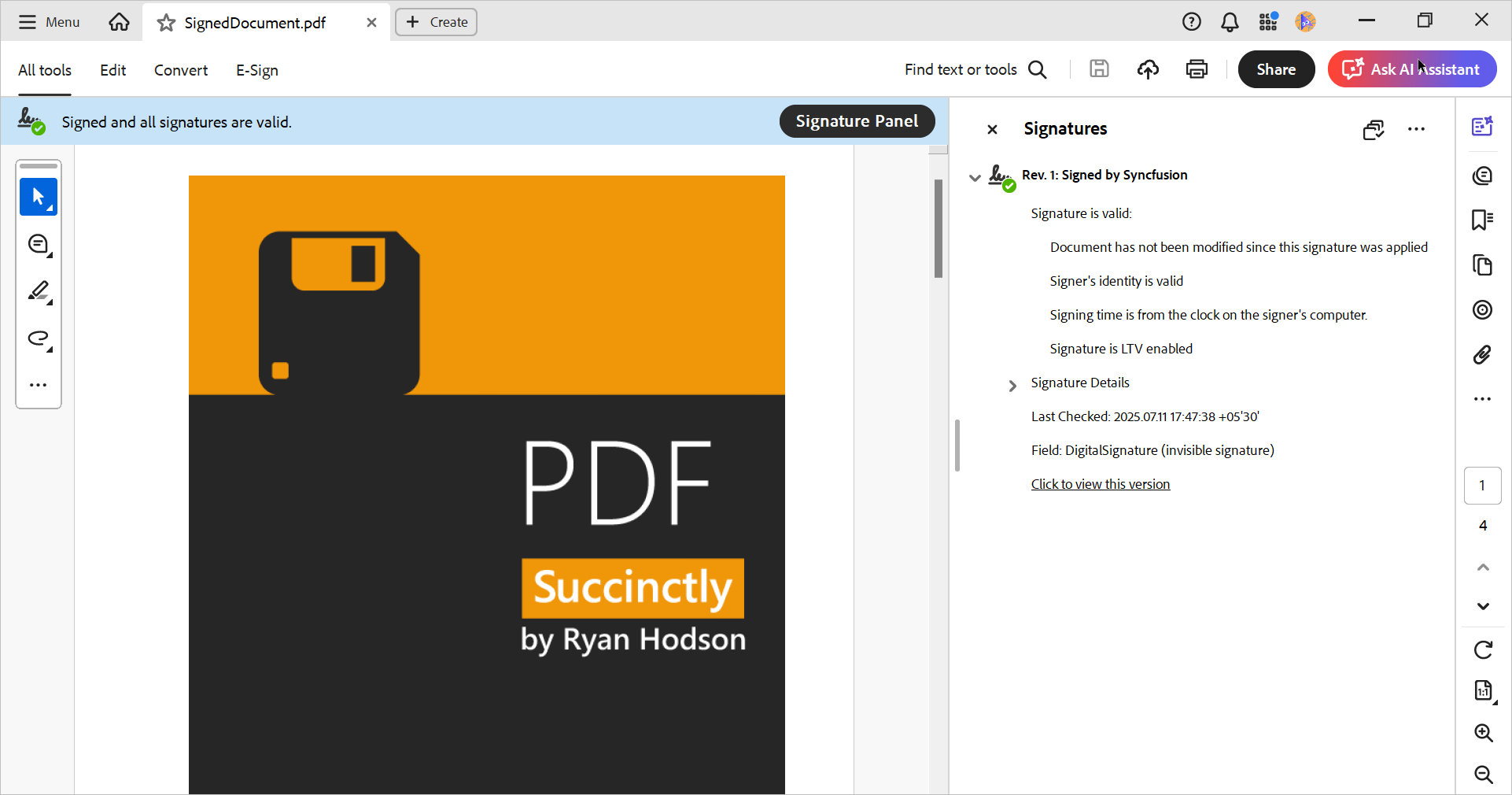
To get a valid green tick in your Adobe Acrobat Reader, as seen in the previous screenshot, you will have to register the self-signed digital ID in a trusted source.
Otherwise, to get a valid signature in any Adobe Acrobat Reader, your digital ID should be an AATL-enabled signing credential.
Customize signature appearance
Creating a custom appearance for PDF digital signatures helps users visually identify and verify signatures directly on the PDF page. With the Syncfusion .NET PDF Library, you can easily design and apply a personalized signature appearance using text, images, or shapes.
A visible digital signature enhances document clarity and trust by displaying signer details, logos, or handwritten signatures. This is especially useful for legal, financial, and official documents.
To create a custom signature appearance:
- Set the signature bounds to define its position and size on the PDF page.
- Use the appearance property of the PdfSignature class to draw:
- Custom text (e.g., signer name, date)
- Images (e.g., company logo, handwritten signature)
- Shapes or graphics
//Load existing PDF document.
using (PdfLoadedDocument document = new PdfLoadedDocument(@"../../Data/PDF_Succinctly.pdf"))
{
    //Load digital ID with password.
    PdfCertificate certificate = new PdfCertificate(@"../../Data/DigitalSignatureTest.pfx", "DigitalPass123");

    //Create a signature with loaded digital ID.
    PdfSignature signature = new PdfSignature(document, document.Pages[0], certificate, "DigitalSignature");

    //Set bounds to the signature.
    signature.Bounds = new System.Drawing.RectangleF(40, 40, 350, 100);

    //Load image from file.
    PdfBitmap image = new PdfBitmap(@"../../Data/signature.png");

    //Create a font to draw text.
    PdfStandardFont font = new PdfStandardFont(PdfFontFamily.Helvetica, 15);

    //Drawing text, shape, and image into the signature appearance.
    signature.Appearance.Normal.Graphics.DrawRectangle(PdfPens.Black, PdfBrushes.White, new System.Drawing.RectangleF(0, 0, 350, 100));
    signature.Appearance.Normal.Graphics.DrawImage(image, 0, 0, 100, 100);
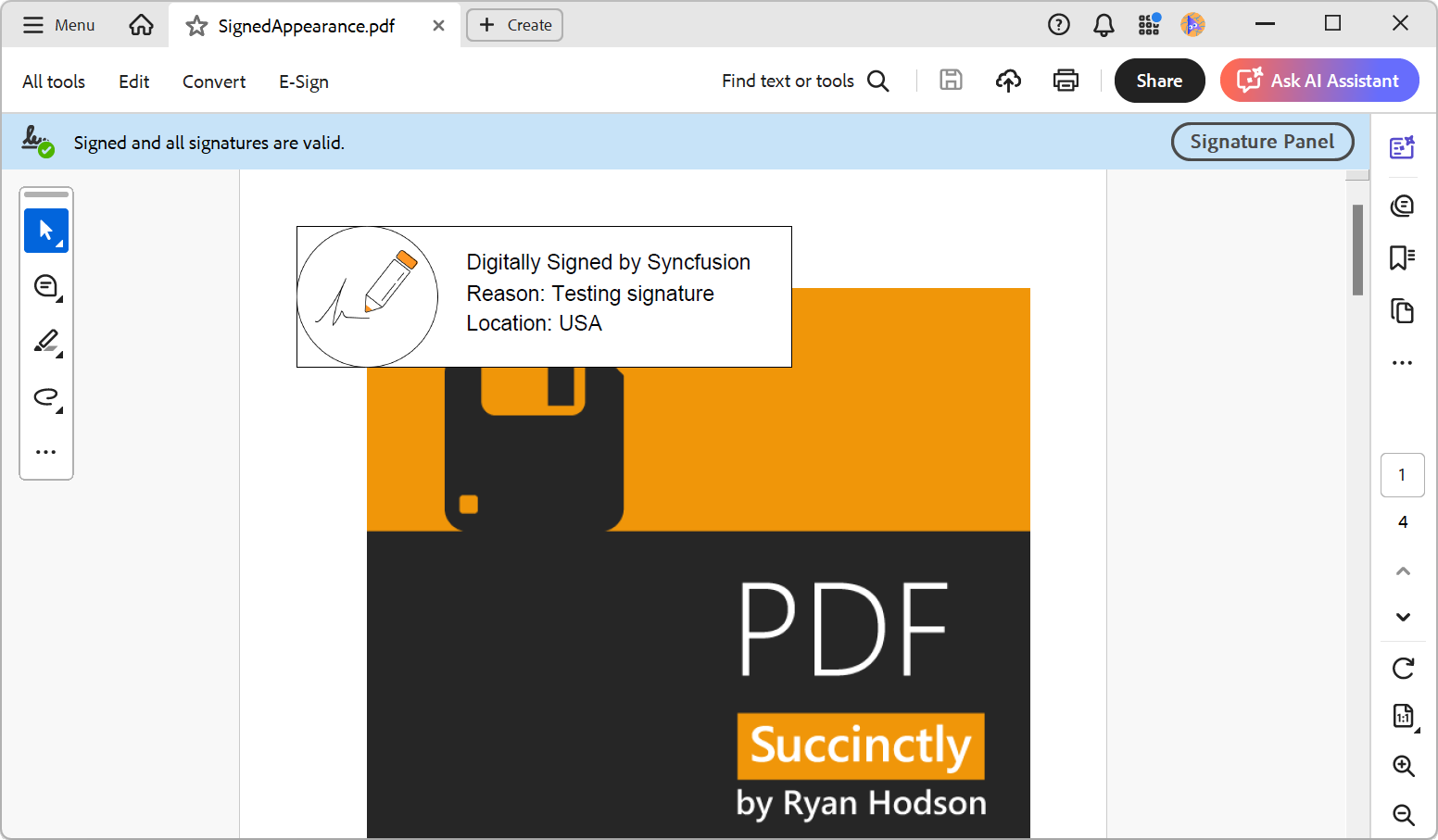
    signature.Appearance.Normal.Graphics.DrawString("Digitally Signed by Syncfusion", font, PdfBrushes.Black, 120, 17);
    signature.Appearance.Normal.Graphics.DrawString("Reason: Testing signature", font, PdfBrushes.Black, 120, 39);
    signature.Appearance.Normal.Graphics.DrawString("Location: USA", font, PdfBrushes.Black, 120, 60);

    //Save the PDF document.
    document.Save("SignedAppearance.pdf");
}
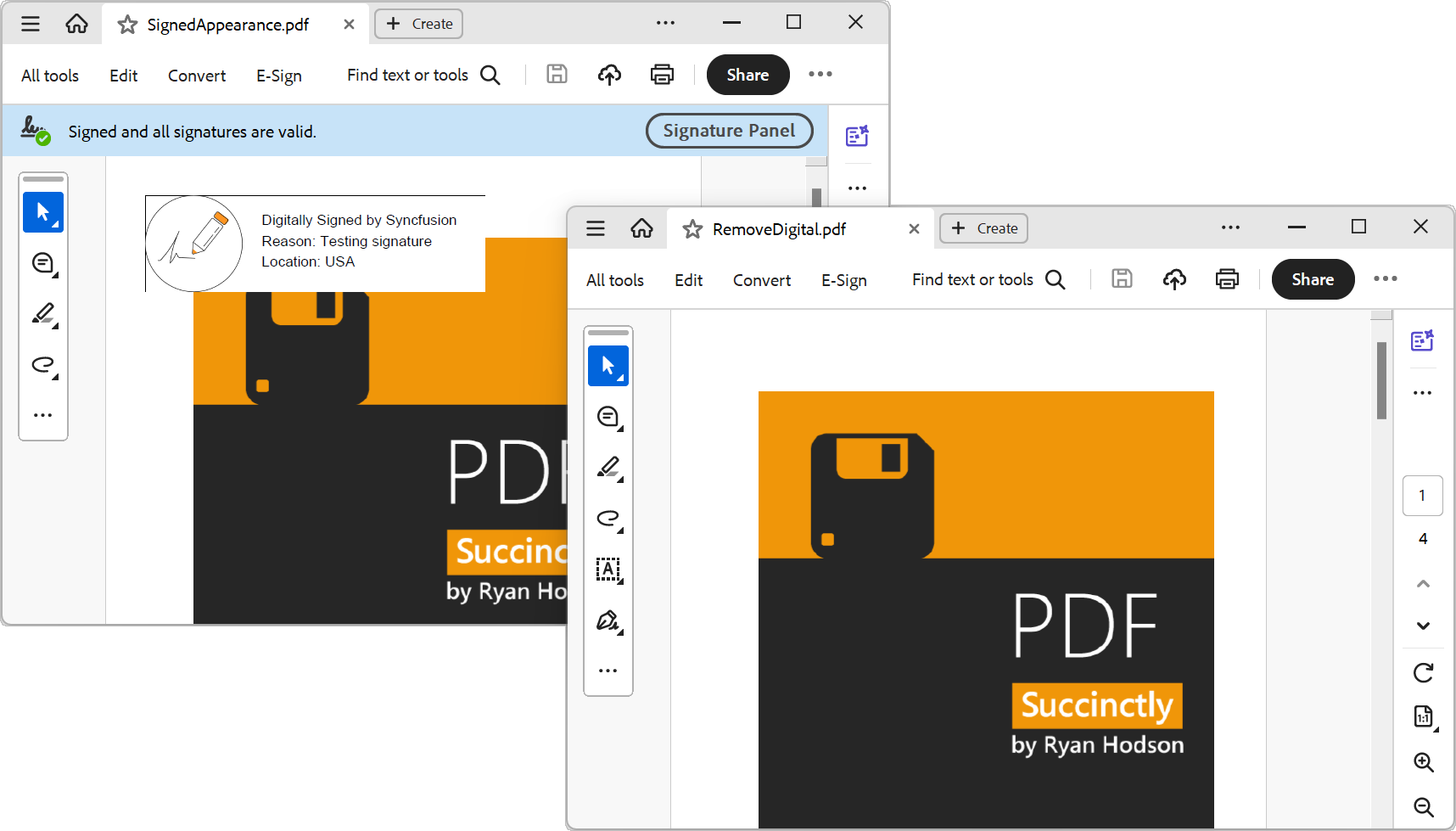
By executing this code example, you will get a PDF document similar to the following screenshot.
Dynamically change the PDF signature appearance based on validation
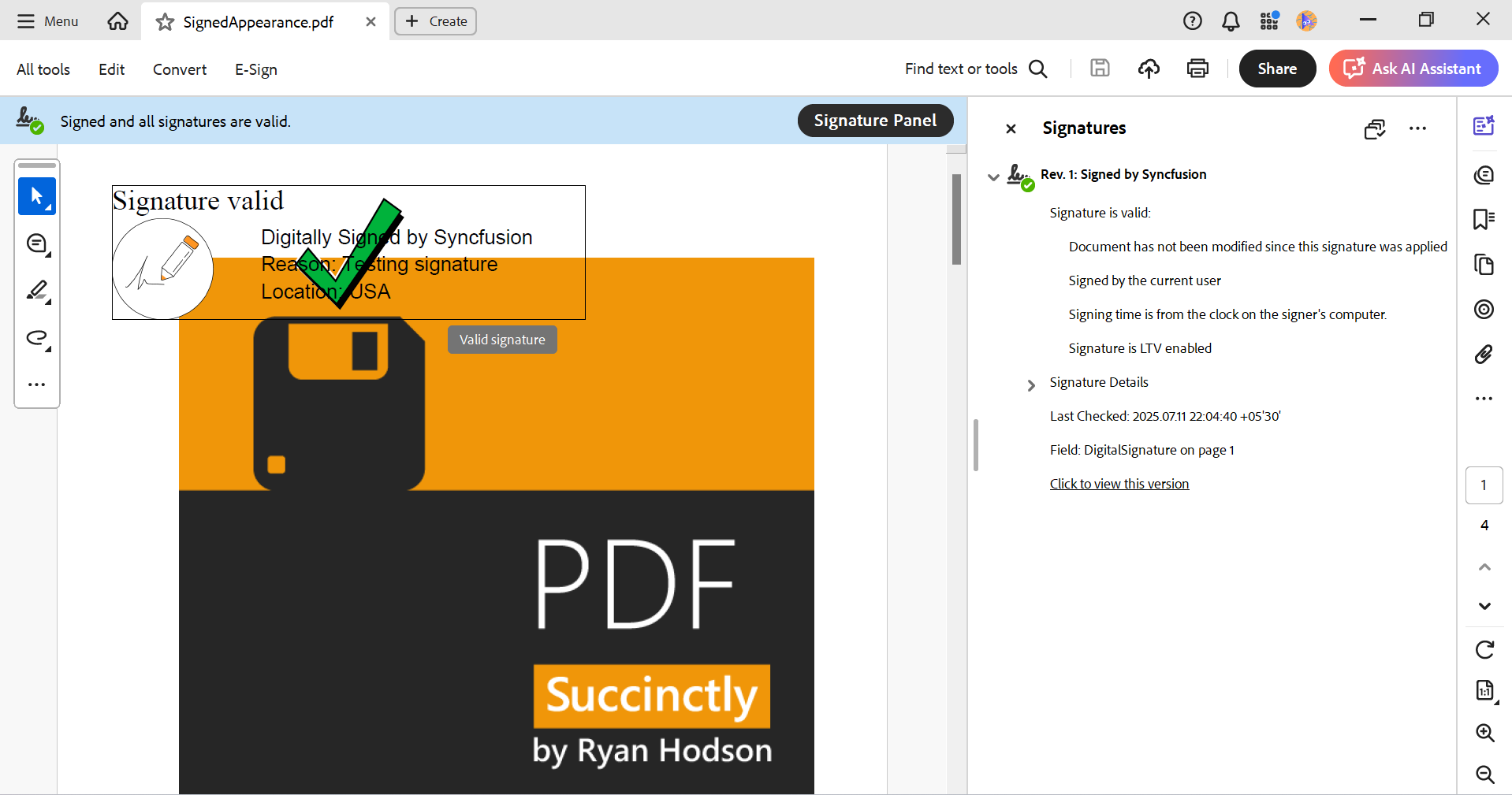
With the Syncfusion .NET PDF Library, you can enhance the visibility and trustworthiness of digital signatures by enabling dynamic signature validation appearance. This feature visually reflects the validation status of a digital signature when the PDF is opened in a reader like Adobe Acrobat.
To enable this feature, simply set the EnableValidationAppearance property of the PdfSignature class to true. The signature appearance will automatically update based on the validation result provided by the PDF viewer.
Visual indicators for signature validation
Depending on the validation status, the signature field will display one of the following icons:
- Green checkmark: Valid digital signature
- Red X mark: Invalid signature
- Yellow question mark: Signature is unknown or not validated
This provides a clear and immediate visual cue to users about the authenticity and integrity of the signed document.
The following code example shows how to sign a PDF document with signature validation.
using (PdfLoadedDocument document = new PdfLoadedDocument(@"../../Data/PDF_Succinctly.pdf"))
{
    // Load digital ID with password.
    PdfCertificate certificate = new PdfCertificate(@"../../Data/DigitalSignatureTest.pfx", "DigitalPass123");

    // Create a signature with loaded digital ID.
    PdfSignature signature = new PdfSignature(document, document.Pages[0], certificate, "DigitalSignature");

    // Set bounds to the signature.
    signature.Bounds = new System.Drawing.RectangleF(40, 30, 350, 100);

    // Enable the signature validation appearance.
    signature.EnableValidationAppearance = true;

    // Load image from file.
    PdfImage image = PdfImage.FromFile(@"../../Data/signature.png");
    // Create a font to draw text.
    PdfStandardFont font = new PdfStandardFont(PdfFontFamily.Helvetica, 15);

    signature.Appearance.Normal.Graphics.DrawImage(image, new System.Drawing.RectangleF(0, 0, 75, 75));
    signature.Appearance.Normal.Graphics.DrawString("Digitally Signed by Syncfusion", font, PdfBrushes.Black, 110, 5);
    signature.Appearance.Normal.Graphics.DrawString("Reason: Testing signature", font, PdfBrushes.Black, 110, 25);
    signature.Appearance.Normal.Graphics.DrawString("Location: USA", font, PdfBrushes.Black, 110, 45);

    // Save the PDF document.
    document.Save("SignedAppearance.pdf");
}
By executing this code example, you will get a PDF document similar to the following screenshot.
Use CAdES and different hashing algorithms
CAdES (CMS Advanced Electronic Signatures) is a European standard developed by ETSI to support secure and legally compliant electronic signatures across the EU. It is widely used for long-term digital signature validation in electronic transactions.
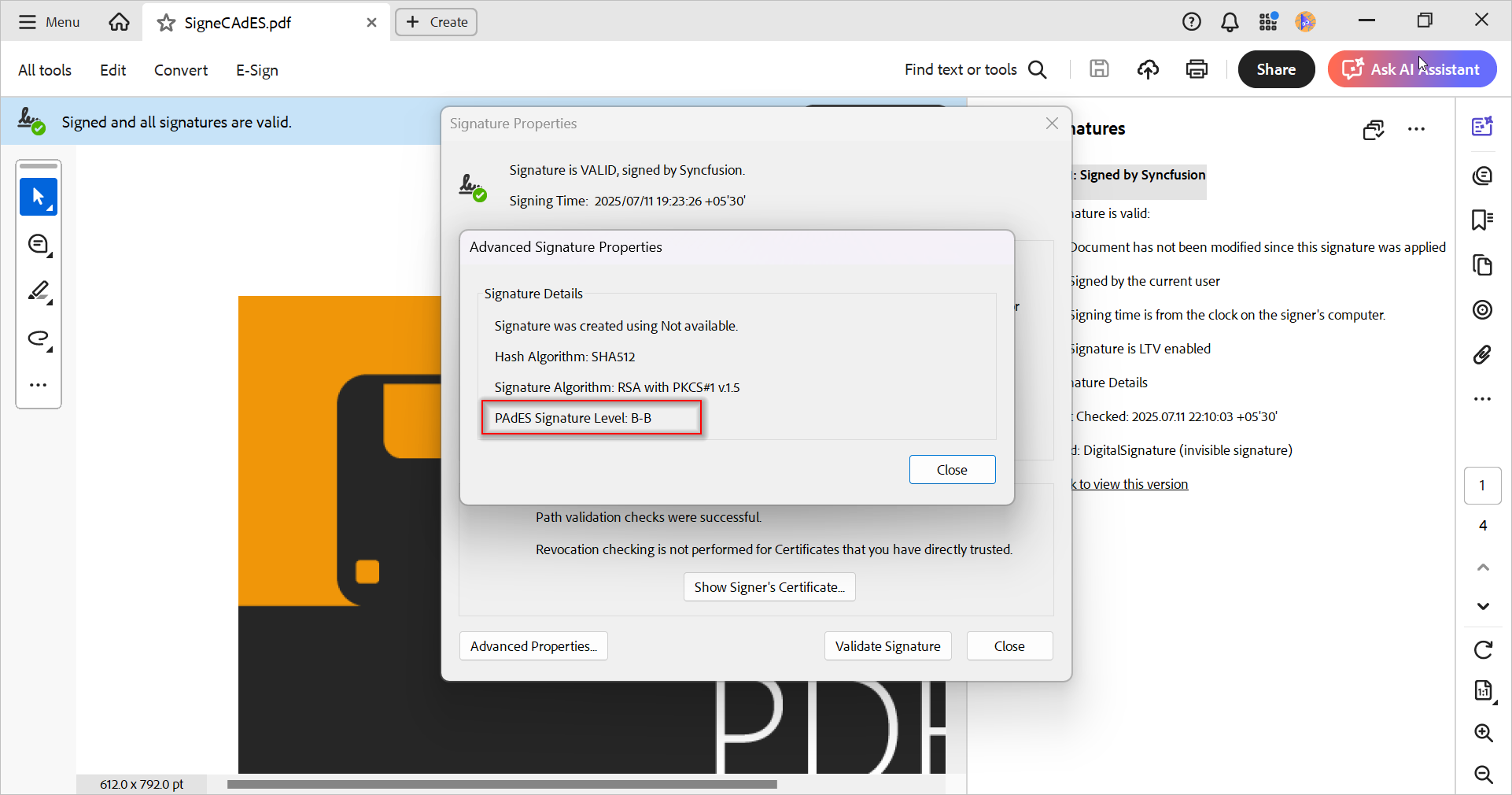
By default, the Syncfusion .NET PDF Library uses the CMS (PAdES Part 2) standard with the SHA-256 hashing algorithm. However, you can easily switch to the CAdES (PAdES Part 3) standard and configure different hashing algorithms like SHA-384 or SHA-512 for enhanced security.
To apply the CAdES standard and a custom digest algorithm:
- Use the PdfSignatureSettings class.
- Set the CryptographicStandard property to CryptographicStandard.CADES.
- Set the DigestAlgorithm property to your preferred hashing algorithm.
The following code example shows how to create a PDF digital signature in C# with CAdES standard and a different hashing algorithm.
//Load existing PDF document.
using (PdfLoadedDocument document = new PdfLoadedDocument(@"../../Data/PDF_Succinctly.pdf"))
{
    //Load digital ID with password.
    PdfCertificate certificate = new PdfCertificate(@"../../Data/DigitalSignatureTest.pfx", "DigitalPass123");

    //Create a signature with loaded digital ID.
    PdfSignature signature = new PdfSignature(document, document.Pages[0], certificate, "DigitalSignature");

    //Changing the digital signature standard and hashing algorithm.
    signature.Settings.CryptographicStandard = CryptographicStandard.CADES;
    signature.Settings.DigestAlgorithm = DigestAlgorithm.SHA512;

    //Save the PDF document.
    document.Save("SigneCAdES.pdf");
}
By executing this code example, you will get a PDF document with the following digital signature properties.
Add multiple signatures to a single PDF
In real-world scenarios, such as publishing contracts or legal agreements, a PDF document may require multiple digital signatures from different parties. For example, a publisher might apply for a certification signature, followed by an approval signature from the author.
With the Syncfusion .NET PDF Library, you can easily add multiple digital signatures to a single PDF by appending new signatures to an already signed document—each signature creating a new revision.
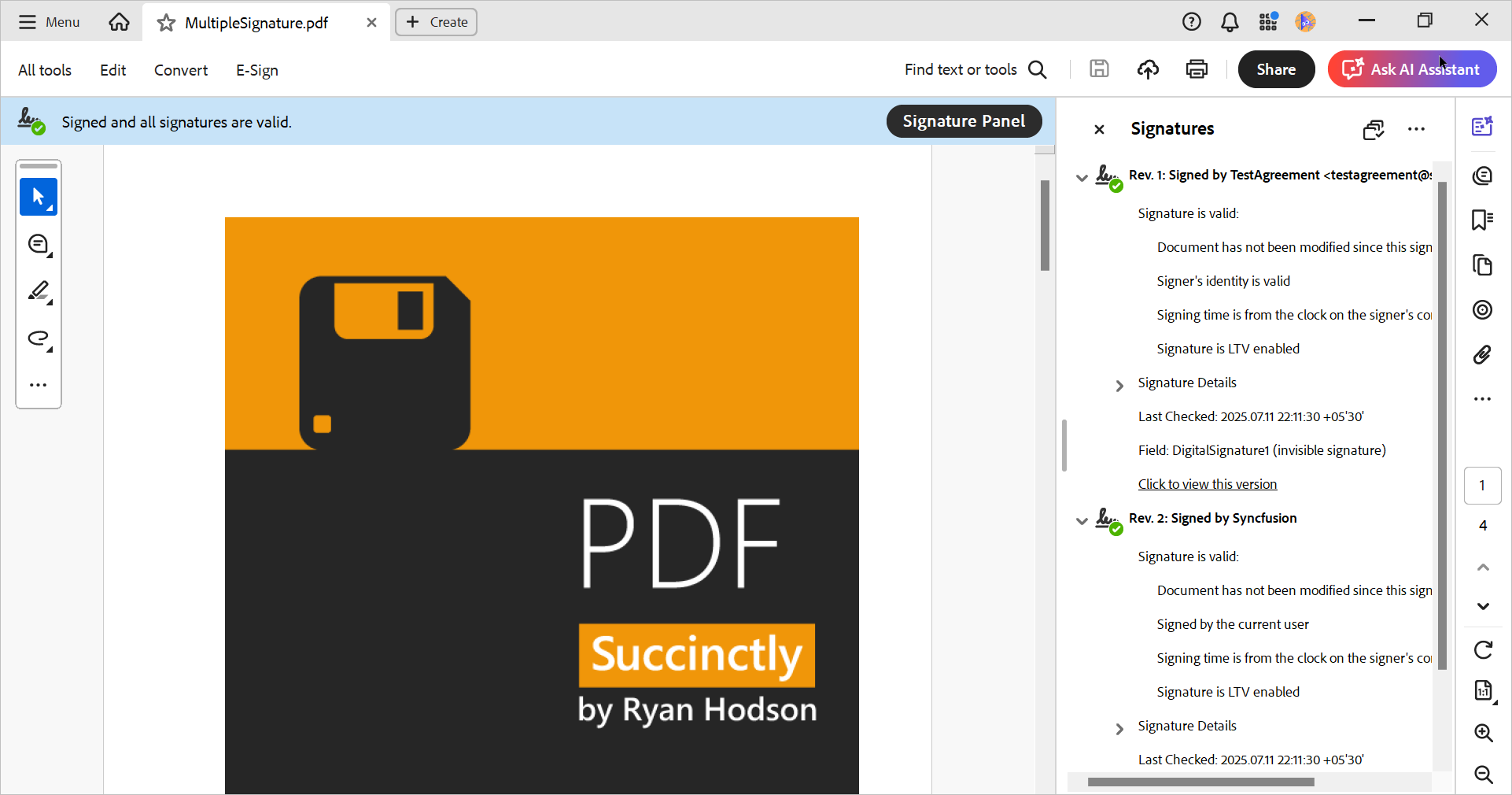
Key concept: PDF signature revisions
- First revision: Initial digital signature using a certificate (e.g., TestAgreement.pfx)
- Second revision: Additional signature using another certificate (e.g., DigitalSignatureTest.pfx)
Each signature is preserved and validated independently, ensuring document integrity and traceability.
The following code example shows how to create multiple PDF digital signatures in C#.
//Load existing PDF document.
PdfLoadedDocument document = new PdfLoadedDocument(@"../../Data/PDF_Succinctly.pdf");

//Load digital ID with password.
PdfCertificate certificate = new PdfCertificate(@"../../Data/TestAgreement.pfx", "Test123");

//Create a Revision 1 signature with loaded digital ID.
PdfSignature signature = new PdfSignature(document, document.Pages[0], certificate, "DigitalSignature1");

//Changing the digital signature standard and hashing algorithm.
signature.Settings.CryptographicStandard = CryptographicStandard.CADES;
signature.Settings.DigestAlgorithm = DigestAlgorithm.SHA512;

MemoryStream stream = new MemoryStream();

//Save the PDF document.
document.Save(stream);

//Close the document.
document.Close(true);

//Load the saved PDF document from the stream.
PdfLoadedDocument document2 = new PdfLoadedDocument(stream);

//Load digital ID with password.
PdfCertificate certificate2 = new PdfCertificate(@"../../Data/DigitalSignatureTest.pfx", "DigitalPass123");

//Create a signature Revision 2 with loaded digital ID.
PdfSignature signature2 = new PdfSignature(document2, document2.Pages[0], certificate2, "DigitalSignature2");

//Changing the digital signature standard and hashing algorithm.
signature2.Settings.CryptographicStandard = CryptographicStandard.CADES;
signature2.Settings.DigestAlgorithm = DigestAlgorithm.SHA512;

//Save the PDF document.
document2.Save("MultipleSignature.pdf");

//Close the document.
document2.Close(true);
By executing this code example, you will get a PDF document with two digital signatures.
Sign PDFs using Windows Certificate Store
A secure and convenient way to manage digital certificates is by using the Windows Certificate Store. When a root certificate is trusted and stored in Windows, you don’t need to manually import or trust each individual certificate, making it ideal for enterprise environments.
With the Syncfusion .NET PDF Library, you can retrieve a certificate from the Windows Certificate Store using the X509Certificate2 class and use it to digitally sign PDF documents in C#.
Benefits of using Windows Certificate Store
- Centralized and secure certificate management
- Automatically trust certificates issued by trusted authorities
- Ideal for enterprise and domain-controlled environments
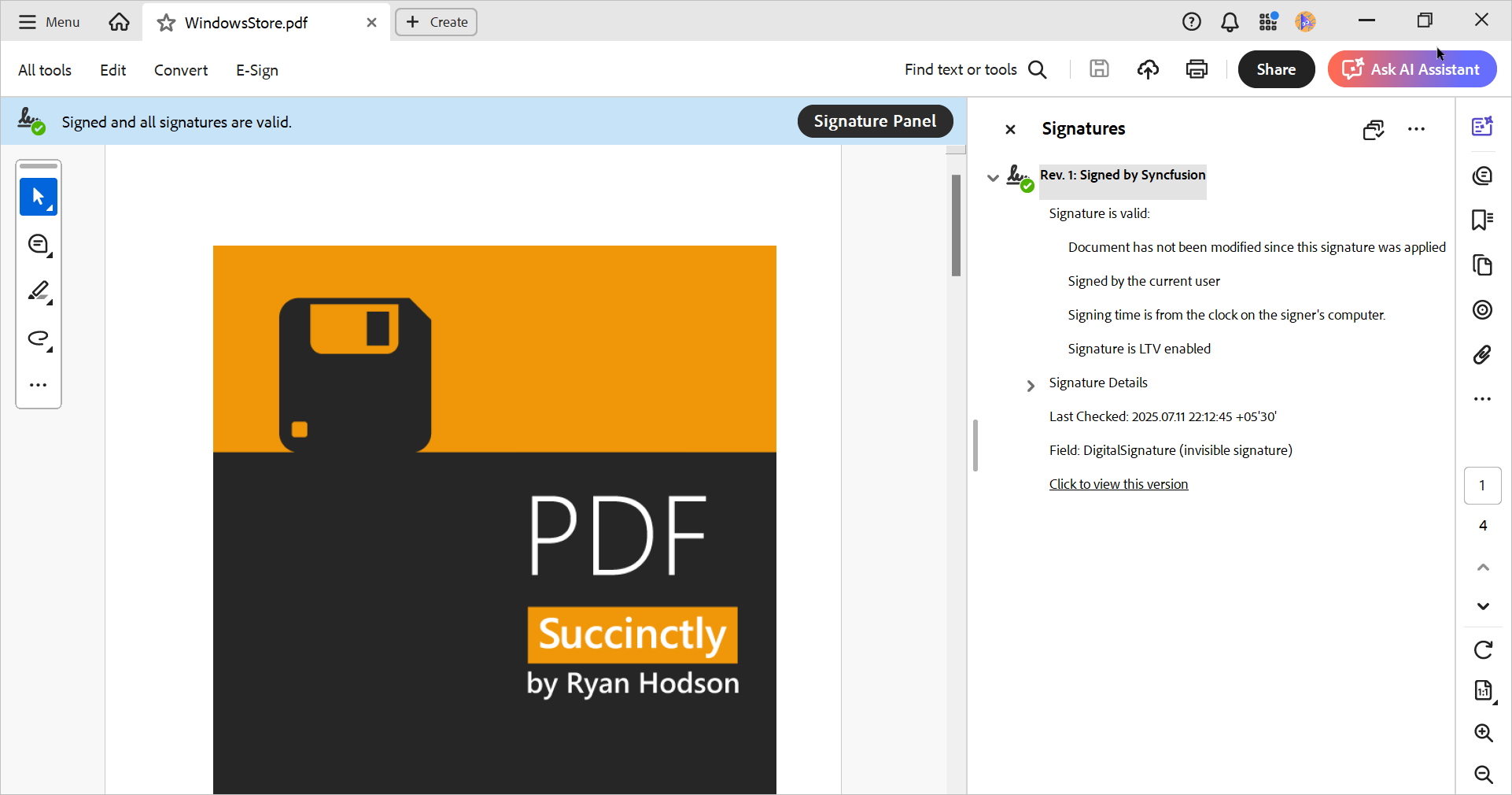
The following code example shows how to create a PDF digital signature in C# using the Windows certificate store.
// Initialize the Windows store.
X509Store store = new X509Store("MY", StoreLocation.CurrentUser);
store.Open(OpenFlags.ReadOnly | OpenFlags.OpenExistingOnly);

if (store.Certificates != null && store.Certificates.Count > 0)
{
    // Find the certificate using thumbprint.
    X509Certificate2Collection thumbprintCollection = store.Certificates.Find(
        X509FindType.FindByThumbprint,
        "B8EA768D7672A3E56A400F063C968F7E025737F8",
        true
    );

    // Get first certificate.
    X509Certificate2 digitalID = thumbprintCollection[0];

    if (digitalID != null)
    {
        // Load existing PDF document.
        using (PdfLoadedDocument document = new PdfLoadedDocument(@"../../Data/PDF_Succinctly.pdf"))
        {
            // Load X509Certificate2.
            PdfCertificate certificate = new PdfCertificate(digitalID);

            // Create a Revision 2 signature with loaded digital ID.
            PdfSignature signature = new PdfSignature(document, document.Pages[0], certificate, "DigitalSignature");

            // Changing the digital signature standard and hashing algorithm.
            signature.Settings.CryptographicStandard = CryptographicStandard.CADES;
            signature.Settings.DigestAlgorithm = DigestAlgorithm.SHA512;

            // Save the PDF document.
            document.Save("WindowsStore.pdf");
        }
    }
    else
    {
        Console.WriteLine("Certificate not found in the store with the specified thumbprint.");
    }
}
else
{
    Console.WriteLine("No certificates found in the store.");
}

store.Close();
Add the following namespaces to get the store certificate APIs.
using Syncfusion.Pdf.Parsing;
using Syncfusion.Pdf.Security;
using System;
using System.Security.Cryptography.X509Certificates;
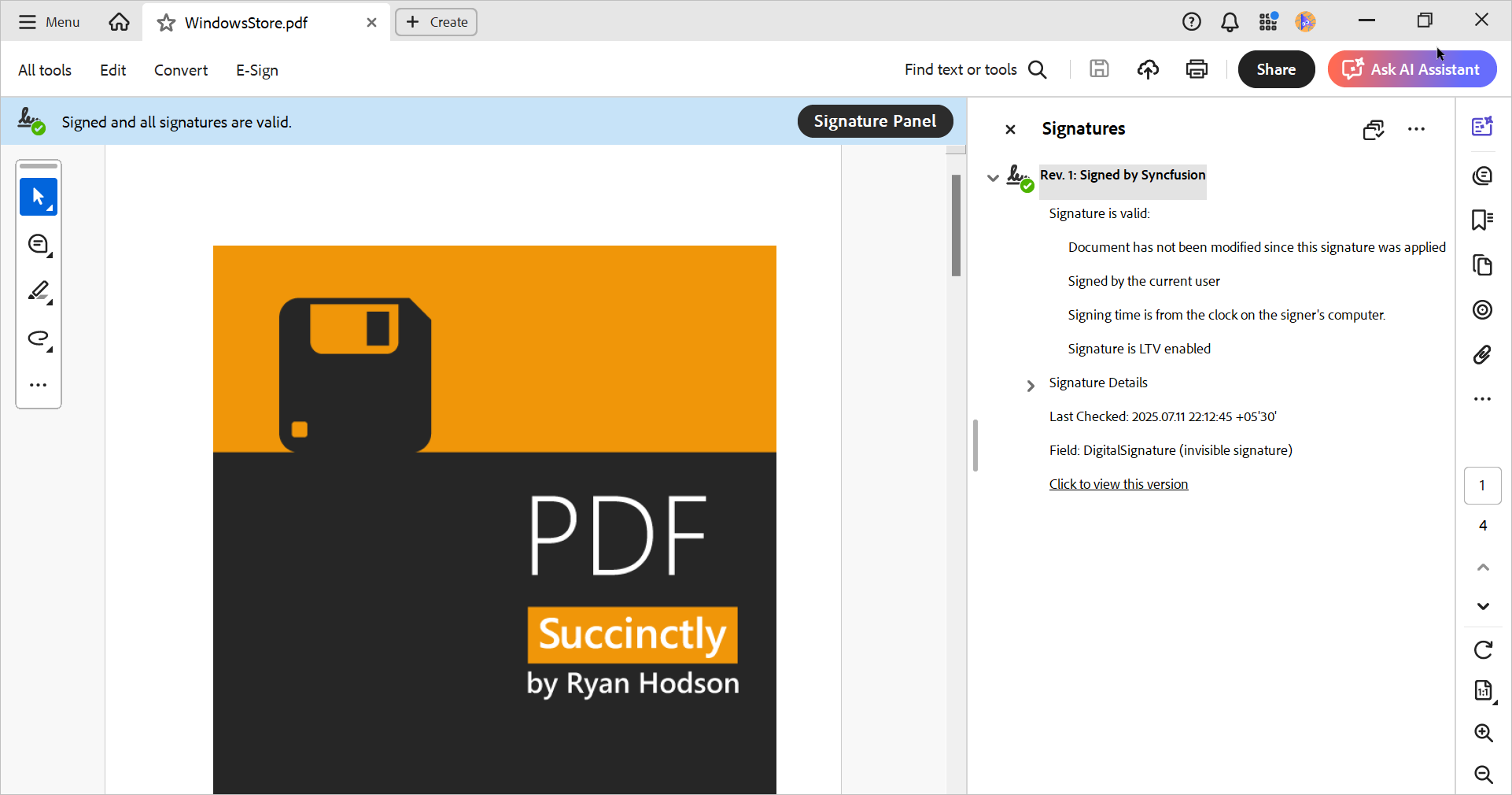
By executing this code example, you will get a PDF document similar to the following screenshot.
Add author or certifying signatures to PDF documents
A certifying signature (also known as an author signature) provides a higher level of document control than a standard digital signature. It allows the document creator to define what changes are permitted, such as form filling or commenting, while ensuring the document’s authenticity and integrity.
This is especially useful in scenarios like book publishing, where the author certifies the document before it is sent to others for approval or additional signatures.
What is a Certifying Signature?
- Applied only once to a PDF document
- Prevents unauthorized modifications
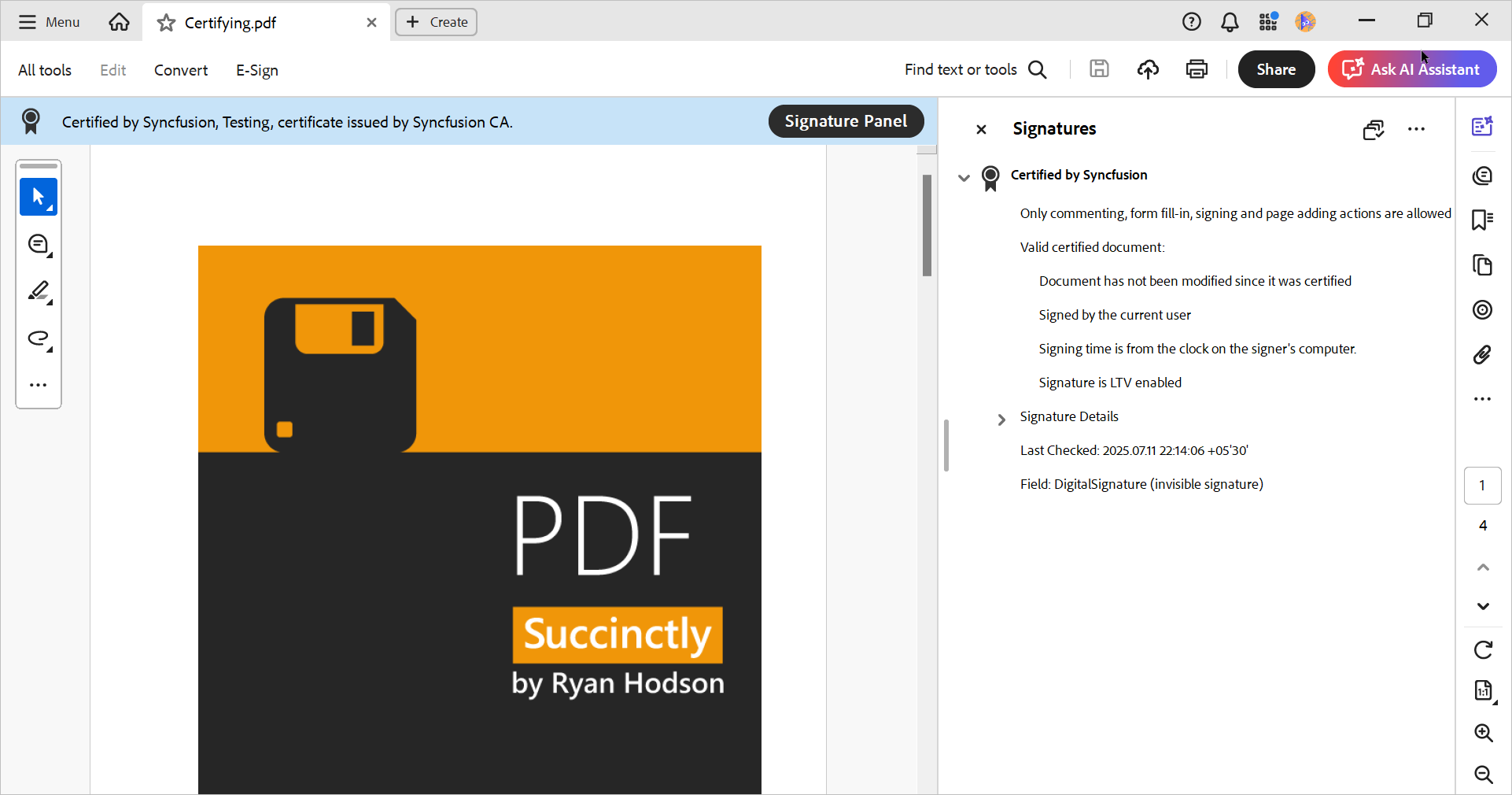
- Allows limited actions like form filling or commenting (if permitted)
- Displays a blue ribbon in PDF viewers showing the signer’s name, organization, and certificate authority
Note: A PDF cannot be certified if it already contains a digital signature. Certification must be the first signature applied.
The following code example shows a certified signature in a PDF document.
//Load existing PDF document.
using (PdfLoadedDocument document = new PdfLoadedDocument(@"../../Data/PDF_Succinctly.pdf"))
{
    //Load digital ID with password.
    PdfCertificate certificate = new PdfCertificate(@"../../Data/DigitalSignatureTest.pfx", "DigitalPass123");

    //Create a signature with loaded digital ID.
    PdfSignature signature = new PdfSignature(document, document.Pages[0], certificate, "DigitalSignature");signature.Settings.CryptographicStandard = CryptographicStandard.CADES;
    signature.Settings.DigestAlgorithm = DigestAlgorithm.SHA256;

    //This property enables the author or certifying signature.
    signature.Certificated = true;

    //Allow the form fill and and comments.
    signature.DocumentPermissions = PdfCertificationFlags.AllowFormFill | PdfCertificationFlags.AllowComments;

    //Save the PDF document.
    document.Save("Certifying.pdf");
}
By executing this code example, you will get a PDF document similar to the following screenshot.
Apply external digital signatures to PDF
When your organization needs to automatically sign a large volume of PDF documents, manual signing is not practical. In such cases, using an external digital signature, from a Hardware Security Module (HSM), USB token, smart card, or cloud-based signing service like DigiSign, is the ideal solution.
The Syncfusion .NET PDF Library supports applying external digital signatures to PDF files, enabling secure and scalable document signing workflows in server-side or enterprise environments.
Why use external digital signatures?
- Enhanced security with hardware-based key storage (e.g., HSMs)
- Ideal for automated, high-volume signing processes
- Compatible with cloud-based signature providers
- Common in enterprise, legal, and government applications
The following code example shows how to create a PDF digital signature in C# using an external signature.
//Load the existing PDF document.
using (PdfLoadedDocument document = new PdfLoadedDocument(@"../../Data/PDF_Succinctly.pdf"))
{

    //Create PDF signature field with PdfCertificate as null.
    PdfSignature signature = new PdfSignature(document, document.Pages[0], null, "DigitalSignature");

    //Create an external signer.
    IPdfExternalSigner externalSignature = new ExternalSigner("SHA1");

    //Add public certificates.
    List certificates = new List();

    certificates.Add(new X509Certificate2("../../Data/PublicCertificate.cer"));

    signature.AddExternalSigner(externalSignature, certificates, null);

    //Save the PDF document.
    document.Save("ExternalSignature.pdf");
}
Below is the implementation of the external signing class used for applying digital signatures from external sources such as HSMs, USB tokens, or cloud-based signing services.
//Create the external signer class and sign the document hash.
class ExternalSigner : IPdfExternalSigner
{
    private string _hashAlgorithm;
    public string HashAlgorithm
    {
        get { return _hashAlgorithm; }
    }

    public ExternalSigner(string hashAlgorithm)
    {
        _hashAlgorithm = hashAlgorithm;
    }
    public byte[] Sign(byte[] message, out byte[] timeStampResponse)
    {
        timeStampResponse = null;

        // Note: This message should be used for computing and signing with your HSM, USB token or an external signing service.
        // For demonstration purposes only, a local certificate is being used to sign the message.

        X509Certificate2 digitalID = new X509Certificate2("../../Data/DigitalSignatureTest.pfx", "DigitalPass123");

        if (digitalID.PrivateKey is System.Security.Cryptography.RSACryptoServiceProvider)
        {
            System.Security.Cryptography.RSACryptoServiceProvider rsa = (System.Security.Cryptography.RSACryptoServiceProvider)digitalID.PrivateKey;
            return rsa.SignData(message, HashAlgorithm);
        }
        else if (digitalID.PrivateKey is RSACng)
        {
            RSACng rsa = (RSACng)digitalID.PrivateKey;
            return rsa.SignData(message, System.Security.Cryptography.HashAlgorithmName.SHA1, RSASignaturePadding.Pkcs1);
        }
        return null;
    }
}
By executing this code example, you will get a PDF document similar to the following screenshot.
Sign existing signature fields in a PDF
If a PDF document already contains predefined signature fields, you can directly apply a digital signature to those fields using the Syncfusion .NET PDF Library. This is especially useful in workflows where documents are prepared with placeholders for multiple signers.
Why use existing Signature Fields?
- Predefined fields streamline multi-signer workflows
- Ensures consistent placement and formatting
- Ideal for reusable templates and automated signing processes
The following code example shows how to load an existing signature field and add a PDF digital signature in C#.
//Load existing PDF document.
using (PdfLoadedDocument document = new PdfLoadedDocument(@"../../Data/PDF_SignField.pdf"))
{
    //Get the first page of the document.
    PdfLoadedPage page = document.Pages[0] as PdfLoadedPage;

    //Gets the first signature field from the PDF document.
    PdfLoadedSignatureField field = document.Form.Fields[0] as PdfLoadedSignatureField;

    //Load digital ID with password.
    PdfCertificate certificate = new PdfCertificate(@"../../Data/DigitalSignatureTest.pfx", "DigitalPass123");

    //Create PdfSignature.
    PdfSignature signature = new PdfSignature(document, page, certificate, field.Name, field);

    //Get graphics form from the signature.
    PdfGraphics graphics = signature.Appearance.Normal.Graphics;

    //Load image from file.
    PdfImage image = PdfImage.FromFile(@"../../Data/signature.png");

    //Create a font to draw text.
    PdfStandardFont font = new PdfStandardFont(PdfFontFamily.Helvetica, 15);

    //Draw text, shape, and image into the signature appearance.
    graphics.DrawRectangle(PdfPens.Black, PdfBrushes.White, new System.Drawing.RectangleF(0, 0, field.Bounds.Width, field.Bounds.Height));
    graphics.DrawImage(image, 0, 0, 100, field.Bounds.Height);
    graphics.DrawString("Digitally Signed by Syncfusion", font, PdfBrushes.Black, 120, 17);
    graphics.DrawString("Reason: Testing signature", font, PdfBrushes.Black, 120, 39);
    graphics.DrawString("Location: USA", font, PdfBrushes.Black, 120, 60);

    //Save the document.
    document.Save("SignedField.pdf");
}
To create a signature field, please refer to this UG documentation.
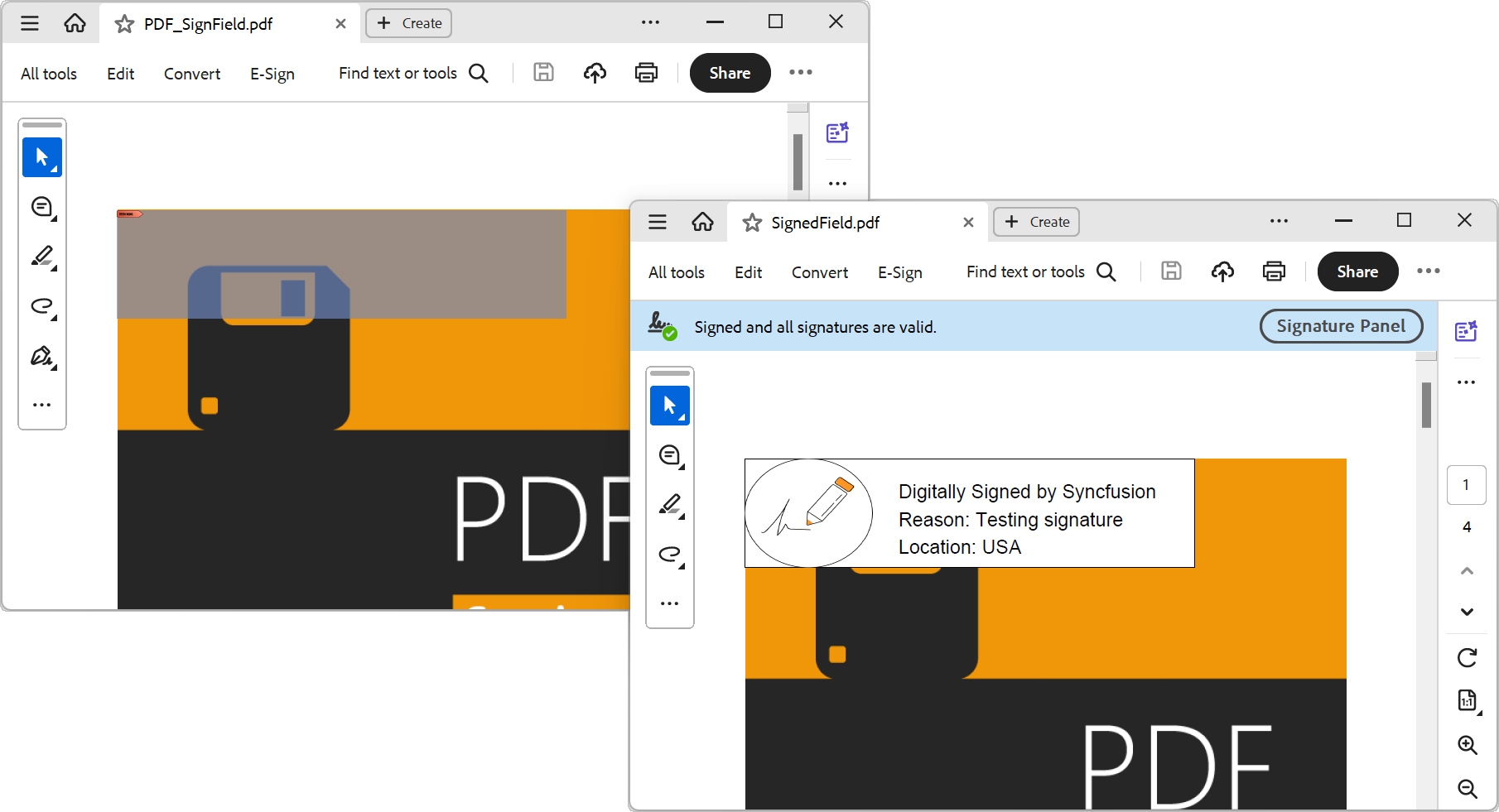
By executing this code example, you will get a PDF document similar to the following screenshot.
Add timestamps to PDF digital signatures
A digital timestamp adds a secure and verifiable date and time to a PDF digital signature, providing strong proof of when the document was signed. This is especially important for legal, financial, and compliance-related documents, where the timing of a signature is critical.
The Syncfusion .NET PDF Library allows you to integrate a timestamp server (TSA) into your digital signature process, ensuring the signature remains valid even after the certificate expires.
Benefits of timestamping PDF Signatures
- Provides verifiable proof of signing time
- Enhances long-term signature validity
- Ensures compliance with standards like PAdES and eIDAS
The following code example shows how to create a PDF digital signature in C# with a timestamp.
//Load existing PDF document.
using (PdfLoadedDocument document = new PdfLoadedDocument(@"../../Data/PDF_Succinctly.pdf"))
{
    //Load digital ID with password.
    PdfCertificate certificate = new PdfCertificate(@"../../Data/DigitalSignatureTest.pfx", "DigitalPass123");

    //Create a signature with loaded digital ID.
    PdfSignature signature = new PdfSignature(document, document.Pages[0], certificate, "DigitalSignature");

    //Change the digital signature standard and hashing algorithm.
    signature.Settings.CryptographicStandard = CryptographicStandard.CADES;
    signature.Settings.DigestAlgorithm = DigestAlgorithm.SHA512;

    //Add timestamp server link to the signature.
    signature.TimeStampServer = new TimeStampServer(new Uri("http://timestamp.digicert.com/"));

    //Save the PDF document.
    document.Save("SignedTimestamp.pdf");
}
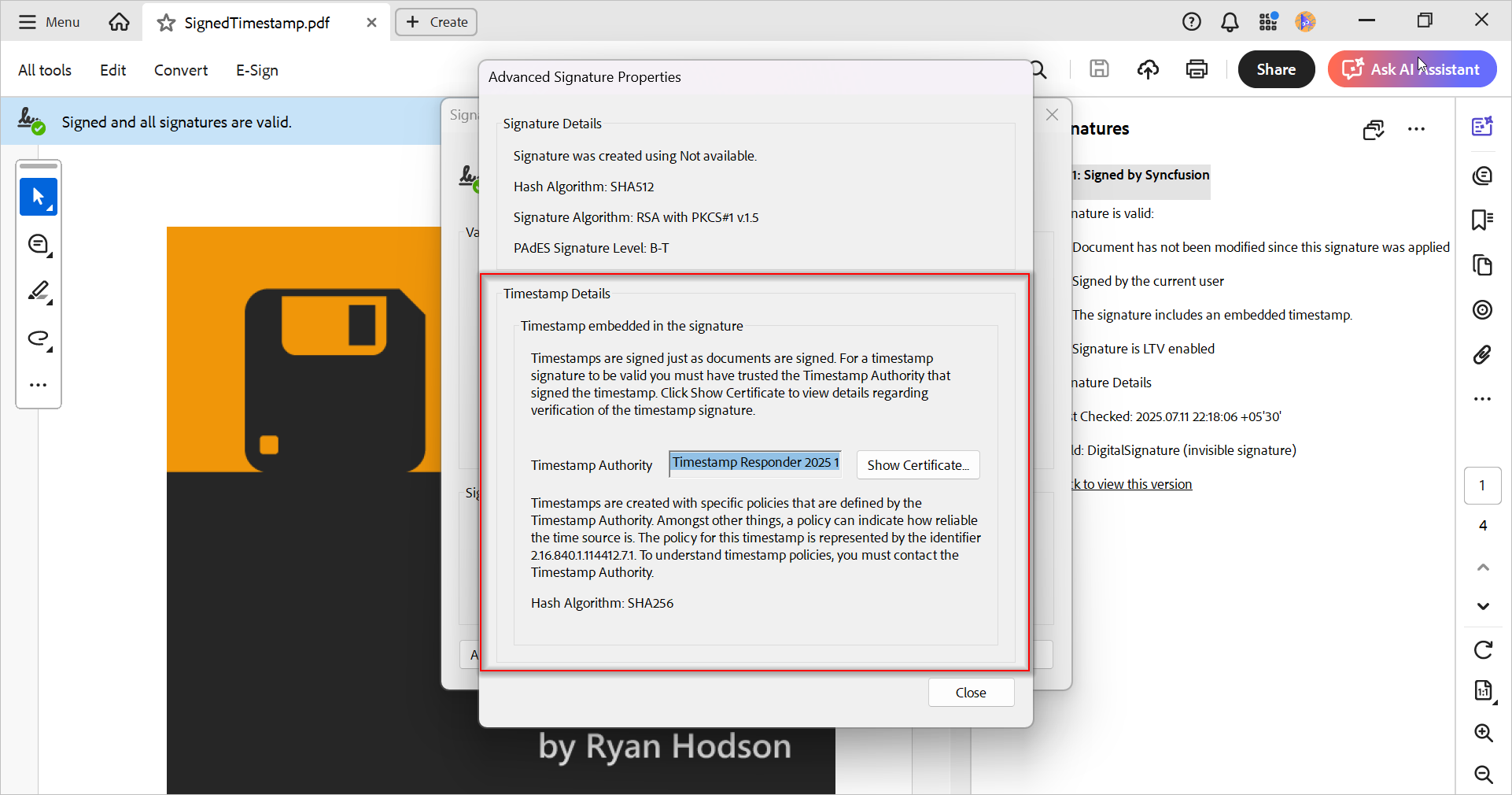
By executing this code example, you will get a PDF document with the following information.
Enable Long-Term Validation (LTV) for PDF digital signatures
Long-Term Validation (LTV) ensures that a PDF digital signature remains valid and verifiable even if the signing certificate or its issuing authority is revoked in the future. This is essential for archiving legally binding documents over extended periods.
The Syncfusion .NET PDF Library supports LTV-compliant signatures based on the PAdES B-LT standard, which captures and embeds all necessary validation data, such as OCSP responses, CRLs, and CA certificates, into the PDF’s Document Security Store (DSS) at the time of signing.
Why use LTV signatures?
- Ensures long-term signature validity
- Embeds all required validation data within the PDF
- Complies with PAdES B-LT and eIDAS standards
- Eliminates future dependency on external validation services
The following example shows how to sign a PDF document with LTV.
//Load existing PDF document.
PdfLoadedDocument document = new PdfLoadedDocument(@"../../Data/PDF_Succinctly.pdf");

//Load digital ID with password.
PdfCertificate certificate = new PdfCertificate(@"../../Data/DigitalSignatureTest.pfx", "DigitalPass123");

//Create a signature with loaded digital ID.
PdfSignature signature = new PdfSignature(document, document.Pages[0], certificate, "DigitalSignature");

signature.Settings.CryptographicStandard = CryptographicStandard.CADES;
signature.Settings.DigestAlgorithm = DigestAlgorithm.SHA256;

signature.TimeStampServer = new TimeStampServer(new Uri("http://timestamping.ensuredca.com"));

MemoryStream memoryStream = new MemoryStream();

//Save the PDF document.
document.Save(memoryStream);

//Close the document.
document.Close(true);

//Load the signed document to update LTV information.
PdfLoadedDocument signedDocument = new PdfLoadedDocument(memoryStream);

//Get the signed signature field.
PdfLoadedSignatureField signatureField = signedDocument.Form.Fields[0] as PdfLoadedSignatureField;

//Update LTV information.
signatureField.Signature.EnableLtv = true;

//Save the signed document with LTV information.
signedDocument.Save(@"SignPDFWithLTV.pdf");

//Close the signed document.
signedDocument.Close(true);
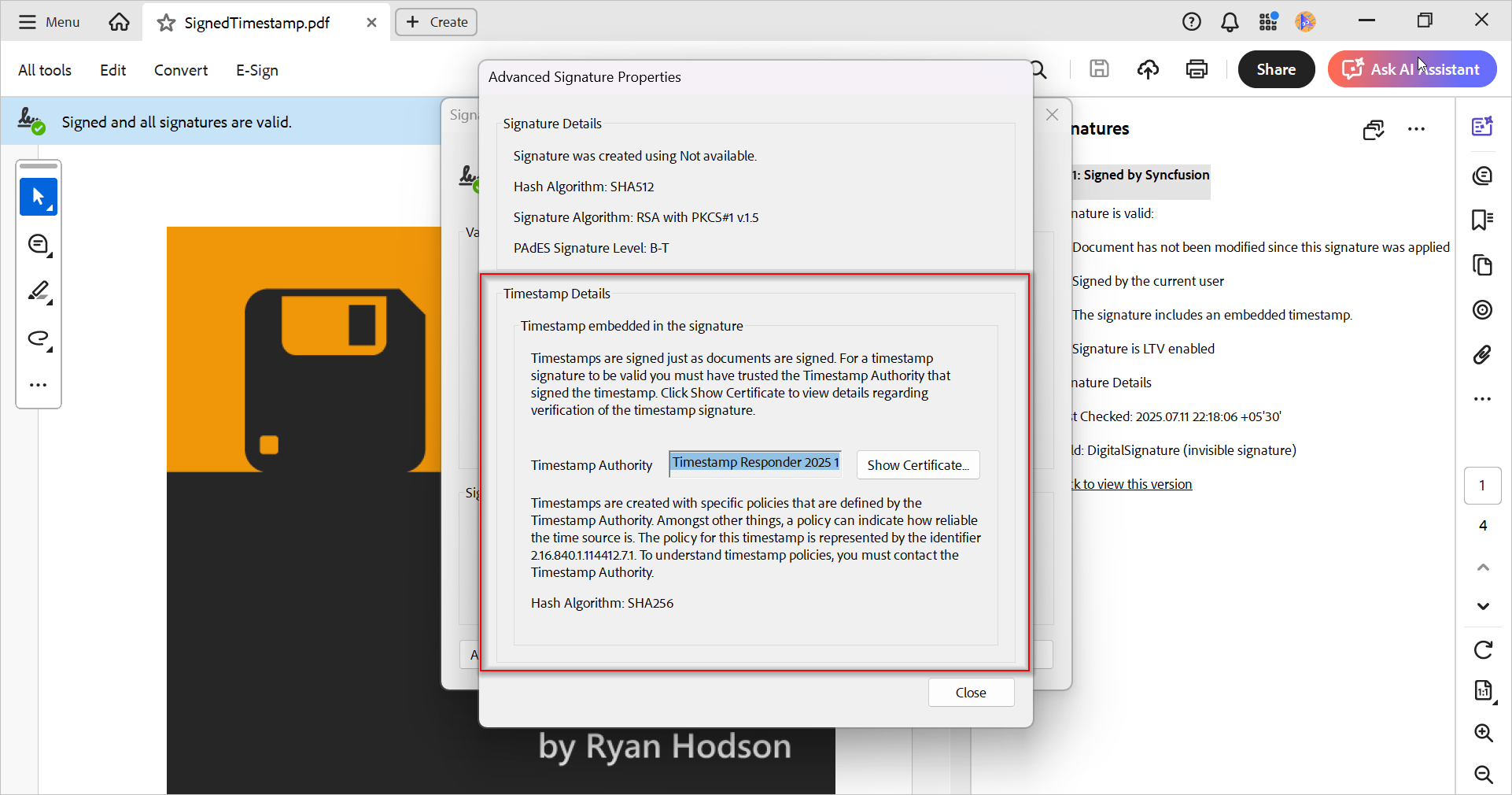
By executing this code example, you will get a PDF document similar to the following screenshot.
Note: Ensure that your certificate includes valid OCSP or CRL information to enable Long-Term Validation (LTV).
The Syncfusion .NET PDF library also allows you to enable LTV by supplying public certificates externally, as shown below:
// Create an X509Certificate2 instance from your public certificate.
X509Certificate2 x509 = new X509Certificate2("PublicCertificate.cer");

// Enable LTV using the provided public certificate.
signatureField.Signature.CreateLongTermValidity(new List { x509 });
Implement Long-Term Archive Timestamps (LTA) in PDFs
Long-Term Archive (LTA) is the next level of digital signature validation, building upon Long-Term Validation (LTV). It follows the PAdES B-LTA standard and is designed for qualified electronic signatures that require extended validity and archival compliance.
In addition to the validation data captured in LTV (like OCSP, CRL, and CA certificates), LTA also includes a document-level timestamp. This timestamp is embedded in the Document Security Store (DSS), ensuring the document’s integrity and authenticity over time—even decades after signing.
Why Use LTA Signatures?
- Ensures long-term archival of signed documents
- Adds a secure document-level timestamp
- Complies with PAdES B-LTA and qualified signature standards
- Ideal for legal, governmental, and archival use cases
The following code example shows how to sign a PDF document with LTA.
//Load existing PDF document.
PdfLoadedDocument document = new PdfLoadedDocument(@"../../Data/PDF_Succinctly.pdf");

//Load digital ID with password.
PdfCertificate certificate = new PdfCertificate(@"../../Data/DigitalSignatureTest.pfx", "DigitalPass123");

//Create a signature with loaded digital ID.
PdfSignature signature = new PdfSignature(document, document.Pages[0], certificate, "DigitalSignature");

signature.Settings.CryptographicStandard = CryptographicStandard.CADES;
signature.Settings.DigestAlgorithm = DigestAlgorithm.SHA256;

signature.TimeStampServer = new TimeStampServer(new Uri("http://timestamping.ensuredca.com"));

//Save the PDF document.
document.Save("LTV_document.pdf");

//Close the document.
document.Close(true);

PdfLoadedDocument ltDocument = new PdfLoadedDocument("LTV_document.pdf");
//Load the existing PDF page.

PdfLoadedPage lpage = ltDocument.Pages[0] as PdfLoadedPage;

//Enable the LTV (Long Term Validation) for the existing signed field
PdfLoadedSignatureField signatureField = ltDocument.Form.Fields[0] as PdfLoadedSignatureField;

signatureField.Signature.EnableLtv = true;

//Create PDF signature with empty certificate.
PdfSignature timeStamp = new PdfSignature(lpage, "timestamp");

//Configure the time stamp server for the signature.
timeStamp.TimeStampServer = new TimeStampServer(new Uri("http://timestamping.ensuredca.com"));

//Save and close the document
ltDocument.Save("PAdES B-LTA.pdf");

ltDocument.Close(true);
}
By executing this code example, you will get a PDF document similar to the following screenshot.
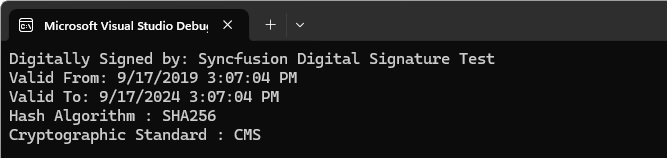
Retrieve digital signature information from PDFs
With the Syncfusion .NET PDF Library, you can easily extract and display detailed information about digital signatures embedded in a PDF document. This is useful for building applications that need to verify, audit, or display signature metadata to users.
What signature information can be retrieved?
You can extract the following details from a signed PDF:
- Issuer name: The certificate authority that issued the digital ID
- Signature validity: Whether the signature is valid or has been tampered with
- Digest algorithm: The cryptographic hash algorithm used (e.g., SHA-256)
- Signing time: The timestamp when the document was signed
- Subject name: The name of the signer
The following code example shows how to retrieve digital signature information from an existing PDF document.
//Load an existing PDF document.
using (PdfLoadedDocument document = new PdfLoadedDocument(@"../../Data/SignedAppearance.pdf"))
{
    //Get the signature field from PdfLoadedDocument form field collection.
    PdfLoadedSignatureField signatureField = document.Form.Fields[0] as PdfLoadedSignatureField;

    //Check if the signature field is signed or not
    if (signatureField != null && signatureField.IsSigned)
    {
        PdfSignature signature = signatureField.Signature;

        //Extract the signature information.
        Console.WriteLine("Digitally Signed by: " + signature.Certificate.IssuerName);
        Console.WriteLine("Valid From: " + signature.Certificate.ValidFrom);
        Console.WriteLine("Valid To: " + signature.Certificate.ValidTo);
        Console.WriteLine("Hash Algorithm : " + signature.Settings.DigestAlgorithm);
        Console.WriteLine("Cryptographic Standard : " + signature.Settings.CryptographicStandard);
    }
    else
    {
        Console.WriteLine("The signature field is not signed.");
    }
}
By executing the above code, you will get the following output.
Remove existing digital signatures from PDF
If you’re planning to revise or recreate a contract, you may need to remove existing digital signatures from the PDF document before applying for new ones. The Syncfusion .NET PDF Library allows you to programmatically remove digital signatures from a signed PDF file.
Why remove a digital signature?
- To update or recreate a contract or agreement
- To clear outdated or invalid signatures
- To prepare the document for new signers
Note: Removing a digital signature invalidates the original signature and may affect the document’s legal status. Use this feature with caution.
You can remove a digital signature from a PDF document using the following code example.
//Load an existing PDF document.
using (PdfLoadedDocument document = new PdfLoadedDocument(@"../../Data/SignedAppearance.pdf"))
{
    //Get the signature field from PdfLoadedDocument form field collection.
    PdfLoadedSignatureField signatureField = document.Form.Fields[0] as PdfLoadedSignatureField;

   //Remove signature field from PdfLoadedDocument form field collection.
    document.Form.Fields.Remove(signatureField);

    //Save the PDF document.
    document.Save("RemoveDigital.pdf");
}
By executing this code example, you will get a PDF document like the following.
Validate PDF digital signatures
To ensure the authenticity and integrity of a PDF document, it’s essential to validate its digital signatures. Manually checking each document is impractical, especially when dealing with large volumes. Fortunately, the Syncfusion .NET PDF Library provides a powerful API to automate digital signature validation across multiple PDF files.
What does PDF signature validation check?
The validation process includes:
- Detecting document modifications after signing
- Verifying the certificate chain
- Checking timestamp integrity
- Validating certificate revocation status using OCSP and CRL
- Ensuring all digital signatures are intact, even in multi-signed documents
Validate all the digital signatures present in the PDF file
The following code example shows how to validate all the digital signatures present in a PDF document.
//Load an existing PDF document.
using (PdfLoadedDocument document = new PdfLoadedDocument(@"../../Data/MultipleSignature.pdf"))
{
    //Load PDF form.
    PdfLoadedForm form = document.Form;

    if (form != null)
    {
        //Validate all the digital signatures present in the PDF document.
        bool isValid = form.Fields.ValidateSignatures(out List results);

        //Show the result based on the result.
        if (isValid)
            Console.WriteLine("All signatures are valid");
        else
            Console.WriteLine("At least one signature is invalid");
    }
}
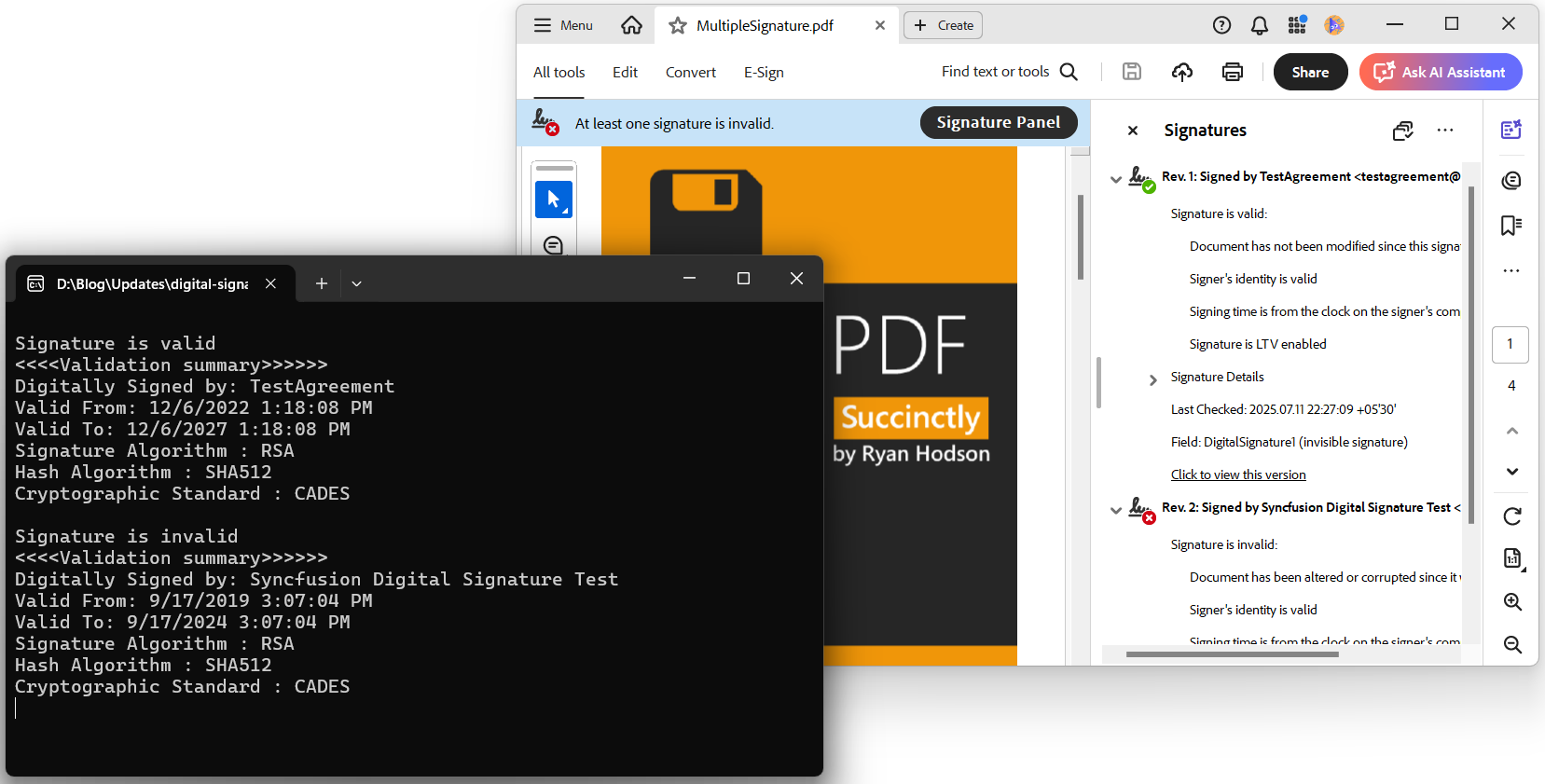
The previous code example will iterate and validate all the digital signatures present in the PDF document. If any one of the digital signatures is invalid, then the result will be false. You can also get the validation results of the individual signatures.
The PdfSignatureValidationResult contains information about each digital signature and its status. We will see more details in the upcoming topics.
Validate individual digital signatures in an existing PDF document
When a PDF document contains multiple digital signatures, it’s important to validate each signature separately to determine its individual status. The Syncfusion .NET PDF Library provides a way to iterate through all signature fields and retrieve detailed validation results using the PdfSignatureValidationResult class.
This is especially useful in scenarios where:
- You need to audit each signature independently
- You want to identify which signature is invalid
- You’re building a reporting or compliance tool
Key feature: PdfSignatureValidationResult
This class provides detailed information about each signature, including:
- Signature validity
- Certificate chain status
- Timestamp validation
- Revocation status (OCSP/CRL)
- Digest algorithm used
//Load an existing PDF document.
using (PdfLoadedDocument document = new PdfLoadedDocument(@"../../Data/MultipleSignature.pdf"))
{

    //Load PDF form.
    PdfLoadedForm form = document.Form;

    if (form != null)
    {
        foreach (PdfLoadedField field in form.Fields)
        {
           if (field is PdfLoadedSignatureField)
            {
                PdfLoadedSignatureField signatureField = field as PdfLoadedSignatureField;

                //Check whether the signature is signed.
                if (signatureField.IsSigned)
                {
                    //Validate the digital signature.
                    PdfSignatureValidationResult result = signatureField.ValidateSignature();

                    if (result.IsSignatureValid)
                        Console.WriteLine("Signature is valid");
                    else
                        Console.WriteLine("Signature is invalid");

                    //Retrieve the signature information.
                    Console.WriteLine("<<<>>>>>");
                    Console.WriteLine("Digitally Signed by: " + signatureField.Signature.Certificate.IssuerName);
                    Console.WriteLine("Valid From: " + signatureField.Signature.Certificate.ValidFrom);
                    Console.WriteLine("Valid To: " + signatureField.Signature.Certificate.ValidTo);
                    Console.WriteLine("Signature Algorithm : " + result.SignatureAlgorithm);
                    Console.WriteLine("Hash Algorithm : " + result.DigestAlgorithm);
                    Console.WriteLine("Cryptographic Standard : " + result.CryptographicStandard);
                }
            }
        }
        Console.Read();
    }
}
By executing this code example, you will get a PDF document with information similar to the following screenshot.
Validate PDF digital signatures against a Trusted Certificate List in C#
To ensure that a digital signature is trusted, you can validate it against a custom list of trusted certificates. This is especially useful in enterprise environments where you want to restrict validation to certificates issued by your organization or a specific certificate authority (CA).
The Syncfusion .NET PDF Library allows you to load certificates from the Windows Certificate Store and use them to validate digital signatures in PDF documents.
Why use a Trusted Certificate List?
- Ensures signatures are validated only against known and approved issuers
- Ideal for enterprise and internal document workflows
- Enhances control over signature trust policies
The following example shows how to load a local Windows certificate store and validate the digital signature against the Window certificate store.
//Load an existing PDF document.
using (PdfLoadedDocument document = new PdfLoadedDocument(@"../../Data/MultipleSignature.pdf"))
{
    //Load PDF form.
    PdfLoadedForm form = document.Form;

    //Load Windows certificate store.
    X509Store store = new X509Store("MY", StoreLocation.CurrentUser);
    store.Open(OpenFlags.ReadOnly | OpenFlags.OpenExistingOnly);
    X509Certificate2Collection collection = (X509Certificate2Collection)store.Certificates;

    if (form != null)
    {
        foreach (PdfLoadedField field in form.Fields)
        {
            if (field is PdfLoadedSignatureField)
            {
                PdfLoadedSignatureField signatureField = field as PdfLoadedSignatureField;

                //Validate the digital signature against Windows certificate store.
                PdfSignatureValidationResult result = signatureField.ValidateSignature(collection);

                if (result.IsSignatureValid)
                    Console.WriteLine("Signature is valid");
                else
                    Console.WriteLine("Signature is invalid");

                //Update the signatures status based on the certificate validation against certificate store.
                Console.WriteLine("Signature status: " + result.SignatureStatus);
            }
        }
    }
}
GitHub reference
You can find all the examples of create and validate PDF digital signatures in the GitHub repository.
Conclusion
In this blog post, we have walked through how to create and validate PDF digital signatures in C# using Syncfusion PDF Library.
Now you can easily include PDF digital signatures and validate them in your development process with Syncfusion PDF Library.
Take a moment to peruse our documentation, where you’ll find other options and features, all with accompanying code examples.
If you have any questions about these features, please let us know in the comments below. You can also contact us through our support forum, support portal, or feedback portal. We are happy to assist you!
If you liked this article, we think you would also like the following articles about PDF Library:
 No spam, just valuable updates.
Comments (17)
Nice article you have made.your information is useful for me thank you for sharing a needful knowledge.
thank you for sharing this valuable information
nice work ,
Hi Mr PRAVEENKUMAR,
I would like to know if Syncfusion have function to embed the adobe into web, so we can directly sign in adobe inside that web. Any suggestion will be appreciate. Thank You
Hi Shella Lim,
Yes, you can embed Syncfusion EJ2 PDF Viewer into web application to display the PDF document in the browser. Please refer the online demo sample from the following link,
Demo link: https://ej2.syncfusion.com/demos/#/material/pdfviewer/default
Documentation link: https://ej2.syncfusion.com/documentation/pdfviewer/getting-started
As of now, we don’t have support for adding a digital signature in our PDF Viewer. However, you can add a signature to the PDF document using Handwritten signature support provided in our PDF Viewer as using below steps
STEP 1: Click the Edit icon in the toolbar
STEP 2: Click the signature icon in the secondary toolbar
STEP 3: Add your sign in the popup dialogue and click the create button
STEP 4: Now, click anywhere in the PDF document to add your signature in that position.
Please let us know if you have any queries about this.
Regards,
Praveen
Very nice post. I certainly love this site.
Stick with it!
Hello Praveen,
Thanks for sharing this informative article .
Do Signatures created using these steps be considered as Class 2 Digital Signature as required by many agencies in India ? If possible could you please share some insights on how Class 2 or Class 3 Digital Signatures can be embedded to PDF reports generated using SSRS .
Hi Rohit,
We support both the self-signed and class 2 & 3 certificate using the same code stated in the article. We can use the below code for both the class 2 and class 3 digital certificates to sign the PDF document.
//Load existing PDF document.
PdfLoadedDocument document = new PdfLoadedDocument(“PDF_Succinctly.pdf”);
//Load digital ID with password.
PdfCertificate certificate = new PdfCertificate(@”DigitalSignatureTest.pfx”, “DigitalPass123”);
//Create a signature with loaded digital ID.
PdfSignature signature = new PdfSignature(document, document.Pages[0], certificate, “DigitalSignature”);
//Save the PDF document.
document.Save(“SignedDocument.pdf”);
//Close the document.
document.Close(true);
Also if you need to identify the certificate classes, then we can find it by using the certificate policy id like below.
Certificate Class OID
Class 1 2.16.356.100.2.1
Class 2 2.16.356.100.2.2
Class 3 2.16.356.100.2.3
Refer the following code to identify the certificate class.
//Load the certificate
X509Certificate2 certificate = new X509Certificate2(certificateData, password);
//Check whether the certificate is self-signed or not.
if (certificate.SubjectName.RawData.SequenceEqual(certificate.IssuerName.RawData))
{
Console.WriteLine(“Self-signed certificate.”);
}
else
{
String policyId = null;
//If the certificate is not self-signed, then get the policy id.
foreach (X509Extension extension in certificate.Extensions)
{
if (extension.Oid.FriendlyName.Equals(“Certificate Policies”))
{
policyId = GetPolicyID(extension.Format(false));
break;
}
}
if (policyId != null)
{
if (policyId == “2.16.356.100.2.1”)
{
Console.WriteLine(“Class 1 Certificate.”);
}
else if (policyId == “2.16.356.100.2.2”)
{
Console.WriteLine(“Class 2 Certificate.”);
}
else if (policyId == “2.16.356.100.2.3 “)
{
Console.WriteLine(“Class 3 Certificate.”);
}
}
else
{
Console.WriteLine(“Could not found policy identifier”);
}
}
///
/// Get the policy id
///
private string GetPolicyID(string policy)
{
string policyId;
string keyWord = “Policy Identifier=”;
int index = policy.IndexOf(keyWord) + keyWord.Length;
int nextIndex = policy.IndexOf(“,”, index);
if (nextIndex > 0)
{
policyId = policy.Substring(index, nextIndex – index);
}
else
{
policyId = policy.Substring(index, policy.Length – index);
}
return policyId;
}
Please let us know if you have any queries.
Regards,
Praveen
Nice Article
Dear Praveenkumar:
Is there any code sample, where user can draw rectangle (for positioning and sizing signature) using ej2 pdfviewer and then our razor page or cntroller gets the coordinates of the rectangle?
Please point me to right sample.
Hi Bharat,
We can draw the rectangle in the PDF document from our PDF Viewer, Please refer the following documentation for more information,
https://blazor.syncfusion.com/documentation/pdfviewer/annotation/shape-annotation/
Instead of selecting rectangle annotation mode from the toolbar, we can set the annotation mode by using the following code snippet then can draw the rectangle annotation in the PDF document directly,
Select Rectangle Annotation Mode
function selectAnnotationMode() {
var pdfViewer = document.getElementById(‘pdfViewer’).ej2_instances[0];
pdfViewer.annotation.setAnnotationMode(‘Rectangle’);
}
Please refer the following code snippet to get Rectangle bounds using annotationAdd event in Client,
function annotationAdded(args) {
var annotId = args.annotationId;
var annotBound = args.annotationBound;
}
Please refer the following code snippet to get Rectangle bounds using exportAnnotationsAsObject method in controller,
Client code
ExportObject
function exportObject() {
var pdfViewer = document.getElementById(‘pdfViewer’).ej2_instances[0];
pdfViewer.exportAnnotationsAsObject().then(function (values) {
var annotations = JSON.parse(values);
//Here also we can get the bounds
var bounds = annotations.pdfAnnotation[0].shapeAnnotation[0].Bounds;
});
}
Server code
[AcceptVerbs(“Post”)]
[HttpPost]
public IActionResult ExportAnnotations([FromBody] Dictionary jsonObject)
{
PdfRenderer pdfviewer = new PdfRenderer(_cache);
var annotations = jsonObject[“pdfAnnotation”];
var annotation = JsonConvert.DeserializeObject<Dictionary>(annotations);
for (int j = 0; j < annotation.Count; j++)
{
var annotationcollection= annotation[j];
var exportedAnnotations = JsonConvert.DeserializeObject<Dictionary>(annotationcollection.ToString());
var shapeAnnotationCollection = JsonConvert.DeserializeObject<List<Dictionary>>(exportedAnnotations[“shapeAnnotation”].ToString());
for (var s = 0; s < shapeAnnotationCollection.Count; s++)
{
Dictionary shapeAnnotation = shapeAnnotationCollection[s];
// Here we can get the bounds for rectangle annotation
Dictionary bounds = JsonConvert.DeserializeObject<Dictionary>(shapeAnnotation[“bounds”].ToString());
}
}
string jsonResult = pdfviewer.GetAnnotations(jsonObject);
return Content(jsonResult);
}
We have prepared the simple sample to add Rectangle in PDF page and get the bounds for that rectangle and it can be downloaded from the following location,
Sample Location: https://www.syncfusion.com/downloads/support/directtrac/general/7z/PdfViewerSample-13757716631463818922.7z
If you still need further assistance please create a support ticket with more details about your requirement, it will be helpful for us to investigate further and assist you better.
Regards,
Praveen
Hello Praveen, how can I loop through annotations on a pdf and replace the annotation with a signature popup control?
Hi Scott,
We can able to loop through the annotation in the PDF document and replace it with a signature field. Please refer the below code snippet for more details,
//Load PDF document
PdfLoadedDocument loadedDocument = new PdfLoadedDocument(“../../Data/Annotation.pdf”);
for (int i = 0; i =0; j–)
{
//Get bounds from annotation
RectangleF bounds = annotationCollection[j].Bounds;
//Remove the annotation
annotationCollection.RemoveAt(j);
//Create PDF Signature field
PdfSignatureField signatureField = new PdfSignatureField(loadedPage, “Signature”);
//Set properties to the signature field
signatureField.Bounds = bounds;
signatureField.ToolTip = “Signature”;
//Add the form field to the document.
loadedDocument.Form.Fields.Add(signatureField);
}
}
//Save the PDF document
loadedDocument.Save(“Sample.pdf”);
loadedDocument.Close(true);
Please try the above solution in your end and let us know if you have any concerns on this.
Regards,
Sowmiya Loganathan
Thank you Sowmiya! This works great!
One thing I noticed. After the signature control is added, when the user applies his signature and the control loses focus, the user cannot go back to the control and change his signature. Is that default behavior or is there a way to ensure the user can change the signature if they do not like it?
Hi Scott,
Once the signature is added to the signature field, we cannot change it (or go back to the signature field) and this is the behavior. If your requirement is to add the image (i.e., JPEG) to the signature field, we can achieve your requirement by using PdfRubberStampAnnotation (add an image in the appearance of the annotation). If we use RubberStampAnnotation to add the image, we can easily edit it. Please refer to the below sample for more details,
Sample: https://www.syncfusion.com/downloads/support/directtrac/general/ze/AnnotationSample-765982694
Output document: https://www.syncfusion.com/downloads/support/directtrac/general/pd/RubberStamp-24308161
Please try the above sample on your end and let us know if it satisfies your requirement.
Regards,
Gowthamraj K
Hi PRAVEENKUMAR,
I would like to use syncfusion to check if the pdf has digital signature or not. Do I need a license to use syncfusion for this purpose.
Thanks,
NP
Hi Nisha
Yes, you will need the license to consume the Syncfusion .NET PDF library. Otherwise, a watermark will be added to the generated PDF document.
The whole suite of controls is available for free (commercial applications also) through the community license ( https://www.syncfusion.com/products/communitylicense) program if you qualify. The community license is the full product with no limitations or watermarks.
Regards,
Praveen
TY for the useful information! I wouldnt have gotten this myself!